
Before you start
- Turn on your Online Store, your Mobile App or both. See Adding a Store and Turning On the Online Store or Mobile App.
- A card for Promotions, Refer a friend, Top-up packages or Membership needs its page switched on first. See Switch optional pages on or off below.
Open the Orders page
- Go to ⚙️ Settings › Sales channels › Online Store & Mobile App.
- On the store card, click Edit Online Store & Mobile App. With only one product on, it says Edit Online Store or Edit Mobile App.
- Under Pages, click Orders.
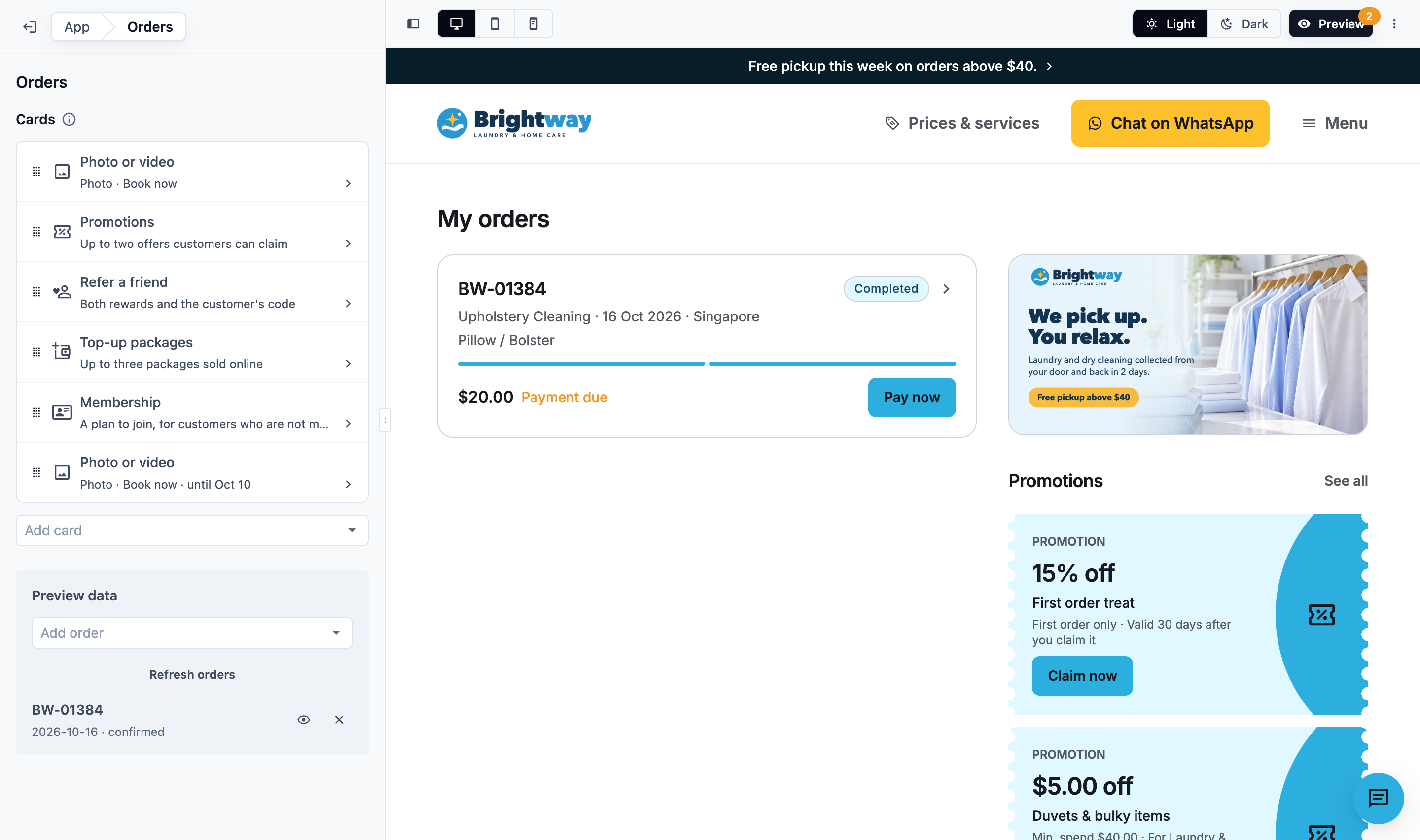
What customers see on My orders
Your web address opens My orders. In the Mobile App, it is the Orders tab.
- Orders that are still running come first, one under another. Past orders are below them, with Load more for older ones.
- A customer who isn't signed in sees Sign in to view orders, with your cards.
- With no running orders, the page says You don’t have any active orders, with Book now.
Each order shows:
| Part | What it shows |
|---|---|
| Top line | The order number and its status |
| Second line | The business unit and the order date, for example "Laundry & Dry Cleaning · 22 Sep 2026" |
| Items | The first few items. Before you add the items, the services the customer booked |
| Progress | For a running order: a progress bar, what is happening now, and the next pickup, visit, delivery or collection, for example "Pickup · Thu 4 Sep, 10:00–12:00" |
| Money | The total, with Paid, Payment due or the amount still due. Pay now shows when your store takes payment online for that order. Until the order is priced, it says Price to be confirmed |
Tapping an order opens its own page, with its progress, schedule, items and payments. To let customers reschedule or cancel there, see Setting Up Cancel and Reschedule.
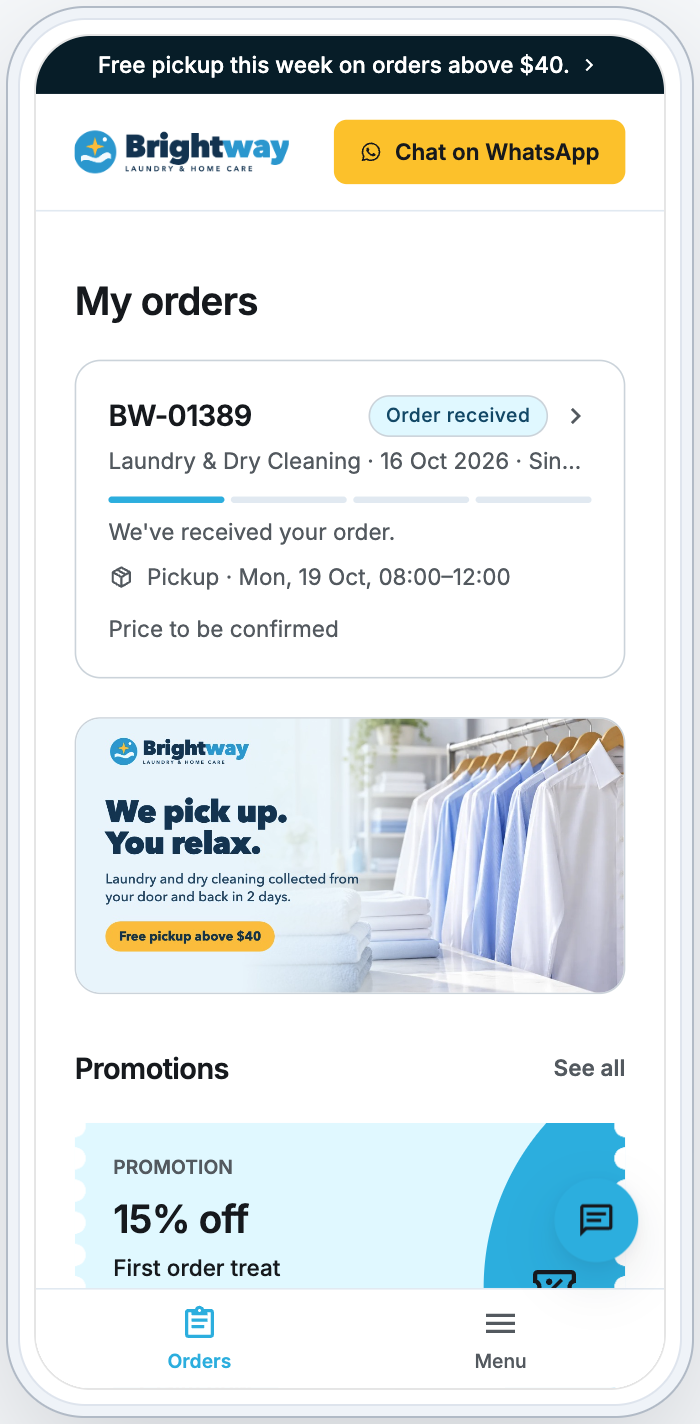
Add cards beside the orders
Cards show beside the orders on a computer, and under the running orders on a phone and in the Mobile App.
- On the Orders page, under Cards, click Add card and choose a card. A card you can't add yet says why, such as Turn on the Promotions page first.
- Drag the cards into the order you want customers to see them.
- To change a card, click it. To remove it, click it, then Remove card.
You can add up to 12 cards. Each card can be added once, except Photo or video, which you can add as often as you like.
| Card | What customers see | What it needs |
|---|---|---|
| Photo or video | Your own promotion. Tapped, it opens in full with your text and a button | A photo, or an MP4 video under 50 MB |
| Promotions | Up to two of your offers, each with Claim now, and See all | The Promotions page on, with offers customers can claim |
| Refer a friend | Both rewards, the customer's own code and Invite friends | The Refer a friend page on, with its rewards set |
| Top-up packages | Top up your wallet: up to three packages sold online, each opening its payment, and See all | The Wallet page on, with packages sold online. Shown only to signed-in customers |
| Membership | A plan to join, with its price and term, and Join now | The Membership page on, with a plan sold online. Not shown to members |
| Get the app | Get the app, with your App Store and Google Play buttons | On your Online Store only, once your app is in a store (see below) |
A card with nothing to offer a customer isn't shown, such as Promotions with no offers. Customers who haven't signed in still see your cards. Claiming an offer asks them to sign in first.
Set up a Photo or video card
Click the card to open its settings.
| Setting | What it does |
|---|---|
| Photo or video | The card shows it 2:1 (for example 1200 × 600), cropped to fit. A video shows its first frame, and plays when the card is tapped. Videos must be MP4 and under 50 MB |
| Text (optional) | Up to 300 characters, shown under the photo or video when it opens |
| Button | What the button opens: Book now, Prices & services, Promotions, Refer a friend, Wallet, Membership, Repeat orders, A web page, or No button |
| Business unit | With Book now, when you have two or more business units on Checkout: the unit the booking starts with, or Customer chooses |
| Web address | With A web page: the page to open, such as yourwebsite.com/sale |
| Show until (optional) | The last day the card shows. Click No end date to clear it |
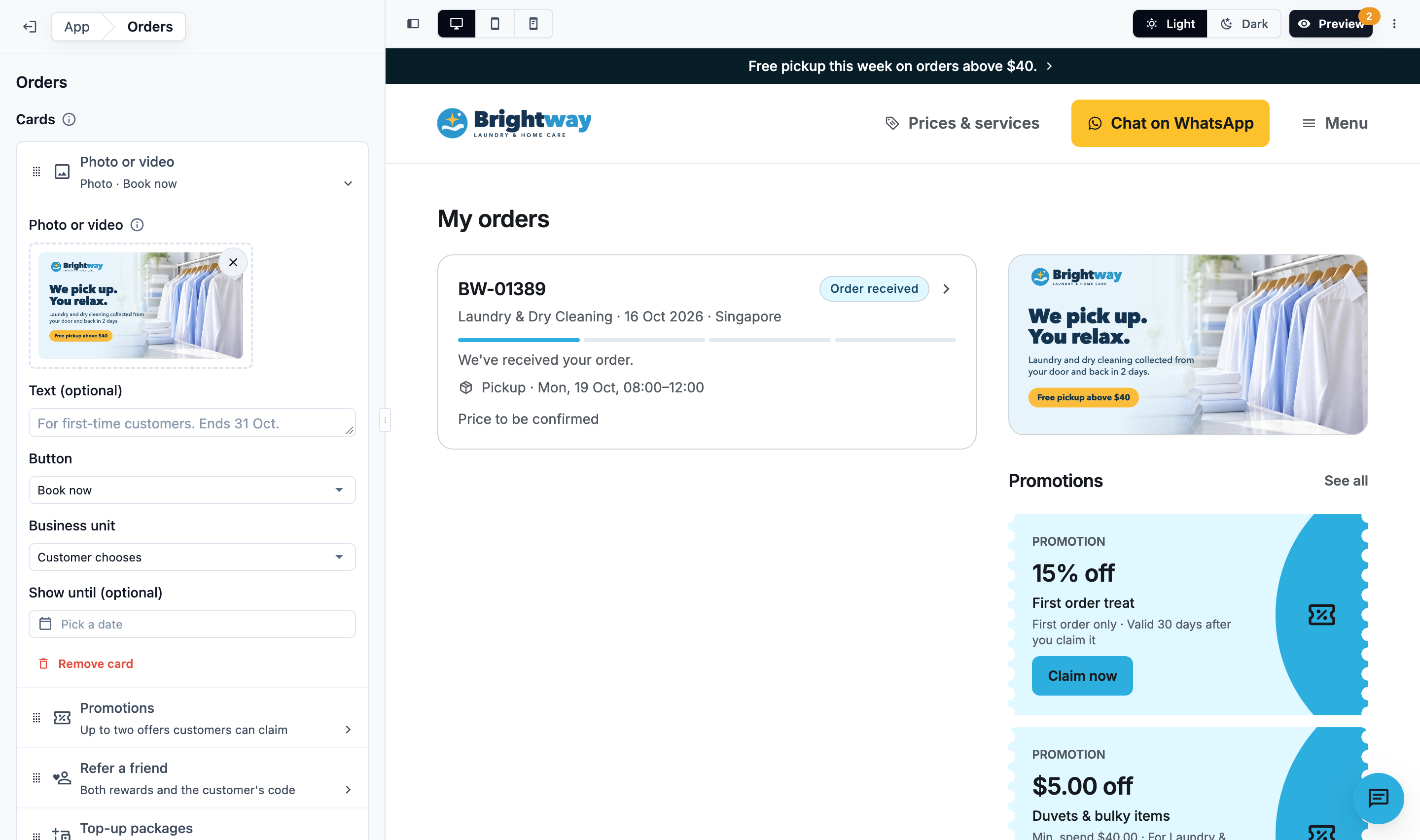
On the card's button, customers see the page's name, such as Book now or Prices & services. A web page button says Learn more. If the button's page is switched off in your store, the card opens with no button.
Example: Brightway Laundry adds a photo of its October offer. Text: "For first-time customers. Ends 31 Oct." Button: Book now. Show until: 31 Oct. From 1 Nov, customers no longer see the card.
Get the app card
- It shows on your Online Store only. Customers in your Mobile App already have the app.
- You can add it once your Mobile App is in the App Store or Google Play. EasyBiz then adds your app's links to the store card's Store listing. Until then, it says Add your App Store or Google Play link in the Mobile App's Store listing first.
- If your app's links change, the card says Your app's store links have changed. Click the card, then Use the new links.
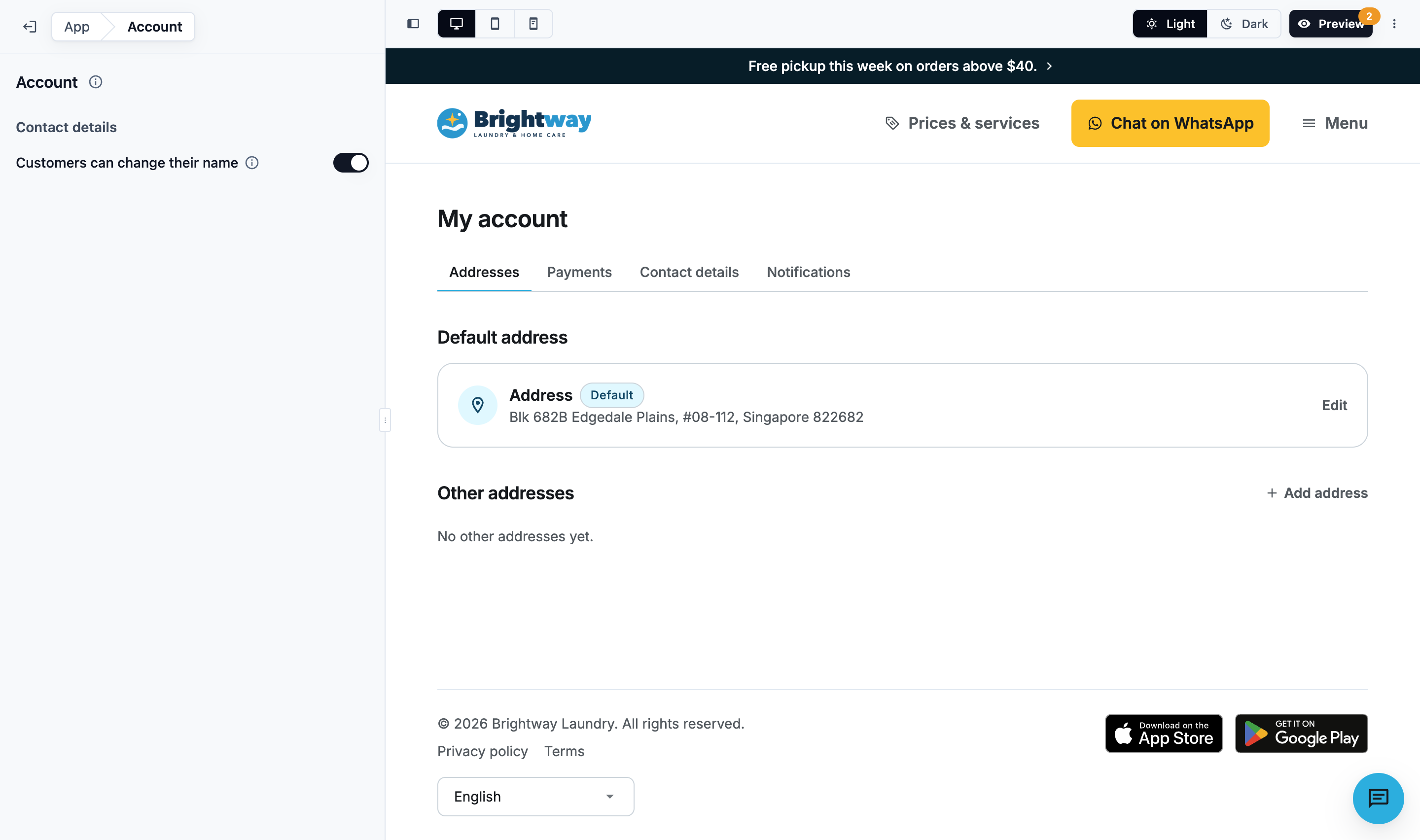
Choose what customers can change on My account
- In the editor, under Pages, click Account.
- Under Contact details, switch Customers can change their name on or off.
| Customers can change their name | What happens |
|---|---|
| On (the default) | Customers can change their name on My account |
| Off | Customers give their name when they sign up. After that, only your staff can change it. My account says "Get in touch if your name needs to change." |
It applies to the Contact details step of a booking too. A customer with no name on their account yet can still add one.
Which contact details customers must give, such as an email or mobile number, is set on the Sign in page. See Customer Sign-In and Sign-Up.
What customers see on My account
| Tab | What customers do there |
|---|---|
| Addresses | Add and edit their addresses, and choose a default |
| Payments | See their saved cards, add or remove one, and choose a default. Shown only when your store takes card payments online |
| Contact details | Change their name (when you allow it), and change their email or mobile number with a one-time code sent to the new one. If you ask for marketing consent, they can change their answer here |
| Notifications | Turn on notifications on this device, and choose Order updates and Messages from your store |
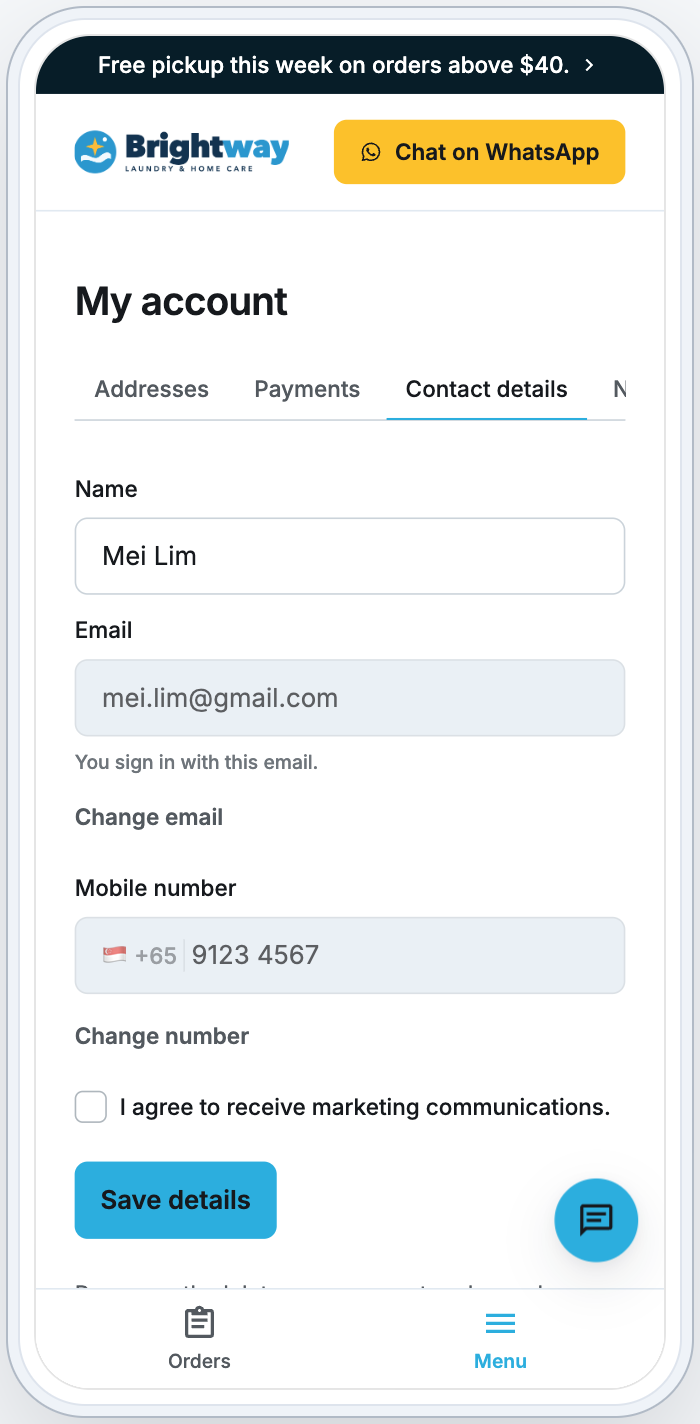
- With HitPay, a customer needs an email on their account to save a card.
- In the Mobile App, My account also has Language, Country (in a store that sells in more than one country) and Sign out. On your Online Store, language and country are in the footer, and Sign out is in the Menu.
- For notifications, see Order Updates for Online Customers.
Delete account
Customers can delete their own account once EasyBiz switches account deletion on for your business. Ask EasyBiz to switch it on. Apple and Google ask for this for your Mobile App.
- Delete account then shows at the end of the Contact details tab.
- The customer verifies with a one-time code, ticks "I understand that account deletion is permanent." and clicks Delete account.
- Their profile, addresses, saved cards and sign-in are deleted. Receipts, invoices and payment records stay for the period the law requires, without their name or contact details.
- If an order or booking is still open, or something is still owed, the customer sees what it is and how to contact you, and the account isn't deleted yet.
Switch optional pages on or off
Under Pages, open the page and switch it on. A page that is off shows Hidden, and its card doesn't show on the Orders page.
| Page | Switch | Learn more |
|---|---|---|
| Wallet | Offer a wallet | Setting Up Your Store Credit Program |
| Promotions | Offer promotions | Setting Up Coupons and Online Promotions |
| Repeat orders | Offer repeat orders | Setting Up Repeat Orders |
| Refer a friend | Offer referrals | Setting Up Refer a Friend |
| Membership | Sell memberships | Setting Up Membership Plans |
Make it live
Cards, the Account setting and page switches are saved as you go, but customers see them only after you publish:
- Click Preview and check My orders and My account.
- Click Publish.
See Edit, Preview and Publish Your Online Store.
FAQs
Why doesn't a card show on my store?
It may have nothing to offer that customer (no offers to claim, or they're already a member), its page may be switched off, its Show until date may have passed, or you haven't published yet. Top-up packages show only to signed-in customers.
Do customers see orders they placed at my shop?
Yes, when your shop sells under the same Brand Profile as this store. My orders lists all of that customer's orders for the brand.
Can customers change their email or mobile number themselves?
Yes, on the Contact details tab, with a one-time code sent to the new email or number. If it's already on another account, they're asked to get in touch. If both accounts are theirs, merge the two contacts. See Merging and Deleting Duplicate Contacts.
Can I rename My orders or My account?
No. Page names are EasyBiz's own, translated into your customers' language.
My video won't go on the card.
Use an MP4 video under 50 MB. Phones, CapCut and Canva can all save one. If it still doesn't play, save it again as an MP4 and upload that.
What's next
Let customers reschedule or cancel from their order page: Setting Up Cancel and Reschedule.