
Before you start
- Turn on your Online Store, your Mobile App or both. See Adding a Store and Turning On the Online Store or Mobile App.
- Set up Customer Notifications for the updates you want to send. See Automatic Order Notifications Explained.
There is nothing to switch on in the store editor. Notifications work in your Mobile App, and in browsers that support them on your Online Store.
How customers hear about their orders
- Push notifications in your Mobile App, or in the customer's browser on your Online Store, once they turn notifications on. Push is free.
- WhatsApp messages from your Customer Notifications. A notification with a push sends its WhatsApp message only to customers the push can't reach, unless you choose to send both.
- Emails from your Customer Notifications that have an email template. They always go out.
How customers turn on notifications
The store asks on each phone and browser at these moments, never as soon as it opens:
- After a booking. The Booking confirmed card shows "Get a notification as your order progresses." and Turn on notifications. Once they allow it, the card says "Notifications are on. We’ll let you know as your order progresses."
- In live chat. When they send their first message.
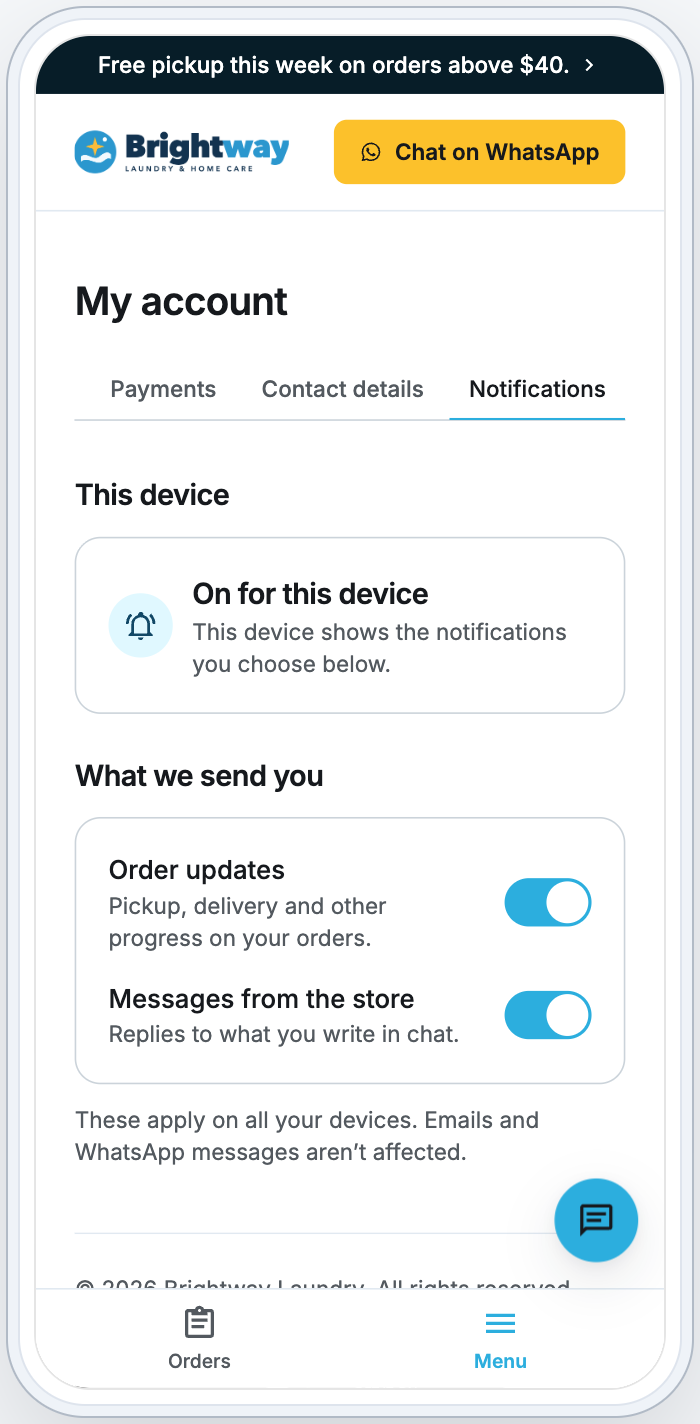
- In My account › Notifications, any time: Turn on under This device.
Each time, their phone or browser asks them to allow notifications.
- Until a phone or browser has been asked, a small crossed-out bell beside Account in the menu reminds the customer. It goes once they open My account › Notifications.
- A customer who says no isn't asked again. To change their mind, they allow notifications in their browser's site settings or their phone's settings. My account › Notifications tells them where.
- On an iPhone or iPad, browser notifications work only once the store is on the Home Screen: "tap Share, then Add to Home Screen, and open it from there." Until then the store doesn't offer them. Your Mobile App doesn't need this.
- Signing out stops notifications on that phone or browser.
What customers control
In My account › Notifications:
| Part | What it shows |
|---|---|
| This device | Whether this phone or browser shows notifications: On for this device, Off on this device with Turn on, Blocked on this device, Add this store to your Home Screen or Not available here |
| Order updates | "Pickup, delivery and other progress on your orders." |
| Messages from (your store's name) | "Replies to what you write in chat." |
The two switches apply on all the customer's devices: "These apply on all your devices. Emails and WhatsApp messages aren’t affected." A customer who turns Order updates off gets the notification's WhatsApp message instead of the push, when it has one.
Set up order updates by push
Push messages come from your Customer Notifications.
- Go to ⚙️ Settings › CRM › Customer Notifications.
- Click Add Notification, or open a notification's menu and click Edit.
- Choose the Trigger Event, for example Logistic pickup completed.
- Fill in Push notification title and Push notification text. Type @ to add details such as Customer Name or Order Number.
- If the notification also has a WhatsApp Template, leave Send WhatsApp only when push can’t reach the customer on, or turn it off to send both.
- Click Add or Update.
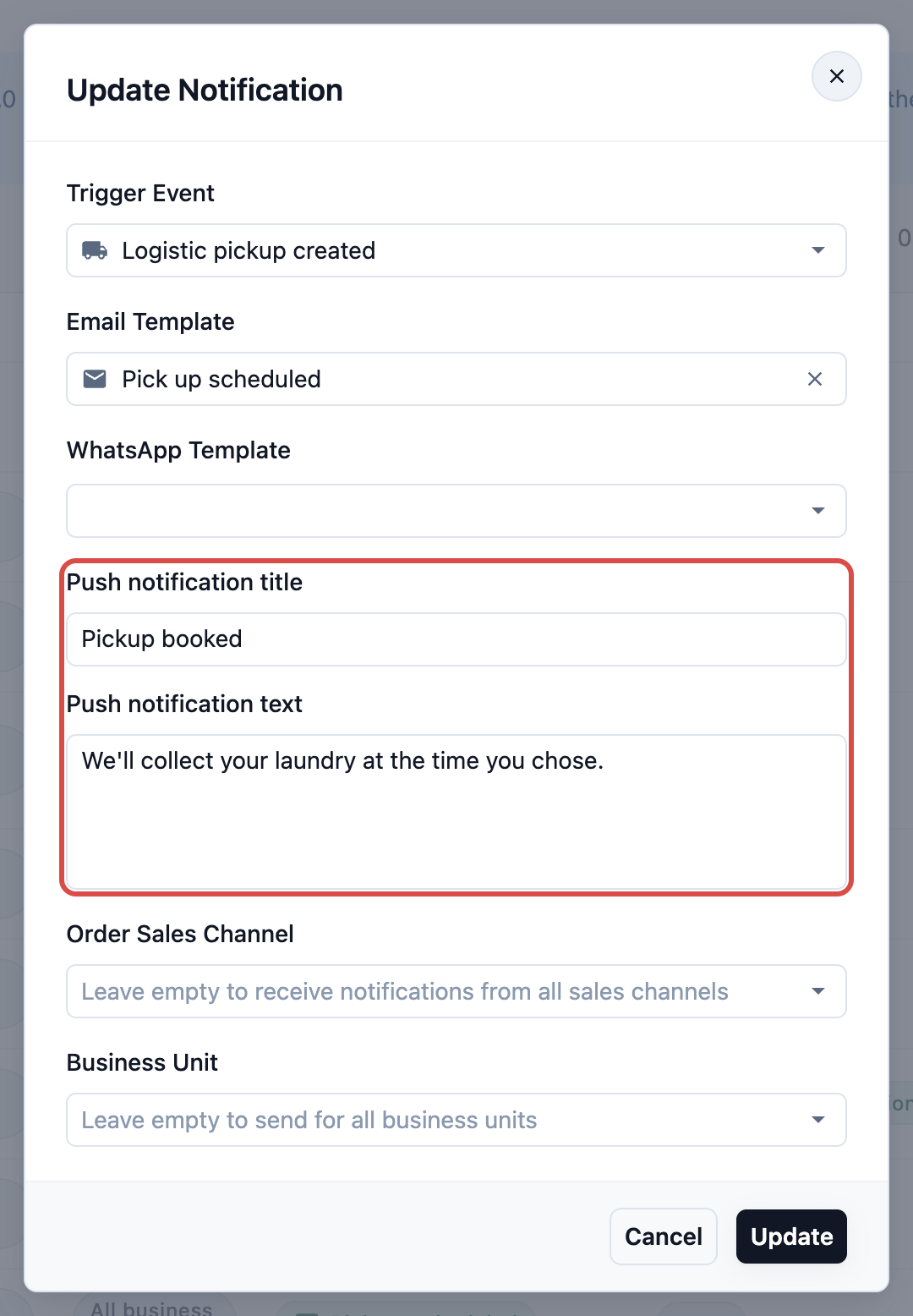
- A notification without a push title sends no push. Clearing the title turns push off for it.
- For pickup, delivery and service triggers, @ also offers Job Type, Job Date, Job Time and Job Address.
- Tapping the push opens that order in your Mobile App or store.
When WhatsApp still goes out
With Send WhatsApp only when push can’t reach the customer on (the default):
- When the push reaches a phone or browser on which the customer used your store or app in the last 30 days, the WhatsApp message isn't sent.
- Otherwise it goes out, for example to a customer who never turned notifications on, turned Order updates off or signed out.
- An email in the same notification always goes out.
Turn the switch off to send both the push and the WhatsApp message.
Once a push has gone out, the Customer Notifications page shows this month's results: "Push this month: … delivered · … failed · … opened · … WhatsApp messages saved".
Live chat replies
- Each reply your team sends from the Inbox reaches the customer as a push, titled with your brand name. Tapping it opens the chat.
- Customers turn these off with Messages from your store, in My account › Notifications.
- If a reply is still unread after about 10 minutes, the customer gets one email: "(your brand) replied to your message", with the reply and a link to the chat. If they last wrote from your Mobile App, the email asks them to open the app instead. They get another email only after they have opened the chat again.
- Customers with no email on their account get no email.
See Setting Up the Contact Widget and Live Chat.
Test orders
Orders placed in Preview are test orders, numbered with #T. They send customers nothing: no push, no WhatsApp message and no email. Preview itself doesn't offer notifications.
FAQs
Does push cost anything?
No. Push notifications are free, so each customer the push reaches saves you a WhatsApp message.
A customer got both a push and a WhatsApp message. Why?
Check the notification. With Send WhatsApp only when push can’t reach the customer off, both go out. With it on, WhatsApp also goes out when the push reached none of the phones or browsers on which the customer used your store or app in the last 30 days.
Can customers turn off WhatsApp messages or emails in My account?
No. My account › Notifications controls push notifications only.
Why don't my iPhone customers see Turn on notifications?
In a browser on an iPhone or iPad, notifications work only once the store is on the Home Screen and opened from there. Your Mobile App doesn't need this.
What's next
Choose which events send a message: Automatic Order Notifications Explained.