
Before you start
- Your Online Store or Mobile App takes bookings. See Introduction to Online Store & Mobile App.
- Saved cards need Stripe or HitPay. See Taking Payments on Your Online Store.
Find your online orders
Online orders are in the same list as your other orders.
- Go to Sales › Orders.
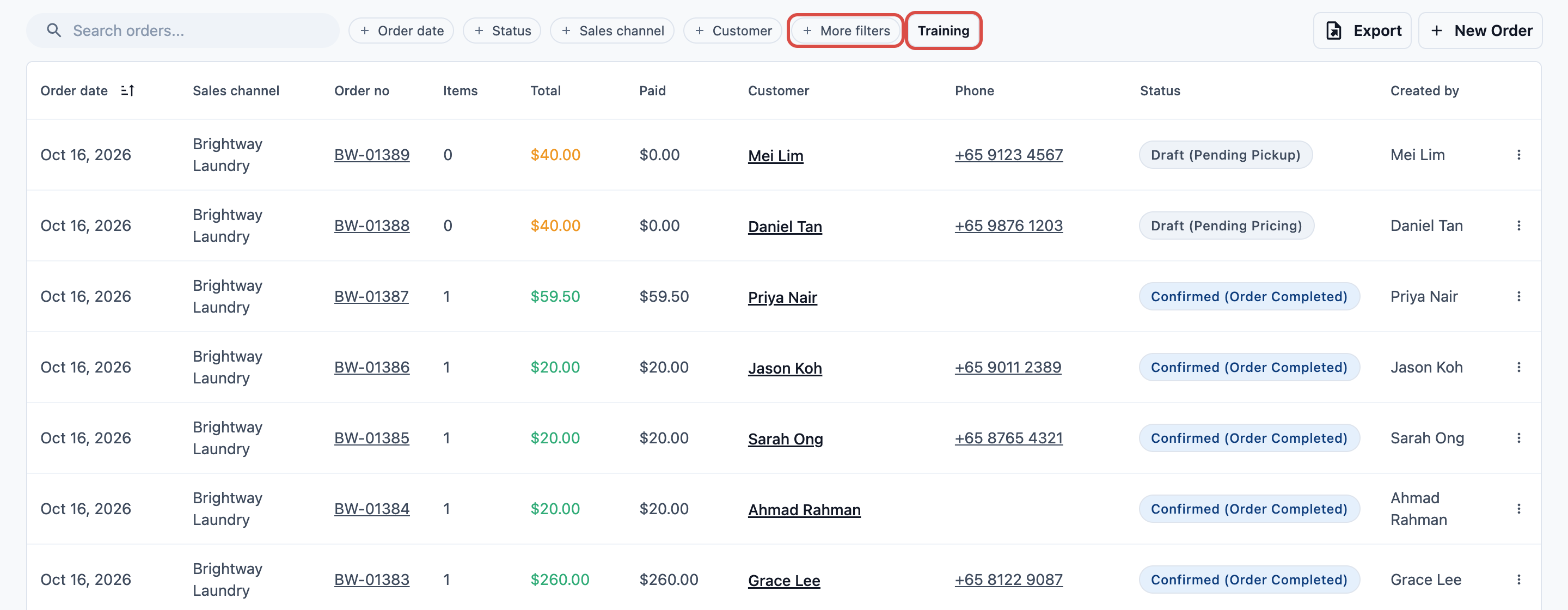
- Click More filters, then Order source.
- Choose Online store/app.
The list now shows only the orders customers placed online: on your Online Store or Mobile App, or on an older online store or app. To see one store's orders, use the Sales channel filter and choose that store's channel.
What an online order shows
Click an order to open it.
| Where | What you see |
|---|---|
| Line Items | What the customer booked. An order you price after pickup has no items yet. Under the items, Booking details lists the customer's answers to your checkout's questions, each under the question's name |
| Customer acknowledgements | The terms the customer ticked, if your checkout asks for any. A term they didn't tick shows Not ticked |
| Order note | The note the customer added at booking, such as a gate code, when your schedule step lets customers add a note. It shows in the note box beside the order, where staff can edit it |
| Photos | The photos the customer added on their order page, if your order page has a Photos section |
| History | Starts with New order and the customer's name, then every change |
Pickups, deliveries and visits: each one the customer booked becomes a job. A job shows its date and time, the address the customer booked for, and their note. You see jobs under Logistic › Jobs, in the Scheduler and on the Job Map. If your order page has a Jobs section, they show there too.
Photos from the customer: while an order is open, a signed-in customer can add up to 10 photos on its page in your Online Store, such as the rooms to clean. The page says "Add photos of what needs doing, so we can quote or prepare." Each one shows Customer added a photo in History.
Test orders from Preview
Orders you place in the store editor's Preview are test orders.
- They have their own counter, with #T- in the number, for example BW-#T-00001. Your real order numbers don't move.
- No booking confirmation or customer notification is sent, and a saved card is never charged. Your staff notifications still go out.
- They stay out of your sales records. A test order's receipt says TRAINING ORDER and NOT A VALID TAX INVOICE.
Test orders are hidden from the Orders list. Click Training at the top of the list to see only test orders. Each one shows a Training badge. Click Training again to go back to your real orders.
Confirm the price
Some online orders don't have a final price yet: bookings you price after pickup, or with an item priced on request. The customer sees Price to be confirmed, and can't pay yet.
When you know the price:
- Open the order and add or check the items.
- At the top of the order, click Confirm order. If the order is already confirmed, the button says Confirm Price.
- Check the Total and click Confirm.
You see "Order confirmed successfully." The customer can now pay, or sees that their saved card "will be charged automatically when your order is ready".
If Confirm is greyed out, the pop-up says why: add the items first, or price the item the customer booked without a price.
If your order steps include a quote, the button says Send Quote or Mark as quoted instead. See Send a quote, below.
When a saved card is charged
The customer's saved card is charged once, for the balance, after the price is confirmed and when the order is ready:
- every item is packed; or
- the order is handed over at the counter; or
- a delivery or on-site service job is completed.
A pickup never charges. If the order is already packed or handed over when you confirm the price, confirming charges the card straight away. Store credit the customer chose at booking pays at the same moments. See Taking Payments on Your Online Store.
Send a quote
A booking with a line the store shows as Price on request can wait for your quote. This happens when your business unit's online order steps include Pending Quotation and Pending Confirmation.
A new Home Cleaning or Aircon Service business unit starts with these 2 steps. There, a booking priced at checkout skips them and is confirmed at once. Only a booking with a Price on request line waits for a quote.
The order waits at Pending Quotation. The customer sees Price to be confirmed, and nothing is charged.
To send the quote:
- Open the order. Set the price of each line the customer booked without one, and add or change any other items.
- At the top of the order, click Send Quote.
- Check the customer's Email or WhatsApp, if shown, then click Send.
The order moves to Pending Confirmation. The customer gets the quote by the email, WhatsApp or push message your customer notifications send when an order is quoted. If none is set, the button says Mark as quoted instead. Click it, then send the customer the order's Tracking link (below), so they can open the quote.
What the customer does
At the top of the order's page in your Online Store, the customer sees Your quote is ready: "Total … Accept it to confirm your booking, or decline it to cancel." They can answer signed in, or from the order's Tracking link.
- Accept quote: the order is confirmed, just as if you clicked Confirm order, and moves on to its next step.
- Decline: the customer is asked "Decline this quote?" first. Then the order is cancelled, with any visit booked for it. The staff member who sent the quote gets a Quote declined notification.
If you change the order after sending the quote, an answer to the old quote is refused. The customer sees "The quote was updated. Check it again before you answer."
You can also confirm the order yourself, for example when the customer says yes on the phone. While the order waits, the button at the top says Confirm order.
When a card charge fails
When a saved card can't be charged, or the customer's store credit doesn't cover the balance:
- A banner shows at the top of every Console page: Card charge failed (or Store credit payment failed), with the order number and the reason. It is also listed under Alerts (the bell).
- Staff who handle payments get an Auto payment failed notification.
- The customer's order says "We couldn't charge … automatically. Please pay now." with a Pay now button.
On the banner:
- Review opens the order.
- Dismiss banner hides the banner from your screen. The alert stays open until the order is paid or cancelled.
What to do:
- Click Review to open the order.
- To charge the card again, click Collect under Amount due and choose Card on file. A declined card isn't tried again by itself.
- Or ask the customer to pay: send them a Payment Link (below), or let them pay with Pay now on their order.
The alert clears when the order is paid in full or cancelled.
When a customer cancels or reschedules
Customers can cancel or move their own booking only if you allow it, in each business unit's Cancel & reschedule settings. See Setting Up Cancel and Reschedule.
- The customer cancels: the order shows Cancelled, its open pickups, deliveries and visits are cancelled, and History shows Order cancelled with the customer's name. A coupon used on it can be used again.
- The customer cancels inside your Late cancellation window: the order is closed with your late cancellation fee instead. Its visit is cancelled, a credit note credits back the rest, and a saved card the customer chose at booking is charged the fee. History shows what was kept, for example "Late cancellation: closed keeping 50% (SGD 54.50) as the fee".
- The customer reschedules: the job moves to the new time, and History shows the change, for example "Customer rescheduled pickup: …".
Customers can't cancel an order that has a payment on it. They are asked to contact you, and your staff cancel it and handle any refund.
Close an order with a fee
When a customer calls to cancel at the last minute, or your worker couldn't get in, staff can close the order keeping your business unit's late cancellation or lockout fee:
- At the bottom of the order, click Close with fee.
- Choose Late cancellation or Lockout: the worker could not get in. The window shows what you keep, for example "Keeps SGD 54.50 (50%) as the fee".
- If you like, add a Note, then click Close with fee.
You see "Order closed with the fee". The order is closed, not voided: its open visits are cancelled, the rest is credited back, and a saved card is charged the fee. Without one, the fee stays owed.
The button only shows on an open, unpaid order that has a price, when its business unit charges a fee, and to staff whose role can cancel orders. To cancel with no fee, use Cancel order. See Setting Up Cancel and Reschedule.
Complete a visit
When your worker has finished a visit, complete its job. Either:
- Go to Logistic › Jobs, tick the job and click Mark as complete. In Mark jobs complete, click Update.
- Or, on the order page, click Complete in the visit's menu, then Confirm. This is if your order page's Jobs section offers it.
Completing the order's last open visit completes the order. A saved card is charged then, as above.
The customer's rating
Once the order is completed, the customer sees How did we do? on its page in your Online Store. They pick 1 to 5 stars, can add a comment under "Tell us more (optional)", and click Send rating. They can rate an order once, signed in or from its Tracking link. History shows the rating, for example "Customer rated 5/5".
If your Company has a Google review link, everyone who rates then sees Review us on Google, whatever stars they gave. Google doesn't allow asking only happy customers. See Introduction to Company.
An order closed with a fee can't be rated, because the visit didn't happen.
Refunds and order updates
- Refunds: see Processing Refunds and Returns.
- Keeping customers updated: customers can get updates about their order by push or WhatsApp. See Order Updates for Online Customers.
Payment Link and Tracking link
Both open the order on your Online Store, where the customer can pay without signing in.
- Payment Link: under Amount due, click Payment Link. Your browser's share menu opens, so you can send it on WhatsApp or by email. A browser with no share menu copies the link instead: "Link copied to clipboard". If the price isn't confirmed yet, the Console asks you to confirm it first.
- Tracking link: click Tracking link at the top of the order. "Anyone with this link can follow this order and pay it on your Online Store, without signing in." Click Copy, Open or Send on WhatsApp.
A link opens the Online Store of the order's brand in the order's market, once that store is published.
FAQs
Why can't I find my test orders?
Test orders are hidden from the Orders list. Click Training at the top of the list.
Is the customer's card charged when they book?
No. At booking the card is only saved. It is charged once the price is confirmed and the order is ready.
Why can't my customer pay yet?
The order's price isn't confirmed. Open the order and click Confirm order (or Confirm Price).
How do I tell a test order from a real one?
A test order has #T- in its number, for example BW-#T-00001.
A customer couldn't cancel their order online. Why?
Either the order has a payment on it, or your business unit's Cancel & reschedule settings don't allow it at that point. Inside your Late cancellation window, an order that isn't priced yet can't be cancelled online either. While a quote waits for the customer's answer, they decline the quote instead. Your staff can cancel it in the Console, if your settings let them.
Can my customer accept a quote without signing in?
Yes. The order's Tracking link opens the order with the quote, and the customer can accept or decline it there.
When can my customer rate an order?
Once the order is completed. For a visit, that's when you complete its last open visit.
Do test orders count in my sales?
No. They stay out of your sales records.
What's next
Let customers follow their orders without messaging you: Order Updates for Online Customers.