
Before you start
- Turn on the Mobile App on your store. See Adding a Store and Turning On the Online Store or Mobile App.
- Billing access for the first Publish, and an active EasyBiz trial or subscription on a price plan that includes the Mobile App.
- Your company's D-U-N-S number. Apple and Google both ask for it. Launch your app shows how to get one free. It can take a few weeks, so start early.
- For Apple: your company website and an email address on it, such as you@yourcompany.com. A Facebook page won't do. You also need a credit card.
- For Google: a Google Account for your business, and a credit or debit card.
Your app is built for Android phones and iPhones. EasyBiz builds and submits both, and releases every update for you.
Give your app its name and icon
- Open the store editor: on the store card, click Edit Mobile App (or Edit Online Store & Mobile App).
- Under App settings, click App name & icon.
- App name: the name under the icon on customers' phones. It starts as your store's name.
- App icon: choose one:
- Create from brand logo makes the icon from your Brand Profile logo.
- Upload or generate opens the Media Center, where you can upload a picture or click Generate to make one with AI.
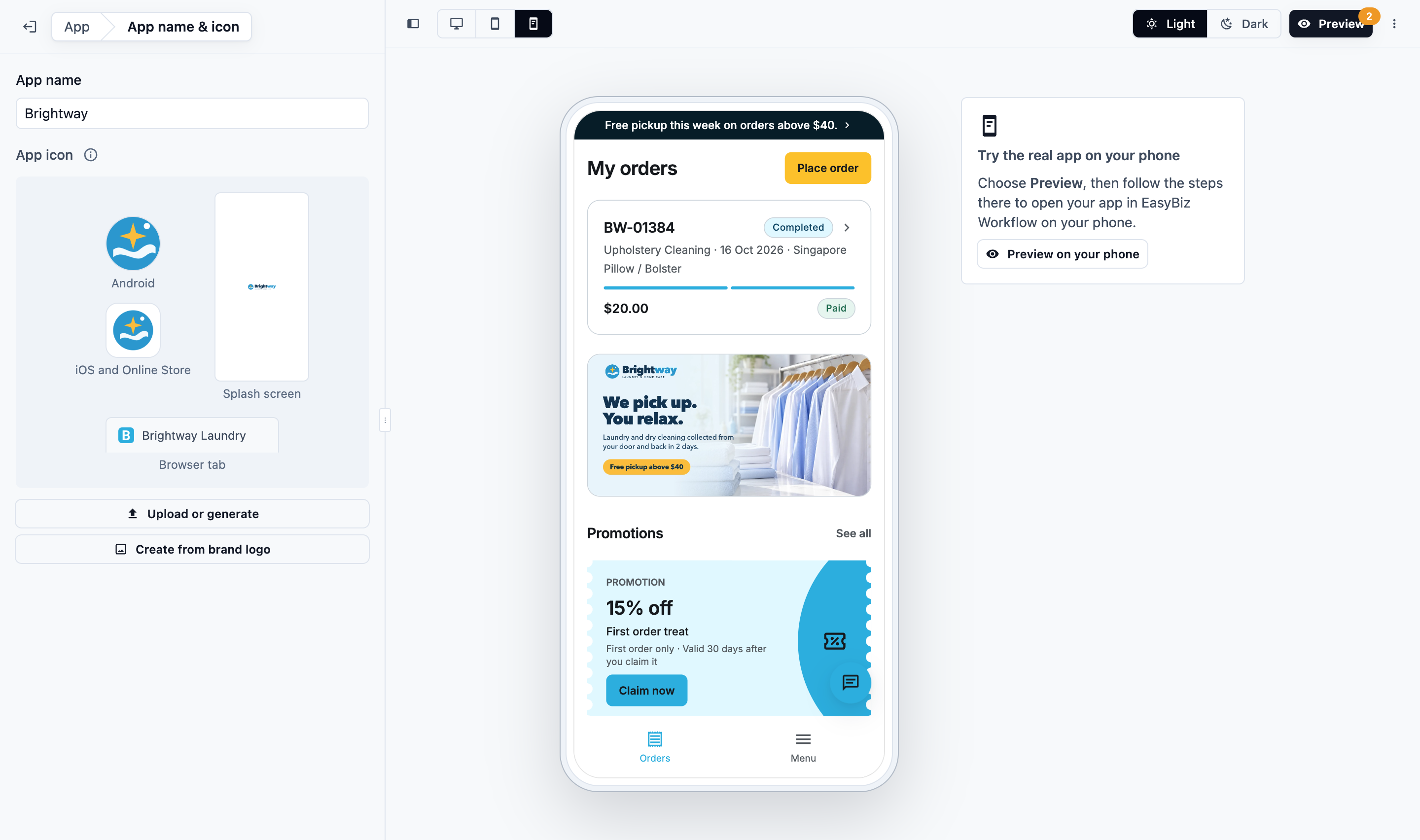
The icon is used for Android, iOS, the splash screen and your Online Store's home-screen icon and browser tab, at the sizes each needs. Changes save as you type. Your Online Store shows a new icon after your next Publish.
When you turn on the Mobile App, EasyBiz makes its icon from your Brand Profile logo. Without a logo, it uses your brand's first letter on its Primary colour. A logo you add to your Brand Profile later doesn't replace the icon: click Create from brand logo to use it.
Try it and publish
- In the editor, click Preview. If Review your changes opens, click Prepare preview.
- On your phone, open EasyBiz Workflow and tap Menu › Preview Customer App › your store. Orders you place are test orders and nothing is charged. See Edit, Preview and Publish Your Online Store.
- Back in the Console, click Publish.
- On the Mobile App card, click Launch your app.
This publishes your app. It doesn't build it yet: you build it in step 8 of Launch your app, after you have tried it. The dialog says "Next, get your app on the App Store and Google Play." and offers Launch your app. Your app isn't billed yet.
Follow Launch your app
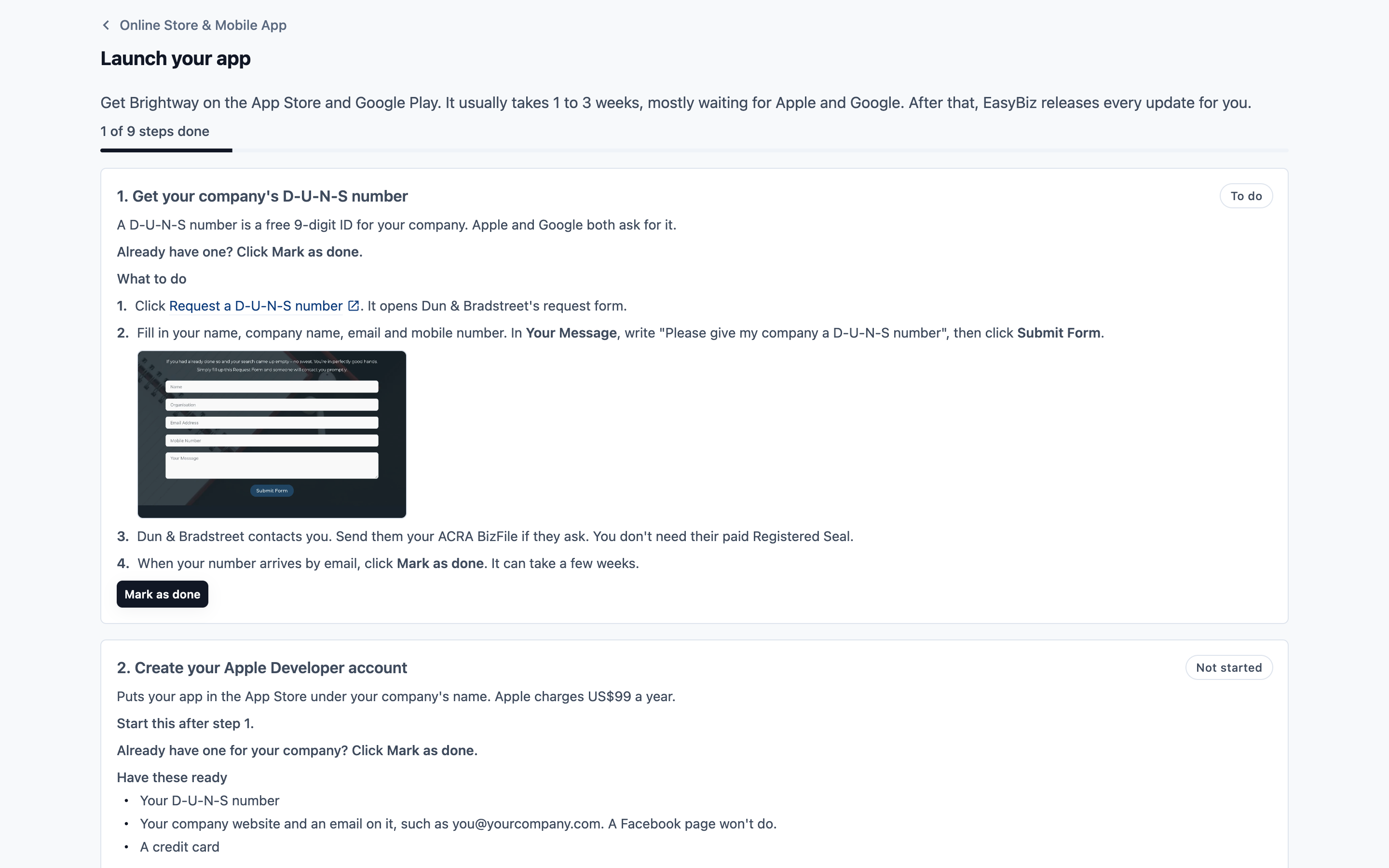
On the store card, under Mobile App, click Launch your app (Continue once you've started). The card shows your progress, for example "Launch: 3 of 9 steps done".
It usually takes 1 to 3 weeks, mostly waiting for Apple and Google. Getting your D-U-N-S number can take a few weeks more, so request it first.
| Step | Who | What happens |
|---|---|---|
| 1. Get your company's D-U-N-S number | You | A free 9-digit ID for your company. Click Request a D-U-N-S number to open Dun & Bradstreet's request form. Send them your ACRA BizFile if they ask. It can take a few weeks |
| 2. Create your Apple Developer account | You | Enrol as a company, with your D-U-N-S number, your company website and an email on it, and a credit card. Apple charges US$99 a year |
| 3. Create your Google Play developer account | You | Choose the organisation option, not yourself, and enter your D-U-N-S number. Google charges US$25 once |
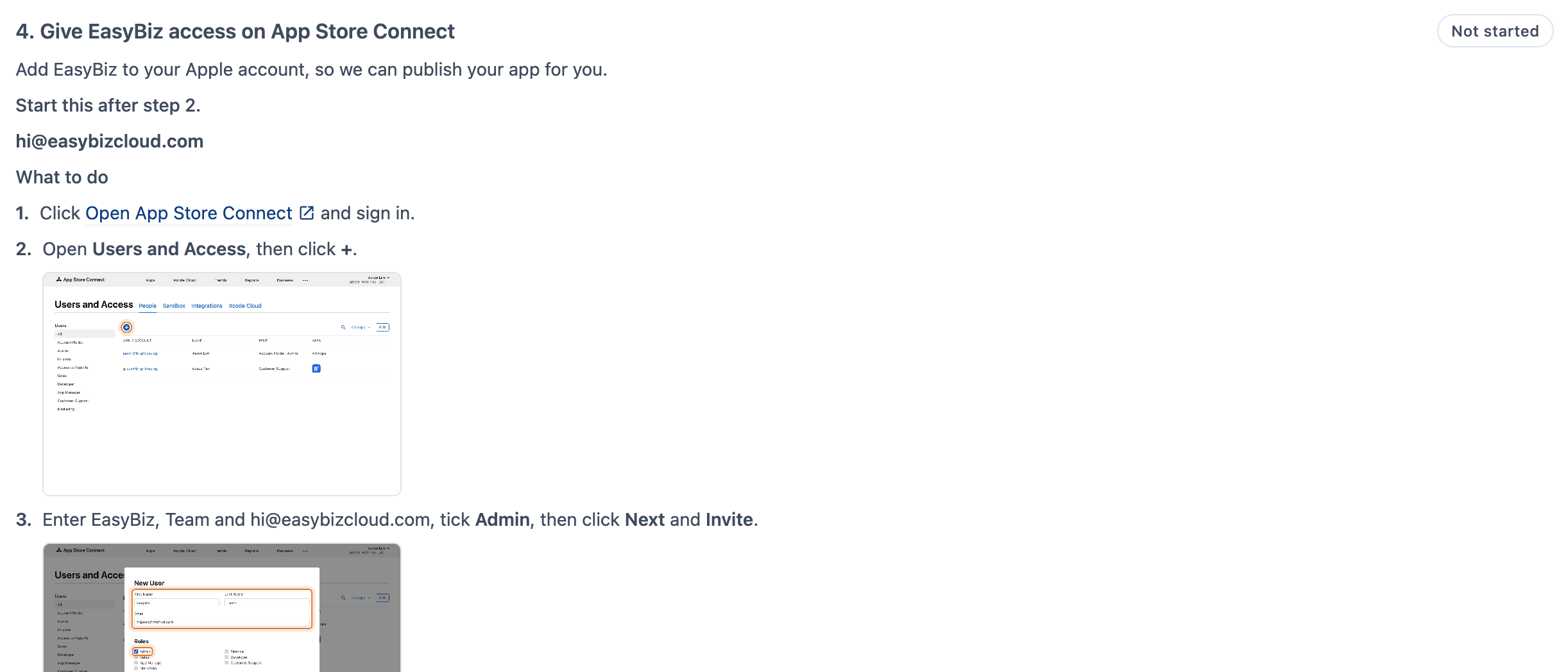
| 4. Give EasyBiz access on App Store Connect | You | In Users and Access, invite hi@easybizcloud.com and tick Admin. Then open Integrations and click Request Access. The Account Holder of your Apple account does this. Click I've sent the invite |
| 5. Give EasyBiz access on Google Play | You | In Users and permissions, invite hi@easybizcloud.com and tick Admin (all permissions). Click I've sent the invite |
| 6. Get your app ready | You | Give your app its name and icon, then publish it (above) |
| 7. Try your app | You | Click Preview in the editor, then try your app on your phone in EasyBiz Workflow. When everything looks right, click Mark as done |
| 8. Build your app | You | Click Build Android app and Build iOS app. A build takes up to an hour and can't be stopped once it starts. Then Download APK to try the Android app. iOS can be built once EasyBiz has set it up, usually within one business day of step 4 |
| 9. Submit and go live | EasyBiz, Apple and Google | EasyBiz sets up your App Store and Google Play pages and submits your app, usually within one business day of step 8. Apple and Google then review it, usually in 1 to 3 days. This step shows the test login for Apple and Google |
Each step shows what to do, with screenshots and links. Progress counts all 9 steps.
Marking your steps
- Steps 1 to 3: click Mark as done when you finish, or Undo to reopen the step. Already have a D-U-N-S number or developer account? Click Mark as done straight away. Marking an Apple or Google account done also marks step 1 done.
- Steps 4 and 5: click I've sent the invite. EasyBiz accepts the invite, usually within one business day, and the step shows Done. Until then, you can click Undo.
- Step 6 is marked done by itself once your app has its name and icon and is published.
- Step 7: click Mark as done after you have tried your app on your phone. The build buttons in step 8 show only once steps 6 and 7 are done.
- Step 8 is done once your builds succeed. Before a build starts, the Console asks you to confirm, because a build takes up to an hour and can't be cancelled. Your app's name and icon are built in, so try your app first. Your pages, services and prices update later without a new build.
- A step you can't start yet shows Not started. Your own steps also say which step to finish first, such as "Start this after step 1." Their guides still show, so you can read ahead.
Each step's status is Done, To do, Not started, Waiting for EasyBiz or In review.
What the Alerts bell tells you
| Alert | What it means |
|---|---|
| EasyBiz can set up your app | EasyBiz has accepted your invite on App Store Connect or Google Play Console |
| Your Android app is ready | Download it from step 8 of Launch your app |
| Your app is in review | Apple or Google is reviewing your app |
| A store asked for changes | EasyBiz is handling them, and will contact you if anything is needed from you |
| Your app is live | Customers can download your app from that store |
When both stores list your app, Launch your app says "Your app is live on the App Store and Google Play."
The test login for Apple and Google
Apple and Google sign in to your app to review it. Step 9 shows the test login EasyBiz made for them: an email and a fixed code. Its orders are test orders and nothing is charged. It can't add a card, top up or buy a membership.
Your app on the store card
Go to ⚙️ Settings › Sales channels › Online Store & Mobile App. The Mobile App part of the store card changes once your app is in a store.
Before your app is in a store
The card shows your launch progress and Launch your app (Continue once you've started). Before launch, you build and download your app in step 8 of Launch your app.

Once your app is in a store
| Row | What it shows |
|---|---|
| Status | Published with the date, and Unpublished changes while you have edits customers don't see yet |
| App build | Your newest Android build, and your iOS build once EasyBiz has set it up |
| Store listing | Your App Store and Google Play links, your launch progress until both stores list your app, and Edit |
App build
Once your app is in a store, the App build row shows the newest build for each phone.
Android
- Build ready: click Download APK to install a test version on an Android phone for your team.
- Download expired: click Rebuild APK.
- Build failed: publish the Mobile App again to retry the build. Before launch, click Build again in step 8 of Launch your app.
iOS
- Not set up: EasyBiz sets up your iPhone app during Launch your app, once it has access to your App Store Connect account.
- In TestFlight: the newest iPhone build is in TestFlight. Open TestFlight on an iPhone signed in to your App Store Connect account to try it.
- Build failed: click Build iOS app to try again.
Once iOS is set up, each Publish that builds the app builds both the Android and the iOS app. These test versions are for your team. Customers install the app from the App Store or Google Play.
Store listing links
In the Store listing row, click Edit to change:
- App Store link and Google Play link: EasyBiz fills them in when your app goes live in each store.
- Account deletion link: Apple and Google ask for a web page where customers can delete their account. Your Online Store's account page does this while account deletion is switched on for your business. Ask EasyBiz to switch it on. Once your Online Store is live, the link starts as that page.
Click Save. These save straight away, without publishing.
After launch
- Updates: when you publish the Mobile App, customers' app shows the change right away, without updating from the store. A new name or icon needs a new build: Publish builds it, and EasyBiz releases it for you.
- Notifications: customers who turn on notifications get your live chat replies and order updates on their phone. See Order Updates for Online Customers.
- Your Online Store: its footer shows your App Store and Google Play badges.
- Billing: the Mobile App is billed per brand from its first day in the App Store or Google Play. The list price is SGD 299 a month. Close Mobile App on the store card stops it.
FAQs
Do I need my own Apple and Google accounts?
Yes. The app is published under your company's name. Apple and Google charge their fees to you directly.
How long does it take?
Usually 1 to 3 weeks, mostly waiting for Apple and Google. Getting a D-U-N-S number can take a few weeks more, so request it first.
I already have a D-U-N-S number or a developer account.
Click Mark as done on that step in Launch your app.
Why is there no I've sent the invite button yet?
It shows once that store's developer account step is done. Mark the account step done first.
Do I pay for the Mobile App while it is waiting for review?
No. Billing starts on its first day in the App Store or Google Play.
Can I change my app later?
Yes. Edit and publish as usual. Pages, booking steps and payments update straight away. A new app name or icon is built and released for you.
Is the app on both iPhone and Android?
Yes. EasyBiz builds both from the same app and submits them to the App Store and Google Play.
Do my Online Store and Mobile App share customers?
Yes. Customers sign in with the same email or mobile number, and see the same orders, cards and store credit.
What's next
Tell customers on your Online Store about your app with a Get the app card: Setting Up Your Orders and Account Pages.