
Where to find it
- Click ⚙️ Settings.
- Under Deprecated, click Online Store (Legacy).
The page lists your legacy store. Each store card has:
- Domain: your legacy store's address, and View live site.
- Edit site: opens the legacy editor.
- The menu, with Online Store Settings (store profile and owning company) and Order running number.
Online Store (Legacy) shows in Settings only while customers still use a legacy store. Once you move them to your new store, it leaves Settings.
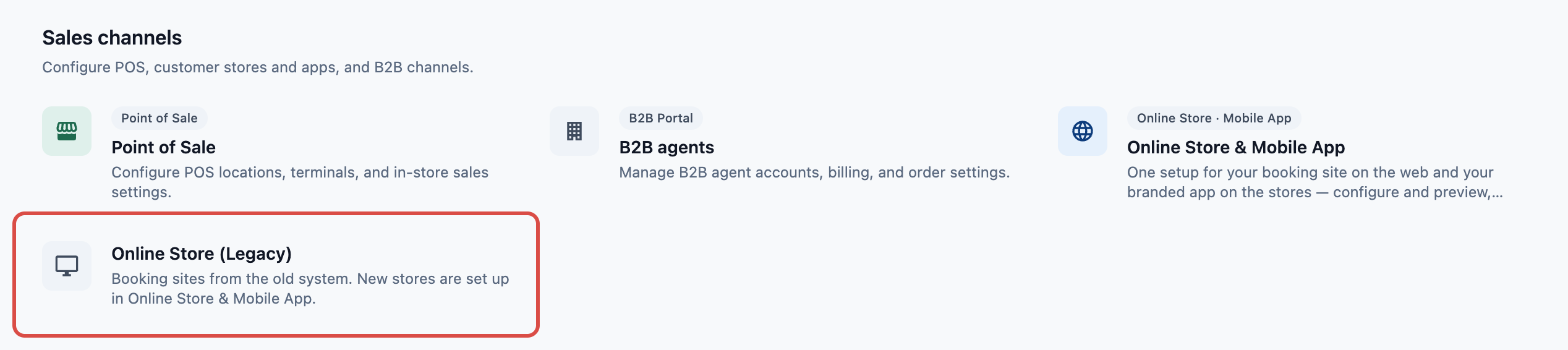
New stores are set up in ⚙️ Settings › Sales channels › Online Store & Mobile App. See Introduction to Online Store & Mobile App.
Your new store uses the same sales channel
When you turn on your brand's new Online Store or Mobile App, whichever you turn on first takes over your legacy store's sales channel. The other one shares it. So:
- Its orders keep the same sales channel code and order numbers.
- It bills under the same company, and serves the same Locations. In the editor, Company & Locations says Set on your sales channel.
- Orders your staff, WhatsApp and your old apps take on that channel carry on as before.
When you turn it on, choose the company your legacy store bills under as the Billing company. You aren't asked for Locations: the store uses the sales channel's.
Billing: if your legacy store is already billed as an Online Store, your new Online Store on the same sales channel doesn't add a second Online Store charge.
Until you move your customers
Your new store gets its own address ending in .easybizcloud.app, and your customers keep using your legacy store until you move them:
| Before the move | After the move | |
|---|---|---|
| Your legacy address | Opens your legacy store | Opens the same page on your new store |
| Payment Link on an order | Opens the order's payment on your legacy store | Opens it on your new store. Payment links customers already have from the legacy store open the same order's payment page |
| Tracking link on an order | Opens the order on your new store | Opens the order on your new store |
| Customer sign-in | The legacy store's own sign-in and codes | Your new store's sign-in. Customers signed in on your legacy store arrive still signed in. See Customer Sign-In and Sign-Up |
Your customers' accounts, orders, repeat orders, saved cards and store credit stay in EasyBiz. They see them on the new store when they sign in with the same email or mobile number.
How the move works
- You set up your new store for the same brand and market: click Add Online Store, enable it, and set its prices, booking steps and payment methods to match your legacy store. See Adding a Store and Turning On the Online Store or Mobile App. EasyBiz support can help if you need it.
- You check it in Preview, with test orders. Nothing is charged. See Edit, Preview and Publish Your Online Store.
- You publish your new Online Store. Its card in ⚙️ Settings › Sales channels › Online Store & Mobile App then shows Migrate legacy online store, with your legacy store's address.
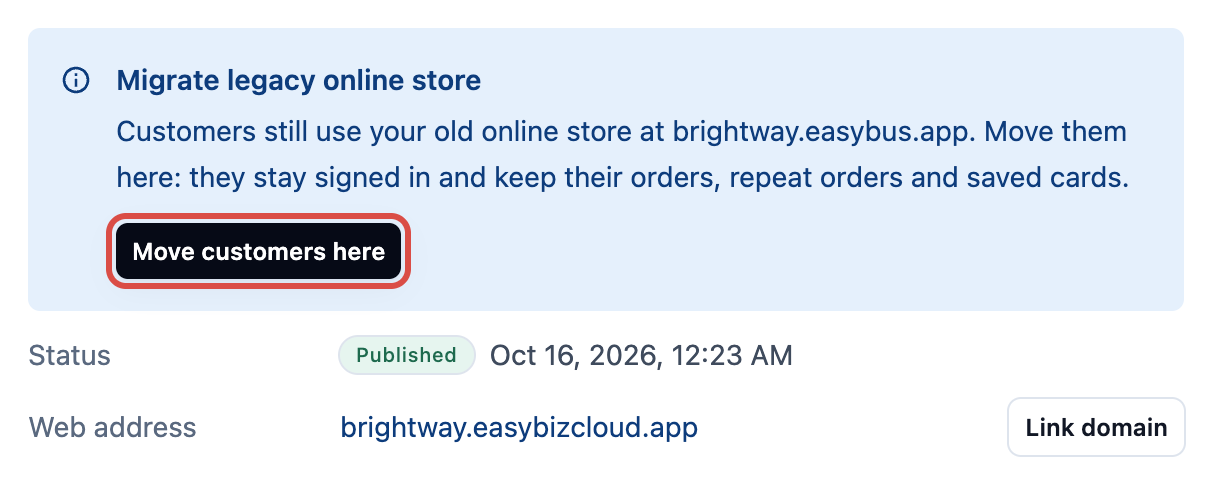
- You move your customers. Click Move customers here, then Move customers. It takes a few seconds.
The banner then says Legacy online store migrated. Customers who open your legacy address now come to your new store, still signed in, with their orders, repeat orders and saved cards. Payment Links open on your new store.
If the banner says Migration not finished, click Move customers here again.
To undo it, click Move back. Your legacy address opens your legacy store again, and Payment Links open it again. Repeat orders customers set up on your new store since then stay there.
You don't need to change anything in your legacy store during the move.
FAQs
Where do I add a new store?
In Settings › Online Store & Mobile App. See Adding a Store and Turning On the Online Store or Mobile App.
Why don't I see Move customers here?
It shows once your new Online Store is published, and only to staff who can manage sales channels.
Where did Online Store (Legacy) go?
It leaves Settings once you move your customers to your new store. To bring them back, click Move back on your new store's card.
Will I pay for both stores?
Not for the Online Store. If your legacy store is already billed as an Online Store, the new Online Store on the same sales channel adds no second charge. A Mobile App is billed on its own, from its first day in the App Store or Google Play.
My customers didn't get a sign-in code on the legacy store.
The legacy store uses its own codes. See the section on older stores in My Customer Did Not Receive Their Sign-In Code.
Can I see my new store before my customers do?
Yes. Open the store's editor and click Preview. Only your team can use Preview.
Who can help me with the move?
Click the Help icon at the top of the Console and ask. The Assistant can open a ticket for the EasyBiz team.