
How customers sign in
- The customer opens Sign in or create an account and types their Mobile number or email in one field. Where only email sign-in is on, the field is Email.
- They click Continue, or press Return. It works once the quick security check under the form has passed. If the check fails, they tap Retry verification.
- A 6-digit code goes to that email or number. The screen says where: "Check your email. Enter the 6-digit code we sent to …".
- They type the code. The sixth digit signs them in, with no button to press.
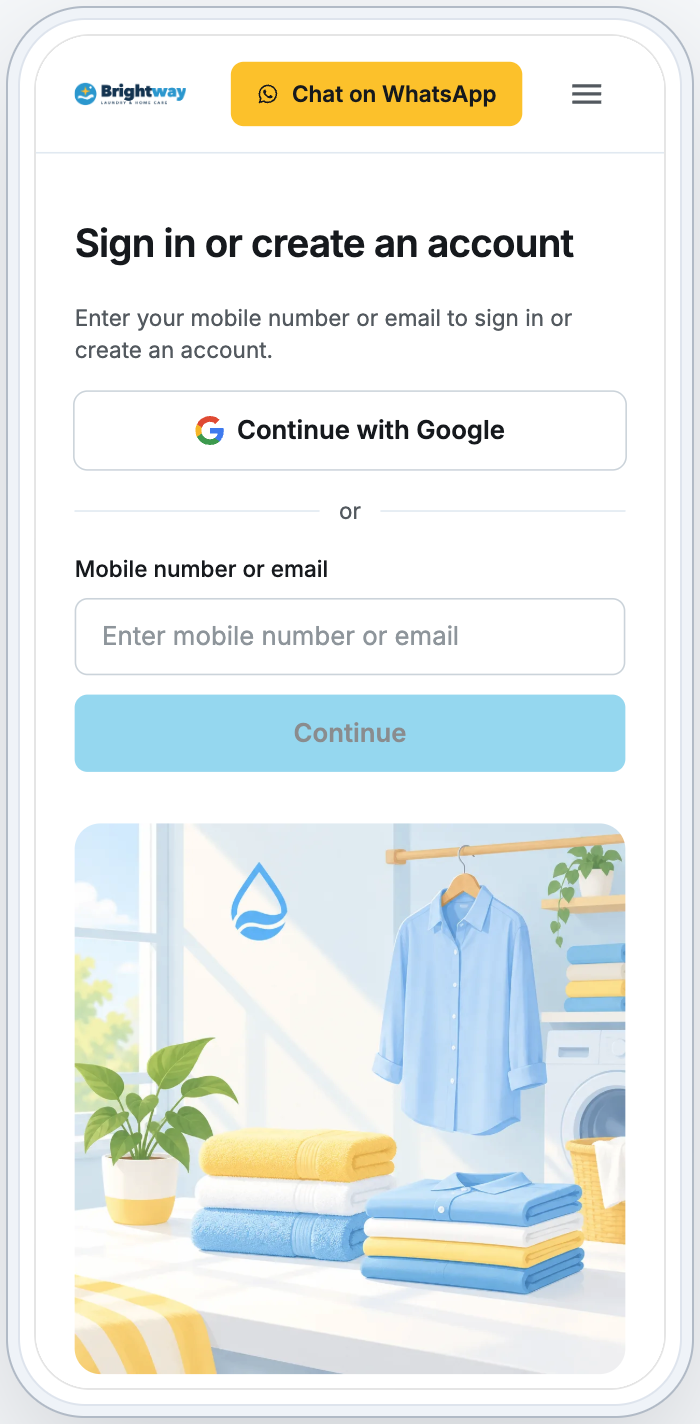
Customers stay signed in on that browser or phone until they sign out.
Customers can browse your Prices and your offers without signing in. Booking, Orders, Payment, Wallet, Membership, Refer a friend, Repeat orders and My account need a sign-in: customers sign in first, then carry on where they were going. An order's tracking link opens that order without one.
New customers
A new customer uses the same field. What happens next depends on Verify at sign-up for the way they sign up, by email or by mobile number:
| Verify at sign-up | What a new customer does |
|---|---|
| On (default) | Gets a code first, as a returning customer does. After the code they see "Complete your details to create your account.", fill in their name and the contact details you ask for, and click Continue |
| Off | Sees the details form straight after Continue and clicks Create account. No code is sent. Every later sign-in needs a code, as for any customer |
Open the Sign in settings
- Go to ⚙️ Settings › Sales channels › Online Store & Mobile App.
- On the store you want to set up, click Edit Online Store (or Edit Mobile App, or Edit Online Store & Mobile App).
- Under Pages, click Sign in.
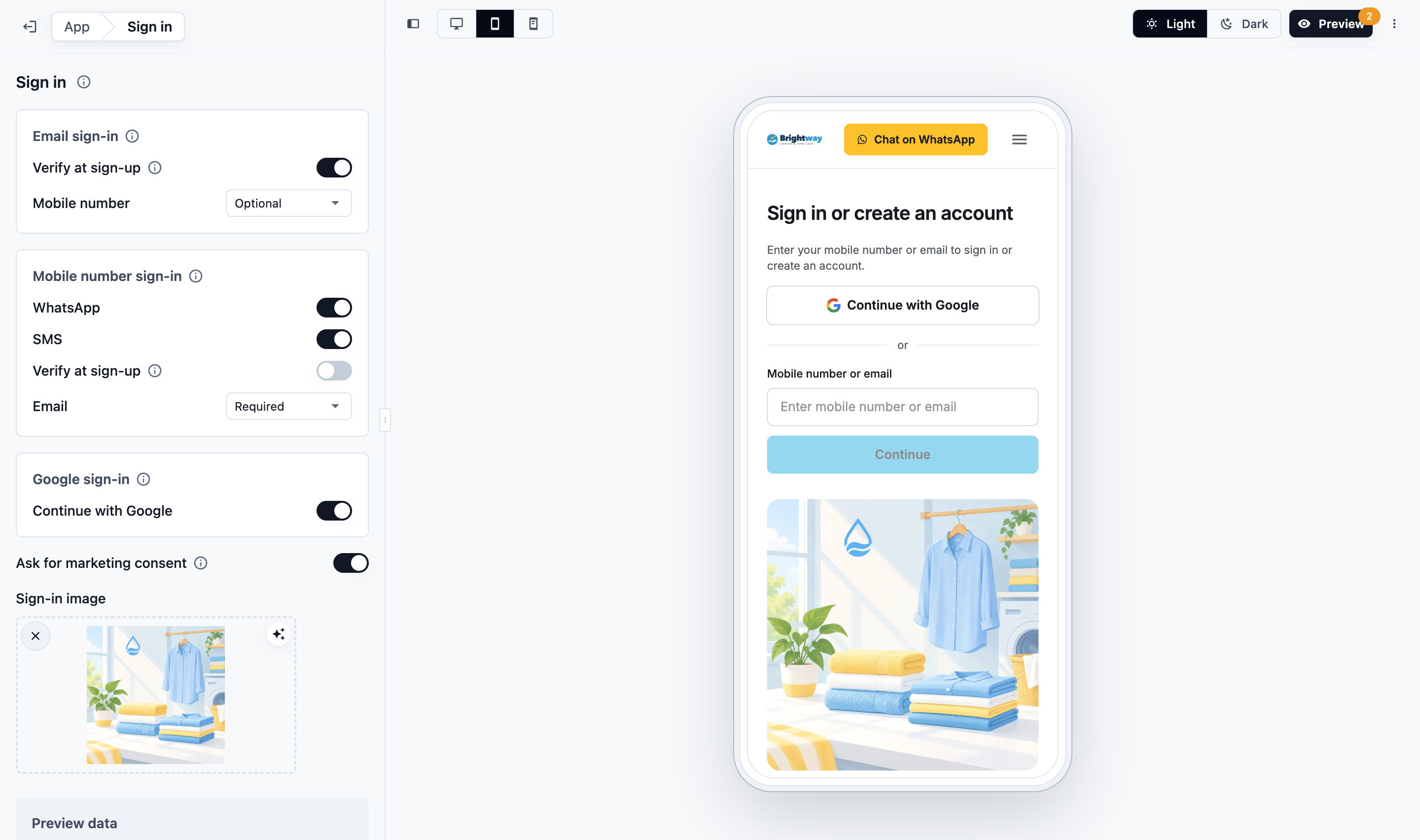
These settings are this store's own. Its Online Store and Mobile App share them, and your other stores keep theirs. A new store starts with email sign-in only and Verify at sign-up on. Your customers are the same in every store and in your POS.
Email sign-in
Email sign-in is always on. Customers can always sign in with their email.
| Setting | What it does |
|---|---|
| Verify at sign-up | On (default): a new customer types a code sent to their email before their account is made. Returning customers always sign in with a code |
| Mobile number | Required (default) or Optional: whether a customer who signs up by email must also give a mobile number |
Mobile number sign-in
Turn this on so customers can also use their mobile number.
With Verify at sign-up on, a customer who is already in your POS is matched by their number: once they enter the code, they sign in to their record with its past orders. A number with no order, visit or sign-up at your business in the past year isn't matched, because it may now belong to someone else. That customer gets a new account, and Contacts flags it as a possible duplicate.
With Verify at sign-up off, there is no match: a new customer gets a new account even when their number is already in your POS.
| SMS | How codes are sent | |
|---|---|---|
| Off | Off | Email only |
| On | Off | |
| On | On | WhatsApp first. If WhatsApp can't deliver, or the customer taps Send by SMS instead, the code goes by SMS |
| Off | On | SMS |
WhatsApp and your SMS provider charge you for each code. A WhatsApp code costs about a quarter of an SMS.
A channel can only be switched on once it can send codes. Until then, a link beside it shows what to set up.
WhatsApp needs a code message that Meta has approved. Turning WhatsApp on, or clicking Set up beside it, opens Sign-in codes on WhatsApp:
- If your WhatsApp number isn't connected yet, click Connect WhatsApp and connect it in Integrations. See Connect & Configure WhatsApp.
- Click Create code message. There is nothing to write: it is Meta's standard sign-in code message.
- Meta must approve it, usually within minutes. WhatsApp then turns on; publish to release it to customers. If you closed the dialog, turn WhatsApp on yourself once Meta approves.
If Meta doesn't approve the message, the dialog says so. Click Try again.
SMS needs an SMS provider. Until one is connected, the SMS switch stays off and Connect an SMS provider shows beside it. It opens ⚙️ Settings › Integrations, where you add your Vonage account: its API key, API secret and SMS sender ID.
SMS codes go only to numbers in the countries your store serves.
While mobile sign-in is on, two more settings show:
| Setting | What it does |
|---|---|
| Verify at sign-up | A new customer who signs up by mobile number types a code before their account is made. Each code is charged |
| Optional (default) or Required: whether a customer who signs up by mobile number must also give an email |
If you take cards through HitPay, a customer needs an email on their account to save a card. Without one, their Payments tab says "Add your email in Contact details to save a card." See Taking Payments on Your Online Store.
Once a customer has signed in to this store with their mobile number, mobile sign-in stays on for it: the last channel's switch can't be turned off. This keeps those customers able to sign in.
Google sign-in
Customers can tap Continue with Google instead of typing their email and a code. Google confirms their email, so they reach the same account as signing in with that email. There is nothing to set up with Google.
- On the Sign in page, find Google sign-in.
- Switch on Continue with Google.
- Click Publish.
- It is off for a new store.
- It shows on your Online Store only. The Mobile App keeps email and mobile number sign-in.
- It is hidden inside apps' own browsers, such as Instagram, Facebook and WeChat, because Google doesn't sign anyone in there. Customers there sign in with a code.
- Your email sign-in choices still apply. A new customer's name comes from their Google account, and if a mobile number is Required, they are asked for it.
Other settings
- Ask for marketing consent: new customers are asked to agree to marketing messages when they sign up, and can change their answer on their Account page. Customers who don't agree are left out of your marketing campaigns.
- Sign-in image: a picture on your sign-in page.
- Customers can change their name: this one is on the editor's Account page, under Contact details. When it is off, customers give their name at sign-up and only your staff can change it.
Try it and publish
Sign-in settings are a draft until you publish.
- On the Sign in page, use Preview data to see the screens for a new customer (New customer · signs up) or a returning one (Returning customer · signs in). Any email or number and any code work here.
- Click Preview and sign in with a real code to test the whole flow. See Edit, Preview and Publish Your Online Store.
- Click Publish. The store's Online Store and Mobile App share its sign-in settings, so they go live on both together.
If Publish is refused, the message says why, for example "Set up the selected code channel before publishing sign-in settings."
Code limits
| Limit | Value |
|---|---|
| A code lasts | 10 minutes |
| Wrong tries | 4. Then the customer needs a new code |
| Wait before Resend code | About 1 minute |
| Codes for one email or number | 3 an hour |
| WhatsApp and SMS codes for your business | 300 a day, across all your stores. Email codes are not capped |
A new code replaces the one before it.
When customers change their email or number
Customers change these themselves in My account › Contact details:
- Change email
- Change number, or Add mobile number when they have none
A code goes to the new email or number. If a mobile code came by WhatsApp and your store also sends SMS, they can tap Send by SMS instead. They type the code and click Confirm. The new detail replaces the old one, and they sign in with it from then on. Their other phones and browsers are signed out.
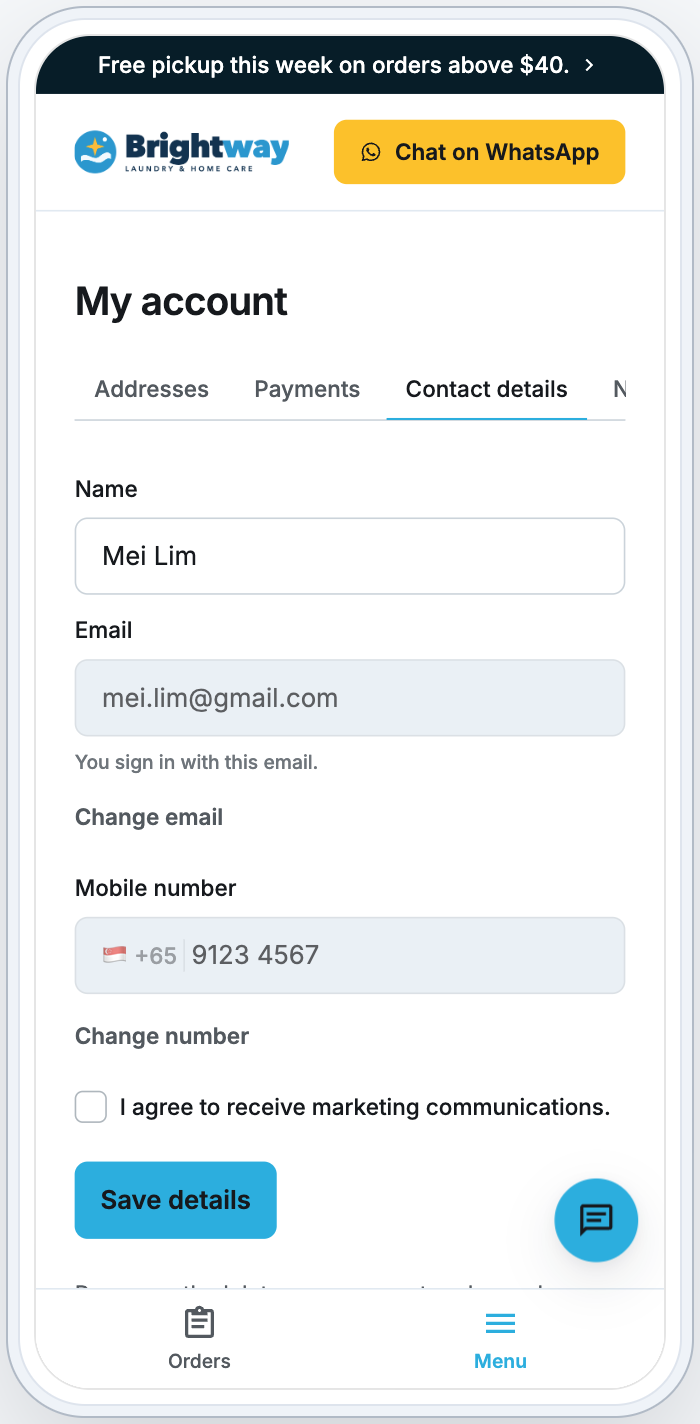
- If the new email or number is already on another customer's account, the change is refused: "That one is already on another account with us. Get in touch and we’ll bring them together." Contacts flags the two as a possible duplicate. See Merging and Deleting Duplicate Contacts.
- If your business can't send codes to mobile numbers (no approved WhatsApp code message and no SMS provider), the customer sees "This business can’t send a code to a mobile number, so we’ll save it as your contact number." and clicks Save number. That number is not used to sign in.
When customers delete their account
At the end of My account › Contact details, customers can see "Permanently delete your account and saved details." and a Delete account link.
- The link shows only after EasyBiz switches account deletion on for your business. There is no Console setting for it: ask support.
- The customer confirms with a fresh code ("Verify it's you"), ticks "I understand that account deletion is permanent." and clicks Delete account.
- It is refused while they have store credit left, an open order, scheduled delivery or service work, a scheduled booking, or an unpaid balance or a payment in progress. The page names the item and shows how to contact you.
- Their profile, addresses, saved cards and sign-in are deleted, and so is their contact in your Console. Receipts, invoices and payment records stay, without their name or contact details.
FAQs
A customer typed a different email from last time. What happens?
They sign in to a different account, or create a new one. If they type the mobile number they used before, the store may offer a code to it so their past orders come along. If it doesn't, or they skip it, your Contacts list flags the two as a possible duplicate so your staff can merge them. See Merging and Deleting Duplicate Contacts.
My staff changed a customer's email in the Console. Which email do they sign in with?
The email they signed in with before. The one your staff entered stays their contact email. Their Account page names the sign-in email under Contact details: "You sign in with …".
A new customer's number is already in my POS. Do they get a second record?
Not with Verify at sign-up on. If they sign in with that number, they enter the code and reach the existing record with its past orders. If they sign up by email and type that number, the store says it "is already with us" and offers a code to it: entering it brings their past orders along, and Skip for now makes a new account that Contacts flags as a possible duplicate. With Verify at sign-up off, they get a new account and the record in your POS isn't matched.
Why don't my customers see Continue with Google?
It shows only on your Online Store, after you switch it on and publish. It is also hidden inside apps' own browsers, such as Instagram or WeChat.
Is the code email in Chinese for Chinese customers?
No. The code email and SMS are in English.
A customer didn't get their code.
What's next
See how customers hear about their orders once they are signed in: Order Updates for Online Customers.