
Before you start
- An Online Store or Mobile App. See Adding a Store and Turning On the Online Store or Mobile App.
- Booking options and time slots, so customers can book a pickup, delivery or visit. See Setting Up Booking Options and Setting Up Time Slots.
- Service areas, so the store knows which addresses you serve. See Setting Up Service Areas.
- A price list for the business unit, if customers choose priced items. See Introduction to Price Lists.
How it works
- One business unit has one customer checkout. Your Online Store, your Mobile App and every store that sells the unit use the same steps.
- Customers sign in first, then book one business unit at a time.
- Every online booking is a pickup, a delivery or a visit.
- Nothing is charged at booking. Customers can choose a card, or their store credit, to pay automatically when the order is ready, or pay later.
- Your staff use their own steps at the POS and in the Console (the unit's Staff checkout). Customer checkout changes only online bookings.
Choose which units customers can book
- Go to ⚙️ Settings › Sales channels › Online Store & Mobile App.
- On the store card, click Edit Online Store. The button says Edit Mobile App or Edit Online Store & Mobile App when those are on.
- Under Pages, click Checkout.
- Turn on the switch next to each business unit customers can book.
- Drag the units into the order customers should see them.
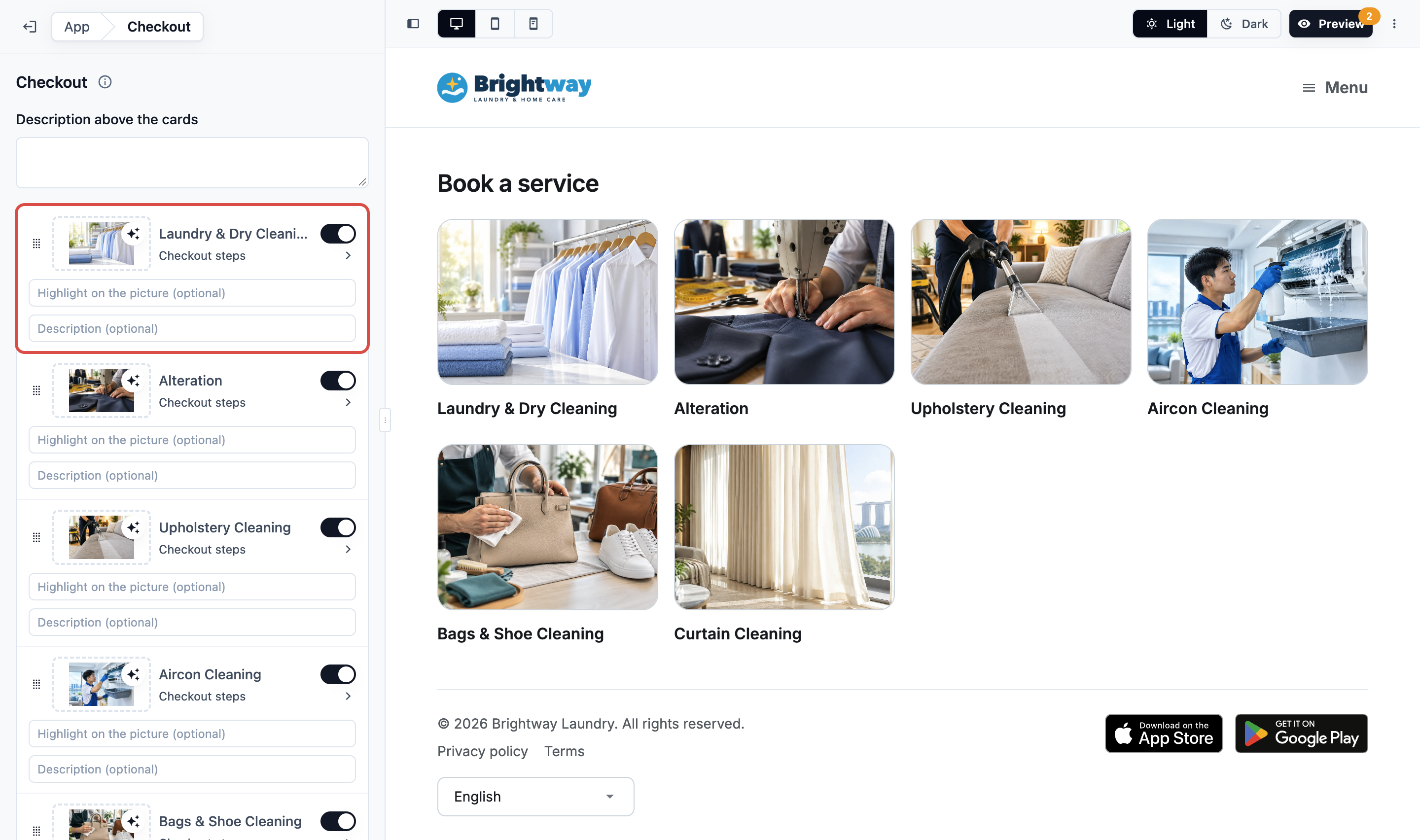
Each unit's row says what its steps need: No checkout steps yet, Checkout steps, or Unpublished step changes.
With 2 or more units on, customers first choose a unit from a card. For each unit you can add:
- a cover picture. Click the picture box on the unit's row. A unit without one shows its name only, and its row says Add a cover picture;
- a Highlight on the picture, such as "Most popular", up to 24 characters;
- a Description under the unit's name.
You can also type a Description above the cards. The same cover picture shows on your Prices page.
You can also start from the business unit: ⚙️ Settings › Business Units › the unit › Selling tab › Customer checkout › Edit in Online Store.
The steps you can add
Each step has the name you see in the editor and the title customers see.
Enter Address (customers see "Address") Customers choose a saved address or search for a new one. Only saved addresses in your store's country are offered. A customer with a saved address skips this step and can change it on the review.
- Require address line 2: customers must enter their unit, floor or apartment number. Useful for HDB flats and condos.
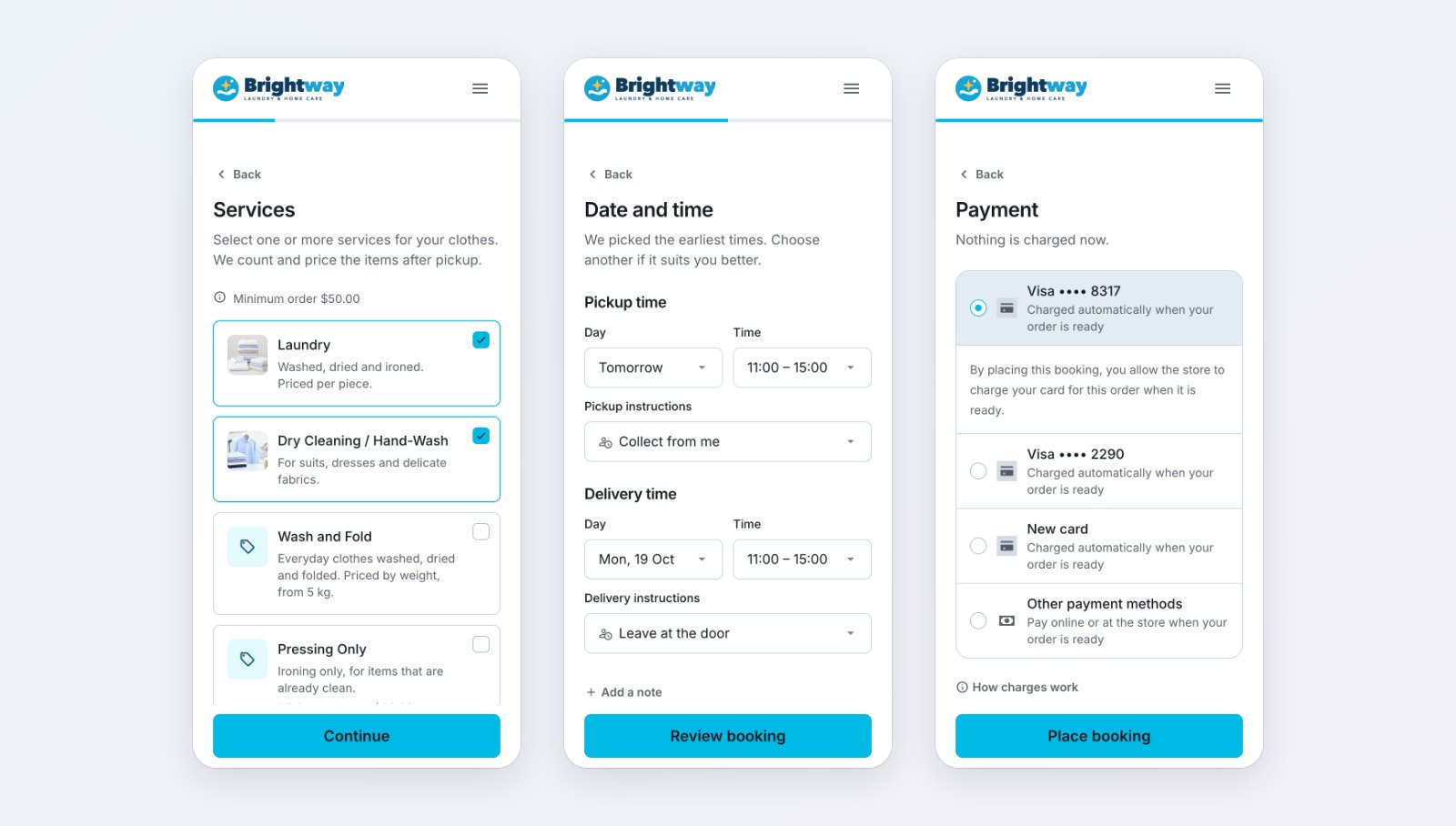
Choose Service Options (customers see "Services") Customers tick the services they want, such as Wash & Fold or Dry Clean, without choosing items. Your staff price the order later, for example after pickup. Use this step for laundry.
- Available service options: the options customers can choose, in your order. Each can have a short line under its name, and a picture.
- Show service option images: shows each option's picture.
Choose Items (customers see "Items") Customers pick priced items from your price list, such as aircon units or a sofa, and see a price estimate before they book.
- Item details customers fill in: extra questions that open for matching items, such as the size or number of units.
- Customers can book items priced on request: off by default. While it is off, items with no price for their service aren't offered here, even though your Prices page lists them as "Price on request". Turn it on to let customers add them. The review then says, for example, "Nothing to pay now. The store prices Installation for you." Your staff price those lines, then confirm the booking. Nothing is charged before that.
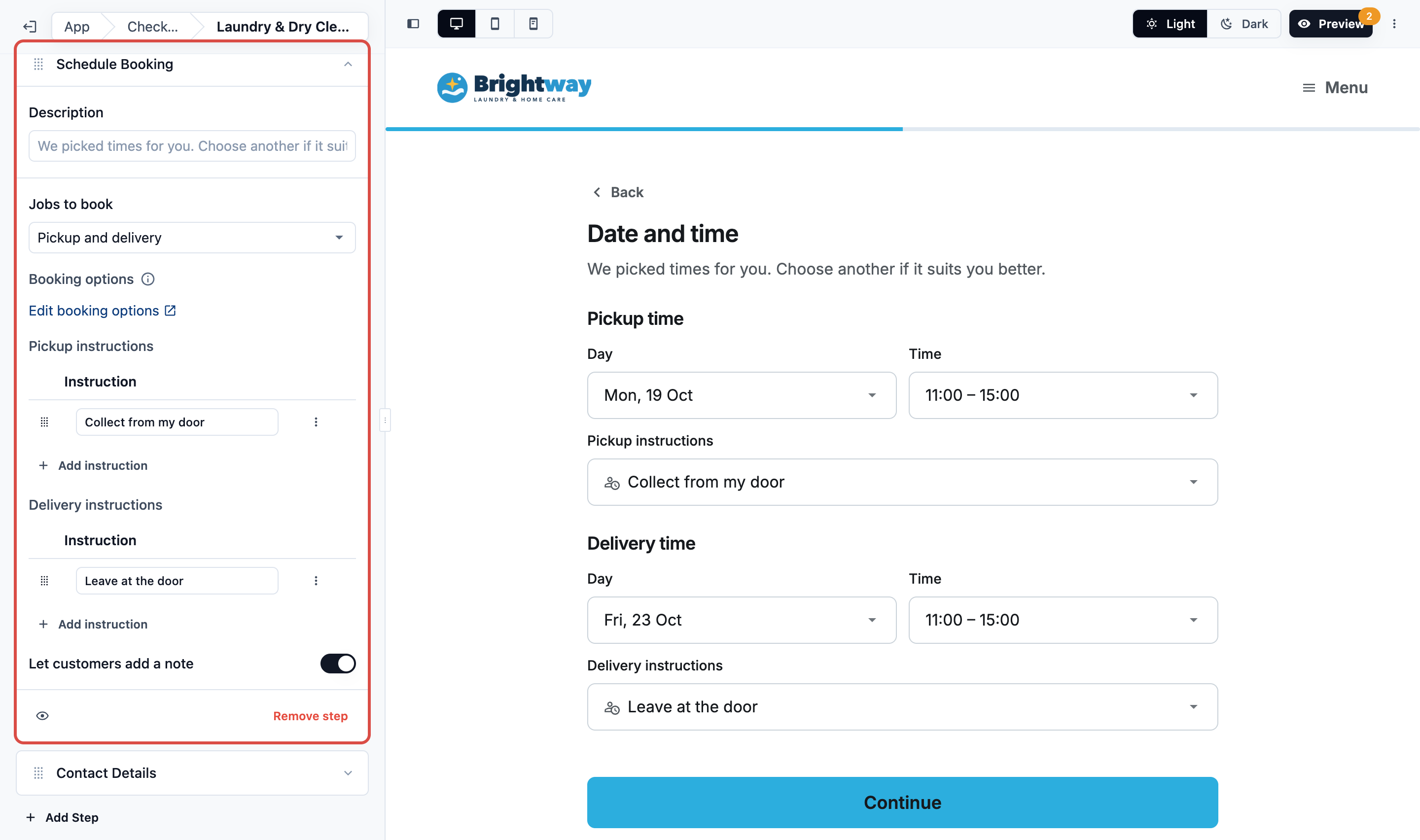
Schedule Booking (customers see "Date and time") Customers choose a time for each job, such as a pickup and a delivery. A time is picked for them on the earliest day without an extra charge: its Eco time if it has one, otherwise its earliest time. While some times cost nothing extra, a day or time that costs extra, such as an express day or an evening rate, is only booked when the customer picks it.
| Setting | What it does |
|---|---|
| Jobs to book | Which jobs this step books, for example Pickup and delivery, Pickup only or Service visit only. The choices come from the unit's Pipeline |
| Booking options | Customers book each job with the unit's booking options, as at the POS. To keep an option off the Online Store, limit it to other sales channels in Booking options |
| Pickup instructions, Delivery instructions, Visit instructions | Ready-made instructions customers pick from, such as "Collect from my door". Click Add instruction |
| Let customers add a note | Customers can type a note for your team. The instruction they chose and their note become each job's note, up to 200 characters |
Contact Details (customers see "Contact details") Customers confirm their name and mobile number for this booking. These come from their account, so most customers skip this step.
Your custom fields Questions you created yourself, such as "Any fabric allergies?". See Configure Data Fields. A custom field step asks for text, a number, a date or a choice from options. There is no photo step. A custom field step has its own Step Name, and can be set to Optional. For an options field, Option visibility can hide some answers.
Set up a unit's steps
- On the Checkout page, click the business unit's row.
- Click Add Step.
- In Add a step, click the step you need. You can search, for example "address".
- Click the step's card to open its settings, and fill them in.
- Optional: type a Description, the line customers see under the step's title.
- Repeat for each step. Drag the cards to change their order.
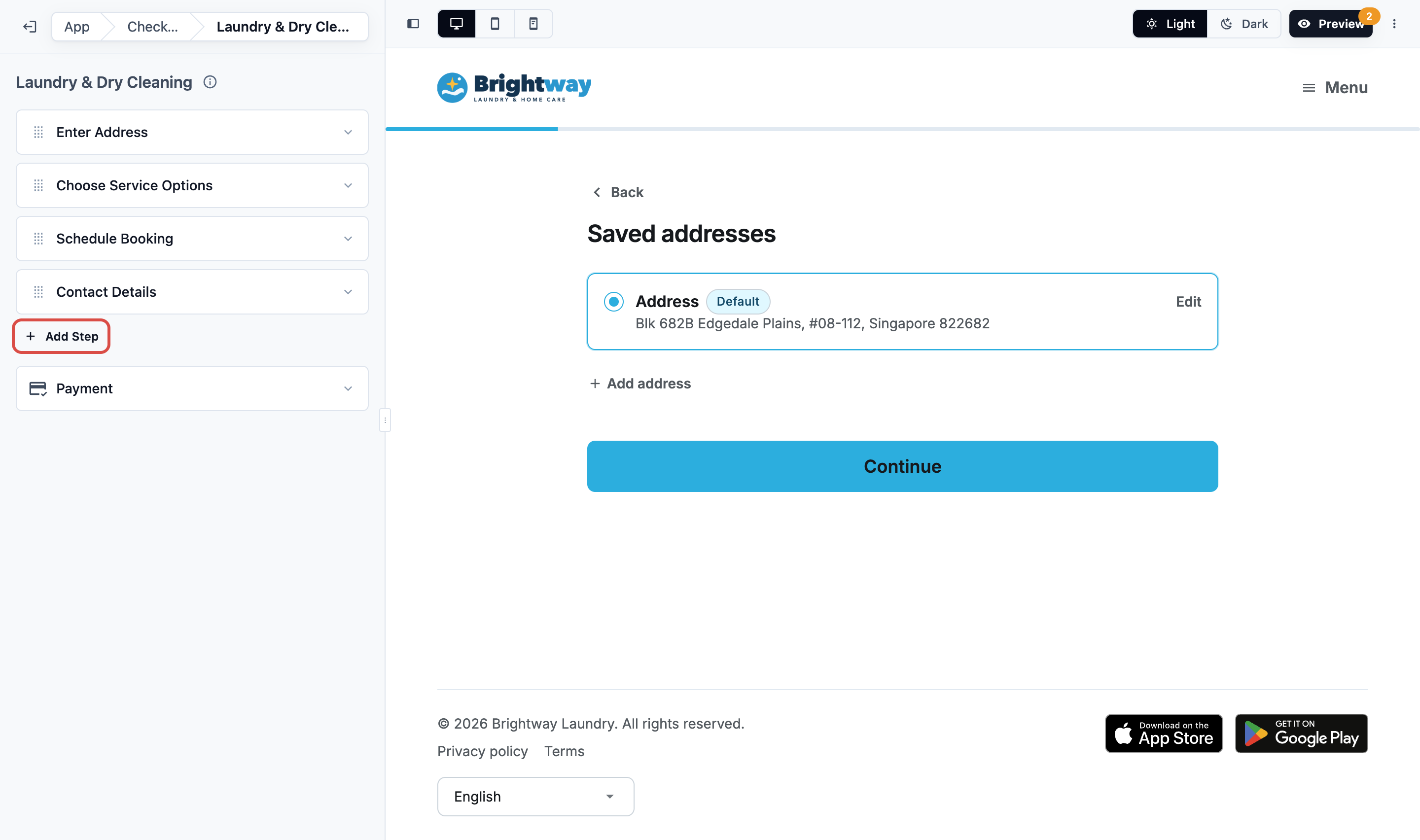
The preview shows each step as customers see it. Your changes save as a draft straight away, and the unit shows Unpublished until you publish. To undo them, click Discard changes.
To show a step only when another answer matches, click its eye button, then Add Condition. To remove a step, click Remove step.
The Payment step
Payment is always the last step. It can't be moved or removed.
- Click the Payment row.
- Under Payment at booking, choose:
- Card optional: a card or another payment method: customers choose a card to be charged automatically, or Other payment methods to pay online or at the store later.
- Card on file required: customers must choose or add a card to book. The row shows Card required.
- Optional: type a Description and How charges work, the steps customers can open on the Payment step. Left empty, customers see "Nothing is charged now." and the standard steps.
The card is charged once the order is priced and packed, or handed over if you don't pack. Staff can also charge it from the order. If a charge fails, the customer pays with Pay now. See Taking Payments on Your Online Store.
Card on file required needs Card switched on for Stripe or HitPay on the editor's Payment page. With HitPay, click Check HitPay on the Payment row to confirm your account can save cards.
Store credit: when your store offers a wallet and its Payment page takes Store Credit, a customer with a balance can choose Store credit on the Payment step. It pays the order automatically when it is ready. A unit set to Card on file required doesn't offer store credit. Store credit is never offered in Preview, because Preview orders are test orders.
Customers see the Payment step when your store can save cards through Stripe or HitPay, when they have a saved card or store credit, or when the unit requires a card. Otherwise they place the booking from the review.
Minimum orders
Your minimum orders apply to online bookings. Set them in either place:
- ⚙️ Settings › Business Units › the unit › Catalog › Add minimum order. Choose the Market (if you have more than one), the Sales channel (empty for all), the Service Option (Whole order for the whole booking), and type the Min. order.
- ⚙️ Settings › Service Areas › the unit: Minimum order amount, or Set by zone. See Setting Up Service Areas.
When both apply, the higher one counts. A booking below the minimum is never refused. It is topped up to the minimum.
What customers see:
- With Choose Service Options: the Services step shows the minimum above the options, for example "Minimum order SGD 30.00". A minimum for one service option shows on its card as "Minimum charge". The review lists the minimum and says what the order is charged at least.
- With Choose Items: the minimum shows only on the review, as a "Minimum order surcharge" line when the items come to less.
Let customers repeat a booking
- In the editor, under Pages, click Repeat orders.
- Turn on Offer repeat orders.
- Turn on each unit customers can repeat, and choose how often, such as Weekly or Every 2 weeks.
Customers then turn on Repeat order on the Date and time step. A unit with Choose Items is priced at checkout, so it can't repeat. See Setting Up Repeat Orders.
Publish your changes
Customers keep booking with your last published steps until you publish.
- Click Preview and place a test booking. Nothing is charged.
- In Preview, click Publish, then Publish Online Store and Publish Mobile App.
The steps are shared, so the first Publish changes them on both products. The Checkout page itself (which units are on, their order, pictures and descriptions) goes out with each product's own Publish, so publish both. See Edit, Preview and Publish Your Online Store.
Example: CleanFast Laundry's home pickup
CleanFast Laundry collects laundry from homes and weighs it at the shop. The owner sets up the Laundry unit:
- Enter Address, with Require address line 2 on.
- Choose Service Options: Wash & Fold, Dry Clean and Ironing.
- Schedule Booking, with Jobs to book set to Pickup and delivery, the pickup instructions "Collect from my door" and "Leave with the guard", and Let customers add a note on.
- Contact Details.
- Payment: Card optional.
What customers see
- The customer taps Place order (or Book now in the menu) and signs in.
- In Book a service, they choose Laundry.
- Address: they pick their saved address, or search and add their unit number.
- Services: they tick Wash & Fold.
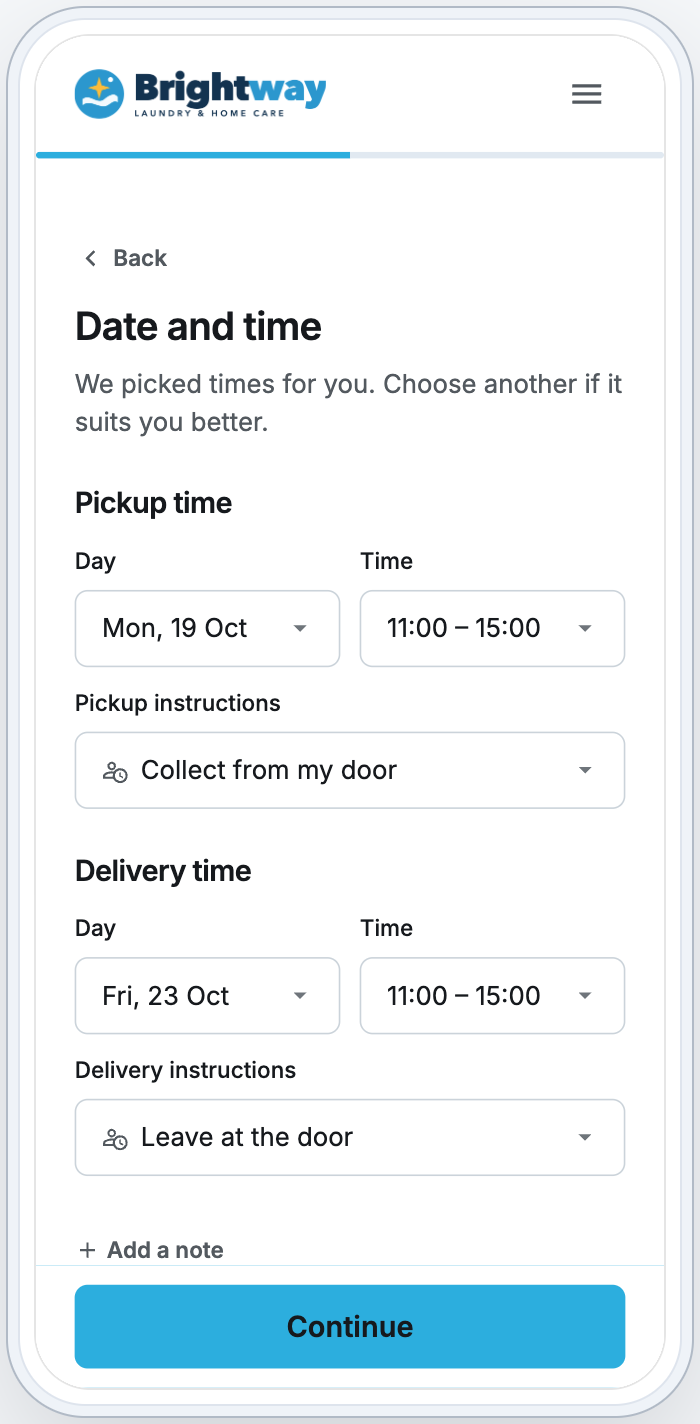
- Date and time: times are picked for them, with "We picked times for you. Choose another if it suits you better." An Eco time is marked "Eco-friendly time". They pick "Collect from my door".
- Review your booking: each answer has Change. The review says "Nothing to pay now. The store will confirm the price."
- They click Continue to payment, choose their saved card or Other payment methods, and click Place booking.
They see Booking confirmed. The order reaches your team with the address, times, services and instructions filled in.
FAQs
I changed my steps, but customers still see the old ones. Why?
Changes are a draft until you publish. Click Preview, then Publish.
Do my minimum orders apply to online bookings?
Yes. A booking below the minimum is topped up to it, never refused. See Minimum orders above.
What happens if I leave out Choose Items?
Customers book without choosing items, and your staff price the order later. This suits laundry that is weighed at the shop.
Why can't customers add an item that my Prices page shows?
The item has no price for its service, so Prices shows "Price on request". Turn on Customers can book items priced on request on the Choose Items step, and your staff price it after the booking.
Why does Schedule Booking say customers have nothing to schedule?
The business unit doesn't book a pickup, delivery or service visit yet. Turn one on in the unit's Pipeline tab.
Customers say they can't book a pickup. What should I check?
That a pickup booking option is assigned to the business unit and not limited to other sales channels. The Schedule Booking step warns when none is. See Setting Up Booking Options.
A customer sees "Sorry, we are not here yet." Why?
No service area of the business unit covers the address, or the Location that serves it is switched off in the editor's App settings › Company & Locations. Customers see your own Not in service message from Service Areas when you wrote one, and this standard message when you didn't. See Setting Up Service Areas.
Why can't a customer pick one of their saved addresses?
The booking offers only saved addresses in the country they are booking in. Addresses they saved in your other countries don't show.
A customer's booking was refused. Why?
Each refusal has its own message, such as a time just taken or a booking limit. See Why a Customer's Booking Was Refused.
Can customers cancel or reschedule online?
Only if you allow it on the business unit's Cancel & reschedule tab. Both start at Never. See Setting Up Cancel and Reschedule.
Will bookings already placed change when I publish new steps?
No. The new steps apply to bookings made after you publish. A customer halfway through a booking is asked to check it and place it again.
What's next
Choose how customers pay: Taking Payments on Your Online Store.