
Before you start
Ask the customer for the exact words they see, or a screenshot. Then find the message below.
How a refused booking works
- No order is made, and nothing is charged.
- Most refusals reopen the booking at the step that fixes it, with the customer's answers kept. For example, a time that was just taken reopens Date and time.
- Your staff can still help. Booking limits only stop bookings that customers make themselves on your Online Store and Mobile App. Your staff can take the booking in the Console or at the POS.
Booking limits
These limits protect your store from runaway or fake bookings. They are the same for every store, and you can't change them. Most messages show when the customer places the booking.
| Limit | What the customer sees | What you can do |
|---|---|---|
| 5 bookings a day for one customer. Counted when each booking is placed, so cancelling one doesn't free a place. The count starts again at midnight, your store's time | "You've made 5 bookings today, the most we take online in a day. Please book again tomorrow, or contact the store." | Take the extra booking for them in the Console or at the POS |
| 5 bookings waiting for their pickup or visit. Counts the customer's online bookings from the last 14 days whose pickup or visit isn't done yet. Cancelled bookings don't count | "You have 5 bookings waiting for their pickup or visit. Please contact the store to book more." | Make sure your team marks pickups and visits as done. Cancel bookings the customer no longer needs. Or book it for them |
| 2 open bookings for a new account made without a code. Only when Verify at sign-up is off, during the account's first 24 hours. Cancelled bookings don't count | "A new account can have 2 open bookings on its first day. Please contact the store to book more." | Book it for them. To stop this for new customers, keep Verify at sign-up on (store editor › Pages › Sign in) |
| 1,000 bookings a day for one store. Each Online Store and Mobile App takes up to 1,000 bookings a day | "You have reached the online ordering limit. Please try again later or contact the store to check your open orders." | This only happens with a flood of bookings, such as fake sign-ups. Contact EasyBiz Support |
| 5 repeat orders for one customer in a store. Repeat orders your team set up for them count too | Instead of the Repeat order switch: "You already have 5 repeat orders, the most you can have. Stop one on Repeat orders to add another." | The customer stops one on the store's Repeat orders page, or you pause or delete one in ⚙️ Settings › Repeat orders. See Setting Up Repeat Orders |
Times and addresses
| What the customer sees | Why | What you can do |
|---|---|---|
| "The time you chose is no longer available. Check the times below, then continue." | Someone else took the last place in that time slot while they were booking, for example under a Daily booking limit. Date and time shows fresh times | Nothing. If your slots fill up often, raise their Daily booking limit. See Setting Up Time Slots |
| "No booking times are currently available." | The business unit has no booking option for this job on your store, or every day is closed or full. For example, the option is limited to other sales channels, a Blocking Rule closes the dates, or every slot is full or offered only in other zones | Check the unit's booking options, time slots and blocking rules. See Setting Up Booking Options |
| Your own Not in service message, or "Sorry, we are not here yet." | No service area of the business unit covers the address, or the Location that serves it is switched off in the store editor's App settings › Company & Locations. Without your own message, customers see this standard one, in their language | Check the unit's zones in Service Areas. See Setting Up Service Areas. The customer can tap Change address |
| "We couldn't find this address on the map. Edit it, or choose another address." | A saved address has no place on the map, or it was deleted. Enter Address opens again | The customer edits the address or chooses another |
| "Enter address line 2 to continue." | The unit's Enter Address step has Require address line 2 on, and the address has no unit number | The customer adds their unit, floor or apartment number |
| "This address is in Malaysia" (or another of your countries) | The address is in another country your store serves. Prices, currency and times follow the country the customer chose | The customer taps Book in Malaysia to book it there |
Changes you made during their booking
| What the customer sees | Why | What you can do |
|---|---|---|
| "The store just updated how this service is booked. Check your booking, then place it again." | You published a change to this unit's checkout steps while they were booking | Nothing. The customer checks the booking and places it again |
Payment and coupons
| What the customer sees | Why | What you can do |
|---|---|---|
| "Your saved card can no longer pay automatically. Choose another card or another payment method." | The card they chose was removed or has expired, or your store no longer takes cards through Stripe or HitPay | The customer chooses another card, or another payment method |
| "Your store credit can no longer pay this booking automatically. Choose another way to pay." | Their credit ran out, or your store stopped taking store credit for orders | The customer chooses another way to pay |
| "Your coupon can no longer be used on this booking. Choose another coupon or book without one." | The coupon was used, expired, or can't be used for this service, online or in this store | The customer books without it, or with another coupon. See Setting Up Coupons and Online Promotions |
| "This booking doesn't reach your coupon's minimum spend. Choose another coupon or book without one." | The items come to less than the coupon's minimum spend | The customer adds items, or books without the coupon |
| "This coupon is for a first order only." | The coupon is for a customer's first order, and they already have one | The customer books without it |
A booking below your minimum order is never refused. It is topped up to the minimum.
A customer you blocked
If you blocked a customer in Blocking Rules, they see Booking unavailable as soon as they choose the business unit. Under it is your Alert message (for customer), or, if you wrote none, "Online booking is unavailable for your account. Please contact us for help." If your store has other units they can book, they see Choose another service.
To check or lift a block:
- Click ⚙️ Settings.
- Under Scheduling & Dispatch, click Blocking Rules.
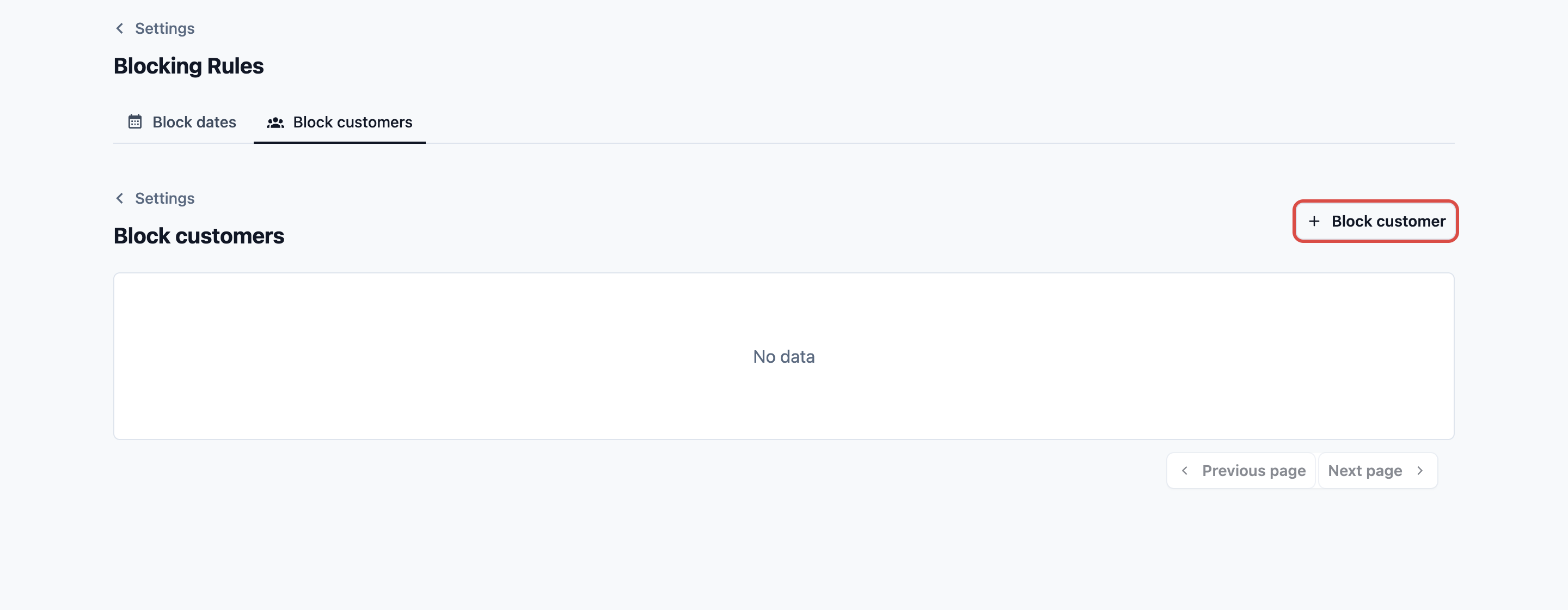
- Click the Block customers tab.
- Find the rule with the customer. Click its ⋮ menu, then Edit to remove the customer, or Delete to lift the whole rule.
To block a customer, click Block customer on the same tab. See Setting Up Blocking Rules.
Anything else
The customer sees "We couldn't place your booking. Please try again, or contact the store if it keeps happening." Ask them to try again. If it keeps happening, contact EasyBiz Support with the customer's name and the time they tried.
FAQs
Can I raise a customer's booking limit?
No. The limits are the same for every store. Your staff can take the extra booking in the Console or at the POS.
Does a cancelled booking free a place for today?
No. The 5-a-day limit counts bookings when they are placed. A cancelled booking does free a place under the other limits.
Why can a new customer have only 2 bookings?
Their account was made without a code, because Verify at sign-up is off. This limit lasts for the account's first 24 hours. See Customer Sign-In and Sign-Up.
Does a minimum order refuse a small booking?
No. A booking below the minimum is topped up to it.
What's next
Block a customer, or close dates for a holiday: Setting Up Blocking Rules.