
Before You Start
Decide the discount: a percentage or a fixed amount off.
Decide where customers can use it: at your counter, online, or both.
To show coupons online, you need an Online Store or Mobile App. See Adding a Store and Turning On the Online Store or Mobile App.
Where to Find Coupons
Click the ⚙️ Settings icon in the top-right corner.
Under the Marketing settings section, click Coupons.
The list shows each coupon's Name, Value, Code, Redemptions and Expires date. A coupon shown on your Online Store has an Online Store badge beside its name.
Create a Coupon
Click New coupon.
Fill in the fields below.
Click Create coupon.
Name
What customers and staff see, for example "First order discount".
Value
Choose Percentage or Fixed Amount, then type the discount.
If you sell in more than one currency, a Currency field appears for a fixed amount or a minimum spend. The coupon only works on orders in that currency.
Validation days
How many days a coupon stays in the customer's account after they claim it or type its code. The default is 30 days.
Coupon code
Switch on Use customer-facing coupon codes to give the coupon a code customers can type.
Code: type your own code, for example FRIENDS10, or leave it blank to get a random one. Codes are up to 20 characters. Customers can type them in any letter case.
Batch codes: switch this on to make many single-use codes at once. Enter a Batch prefix of up to 3 characters and How many codes to generate, up to 5,000. Each code works once.
Where customers can use it
| Pick this | Result |
|---|---|
| POS and Online Store | Customers can use it everywhere. This is the default. |
| POS only | Only at your counter and on orders your staff take in the Console. |
| Online Store only | Only on your Online Store, Mobile App and WhatsApp mini-apps. |
Show on the Online Store: switch this on to list the coupon on your store's Promotions page, where signed-in customers claim it with one tap. It can't be switched on for a POS only coupon or for batch codes.
Sales channels: leave empty for every shop and online store, or choose the channels where the coupon works.
Redemption limits
These limits need a coupon code. Switch on Use customer-facing coupon codes first.
| Tick this | Result |
|---|---|
| Limit the date range when customers can redeem this coupon | Customers can only add the coupon between the two dates under Redeem within. |
| Limit the total number of times this coupon can be redeemed | The coupon stops after this many redemptions. A claim on the Promotions page counts as one. |
| Require minimum order value | The order must reach this amount for the discount to apply. For a booking priced after pickup, the coupon applies only if the final bill reaches it, and the customer's order page says so when it doesn't. |
| Eligible for first-time customer only | Only customers who have never ordered can add it or use it. While a new customer's first booking waits for its price, the coupon can't be used on another booking; if that first booking is cancelled, it can be used again. |
Business unit limits
Switch on Apply to specific business units only and choose the business units the coupon works for. Leave it off for every unit. On your Online Store, the offer names the units it is for, and a booking for another unit doesn't take it.
Change or Delete a Coupon
Click a coupon in the list to open it.
You can change Validation days, Where customers can use it, Redemption limits and Business unit limits, then click Save.
Name, Value and Coupon code can't be changed. Create a new coupon instead.
To remove it, click Delete coupon at the bottom. Customers can no longer claim it or add it with its code. This can't be undone.
Changes and deletes don't reach coupons customers already hold. A held coupon keeps the value, conditions and end date it had when the customer got it, and can still be used until it ends. The one exception is Eligible for first-time customer only: it is checked against the coupon as it is now.
To see who used a coupon, click ⋮ on its row, then Redemption history. For batch codes, Coupon codes lists every code.
Turn On the Promotions Page
The Promotions page of your Online Store and Mobile App lists your offers. The offers are the coupons with Show on the Online Store switched on.
Click the ⚙️ Settings icon, then under Sales channels click Online Store & Mobile App.
On your store's card, click Edit Online Store. It reads Edit Mobile App or Edit Online Store & Mobile App when the Mobile App is on.
Under Pages, click Promotions.
Switch on Offer promotions.
Under Terms & Conditions, type your terms, one per line. Customers read them in every offer's details before they claim it.
Preview and publish your store. See Edit, Preview and Publish Your Online Store.
You can also show up to two offers on the Orders page. In the editor, open the Orders page, click Add card under Cards, and choose Promotions.
What Your Customers See
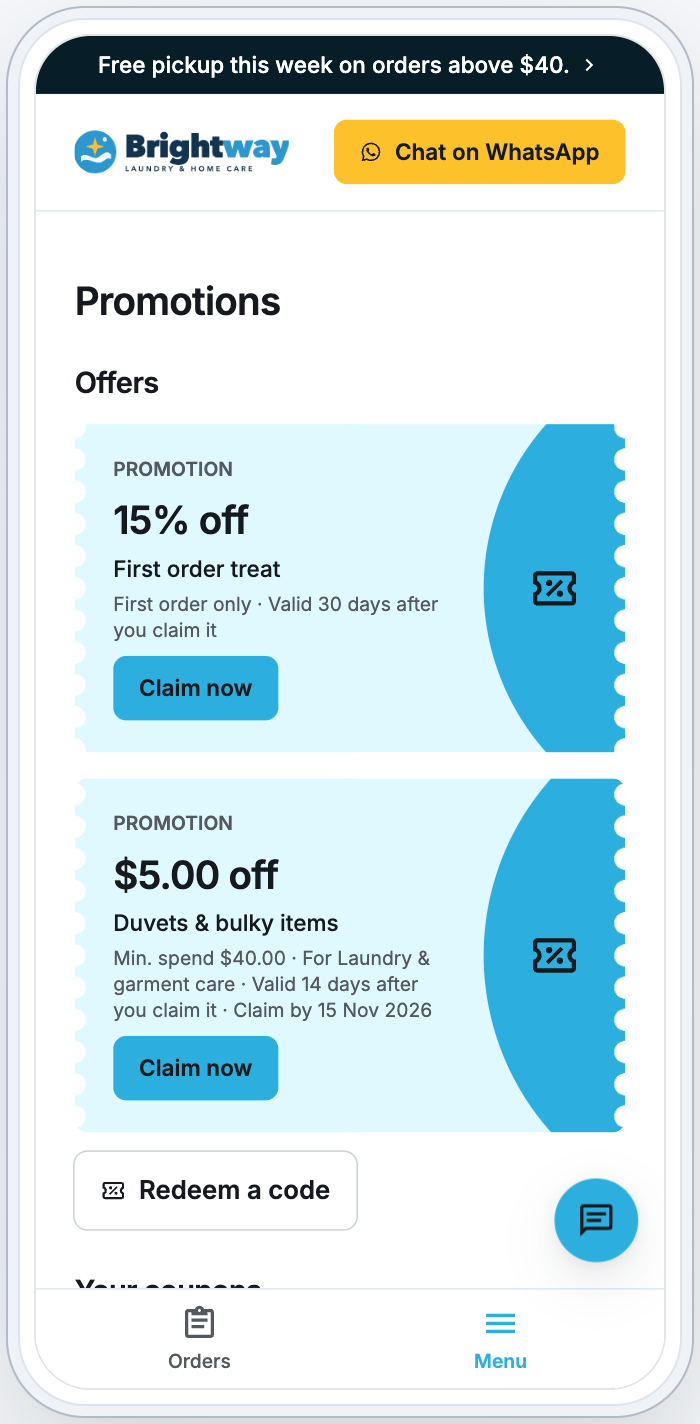
On the Promotions page
Offers: the coupons you show. Each shows its discount and any conditions, such as minimum spend, first order only or the business units it is for.
- Claim now opens the offer's details with your Terms & Conditions. There, Book now adds the coupon to the customer's account and starts a booking with it.
- Redeem a code: the customer types a coupon code.
Your coupons: coupons in their account, ready to use. Book now on one starts a booking with it.
Past coupons: coupons already used or expired.
Visitors who have not signed in can see your offers. Claiming one asks them to sign in first.
When booking
On the booking's review, the customer clicks Add coupon, picks a coupon and clicks Use. They can also add a code there. One coupon applies per order.
For a priced booking, the discount comes off the total straight away.
For a booking priced after pickup, the coupon stays on the order and comes off the final bill once your staff price it.
A coupon never takes the total below the business unit's minimum order.
If a coupon isn't applied, or only part of it is, the customer's order page says why. For example: "only one percentage discount applies to an order", "this order is below its $30 minimum spend" or "the order minimum of $20 applies".
A coupon that takes nothing off the order isn't used up: it stays in the customer's account for another order. If the customer cancels the order, the coupon goes back to their account.
FAQs
Why doesn't my coupon show on the Promotions page?
Check that Show on the Online Store is on, Where customers can use it is not POS only, the coupon has not ended or run out, any sales channel limit includes your store, and the coupon is in your store's currency. A first-order coupon is hidden from customers who have ordered before, or whose first booking is still waiting for its price, and a customer who already holds the coupon sees it under Your coupons instead. Changes to the page itself go live when you publish the store.
Can a customer use a coupon and their member discount on the same order?
It depends on the coupon. A Fixed Amount coupon comes off on top of the member discount. A Percentage coupon doesn't: only one percentage discount applies to an order, so the customer gets the member discount or the coupon, whichever takes more off. A coupon that isn't used stays in their account. Neither discount takes the total below the minimum order.
Does a claimed coupon count as a redemption?
Yes. Claiming on the Promotions page, typing a code online and redeeming at the counter all count toward the coupon's limit and show in its redemption history.
I changed a coupon. Do customers who already have it get the change?
No. Customers keep the coupon as it was when they got it, even after you delete it. Only Eligible for first-time customer only follows your change.
Can customers share a code with friends?
Yes, unless it is a batch code, which works only once. For a reward when a friend orders, use Refer a friend. See Setting Up Refer a Friend.
What's Next?
To reward customers who bring their friends, see Setting Up Refer a Friend.
To sell a paid plan with a member discount, see Setting Up Membership Plans.
To put your changes live, see Edit, Preview and Publish Your Online Store.