
What the Online Store and Mobile App do for your shop
The Online Store & Mobile App page is where you build and run your customer booking channels. The Online Store is a website your customers open in any browser. The Mobile App is your own branded app that customers install on their phones. Both share the same pages, brand and booking flow, so you set things up once.
It helps you:
- Take bookings and payments 24/7, even when the shop is closed.
- Show your customers clear prices before they book.
- Let your customers track their orders without calling or messaging you.
- Keep your brand, receipts and order numbers consistent with your shop.
Can I skip this? Yes. Your shop keeps running on POS and WhatsApp as usual. Your customers just can't book or pay online on their own.
Before you start
- A Brand Profile: the name, logo and colours your customers see. See Creating and Assigning a Brand Profile.
- A market and a company in that market: the country you sell in and the company your customers pay. See Setting Up a Market.
- At least 1 business unit: for example Laundry or Aircon Servicing, with its services and prices. See Introduction to Business Units.
- Booking options and time slots (if you take bookings): these decide when customers can book. See Setting Up Booking Options and Setting Up Time Slots.
- Service areas (if you pick up, deliver or visit): these decide where customers can book. See Setting Up Service Areas.
Open the Online Store & Mobile App page
- Click ⚙️ Settings.
- Under Sales channels, click Online Store & Mobile App.
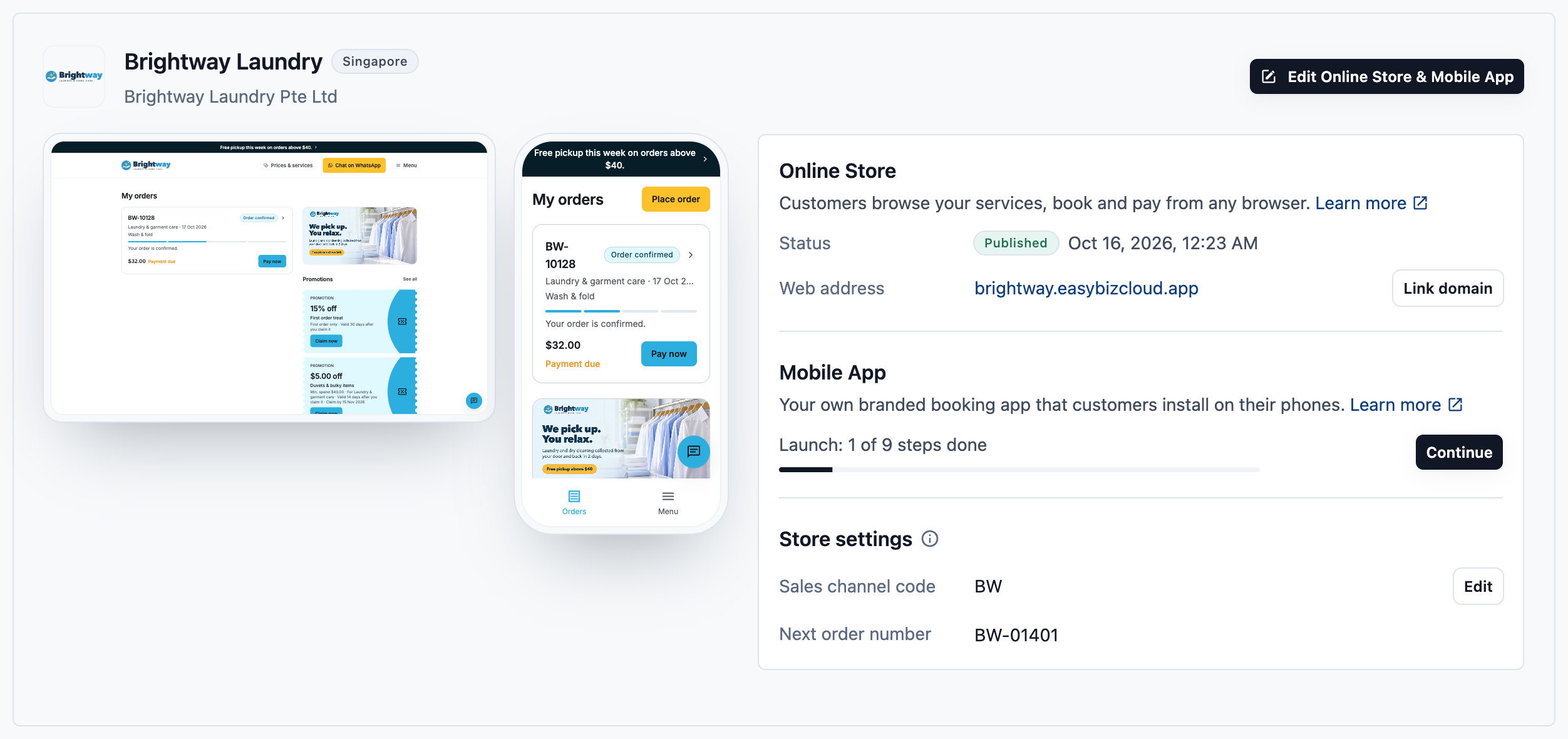
You see 1 card for each store. If you haven't added one yet, the page says "No Online Store yet".
Online Store, Mobile App or both?
A store is 1 of your brands selling in 1 market (country). For example, "CleanFast Laundry in Singapore" is 1 store.
Each store can have:
| Option | What it means |
|---|---|
| Online Store | A booking website your customers open in any browser. |
| Mobile App | Your own app on the App Store and Google Play. |
| Both | The website and the app share the same pages, brand and booking flow. |
Adding a store takes 4 steps:
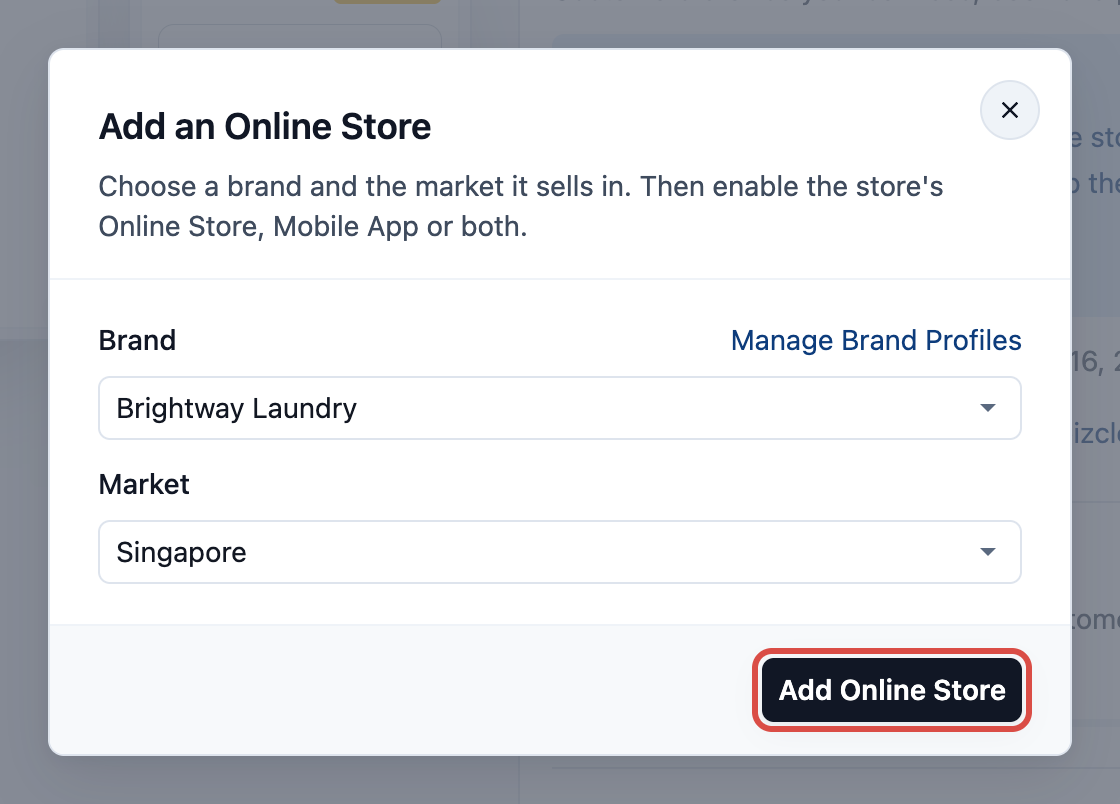
- Click Add Online Store.
- Choose your Brand and the Market (the country it sells in). If you have only 1 brand or 1 market, it is filled in for you.
- Click Add Online Store to create the store. Nothing goes live yet.
- On the new store's card, click Enable Online Store, Enable Mobile App or both. Here you also choose the billing company, the Locations that take online orders (when your market has two or more) and, for the Online Store, its web address. The billing company is the company your customers pay, and its details appear on their receipts.
How much it costs
- Setting up is free. You can turn on the Online Store or Mobile App and build your pages at no cost.
- Online Store: you start paying when you first publish it. Publish means sending your pages live to customers. The list price is SGD 99 a month.
- Mobile App: you start paying from its first day in the App Store or Google Play. The list price is SGD 299 a month.
- Your own domain (Online Store only): no extra cost. It comes with the Online Store.
When your price plan sells the product, the note under each Enable button shows its monthly price for your account.
When your customers see your changes
You edit your pages in the store editor. Open it with Edit Online Store or Edit Mobile App.
- Store editor changes save as you go. You see them in the preview straight away.
- Your customers see store editor changes only after you click Publish. As the screen says: "Customers get exactly what you previewed."
- Store settings apply right away, without publishing. These are the sales channel code and the next order number on the store card. They are shared by the website and the app.
- Settings outside the store editor apply as soon as you save them. For example your booking options, time slots, service areas, blocking rules and coupons, and your business units' settings, such as minimum orders and Cancel & reschedule.
- Brand Profile changes: a new brand name or logo shows the next time a customer opens your store, with no Publish. New colours reach your customers at your next Publish.
Steps to set up your store
Most owners set up their store in this order, the same order as the Set up your Online Store checklist in the Console. Each step names the article that walks you through it.
| # | Step | What you do |
|---|---|---|
| 1 | Add your Online Store | Choose the brand and the market your store sells in. See Adding a Store and Turning On the Online Store or Mobile App. |
| 2 | Turn on your Online Store | Click Enable Online Store on your store, then choose its web address, company and Locations. Same article as step 1. |
| 3 | Choose what customers can book | On the store editor's Checkout page, switch on the business units customers can book, and give each one its checkout steps. See Letting Customers Book Online. |
| 4 | Add a booking option | Choose the days customers can book a visit, pickup or delivery, and assign it to your business unit. Add time slots to offer set hours. See Setting Up Booking Options. |
| 5 | Set up your service area | Choose where customers can book, for each business unit whose checkout asks for an address or a time. See Setting Up Service Areas. |
| 6 | Preview and place a test order | In the store editor, click Preview and place a test order. Nothing is charged. See Edit, Preview and Publish Your Online Store. |
| 7 | Publish your Online Store | Click Publish, then Publish Online Store. Your store goes live and joins your subscription. Same article as step 6. |
Optional, when you're ready:
| Step | What you do |
|---|---|
| Show your prices | Choose which business units show their prices, and how. See Showing Your Prices Online. |
| Take payment online | Use Stripe, HitPay or Atome, or add your own methods such as a bank transfer. See Taking Payments on Your Online Store. |
| Set up customer sign-in | Customers sign in with a one-time code, with no password. See Customer Sign-In and Sign-Up. |
| Add extra pages | Wallet, Promotions, Repeat orders, Refer a friend and Membership, and the cards on your Orders page. See Setting Up Your Orders and Account Pages and Setting Up Membership Plans. |
| Let customers cancel or move a booking | Set how long customers can cancel or reschedule by themselves. See Setting Up Cancel and Reschedule. |
| Connect your own domain | Online Store only: use your own web address, like book.yourshop.sg. See Connecting Your Own Domain. |
| Launch your app | Mobile App only: get your app on the App Store and Google Play. See Launch Your Mobile App. |
How other shops set it up
What your customers see
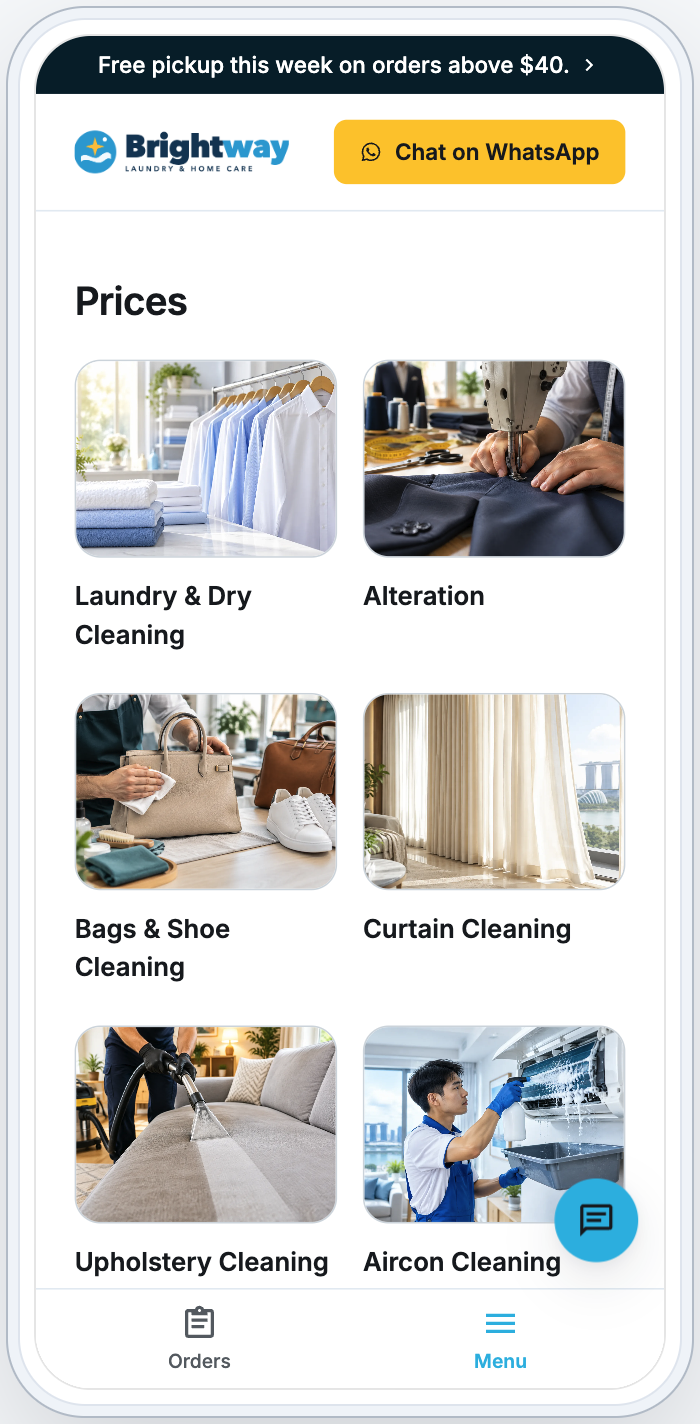
Mei wants her shirts cleaned. She opens your Mobile App on her phone.
- Mei sees your app, with your logo and colours.
- She taps Prices to check your price list.
- She taps Book now.
- She signs in with a one-time code sent to her email or phone. There's no password to remember.
- She picks her service, address and a time slot.
- On the Payment step, she chooses her saved card. Nothing is charged now: the card is charged when her order is ready.
- She sees "Booking confirmed". Later, she taps Orders to track her order.
FAQs
Do I need both the Online Store and the Mobile App?
No. You can turn on either one, or both. Many shops start with the Online Store, then add the app later.
Will my customers see my changes while I'm still editing?
Not changes you make in the store editor: they reach customers only after you click Publish. Store settings, and settings outside the editor such as booking options, time slots and service areas, apply as soon as you save them.
Does it cost anything to try it out?
No. Enabling and building your pages is free. The Online Store is billed from its first Publish, and the Mobile App from its first day in the App Store or Google Play.
Can I test a booking without charging anyone?
Yes. Orders you place in Preview are test orders, numbered on their own counter with #T- in the number. Nothing is charged and no booking confirmation is sent. Preview signs you in as a real customer, though, and a card you add there is really saved. See Handling Online Orders in the Console.
I have 2 brands. Do I need 2 stores?
Yes. Each store is 1 brand in 1 market. Add a separate store for each brand.
Can I close my store later?
Yes. Use Close Online Store or Close Mobile App and type your brand name to confirm. Billing for it stops, and your pages are kept.
What's next
You now know what the Online Store and Mobile App do, what's free and billed, and what needs Publish. Next, add your first store and turn on the Online Store, Mobile App or both: Adding a Store and Turning On the Online Store or Mobile App.