
Before you start
- An Online Store or Mobile App. See Adding a Store and Turning On the Online Store or Mobile App.
- A price list for each business unit, set in the unit's Catalog tab for this store's market and sales channel. See Introduction to Price Lists.
Customers don't need to sign in to see your prices.
What customers see
Customers open Prices & services from the menu, or the Prices tab in the Mobile App.
What they see first depends on how many business units you switch on in the Prices page settings (see below):
- 2 or more units switched on: The page shows a card for each unit. Tapping a card opens its prices.
- 1 unit switched on: Its prices show straight away.
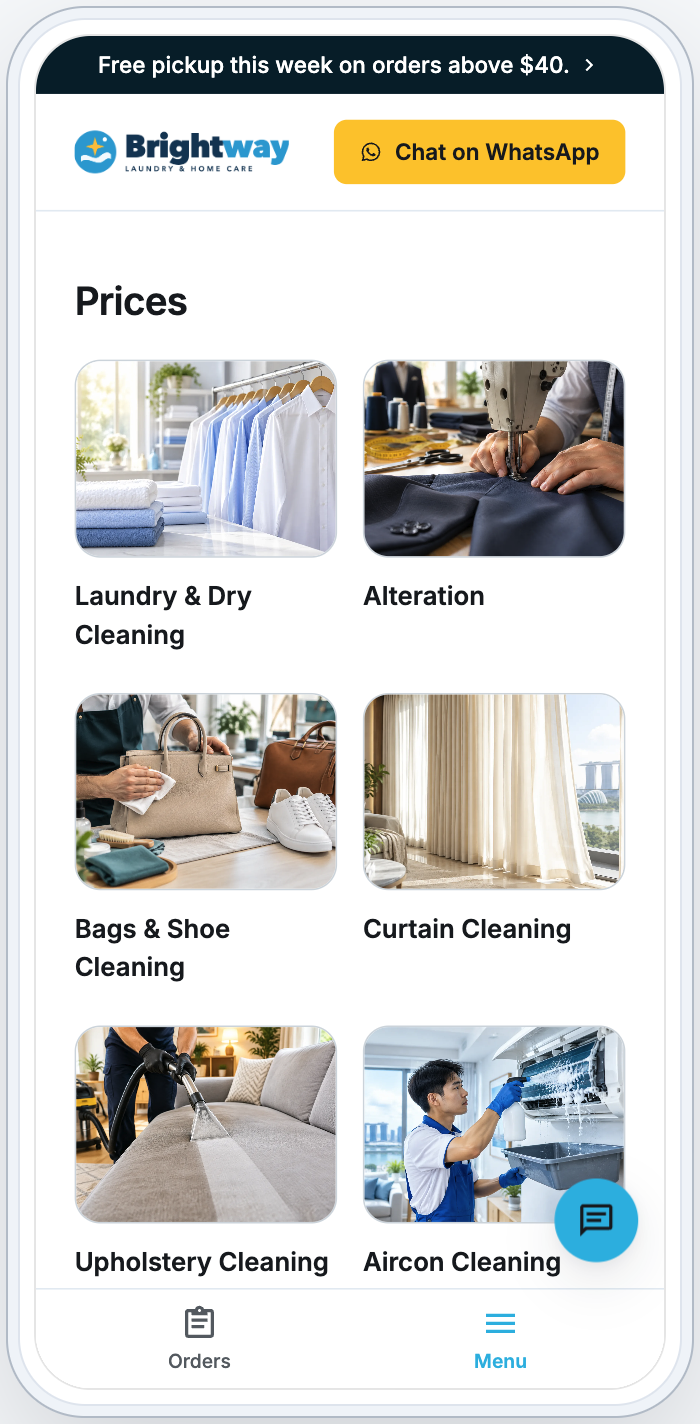
What's on the Prices page
- Guide prices: These show first, if you typed any (see below).
- Price list: Your items, grouped under their category headings.
- Each item shows its price for every service, for example "Wash & fold … SGD 3.50 / kg".
- If a service comes in sizes, the sizes are listed under it.
- If a service is priced by quantity, the item lists a price for each number of units, for example "1 unit … SGD 60.00" and "2 units … SGD 110.00".
- An item with more than 10 different prices shows only its lowest, for example "From SGD 55.00".
- Items you quote per job show "Price on request".
- Search items: A search field appears when the list has 12 or more items.
- Booking button: A button under the prices. It says Book with the unit's name, such as Book Laundry, when 2 or more units are switched on here, and Book now when only one is. On a phone, it stays at the bottom of the screen.
When a unit has no prices
A unit with nothing to show says "Prices for Laundry are not listed online", with Contact us and your billing company's name, phone and email.
Choose which business units show
- Click ⚙️ Settings.
- Under Sales channels, click Online Store & Mobile App.
- On the store card, click Edit Online Store & Mobile App. The button says Edit Online Store or Edit Mobile App when only one of them is on.
- Under Pages, click Prices.
- Turn on the switch next to each business unit whose prices you want customers to see.
- Drag the units into the order you want.
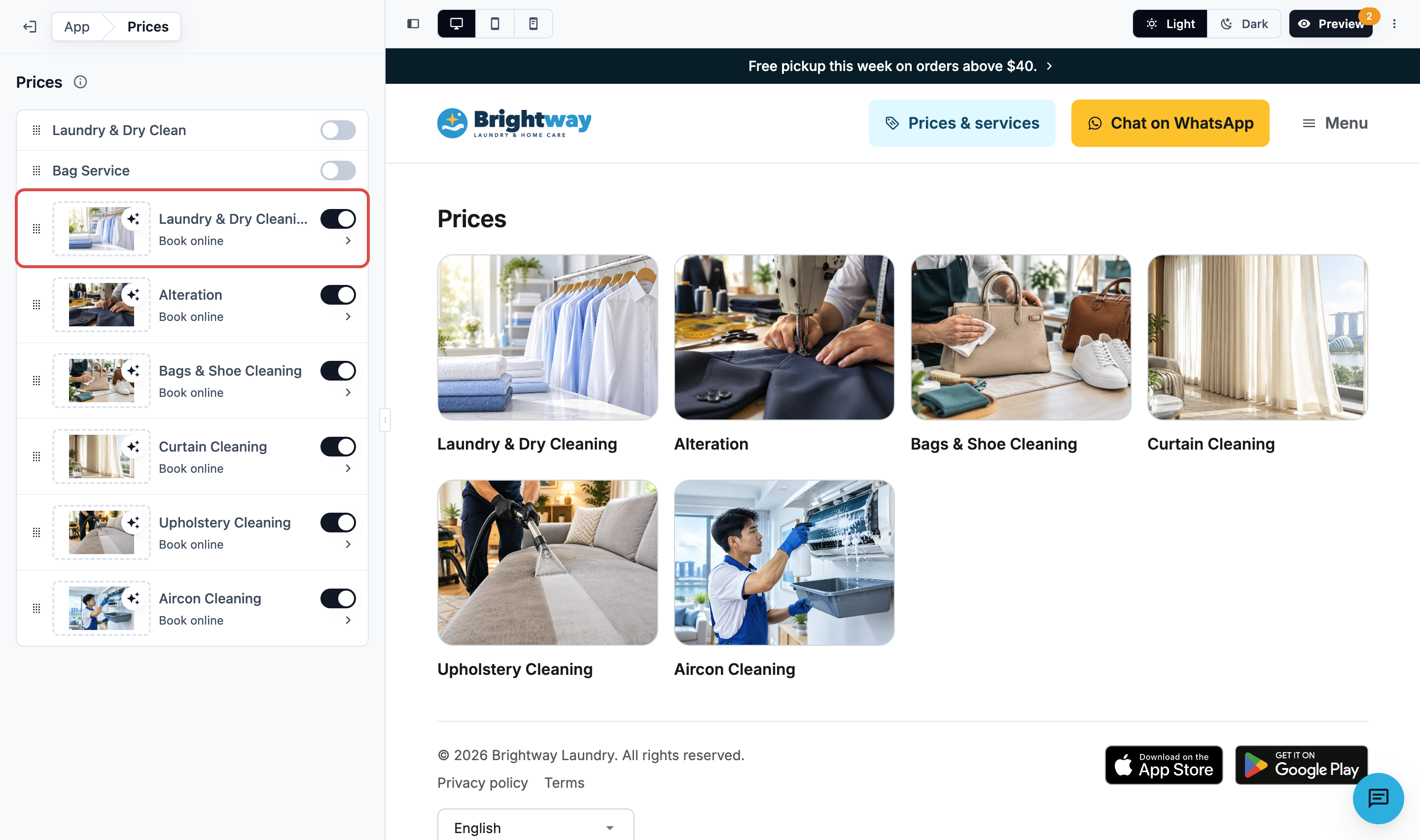
Good to know
- Order: The order of business units here applies only to the Prices page. Your booking can list them in a different order.
- Card pictures: While 2 or more business units are on, each row has a picture box for its card. It's the same cover picture used on the Checkout page, so changing it in one place changes both.
- New business units: Any business unit you add later starts switched off here.
Set up one business unit's prices
Switch the unit on, then click its row to open its settings. Only a unit that is switched on opens. The preview opens on that unit's prices.
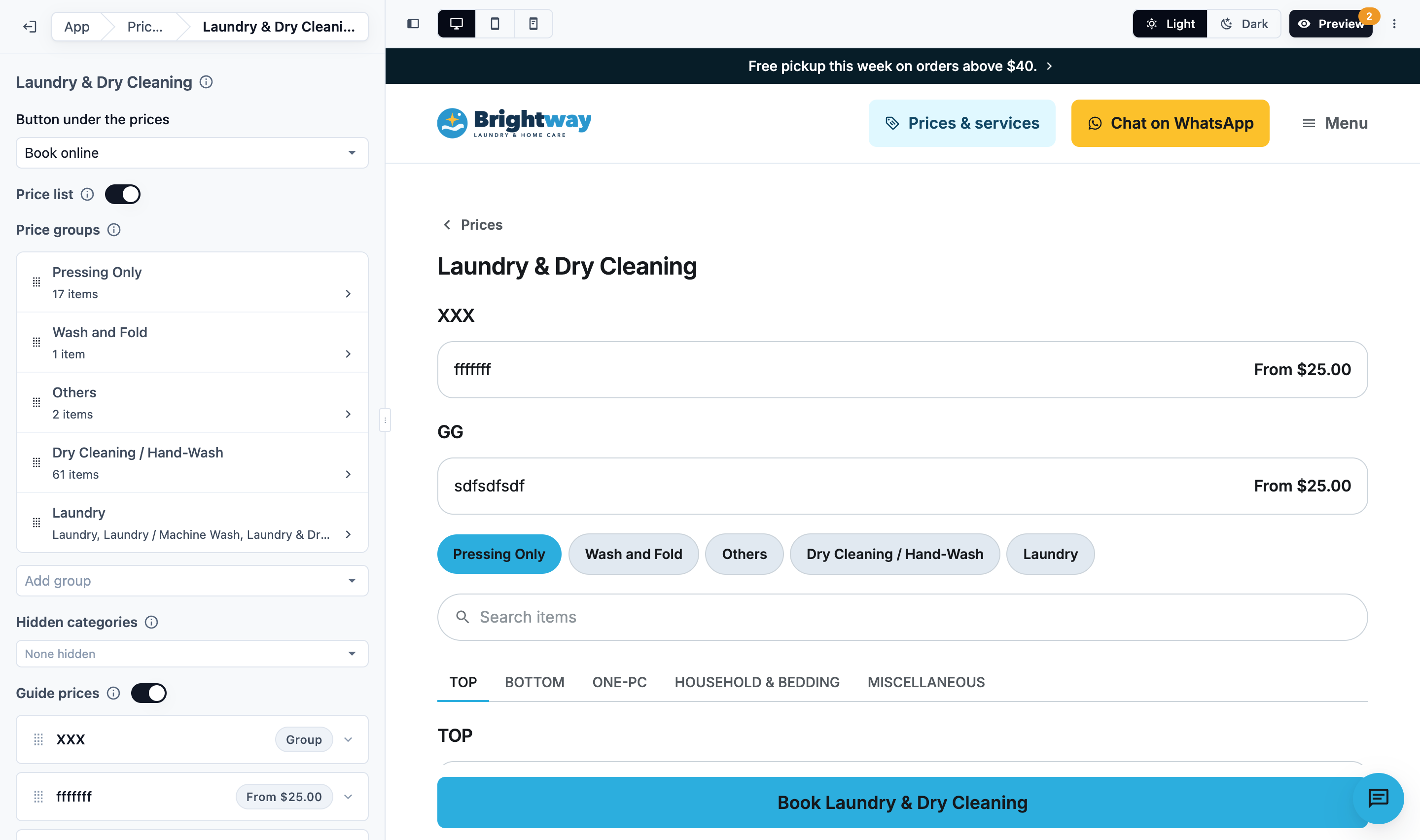
Button under the prices
| Choice | What customers get |
|---|---|
| Book online | A button that opens that unit's booking. It shows while the unit is on, with its steps, on the Checkout page. A unit with no checkout steps shows Book online (not set up). See Letting Customers Book Online |
| Chat on WhatsApp | Chat on WhatsApp, which opens a WhatsApp chat with "Hi, I would like to ask about Laundry." typed in. Enter the WhatsApp number with its country code, digits only |
| No button | The prices alone |
Until you type a WhatsApp number, the unit's row says WhatsApp number missing, and customers see no button.
Price list
Shown when the unit's Catalog has a price list. Turn Price list off to keep the prices for your staff only, and show guide prices instead.
Price groups
Shown when the price list has 2 or more services. Optional.
- With no groups, customers see one list. Each item shows its price for every service.
- With groups, the list splits into tabs customers pick, in your order.
To add a group:
- Click Add group and choose a service. The group takes that service's name.
- Optional: open the group and add more services under Services in this group. A group of several services shows its Group name, or the first service's name until you type one.
- Drag the groups into the order you want.
A service in no group is not shown. To go back to one list, open each group and click Remove group.
Hidden categories
Choose price-list categories customers don't see, such as staff-only extras. They leave the Prices page, every price group and the search. Your staff still see and use them in POS.
Guide prices
Type what customers usually pay, one row each, for example "Garment Care" and "From $8".
- Click Add guide price, then type the Service or item and its Price.
- Optional: click Add group to add a Group name. The rows below it show in their own card.
- Drag the rows into order.
Guide prices show above the price list, or on their own when Price list is off. Turn off Show guide prices to hide them without deleting them. They are a guide only and never change what an order costs.
Where the prices come from
Each business unit shows the price list set in its Catalog tab for this store's market and sales channel. Bookings charge the same prices. See Setting Up Your Business Unit for Laundry.
Changes that show automatically
These update on the Prices page within a few minutes. You don't need to publish the store:
- New prices: Publish the price list as usual.
- New names: Rename a business unit or service option, or rename an item with Update Details in Price Lists.
Changes that need a store Publish
Changes you make on the Prices page in the store editor (which business units show, buttons, groups, hidden categories and guide prices) reach customers only after you publish.
Publish your changes
Your edits save as a draft straight away, and the editor's preview shows them.
- Click Preview and check Prices & services.
- In Preview, click Publish.
- Click Publish Online Store and Publish Mobile App.
See Edit, Preview and Publish Your Online Store.
FAQs
I changed a price, but Prices still shows the old one. Why?
Prices shows your published price list. Publish the price list, then wait a few minutes.
I published, but my Mobile App still shows the old Prices page. Why?
Each product publishes its own Prices page. Click Preview, then Publish, and click Publish Mobile App.
Why does the button say Book now, not Book Laundry?
Only one business unit is switched on on the Prices page. With 2 or more switched on, each button names its unit.
Can a unit show prices but not take bookings?
Yes. Turn it on here, and leave it off on the Checkout page, or choose Chat on WhatsApp or No button.
Why is a business unit missing from Prices?
It is switched off on the Prices page. A unit you add later starts off.
Why does a service not show?
You added price groups, and the service is in none of them. Add it to a group, or remove every group.
Why does an item show "From" and one price?
It has more than 10 different prices, so the page shows only its lowest.
Do hidden categories stop my staff selling them?
No. They are hidden from customers only. POS still sells them.
Do guide prices change what customers pay?
No. Orders are priced from your price list.
What's next
Set up what customers fill in when they book: Letting Customers Book Online.