
Before you start
Set up what you sell and how orders are taken first. The pipeline picks up from there.
- Choosing What You Sell and Your Prices
- Adding Extra Steps When Staff Take an Order
- Asking for Details on Each Item
- Choosing What Customers Fill In When Booking Online
What the order pipeline is
Think of the pipeline as the route an order travels through your shop. Each stop on the route is a step, such as "Pending Pickup" or "Ready for Collection". An order is always at exactly one step, so you can see at a glance where it is.
It helps you:
- See where every order is without asking your staff.
- Move orders forward on their own when something happens, such as a finished pickup or delivery.
- Show customers clear progress online, so they stop asking for updates.
- Keep every order of the same business unit following the same route.
Can I skip this? Every business unit starts with a ready-made pipeline, so orders still move without any changes from you. Set up your own steps when you want the steps to match how your shop really works, or when you want orders to move on their own.
The 3 parts of the pipeline
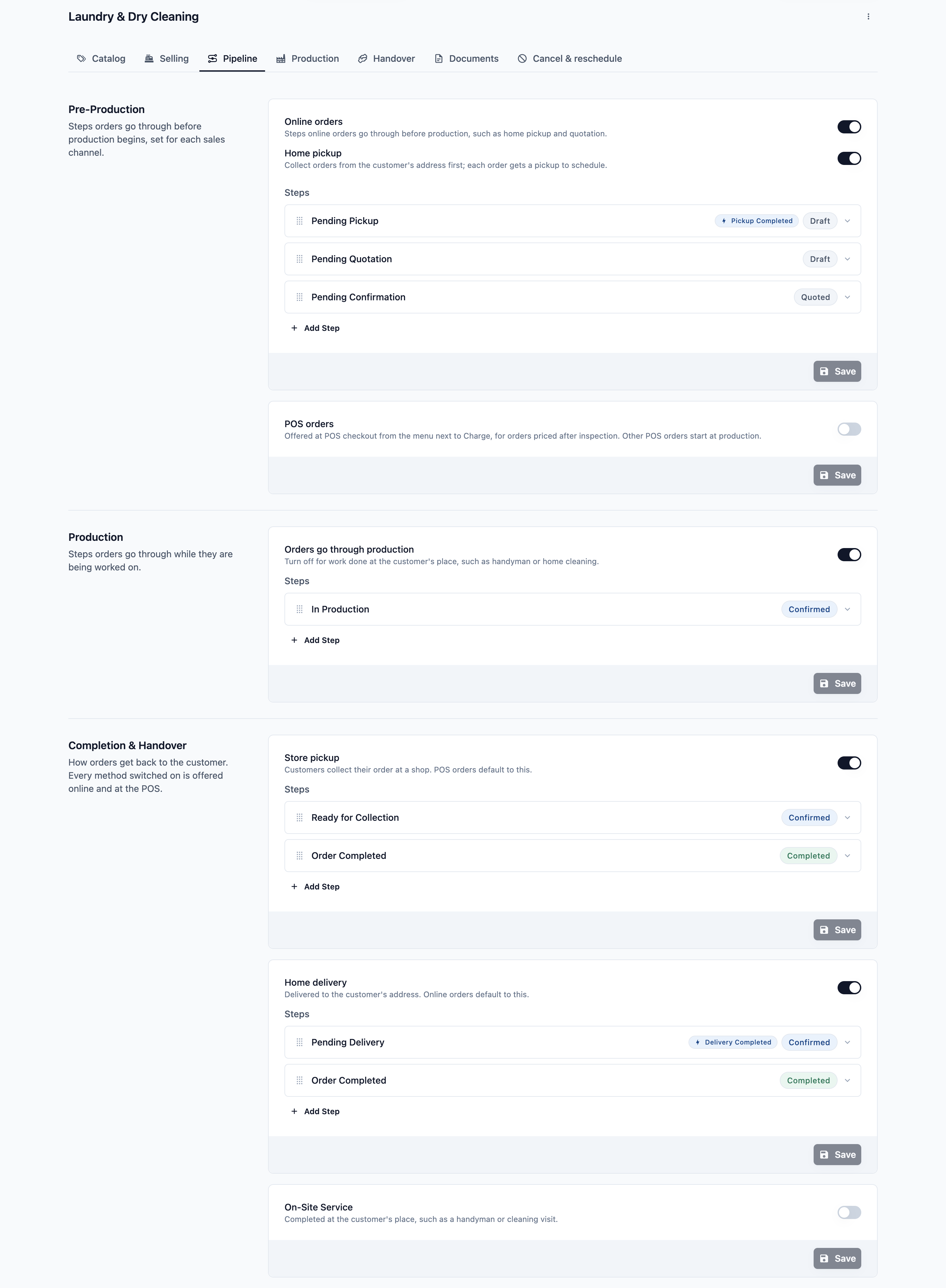
The Pipeline tab has 3 sections. Each section has its own Save button, so saving one section never changes another.
Pre-Production
These are the steps before any work starts, such as a home pickup or a price quote. There are 2 cards:
- Online orders: These steps run for orders booked on your Online Store. This card also has a Home pickup switch.
- POS orders: These steps are offered at POS checkout from the menu next to Charge, for orders you price after you inspect them. Other POS orders skip this part and start at Production.
Pre-Production is covered in full in Quoting and Collecting Orders Before Work Starts.
Production
These are the steps while the order is being worked on, such as washing or a trip to your factory. Use the Orders go through production switch to turn this part on or off. Turn it off for work done at the customer's place, such as home cleaning. Production steps are covered in Tracking Work and Trips to Your Factory.
Completion & Handover
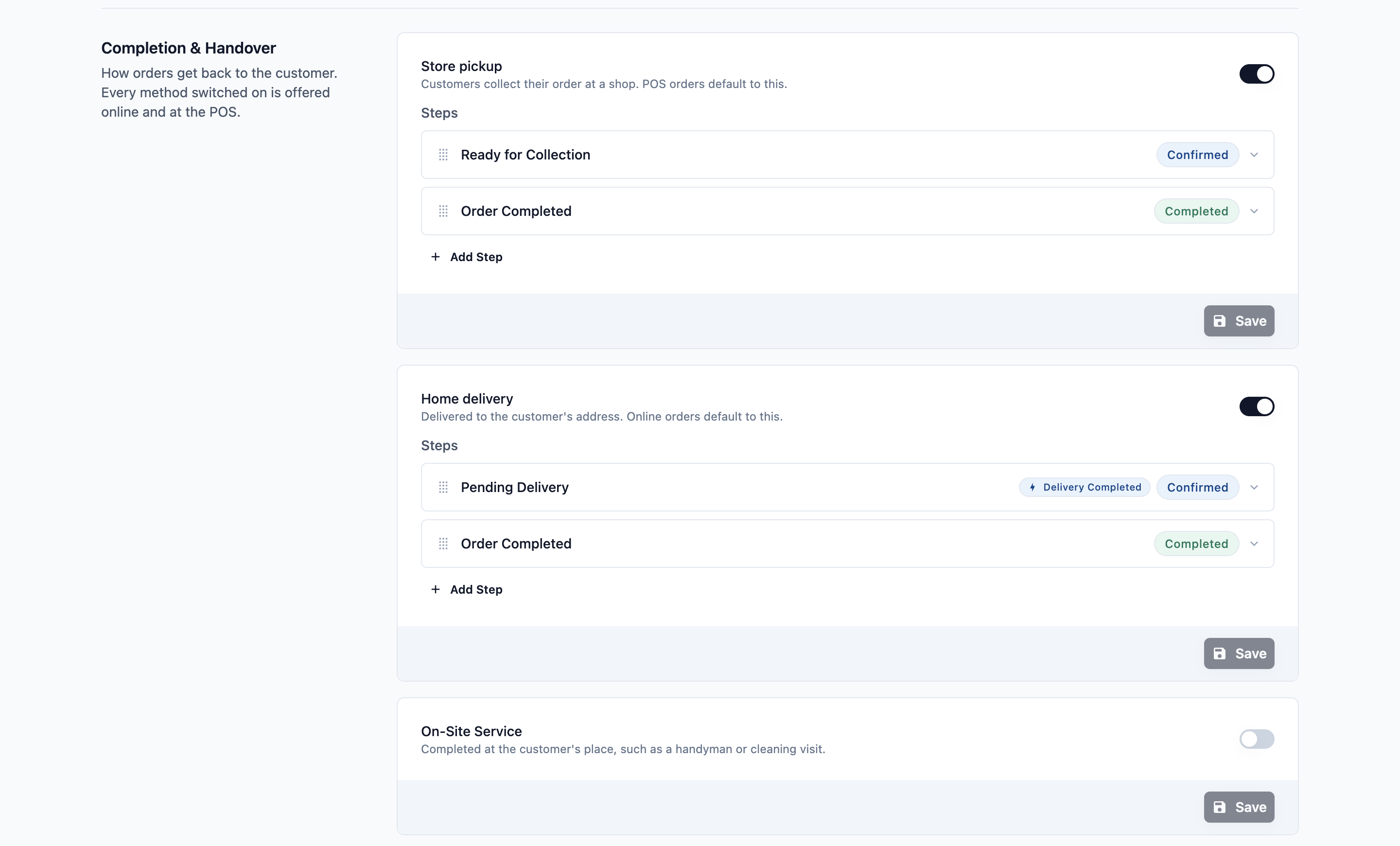
These are the steps that get the order back to the customer. There are 3 methods, each with its own switch:
- Store pickup: Customers collect their order at a shop. POS orders use this by default.
- Home delivery: You deliver the order to the customer's address. Online orders use this by default.
- On-Site Service: The work is finished at the customer's place, such as a cleaning visit.
Every method you switch on is offered online and at the POS. These methods are covered in Getting Finished Orders Back to Customers.
What each step is made of
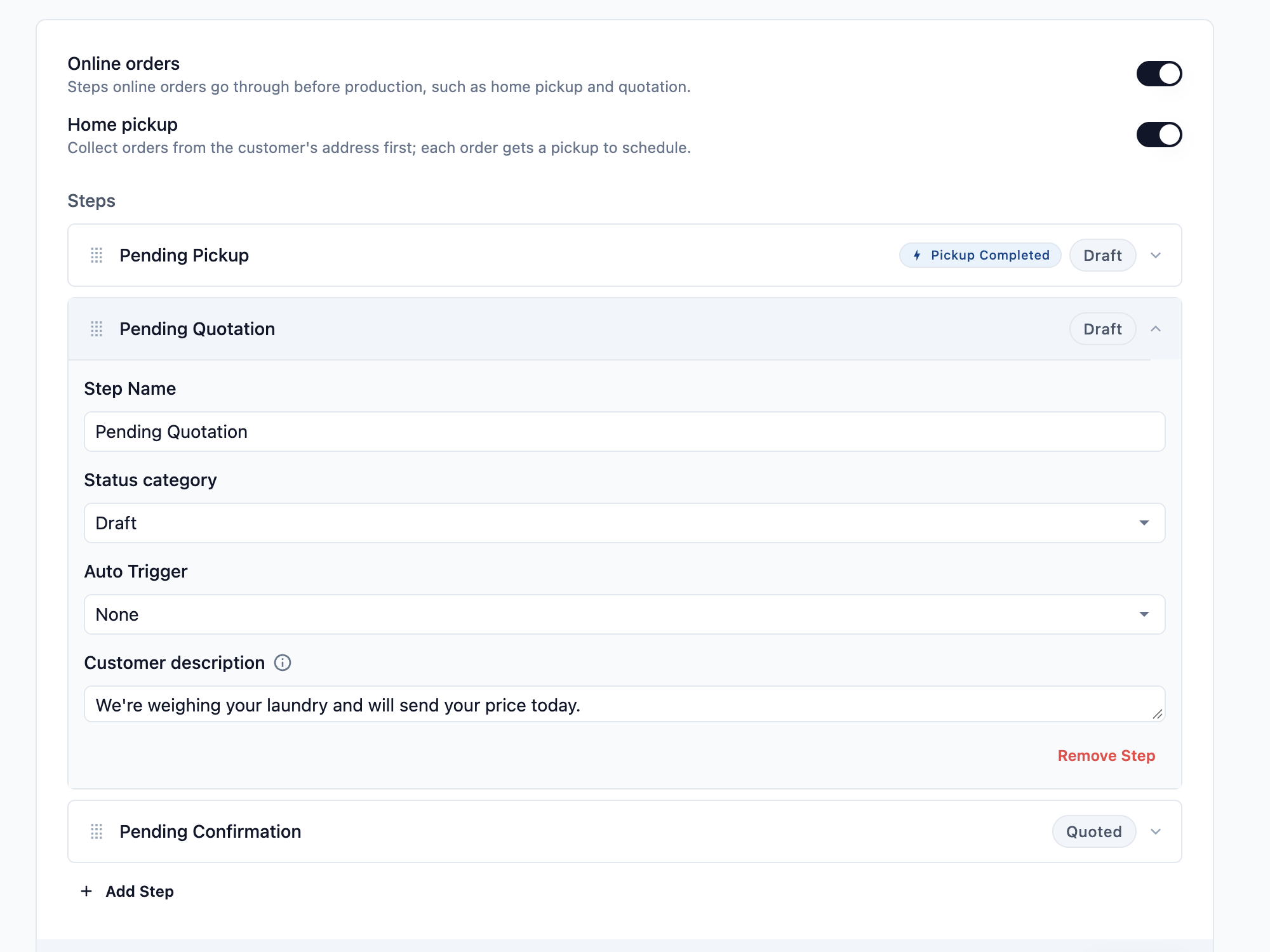
Every step in every part has the same 4 settings. Click a step to open them.
Step Name
This is what your staff see, for example "Pending Quotation". Name steps the way your team talks.
Status Category
This tells the system which stage of the order this step belongs to. It decides the order's overall status in your order lists.
| Part | Choices |
|---|---|
| Pre-Production | Draft (the order isn't priced or confirmed yet), Quoted (the customer has your price and needs to accept it) |
| Production | Confirmed (always, so this can't be changed) |
| Completion & Handover | Confirmed (the order is done and waiting to go back), Completed (the customer has it) |
Auto Trigger
This is the event that finishes the step on its own. When the event happens, the order moves to the next step. Choose None if the step should wait for your staff instead. The full list is in "Steps that move on their own" below.
Customer description
This is the line customers read under their order's progress in your Online Store and Mobile App while the order is at this step. You can use up to 240 characters. Leave it empty to use the standard line. Steps with the Completed category don't have this field, because customers simply see that their order is completed.
Set up your pipeline
- Go to ⚙️ Settings > Business Units.
- Click the business unit.
- Click the Pipeline tab.
- Turn on the switch for each part or method you need. Its ready-made steps appear below it.
- Click a step to open it, then change its Step Name, Status Category, Auto Trigger or Customer description.
- To add a step, click Add Step. To delete one, open it and click Remove Step. Each list needs at least 1 step.
- Drag a step by its handle to change the order.
- Click Save on that section's card.
You see "Order pipeline saved".
What customers see
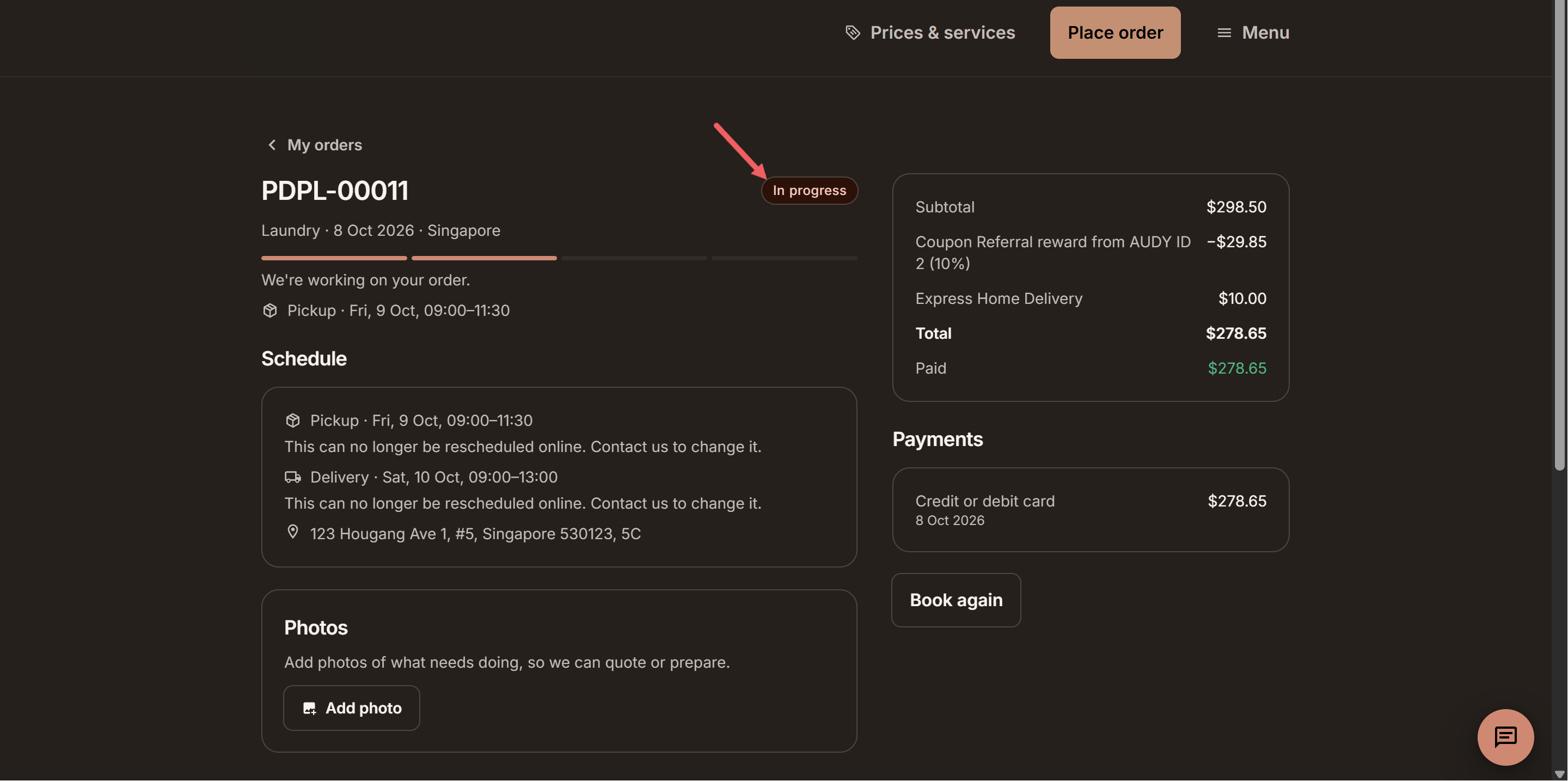
Customers don't see your step names. They see a simple progress bar with one milestone for each part their order goes through, in plain words.
| Milestone | Standard line underneath | When customers see it |
|---|---|---|
| Order received | We've received your order. | The order is in Pre-Production. |
| Quote ready | Your quote is ready. Please review it. | You've sent a price and are waiting for the customer to accept it. |
| In progress | We're working on your order. | The order is in Production. |
| Ready for collection | Your order is ready to collect. | The order is waiting at Store pickup. |
| Ready for delivery | Your order is ready and will be delivered to you. | The order is waiting for Home delivery. |
| Completed | (no line) | The customer has their order. |
A part the order skips isn't shown. For example, a walk-in POS order starts at "In progress". For an On-Site Service order, the visit shows as "In progress", because the visit is the work itself. Without a Production part, the order shows "Order confirmed" until the visit.
Your Customer description replaces the standard line while the order is at that step. This lets you say more than the standard line, for example "We're weighing your laundry and will send your price today."
Steps that move on their own
An Auto Trigger finishes a step as soon as its event happens. Here's what each one means in plain English.
| Auto Trigger | The step finishes when... |
|---|---|
| Order Created | The order is placed. |
| Order Quoted | Your staff send the customer a price. |
| Order Confirmed | The order is confirmed, for example when the customer accepts your quote. |
| Order Completed | The whole order is completed. |
| Task Completed | Your staff finish a work task on the order. |
| Pickup Completed | Your delivery staff mark the home pickup as done. Only offered in Online orders when Home pickup is on. |
| Delivery Completed | Your delivery staff mark the home delivery as done. Only offered in Home delivery. |
| Service Completed | Your staff finish the visit at the customer's place. Only offered in On-Site Service. |
| Sent Out from Shop | Your staff tap Send out on the POS to send the order to your factory. |
| Received Back at Shop | Your staff tap Receive on the POS when it comes back. |
Steps with no Auto Trigger wait for your staff. For example, sending a quote moves the order to your Quoted step. The final Completed step finishes only once every item has been handed over to the customer.
Example: one CleanFast Laundry order, start to end
CleanFast Laundry collects laundry from homes, weighs it, washes it at its factory and delivers it back. The owner sets up the Laundry business unit like this:
- Pre-Production, Online orders (Home pickup on): Pending Pickup (Draft, Pickup Completed) > Pending Quotation (Draft) > Pending Confirmation (Quoted, Order Confirmed)
- Production: Waiting to Send Out (Confirmed, Sent Out from Shop) > At Factory (Confirmed, Received Back at Shop)
- Completion & Handover, Home delivery: Pending Delivery (Confirmed, Delivery Completed) > Order Completed (Completed)
Pending Quotation has the Customer description "We're weighing your laundry and will send your price today."
Here's how the customer's order moves:
- Customer books a pickup online. Her order is at Pending Pickup. She sees Order received.
- The driver collects her bag and marks the pickup as done. The order moves to Pending Quotation on its own. She reads "We're weighing your laundry and will send your price today."
- Your staff weigh the bag and send her a quote. The order moves to Pending Confirmation. She sees Quote ready.
- She accepts the quote. The order moves to Waiting to Send Out on its own. She sees In progress.
- Your staff tap Send out on the POS. The order moves to At Factory.
- The laundry comes back and your staff tap Receive. The order moves to Pending Delivery. She sees Ready for delivery.
- The driver delivers the bag and marks the delivery as done. The order moves to Order Completed. She sees Completed.
Your staff only did 3 things by hand: weighed the bag, sent the quote and tapped Send out and Receive. Every other move happened on its own.
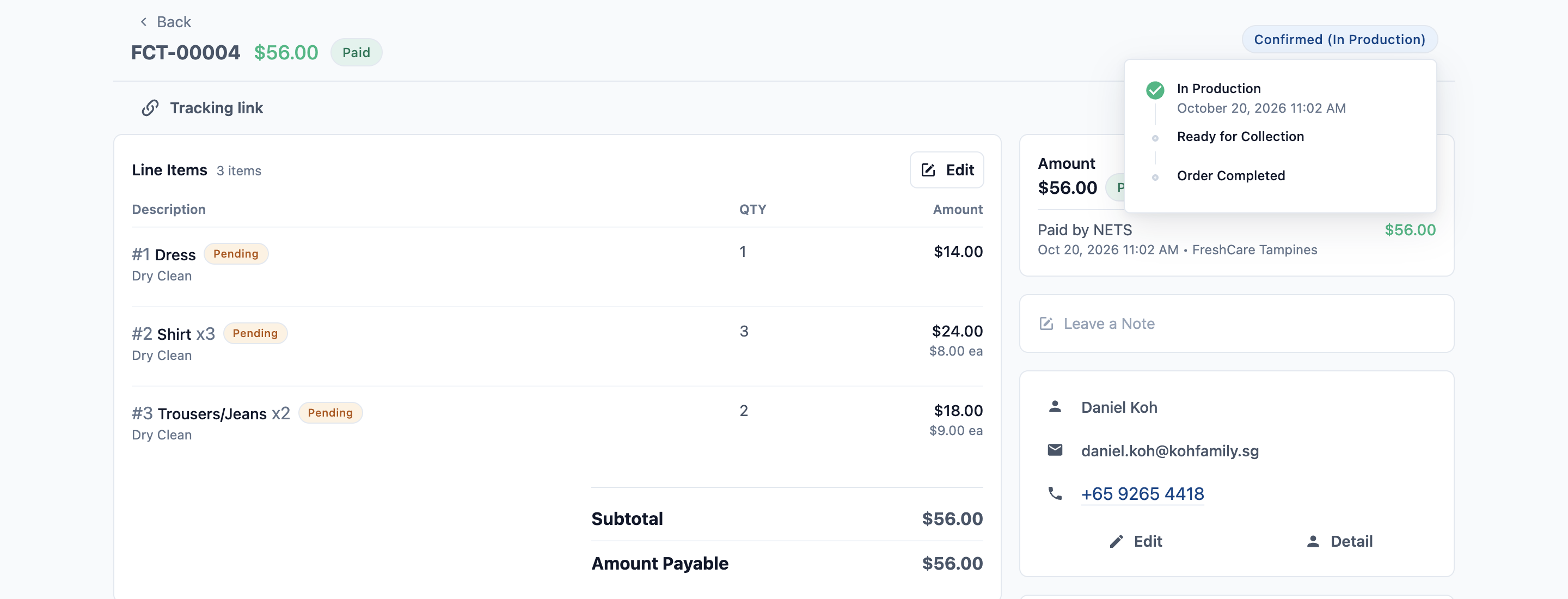
In Console, each order shows its status with its current step in brackets, for example "Confirmed (At Factory)". Click the status to see every step and when the order reached it.
A note on the Production tab
Business units also have a separate Production tab. It's being redesigned and will be covered when it's ready. Your current setup there keeps working. Contact support if you need to change it.
FAQs
Do my changes affect orders already in progress?
No, apart from the customer description. Each order keeps the steps it had when it was placed. Your new steps apply to new orders only. A changed Customer description shows right away on orders that are at that step.
Can a step send a WhatsApp message to the customer?
Not by itself. Automatic messages are set up in Customer Notifications, where you choose the event, such as order confirmed or ready for collection, and the WhatsApp template to send. See Setting Up Customer Notifications.
My staff took a walk-in order at the POS. Why didn't it go through Pre-Production?
POS orders start at Production by default. Pre-Production runs only when staff choose Quote First from the menu next to Charge. See Quoting and Collecting Orders Before Work Starts.
Why didn't my Ready for Collection step move to Completed?
The Completed step finishes only when every item on the order has been handed to the customer. If one item is still in the shop, the order waits.
What happens if I switch off a handover method?
Customers and staff can no longer choose it for new orders. Existing orders keep the method they already have.
I turned off Home pickup. What happened to my Pending Pickup step?
The step stays, but its Pickup Completed trigger is removed, because no pickup will be booked. Remove the step or rename it so orders don't wait there.
What's Next
You now know how every order moves from drop-off to collection, and which steps move on their own. Next, set up the steps before work starts, including home pickup and quotes, in Quoting and Collecting Orders Before Work Starts.