
Before you start
Pre-Production is one part of your order pipeline. Read how the pipeline works first.
If you offer home pickup, set these up too, so customers can book a pickup time and your team can schedule the trip:
What Pre-Production is
Pre-Production is the list of steps an order goes through before work starts. Think of it as the waiting room before your workshop. An order stays there until it has been collected and its price is agreed.
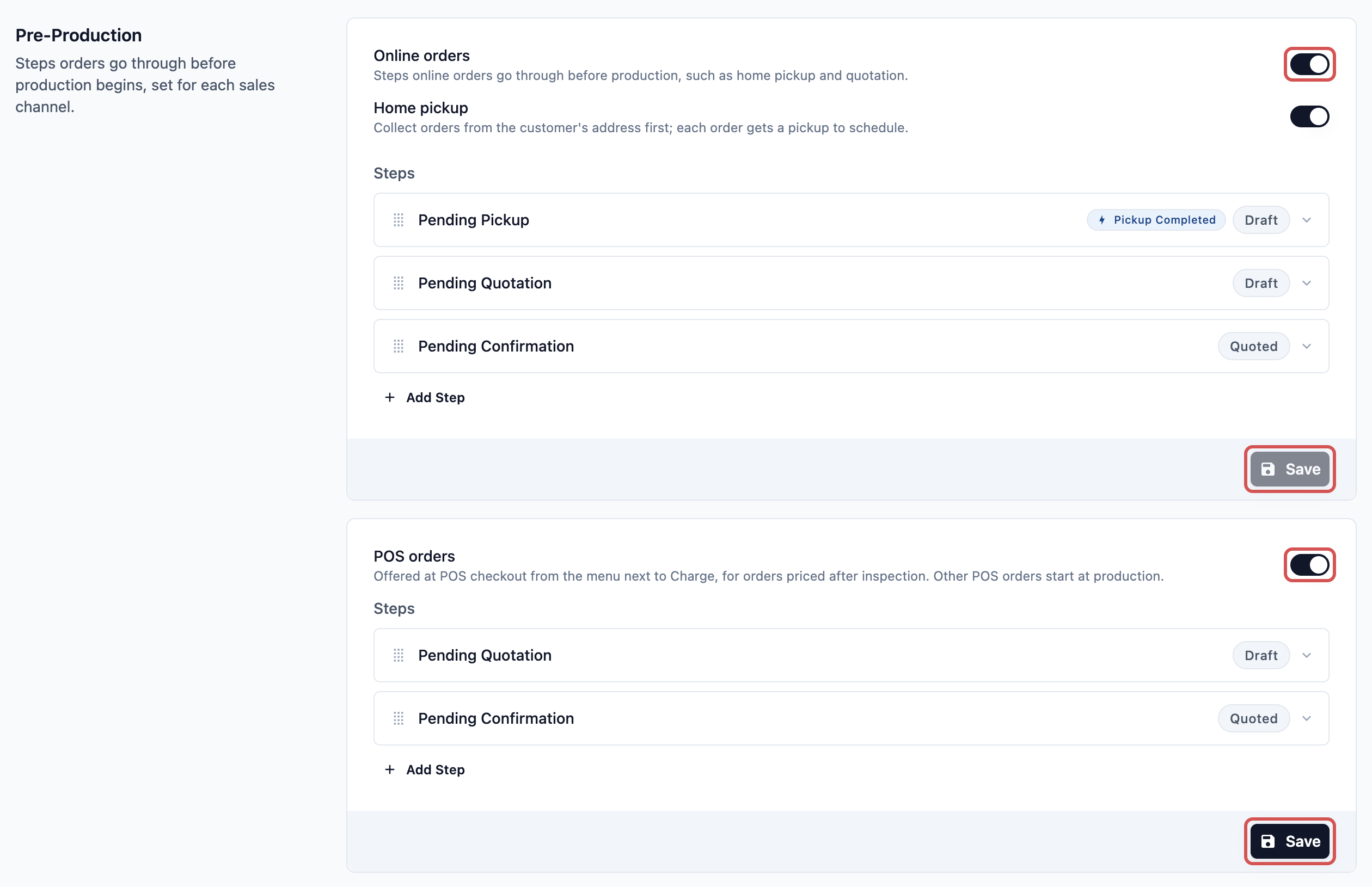
There are 2 cards, one for each way orders come in:
- Online orders: Orders customers book on your Online Store or Mobile App.
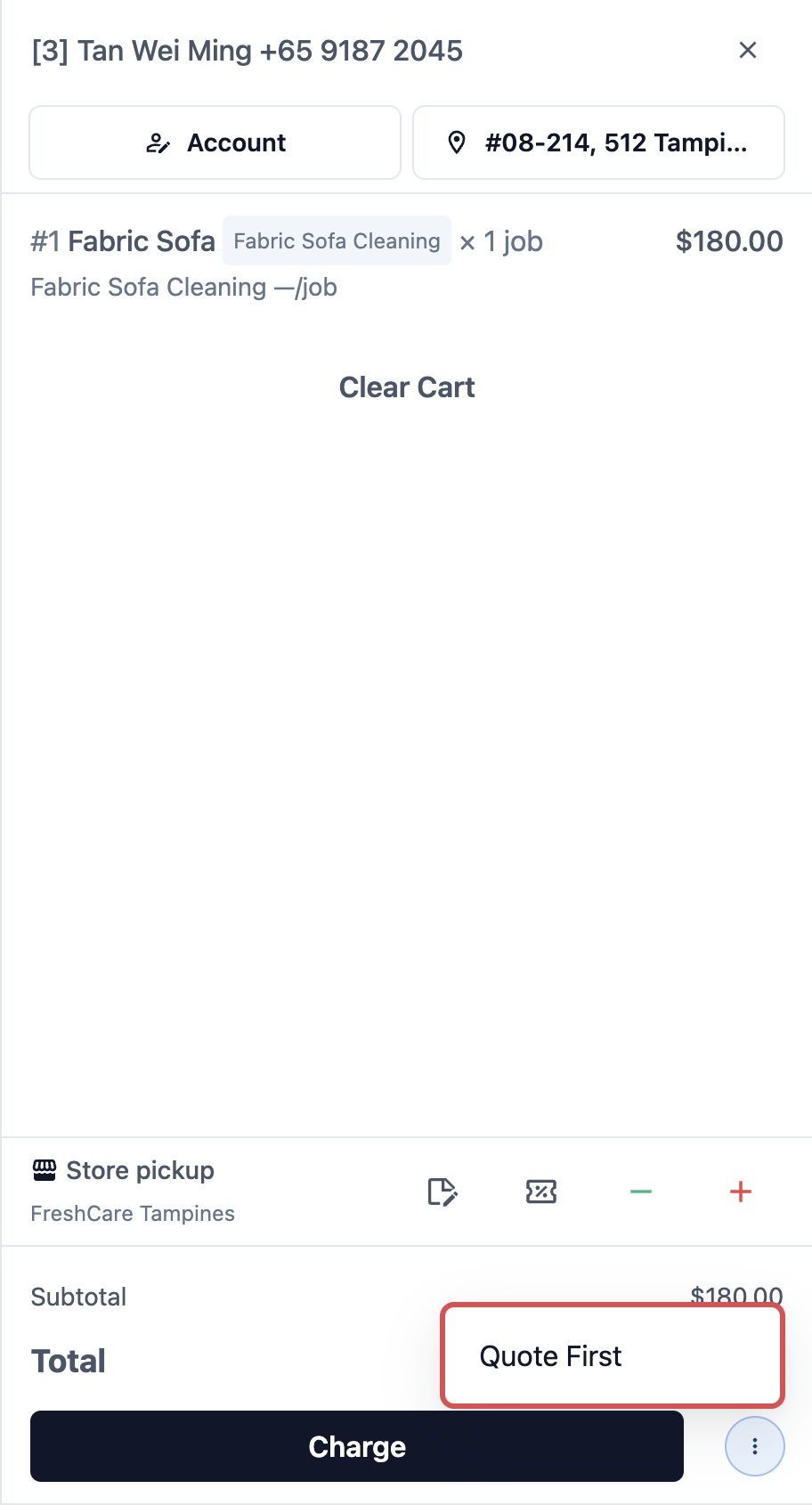
- POS orders: Orders your staff take at the counter, but only when staff choose Quote First at checkout.
It helps you:
- Start work only on items you have actually collected.
- Agree on the price before you spend time on the job, so there are no surprises at collection.
- Show customers that their quote is ready, so you spend less time chasing them.
- Let the order move forward on its own once your driver collects the items.
Online orders
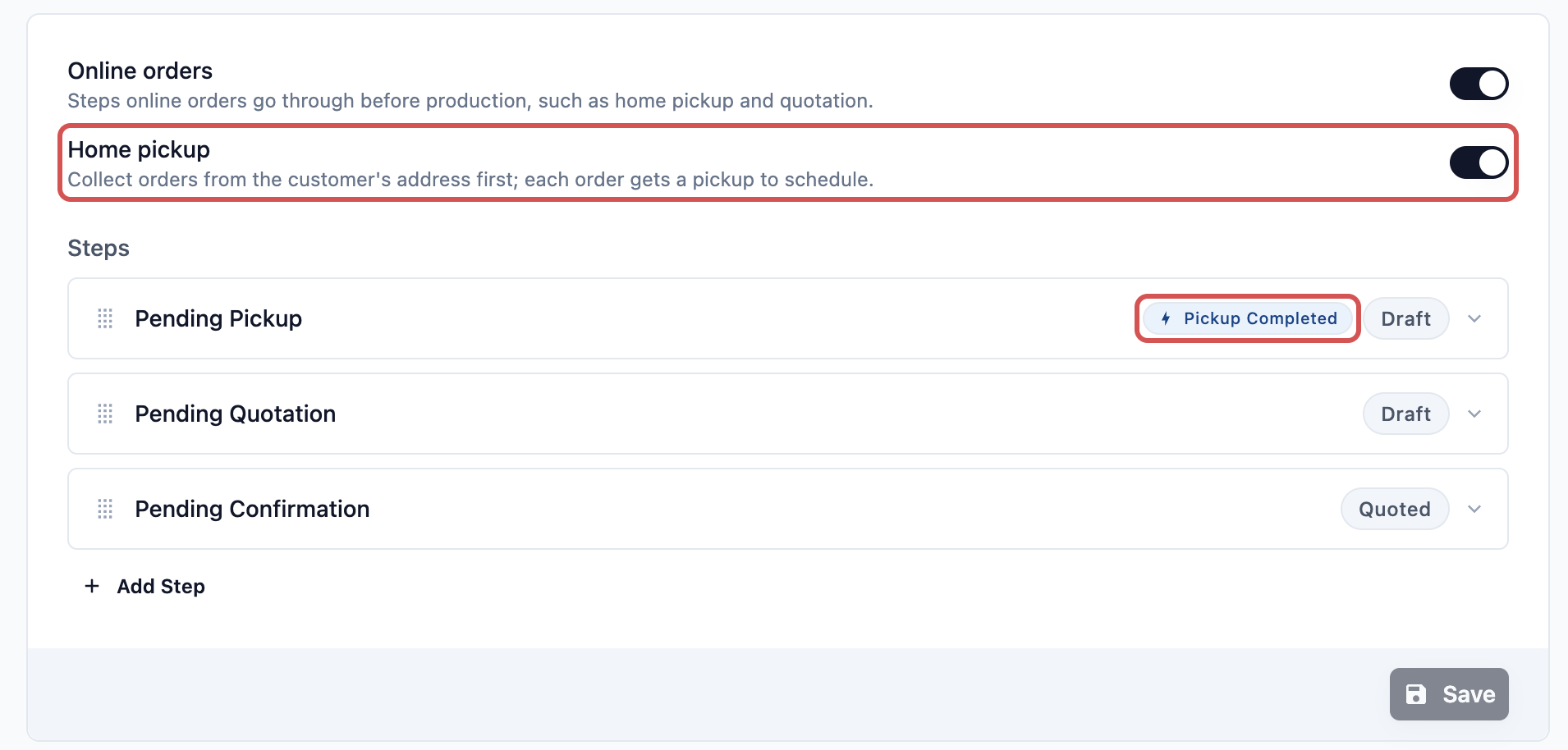
Online orders go through these steps after the customer books. When you switch the card on, it starts with 3 ready-made steps:
- Pending Pickup: The order is waiting for your driver to collect the items from the customer's home. A driver is the staff member who does pickups and deliveries for you.
- Pending Quotation: You have the items and need to work out the price.
- Pending Confirmation: You have sent the price and are waiting for the customer to agree.
You can rename, remove or add steps, just like any other part of the pipeline.
Home pickup
This switch is inside the Online orders card. Turn it on if you collect online orders from the customer's address. Each order then gets a pickup that your team schedules, at the time the customer booked.
When Home pickup is on, the Pending Pickup step has the Pickup Completed trigger. This means it moves on its own when your driver marks the pickup as done. Your staff don't need to update the order by hand.
If you turn Home pickup off, the trigger is removed from Pending Pickup, because no pickup is booked anymore. Remove or rename that step so orders don't wait there.
Sending the quote Once the items are checked, your staff update the order with the real items and price in Console. Then they send the price to the customer.
- Go to Orders.
- Click the order.
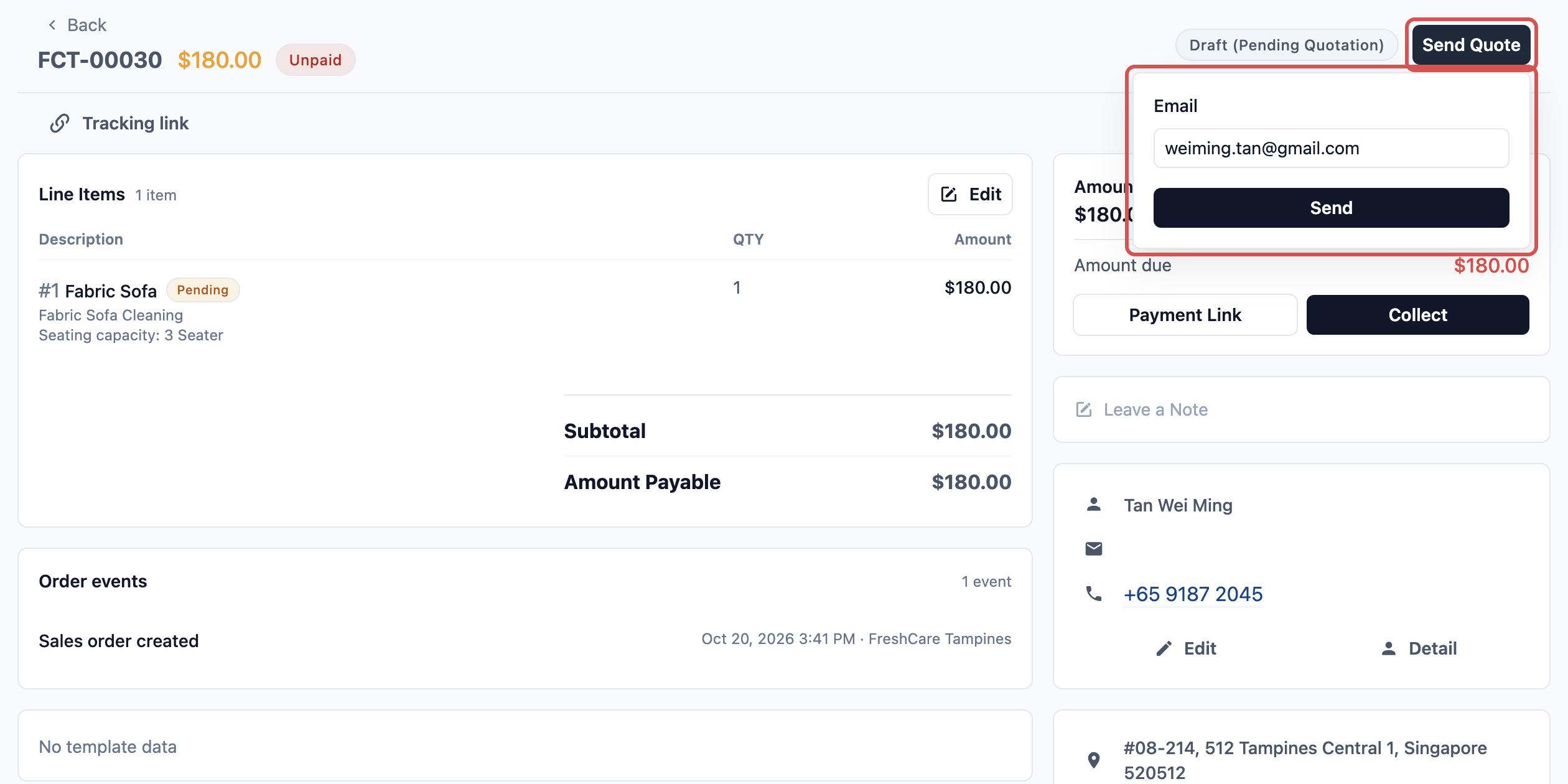
- Click Send Quote.
- Choose Email or WhatsApp, then click Send.
The order moves to Pending Confirmation. On the Online Store and Mobile App, the customer sees "Quote ready".
Confirming the order
When the customer agrees to the price, your staff confirm the order.
- Go to Orders.
- Click the order.
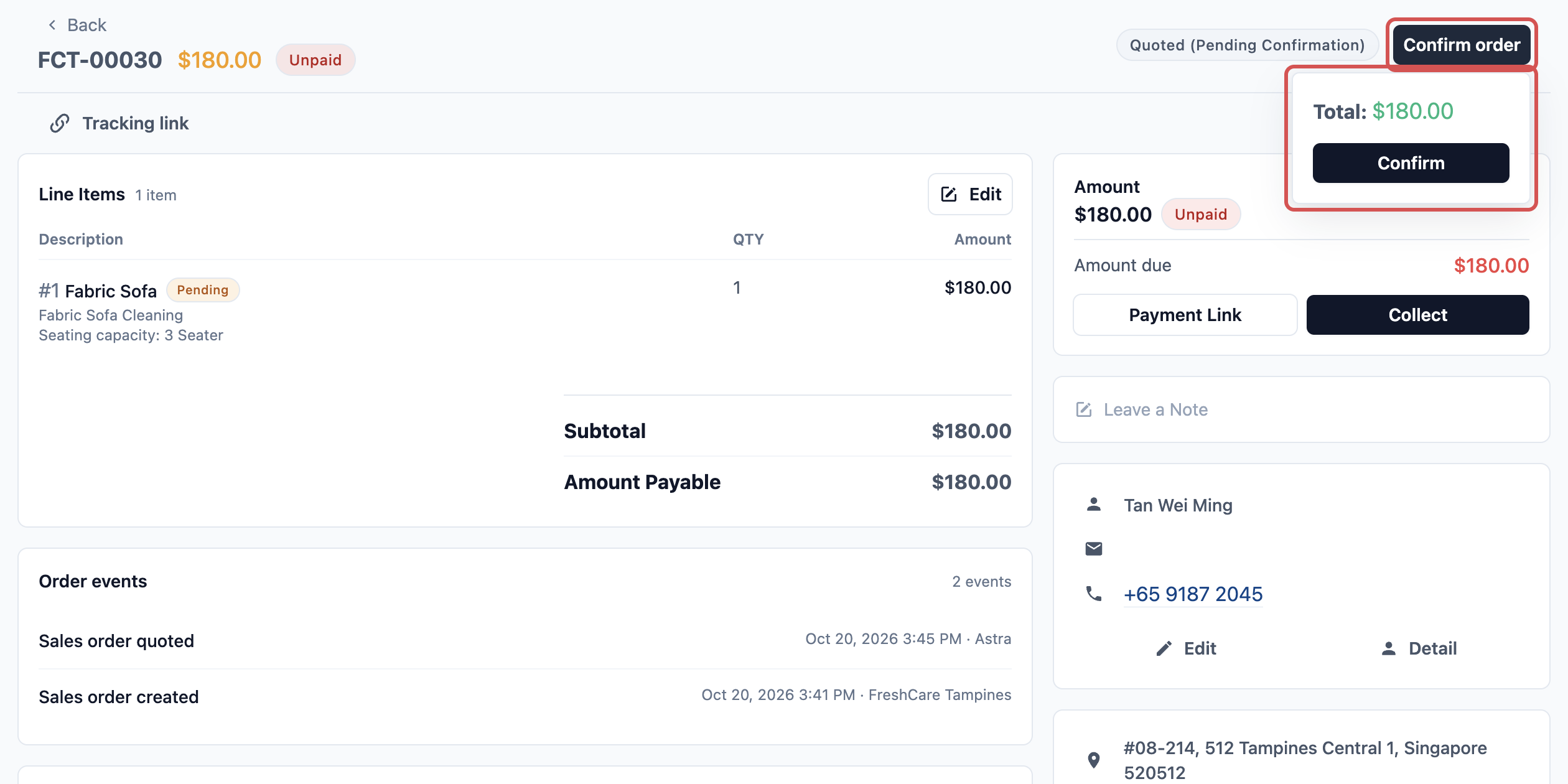
- Click Confirm order.
- Check the total, then click Confirm.
You see "Order confirmed successfully." The order leaves Pre-Production and moves into Production, so work can start.
POS orders
Most walk-in orders have a fixed price, so they skip Pre-Production and go straight to Production. The POS orders card is for the exceptions: items you can only price after you inspect them, such as a damaged bag or a stained carpet.
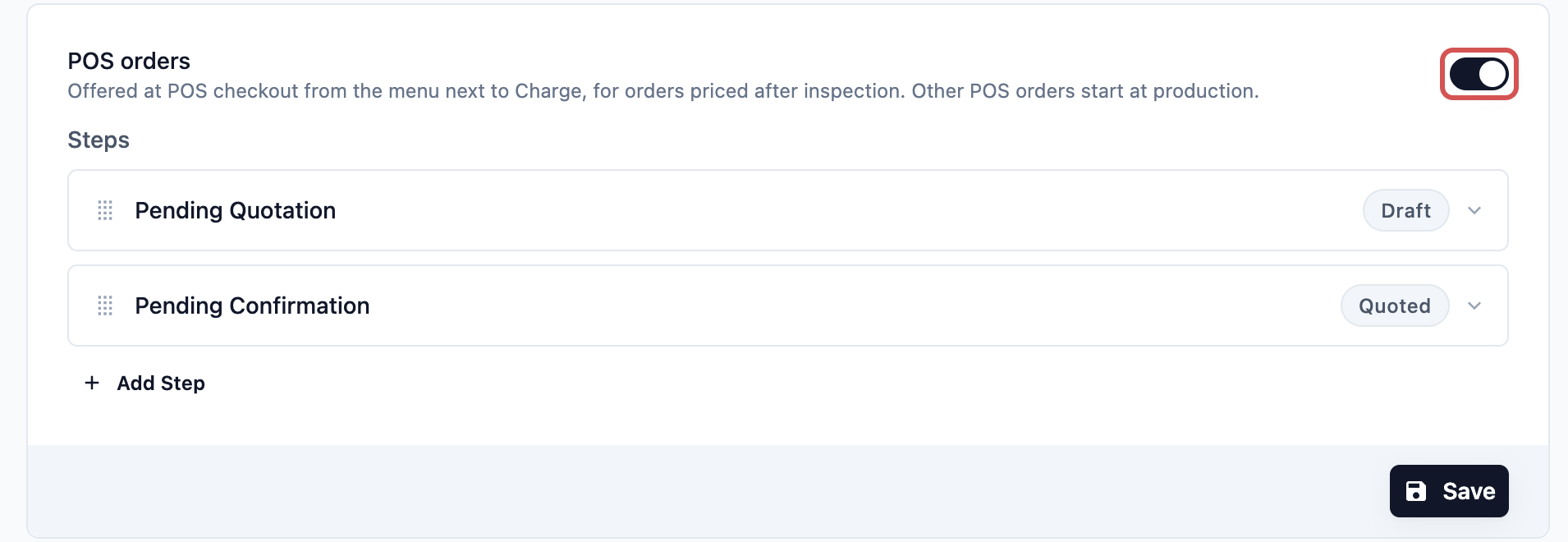
When you switch this card on, it starts with 2 ready-made steps:
- Pending Quotation
- Pending Confirmation
Your staff then see a new option at POS checkout, called Quote First. It sits in the menu next to the Charge button. Staff choose it only for orders that need a quote. Every other order is charged as normal and starts at Production.
After staff choose Quote First, the order follows the same steps as above. Your staff send the quote and confirm the order from Console.
Set up Pre-Production
- Go to :gear: Settings > Business Units.
- Click the business unit.
- Click the Pipeline tab.
- In the Pre-Production section, turn on Online orders, POS orders or both. Their ready-made steps appear below each switch.
- For online orders, turn on Home pickup if you collect from customers' homes.
- Click a step to change its name, status category, trigger or customer description. To add a step, click Add Step.
- Click Save on the card you changed.
You see "Order pipeline saved". Each card saves on its own, so saving Online orders never changes POS orders.
Can I skip this?
Yes. If you leave both cards off, every order starts straight at Production. This suits shops with fixed prices where customers drop off at the counter.
- Leave Online orders off if customers bring their items to you and your prices are fixed.
- Leave POS orders off if you never price items after inspection. Quote First then won't appear at checkout.
Example: BagCare Pro collects and quotes a sofa cover
BagCare Pro cleans bags, sofa covers and curtains. The owner sets up the Home Furnishing business unit like this:
- Online orders: On, with Home pickup on. Steps: Pending Pickup > Pending Quotation > Pending Confirmation.
- POS orders: On, with the same 2 quote steps.
Pending Quotation has the customer description "We're checking your item and will send your price within 1 day."
Here's how one online order moves:
- A customer books a sofa cover pickup on the Online Store. The order is at Pending Pickup. She sees "Order received".
- The driver collects the cover and marks the pickup as done. The order moves to Pending Quotation on its own. She reads "We're checking your item and will send your price within 1 day."
- Staff inspect the cover, update the price to S$85 and click Send Quote. The order moves to Pending Confirmation. She sees "Quote ready" and gets the price on WhatsApp.
- She replies to accept. Staff click Confirm order. The order moves to Production and cleaning starts.
At the counter, a walk-in customer brings a handbag with a torn strap. The staff member adds the repair item and taps the menu next to Charge, then Quote First. The payment screen shows a red Quote First tag, so staff know this order waits for a quote. A customer who brings in a normal shirt order is charged as usual and skips Pre-Production.
FAQs
Why is my order stuck at Pending Pickup?
This step waits for your driver to mark the pickup as done. Until then, it won't move. Check that the pickup was scheduled and completed. If you turned Home pickup off earlier, the step no longer has a trigger, so remove or rename it.
Do all POS orders now need a quote?
No. Turning on POS orders only adds Quote First to the menu next to Charge. Orders go through the quote steps only when your staff choose it. All other orders are charged and start at Production as usual.
Why do my staff see Mark as quoted instead of Send Quote?
Send Quote uses your customer notification for quotes. If you haven't set one up, staff see Mark as quoted instead. The order still moves to Pending Confirmation, but the customer isn't messaged, so staff need to tell them the price themselves. See Setting Up Customer Notifications.
Can customers accept the quote online?
Not yet. Customers see "Quote ready" on the Online Store and Mobile App, and receive the price by email or WhatsApp. When they reply to accept, your staff click Confirm order.
My prices are fixed. Do online orders still wait for a quote?
Yes, if the quote steps are still in the Online orders card. Remove Pending Quotation and Pending Confirmation, and keep only Pending Pickup. Orders then move straight to Production once the driver collects the items.
I turned on Home pickup, but customers can't book a pickup online. Why?
The business unit has no pickup booking option, so there are no pickup times to choose from. Assign one in Setting Up Booking Options.
What's Next
You've now set up the steps before work starts, including home pickup, quotes and Quote First at the POS. Next, set up the steps while the work is being done, including trips to your factory, in Tracking Work and Trips to Your Factory.