
Before you start
Completion & Handover comes right after the steps while work is being done, so set those up first:
If you deliver orders or visit customers, you also need:
- Logistics set up, so deliveries and visits can be booked and assigned. See Introduction to Logistics Management.
- The EasyBiz app on your drivers' phones. See Getting the EasyBiz App for Your Team.
- Booking Options and time slots, so customers and staff can pick a delivery date and time. See Setting Up Booking Options and Setting Up Time Slots.
What Completion & Handover is
Completion & Handover is how a finished order gets back to the customer. You switch on each way your shop hands orders back. Each one is called a handover method.
There are 3 methods:
- Store pickup: The customer collects the order at your counter.
- Home delivery: A driver brings the order to the customer's address. A driver is the staff member who does the delivery, using the EasyBiz app on their phone.
- On-Site Service: The work is finished at the customer's place, such as a home cleaning or handyman visit.
Each method has its own short list of steps. The order moves to these steps once the work is done.
It helps you:
- Know which finished orders are on your shelf and which are out for delivery.
- Stop orders being marked complete before the customer actually has them.
- Book deliveries and visits automatically, instead of writing them down.
- Show customers whether their order is ready, so fewer of them call to ask.
When to use each method
Store pickup
Use this when customers come back to your shop to collect. POS orders use Store pickup by default.
It comes with 2 steps:
- Ready for Collection: The order is finished and waiting at the counter.
- Order Completed: Your staff have handed the items over on the POS.
Home delivery
Use this when you bring orders back to your customers. Online orders use Home delivery by default.
It comes with 2 steps:
- Pending Delivery: The order is waiting to be delivered. It has the Auto Trigger Delivery Completed, so it finishes on its own when the driver marks the delivery as done in the EasyBiz app.
- Order Completed: The customer has the order.
On-Site Service
Use this for work done at the customer's place, such as cleaning or handyman visits.
It comes with 2 steps:
- Pending Service Visit: The order is waiting for the visit. It has the Auto Trigger Service Completed, so it finishes on its own when the visit is marked as done.
- Order Completed: The visit is done.
Set up Completion & Handover
- Go to :gear: Settings > Business Units.
- Click the business unit.
- Click the Pipeline tab.
- Scroll to the Completion & Handover section.
- Turn on the switch for each method you offer: Store pickup, Home delivery or On-Site Service.
- The ready-made steps for that method appear below its switch. To rename a step, click it and change the Step Name. To add a message customers see online while the order is at that step, fill in Customer description.
- Click Save in that method's card. Each method has its own card and its own Save button.
You see "Order pipeline saved". New orders for this business unit now use these methods.
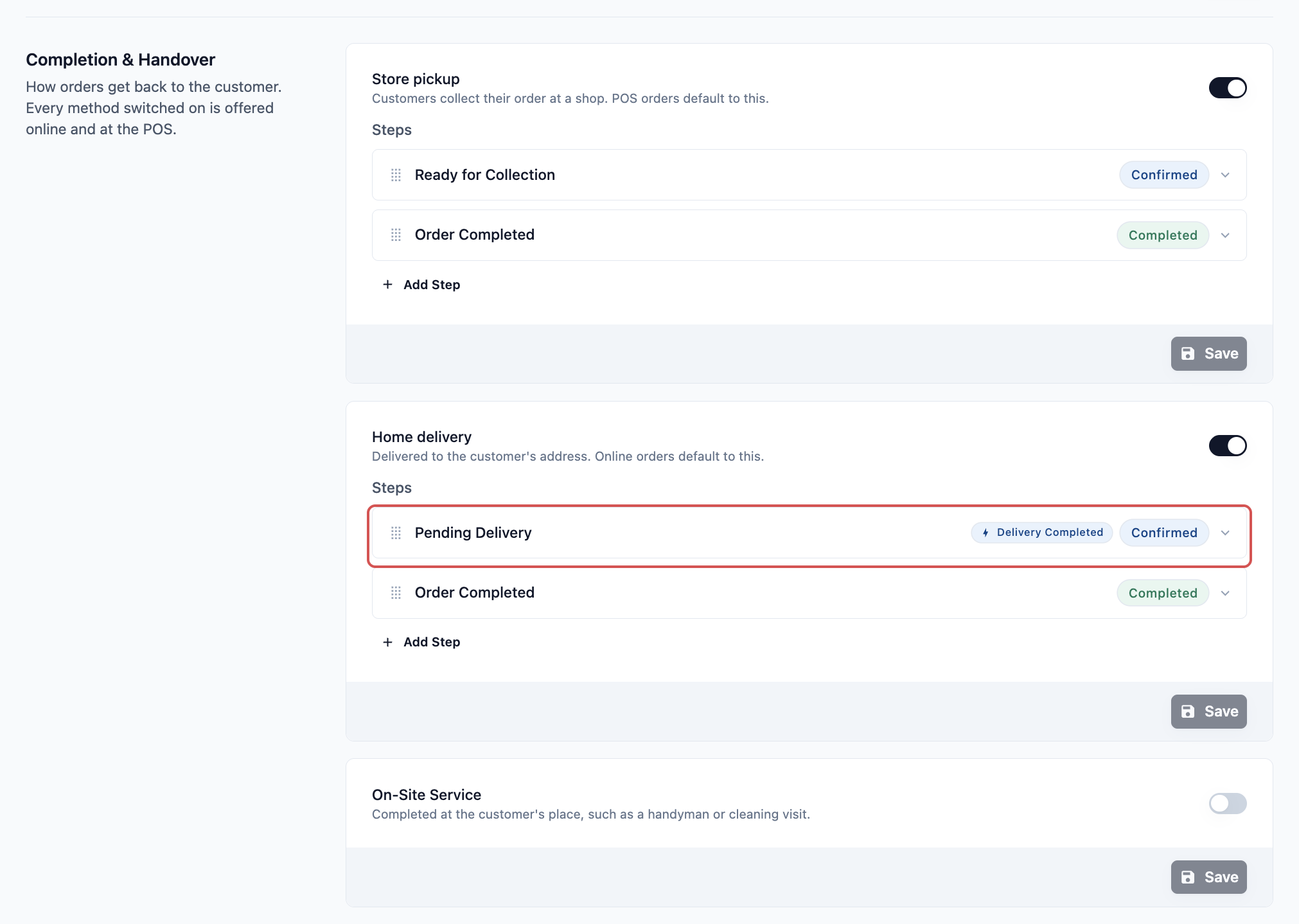
Each step also has:
- Status Category: Confirmed for a step where the order is still waiting, or Completed for the final step.
- Auto Trigger: The action that finishes the step on its own. Home delivery steps can use Delivery Completed, and On-Site Service steps can use Service Completed.
You can add more steps with Add Step, drag them into a new order, or delete one with Remove Step. Most shops keep the ready-made steps as they are.
When you switch on 2 or more methods
Your staff choose the method for each order at the POS.
- At the POS: Store pickup is already selected. Your staff can switch to Home delivery before charging. On-Site Service isn't offered as a choice at the POS. It is used only when it's the only method switched on.
- Online: Your Online Store and Mobile App don't ask the customer to choose. Online orders use Home delivery if it's on. If not, they use On-Site Service, and then Store pickup.
Can I skip this?
No. Every business unit should have at least one method switched on.
If none is on, orders have no Ready for Collection or Order Completed step. Your staff aren't offered a pickup or delivery choice at the POS. Online bookings don't book a delivery or a visit either.
Example: CleanFast Laundry collects and delivers
CleanFast Laundry has 2 shops. Walk-in customers collect their laundry at the counter. Customers who book online get it delivered home. The owner sets up the Laundry business unit like this:
- Store pickup: On, with the ready-made steps.
- Home delivery: On. Customer description on Pending Delivery: "Your laundry is on its way. Our driver will message you before arriving."
- On-Site Service: Off.
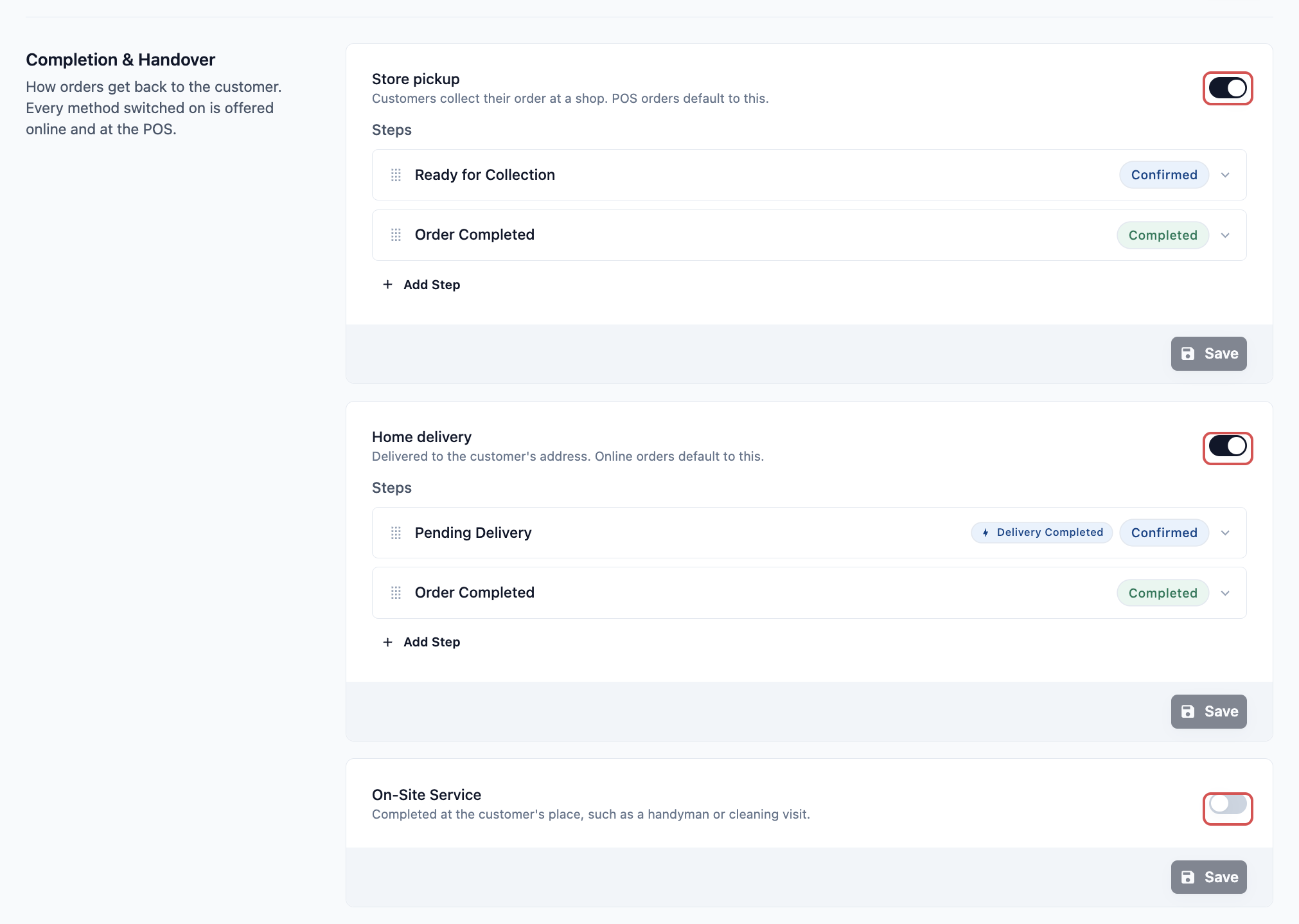
Here's what the staff see on the POS:
- A staff member adds items to the cart. Below the cart, she sees Store pickup with the name of her shop. Most walk-in orders stay like this.
- A regular customer asks for delivery. She taps the row to open Fulfillment Type.
- The panel lists Home delivery and, under Store pickup, every outlet. Her own shop is marked "(Current store)". The customer can also collect at the other outlet.
- She taps Home delivery, picks a delivery date and time, and taps Confirm.
- The row below the cart now shows the delivery date and the customer's address.
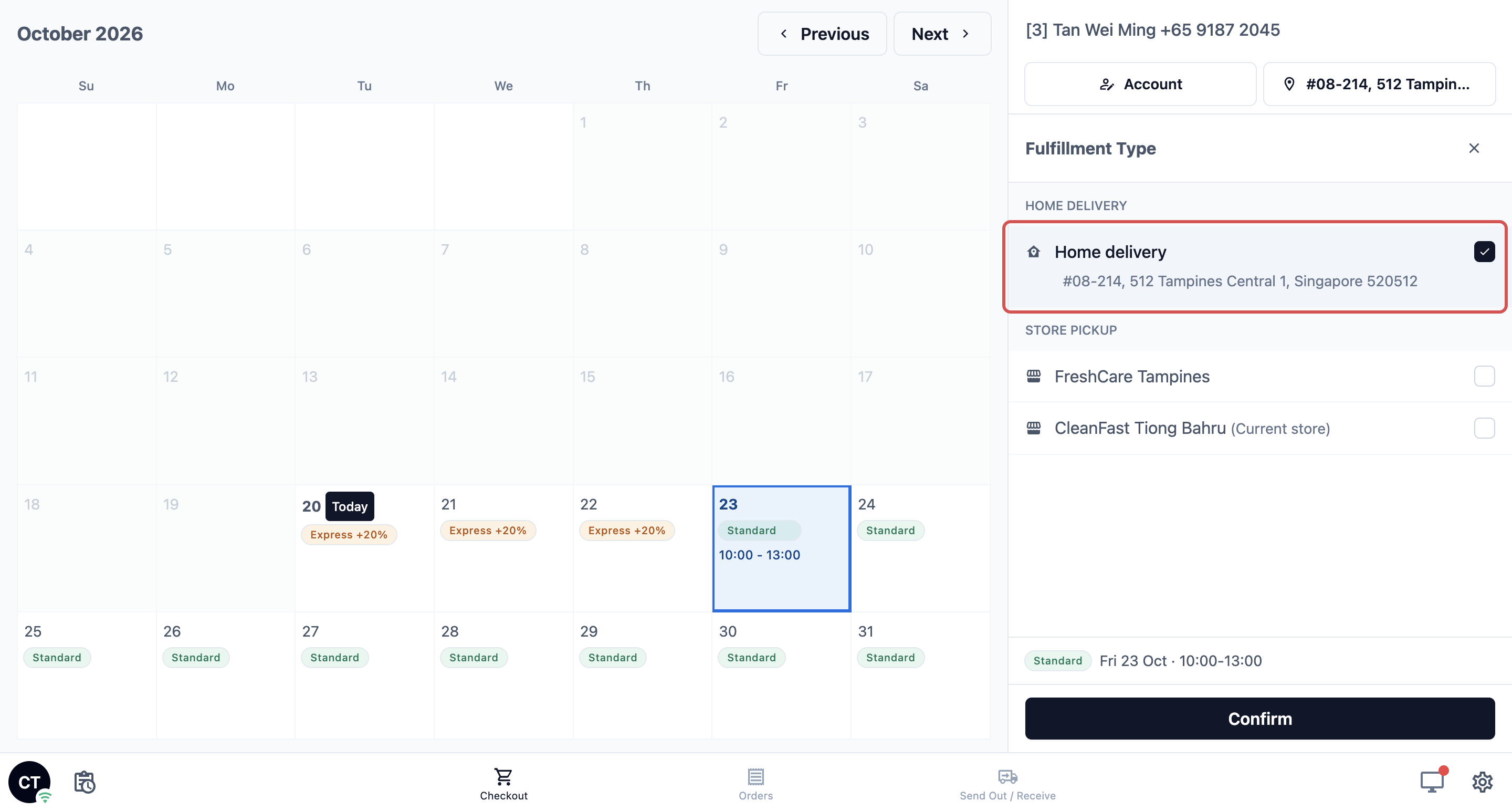
When the work is done:
- The walk-in order moves to Ready for Collection. When the customer collects, staff hand the items over on the POS and the order moves to Order Completed.
- The delivery order moves to Pending Delivery. When the driver marks it delivered in the EasyBiz app, it moves to Order Completed by itself.
Online, CleanFast's customers aren't asked to choose. Every online order is booked for home delivery.
FAQs
An order is stuck at Pending Delivery. Why isn't it completing?
Pending Delivery waits for the driver. It finishes only when the driver marks the delivery as done in the EasyBiz app. Check that the delivery was assigned to a driver, and that the driver finished it in the app.
Where do delivery fees come from?
Delivery fees aren't set here. They come from your Booking Options, such as an extra charge for express or weekend delivery. Staff see the fee next to the date they pick at the POS. See Setting Up Booking Options.
Can a customer switch from delivery to collection after ordering?
Yes. Open the order on the POS. In the Completion & Handover section, tap Change and choose the new method. You can't change it once the order is completed or cancelled.
Why does the POS say "Select a customer account first" when I tap Home delivery?
A delivery needs an address. Pick the customer for the order first. If the POS then says "Add a delivery address first", add an address to the customer's account.
I switched on Home delivery. Why do online customers now have to pick a delivery time?
Online orders use Home delivery whenever it's on. Your Online Store then asks customers for a delivery date and time when they book. If you only want them to collect, keep Home delivery off. See Choosing What Customers Fill In When Booking Online.
Will my existing orders change when I switch a method on or off?
No. Each order keeps the steps it had when it was created. Your changes apply to orders taken after you click Save.
What's Next
You've now set up how finished orders get back to your customers, by store pickup, home delivery or an on-site visit. This completes your Pipeline tab. Next, choose the receipts, PDF invoices and labels this business unit prints and sends in Choosing Your Receipts, Invoices and Labels.