
Before you start
Your items must already be in the Product Catalog. See Introduction to the Product Catalog.
If you plan to sell from a price list, set these up first:
- Your price list. See Create Price Lists.
- Your service options, such as Wash & Fold or Dry Clean. See Setting Up Service Options.
You also need the business unit itself. See Creating and Editing a Business Unit.
What the Catalog tab does
The Catalog tab has 2 sections. You can use one or both.
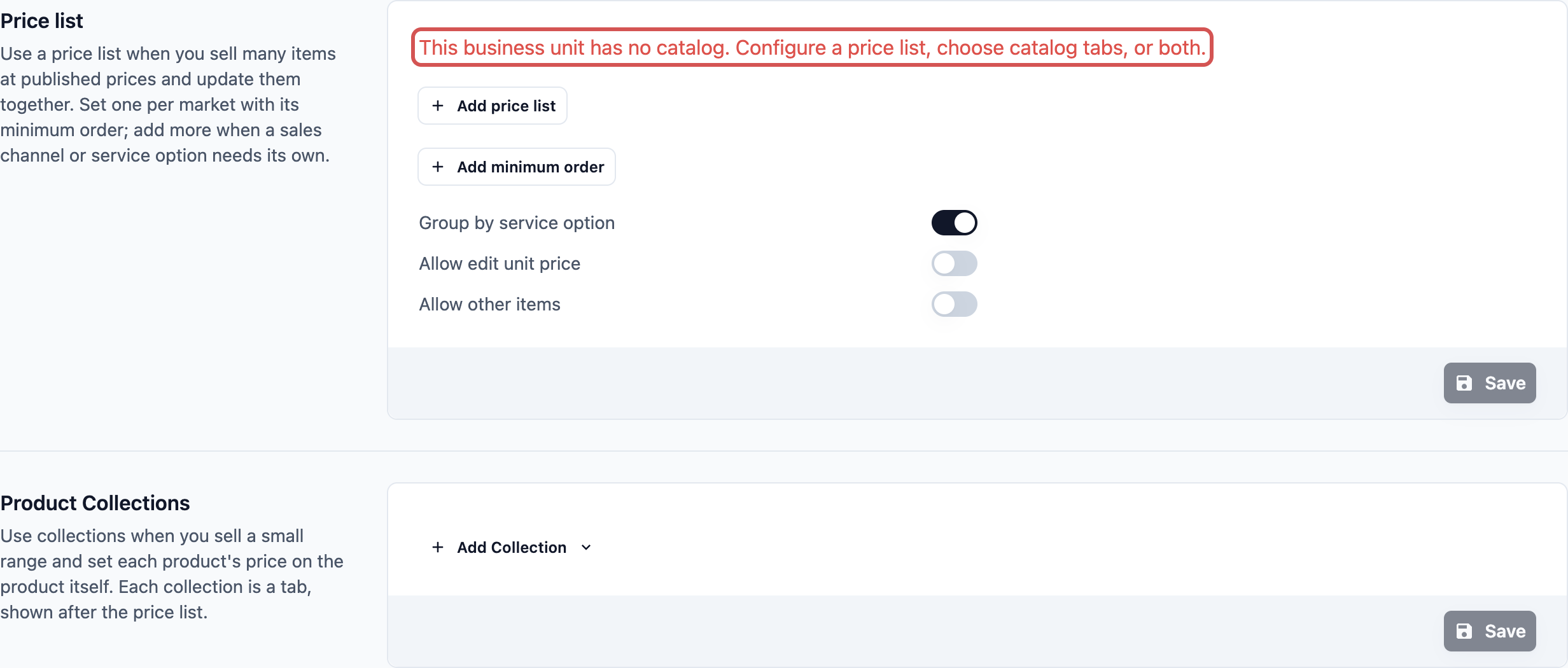
- Price list -> Pick which of your price lists this business unit sells from. Your staff then see every item and price from that list on the POS. You add 1 price list for each market. You can also add a different price list for a single sales channel, such as your website.
- Product Collections -> A collection is an extra tab of products on the POS (the EasyBiz app your staff use at the shop counter). Each product in a collection uses the price set on the product itself. Use collections when you sell a small range, or to add retail products next to your price list.
If you set up neither, the tab shows "This business unit has no catalog. Configure a price list, choose catalog tabs, or both." Your staff see the same message on the POS and have nothing to sell.
Which setup fits you?
| Setup | Best for | Example |
|---|---|---|
| Price list only | Many items with fixed prices you review together | CleanFast Laundry sells 80+ items, from shirts to curtains, from one price list. |
| Price list plus an All retail products tab | A price list for services, plus a few things you sell off the shelf | CleanFast Laundry also sells detergent and hangers, so it adds an All retail products tab after its price list. |
| Collections only | A small range of jobs, each priced on the product | BagCare Pro has about 15 jobs, split into Cleaning, Repairs and Colouring tabs. |
Set up your price list
- Go to ⚙️ Settings > Business Units.
- Click the business unit at the top of the page.
- Click the Catalog tab.
- In the Price list section, click Add price list.
- Choose the price list and click Add.
- Click Save.
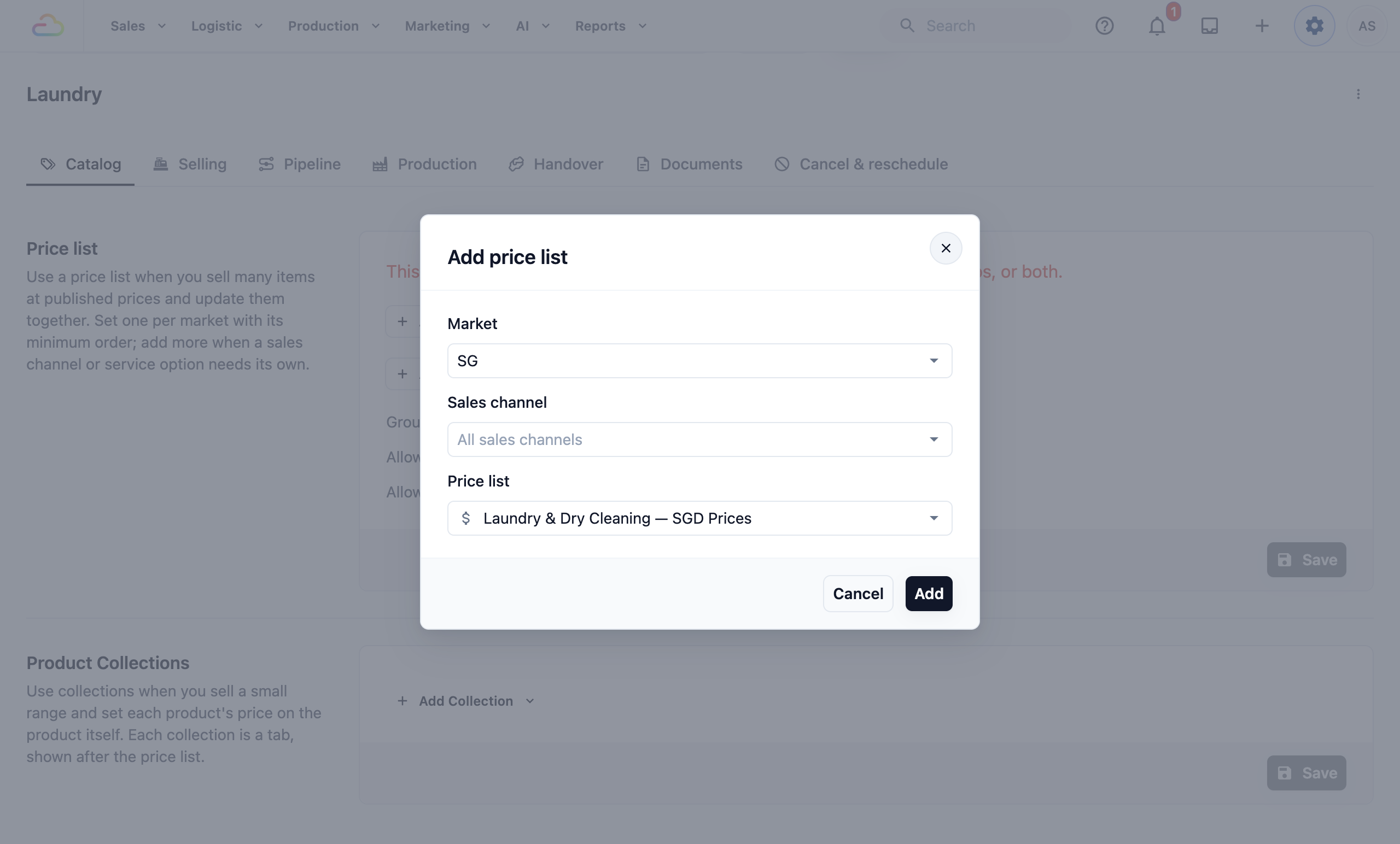
Market A market is a country you sell in, with its own currency, such as Singapore in S$ or Malaysia in RM. Each market has 1 main price list, in that market's currency. You only see this field if your business sells in more than 1 market.
Sales channel A sales channel is a place where you take orders, such as a POS shop or your Online Store. Leave it on All sales channels for your main price list. Pick 1 channel when that channel needs its own prices. For example, you can charge a little more on your website than at the counter. Every other channel keeps the main price list.
Price list The prices this market, or this channel, sells from. Only price lists for the chosen market appear.
After you add it, the price list shows with its own label, such as "Singapore Price List" or "Singapore · WEB Price List". To swap it, choose another price list in the same field. To remove it, click the ✕ next to it.
Set minimum orders
A minimum order is the lowest amount an order can cost. When an order is below it, EasyBiz adds the difference to the order for you. Your staff don't need to calculate or explain anything.
- In the Price list section, click Add minimum order.
- Fill in the fields below.
- Click Add.
- Click Save.
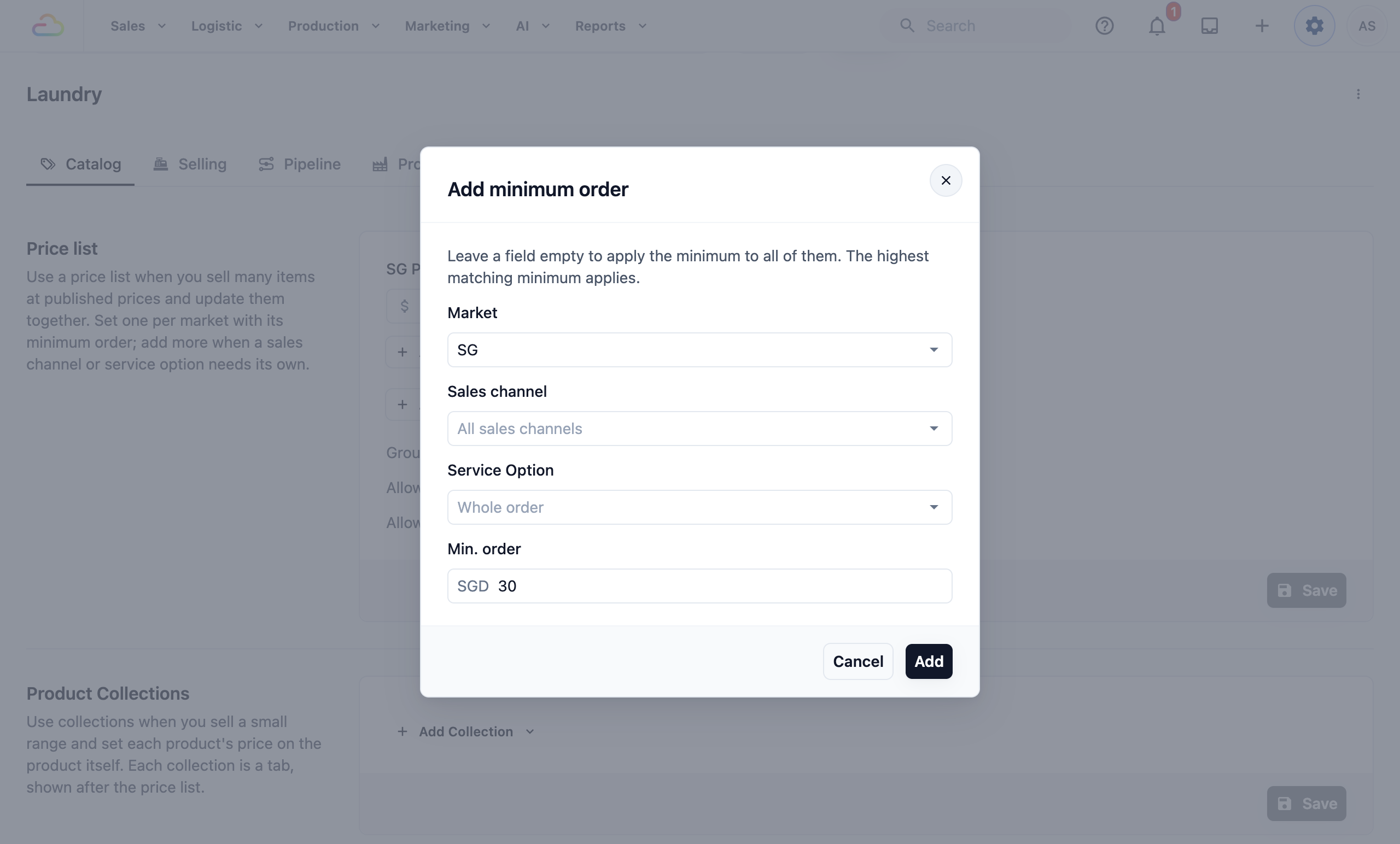
Market The market this minimum applies to. You only see this field if you sell in more than 1 market.
Sales channel Leave it on All sales channels to apply the minimum everywhere. Pick 1 channel to set a minimum just for that channel.
Service Option Leave it on Whole order to set a minimum for the full order. Pick 1 service option, such as Dry Clean, to set a minimum for just those items. Service options come from your price list, so this field only works once the market has a price list.
Min. order The amount, in the market's currency. If you type 0 or something that isn't a number, you see "Enter a positive number, or leave this blank to remove the minimum."
A few rules to know:
- When more than 1 minimum matches an order, the highest one applies.
- Each combination can only be set once. If it already exists, you see "This minimum is already set. Change it in the list instead."
- To change a minimum later, type the new amount in its field. To remove it, click the ✕ or clear the amount.
Choose how staff sell
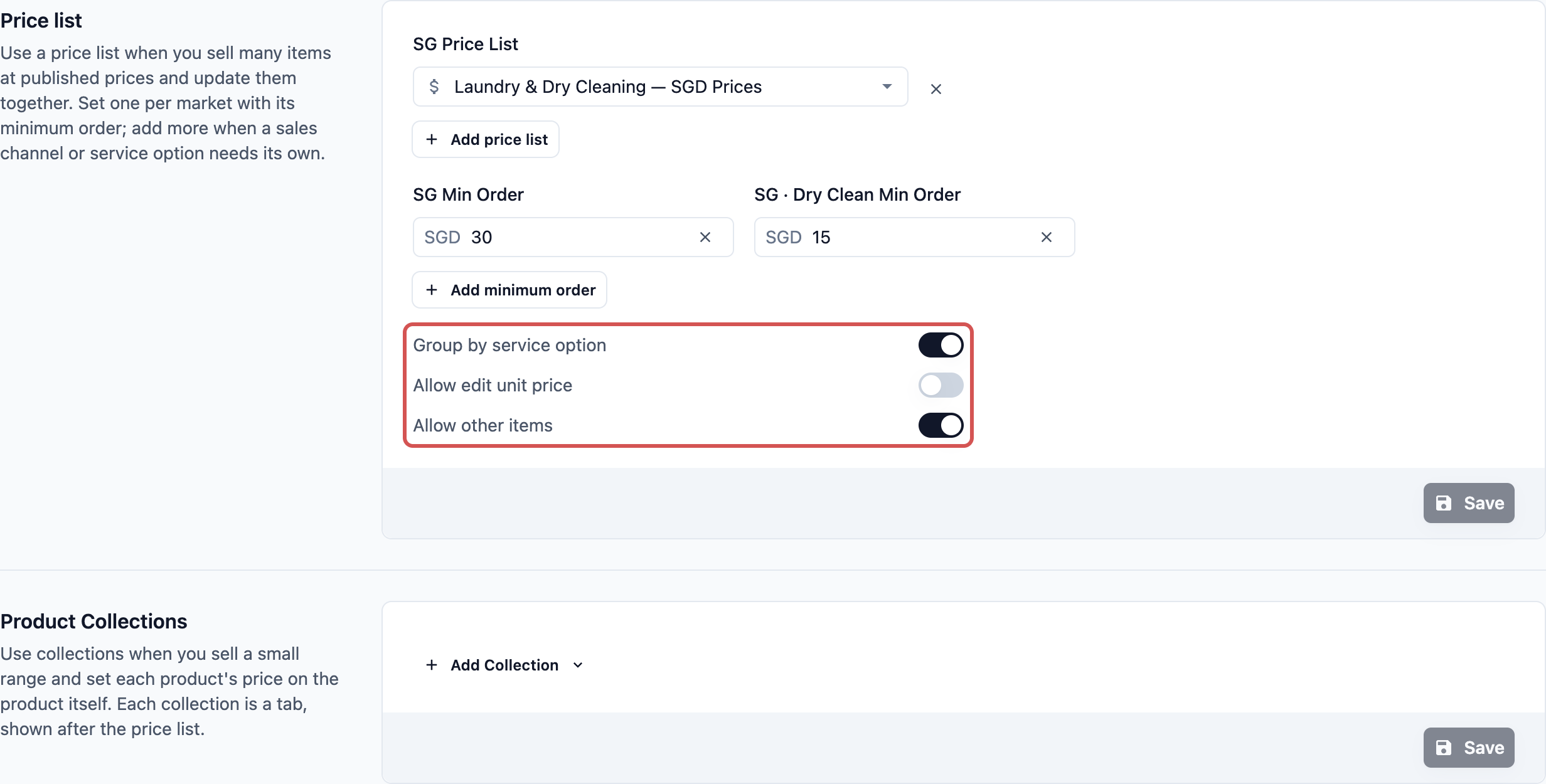
3 switches sit below your minimum orders. They apply to the whole business unit. Click Save after you change one.
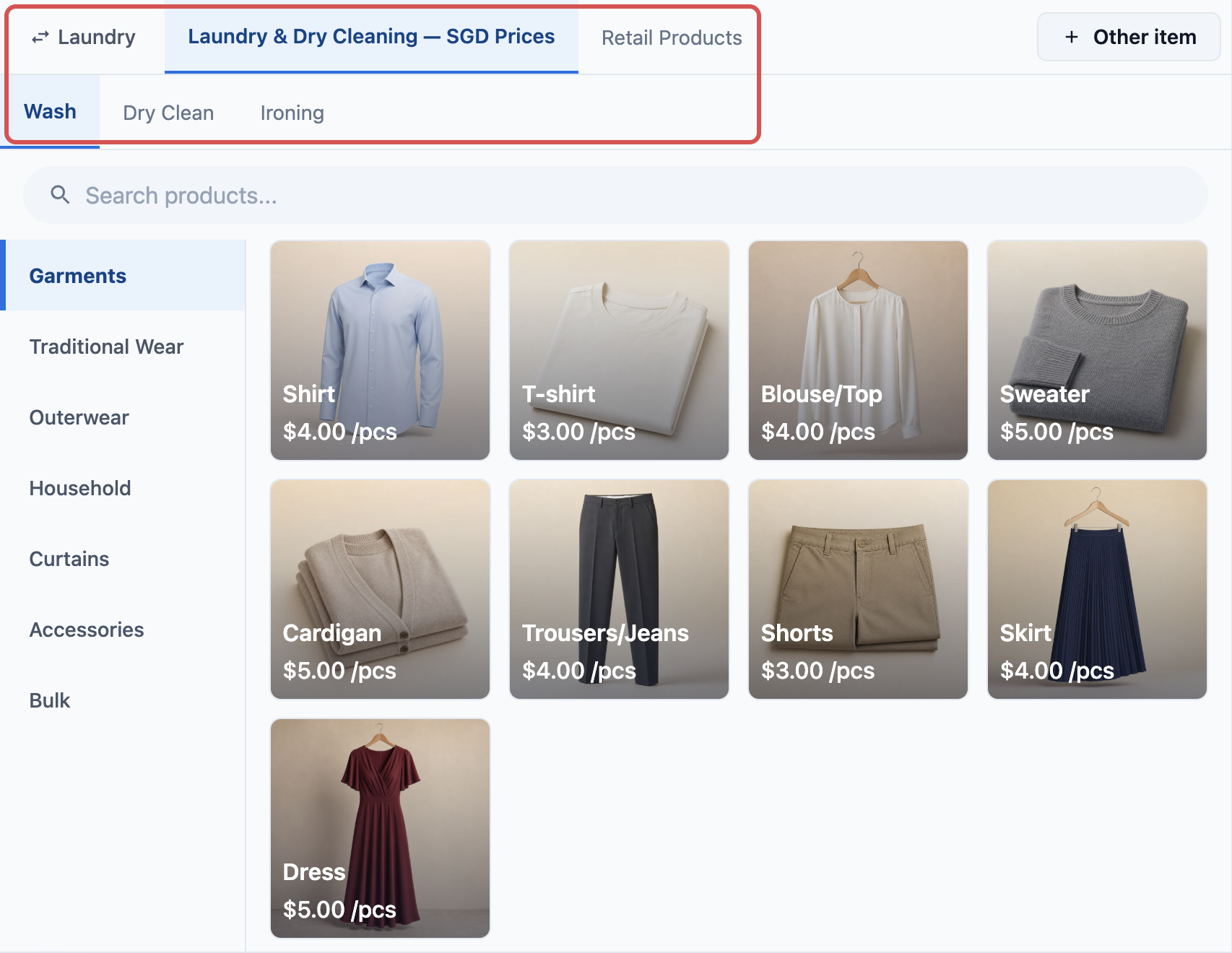
- Group by service option -> Your price list items are shown split by service option, such as Wash & Fold, Dry Clean and Ironing. This helps staff find items quickly in a long list. It's greyed out if the unit already has a Service options tab, because that tab already does this.
- Allow edit unit price -> Staff can change an item's price at checkout, for example for an extra-large duvet.
- Allow other items -> Staff can add an item that isn't in your catalog, with its own name, unit and price. This is useful for one-off jobs.
Add product collections
Each collection becomes 1 tab on the POS. Collection tabs appear after the price list tab.
- In the Product Collections section, click Add Collection.
- Choose the type of collection.
- For a custom collection, type the Collection name and add its products.
- Drag the cards by their handle to set the tab order.
- Click Save.

| Type | What the tab shows |
|---|---|
| Custom collection | Only the products you pick. |
| All service items | Every service item in the Product Catalog. |
| All retail products | Every retail product in the Product Catalog. |
A custom collection needs a name and at least 1 product. If either is missing, the card shows "Name this tab" or "Add at least one product", and you can't save. You can pick existing products, or create a new service item or retail product from the card.
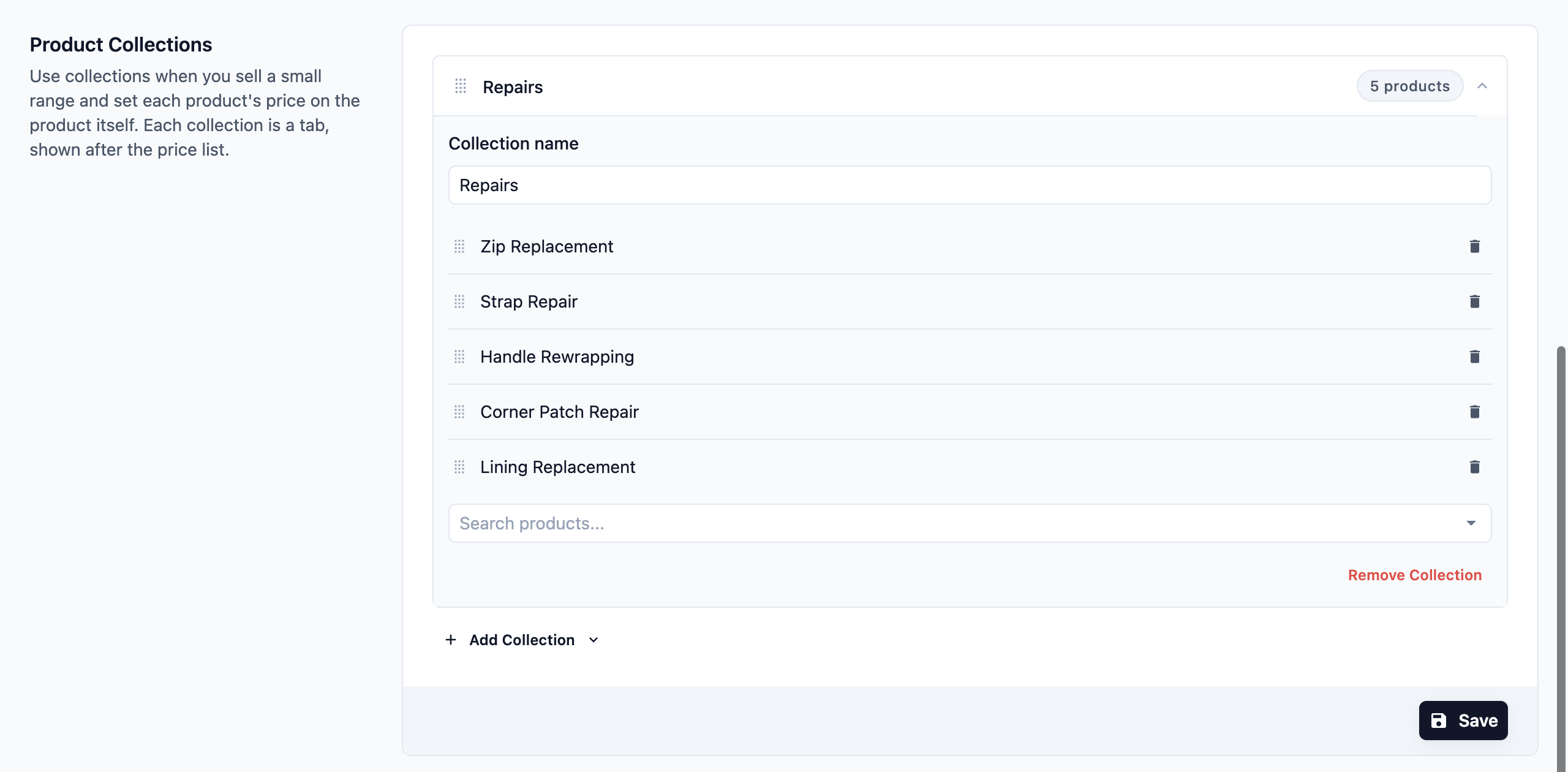
To remove a tab, open its card and click Remove Collection, or Remove Tab for a ready-made tab.
Example: CleanFast Laundry
CleanFast Laundry sells in Singapore from its counter and its website. The owner sets up the Laundry business unit like this:
- Price list: Singapore Price List, Standard Laundry Rates.
- Minimum orders: - Whole order, all sales channels: S$30. - Dry Clean, all sales channels: S$15. - Whole order, website (WEB) only: S$50.
- Switches: Group by service option on.
- Product Collections: All retail products, for detergent and hangers.
On the website, both S$30 and S$50 match, so S$50 applies.
What your staff see on the POS
When staff pick Laundry, the tabs appear in order: the Standard Laundry Rates tab first, then All retail products. Items in the price list tab are split by service option.
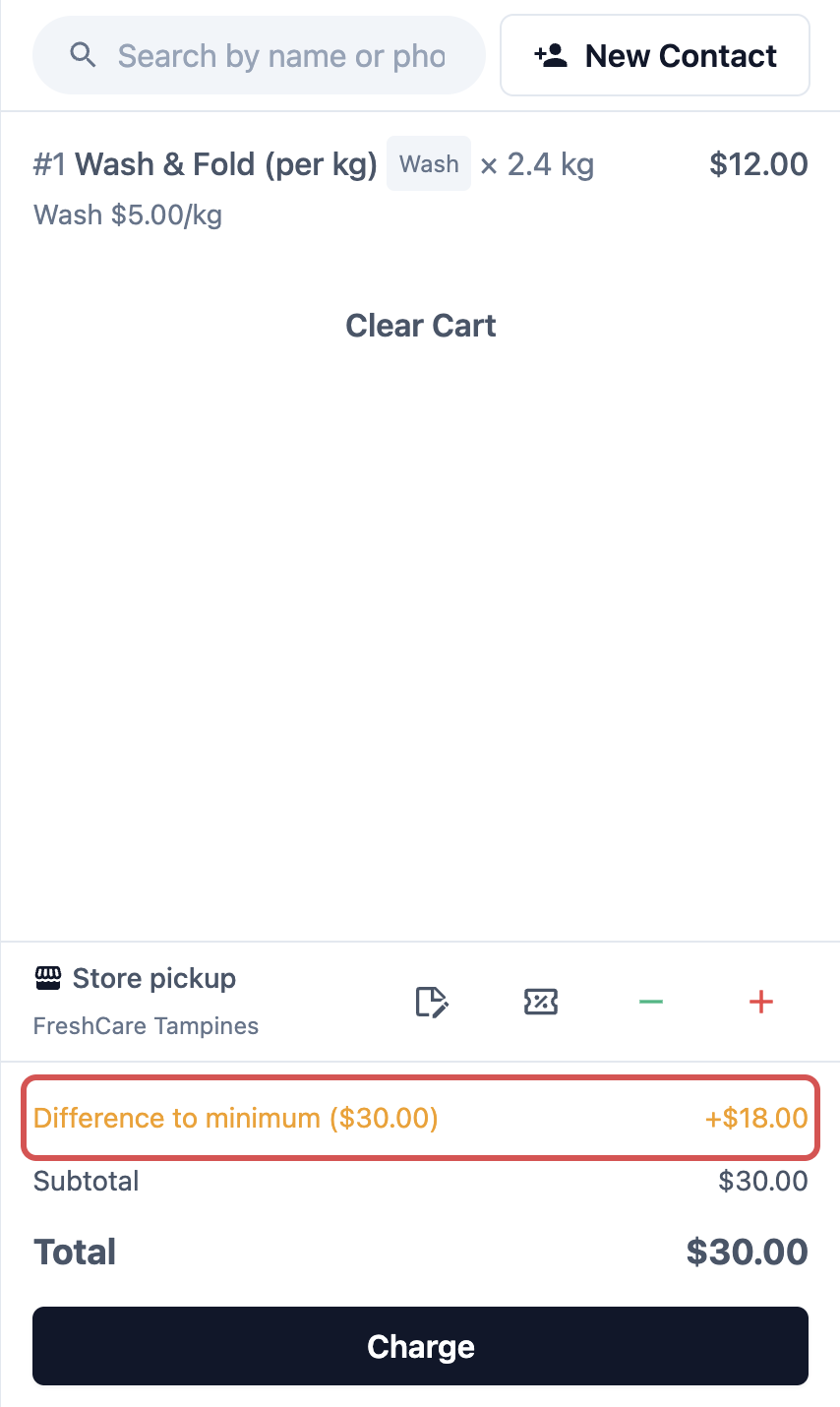
A customer drops off S$12 of wash and fold at the counter. EasyBiz adds a "Difference to minimum" line of S$18, showing "Minimum S$30", so the order totals S$30. If the order has Dry Clean items under S$15, a "Minimum charge for Dry Clean" line tops those up too.
FAQs
I added a new product, but it isn't on my tab. Why?
Custom collections only show the products you picked by hand. Open the collection and add the new product. The All service items and All retail products tabs pick up new products on their own.
Why can't my staff add an Other item?
2 things are needed. Allow other items must be switched on for the business unit, and the staff member must have the Override prices permission. Without both, the Other item button doesn't show.
I switched on Allow edit unit price, but some staff still can't change prices. Why?
Changing a price also needs the Override prices permission. Staff without it see the normal price only. This stops new staff from giving discounts by mistake.
If I change my prices, do open orders change too?
No. Orders already taken keep the prices they were created with. New orders use the price list's newly published version. See Manage Price List Versions.
Do Service Area minimums add up with these minimums?
No. For pickup and delivery orders, EasyBiz compares your catalog minimum with the service area minimum, and the higher one applies. See Choosing Where Each Business Unit Takes Bookings.
What's Next
You've chosen what your business unit sells, set its prices and minimum orders, and decided how much freedom your staff have at checkout. Next, add any extra questions staff answer when they take an order in Adding Extra Steps When Staff Take an Order.