
Before you start
Line item steps are on the same Selling tab as your checkout steps. If you haven't set those up yet, start with Adding Extra Steps When Staff Take an Order.
Your business unit also needs items to sell. See Choosing What You Sell and Your Prices.
What line item steps are
Line item steps are questions staff answer for each item, one item at a time. Checkout steps ask about the whole order. Line item steps ask about one item.
They run on the POS and when your team takes an order in Console.
They help you:
- Charge the right amount for items sold by weight, because staff key in the exact kg.
- Print the right number of item labels, because staff record how many pieces are in each load.
- Keep proof of each item's condition, such as photos of a scratched handbag, in case of a dispute later.
- Make sure every staff member asks the same questions, even on a busy day.
Can I skip this? Yes. Without line item steps, staff tap an item and it goes straight into the cart, with a quantity of 1 and its price from your price list. This is fine if you only sell fixed-price items, such as "Shirt - Wash & Iron".
Choose which items a set applies to
You group your questions into sets. Each set has an Apply To setting that decides which items use it.
| Apply To | Which items use the set |
|---|---|
| All items (leave it empty) | Every item in this business unit |
| All service items | Every service, such as washing or repairs |
| All retail products | Every product you sell off the shelf, such as detergent |
| Specific units | Items sold by the units you pick, such as kg |
| Specific products | Only the products you pick |
A unit is how an item is measured and priced, such as kg or sqft. You set it on each item in your product catalog.
Each item uses only 1 set. The POS picks it in this order:
- A set for its product, if there is one.
- Otherwise, a set for its unit, such as kg.
- Otherwise, a set for all items, all service items or all retail products.
Steps you can add
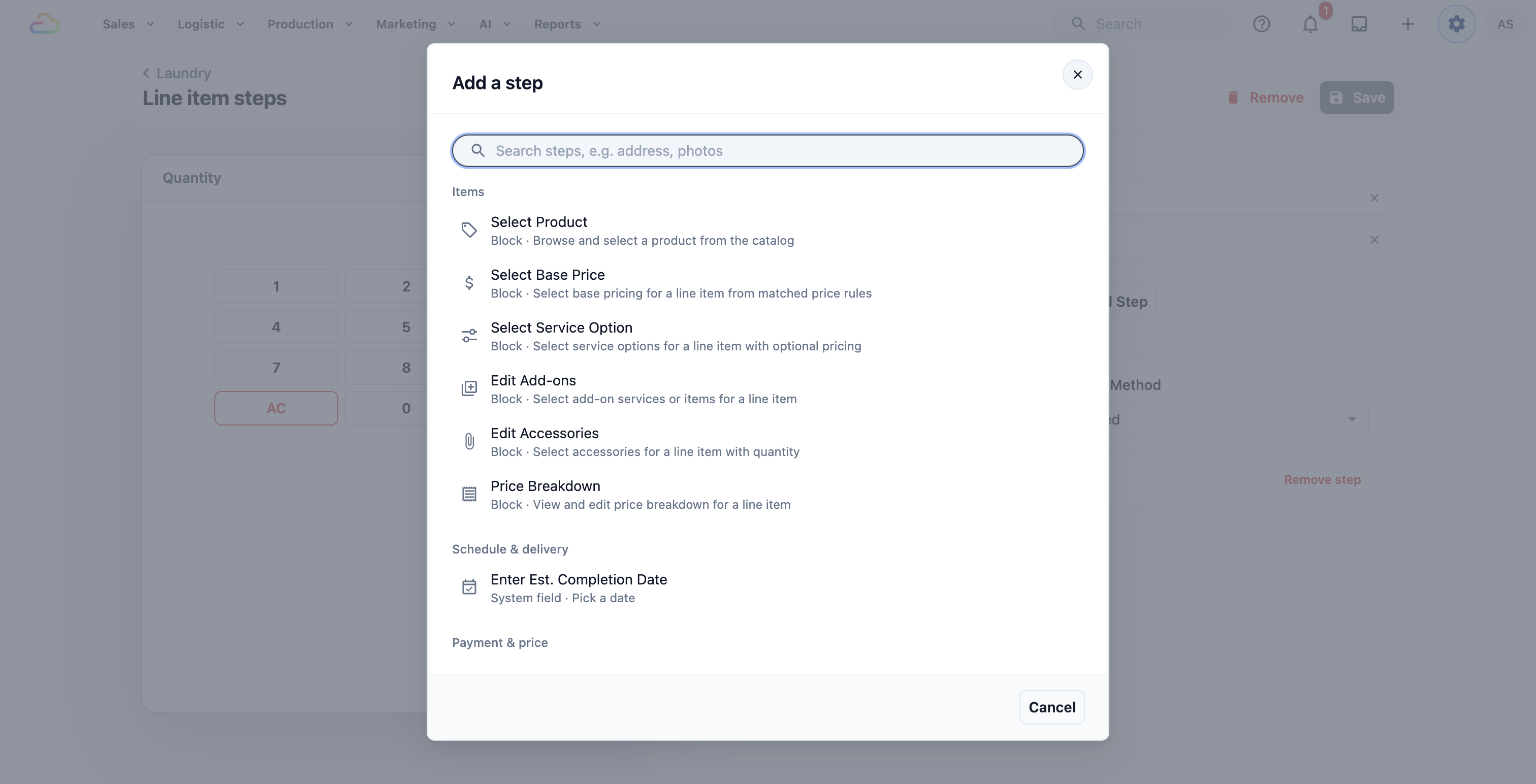
Steps are grouped in the Add a step window, the same way you see them below.
Items
- Select Product -> Staff browse and pick a product from your catalog.
- Select Base Price -> Staff pick the item's base price from the prices that match it.
- Select Service Option -> Staff choose a service option for the item, such as Dry Clean or Ironing.
- Edit Add-ons -> Staff add extra services to the item, such as stain removal.
- Edit Accessories -> Staff record accessories that come with the item, such as a belt or a dust bag, and how many.
- Price Breakdown -> Staff see and change how the item's price is made up.
Schedule & delivery
- Enter Est. Completion Date -> Staff pick the day this item should be ready.
Payment & price
- Enter Unit Price -> Staff type the item's price, such as a price agreed after inspection.
Photos & signature
- Take Photos -> Staff take or upload photos of the item.
- Capture Signature -> The customer signs on the screen.
Notes & details
- Enter Note -> Staff type a note for the item, such as "Red wine stain on collar".
- Enter Quantity -> Staff key in the quantity. For kg items, this is the weight, and decimals such as 1.2 are allowed.
- Enter Pieces -> Staff key in how many pieces are in the item, such as 12 garments in one kg load.
Your custom fields
Questions you created yourself, such as "Fabric type", also appear here. See Configuring Data Fields.
Set up your line item steps
- Go to ⚙️ Settings > Business Units.
- Click the business unit.
- Click the Selling tab.
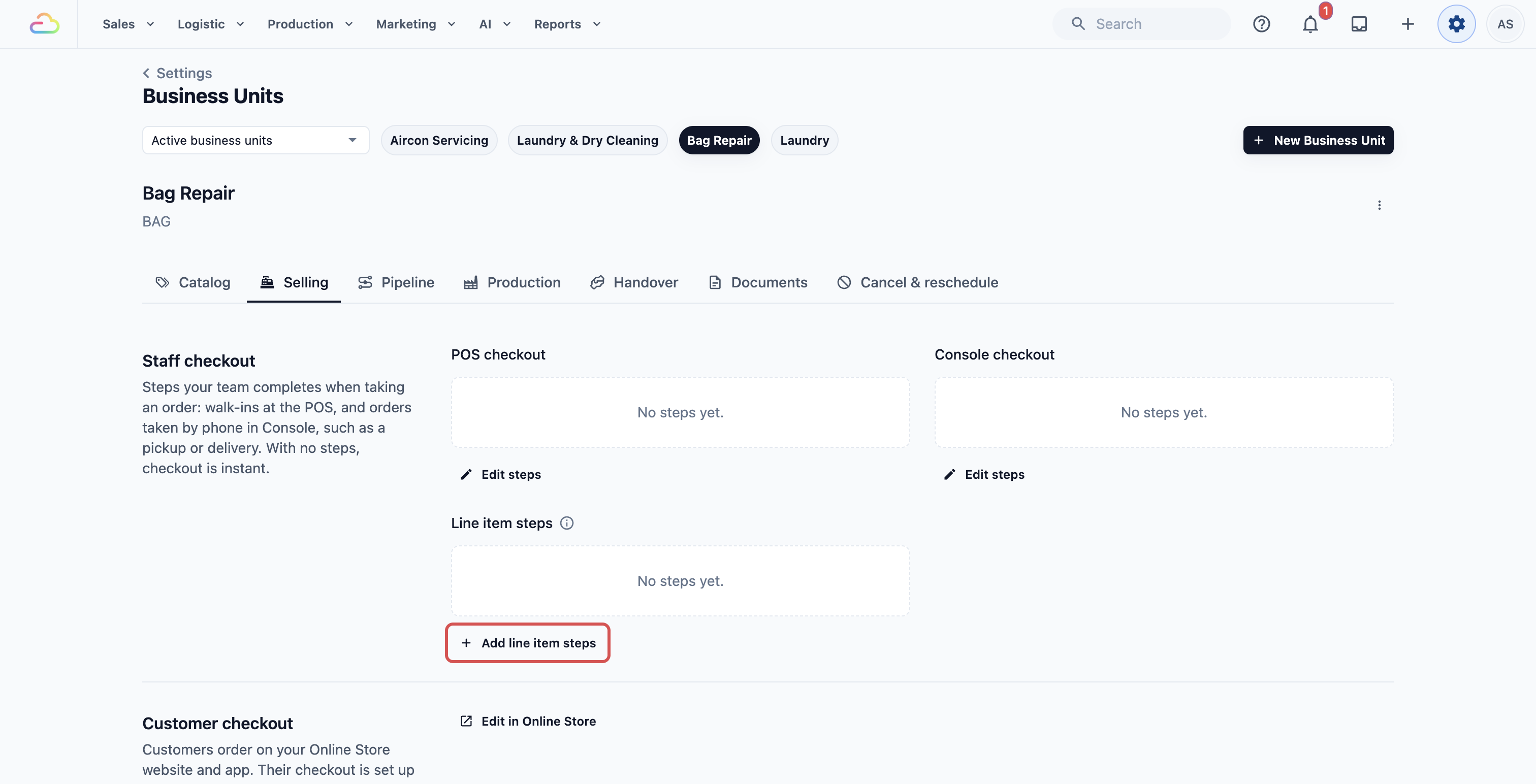
- In the Staff checkout section, find Line item steps below POS checkout and Console checkout.
- Click Add line item steps.
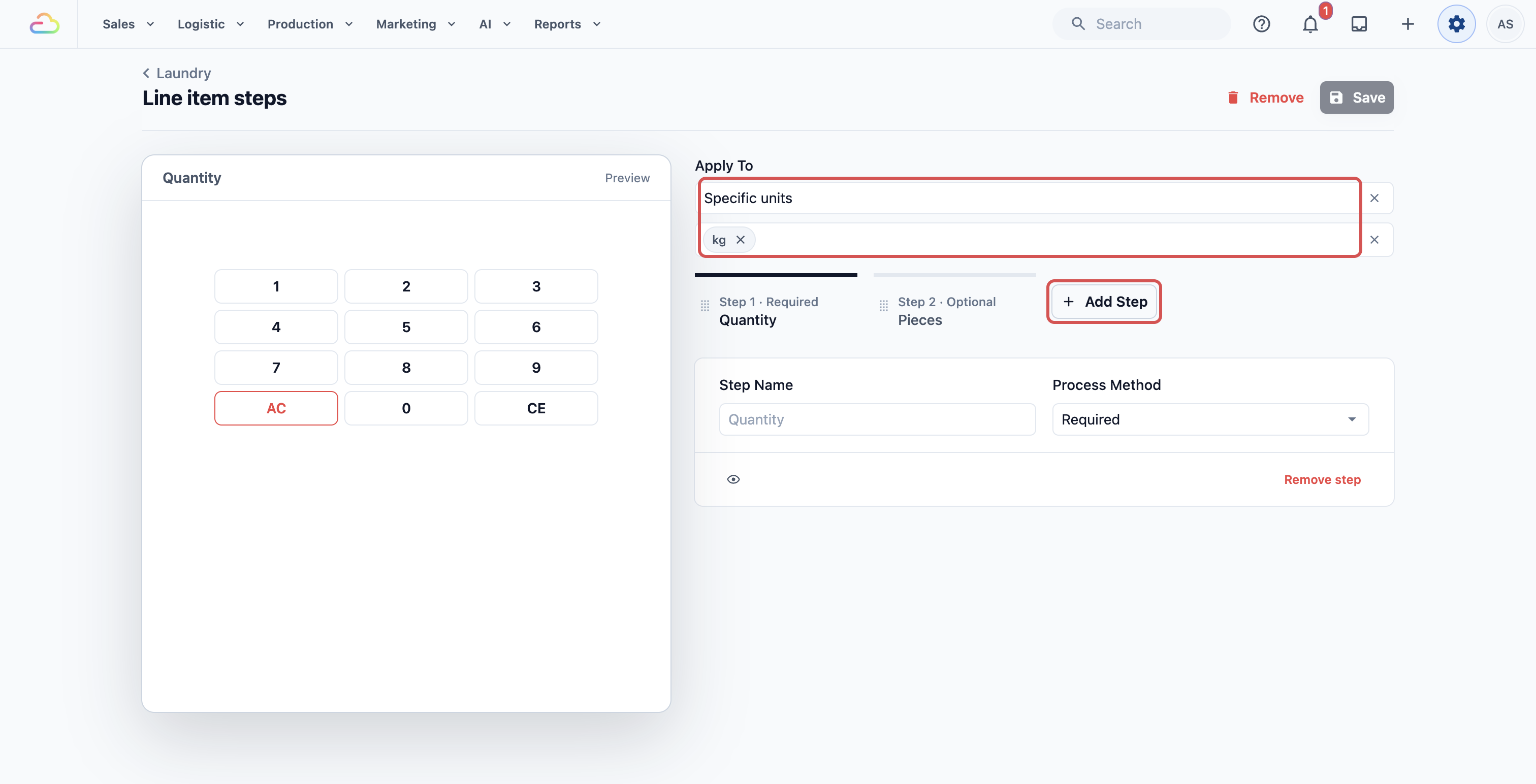
- In Apply To, choose which items the set is for. Leave it empty for all items.
- If you chose Specific units or Specific products, pick them in the box that appears.
- Click Add Step, then click the step you need.
- Fill in the step's settings. Step Name, Process Method and Visibility conditions work the same way as for checkout steps. See Adding Extra Steps When Staff Take an Order.
- Repeat for each step. Staff answer them in the order they appear.
- Click Save.
You see "Line item steps saved". The set now shows on the Selling tab, with the items it applies to, such as "Units: kg", and its steps.
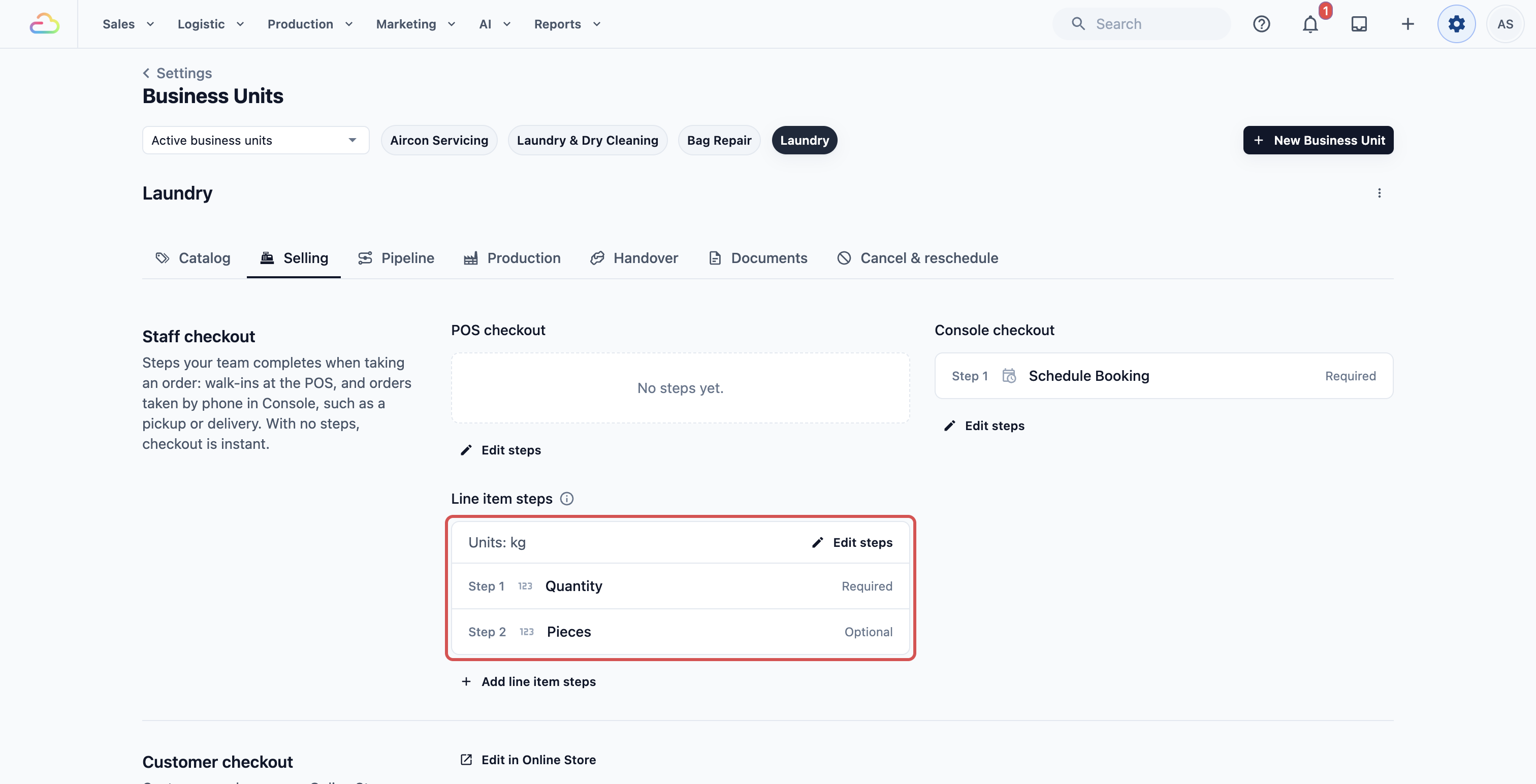
To change a set later, click Edit steps on it.
Remove a set
- Click Edit steps on the set.
- Click Remove at the top of the page.
- Click Remove again to confirm.
Staff stop seeing these steps when they add items. Items already in orders keep what was entered.
Example 1: CleanFast Laundry's kg items
CleanFast Laundry sells "Wash & Fold" by kg at $2.50 per kg. The owner wants the exact weight on every bag, and one label for every garment. The owner sets up one set in the Laundry business unit:
- Apply To: Specific units, kg.
- Step 1: Enter Quantity, Required.
- Step 2: Enter Pieces, Required.
Example 2: BagCare Pro's repairs
BagCare Pro repairs luxury handbags. The owner wants proof of each bag's condition at drop-off. The owner sets up one set in the Bag Repair business unit:
- Apply To: All service items.
- Step 1: Take Photos, Required.
- Step 2: Enter Note, Optional. For example, "Scuffed corners, handle loose".
- Step 3: Edit Add-ons, Optional. For example, an extra charge for colour restoration.
What your staff see on the POS
- Staff tap an item, such as "Wash & Fold".
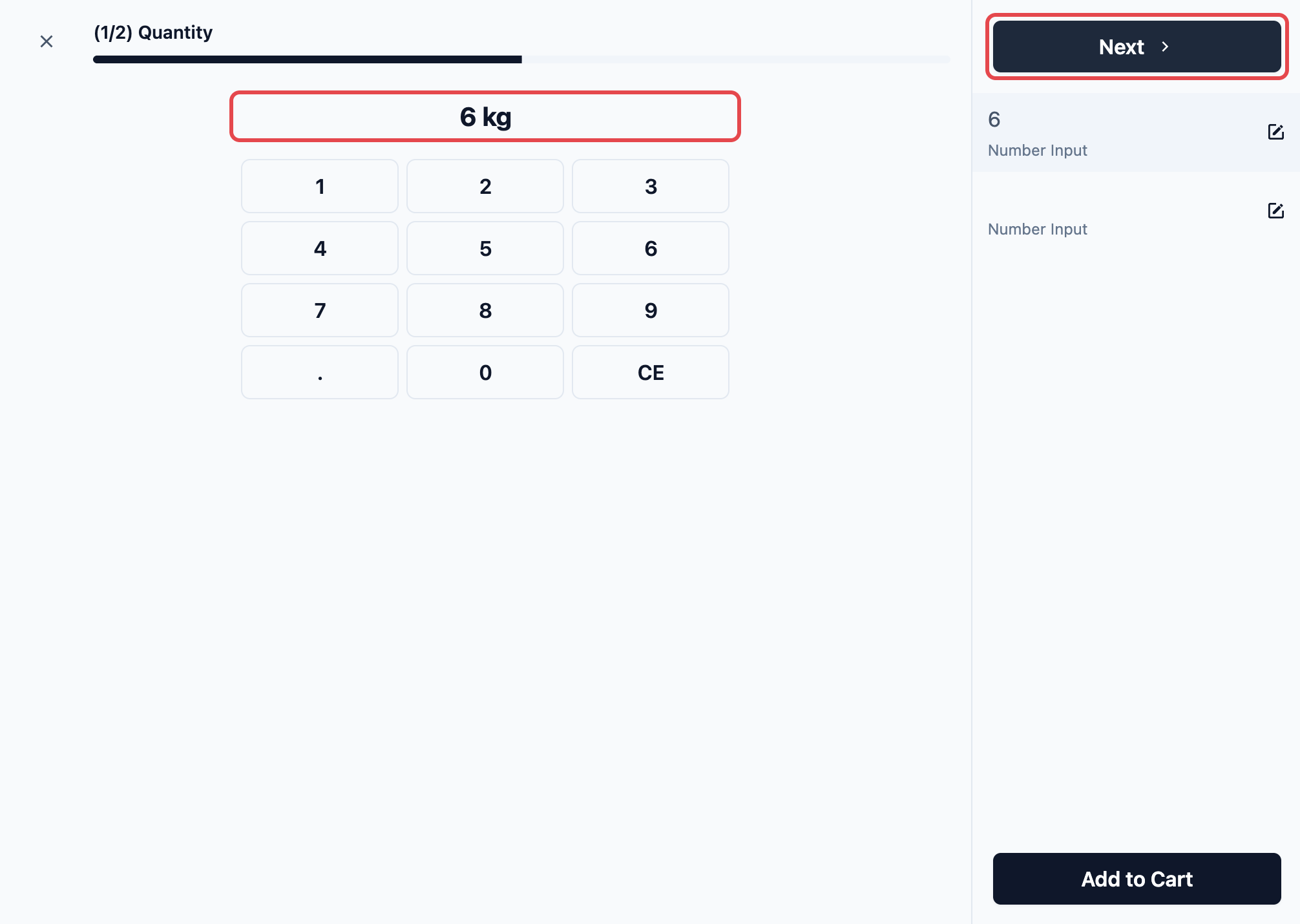
- The item's steps open one at a time. For Enter Quantity, the keypad has a "." key and shows "kg" after the number.
- Staff type 6, tap Next, then type 12 pieces.
- On the last step, staff tap Add to Cart.
The cart line shows "Wash & Fold × 6 kg", with "$2.50/kg" below it and a line total of $15.00. Notes, add-ons and accessories show under the line too.
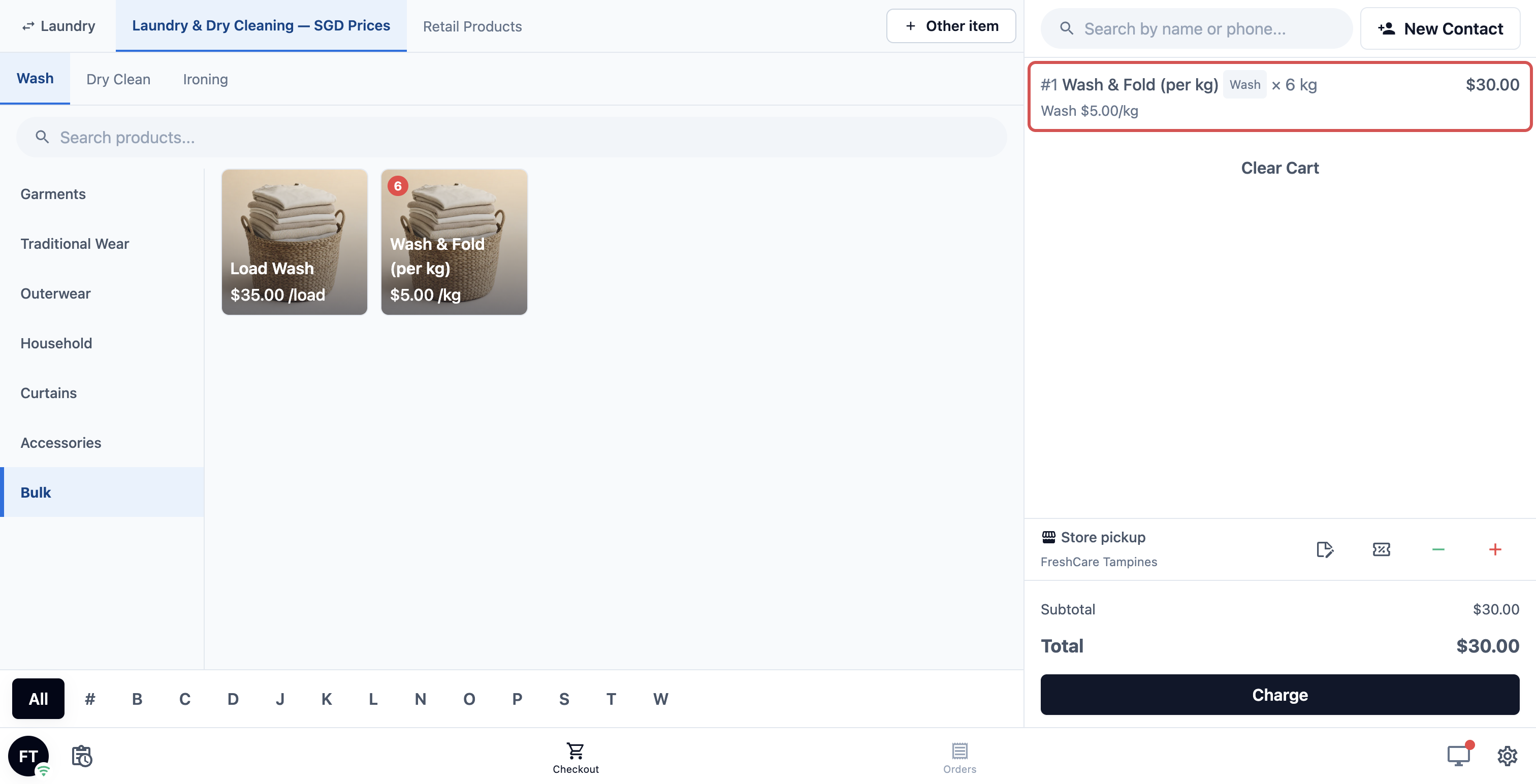
Lines added through steps have no − and + buttons. To change an answer, staff tap the line, then Edit to open the steps again. To add the same item again with the same answers, they tap Copy.
FAQs
My kg set is ignored for one product. Why?
That product has its own set under Specific products. A product's own set always comes first, so the kg set isn't used for it. Add Enter Quantity and Enter Pieces to that product's set too.
Do Pieces decide how many tags print?
Yes, for items sold by kg. 12 pieces print 12 item labels. Without an Enter Pieces step, the line gets 1 label. To choose your labels, see Choosing Your Receipts, Invoices and Labels.
Do customers see these steps when they book online?
No. Line item steps are for your staff on the POS and in Console. Customers who book online have their own steps, explained in the next article.
What if staff skip a required step?
They can't move to the next step until it is answered. If a line is still missing an answer, the POS opens that item's steps again at checkout, so the order can't be created without it.
Why can't staff tap the item again to add one more?
When an item has no Enter Quantity step, each tap adds a new line with a quantity of 1. Tapping the item again lets staff add a new line or open a line already in the cart.
I made a Quantity and Pcs flow in Process Flows before. Does it still work?
No. Since 1 October 2026, line item steps are set up on the business unit only. Flows made in Process Flows are no longer used here. Add the same steps on the Selling tab as shown above.
What's Next
You've set up the questions your staff answer for each item they add. Next, choose what customers fill in when they book on your Online Store, in Choosing What Customers Fill In When Booking Online.