
Before you start
Production is one part of your order pipeline. It comes right after the steps before work starts, so set those up first:
To send out and receive orders on the POS, you also need:
- A POS set up for your shop. See Create Your POS App and Setting Up a New POS Shop.
- A receipt printer, because your staff scan the QR code on each receipt. See Connecting Your Printers to the POS.
- Time Clock, if you want each batch saved under the name of the staff member who sent it. See Set Up Time Clock on Your POS.
What Production is
Production is the list of steps an order goes through while your team works on it. A step is one stage of the order, such as "At Shop" or "Sent to Factory". Every confirmed order starts at the first step and moves down the list.
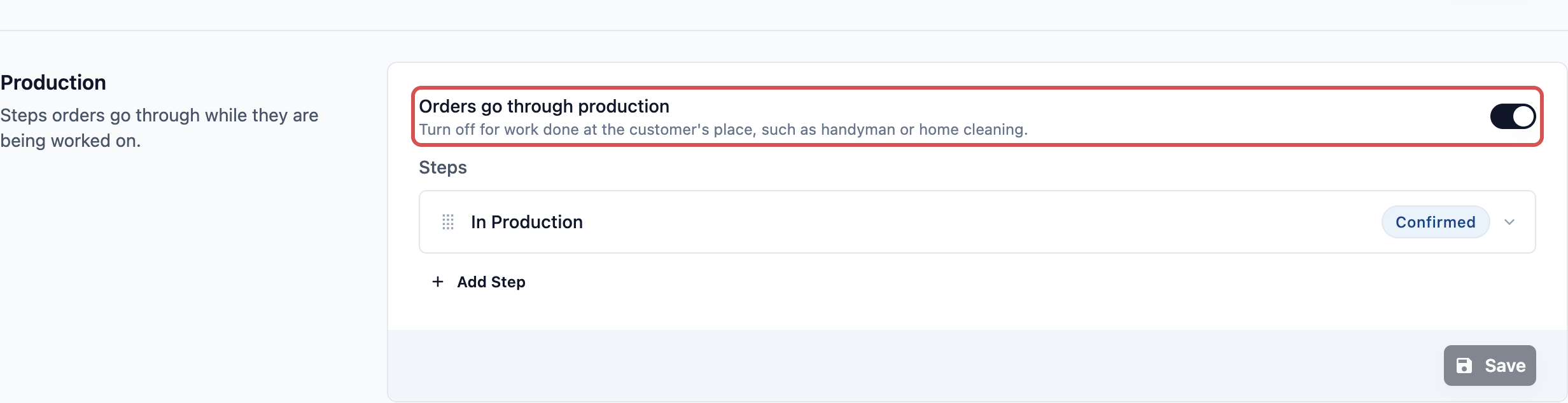
When you open Production for the first time, it has 1 ready-made step called In Production. That is enough if all your work happens in the shop. If you send items to a factory, you add steps that move on their own when your staff send out or receive orders on the POS.
It helps you:
- See at a glance which orders are in the shop and which are at the factory.
- Send out or receive 50 orders in a minute, instead of updating them one by one.
- Stop items going missing between your shop and your factory.
- Show customers where their order is, without them having to call you.
Orders go through production
This switch sits at the top of the Production section. It is on for every new business unit.
Turn it off for work done at the customer's place, such as handyman or home cleaning. There is nothing to process in a workshop, so orders skip Production and go straight to Completion & Handover.
If you turn it off and later turn it on again, your Production steps come back as you left them.
Factory steps
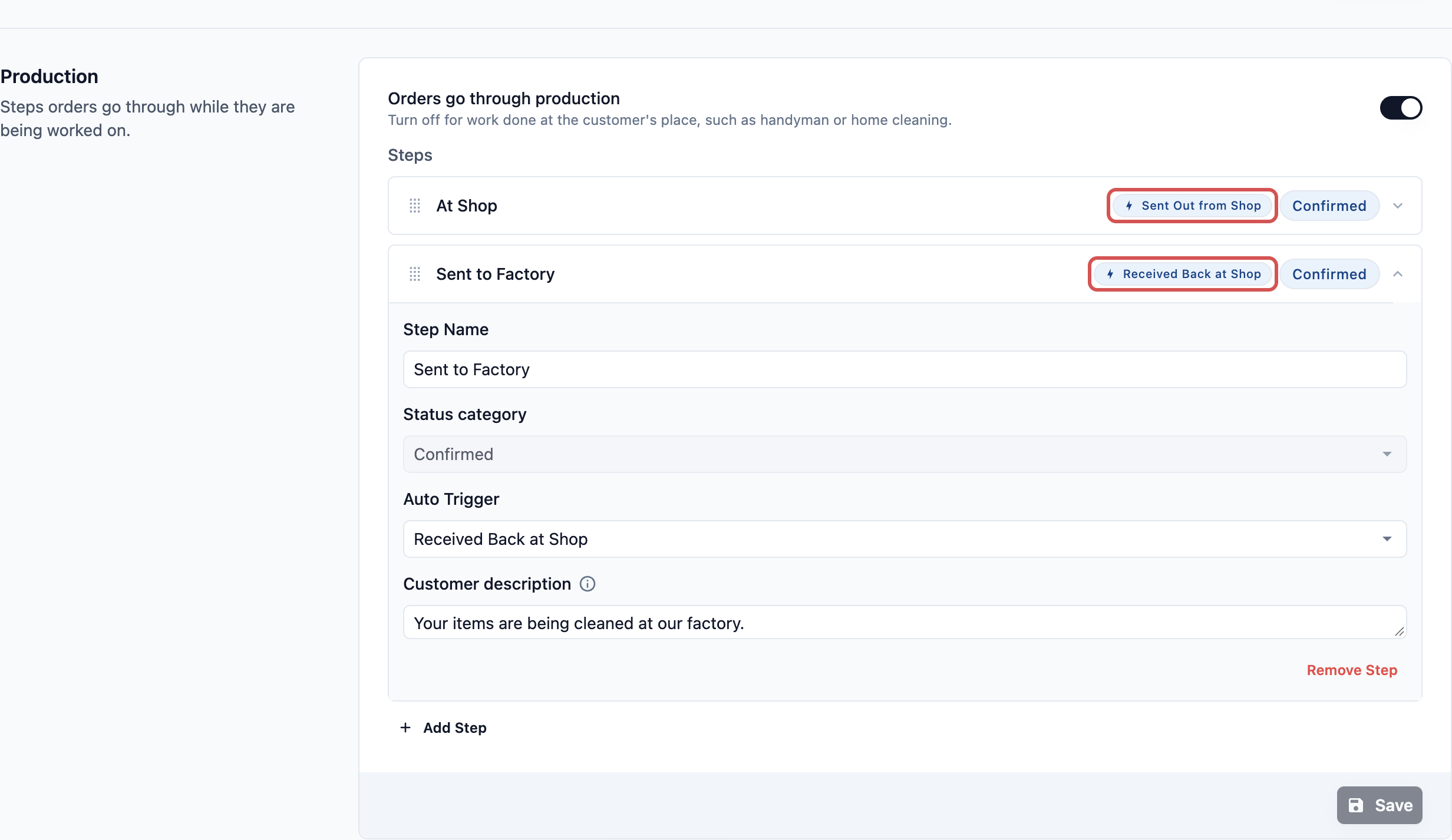
Each step can have an Auto Trigger. An Auto Trigger is an action that finishes the step on its own, so the order moves to the next step without anyone updating it.
For factory trips, Production offers 2 Auto Triggers:
| Auto Trigger | What finishes the step |
|---|---|
| Sent Out from Shop | Your staff send the order out on the POS. |
| Received Back at Shop | Your staff receive the order back on the POS. |
Put each trigger on the step the order is waiting in. For example:
- At Shop, with the Auto Trigger Sent Out from Shop. The order waits here until it leaves.
- Sent to Factory, with the Auto Trigger Received Back at Shop. The order waits here until it comes back.
When the last Production step finishes, the order moves on to Completion & Handover, where it waits for the customer.
Each step also has:
- Step Name: The name your staff see on the order.
- Status Category: Always Confirmed in Production, so you can't change it.
- Customer description: What customers read on your Online Store and Mobile App while the order is at this step. Leave it empty to use the default.
Set up Production
- Go to ⚙️ Settings > Business Units.
- Click the business unit.
- Click the Pipeline tab.
- In the Production section, check that Orders go through production is on.
- Click the In Production step. Change the Step Name to the place where orders wait before they leave, such as "At Shop".
- In Auto Trigger, choose Sent Out from Shop.
- Click Add Step. Enter a Step Name such as "Sent to Factory", and choose Received Back at Shop in Auto Trigger.
- To change the order of your steps, drag them by the handle on the left. To delete one, click it and click Remove Step.
- Click Save.
You see "Order pipeline saved". New orders for this business unit now follow these steps.
Add Send Out / Receive to the POS
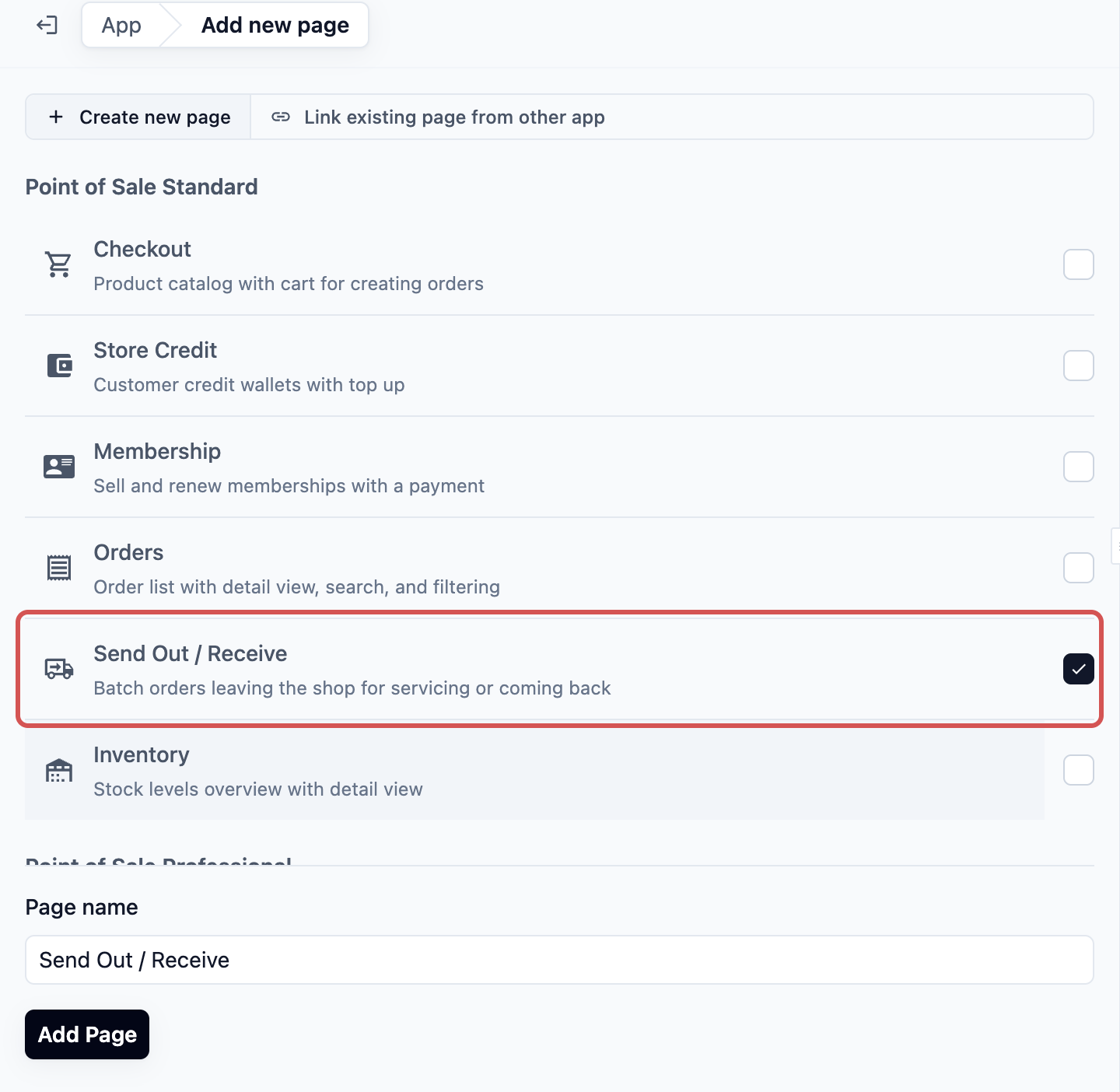
The POS doesn't show the Send Out / Receive page until you add it.
- Go to ⚙️ Settings > Point of Sale.
- Click the POS App tab. If you have more than one POS app, pick the one your shop uses.
- Open POS Pages and click Add Page.
- Under Create new page, choose Send Out / Receive.
- Keep the page name, and tick Add to App shell tabs so the page shows in the POS menu.
- Click Create.
You see "Page created". The next time the POS opens, your staff see Send Out / Receive in the menu.
Using Send Out / Receive on the POS
Your staff can use the page on the POS itself, or on a phone paired to the POS.
On the POS
- Tap Send Out / Receive in the POS menu.
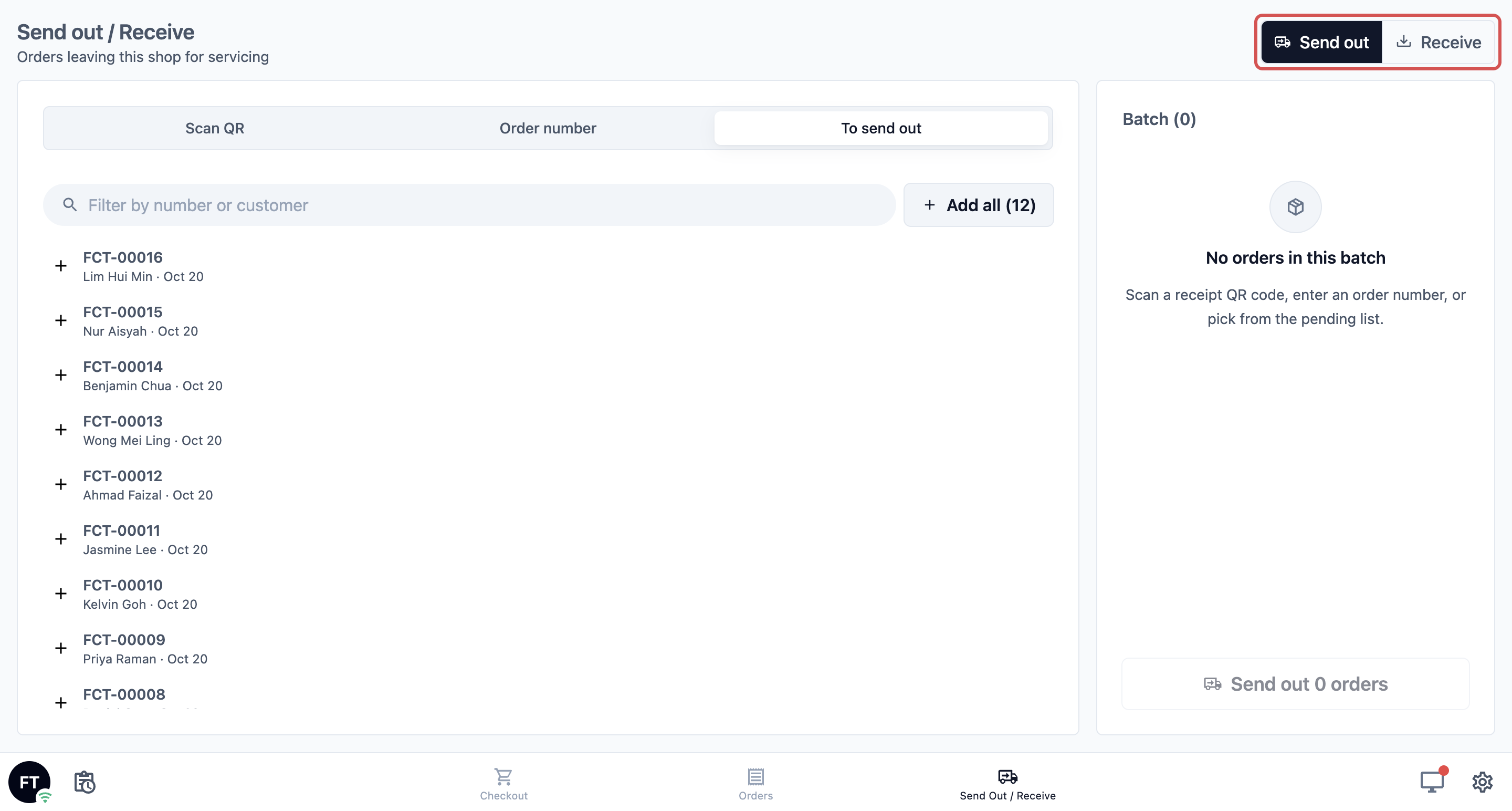
- Choose Send out or Receive at the top.
On a paired phone
A phone is handy when the van is at the back door and the POS is at the counter.
- Install EasyBiz POS on the phone from the App Store or Google Play, and open it. The phone shows a 6-digit Pairing Code.
- On the POS, tap the screen icon on the right of the bottom bar and type the code.
- On the phone, open the menu (☰) and tap Send out or Receive.
Add orders to the batch
A batch is the group of orders that leave or come back together. Add orders in any of 3 ways:
- Scan QR: Scan the QR code on the receipt or item label with the camera.
- Order number: Type the number on the receipt, such as 464 or JEM-00464, and press Enter or tap Add to batch.
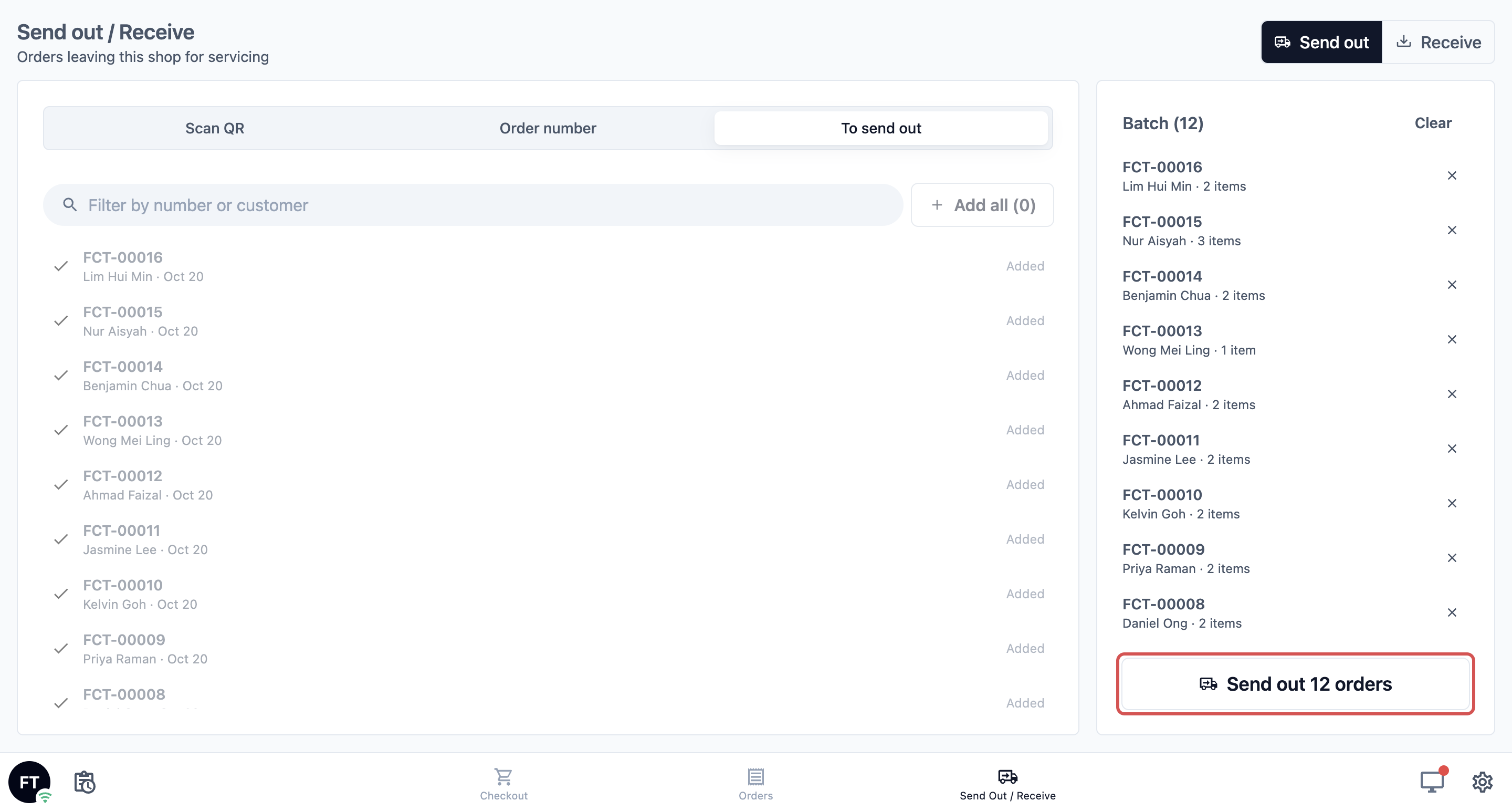
- To send out: Pick from the list of orders waiting to leave this shop. Tap Add all to add the whole list. When receiving, this tab is called To receive and lists the orders due back at this shop.
Each order shows up in the Batch on the right, or below on a phone. To take one out, tap Remove from batch. To start again, tap Clear.
Send the batch
When the batch is ready, tap Send out 12 orders (or Receive 12 orders). The number matches your batch.
Limits
- A batch holds up to 100 orders. For more, send them in 2 batches.
- The POS checks each order as soon as you add it, and tells you straight away if it can't move. The reasons you may see are: - Already sent out - Already received back - Order is already completed - Order is cancelled - Already in this batch - Order not found - Cannot send out: order has already passed the Send out stage
- If an order can't move when you confirm, the rest of the batch still goes through. The POS shows how many could not move, and the batch shows the reason next to each one.
Can I skip this?
Yes. If all your work happens in the shop, keep the single In Production step and don't add the POS page. Orders move through Production as they do today.
If you add factory trips but skip the Auto Triggers, orders won't move on their own. Your staff would have to update each order by hand, and orders at the factory would look the same as orders still on your shelf.
Example: CleanFast Laundry sends dry cleaning to its factory
CleanFast Laundry has 3 shops. Dry cleaning goes to a central factory on the van each evening and comes back 2 days later. The owner sets up the Dry Cleaning business unit like this:
- Orders go through production: On.
- At Shop: Auto Trigger Sent Out from Shop.
- Sent to Factory: Auto Trigger Received Back at Shop. Customer description: "Your items are being cleaned at our factory."
After the last Production step, the order moves to Ready for Collection, the first step of Store pickup in Completion & Handover.
Here's what the staff see:
- At 6pm, the staff member opens Send Out / Receive, chooses Send out and opens To send out. Today's 12 dry cleaning orders are listed.
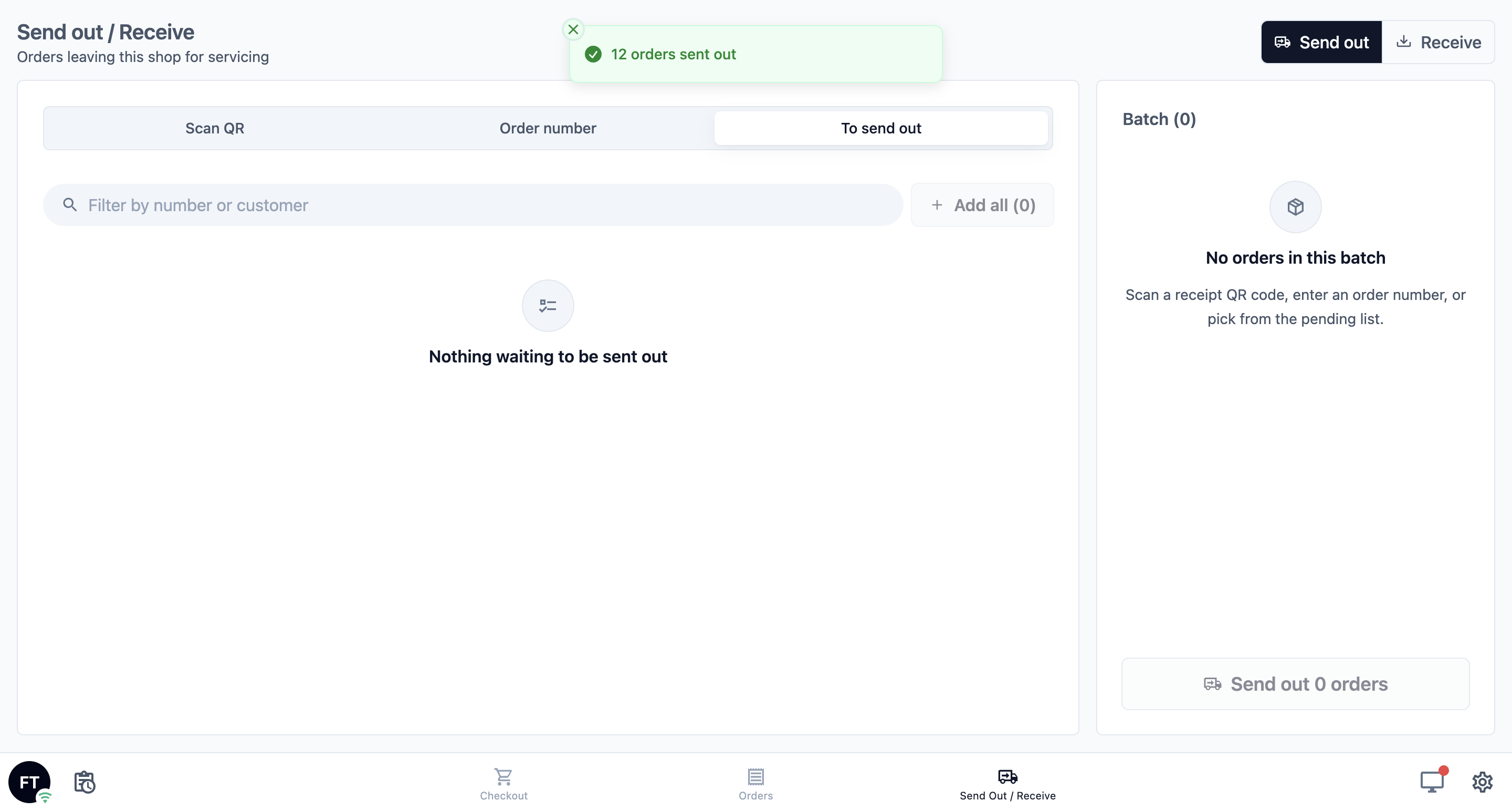
- She taps Add all, then Send out 12 orders. The POS shows "12 orders sent out".
- Each order moves from At Shop to Sent to Factory by itself. A customer who checks online reads "Your items are being cleaned at our factory."
- 2 days later, the van returns. She chooses Receive and scans each receipt with the paired phone. She taps Receive 12 orders and sees "12 orders received".
- Every order moves to Ready for Collection, so the counter knows they can be handed back.
FAQs
My phone says "Clock in on the POS first". What does that mean?
Your shop uses Time Clock, so staff must clock in before working. The phone has no login of its own. It works under whoever is clocked in on the POS, so every batch is saved under that person's name. Ask a staff member to clock in on the POS, and the page opens straight away.
Can I use a barcode scanner instead of the camera?
Yes. A USB or Bluetooth barcode scanner works on the Send Out / Receive page, whichever tab is open. Scan the receipt and the order is added to the batch. This also works on a computer with no camera.
Why isn't an order on the To send out list?
The list only shows orders waiting at the step with the Sent Out from Shop trigger. An order still waiting for its quote, or one that has already come back, isn't listed. Orders from a business unit with no factory steps aren't listed either. You can still scan the receipt or type the number to add it.
Will my existing orders follow the new steps?
No. Each order keeps the steps it had when it was created. Your new steps apply to orders taken after you click Save. Older orders can still be sent out by scanning their receipt.
The customer collects at a different outlet. Which shop receives the order?
The order comes back to the shop where the customer will collect it. It appears in that shop's To receive list, not in the list of the shop that sent it out.
Can I see who sent an order out and when?
Yes. Each order's history shows "Sent out from shop" or "Received back at shop", with the shop name, the time and the staff member. This helps when a customer asks where their item is.
What's Next
You've now set up the steps while work is being done, and your staff can send orders to the factory and receive them back on the POS. Next, set up how finished orders get back to your customers, through store pickup, home delivery or on-site service, in Getting Finished Orders Back to Customers.