
Before you start
Read Introduction to Business Units first. It explains what a business unit is and when a service needs its own.
Also write down the services you plan to split into business units. For example, CleanFast Laundry lists 2: Laundry, priced per kg, and Bag Repair, priced by quote after an inspection. Create one business unit for each service on your list.
Only the owner, or staff with the Company & business structure admin access, can create a business unit or change its name, code and icon.
Create a business unit
Each business unit starts with only a name. You add its prices, steps and documents afterwards, one tab at a time.
- In the Console (the EasyBiz back office you open in a web browser), click ⚙️ Settings.
- Under the Administration section, click Business Units.
- Click New Business Unit. If you have no business units yet, the page shows "No business units yet" with the same button in the middle.
- In Display name, type the name of the service, for example Bag Repair.
- Click Create.
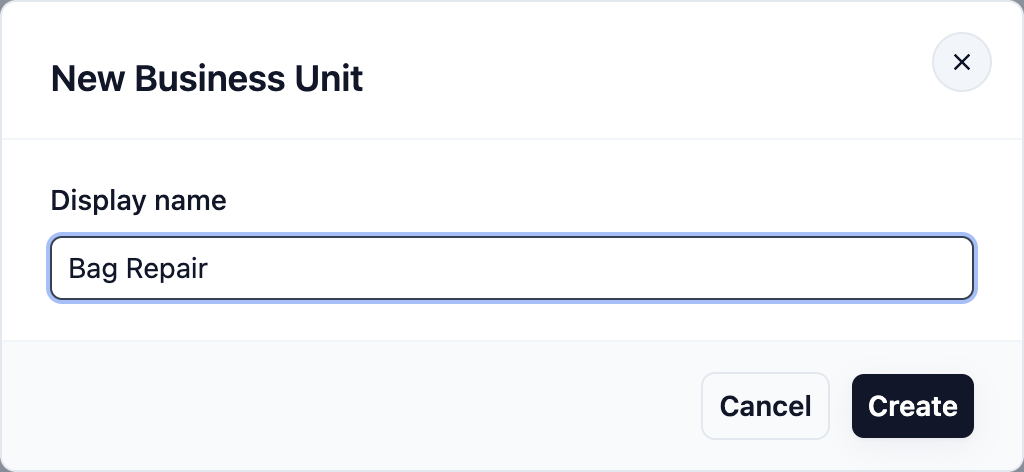
Display name
Use the name your staff and customers already use for the service. Keep it short and clear, such as Laundry, Dry Cleaning or Bag Repair. The name can be up to 120 characters. If you type more, the field shows "Use 120 characters or fewer." and the Create button stays greyed out.
When the unit is ready, you see "Business unit created". EasyBiz opens your new business unit straight away. Its name appears at the top of the page, with the tabs below it.
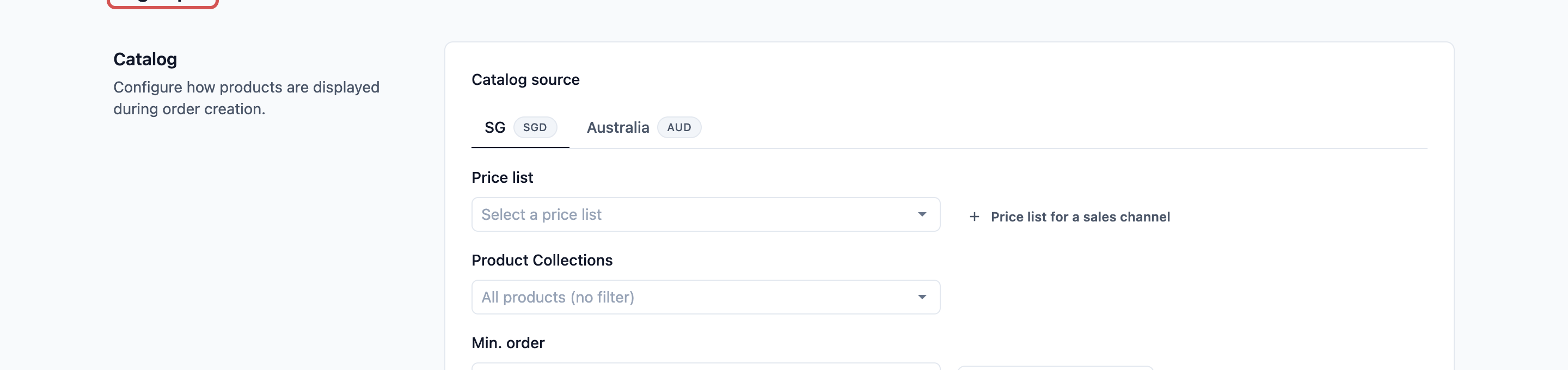
Edit the name, code and icon
You give a business unit its code and icon after you create it. You can also come back at any time to rename it.
- Go to ⚙️ Settings > Business Units.
- If you have more than 1 business unit, click the one you want to change at the top of the page.
- Click the ⋮ menu next to the business unit's name.
- Click Edit.
- Change any of the 3 fields below.
- Click Update.
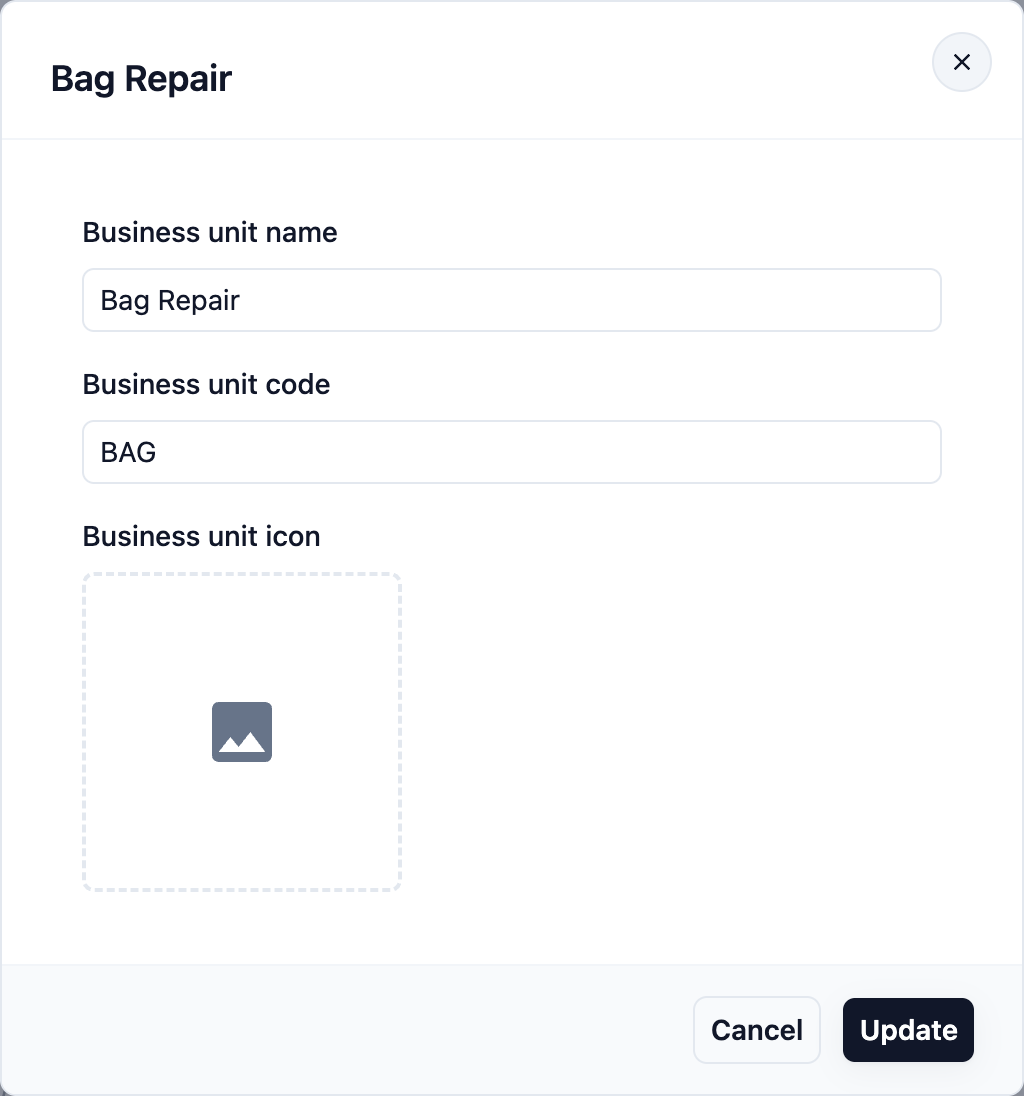
The Update button only becomes active after you change something. Once saved, you see "Business unit profile updated".
Business unit name This is the same name you typed when you created the unit. It's required, so you can't leave it empty. It can be up to 120 characters.
Your staff see this name:
- On the POS (the EasyBiz app your staff use at the shop counter), when they switch between business units for an order.
- On receipts, invoices and labels that show the business unit name.
- In your reports, when you filter by business unit.
- In each shop's list of active business units.
Business unit code
A short code is a quick label for the business unit, such as LD for Laundry or BAG for Bag Repair. It's optional. Use a few capital letters that your team recognises at a glance.
The code shows under the unit's name on the Business Units page. It does not appear on the POS, and it is not added to your order numbers. If you want it on paper, you can add Business Unit Code to your receipt or label template. See Choosing Your Receipts, Invoices and Labels.
Business unit icon
The icon is a small picture for the business unit, such as a bag for Bag Repair or a washing machine for Laundry. It's optional.
- Click the picture box under Business unit icon.
- In the Media Center window, click Upload image to add a new picture, or pick one you uploaded before.
- Click Choose image.
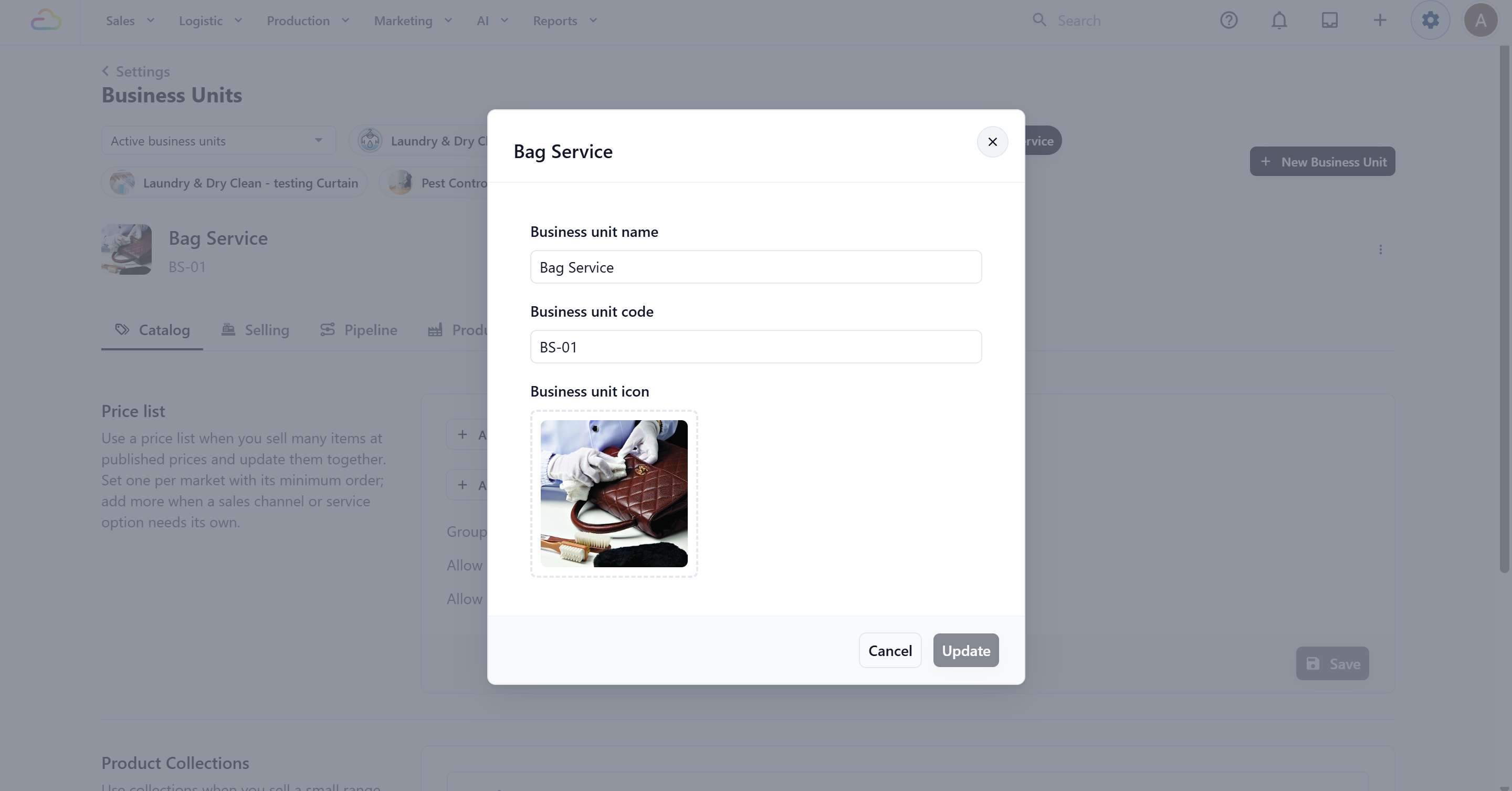
The icon shows next to the unit's name on the Business Units page and in each shop's list of active business units. It helps you find the right unit quickly when you run several. The POS shows the name only, not the icon.
Example: adding Bag Repair at CleanFast Laundry
CleanFast Laundry already runs a Laundry business unit. The owner starts offering bag repairs and sets up a new unit:
- Display name: Bag Repair
- Business unit code: BAG
- Business unit icon: a simple handbag picture
After saving, the Business Units page shows 2 buttons at the top: Laundry and Bag Repair, each with its icon. Bag Repair shows BAG under its name.
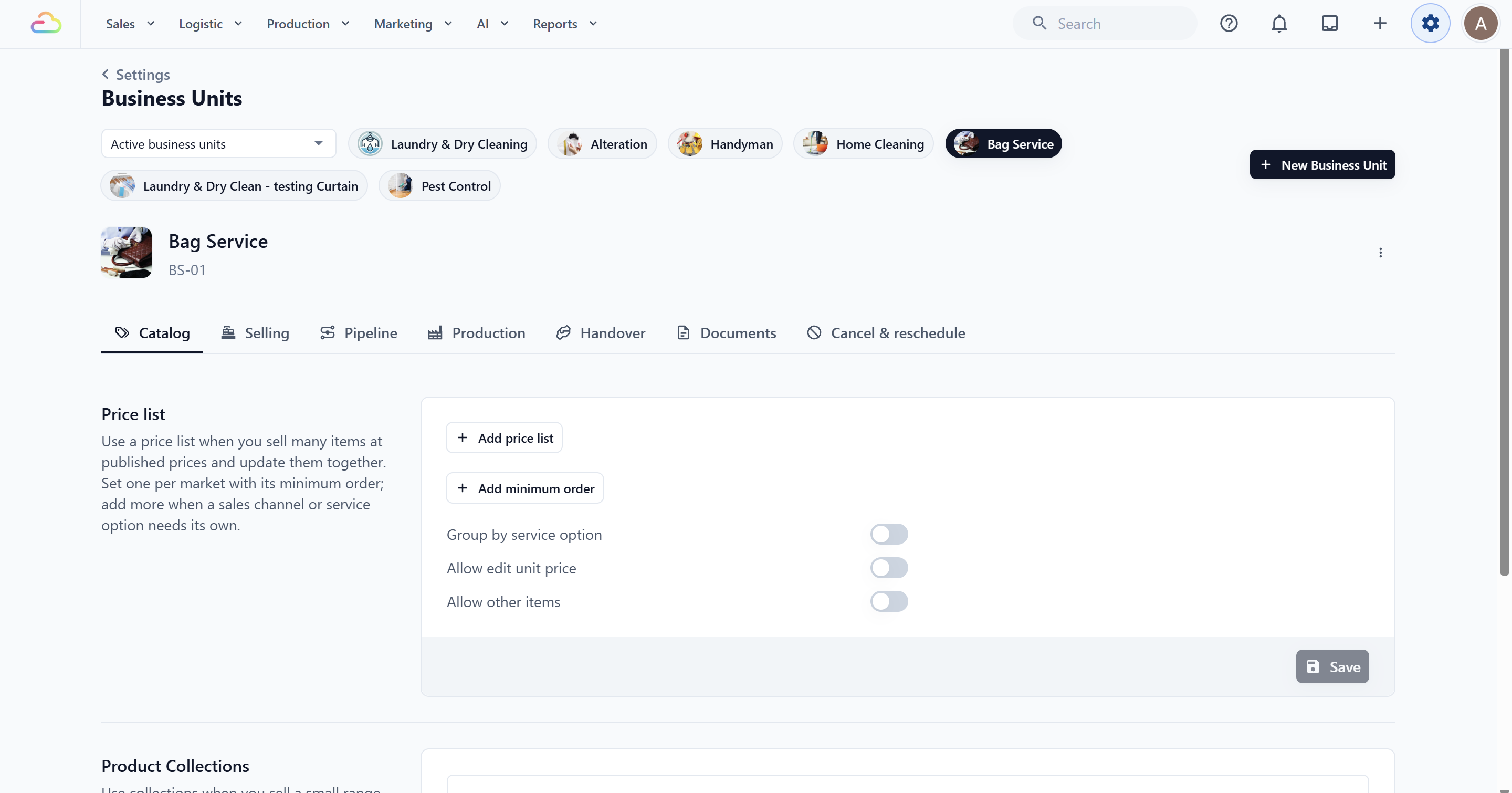
Once the owner adds Bag Repair's prices and ticks it as active for the shop, staff at the counter see a business unit switcher above the item list on the POS. They pick Laundry for a bag of clothes and Bag Repair for a handbag.
Why you can't delete a business unit
You'll see a Delete option in the ⋮ menu, but EasyBiz doesn't delete business units. When you click it, a Delete Business Unit message explains that "Deleting business units is not currently supported." Click Got it to close it. Nothing is changed.
This protects your records. Your past orders, workflows, catalog items and sales channels (the places where you take orders, such as a POS shop or your Online Store) can still be linked to the unit. Removing it would leave those records without a service.
If you no longer offer a service, stop selling it instead. See the FAQs below.
FAQs
If I rename a business unit, do my old receipts change?
No. Each order keeps the business unit name it had when it was created. Reprinting an old receipt shows the old name. New orders, the POS and your reports use the new name. The business unit code works differently: it always shows the latest code, so a reprinted receipt with Business Unit Code on it shows the new code.
Can I hide a business unit I've stopped selling?
Yes. Untick it for each shop that sells it: 1. Go to ⚙️ Settings > Point of Sale. 2. Open the menu on your shop's card and click Active business units. 3. Untick the business unit and click Update. Your staff no longer see it on that shop's POS. Your past orders and reports for it stay as they are. Keep at least 1 business unit ticked, because a shop with none can't take new orders.
Does the business unit code appear on order numbers?
No. Order numbers come from each shop's own running number, not from the business unit. If you want staff and customers to see the code, add Business Unit Code to your receipt or label template.
I created a new business unit. Why can't my staff see it on the POS?
A new business unit isn't added to any shop on its own, and it starts with no prices. Tick it under Active business units for the shop, then set up its prices in Choosing What You Sell and Your Prices. Until it has a catalog, the POS shows "This business unit has no catalog."
Why can't my staff member see the New Business Unit button or the Edit option?
Only the owner and staff with the Company & business structure admin access can create a business unit or change its name, code and icon. Other staff can still open the tabs they have access to.
Do I pay extra for each business unit I create?
No. There's no separate charge for each business unit. Your EasyBiz plan and staff seats are billed the same way however many business units you have.
What's Next
You've created your business unit and given it a name, code and icon. Next, choose what it sells and how much it costs in Choosing What You Sell and Your Prices.