
Before you start
Your business unit needs a catalog, so your staff have items to sell. See Choosing What You Sell and Your Prices.
Your shop also needs a POS app so staff can take walk-in orders. See Create Your POS App.
What checkout steps are
Checkout steps are short screens staff fill in after they add items to an order and before the order is created. They show one at a time, in the order you choose.
They help you:
- Collect proof at drop-off, such as photos of damage or a customer signature, so you are covered if there is a dispute later.
- Agree the price or the pickup time before the order is created, so staff don't have to call the customer back.
- Make sure no new staff member forgets a detail, because a required step can't be skipped.
Can I skip this? Yes. With no steps, checkout is instant: staff tap Charge and go straight to payment. This is fine for a simple counter where staff only take the items and the payment.
POS checkout and Console checkout
Each business unit has 2 sets of staff checkout steps. They work separately.
- POS checkout -> Steps for walk-in orders taken at the shop counter.
- Console checkout -> Steps for orders your team takes in Console, such as phone or WhatsApp orders for a pickup or delivery.
A step you add to one doesn't appear in the other. If you want the same step in both, add it to both.
Customers who book on your Online Store have their own steps. See Choosing What Customers Fill In When Booking Online.
Required, Optional and On Demand
Every step has a Process Method. It decides whether staff must fill it in.
| Process Method | What staff see |
|---|---|
| Required | The step shows in turn. Staff can't move on until it is filled in. |
| Optional | The step shows in turn. Staff can tap Next without filling it in. |
| On Demand | The step isn't part of the sequence. It shows as a button at the top of the checkout, and staff open it only when they need it. |
On Demand suits things that only happen sometimes, such as a signature for a high-value item.
Steps you can add
Steps are grouped in the Add a step window, the same way you see them below.
Customer
- Select Customer -> Staff search for and pick the customer.
- Select Address -> Staff pick or enter the customer's address.
Items
- Edit Order Items -> Staff review the items one more time, and add, remove or change them.
Schedule & delivery
- Schedule Booking -> Staff book the pickup, delivery or service date and time the business unit needs.
- Enter Receiving Date -> Staff record the day the items arrive.
- Enter Fulfillment Date -> Staff record when the order should be ready.
- Enter Return Date -> Staff record when the items go back to the customer.
Payment & price
- Enter Quoted Amount -> Staff type the price agreed with the customer.
- Enter Fixed Amount -> Staff type one fixed amount for the whole order.
Photos & signature
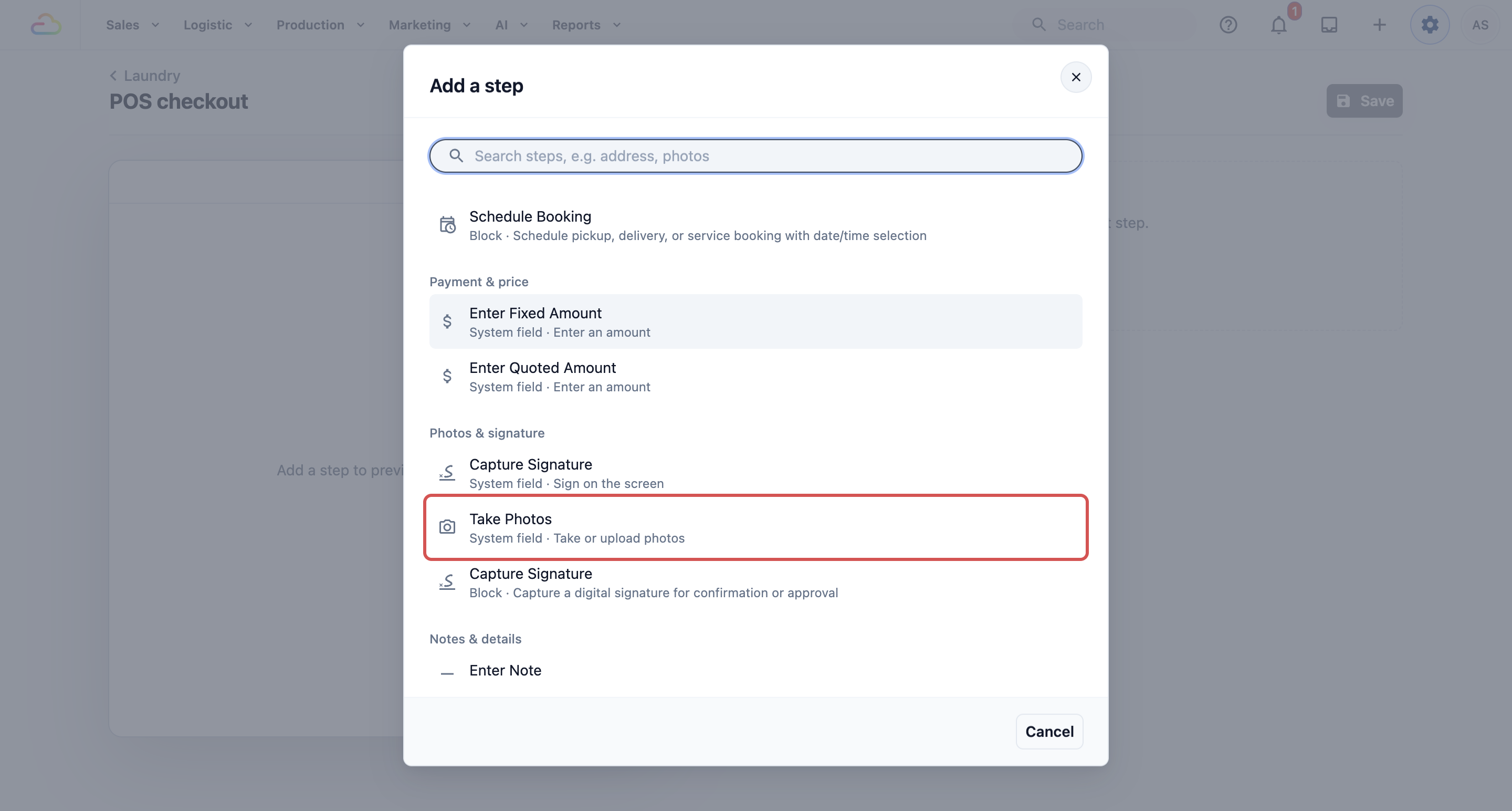
- Take Photos -> Staff take or upload photos of the items.
- Capture Signature -> The customer signs on the screen.
Notes & details
- Enter Note -> Staff type a short note, such as "Customer wants extra starch".
- Enter Order Number -> Staff type an order number, for example from a paper ticket.
- Enter Tracking Number -> Staff type a tracking or reference number.
- Enter Fixed Quantity -> Staff type one quantity for the whole order.
Your custom fields
A custom field is a question you create yourself, such as "Fabric type" or "Pet hair?". Each one appears here as its own step. Depending on the field type, staff type text, enter a number or amount, pick a date, choose from a list or take photos. To create one, see Configuring Data Fields.
Set up your checkout steps
- Go to ⚙️ Settings > Business Units.
- Click the business unit.
- Click the Selling tab.
- In the Staff checkout section, find POS checkout or Console checkout and click Edit steps.
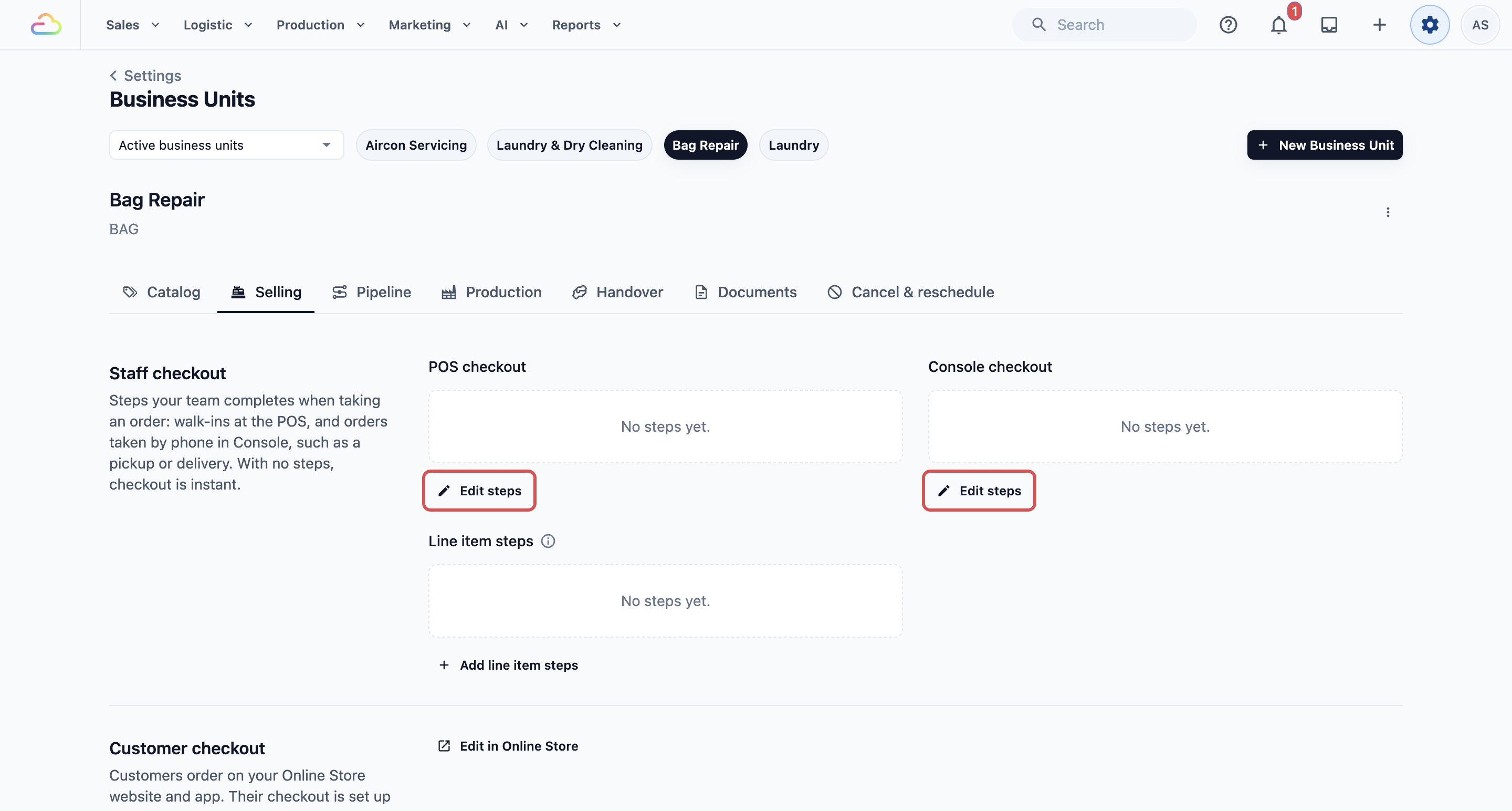
- Click Add Step.
- Find the step in the list, or type in the search box, for example "photos".
- Click the step to add it.
- Fill in the step's settings below.
- Repeat for each step you need. Steps run in the order they appear.
- Click Save.
You see "Checkout steps saved". The steps now show under POS checkout or Console checkout on the Selling tab.
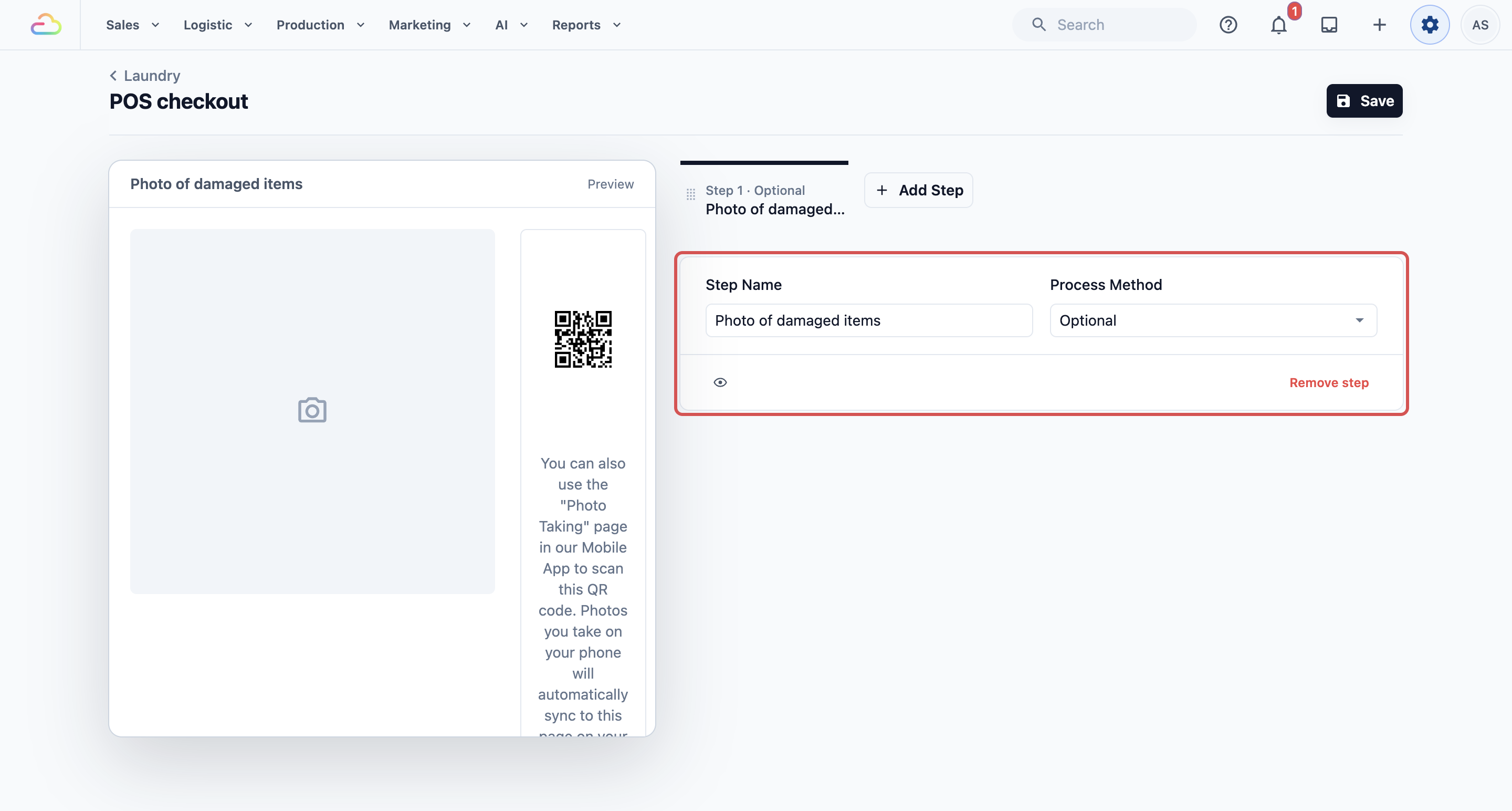
Step Name The title staff see on the step. Leave it empty to use the standard name, such as Photos. Type your own to make it clearer, such as "Photo of damaged items".
Process Method Choose Required, Optional or On Demand, as explained above.
Visibility conditions Optional. Show or hide a step based on another answer. For example, ask for photos only when staff tick "Damaged" in an earlier step. Click the eye button next to Remove step to add a condition.
To remove a step, click Remove step, then Remove. The change takes effect when you save.
Example 1: CleanFast Laundry's POS checkout
CleanFast Laundry wants proof of any damage at drop-off, but most items arrive in good condition. The owner sets up the POS checkout for the Laundry business unit like this:
- Step: Take Photos.
- Step Name: Photo of damaged items.
- Process Method: Optional.
Staff take a photo when they spot a stain or a tear. Otherwise they tap Next and carry on.
Example 2: BagCare Pro's Console checkout
BagCare Pro takes most repair jobs over the phone and WhatsApp. The price must be agreed before the bag is collected. The owner sets up the Console checkout for the Bag Repair business unit like this:
- Enter Quoted Amount, Required. The order can't be created without the agreed price.
- Schedule Booking, Required. Staff book the date and time to pick up the bag.
- Enter Note, Optional. Staff note anything the customer mentioned, such as "Broken zip, left pocket".
What your staff see on the POS
Once a business unit has POS checkout steps, the Charge button on the cart changes to Checkout.
- Staff add the items and tap Checkout.
- Each step shows in turn, with its name and a progress bar at the top, such as "(1/2) Photo of damaged items".
- Staff tap Next to move on, or Back to fix an earlier answer.
- On the last step, staff tap Create Order.
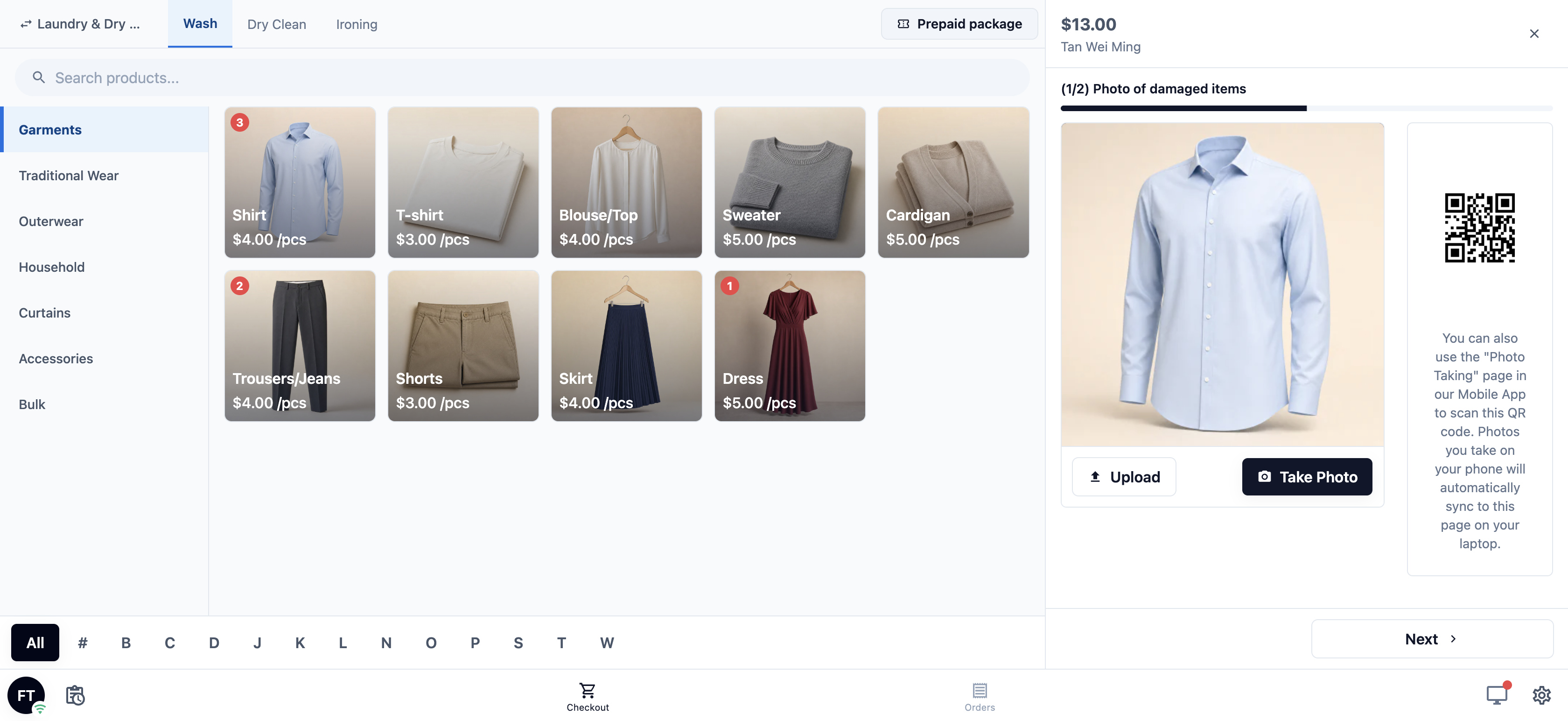
If a required step is empty, staff see a short reminder, such as "Please take photo", and can't move on. After the order is created, the usual "Order created" screen appears, with the same buttons your shop already uses after a sale.
FAQs
A phone order skipped my step. Why?
POS and Console keep separate steps. A step you add to POS checkout doesn't appear when your team takes an order in Console. Add it to Console checkout too.
Can staff take a deposit during these steps?
No. Payment is handled on the POS as usual, including deposits. See Collecting Payment at Checkout.
Where do the photos show later?
They are saved with the order. Open the order in Console to see them in its Photos section.
Do new steps change orders that were already taken?
No. Steps only apply to new orders. Orders taken before you saved keep the details they already have.
If I remove all the steps, what happens?
Checkout becomes instant again. The button goes back to Charge and staff go straight to payment.
What's Next
You've set up the steps your staff complete for each order, at the counter and in Console. Next, ask for details on each item, such as weight, pieces or photos, in Asking for Details on Each Item.