
Adding a new POS shop
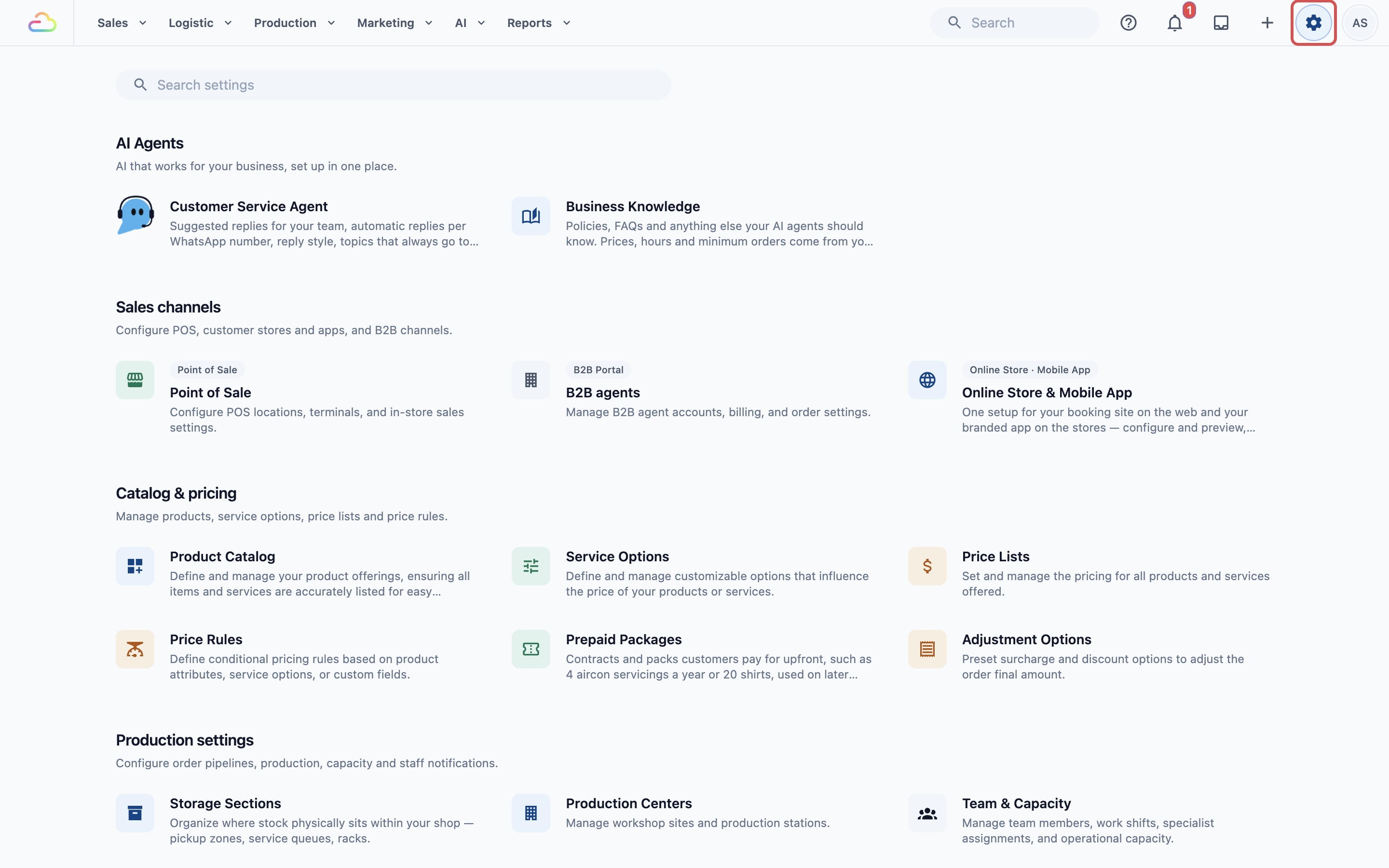
Click the ⚙️Settings icon in the top-right corner.
Under the Sales channels section, click Point of Sale.
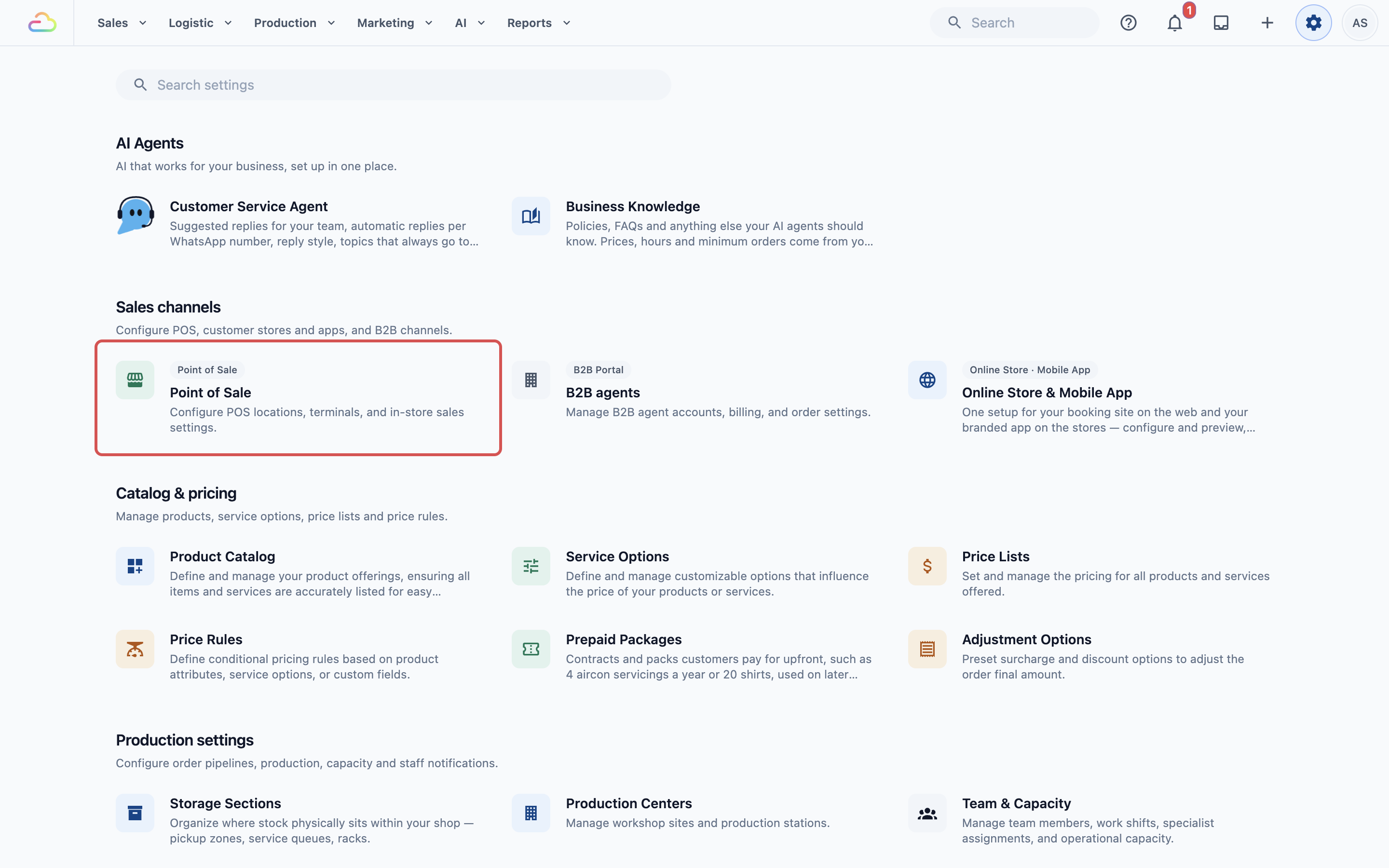
- On the Shops tab, click Add Shop.
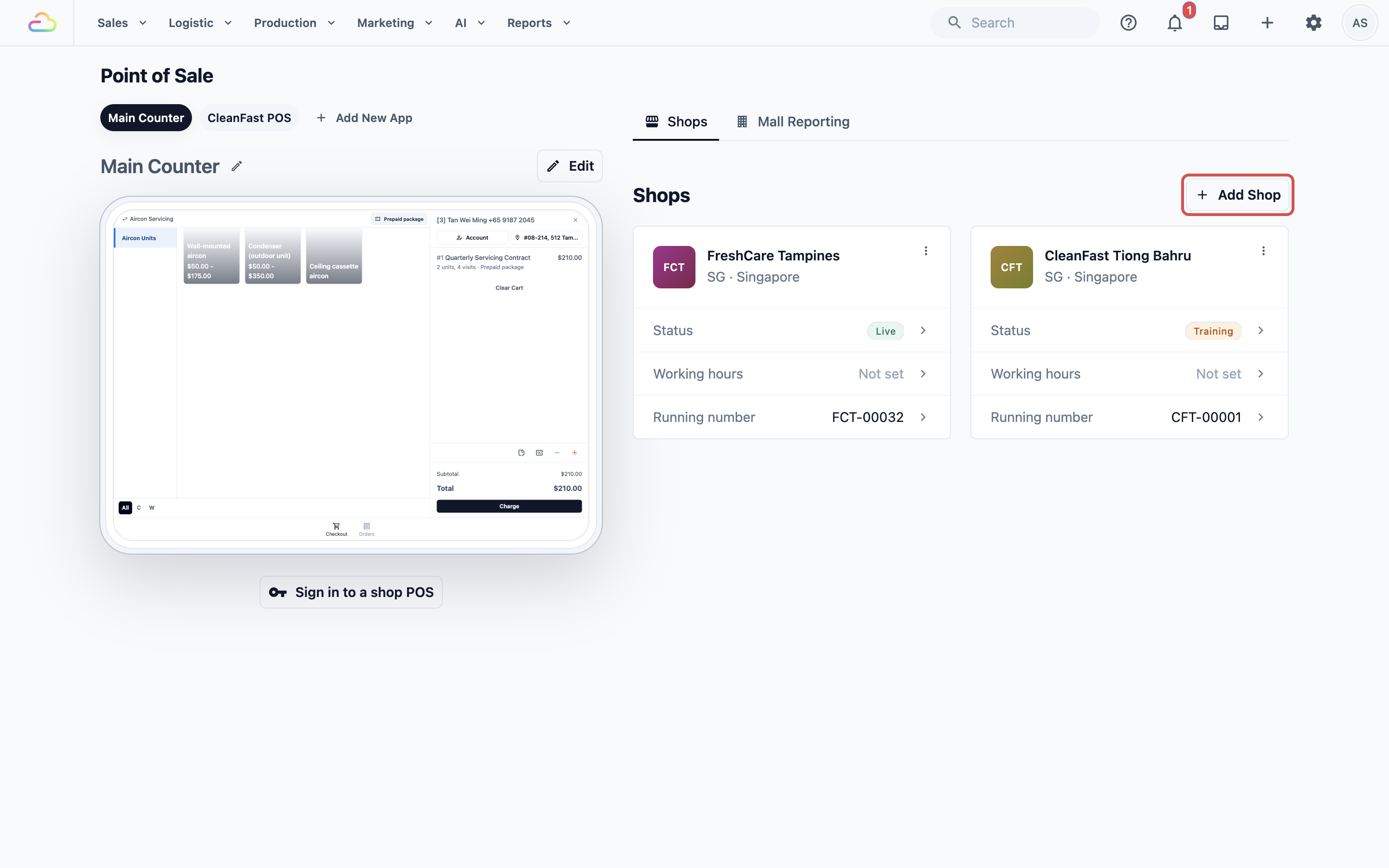
This opens a separate Add a training location page. Every new shop starts in training, so your staff can practise on its POS before it takes real sales. Choose the correct Market and City / location first, because these cannot be changed after the shop is created.
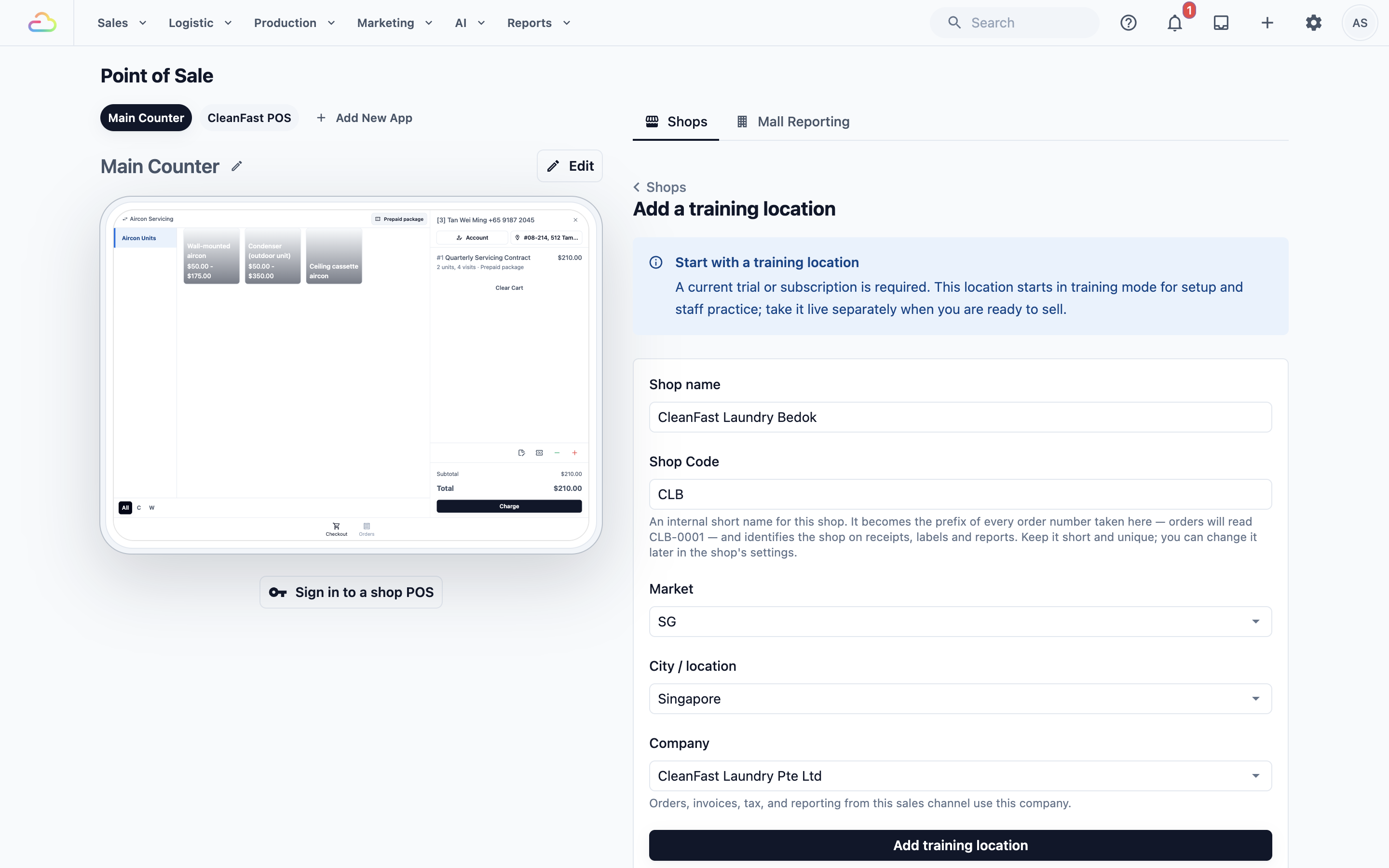
Shop name
Enter the customer-facing outlet name. This appears on receipts, invoices, emails, and other customer messages, so use a name your customers will recognise.
Shop Code
Enter a short code used in reports and printing. It becomes the prefix of every order number taken at this shop (for example, CLB-0001). If you leave it blank, EasyBiz uses a system default code.
Market
Choose the market for this shop. The market controls country-level settings such as currency and locale. Available markets depend on the markets configured for your account.
City / location
Choose the shop's city. The list shows the locations in the market you chose.
Company
Select the company this shop belongs to. Orders, invoices, tax, and reporting from this shop use this company.
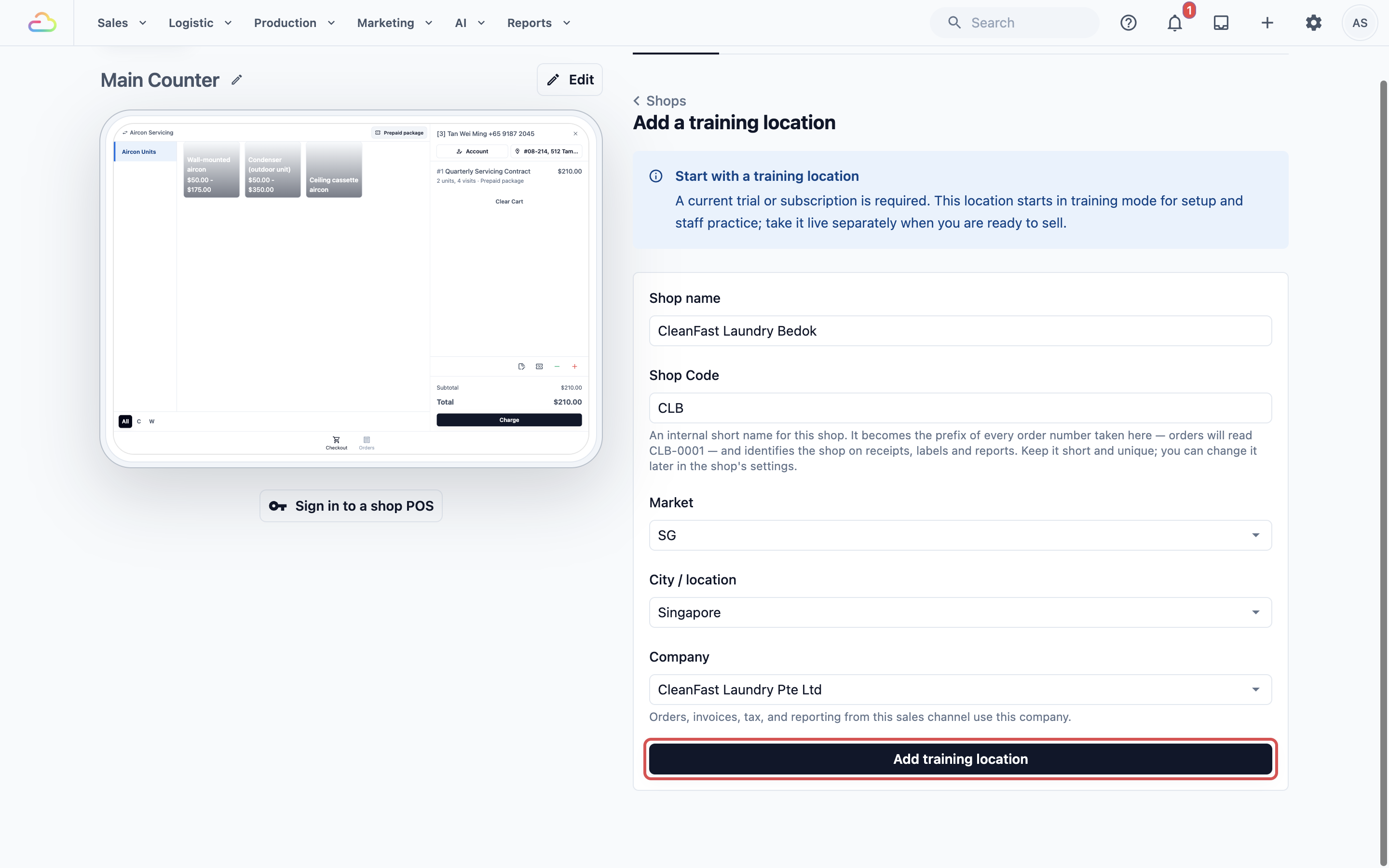
Click Add training location once the required details are complete.
Understanding the Shops page
The Shops page shows your POS shops as cards. Each card shows the shop code badge, the shop name, its market and city, and three rows: Status, Working hours, and Running number. Click the shop name to edit the shop profile, or click a row to change that setting.
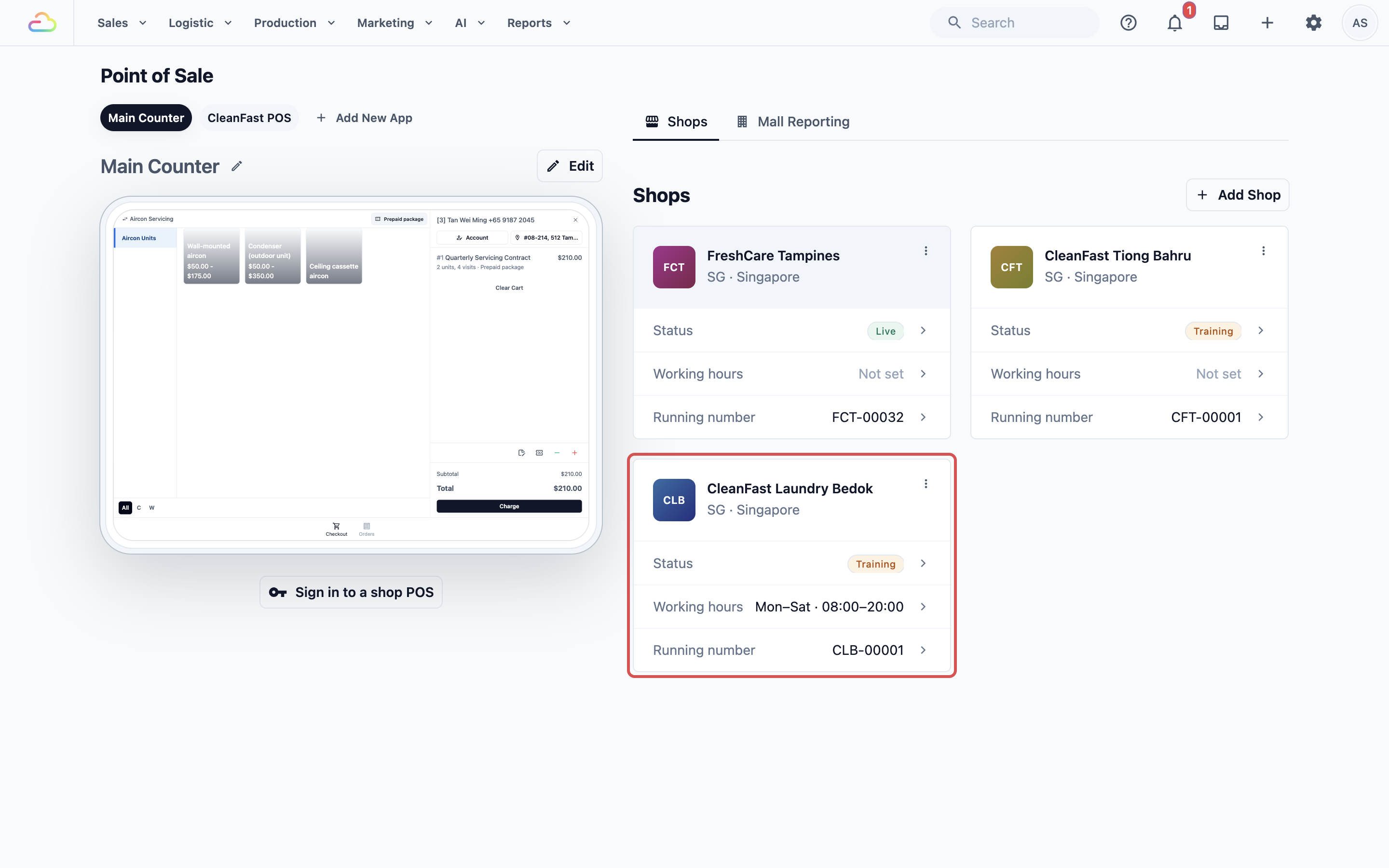
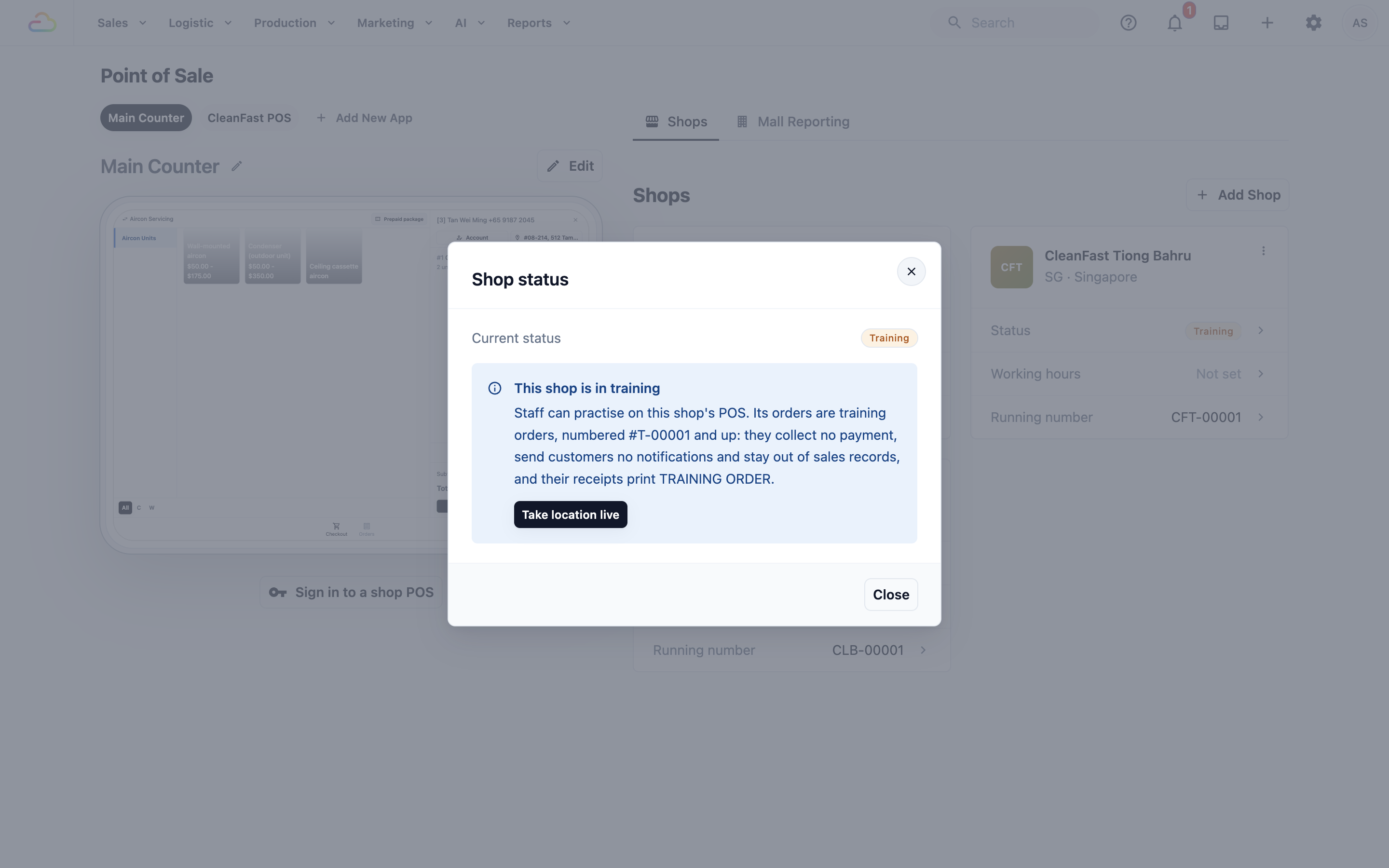
Status shows Training or Live. A training shop's orders are training orders: they collect no payment, send customers no notifications and stay out of sales records. Click the row to see what the status means; a billing administrator can click Take location live when the shop is ready to sell.
If working hours are set, they show on the card in a compact format such as Mon–Sat · 08:00–20:00.
If a shop has no linked city, it shows a "No city linked" badge. This is display only and is not clickable.
Using the shop menu
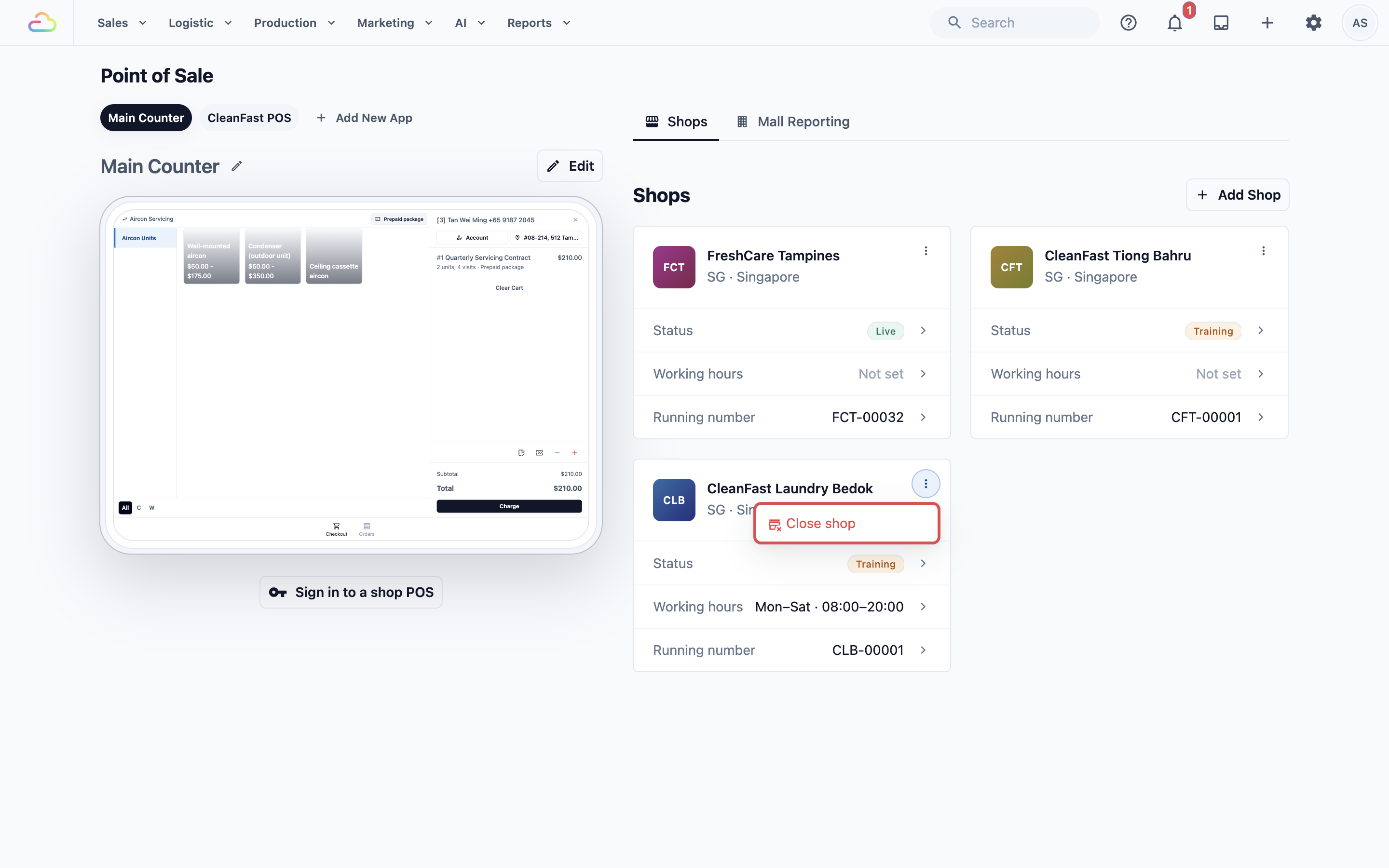
Each shop card has a three-dot menu. Everything else is edited from the card itself.
| Where | What it does |
|---|---|
| Shop name | Opens Shop profile: edit the shop's details, billing company and managed sales channels |
| Status row | Shows whether the shop is Live or in Training |
| Working hours row | Sets the shop's opening hours |
| Running number row | Sets the running number used for orders from this shop |
| Three-dot menu › Close shop | Closes the shop and removes it from your subscription |
Completing the shop settings
Open the shop's profile and working hours to finish setting up the shop. Each opens its own dialog with its own Save button.
1. Shop profile
Click the shop name on its card to manage the shop's main details.
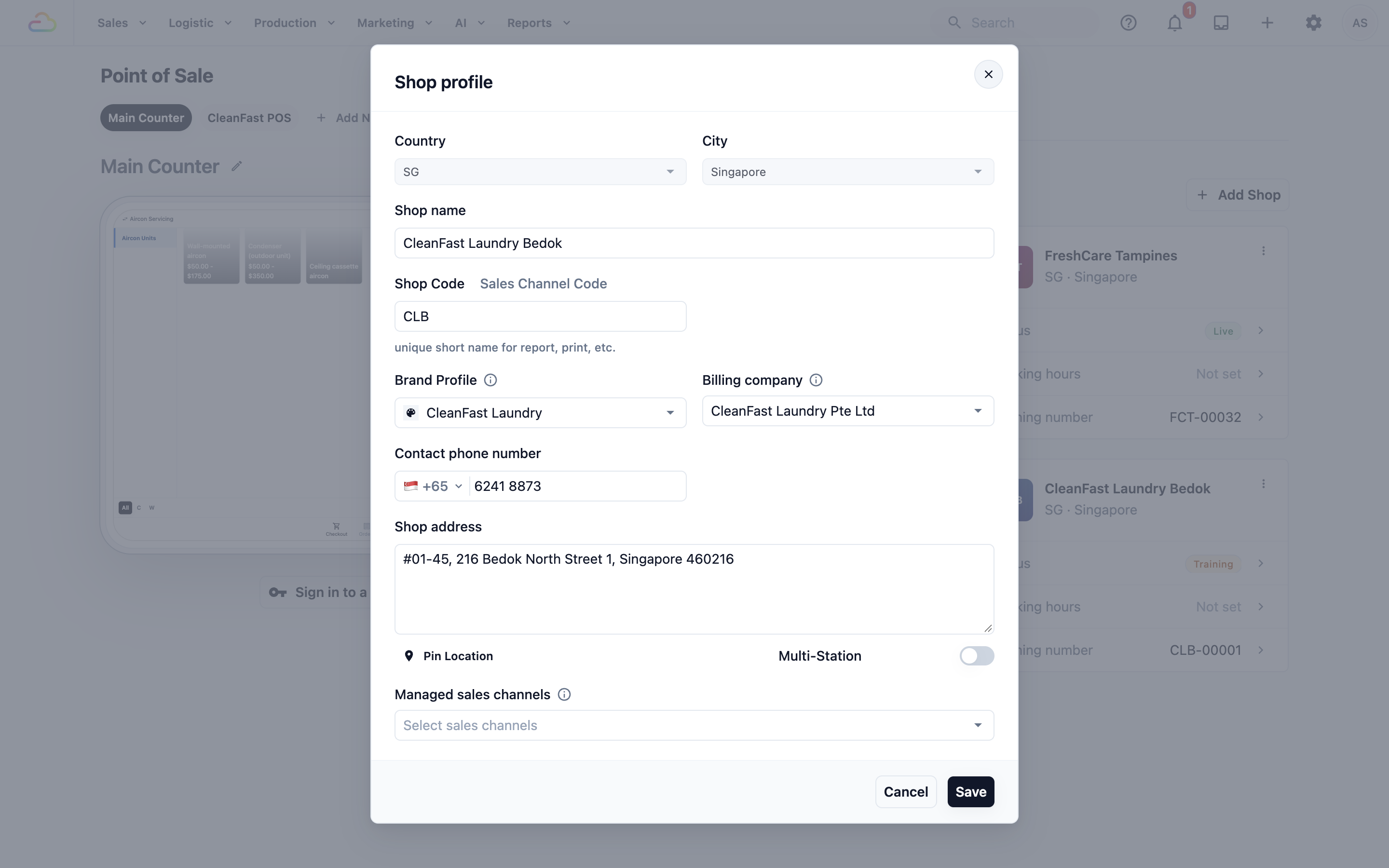
Country and City → Shown as read-only after the shop is created.
Shop name and Shop Code → Edit the outlet name and short code.
Brand Profile → Choose the customer-facing brand identity for this shop.
Billing company → Change which company this shop belongs to, if needed.
Contact phone number and Shop address → Add the outlet's contact details.
Pin Location → Pin the outlet's location on the map.
Multi-Station → Turn this on only if more than one POS device will run at this shop at the same time.
Managed sales channels → Use this when a master shop needs to manage orders from other shops, collection points, or online channels.
2. Working hours
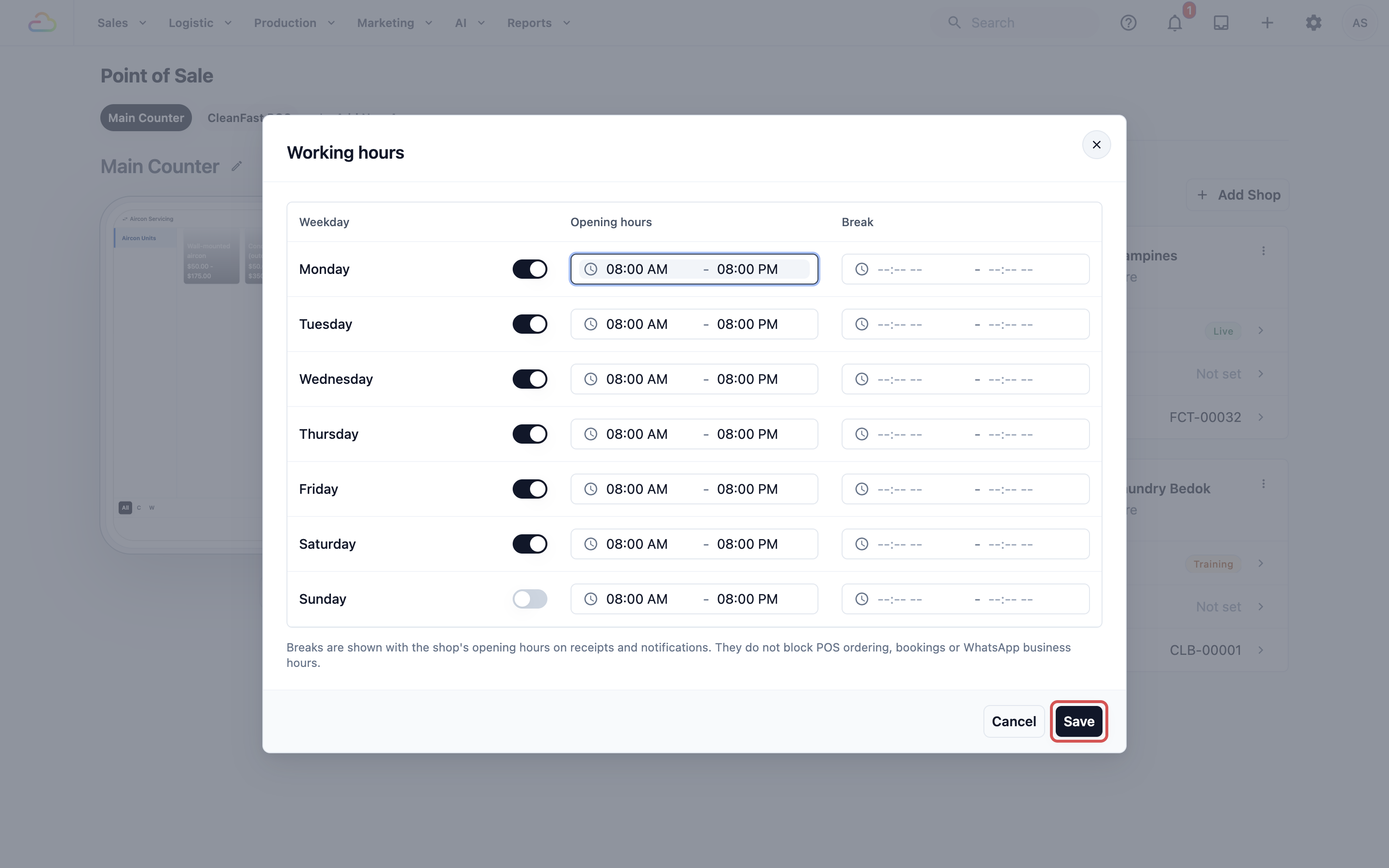
Click the Working hours row on the shop card to set the days and times the shop is open. For each weekday:
Toggle the day on or off.
Set the opening and closing time.
Add an optional break time, such as a lunch break.
Click Save.
Opening hours describe the shop's trading times. This is exactly what they do:
They show on the shop card in the Shops list, in a compact format such as Mon–Sat · 08:00–20:00.
They are available to receipt and notification templates that include an opening-hours placeholder.
They complete the opening-hours step in the POS setup checklist once the hours are filled in.
One older behaviour still applies on some booking setups: a weekday you toggle off here can also show as an off day on the customer's date picker. Days you leave toggled on are never restricted by the times you set.
3. Running number
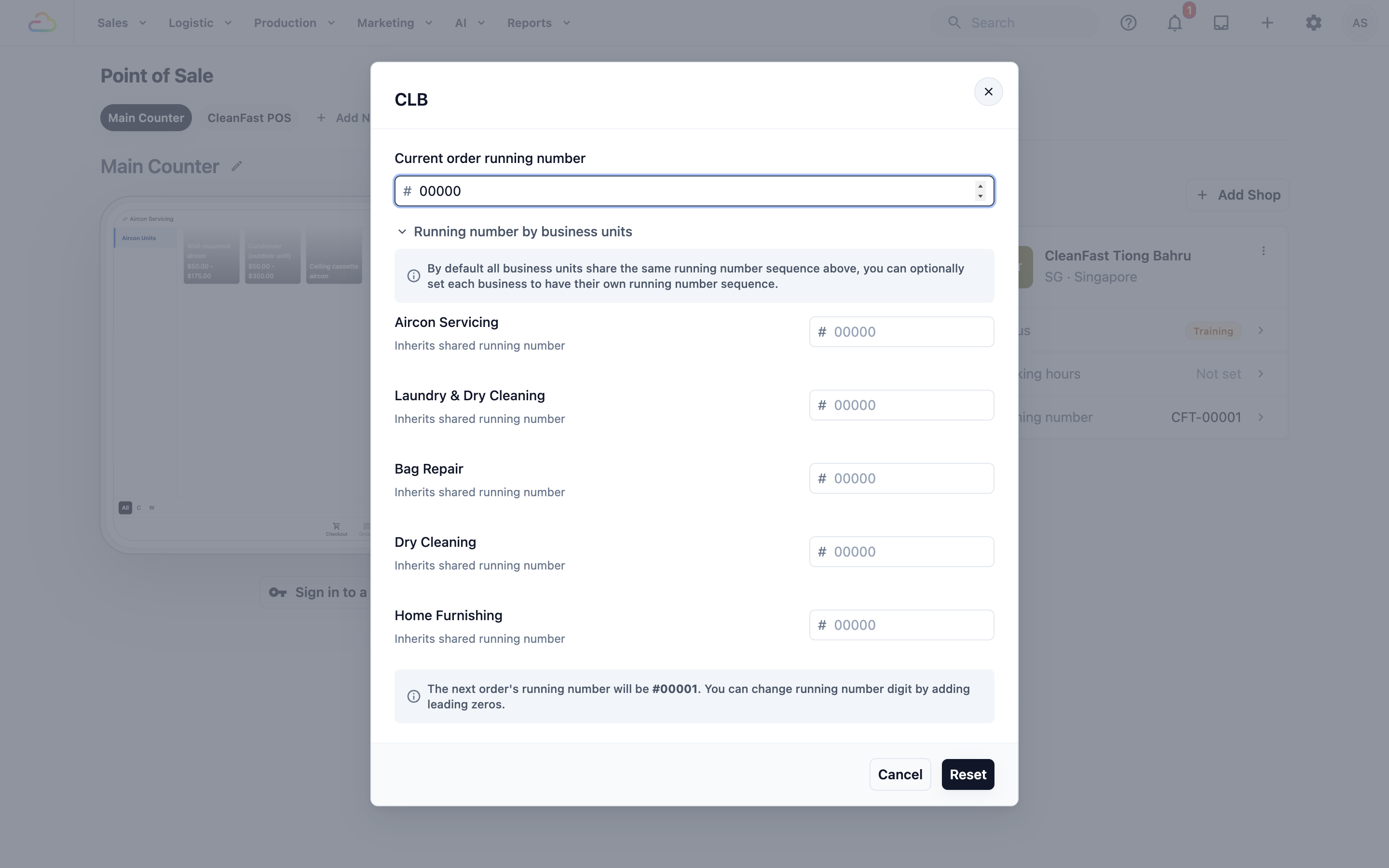
Click the Running number row to set the next order number for this shop. By default all business units share one running number sequence; you can give a business unit its own sequence here.
Closing a POS shop
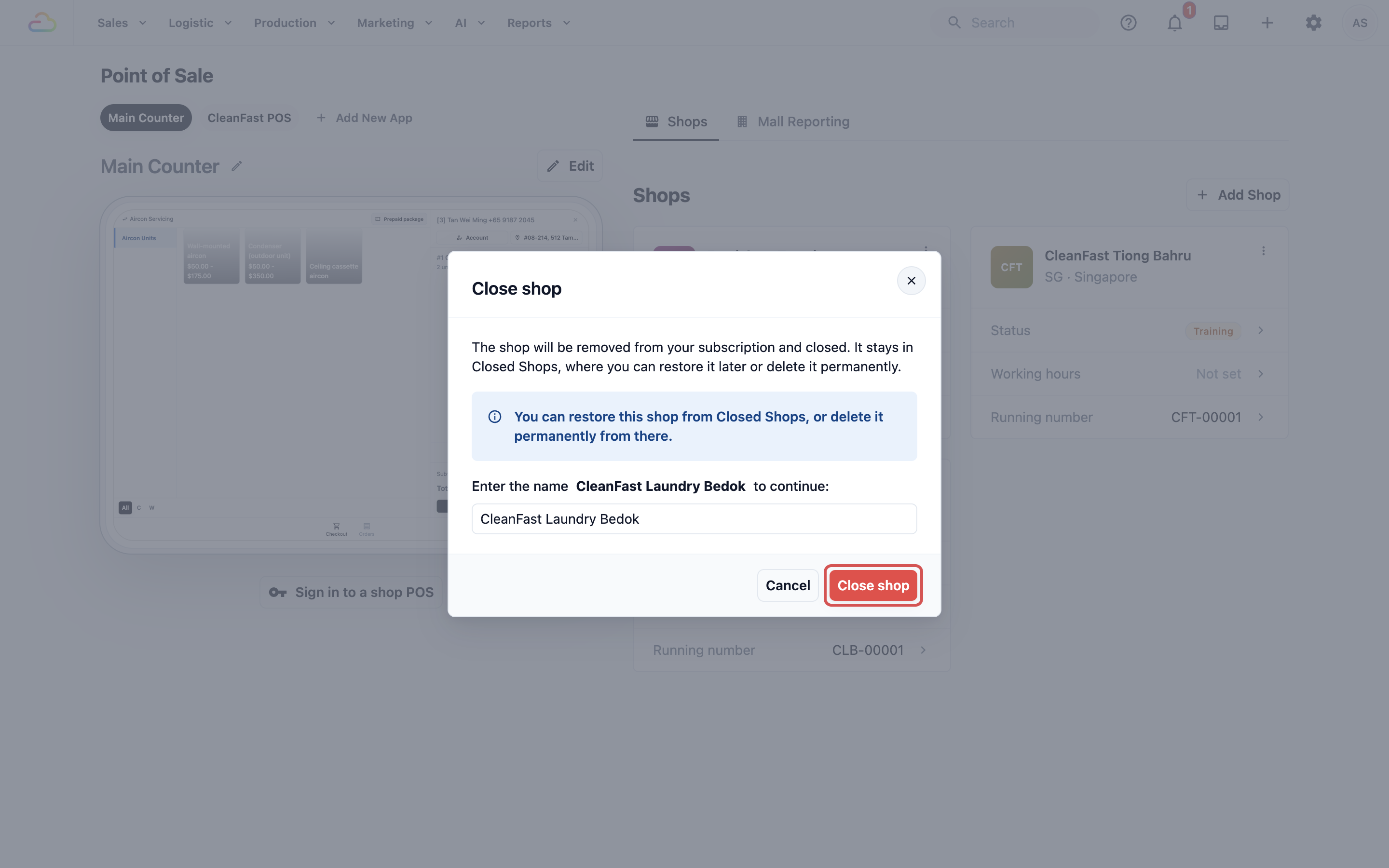
To close a shop, open the three-dot menu on its card.
- Click Close shop.
Type the exact shop name in the confirmation box to turn on the final Close shop button.
Click Close shop to confirm.
FAQs
Can I change the Market or City after creating a shop?
No. Market and City are locked after creation. Choose them carefully before clicking Add training location.
What happens if a shop shows No city linked?
This can happen for older shops created before the Country and City requirement. The shop shows a No city linked badge on the Shops page, and the shop profile does not currently give a way to link the city later.
Do I need to enter a Shop Code?
It is recommended but not required. If you leave it blank, EasyBiz uses a system default code for the shop.
When should I turn on Multi-Station?
Turn it on only when more than one POS device needs to run at the same shop at the same time. For a single counter, leave it off. Remember to pin the shop location first.
Can I recover a closed shop?
Yes. A closed shop stays under Closed Shops on the Shops tab, where you can restore it. If you delete it permanently from there, it cannot be recovered.
What's Next?
Now that your POS shop is registered, continue to Create Your POS App to build the app your counter staff actually open every day.