
Before You Start
Make sure you have:
- Your areas created. A business unit can only use areas that already exist. See Setting Up Service Areas.
- At least one online booking option for the business unit, such as a home pickup or an onsite visit. Service areas only apply to bookings made at a customer's address. See Setting Up Online Booking Options.
What Service Areas Do for a Business Unit
A business unit is one line of service in your shop, for example Laundry & Dry Cleaning or Home Cleaning. Each unit has its own service areas (the parts of the map you agree to serve), because the places you go for a home cleaning visit may differ from the places you collect laundry.
Here is what this setting saves you:
- No more calling customers to cancel bookings you can't reach.
- No more trips that cost more than the order is worth.
- Customers outside your areas get a clear answer straight away, in your own words.
If you leave the areas empty, the unit takes bookings at every address. Nothing is checked and no booking is refused.
Open a Business Unit's Service Areas
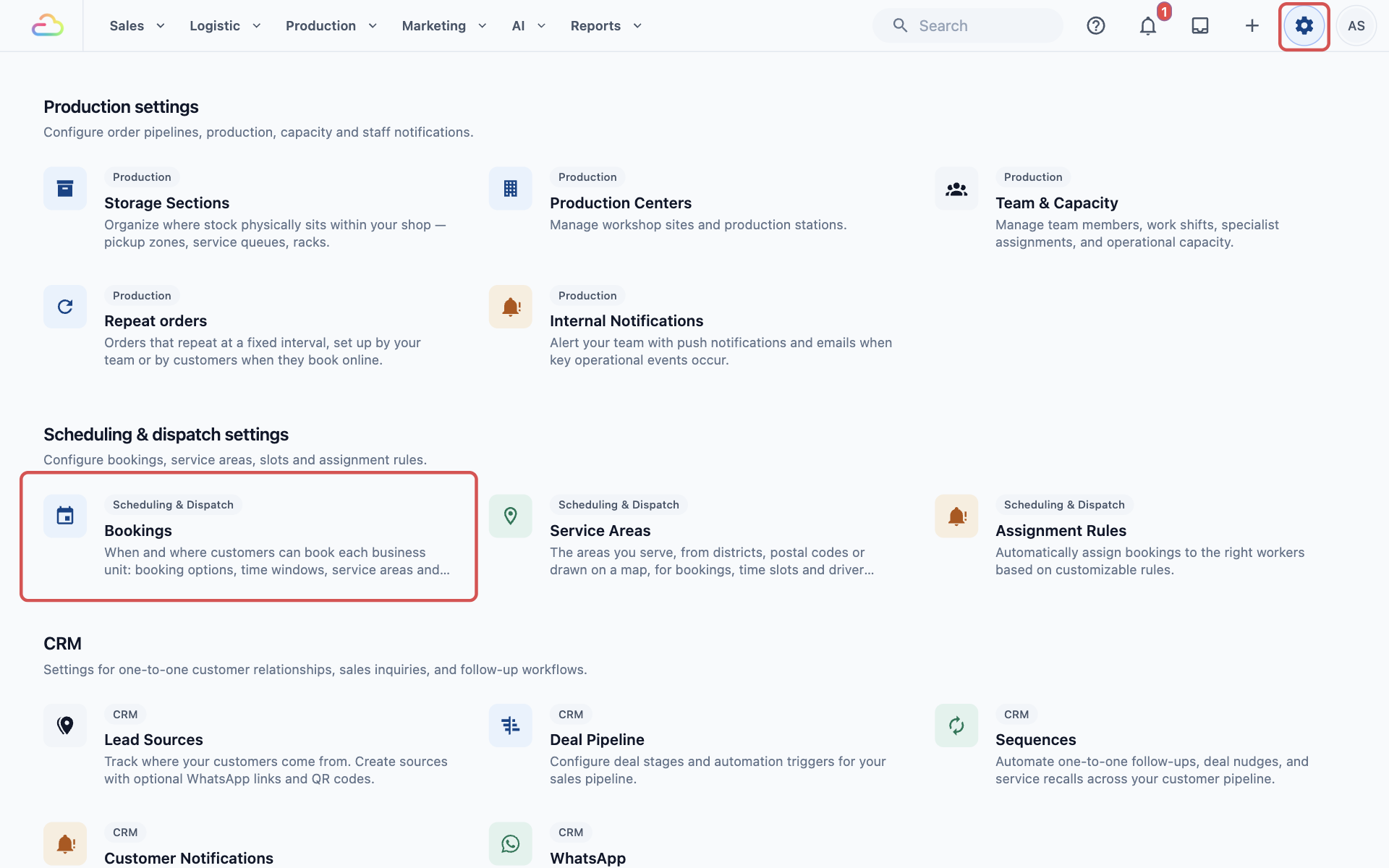
- Click the ⚙️ Settings icon in the top-right corner.
- Scroll down to the Scheduling & dispatch settings section and click Bookings.
- Under Business Units, click the business unit you want to set up, for example Laundry & Dry Cleaning.
- Under Where customers can book, click Service Areas.
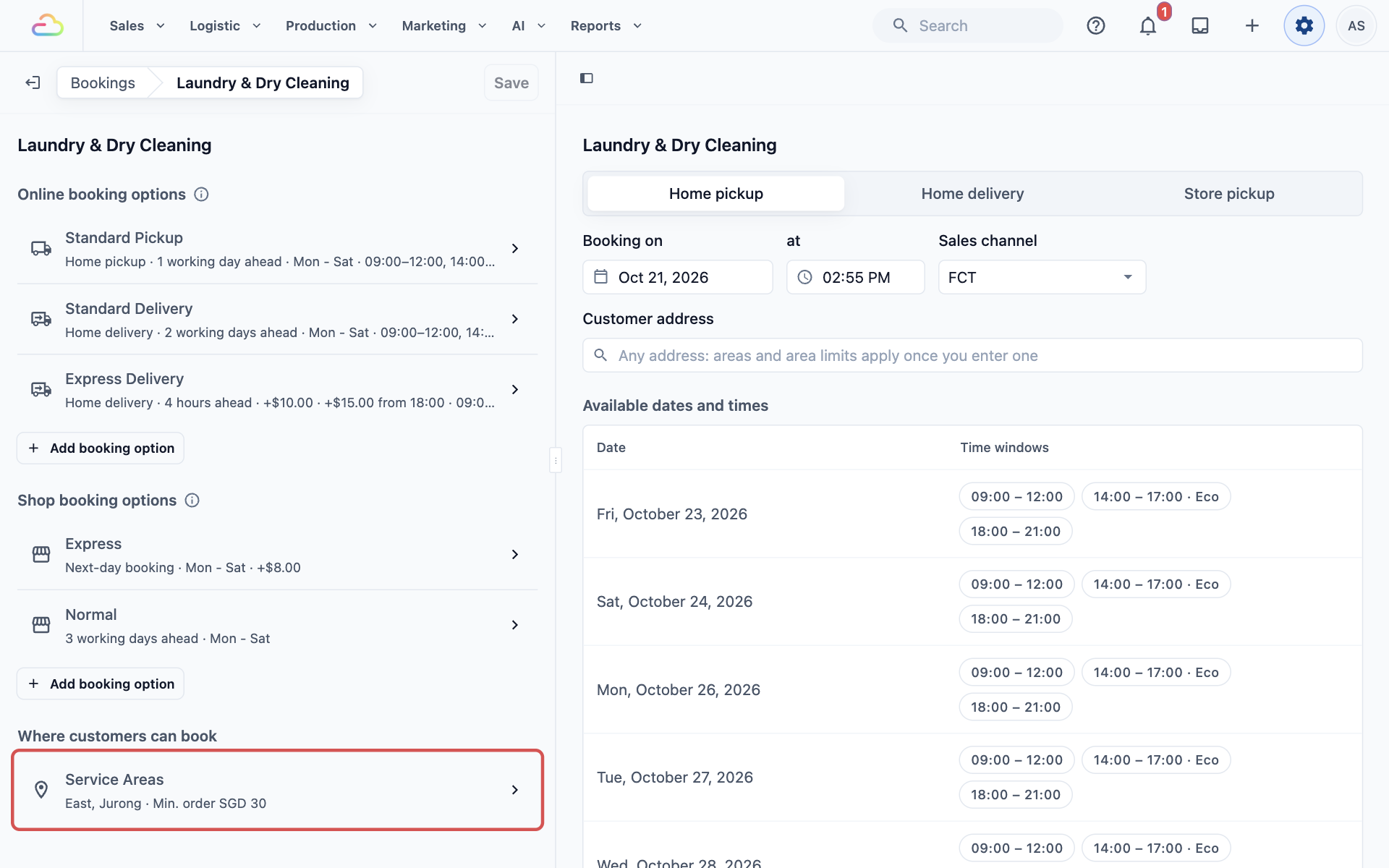
The Service Areas row also gives you a quick summary of the unit's setup, such as "East, Jurong · Min. order SGD 30". Before anything is set, it says "All areas".
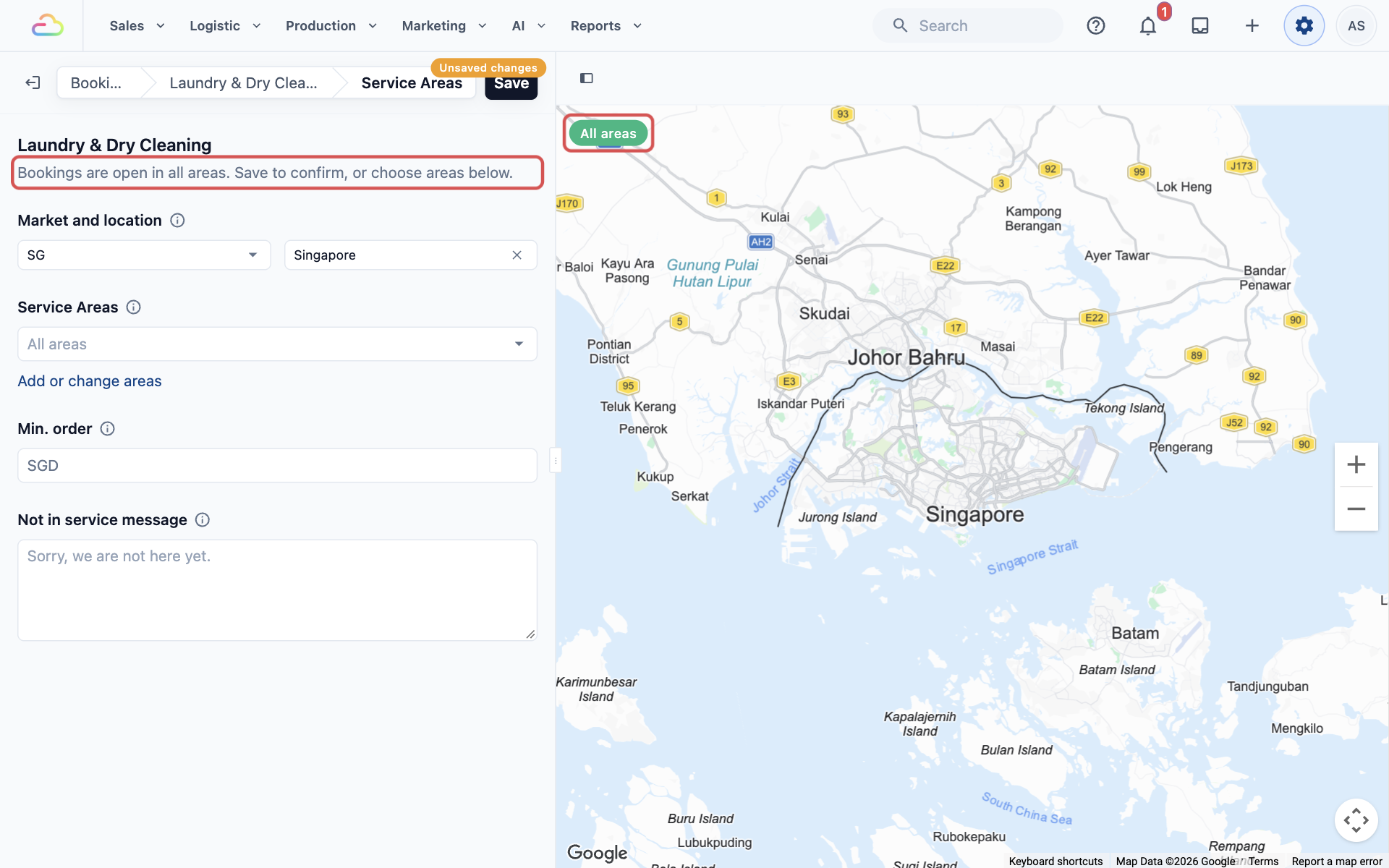
If the unit has never had service areas saved, you'll see the note "Bookings are open in all areas. Save to confirm, or choose areas below." Click Save once, even if you want every area. Online booking needs this saved choice before it can use the unit.
Fill In the Settings
Market and location
Check the market (your country, shown by its short code, for example SG) and the location (your city, for example Singapore). These decide which areas you can choose and which currency the minimum order uses. They are already filled in for most shops.
Service Areas
Click the Service Areas box and pick the areas where customers can book this unit. You can choose as many as you need. As you add them, the map on the right shades each one so you can check your coverage.
| Pick this | Result |
|---|---|
| Leave empty (shows "All areas") | The unit takes bookings at every address |
| One area | Only addresses inside that area can book |
| Several areas | Only addresses inside any of them can book, for example East and Jurong but not Sentosa |
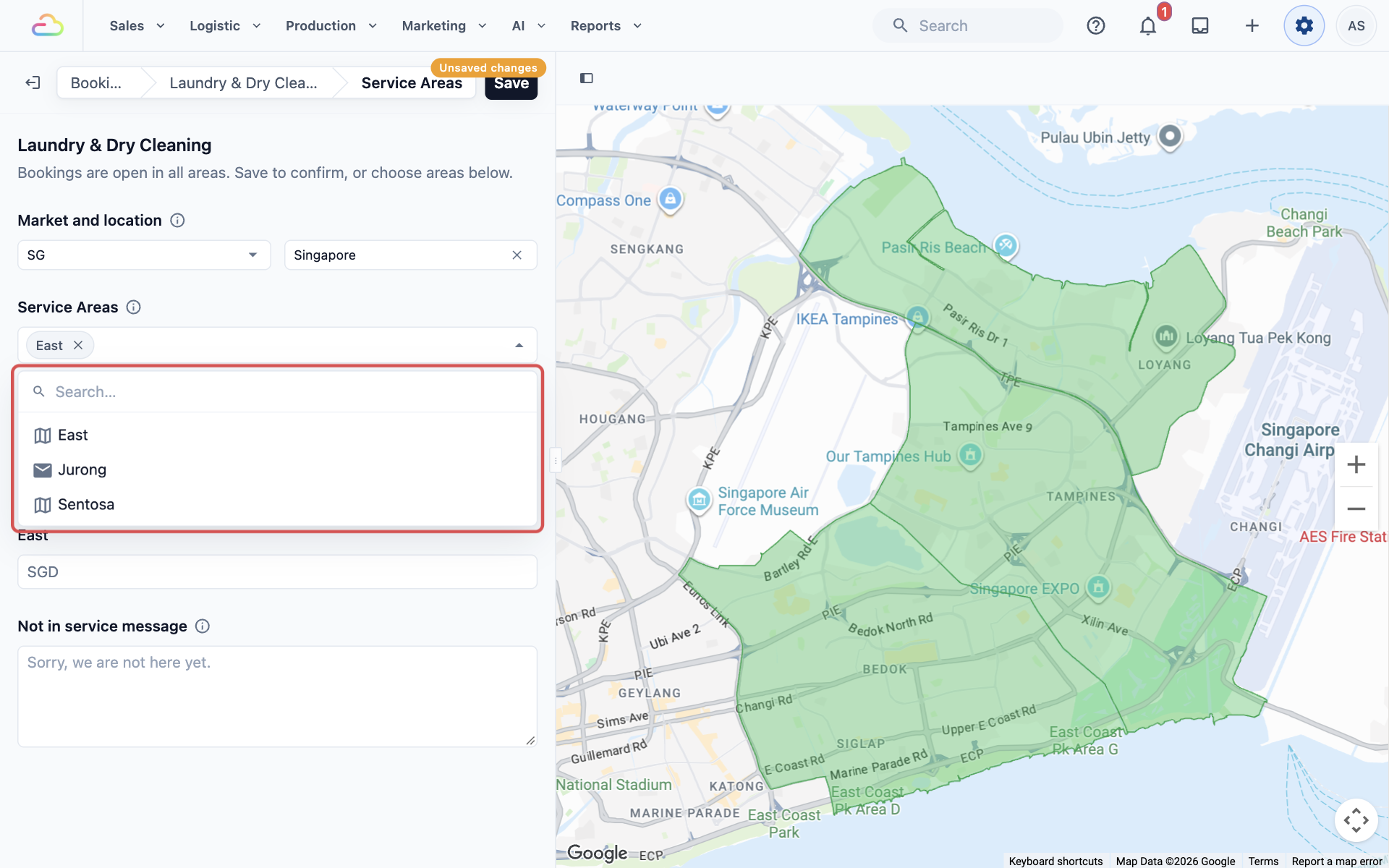
If the area you need is not in the list, click Add or change areas. This opens the Service Areas page, where you create and edit the areas themselves. See Setting Up Service Areas.
Min. order
Enter the smallest order this unit accepts for a booking at a customer's address. The currency is shown in front of the box. When an order comes in below this amount, a charge is added to bring it up to the minimum. It shows on the order as "Minimum order charge". Leave the box empty if you have no minimum.
By area
Once you choose areas, a box for each one appears under By area. Fill one in only when that area needs a different minimum, for example an area far from your shop. An area's own minimum replaces the unit's Min. order for addresses in that area. Areas you leave empty use the unit's Min. order.
Not in service message
Write the message customers see when their address is outside this unit's areas. A helpful message tells them what to do next, such as contacting your shop. If you leave it empty, customers see "Sorry, we are not here yet."
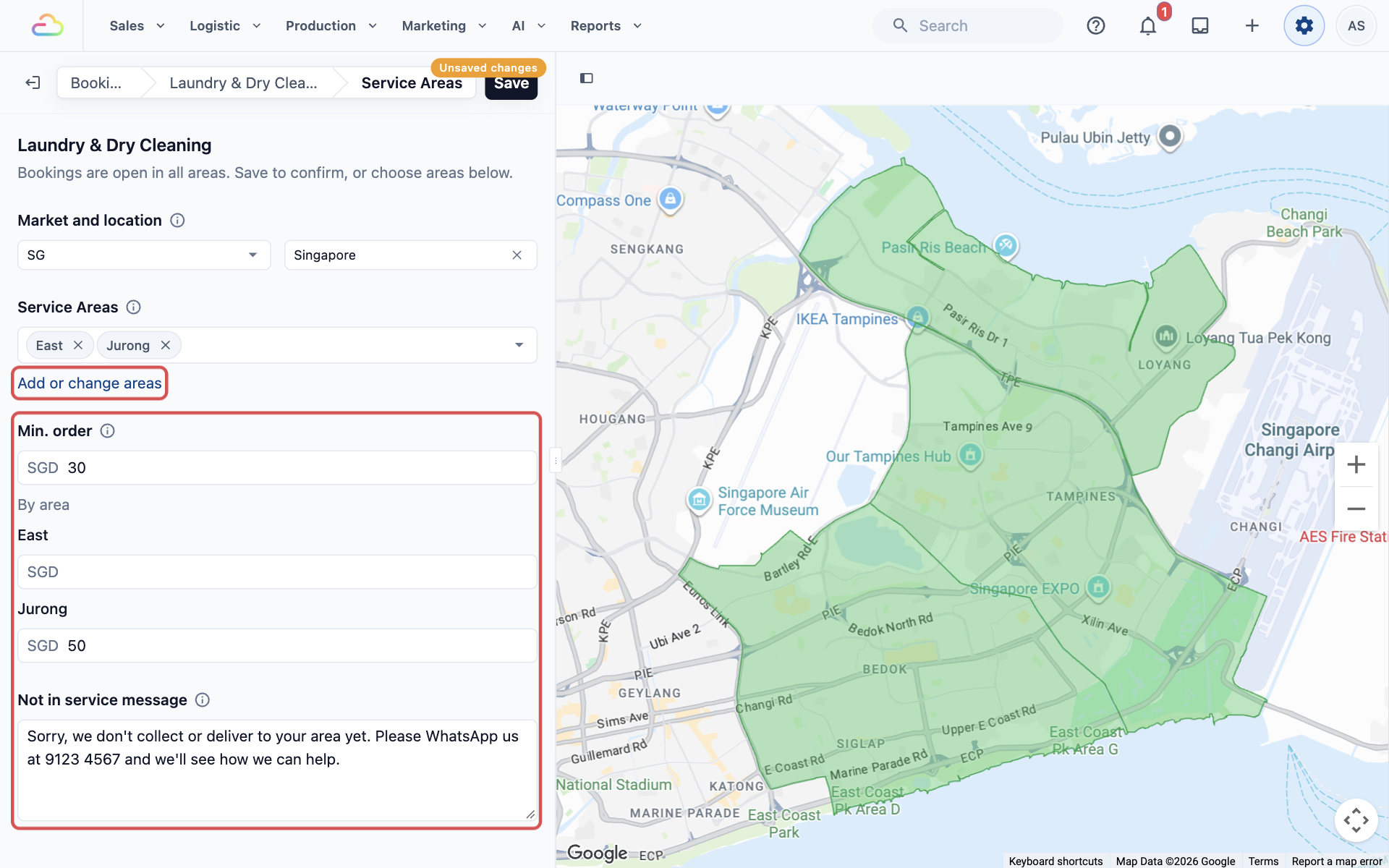
When you are done, click Save at the top. You'll see "Booking settings saved".
Example Setup
CleanFast Laundry collects and delivers laundry only in the East and in Jurong. Jurong is a long drive, so orders there must be worth more.
| Setting | Value |
|---|---|
| Market and location | SG, Singapore |
| Service Areas | East, Jurong |
| Min. order | SGD 30 |
| By area | Jurong: SGD 50 |
| Not in service message | Sorry, we don't collect or deliver to your area yet. Please WhatsApp us at 9123 4567 and we'll see how we can help. |
After saving:
- A customer in Tampines (East) books a SGD 20 pickup. A SGD 10 Minimum order charge brings the order to SGD 30.
- A customer in Jurong West books a SGD 20 pickup. A SGD 30 Minimum order charge brings the order to SGD 50.
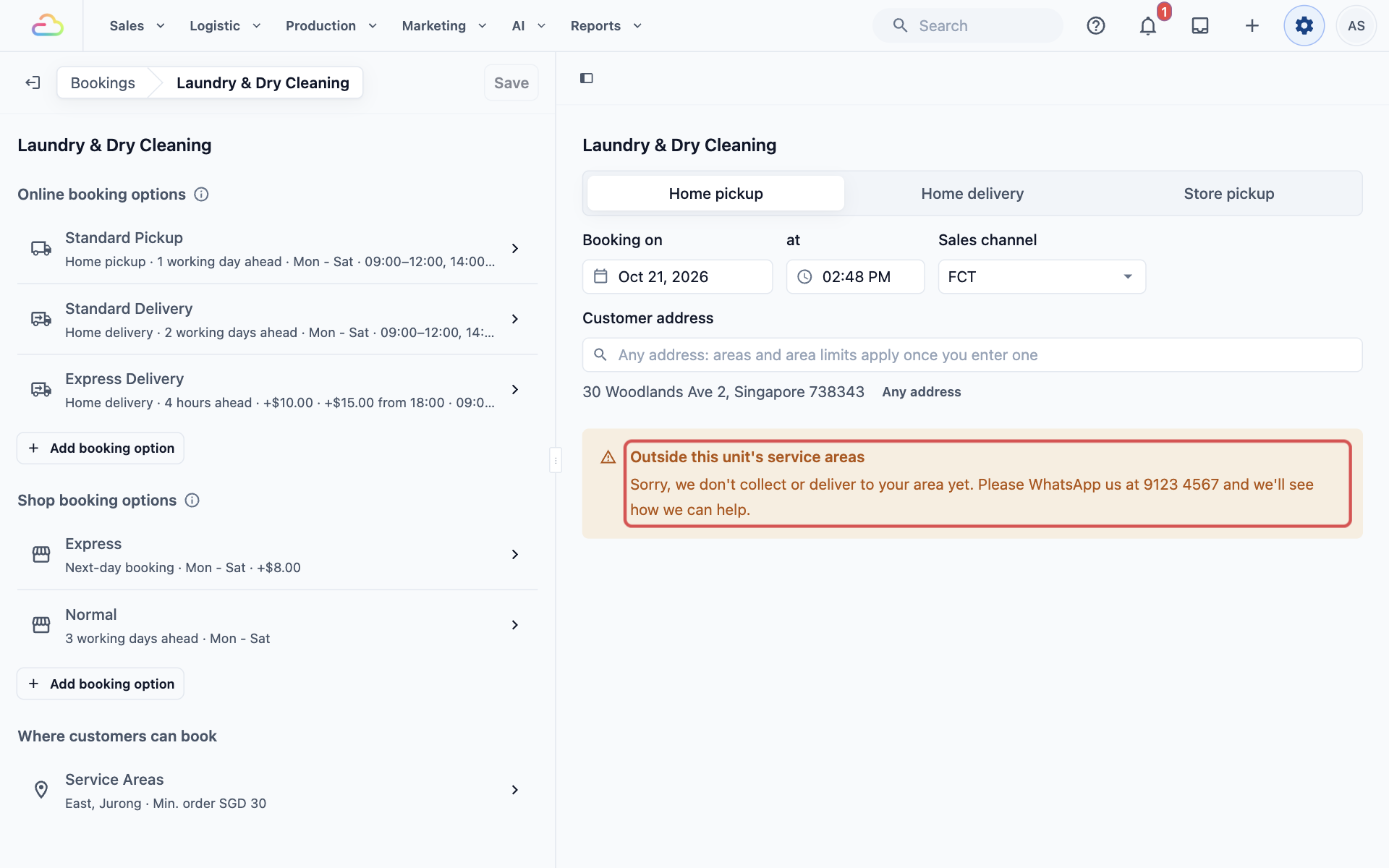
- A customer in Woodlands enters their address online. No dates or times are offered, and they see CleanFast's message.
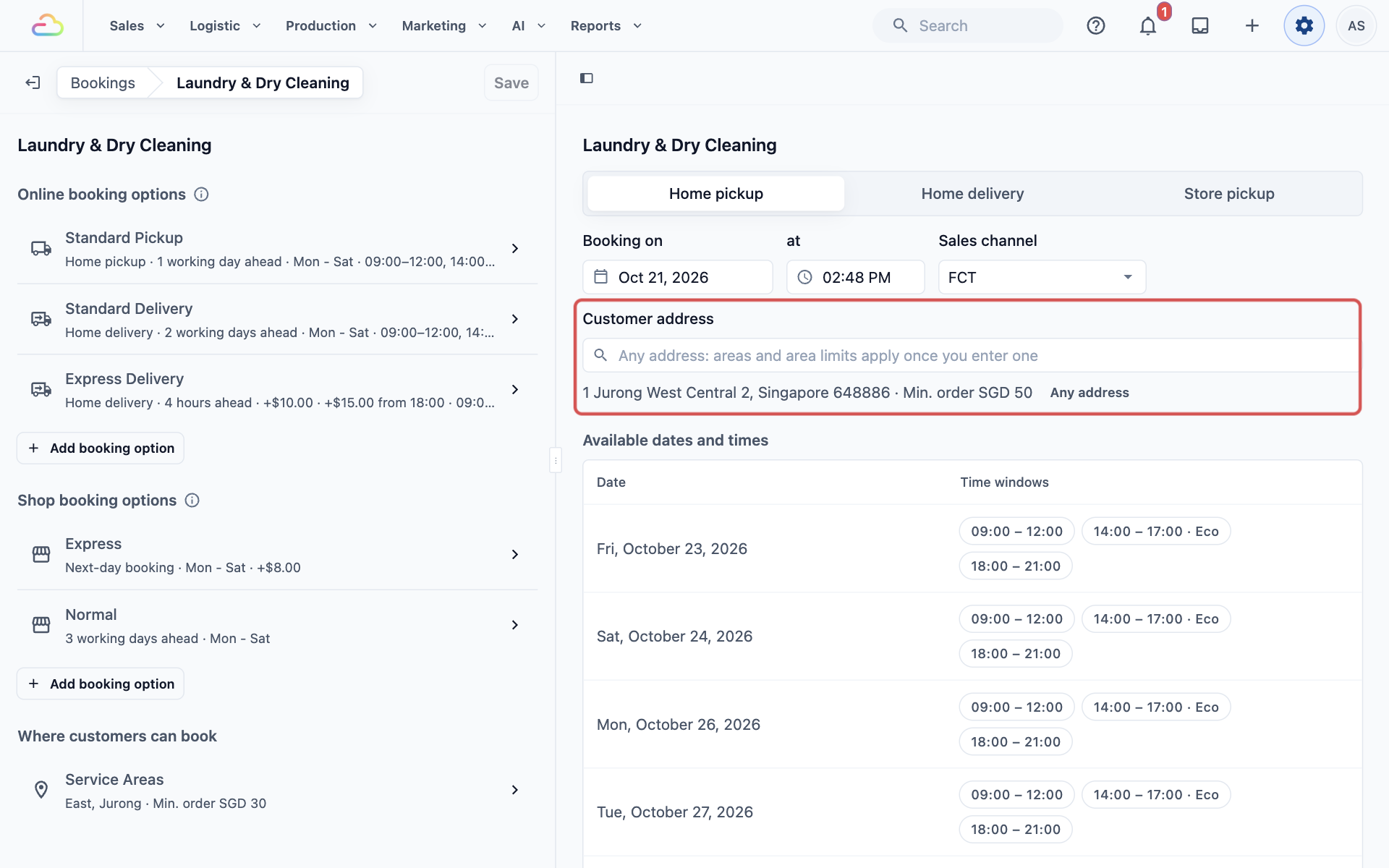
You can test this before going live. On the unit's page, type an address in the Customer address box of the live preview. An address inside your areas shows its minimum next to it, such as "Min. order SGD 50". An address outside shows "Outside this unit's service areas" and your message. See Getting Around the Bookings Page and Its Live Preview.
If you used the older console, this page replaces each business unit's Service Areas page. Your saved areas, minimums and messages carried over.
FAQs
A customer says their booking was refused, but they live close to an area I serve. Why?
The address must fall inside one of the unit's chosen areas, even if it's only one street outside. Type the address into the live preview to check, then add the area or make it bigger. See Why a Booking Was Refused for other reasons a booking can be stopped.
I also set a Min. order in the business unit's catalog. Do the two add up?
No. The order uses whichever minimum is higher. For example, a catalog minimum of SGD 30 and an area minimum of SGD 50 means the order must reach SGD 50, not SGD 80. See Setting Up a Business Unit Catalog.
Does this apply to orders my staff take at the POS?
The areas apply when staff book a home delivery at the POS, so the address must be inside the unit's areas. The minimum order also applies to any POS order with a customer address. Walk-in orders collected at the shop have no address, so no area minimum is added.
If I raise my minimum today, will customers with existing bookings pay more?
No. The minimum is set when the order is created. Orders already made keep the amount they were created with. Only new orders use the new minimum.
The map says "No areas to draw". Is something wrong?
No. Areas made from postal code ranges have no shape to draw on a map. Bookings are still checked against them, so customers outside those postal codes are still refused. You can confirm this with an address in the live preview.
Do I need to choose areas before going live?
Not if you serve the whole city. You still need to click Save once on the unit's Service Areas page, so online booking knows the unit takes bookings in all areas.
What's Next
You have now chosen where each business unit takes bookings, what each booking must be worth and what customers outside your areas are told. Next, learn how to stop bookings on holidays, off days or for certain customers in Closed Dates and Blocked Customers.