
Before You Start
You need three things in place first:
- Read Setting Up Online Booking Options. Shop booking options use the same settings, so this article only covers what is different for store pickup.
- A POS shop, so your staff have a counter to take orders from. The POS is the counter app your staff use to take orders. See Setting Up a New POS Shop.
- Store pickup switched on for your business unit. A business unit is one line of service in your shop, for example Laundry & Dry Cleaning or Bag Repair. Without this switch, the POS doesn't offer store pickup for that unit.
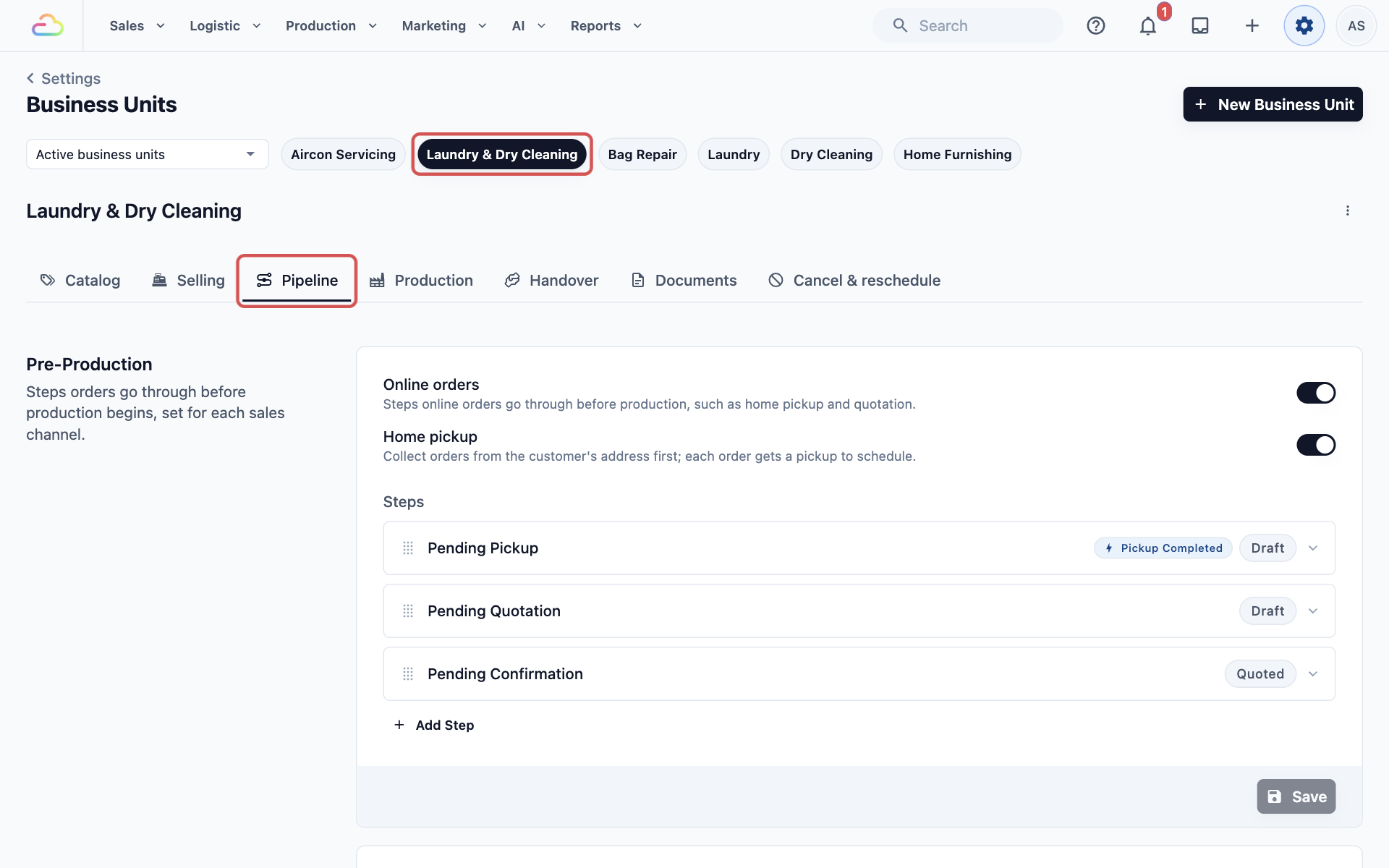
To switch on store pickup:
- Click the ⚙️ Settings icon in the top-right corner.
- Under Company & business structure, click Business Units.
- At the top of the page, click your business unit, for example Laundry & Dry Cleaning.
- Click the Pipeline tab.
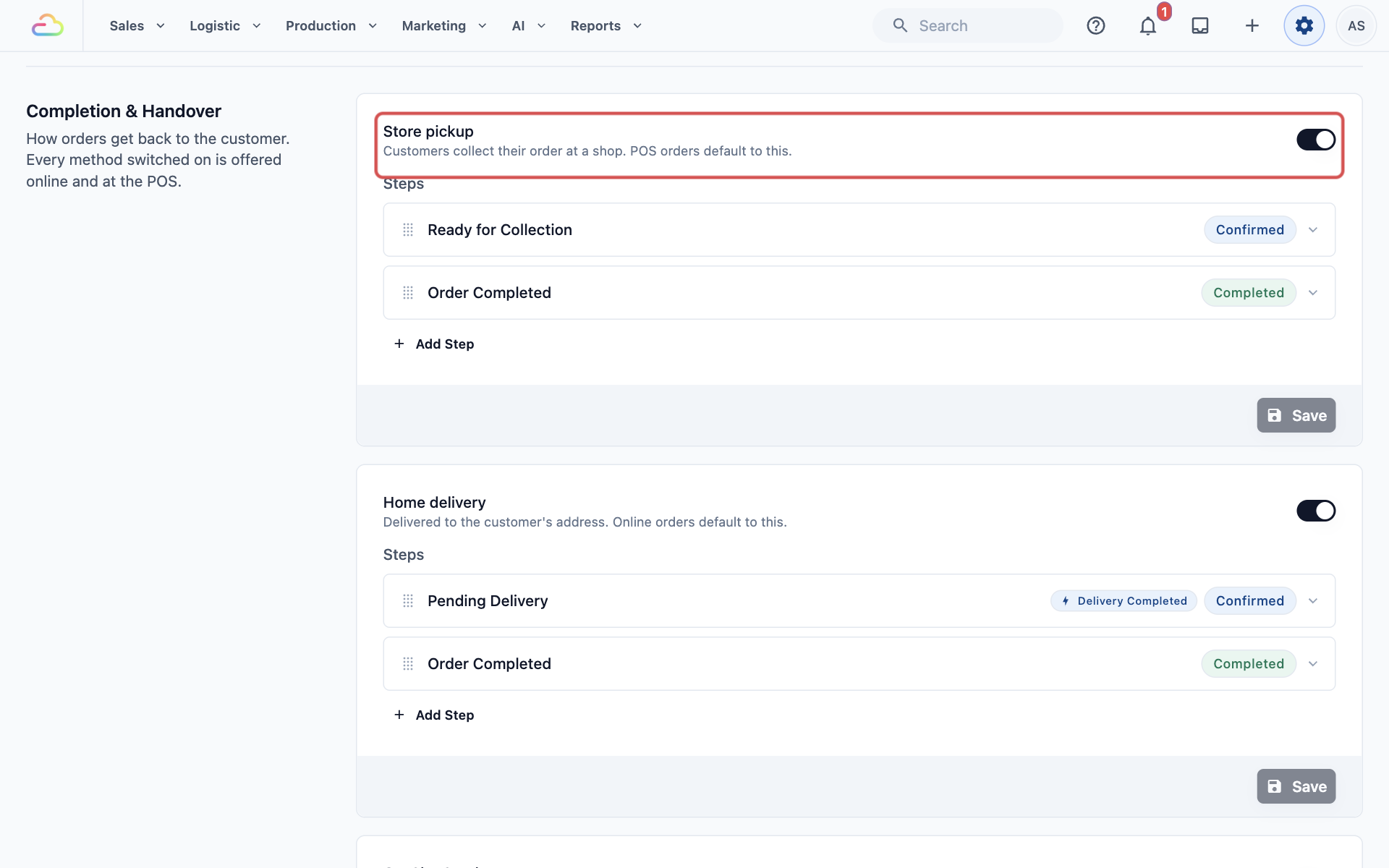
- Scroll down to Completion & Handover and turn on Store pickup.
- Click the Save button at the bottom of the Store pickup box.
What Is a Shop Booking Option?
A shop booking option sets the collection date for orders the customer collects at your shop. It applies to orders your staff take at the POS and in the Console.
It decides two things:
- The earliest date the order can be ready, based on how long your shop needs.
- Which dates your staff can choose from after that.
This is for store pickup only. If your staff book a home delivery at the POS, the date comes from your home delivery options instead. See Setting Up Online Booking Options.
What it saves you
- Staff don't count days by hand, so nobody promises a Sunday when you are closed.
- Every order gets the same, realistic ready date.
- An Express option adds its extra charge to the bill automatically, so staff never forget it.
If you skip it
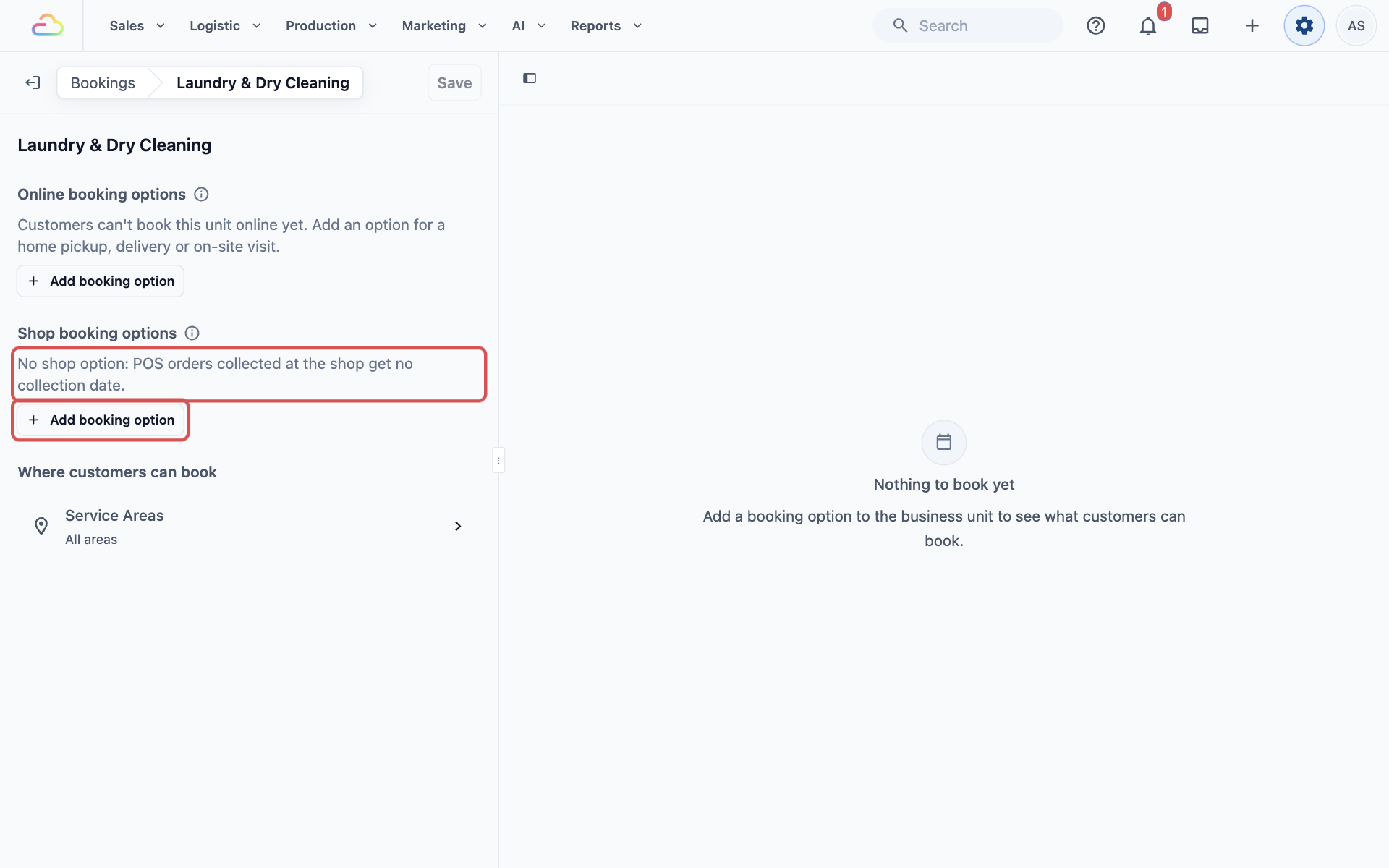
The unit shows this message on the Bookings page: "No shop option: POS orders collected at the shop get no collection date."
The POS cart still shows Store pickup, but with no date and no calendar. Your staff have no way to record when the order will be ready.
Add a Shop Booking Option
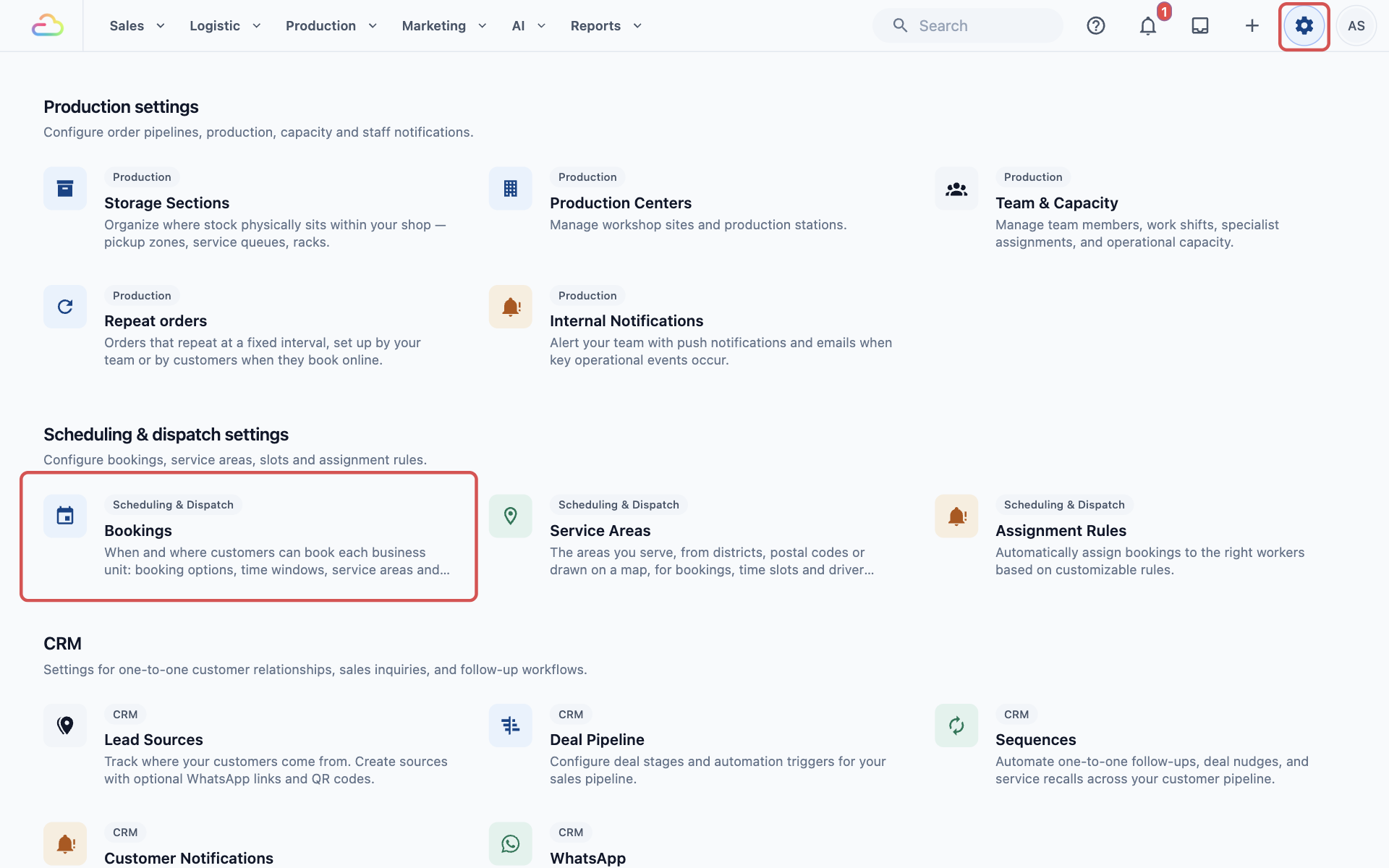
- Click the ⚙️ Settings icon in the top-right corner.
- Scroll down to the Scheduling & dispatch settings section and click Bookings.
- Under Business Units, click your business unit, for example Laundry & Dry Cleaning.
- Under Shop booking options, click Add booking option. A new store pickup option opens.
- Fill in the settings below.
- Click Save at the top of the settings panel. It saves every change on the page at once.
The Settings
A shop booking option has no time windows. Customers collect on a date, not at a set time, so that section doesn't appear.
Option name
Type a short name your staff and customers will recognise, for example Normal or Express. Customers see this name on the days the option charges extra.
Lead time
Lead time is how long your shop needs before the order is ready to collect.
| Option | What it does |
|---|---|
| No lead time | Staff can choose today as the collection date |
| Next-day booking | The earliest date is tomorrow |
| Lead time by hours | Set a number of hours, for example 4 for a same-day order |
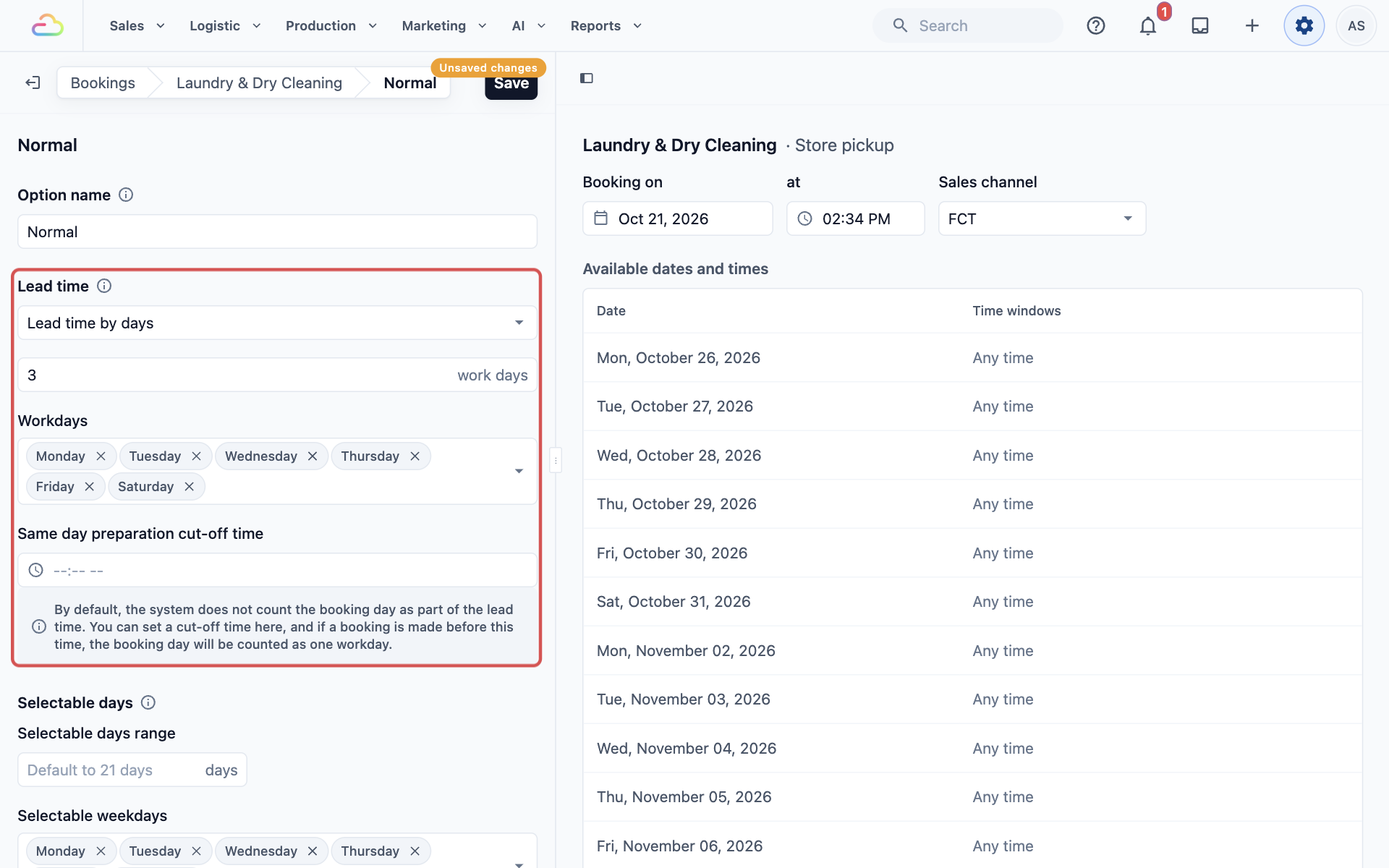
| Lead time by days | Set a number of work days, for example 3 for your normal wash and press time |
When you pick Lead time by days, two more settings appear.
Workdays are the days your shop works. Only these days count toward the lead time. Leave it empty and all 7 days count. For example, pick Monday to Saturday so Sundays are skipped in the count.
Same day preparation cut-off time is optional. Counting normally starts the day after drop-off. If an order comes in before this time, the drop-off day counts as the first work day.
Selectable days
- Selectable days range: how many dates your staff can choose from after the lead time. Leave it empty for 21 days.
- Selectable weekdays: which days of the week customers can collect. Leave it empty for all 7 days, or pick Monday to Saturday so Sunday can't be picked.
Surcharge
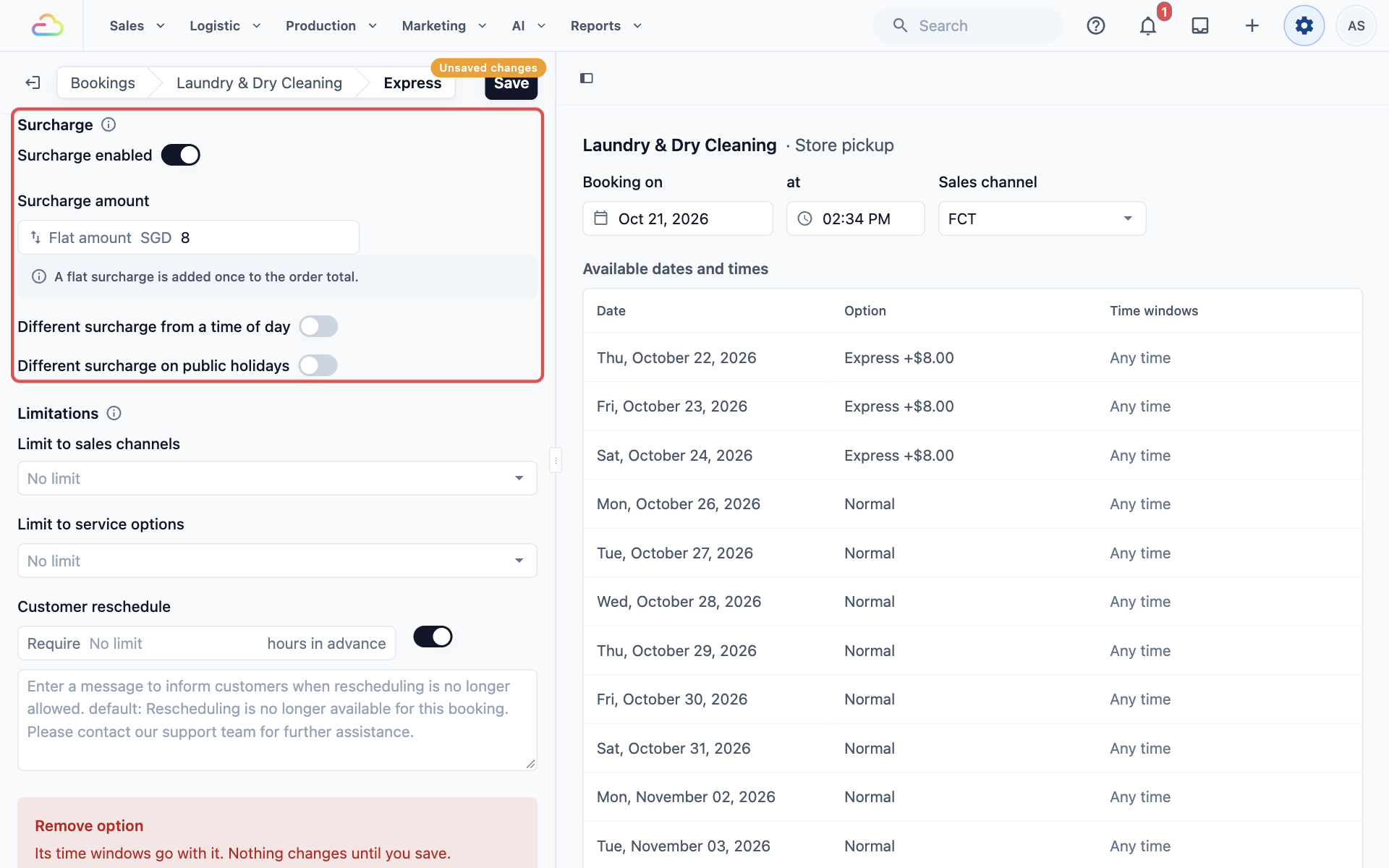
Turn on the switch so it reads Surcharge enabled to charge extra when this option is used, then enter the amount. The box starts as Percentage. Click the word Percentage to change it to Flat amount.
| Type | What happens |
|---|---|
| Flat amount | Added once to the order total, for example SGD 8 |
| Percentage | A percentage of the items in the order, for example 20% |
Two more switches sit below:
- Different surcharge on public holidays: charge a different amount on the days you tick. It starts with your country's upcoming public holidays already ticked.
- Different surcharge from a time of day: this only affects bookings with time windows. Store pickup has none, so leave it off.
Limitations
- Limit to sales channels: pick which of your shops can use this option. Leave it on No limit to use it in every shop.
- Limit to service options: leave this on No limit for store pickup.
- Customer reschedule: how many hours before the date a customer can still change it themselves. Turn the switch off to stop customers rescheduling, and type the message they see instead.
Example: CleanFast Laundry
CleanFast Laundry is closed on Sundays and needs 3 working days for a normal order. It also offers a next-day Express service for SGD 8.
Normal
- Lead time: Lead time by days, 3 work days
- Workdays: Monday to Saturday
- Selectable weekdays: Monday to Saturday
- Surcharge: off
Express
- Lead time: Next-day booking
- Selectable weekdays: Monday to Saturday
- Surcharge: on, flat SGD 8
A customer drops off clothes on Wednesday 21 October. Normal counts Thursday, Friday and Saturday, and Sunday is skipped, so the earliest Normal date is Monday 26 October at no extra charge. If the customer needs them on Thursday, Friday or Saturday, staff pick that date and SGD 8 is added.
What Your Staff See on the POS
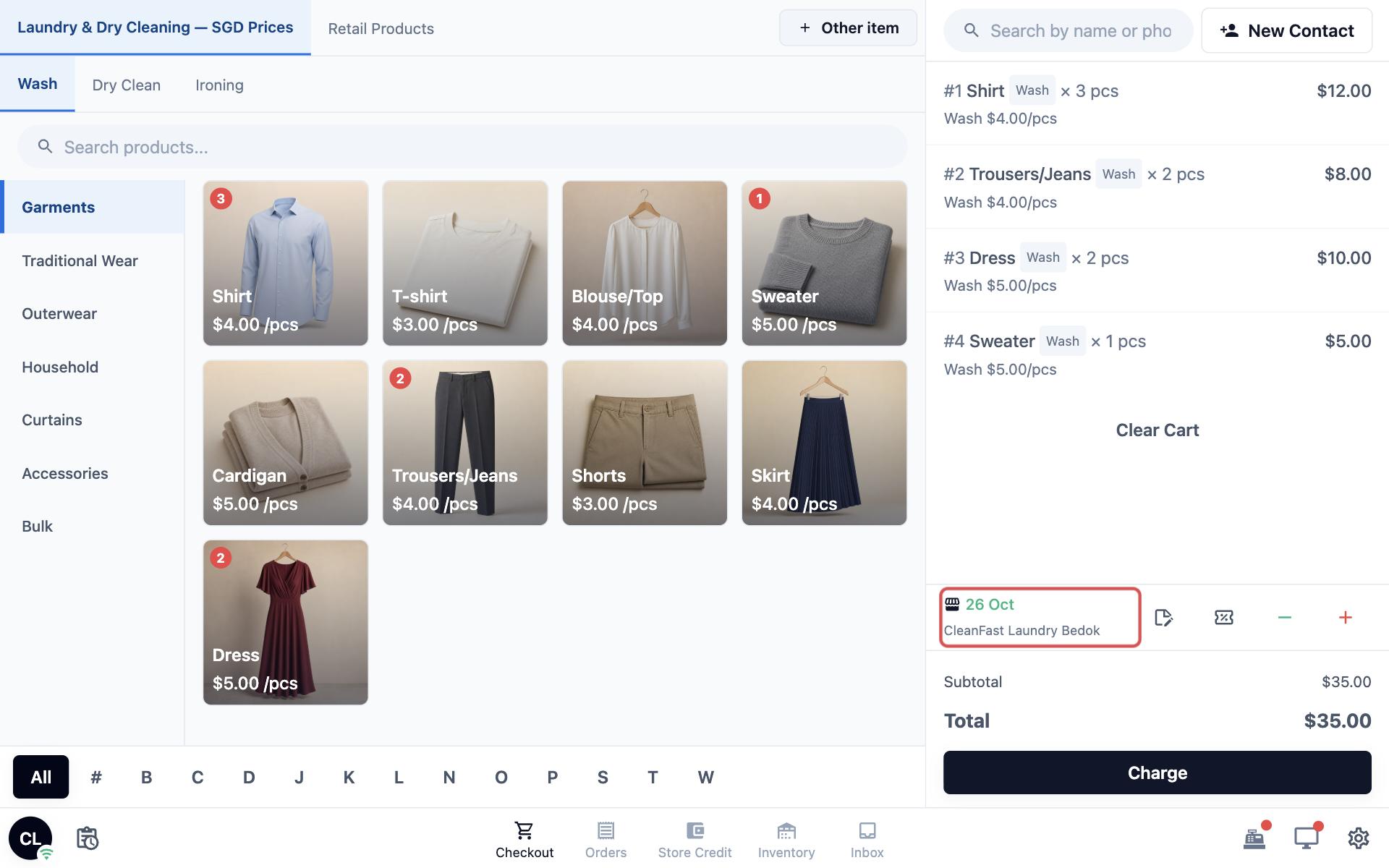
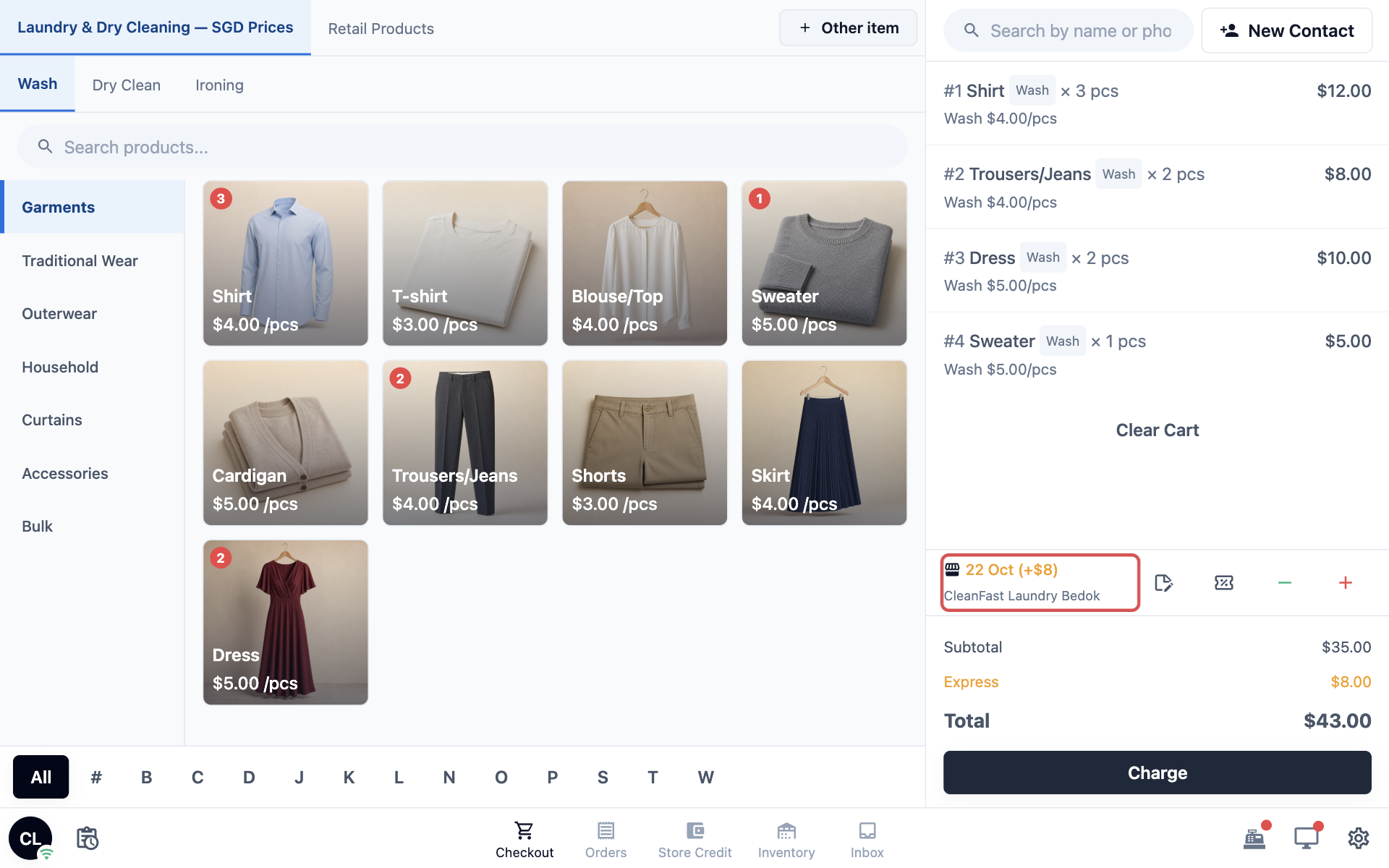
After you save, close and reopen the POS. The collection row sits in the cart, under the items and just above the totals. It shows:
- A shop icon for store pickup, or a house icon for home delivery.
- The collection date and the shop. The date is green, or orange with the extra charge when it comes from an option like Express.
The POS fills in the first available date with no extra charge. For CleanFast Laundry on Wednesday 21 October, that is 26 Oct.
To change the date:
- Tap the collection row. The Fulfillment Type panel opens on the right, and a calendar of collection dates opens on the left. Each date shows which option it uses, for example Normal or Express +$8.
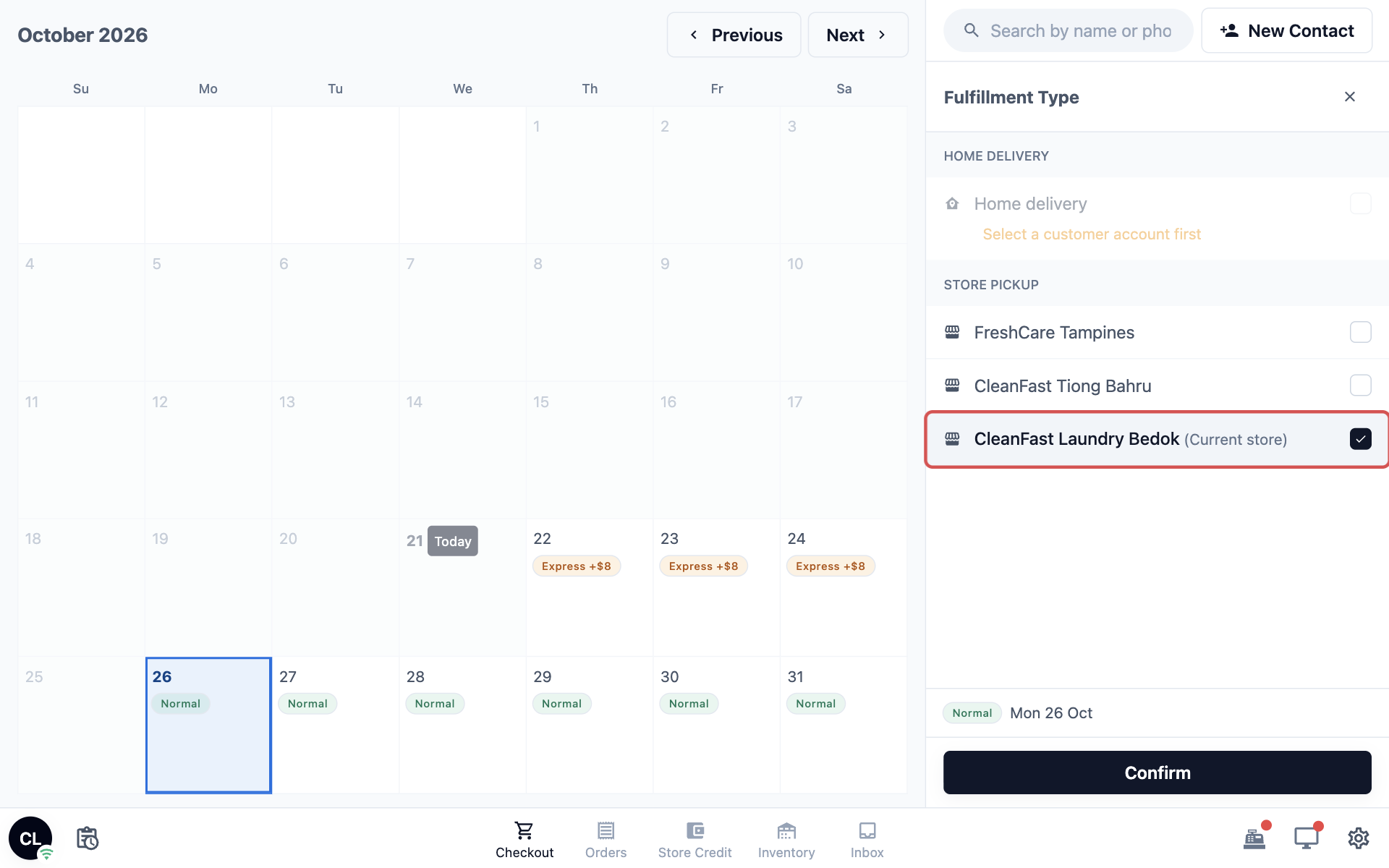
- Tap a date on the calendar.
- Tap Confirm.
FAQs
Why can't customers choose store pickup on my Online Store?
Shop booking options are for orders taken at your counter. The Online Store only books a home pickup, a home delivery or an onsite visit, which come from your online booking options.
Can each of my shops have a different turnaround?
Yes. Create one option per shop, for example "Tampines Normal" and "Bedok Normal", and set Limit to sales channels to that shop on each one.
Do closed dates move the collection date?
Yes. Dates closed for store pickup, or for all booking types, can't be picked at the POS. The POS offers the next open date instead. See Closed Dates and Blocked Customers.
How do my staff switch an order to home delivery?
They tap the collection row and tick Home delivery. This needs a home delivery option on the business unit, and a customer with a saved address. See Setting Up Online Booking Options.
If I change the lead time, do my existing orders change?
No. Orders you already took keep their collection date. Only new orders use the new lead time.
I edited an option and it changed for another business unit too. Why?
One option can be shared by several business units. When it is, the option shows "Also offered by" with the other unit names, and your changes apply there too. Create a separate option if each unit needs its own turnaround.
What's Next
You have now set the collection dates your staff give customers at the counter. Next, decide where each business unit takes bookings, its minimum order and what customers outside your areas are told in Choosing Where Each Business Unit Takes Bookings.