
Before You Start
This is the first article in the Scheduling & Dispatch series. Before you start, make sure you have:
- Your business units set up, because every booking setting belongs to one. See Introduction to Business Units.
- At least one Market and Location, so EasyBiz knows your country, currency and shop address. See Introduction to Markets and Locations.
What Scheduling & Dispatch Does
These settings answer five questions for every booking:
- When can customers book, and how far ahead?
- Which addresses will you go to?
- Who can book online?
- Which collection date do customers get when they collect at your shop?
- Which staff member does the job?
You set the rules once. EasyBiz then uses them for every booking, online and at the POS (the counter app your staff use to take orders). Your staff no longer need to check calendars, confirm addresses or call customers to agree on a new date.
Each business unit has its own booking settings. A business unit is one line of service in your shop, for example Laundry & Dry Cleaning or Bag Repair. Your laundry pickups and your bag repair collections can follow different days, times and areas.
Dispatch means sending the right person to the right address. In this series, a driver is the staff member who goes out to do the job: a pickup, a delivery or an onsite visit such as home cleaning.
If you skip these settings:
- Customers can't book a home pickup, home delivery or onsite visit on your Online Store, Mobile App or WhatsApp.
- Your staff can't offer home delivery at the POS.
- Orders collected at your shop get no collection date.
- Every job has to be given to a driver by hand.
Where Bookings Come From
Bookings reach you in two ways: customers book online, or your staff book for a customer.
Online bookings
- Your Online Store, your shop's booking website.
- Your Mobile App, your shop's own app for customers.
- WhatsApp.
All three follow the same online booking options, so you set the rules once.
Bookings your staff make
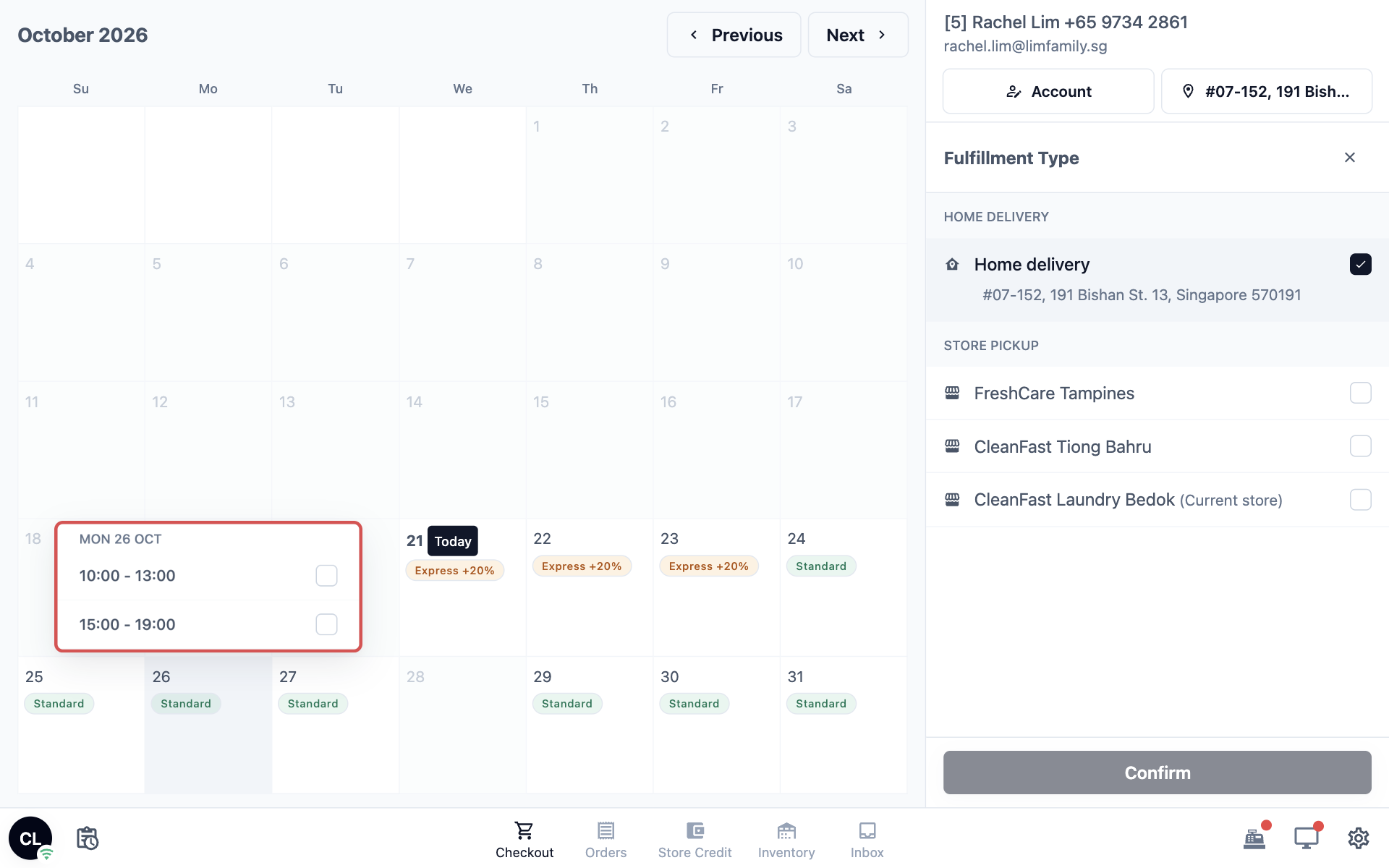
Your staff use the same online booking options when they book a pickup, delivery or visit for a customer. This includes home delivery at the POS. When a customer drops off items and wants them delivered home, your staff choose Home delivery for the customer's saved address. The POS then shows only the dates and time windows of the unit's home delivery options. These bookings take places in the same time windows as online bookings, so a time window never gets overbooked.
Home pickup can't be booked at the POS, because the customer is already at your counter.
Orders collected at your shop
When the customer will collect the items at your shop (store pickup), the POS uses the unit's Shop booking options instead. They set the collection date your staff give the customer. See Setting Collection Dates for Store Pickup.
Where to Find Scheduling & Dispatch
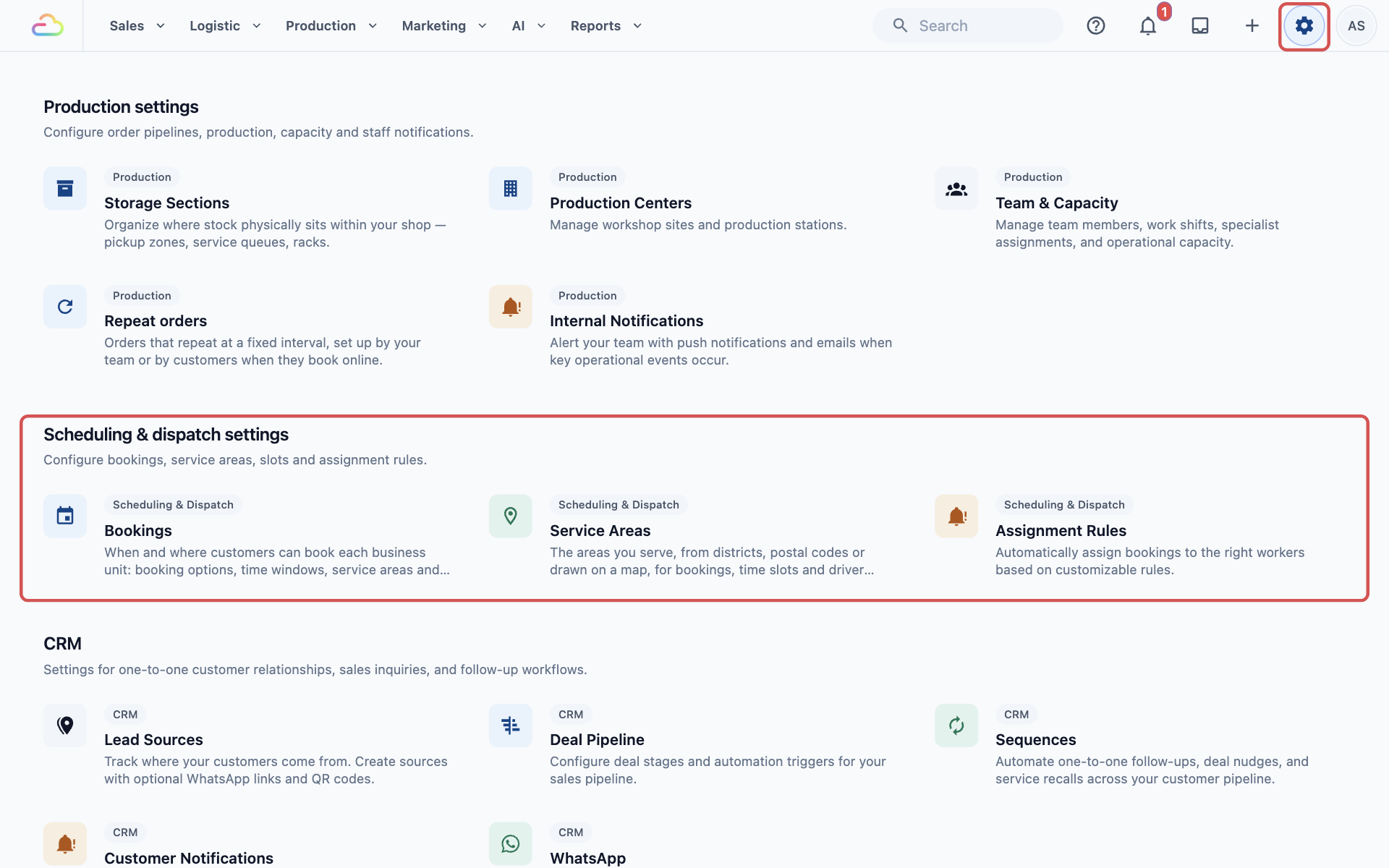
- Click the ⚙️ Settings icon in the top-right corner.
- Scroll down to the Scheduling & dispatch settings section. It has 3 cards: Bookings, Service Areas and Assignment Rules.
- Click Bookings.
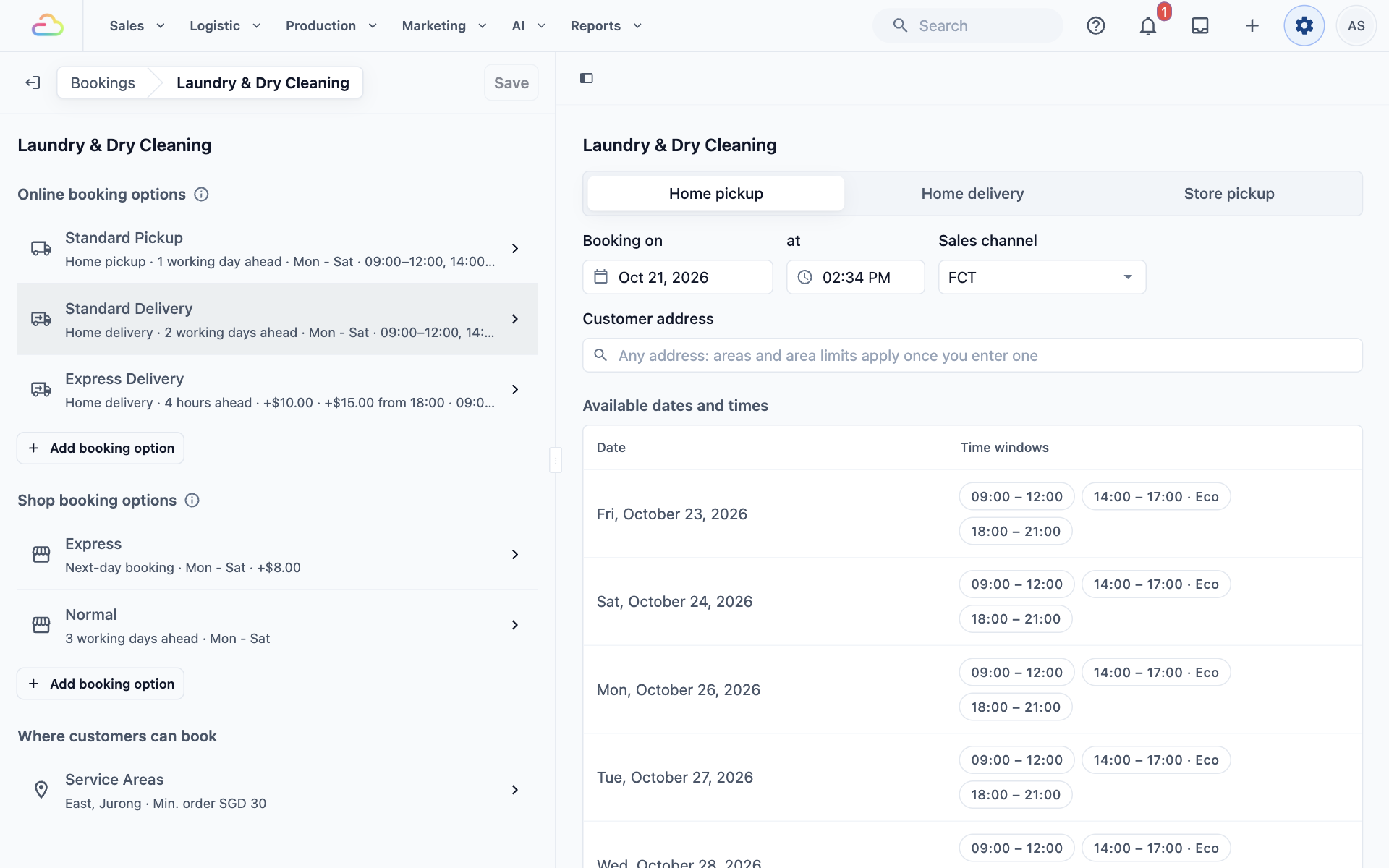
- Under Business Units, click a business unit, for example Laundry & Dry Cleaning.
Each card does one job:
- Bookings: when and where customers can book each business unit. This is where your booking options live. A booking option is a choice customers pick, such as Standard Pickup or Express Delivery. Each option holds its own time windows. The page also holds each unit's service areas, your closed dates, and a live preview that shows what customers can book before you save.
- Service Areas: the areas you serve, made from districts or postal codes, or drawn on a map.
- Assignment Rules: rules that give each new job to the right driver automatically.
How One Booking Is Decided
When a customer books, EasyBiz checks these six things in order. Each one has its own article later in this series.
- Address. The customer's address must be inside the business unit's service areas. A service area is a part of the map you agree to serve. Customers outside it see your "not in service" message instead of booking times. If you haven't written one, they see "Sorry, we are not here yet."
- Lead time and days. Lead time is how much notice you need before the earliest booking, for example same day, 4 hours ahead or 1 working day ahead. The booking option also sets which days of the week customers can pick.
- Time window. A time window is the time range customers choose, such as 9:00 AM to 12:00 PM. A daily booking limit caps how many bookings one window takes in a day. Once it is full, customers can't pick it.
- Closed dates. Days you are closed are skipped, so customers can't pick them.
- Surcharge. A surcharge is an extra charge for a faster or busier slot. If the chosen option or time charges extra, that amount is added to the order.
- Driver. An assignment rule picks the staff member who does the job, based on the business unit, day, time and area.
Example Setup: CleanFast Laundry
Here is how CleanFast sets up each card:
- In Service Areas, it creates two areas: East and Jurong.
- In Bookings, it opens Laundry & Dry Cleaning and adds:
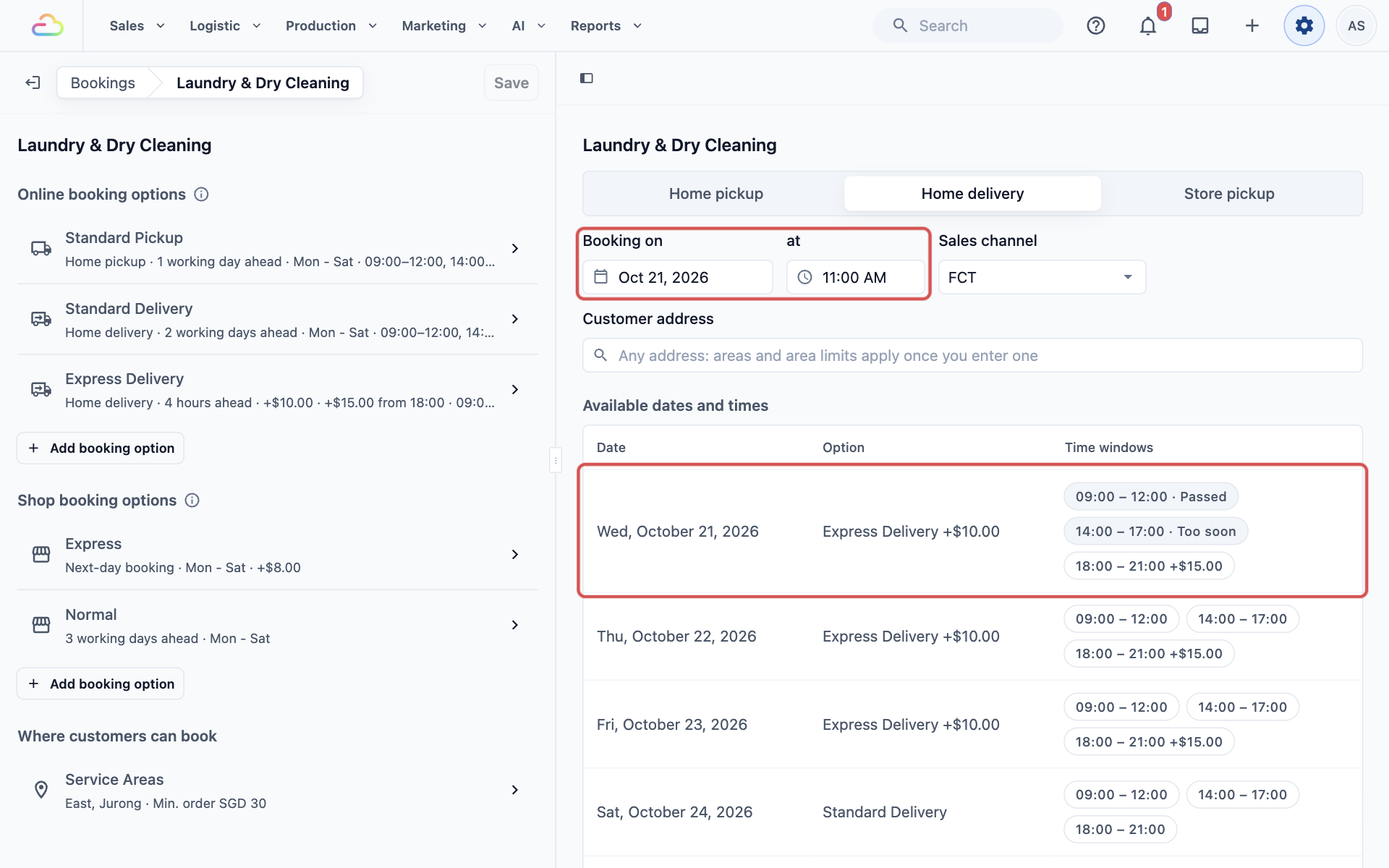
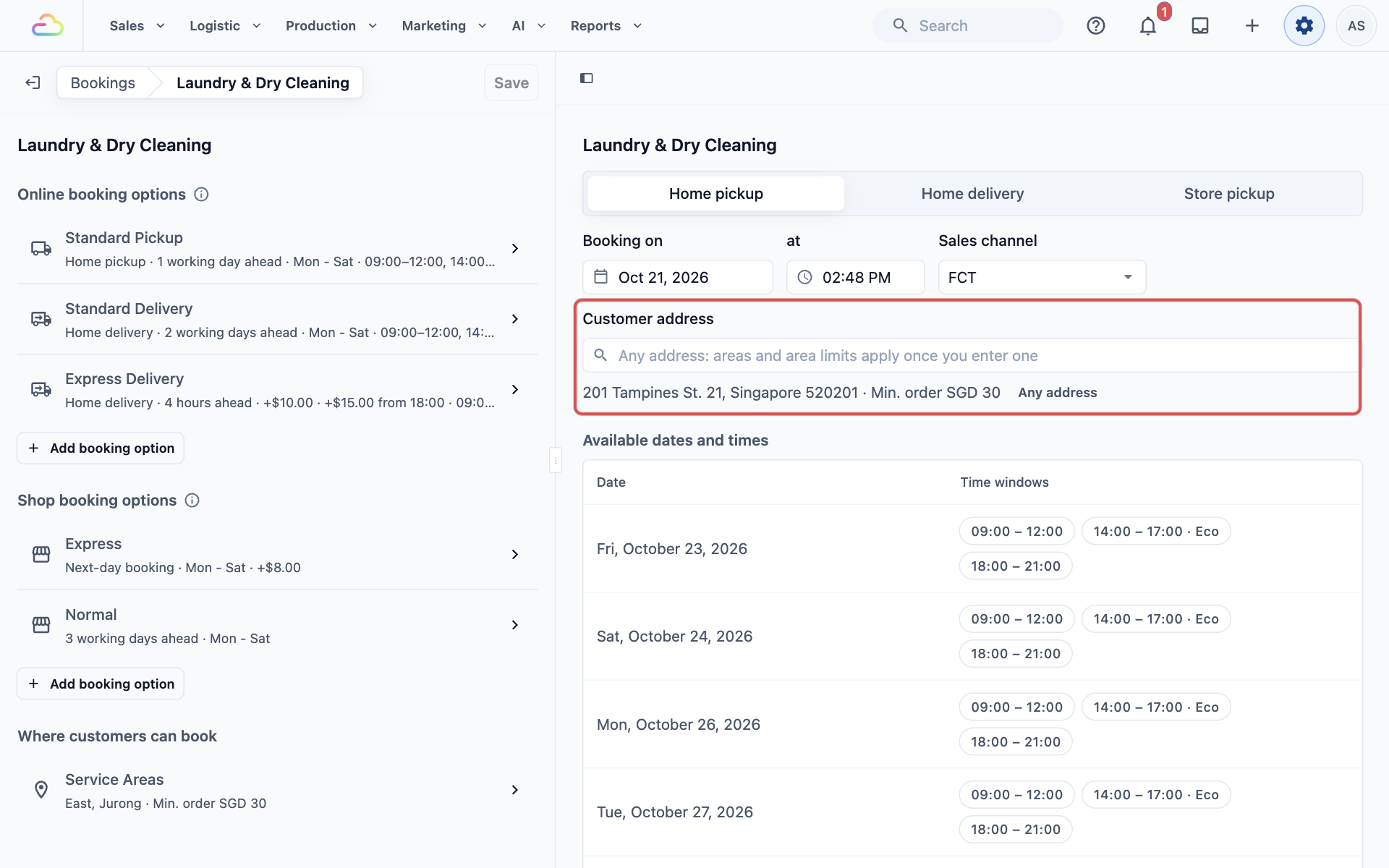
- Standard Pickup (home pickup), 1 working day ahead, Monday to Saturday.
- Standard Delivery (home delivery), 2 working days ahead, Monday to Saturday.
- Express Delivery (home delivery), 4 hours ahead, with a $10 surcharge, or $15 for evening windows.
- Three time windows on each option: 9:00 AM to 12:00 PM, 2:00 PM to 5:00 PM and 6:00 PM to 9:00 PM.
- Under Shop booking options, it adds Normal (ready in 3 working days) and Express (ready the next day for $8), so every counter order gets a collection date.
- Under Where customers can book, Laundry & Dry Cleaning serves East and Jurong, with a minimum order of SGD 30.
- In Bookings › Closed dates, it closes Deepavali and a day its driver is on leave.
- In Assignment Rules, it sends weekday East jobs to Ahmad and Jurong morning jobs to Ravi.
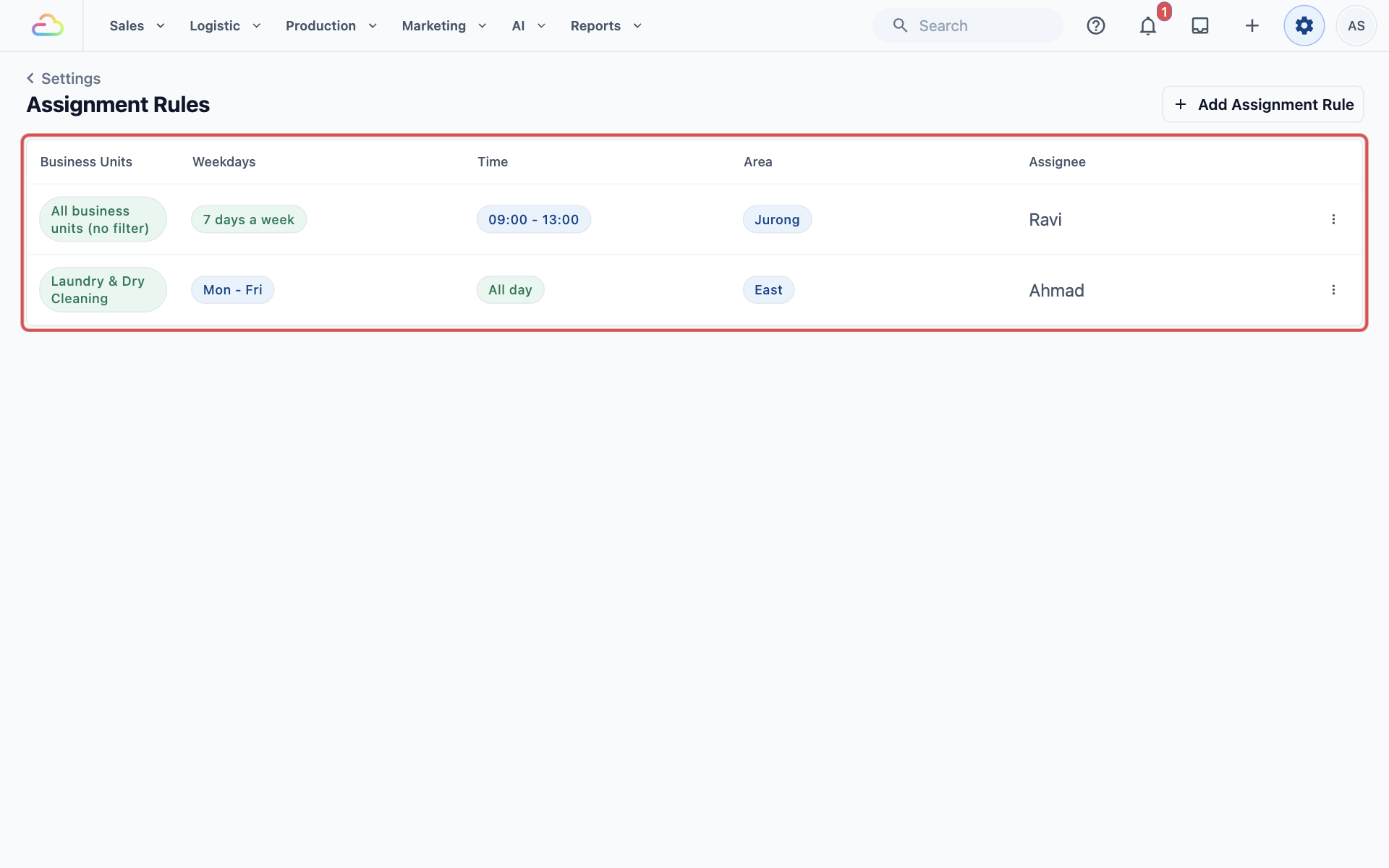
What customers see
A customer at 201 Tampines Street 21 (East) books a home pickup on Wednesday afternoon. The earliest day offered is Friday, because the pickup needs 1 full working day first. Sunday never shows, because the option runs Monday to Saturday. A customer in Woodlands, which is outside both areas, sees CleanFast's message instead of booking times.
What your staff see
The Friday pickup in Tampines arrives already given to Ahmad. Nobody has to check the address or pick a driver.
At the counter, a customer drops off a bag of shirts and wants them delivered home. Your staff choose Home delivery at the POS. The POS shows the same delivery dates and time windows the customer would see online.
Where Did It Move?
| Old page | Where it is now |
|---|---|
| Booking Options, Time Slots and Live Preview | Bookings › your business unit. Time windows sit inside each booking option, and the live preview sits beside your settings. |
| Custom Zones | The Service Areas card |
| A unit's Service Areas | Bookings › your business unit › Where customers can book |
| Block Dates | Bookings › Closed dates |
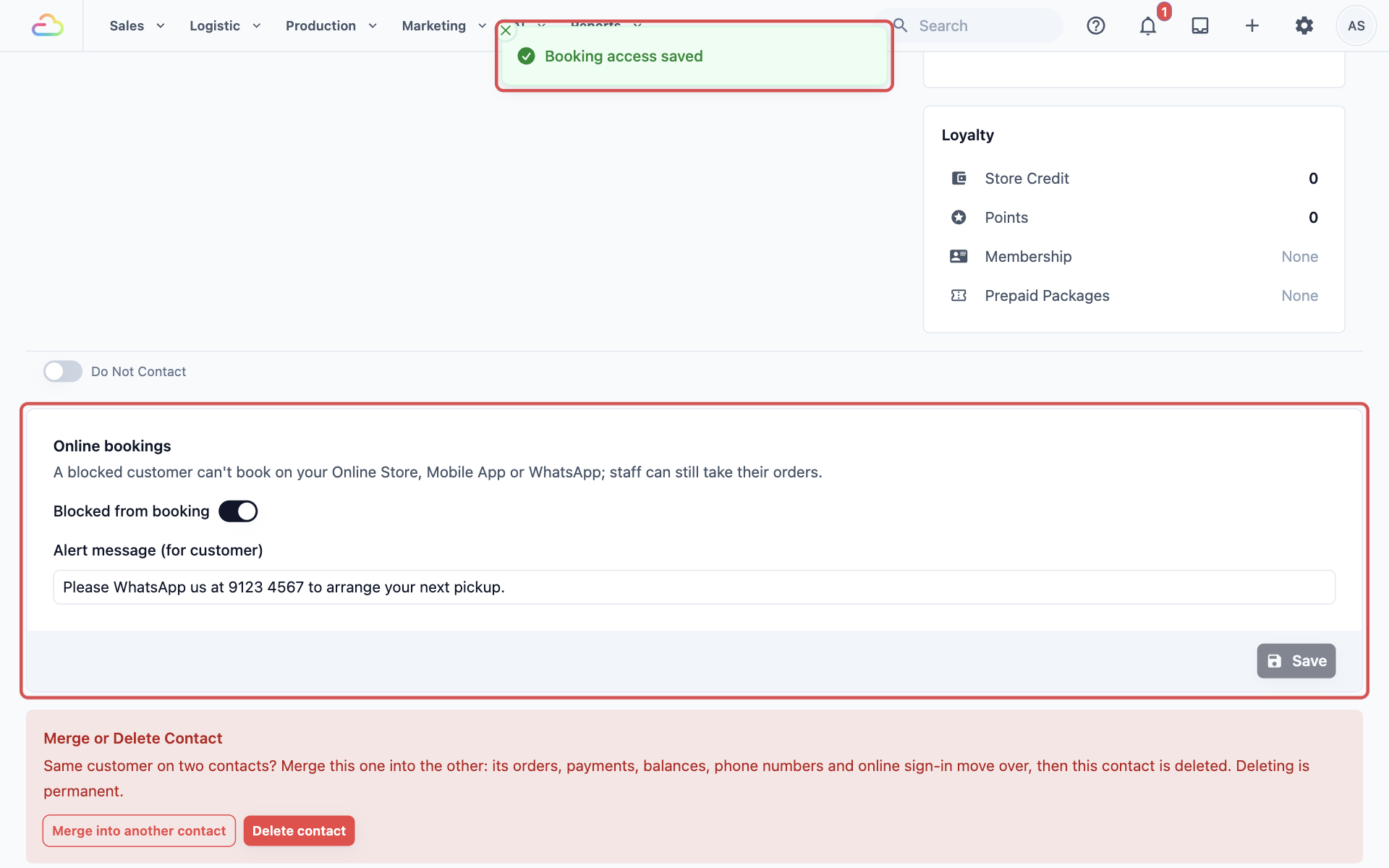
| Block Customers | Sales › Contacts › the customer › the Online bookings box |
Repeat orders are now set up in Production settings, see Setting Up a Recurring Schedule.
FAQs
Do I pay extra to use these settings?
No. Booking options, time windows, service areas, closed dates and assignment rules come with your Core seat at no extra cost. Drivers, cleaners and technicians need a Field Service seat to receive their assigned jobs on the mobile app.
Do these settings affect bookings my staff make?
Yes. When your staff book a pickup, delivery or visit for a customer, they use the same booking options, time windows, service areas and closed dates as your online customers. Their bookings also take places in the same time windows.
Can my POS staff book a home delivery?
Yes. At the POS, staff choose Home delivery for a customer with a saved address. The dates and times come from the unit's home delivery options. If the unit has no home delivery option, or the address is outside its service areas, no delivery dates show. Home pickup can't be booked at the POS.
Do existing bookings change when I edit these settings?
No. Saving only changes the rules for new bookings. Bookings already made keep their date, time window, surcharge and driver. If you close a date that already has bookings, those bookings stay, and you reschedule them yourself.
Who on my team can change these settings?
The account owner always can. Other teammates need Scheduling & dispatch access, which you turn on for them in Users & Access. Without it, they don't see these cards. Your POS staff can still book home deliveries without this access.
I set up assignment rules, but some jobs still have no driver. Why?
A rule only assigns a job that matches its business unit, day, time and area. The job also needs an address and a time. If nothing matches, the job stays unassigned. Rules only run when a job is first created, so changing a rule doesn't reassign existing jobs.
If I block a customer from booking online, can my staff still take their orders?
Yes. A blocked customer can't book on your Online Store, Mobile App or WhatsApp, but your staff can still create orders for them at the POS. See Closed Dates and Blocked Customers.
What's Next
You now know what each Scheduling & Dispatch card does, how EasyBiz decides every booking and where your old pages moved. Every booking starts with the customer's address, so continue to Setting Up Service Areas to mark the areas you serve.