
Before You Start
- Read Introduction to Scheduling & Dispatch to see how the 3 Scheduling & Dispatch cards fit together.
- Set up the areas you serve in Setting Up Service Areas. The Bookings page uses these areas when you choose where each business unit takes bookings.
What the Bookings Page Does
The Bookings page puts everything customers and staff can book on one screen: home pickups and deliveries booked online, home deliveries your staff book at the POS (the counter app your staff use to take orders), and the collection date for orders collected at your shop. You change your settings on the left. On the right, the live preview shows the result straight away.
You no longer have to save, open your Online Store and try a booking to see if a change worked. You see the dates and times immediately, and nothing reaches customers or staff until you click Save.
If a business unit has no booking options, customers can't book a home pickup, delivery or onsite visit for it.
Open the Bookings Page
- Click the ⚙️ Settings icon in the top-right corner.
- Scroll down to the Scheduling & dispatch settings section and click Bookings.
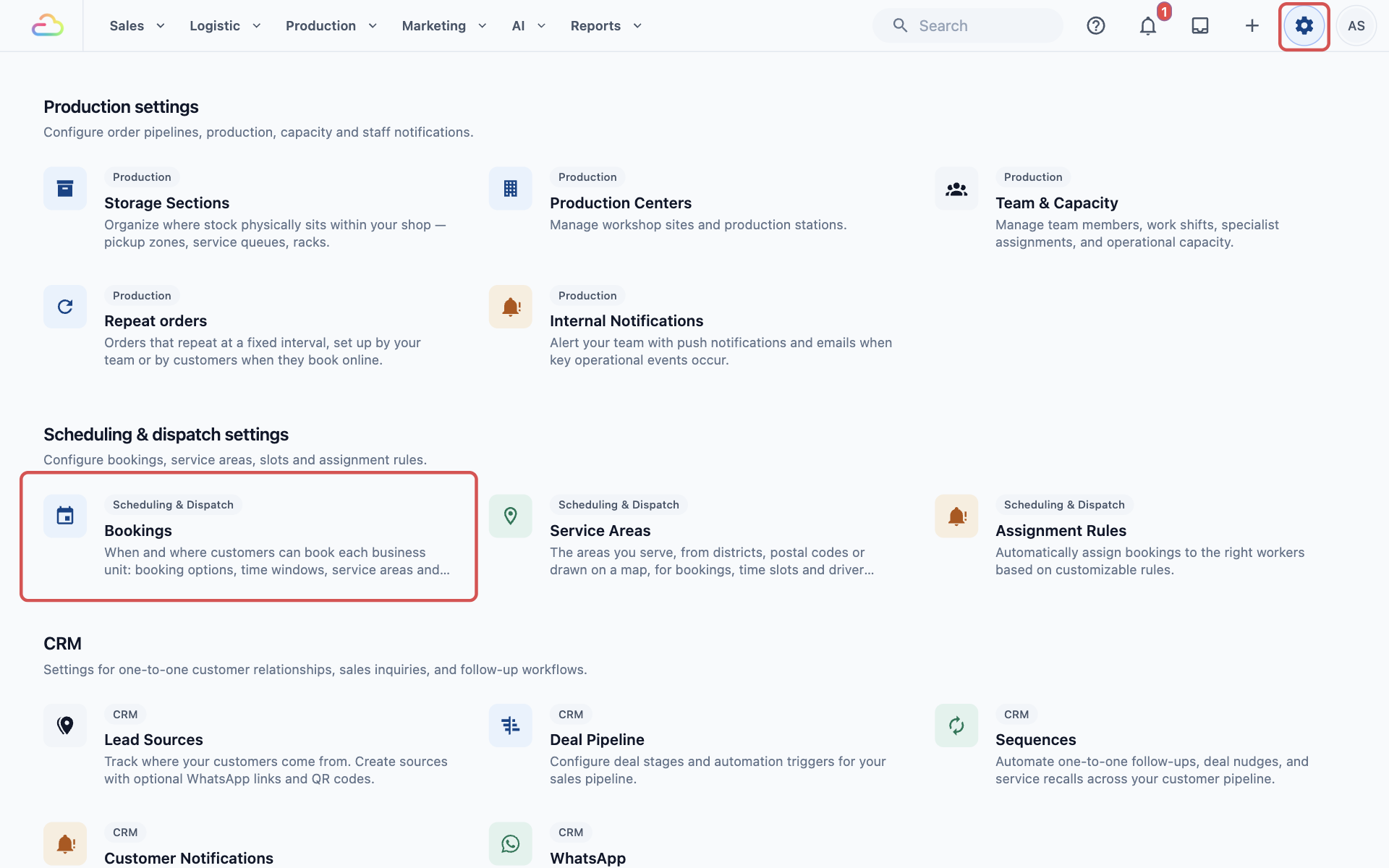
The First Page: Business Units and Closures
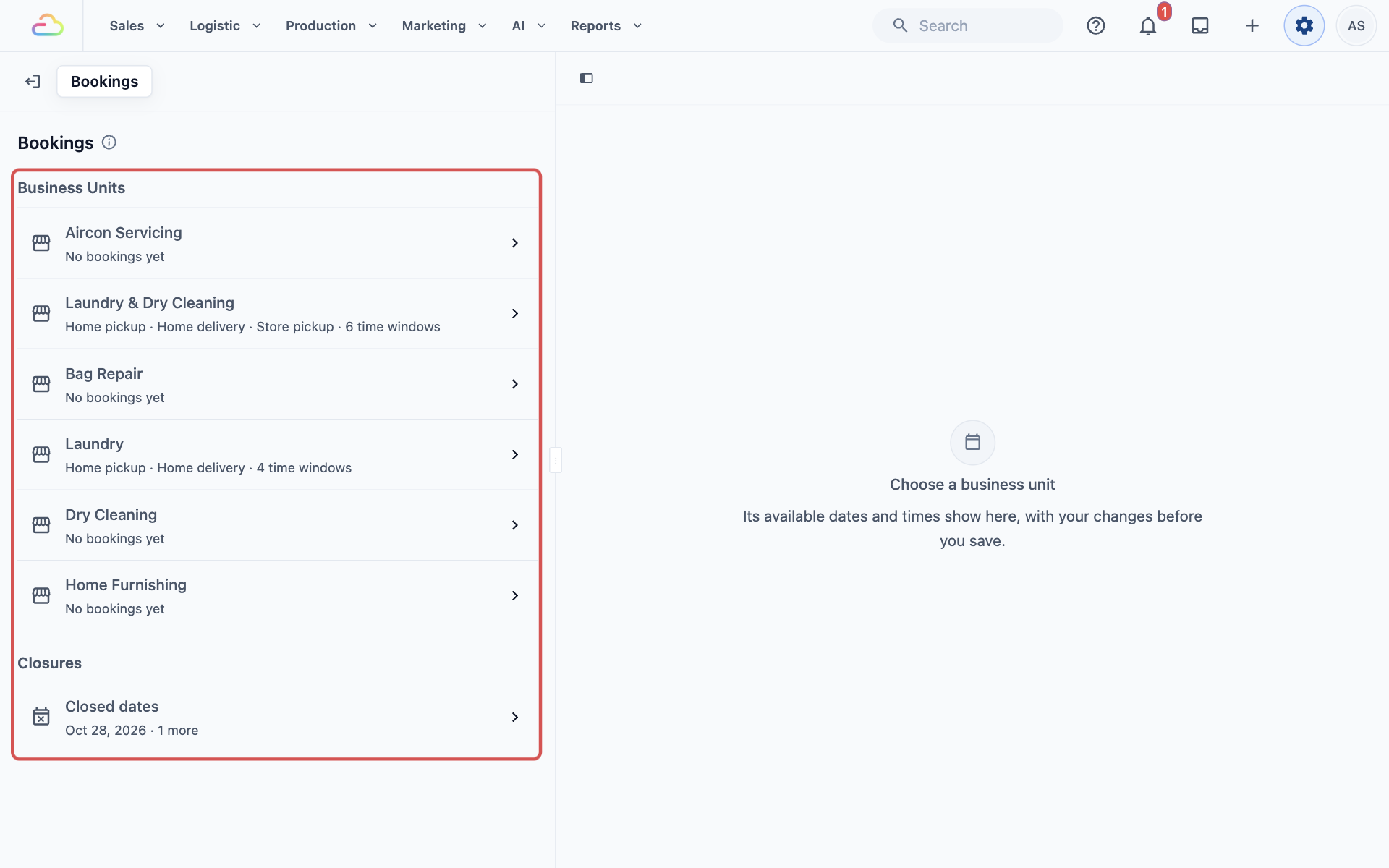
The Bookings page opens on a list with 2 parts.
Business Units
Each business unit has its own row. A business unit is one line of service in your shop, for example Laundry & Dry Cleaning or Bag Repair. Under its name, a short line tells you what customers can book from it, for example:
- Home pickup · Home delivery · Store pickup · 6 time windows
- No bookings yet, when the unit has no booking options
A time window is the time range customers pick on the day, for example 09:00 to 12:00.
Closures
The Closed dates row shows your next closure, for example "Oct 28, 2026 · 1 more", or "None coming up". One closure can close several business units at once, so closed dates sit here and not inside a unit. They are explained in Closed Dates and Blocked Customers.
While you are on this list, the preview on the right says "Choose a business unit".
A Business Unit's Page
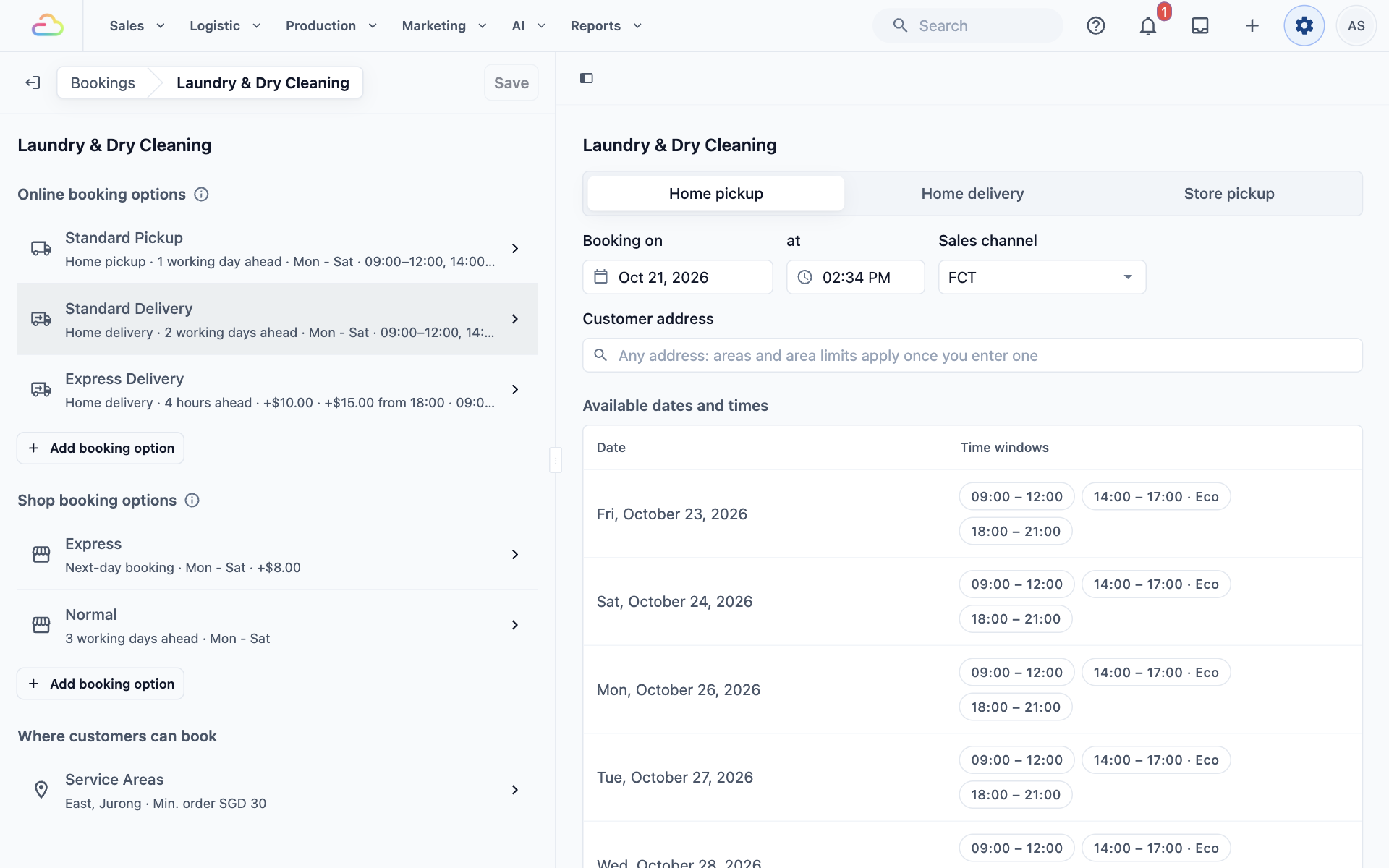
Click a business unit, for example Laundry & Dry Cleaning. Its page has 3 sections.
Online booking options
Home pickups, home deliveries and onsite visits that customers book on your Online Store, Mobile App and WhatsApp. Your staff use the same options when they book a home delivery at the POS or a home job in the Console. Each row shows the option's name, its booking type, how far ahead it can be booked, the days it runs, any extra charge and its time windows. You set these up in Setting Up Online Booking Options.
Shop booking options
The collection date your staff give on POS and Console orders that customers collect at the shop (store pickup). If a unit has none, it says "No shop option: POS orders collected at the shop get no collection date." See Setting Collection Dates for Store Pickup.
Where customers can book
The Service Areas row shows which areas this unit serves and its minimum order, for example "East, Jurong · Min. order SGD 30". See Choosing Where Each Business Unit Takes Bookings.
Moving around
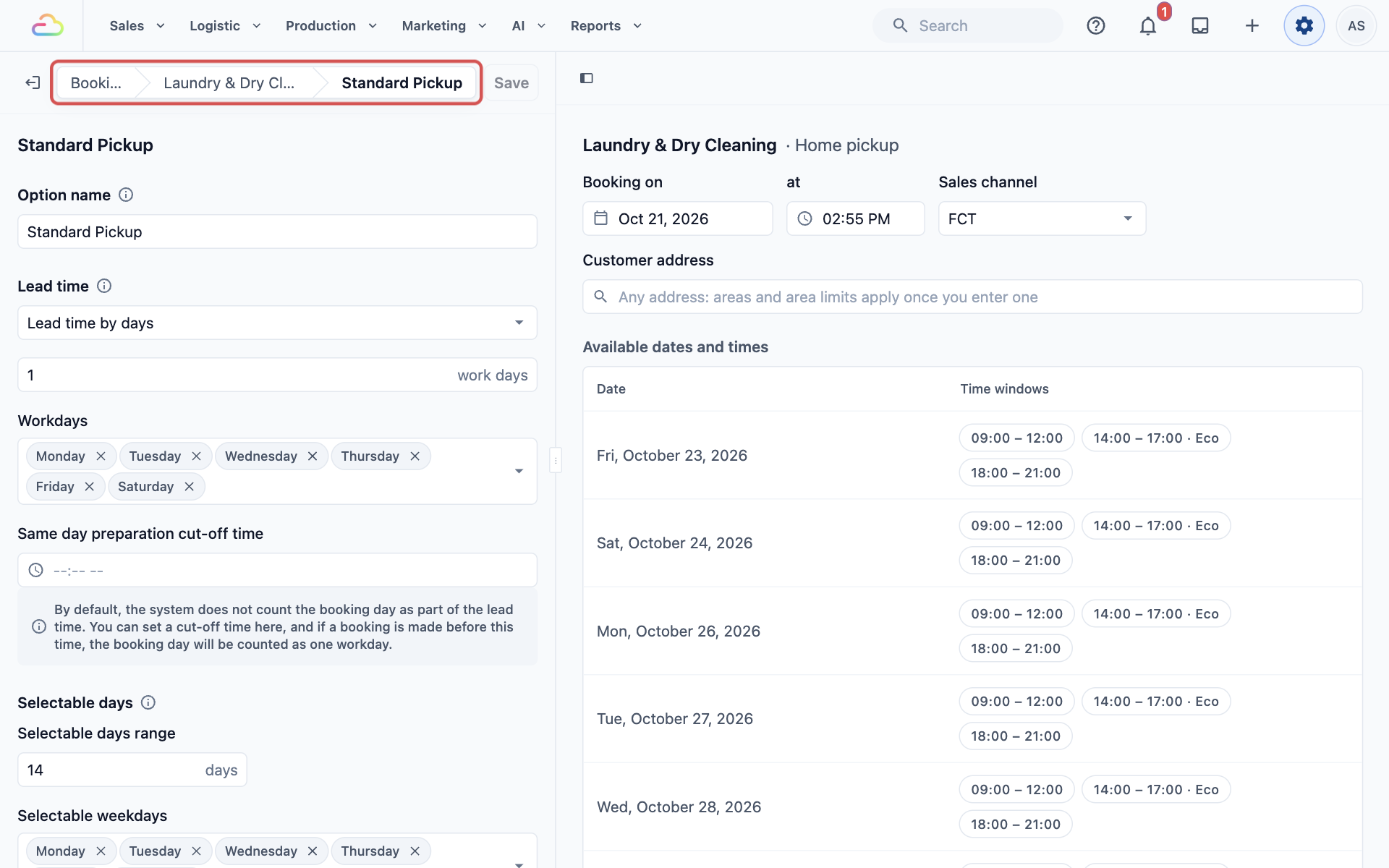
- To open an option, click its row, for example Standard Pickup.
- To go back, click Laundry & Dry Cleaning or Bookings in the trail of page names at the top. This trail is called the breadcrumbs, and it always shows where you are.
Saving Your Changes
Nothing changes for customers or staff until you click Save. As soon as you edit anything, an orange "Unsaved changes" label appears above the Save button. You can move between units, options and closed dates with the breadcrumbs, and your unsaved edits stay with you.
- Make your changes on any unit, option or closure.
- Check the result in the live preview on the right.
- Click Save at the top of the settings panel. You'll see "Booking settings saved".
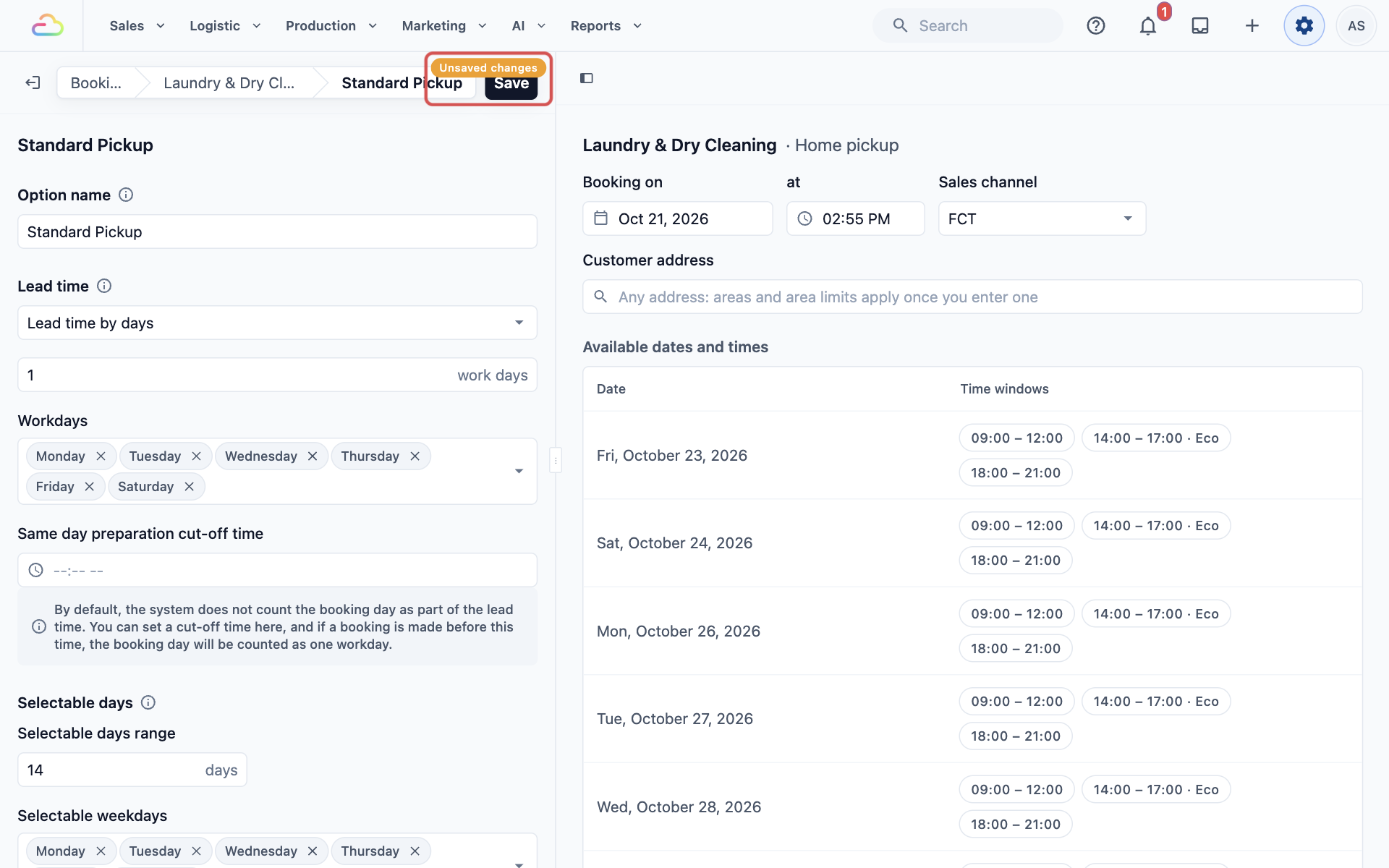
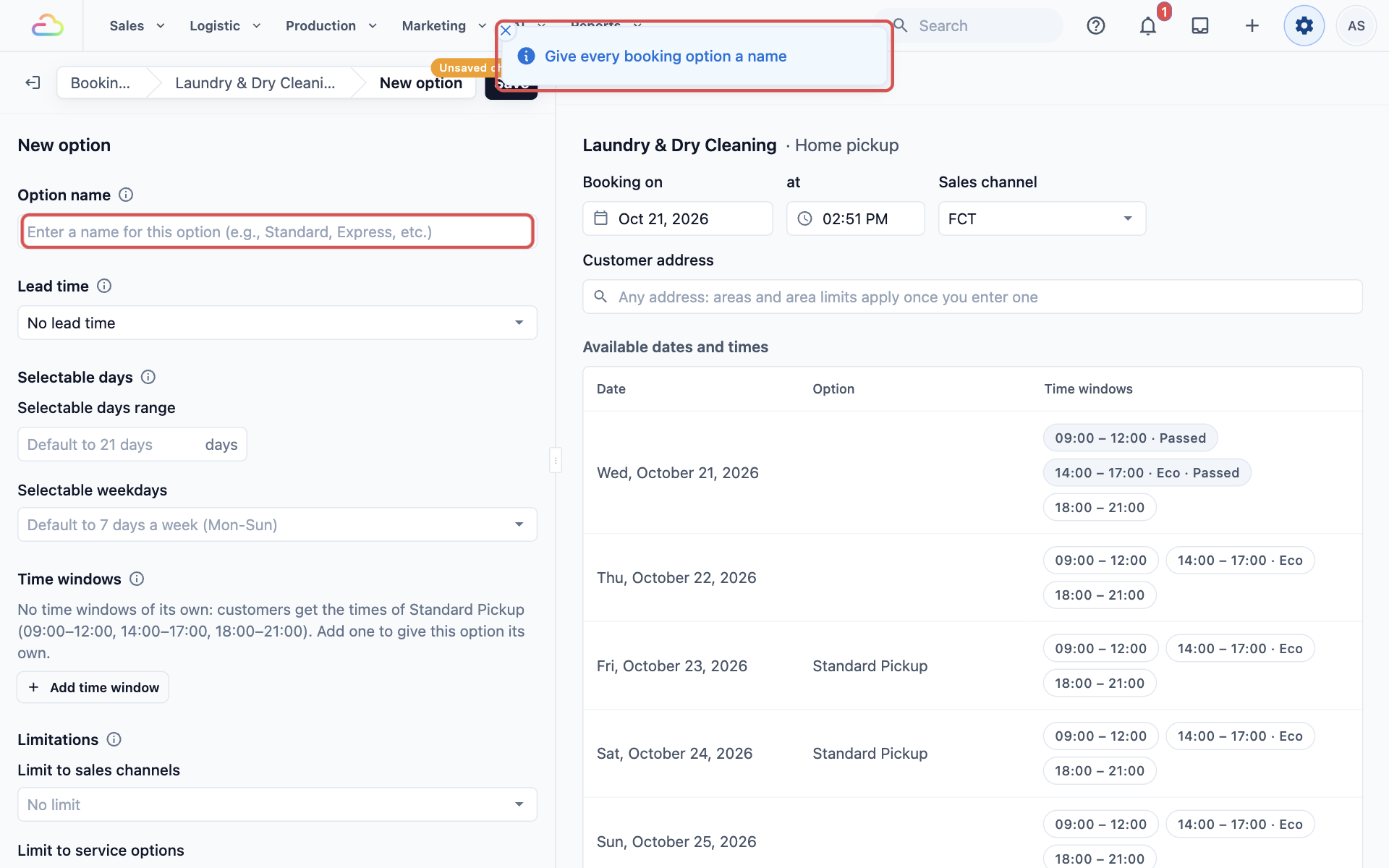
If something is incomplete, the page doesn't save. A message pops up telling you what to fix:
| Message | What to fix |
|---|---|
| Give every booking option a name | A booking option has no name. Open it and type one. |
| Give every surcharge an amount, a surcharge from a time of day its time, and a public holiday surcharge its days | A surcharge (an extra charge added to the order) is missing its amount, its start time or its public holiday dates. |
| Set the start and end of every time window | A time window is missing its start or end time. |
| Choose the dates of every closure | A closed date has no dates chosen yet. |
Using the Live Preview
The live preview uses the same booking rules as your Online Store, but with the settings on your screen, saved or not. What you see is what a customer would see after you save.
What the preview shows
- On the business unit list: "Choose a business unit".
- On a unit's page: the dates and times for that unit. If the unit offers more than one booking type, tabs such as Home pickup, Home delivery and Store pickup let you switch between them.
- On an option's page: the dates and times for that option's booking type.
- On Service Areas: a map of the unit's areas instead of dates.
- On Closed dates: the dates for one unit, with a dropdown at the top to pick which unit to check.
The boxes at the top
Use these to test a customer's situation:
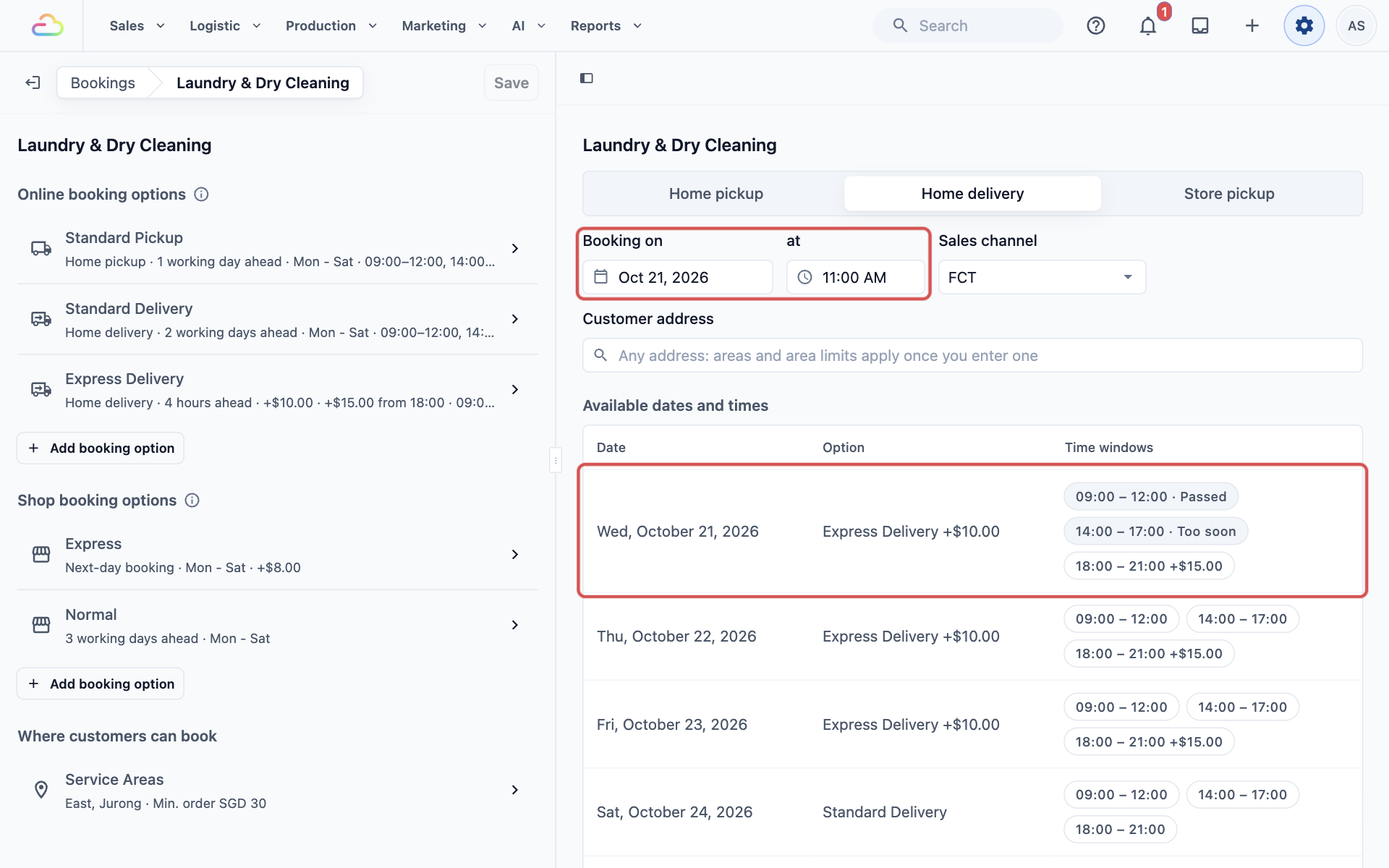
- Booking on and at: the day and time the customer is booking. Change them to see what a customer booking next Friday evening would get.
- Sales channel: where the order comes from. A sales channel is a place orders come in, such as your Online Store or one of your POS shops. Each shop appears by its short code, for example CLB for CleanFast Laundry Bedok. Pick a shop to see the dates your staff get at that counter.
- Customer address: type an address and pick it from the list. Until you enter one, the preview ignores your service areas. The address and its minimum order then show under the box. Click Any address to clear it.
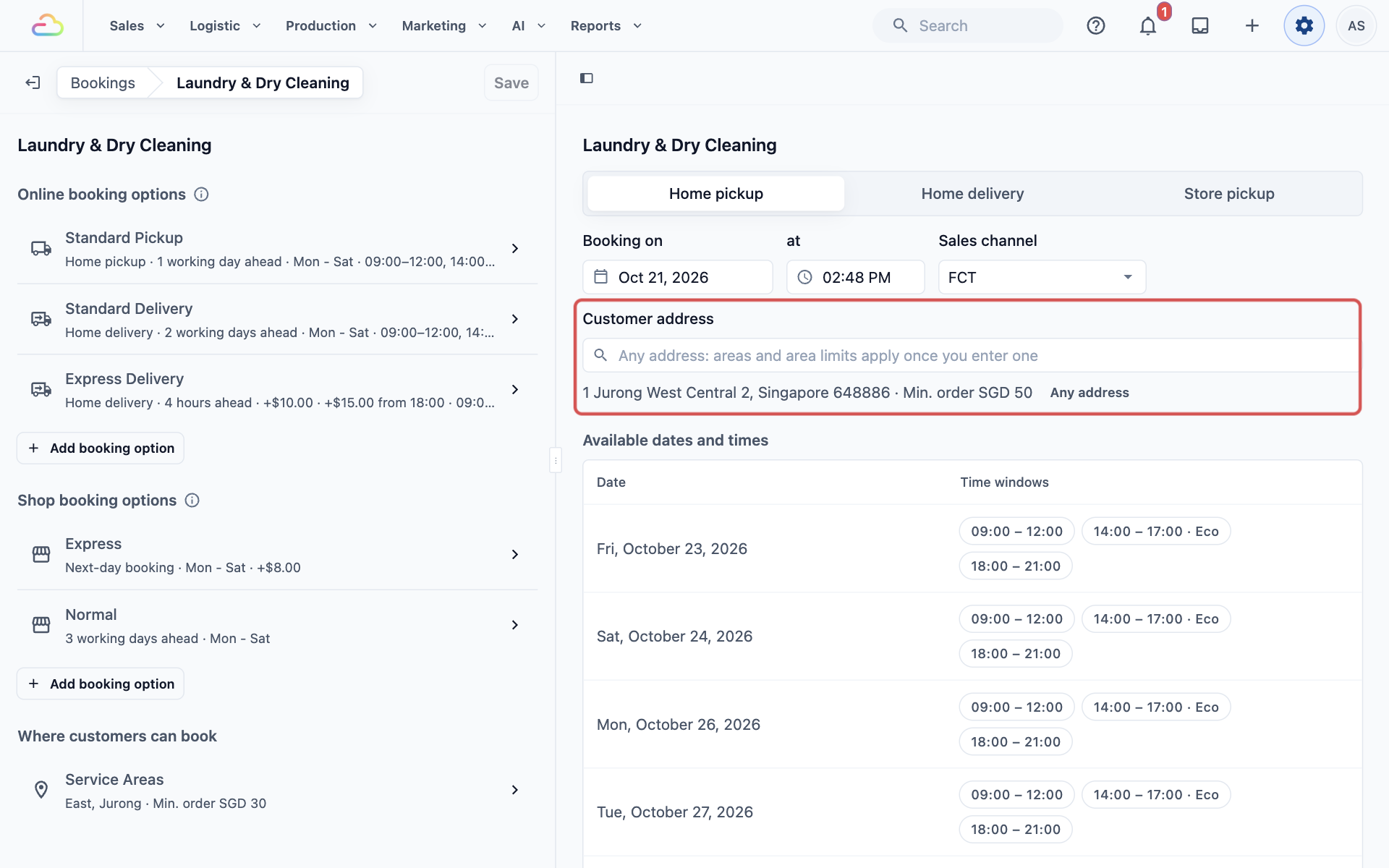
The Available dates and times table
| Column | What it shows |
|---|---|
| Date | Each day the customer can book |
| Option | The booking option the customer gets that day, with any extra charge. It appears only when the unit has more than one option of this type, or an option with a surcharge. |
| Time windows | The time windows offered that day |
The labels on each time window
| Label | What it means |
|---|---|
| No label | Customers can book this window |
| Full | The window has reached its daily booking limit (the most bookings it takes in a day) |
| Too soon | The window starts too soon after the booking time. It is inside the option's lead time, the notice you need before a booking. |
| Passed | The window's time has already gone by that day |
| Eco | Your preferred window, which the booking page picks first for customers |
| +$15.00 | This window charges a different surcharge, for example in the evening |
| Any time | The option has no time windows. Customers pick a day only. |
Other messages you may see
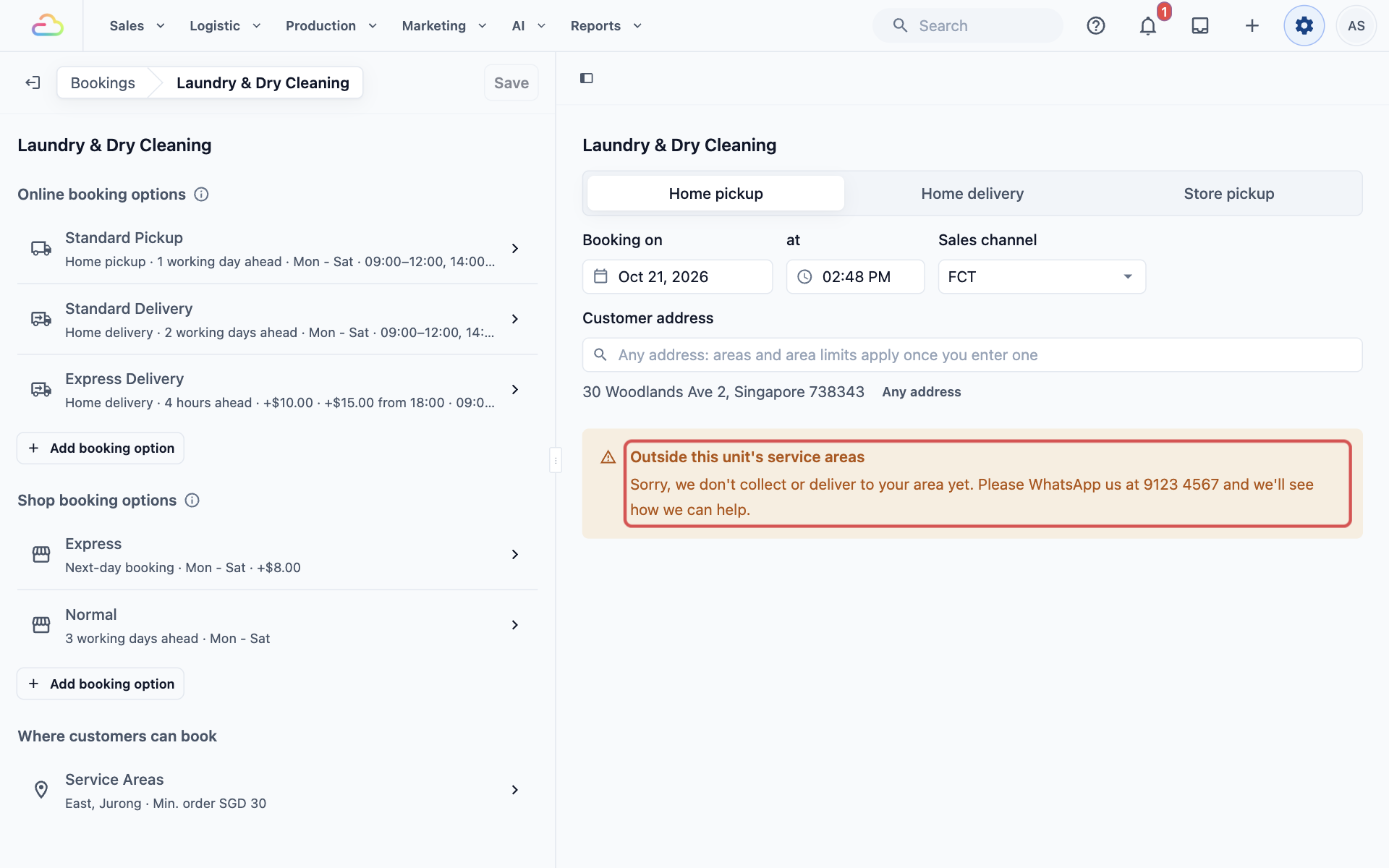
- Outside this unit's service areas: the address is not in this unit's areas. The preview shows the message customers will see. If you haven't written one, it says "Customers there see: Sorry, we are not here yet."
- Min. order: the minimum order for that address, shown next to it, for example "Min. order SGD 50".
- Nothing to book yet: the unit has no booking options. Add one to see what customers can book.
Options Shared by Several Units
Some older accounts have one booking option used by more than one business unit. When you open a shared option, a note at the top says, for example, "Also offered by Bag Repair: changes apply there too." A change you make for Laundry & Dry Cleaning then changes Bag Repair as well.
To stop offering a shared option in one unit only:
- Open the option and scroll to the end.
- Under Remove from this business unit, click Remove, then click Save. The other units keep it.
Example: Checking a Home Pickup in Tampines
CleanFast Laundry wants to check what a customer in Tampines sees. Laundry & Dry Cleaning has one home pickup option:
- Option: Standard Pickup
- Lead time: 1 working day ahead, Monday to Saturday
- Time windows: 09:00 to 12:00, 14:00 to 17:00 (Eco) and 18:00 to 21:00
- Service areas: East and Jurong, minimum order SGD 30
- On the Bookings page, under Business Units, click Laundry & Dry Cleaning.
- In the preview, click the Home pickup tab.
- Leave Booking on as today (a Wednesday) and at as the current time.
- In Customer address, type 201 Tampines Street 21 and pick it from the list.
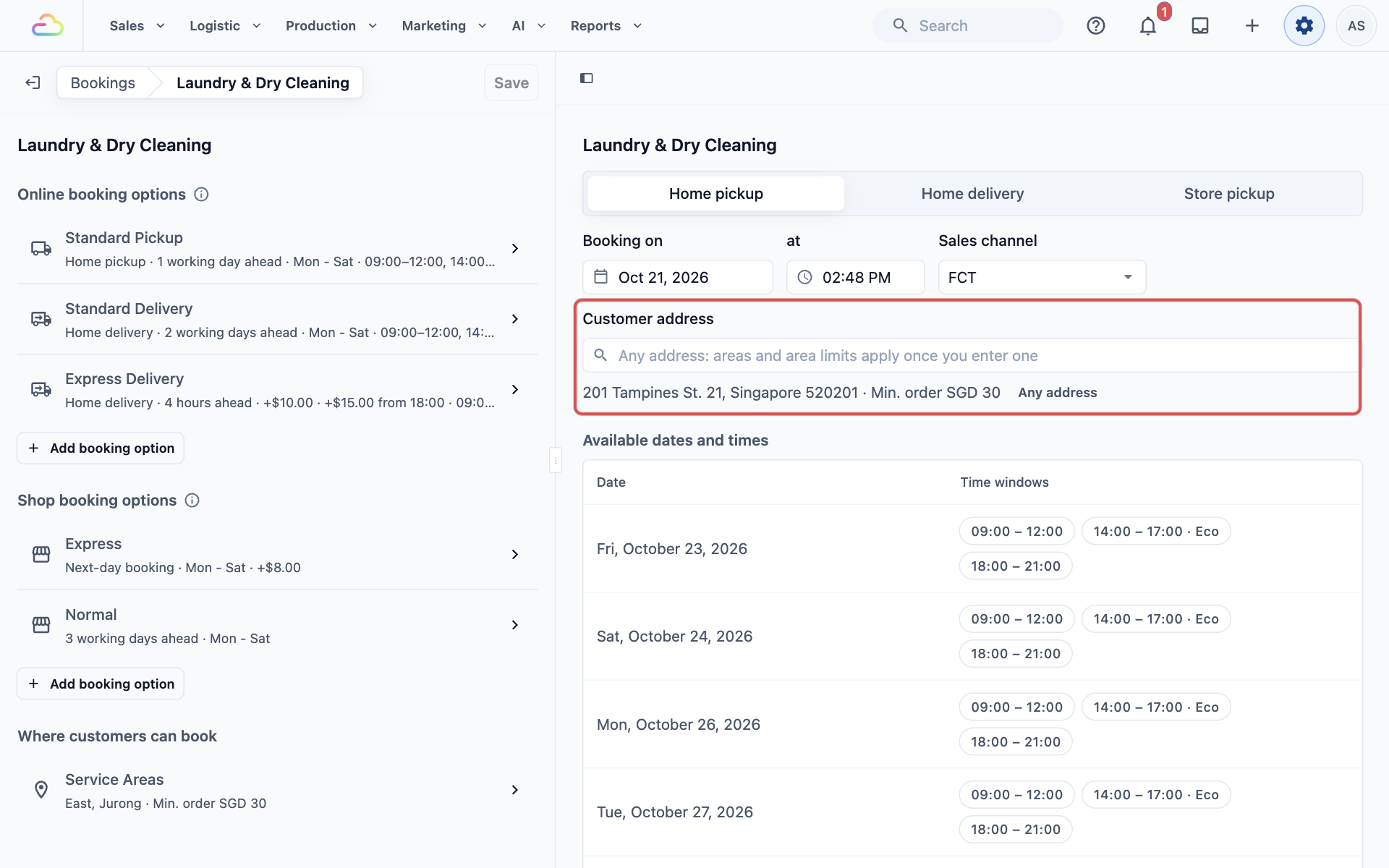
Friday is the first date, because the option needs 1 full working day (Thursday) to prepare. Sunday is missing because the option runs Monday to Saturday. 14:00 to 17:00 shows Eco, so customers see it picked first. The customer sees exactly these dates and times on the Online Store, and the SGD 30 minimum order applies.
FAQs
Does the preview show my unsaved changes?
Yes. The preview always uses what is on your screen, saved or not. Customers keep seeing your old settings until you click Save.
Why is a date missing from the preview?
A date is left out when it is a closed date for this unit, a day the option doesn't run, or further ahead than customers can choose. An option limited to certain sales channels also disappears when another sales channel is picked. Options limited to certain services don't show, because the preview books as a customer who hasn't chosen a service yet.
I edited an option and another business unit changed too. Why?
The option is shared. Look for the "Also offered by" note at the top of the option. Every unit that offers it gets the same change. To change it for one unit only, remove it from that unit and add a separate option there.
Does the preview count bookings already made?
Yes. It counts the bookings already made, by customers online and by your staff at the POS. A window that has reached its daily limit shows Full. Trying dates in the preview never creates a booking or uses up a place.
Do my staff at the POS see the same dates as the preview?
Yes. When staff choose Home delivery at the POS, they get the dates and time windows of your home delivery options for the customer's address. To check, pick your shop in Sales channel and open the Home delivery tab. For orders collected at the shop, the POS uses your Shop booking options, which you can check on the Store pickup tab. Home pickups are not booked at the POS.
Will saving change bookings customers have already made?
No. Saved changes apply to new bookings only. Existing bookings keep the date and time window the customer chose.
What's Next
You now know how to move around the Bookings page and check any change in the live preview before you save. If you offer home pickups, home deliveries or onsite visits, continue to Setting Up Online Booking Options. If your customers only drop off and collect at the shop, go to Setting Collection Dates for Store Pickup.