
Before You Start
Make sure you have:
- Access to the Production Report. If Production is missing from your Reports menu, your account does not have it yet. See Report Access for Staff.
- A basic feel for choosing a period. See Report Periods and Filters.
- At least one capacity board on your Capacity Calendar, and staff who mark their work as completed there. The report only counts work done on a board.
What the Production Report Is
The Production Report is your workshop scoreboard. For the period you pick, it shows how many work orders each staff member finished, how many hours of work that was and how many items came back to be redone.
Open the Production Report
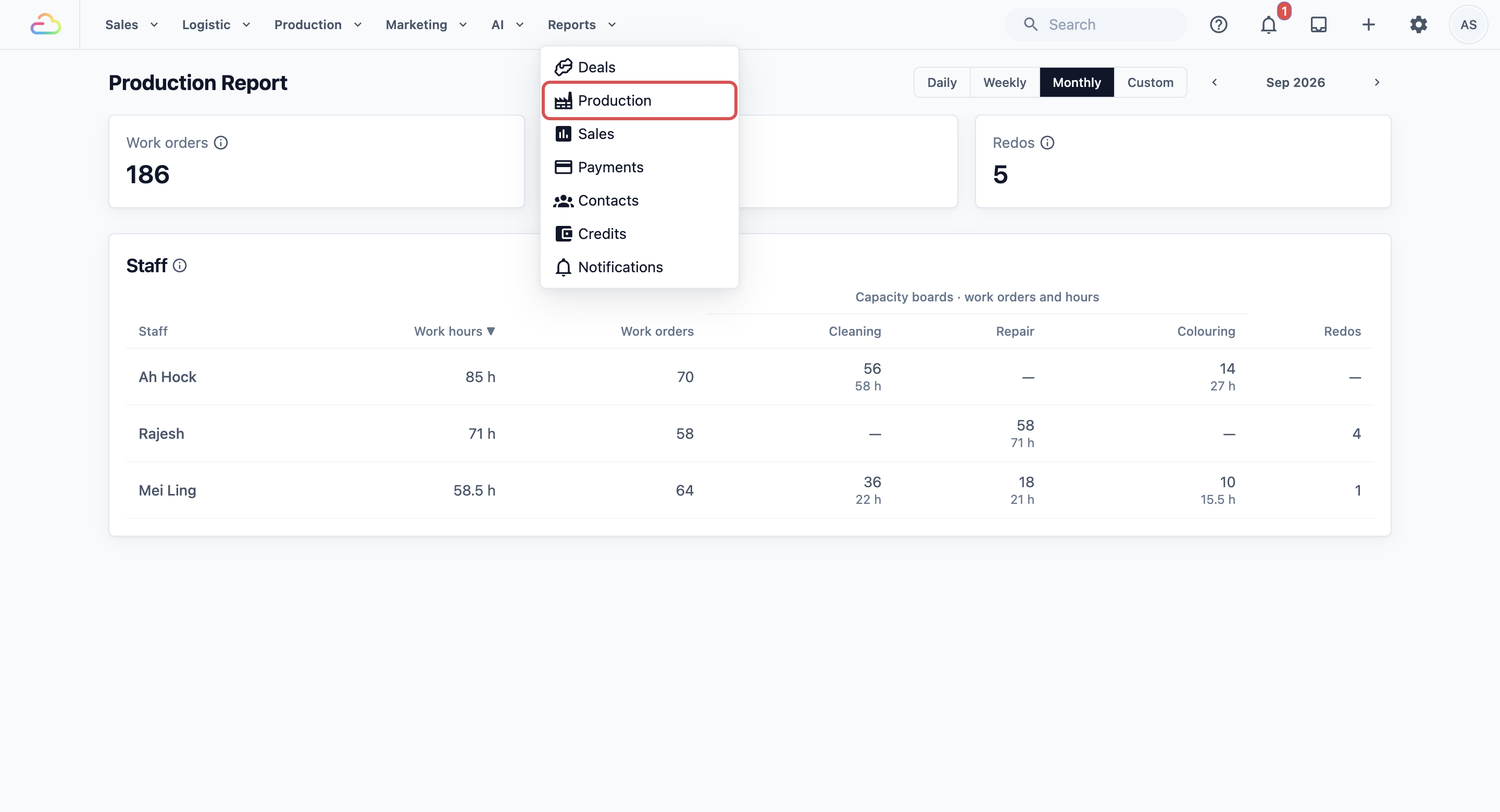
- In the top menu, click Reports .
- Click Production .
- At the top right, choose how much time to look at: Daily , Weekly , Monthly or Custom . The report opens on Monthly.
- Next to it, pick the day, week, month or dates you want. A custom range can cover up to 90 days. If you pick a longer one, the report uses the last 90 days and a note tells you the new start date.
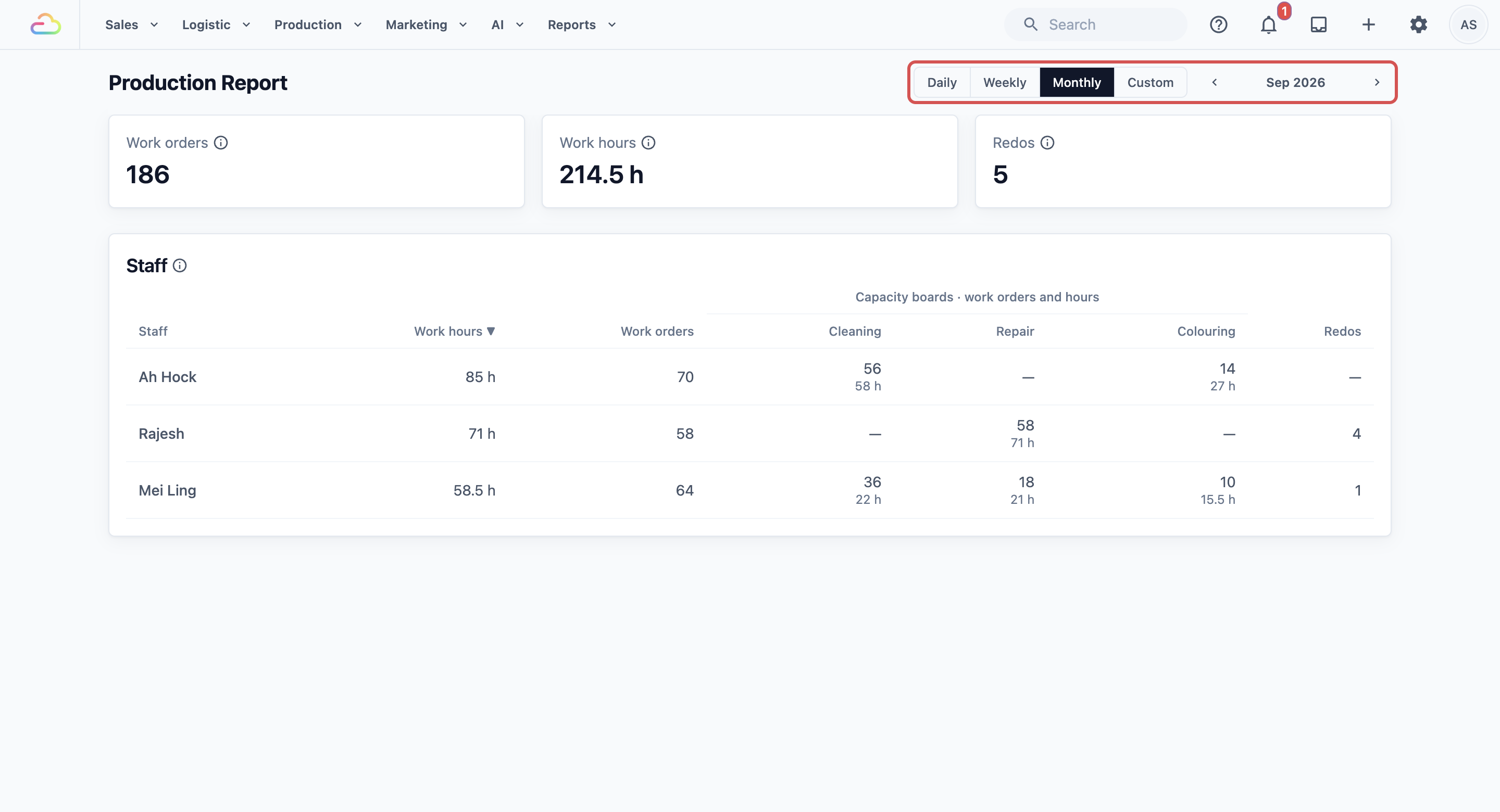
The report updates live. When a staff member marks a work order as completed, it shows up straight away.
Read the Summary Cards
The top of the page has three cards:
- Work orders: how many work orders were completed on a capacity board in the period.
- Work hours: the total hours of those work orders, taken from their cards on the Capacity Calendar.
- Redos: how many items were sent back to be redone in the period.
Next to each card title is a small help icon. Click it to see how that number is counted.

Read the Staff Table
The Staff table has one row for each staff member who completed work in the period. From left to right, it shows:
- Staff: the person who marked the work as completed.
- Work hours: the hours of all the work orders they completed.
- Work orders: how many work orders they completed. A work order counts once, even if the same person did two tasks on it.
- Capacity boards · work orders and hours: one column for each board, in the same order as your Capacity Calendar. Each cell shows the number of work orders on top and the hours below. A dash means no work on that board.
- Redos: how many redos are charged to this person. A redo is charged to whoever did the board work on the original item.
The table starts with the most work hours at the top. Click any column title to sort by it. Click it again to flip the order.
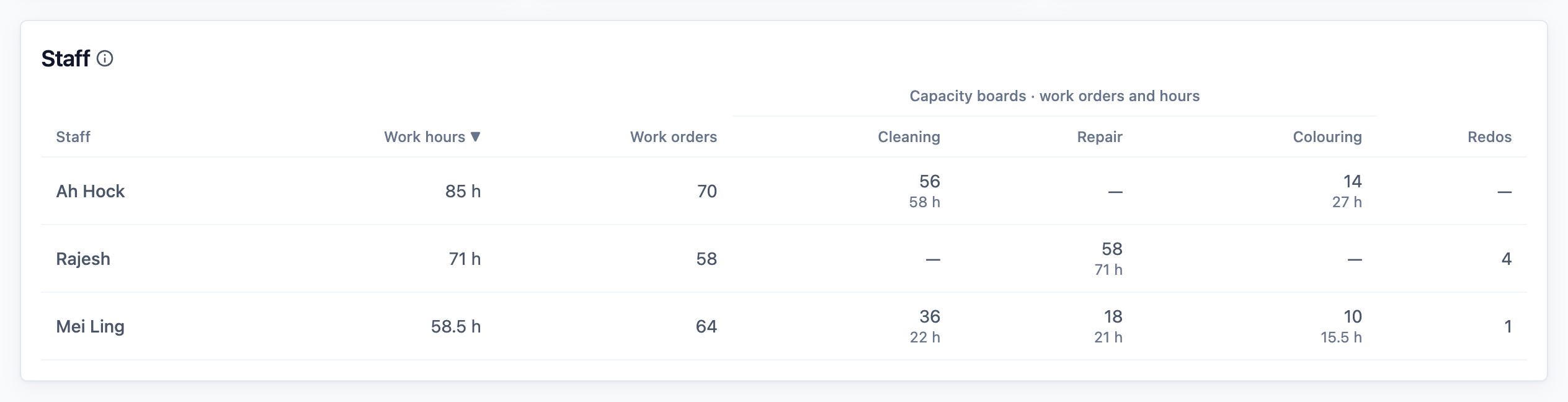
Checks, packing and other steps that no board plans are not counted. A staff member who only packs will not appear in this table.
See One Staff Member's Work
- Click a staff member's row in the Staff table.
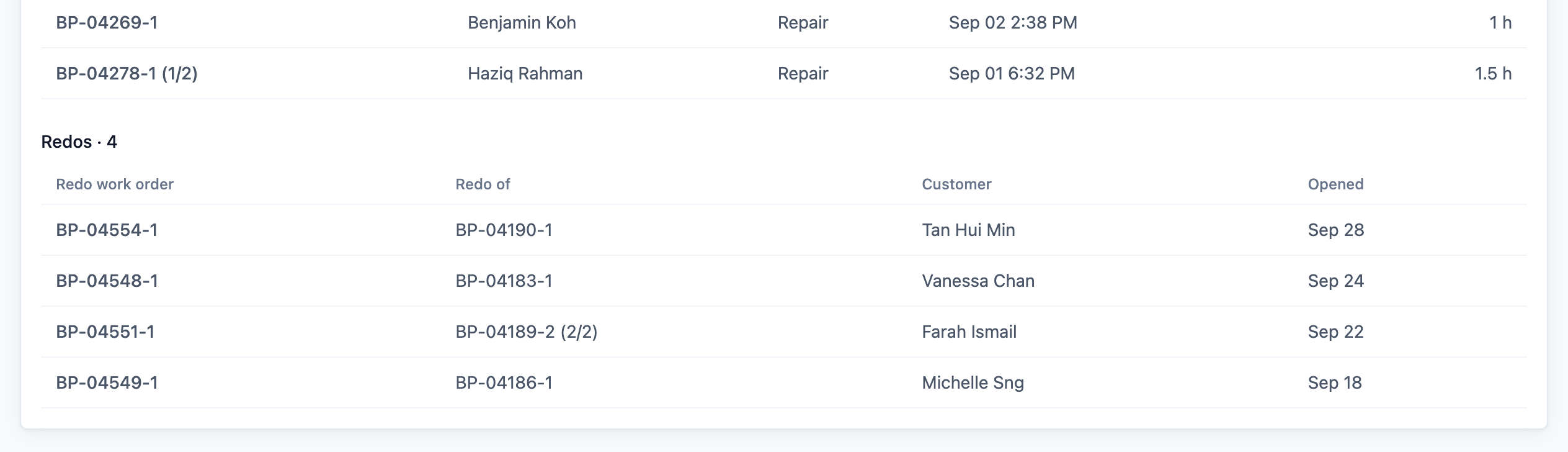
The table changes to that person's list, with their name and total at the top, for example "Mei Ling · 64 work orders". Each row shows the Work order, Customer, Board, Completed date and Work hours, newest first. A work order that was itself a redo carries an orange Redo tag.
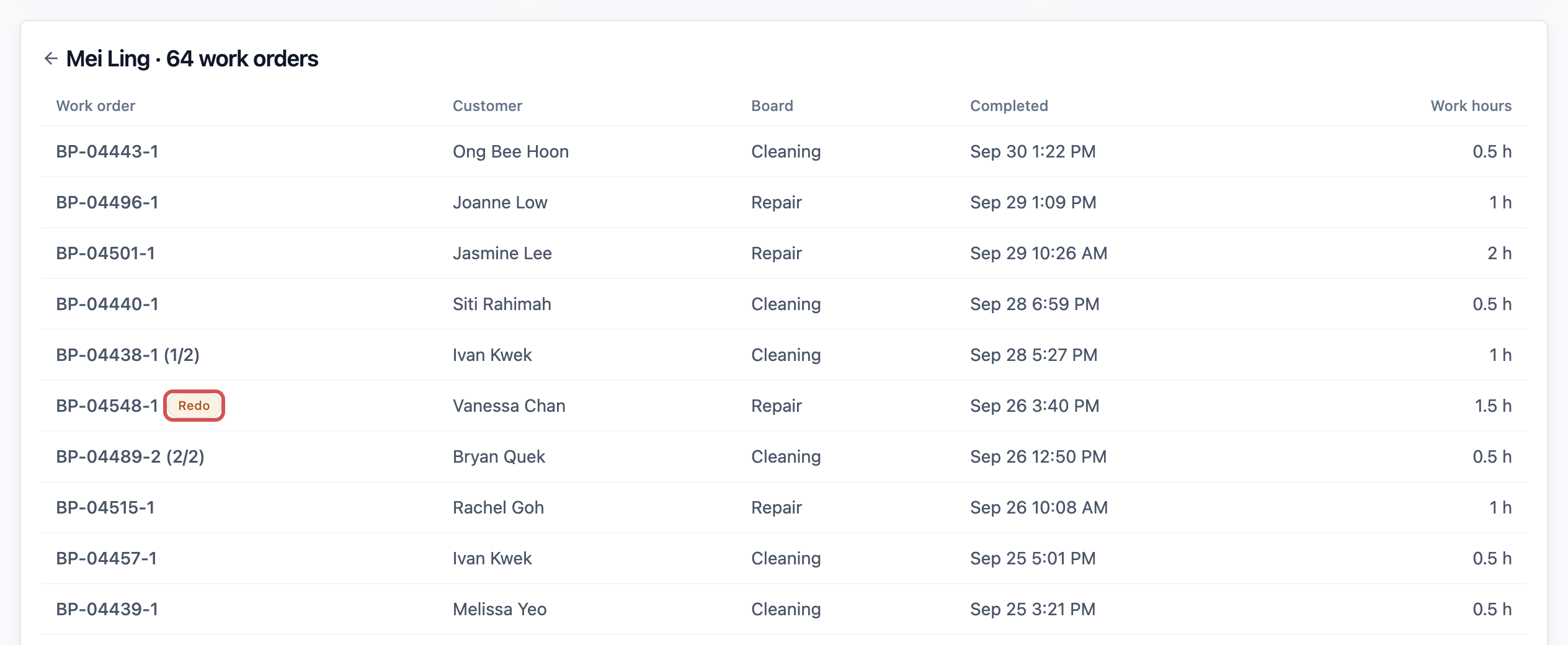
- Scroll down. If any redos are charged to this person, you see a Redos list below. It shows each Redo work order, the work order it is a Redo of, the Customer and the day it was Opened.
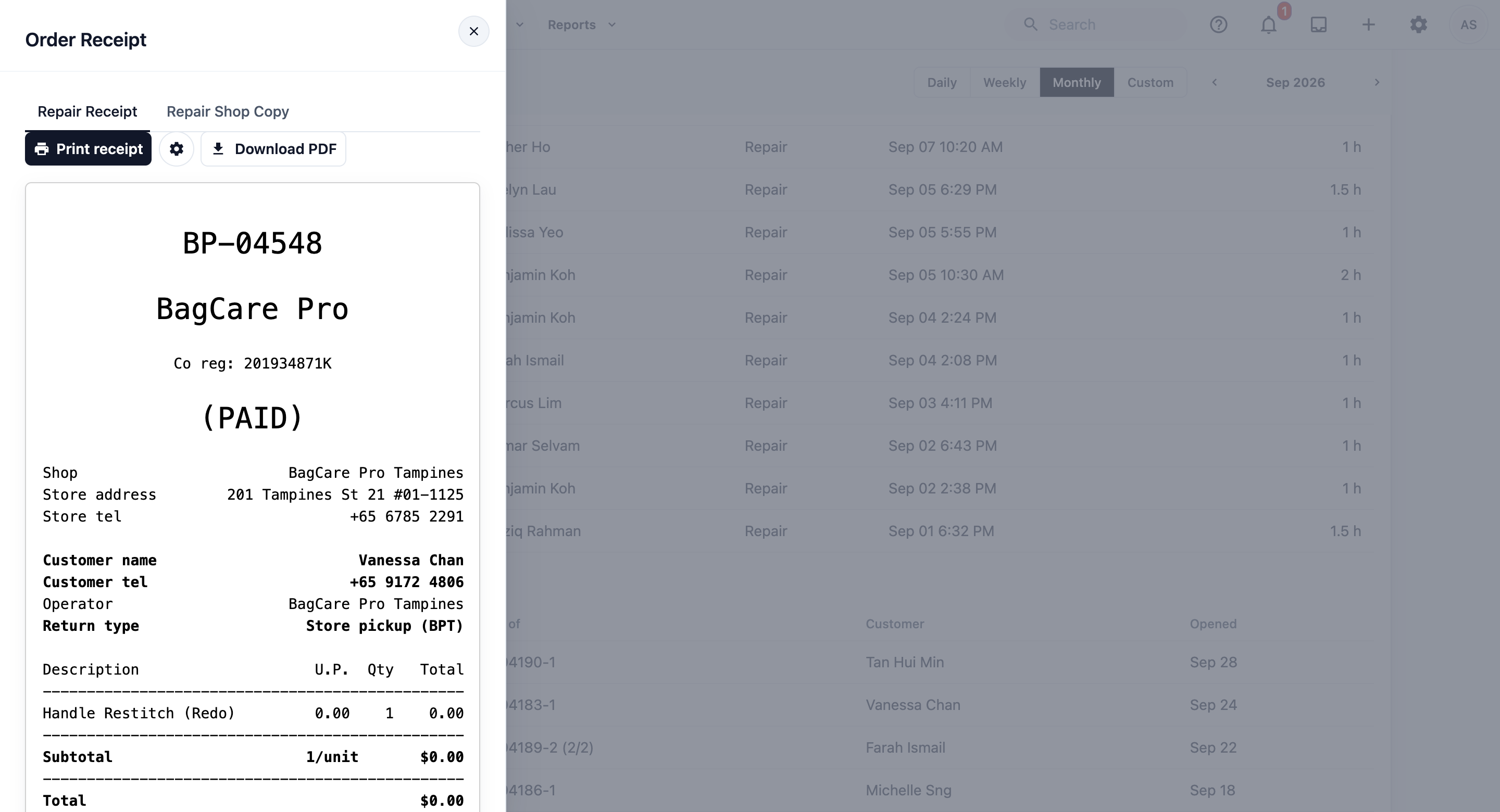
- Click any row to open that customer's order in a side panel, so you can read the details and notes.
- Click the back arrow next to the name to return to all staff.
How Redos Get Into the Report
When a customer brings an item back, your staff open the original order and click Recall . They choose a recall reason and click Create Recall Order . This creates a new work order for the item, linked to the one it redoes.
The report counts each one as a redo in the period it was opened. It is charged to whoever completed the board work on the original item, not to whoever does the redo.
Example: BagCare Pro Finds Who Has the Most Redos
BagCare Pro repairs and restores handbags. It has three repairers: Ah Hock, Mei Ling and Rajesh. Last month, a few customers brought bags back with loose stitching. Jenny, the owner, wants to know if one person is behind it.
- She opens Reports , then Production , and clicks Monthly for last month.
- The cards show Work orders 186, Work hours 214.5 h and Redos 5.
- In the Staff table, she clicks the Redos column title to put the highest at the top. Rajesh has 4 redos, Mei Ling has 1 and Ah Hock has none.
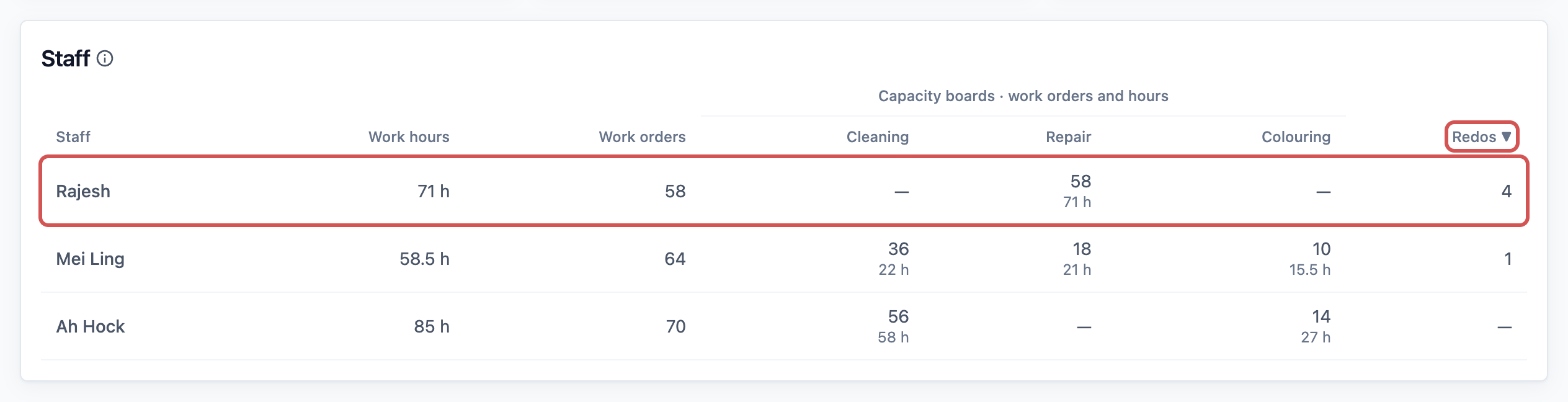
Rajesh also did the most Repair work: 58 work orders and 71 hours. She clicks his row and scrolls to Redos. All four are Repair jobs from the same busy week.
She clicks each redo to open the order and reads the recall notes. Each one mentions loose handle stitching.
Jenny now knows the problem is one repairer with too much work, not her whole team. She moves some Repair work to Mei Ling, who had fewer hours, and asks Ah Hock to check Rajesh's handle work for two weeks. Next month, she checks the Redos column again.
FAQs
How are work hours counted?
Work hours are planned hours, not clock time. Each capacity board sets how long a work order takes, for example 1.5 hours to repair a bag. When a work order is put on the Capacity Calendar, those hours are saved on its card, and the report uses them. So a staff member who works faster still gets the planned hours. Changing a board's hours later does not change work orders already on the calendar.
Why is a staff member missing?
Only people who marked a work order as completed on a capacity board in the period appear. A staff member may be missing because their work is checks or packing, which no board plans. They may also have finished the work outside the period you picked, or a colleague marked it as completed for them, so the work counts for that colleague.
What does the "Unknown" row mean?
Some work orders were marked as completed with no staff name saved on them. The report still counts their work and hours, and groups them under Unknown.
Why don't the Redos in the table add up to the Redos card?
If two staff worked on the original item, for example one cleaned it and one repaired it, the redo is charged to both of them. The card counts each redo only once.
Why is my work order count different from my Sales Report?
The Sales Report counts orders on the day they were sold. The Production Report counts items on the day they were finished in your workshop. A bag received in March and repaired in April counts here in April. See Reading the Sales Report.
Can I download the Production Report?
Not at the moment. The Production Report has no Export button. To see which reports you can download, read Exporting Reports and Downloads.
What's Next
You can now see how much work each of your staff finished, how many hours it took and whose work came back. Next, learn how to see who changed what in your Console in Checking Activity Logs.