
Before you start
- Sign in to the Console. The Console is the back-office website where you run your business.
- You need permission to manage Point of Sale settings. The account owner has it.
- Get the reporting details from your mall management first. They tell you how to send the file, where to send it, the login they gave you and how each line of the file must look.
Why malls ask for daily sales
Many shopping malls charge part of your rent as a share of your sales. To work that out, they ask every tenant to send yesterday's sales each day. This is often called mall reporting or a POS link.
It helps you decide which outlets need it and whether the mall is getting the right numbers.
Open Mall Reporting
- In the menu bar, click Settings.
- Under Sales Channels, click Point of Sale. A sales channel is any place you take orders, such as an outlet or your online store.
- Click the Mall Reporting tab.
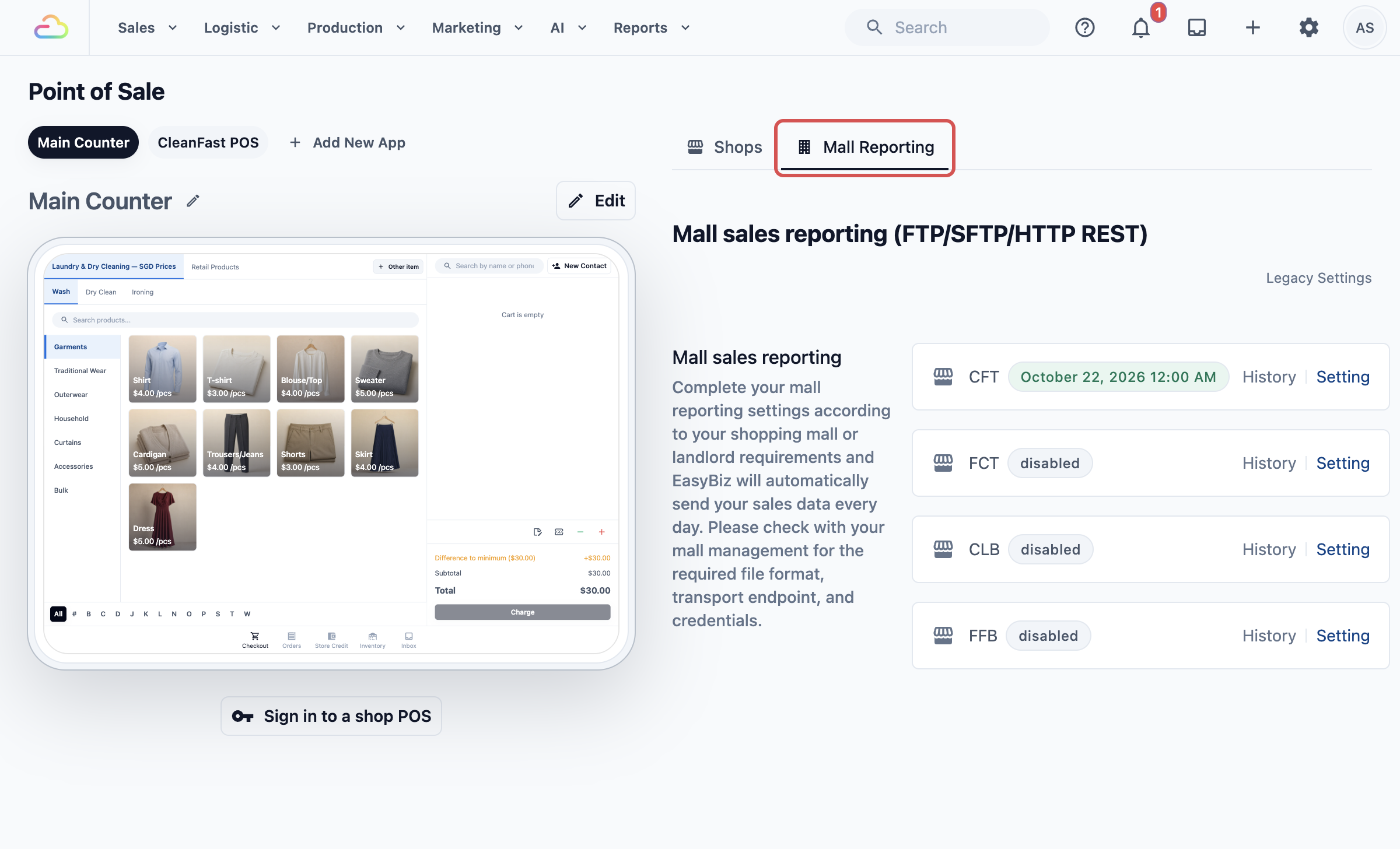
Each shop has its own card. The badge on the card tells you its status:
- A date and time means automatic sending is on. That is when the next file goes out.
- "disabled" means nothing is being sent for that shop.
Set up mall reporting for one outlet
- On the card of your mall outlet, click Setting. The outlet's Mall Reporting page opens.
- Under Transport, choose the Transport Type your mall asked for. Transport means the way the file travels to the mall.
| Transport Type | Choose it when your mall gives you |
|---|---|
| FTP/SFTP | A server address, a username and a password. FTP and SFTP are two ways of copying a file to another computer. SFTP is the secure one. |
| HTTP REST | A web address (URL) and a key or token. Your sales go to the mall's system as a web request. |
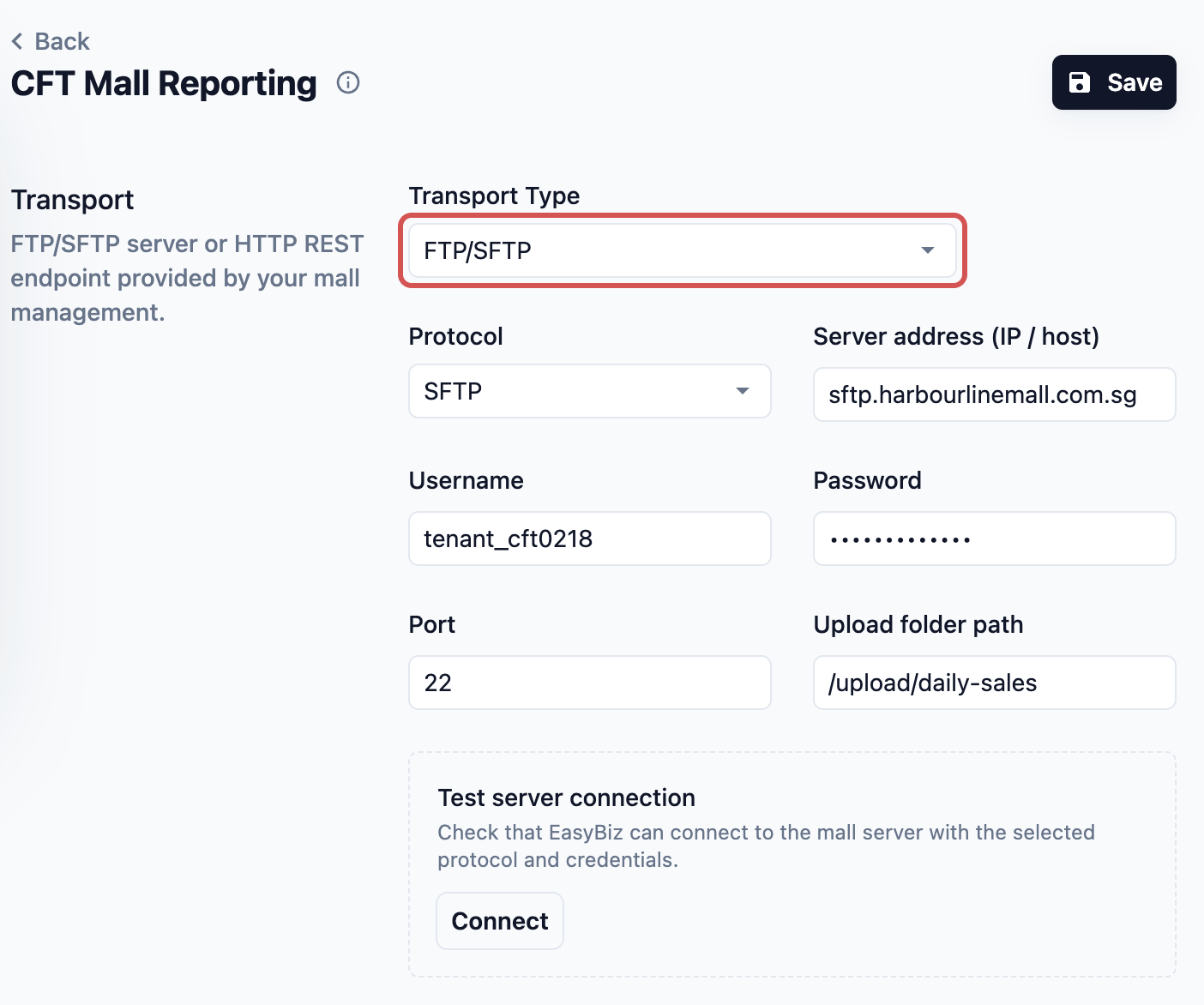
- Fill in the details from your mall exactly as they gave them to you. If they gave no port or folder, leave those blank.
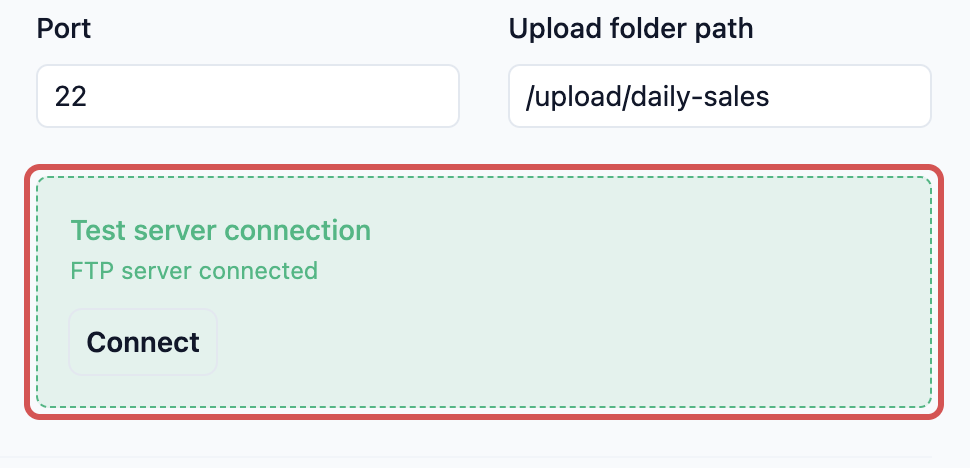
- In the Test server connection box, click Connect. The box turns green with "FTP server connected" (or "HTTP endpoint accepted the test request") when the details work. If it turns red, check the details with your mall.
- Under File format, fill in File name and Row format the way your mall's guide shows them.
- In Each row represent, choose what one line of the file stands for: All sales of the day, Sales of each hour of the day or Each order. Your mall's guide tells you which.
- Tick the boxes your mall asks for: - No-sales placeholder sends a line even on a day with no sales, such as a public holiday when you close. - Voided orders lists the orders you cancelled as their own lines. This matters when each line is one order.
- If your row format includes payment methods, open Payment method codes and type the code your mall uses for each one, such as cash or card.
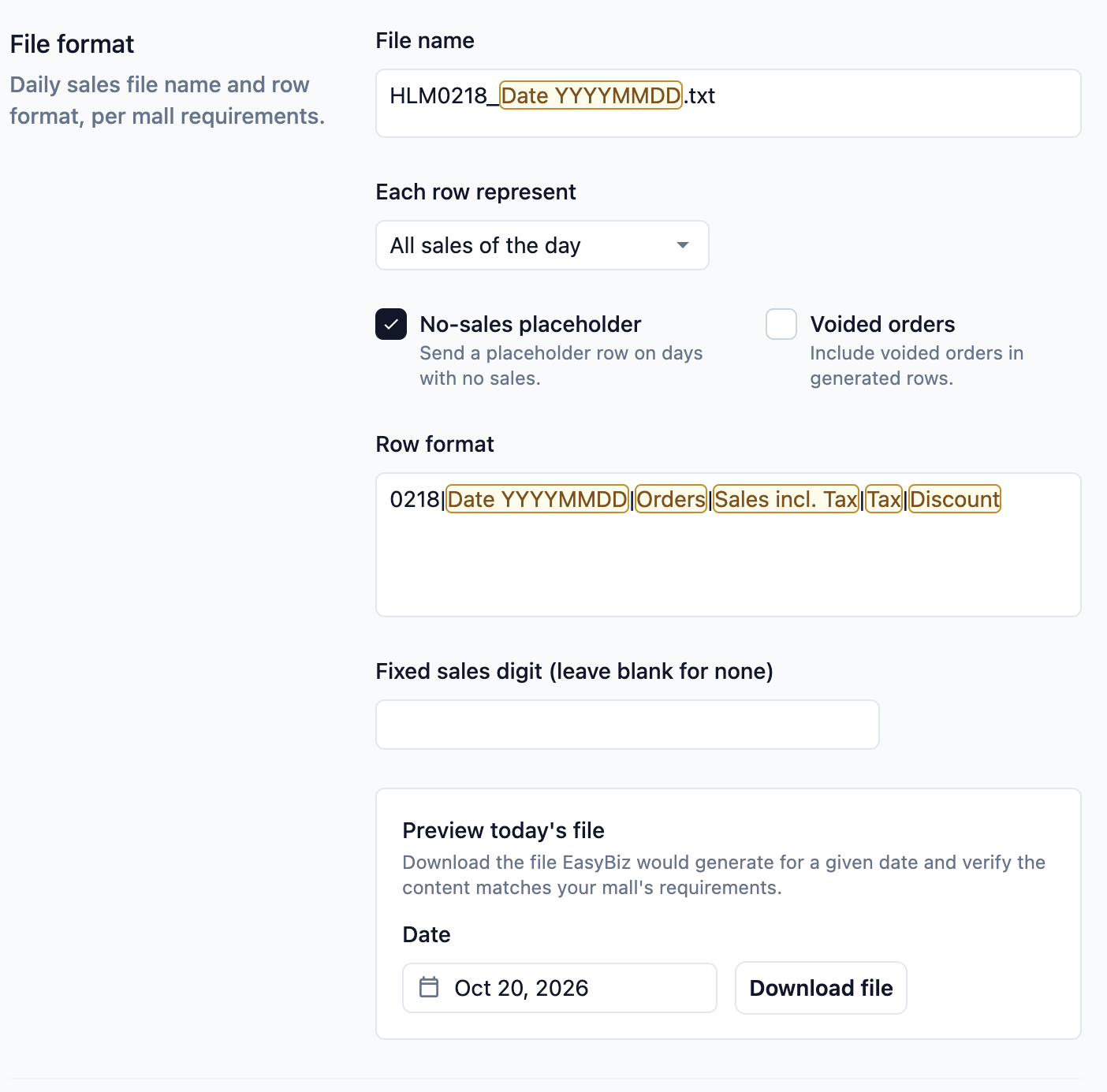
- Check the file before you switch anything on. In the Preview today's file box, pick a recent date and click Download file. Open the file and compare it with the sample from your mall.
- Click Save.
- Under Automatic upload, turn on Upload every day. A message confirms when the next upload is scheduled, and the badge beside it shows "Next upload" with that date.
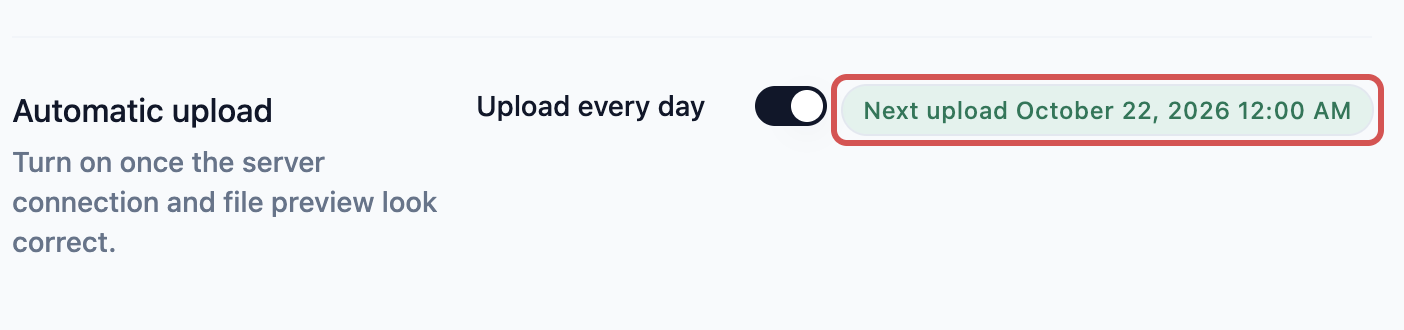
From now on, EasyBiz sends each day's sales shortly after midnight, as soon as that day has ended.
Check the sending history
- Go back to the Mall Reporting tab.
- On your outlet's card, click History.
- In the calendar on the left, click a day. Days with a successful upload are marked.
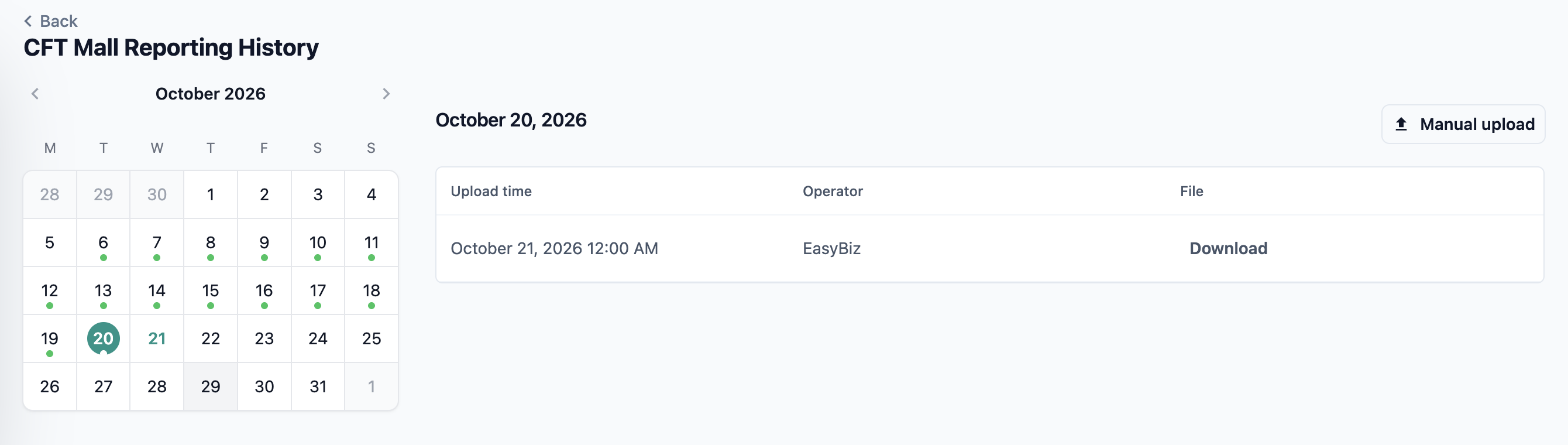
Each day is filed under the date of the sales, not the date it was sent. So the file sent just after midnight on 5 March shows under 4 March.
The table shows every upload for that day:
- Upload time: when the file was sent.
- Operator: who sent it. "EasyBiz" means it went out automatically.
- File: click Download to see exactly what the mall received.
If the mall says a day is missing, select that day and click Manual upload. EasyBiz sends that day's file again straight away.
Example: BagCare Pro's mall outlet
BagCare Pro repairs bags at two outlets. One is a street shop. The other is inside Harbourline Mall, which asks every tenant for daily sales by SFTP.
The owner, Daniel, sets up only the mall outlet:
- He opens Settings, then Point of Sale, then the Mall Reporting tab.
- On the Harbourline outlet's card, he clicks Setting.
- He picks FTP/SFTP, chooses SFTP and types the server address, username and password from the mall's letter.
- He clicks Connect and sees "FTP server connected".
- The mall wants one line per day, so he chooses All sales of the day and copies the file name and row format from the mall's guide.
- He downloads yesterday's file and checks it against the mall's sample. The total matches his Sales report.
- He clicks Save and turns on Upload every day.
The street shop's card still says "disabled", which is what he wants. A week later, Daniel opens History and sees every day marked, each sent by EasyBiz just after midnight. He no longer has to remember the mall at all.
FAQs
What if a day fails to send?
EasyBiz tries again by itself. It waits one hour, then two hours, then three, and so on, up to 12 more tries. If every try fails, automatic sending for that outlet turns off and its card shows "disabled". Fix the details with your mall, click Connect to test, then turn Upload every day back on. Use Manual upload on the History page to send the days that were missed.
Does it include refunds?
Yes. Credit notes made on that day are included. A credit note is the record EasyBiz makes when you reduce a bill or give money back. A cancelled (voided) order takes itself back out of the day's total. If each line is one order, the cancelled order only shows as its own line when you tick Voided orders.
Why doesn't the mall's figure match my Sales report?
Check three things. The file only counts the one outlet, while your Sales report adds up every outlet unless you filter it. A change to an older order counts on the day you make it, not on the order's original day. And if your row format uses payment methods, those amounts follow the money collected, not the sales made. Sales vs Payment Totals explains why those two differ.
I changed an order from last week. Does the mall get the new numbers?
The change counts on the day you make it, so it goes to the mall in that day's file. The day that was already sent stays as it was. This keeps your mall figures in line with how your Sales report records changes.
Can I send a day from before I switched it on?
Yes. Open History, choose the old date in the calendar and click Manual upload. EasyBiz builds the file from that day's sales.
Why is Mall Reporting missing from my Point of Sale page?
You need permission to manage Point of Sale settings. Ask the account owner to give you access, or to set it up for you.
What's next
That's the last article in this series. Go back to Understanding Your Reports for a quick tour of every report and which question each one answers.