
Before you start
- This guide is for shops in Malaysia only. If your shops are all in Singapore, you can skip it and go straight to Sending Daily Sales to Your Mall.
- Your business needs a Malaysia market. A market is the country you trade in, with its own currency and tax. The E-Invoice page only appears once a Malaysia market is set up.
- You need access to the Sales report. Staff without it won't see the E-Invoice page. Giving Your Staff Access to Reports shows how to turn it on.
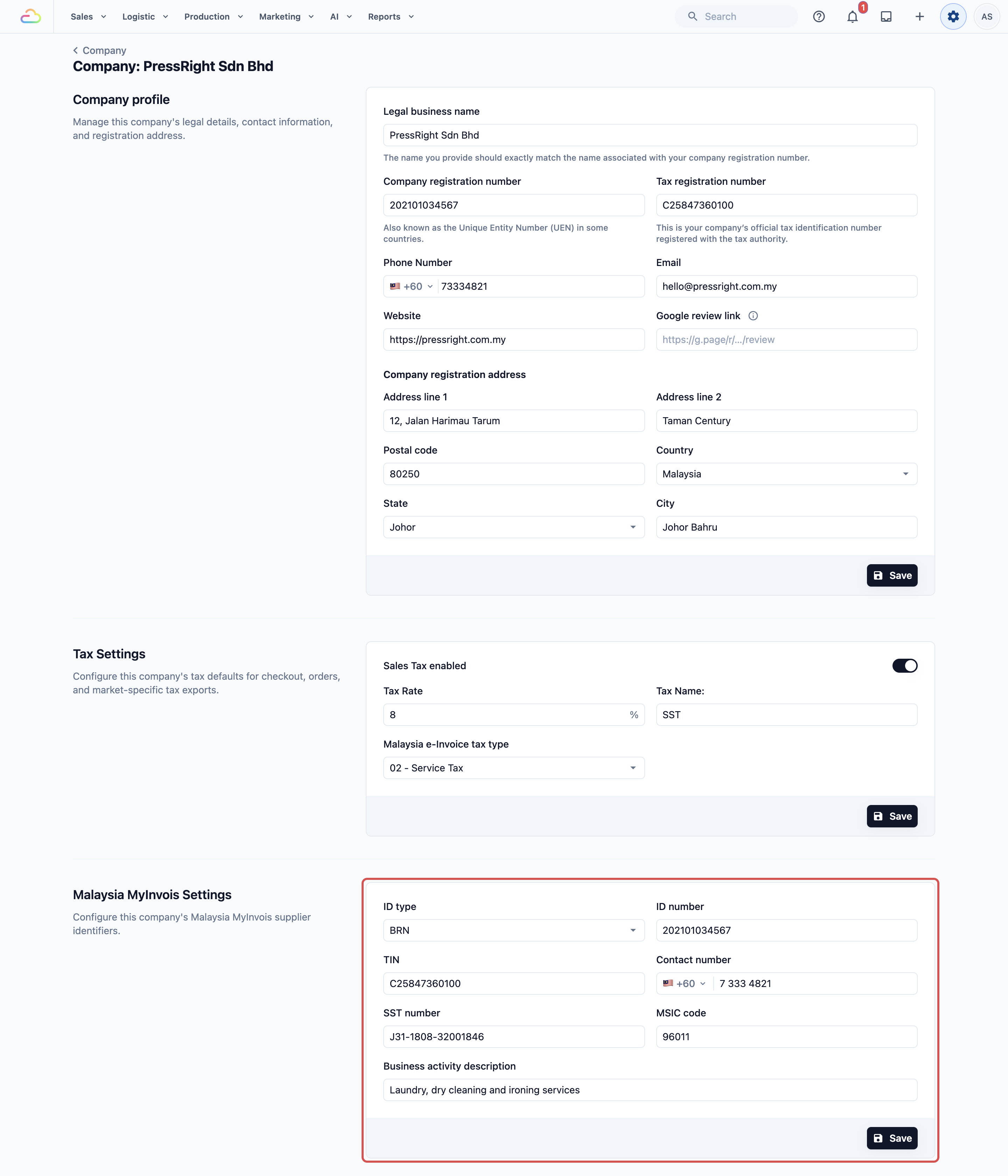
- Your company's MyInvois details only need filling in once: your supplier legal name, ID type, ID number, TIN, MSIC code, business activity description and registered address, plus your Malaysia e-Invoice tax type and tax rate. To check them:
1. Click Settings.
2. Click Company.
3. Click your Malaysia company.
4. Scroll to Malaysia MyInvois Settings and fill in any empty fields.
What MyInvois and a consolidated e-invoice are
MyInvois is LHDN's website for e-invoices. LHDN is Malaysia's tax authority. Every sale your shop makes has to be reported to MyInvois as an e-invoice, which is a digital invoice the tax authority can see.
Most of your customers are walk-in customers who never ask for their own e-invoice. LHDN lets you combine all of those sales into one consolidated e-invoice for the month. Consolidated simply means "put together". Instead of filing hundreds of receipts one by one, you file one monthly summary.
The E-Invoice page builds that monthly file for you. It helps you answer two questions each month: is this month ready to file, and did every sale get in? Without it, your staff would copy every receipt into LHDN's spreadsheet by hand. A missed sale would only show up when the numbers don't match.
Filing happens in 3 parts:
- You export the month from your Console. To export means to save it as a file. Here, that's an Excel file in LHDN's format.
- You upload that file to the MyInvois portal yourself. Your Console can't do this part for you.
- You come back to the E-Invoice page to check what was filed.
Open the E-Invoice page
- Sign in to the Console.
- In the menu bar at the top of the screen, click Reports.
- Click E-Invoice.
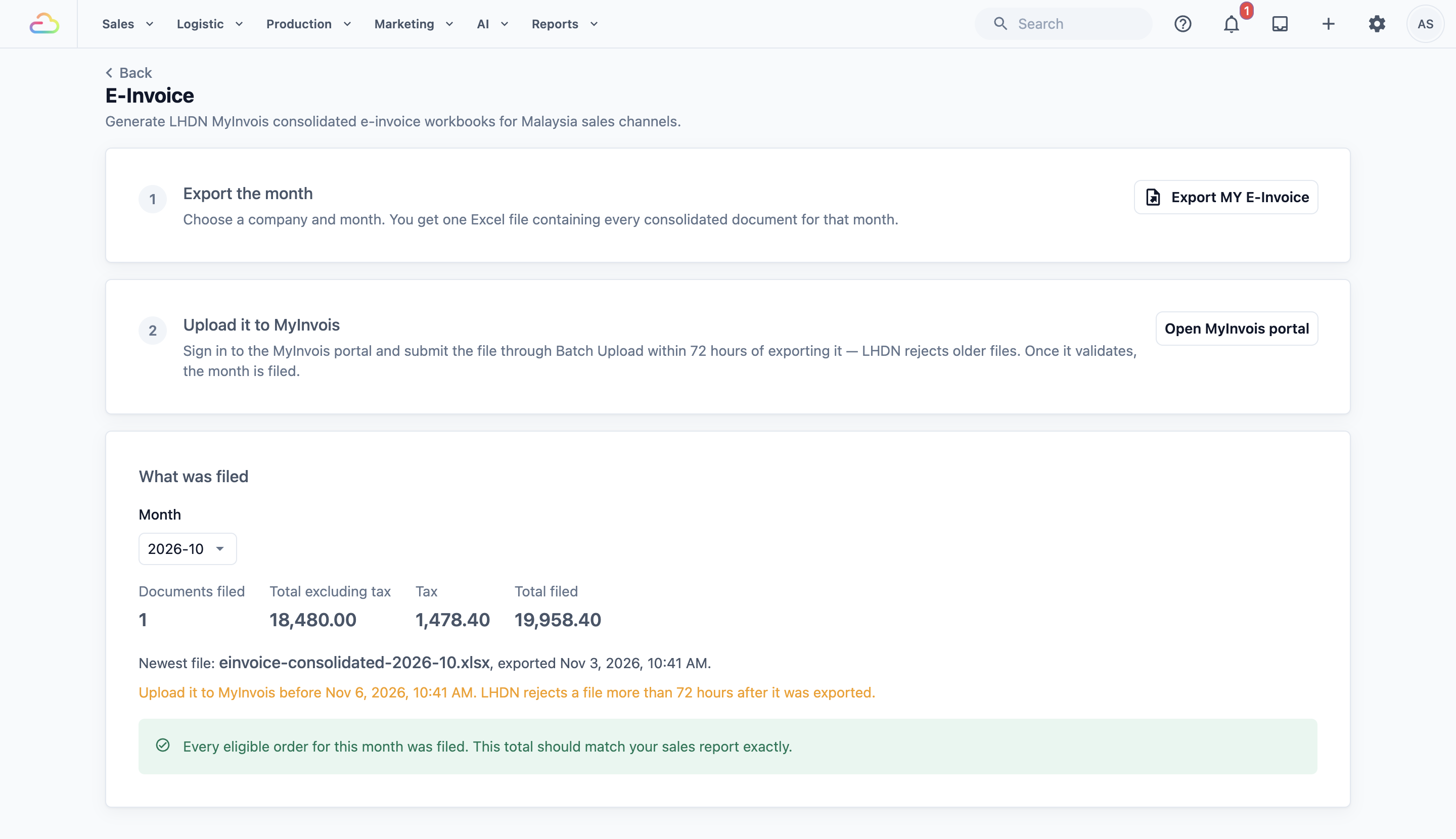
The page shows 2 numbered cards, Export the month and Upload it to MyInvois. The What was filed section sits below them.
Export the month
- On the Export the month card, click Export MY E-Invoice.
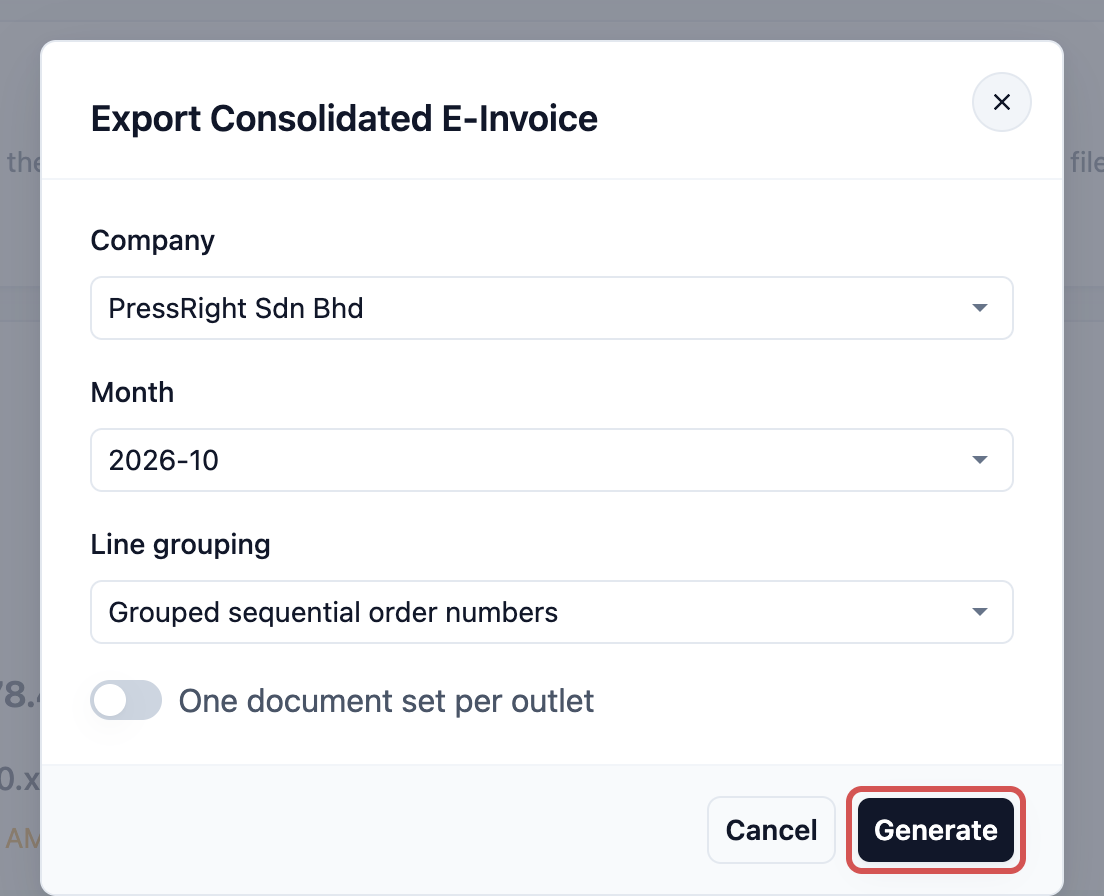
- The Export Consolidated E-Invoice window opens. In Company, choose the company you are filing for. If you trade in more than one Malaysia market, choose the Market first.
- In Month, choose the month you are filing.
- Leave Line grouping on its default unless your accountant asks otherwise. The choices are explained below.
- If each outlet must file its own documents, turn on One document set per outlet. Leave it off to file all your outlets together.
- Click Generate.
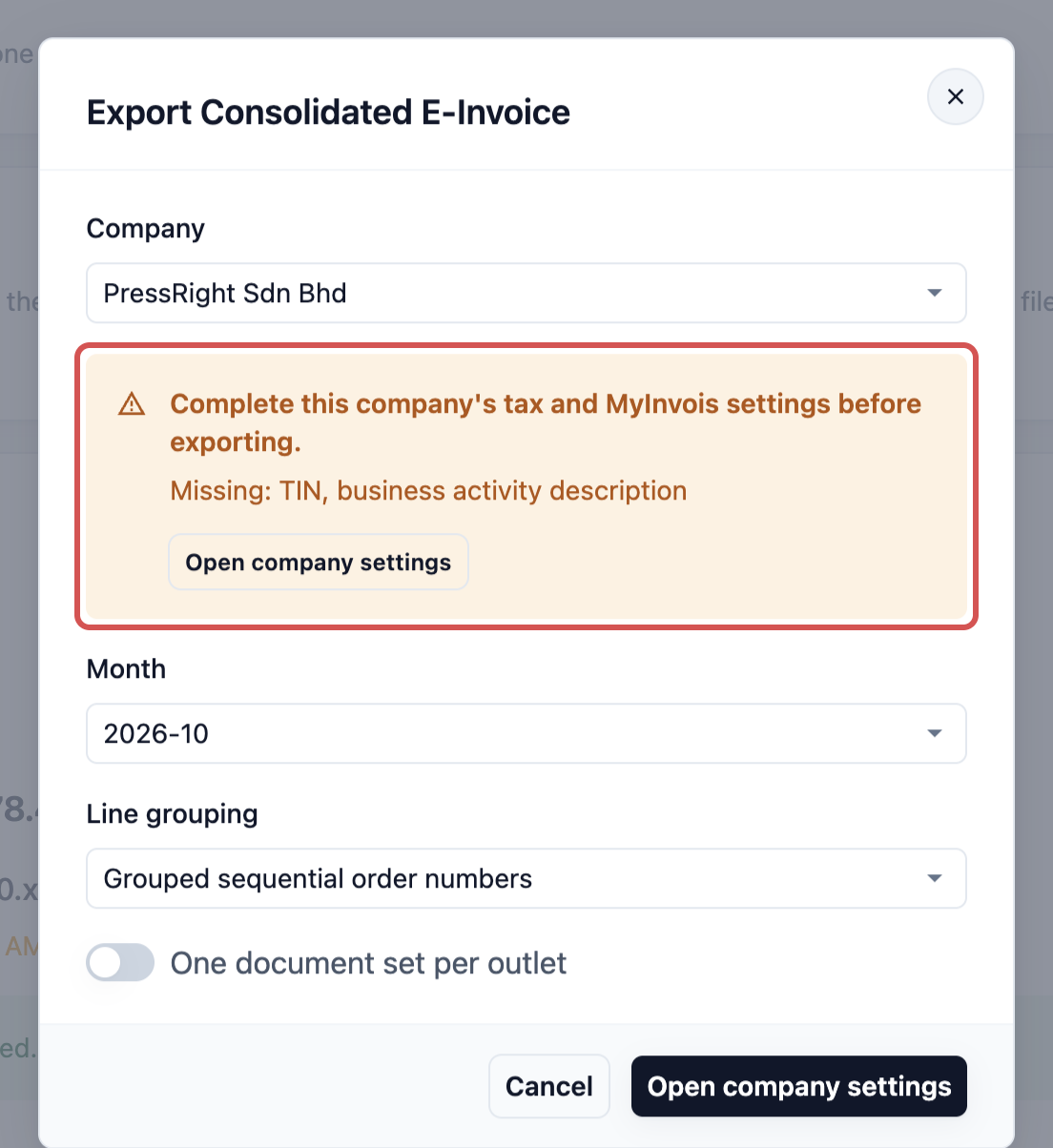
If your company's MyInvois details are not complete, the window says "Complete this company's tax and MyInvois settings before exporting." and lists what is missing. Click Open company settings, fill in the fields, then come back and export again.
- When Export ready shows on the page, click Download to save the file to your computer.

You'll also find the file on your Downloads page. Exporting Reports and Downloads shows where to find it.
| Line grouping | What it does |
|---|---|
| Grouped sequential order numbers | Joins orders with running numbers into one line, such as orders 1001 to 1250. This is the default. It keeps a busy month's file small enough for MyInvois. |
| One line per order | Puts every order on its own line. Use it only if your shop has few orders in a month. |
Submit the file to MyInvois
Do this straight after you export. MyInvois only accepts the file within 72 hours of the export.
- On the Upload it to MyInvois card, click Open MyInvois portal. The portal opens in a new tab.
- Sign in to MyInvois with your company's login.
- Open Batch Upload and choose the file you just downloaded.
- Submit it and wait for MyInvois to finish checking it. Once it validates, the month is filed.
LHDN expects the consolidated e-invoice within 7 days after the month ends. So export and upload in the first week of the next month.
If MyInvois rejects the upload because the issuance date is "too old", the file is more than 72 hours old. Export the month again and upload the new file. MyInvois Rejects the Upload as "Too Old"? Export the Month Again explains why.
Check what was filed
Come back to the E-Invoice page after you upload. The What was filed section shows the month you exported last.
- In Month, choose the month you want to check. If you have more than one company, choose the Company too.
- Read the 4 numbers at the top:
- Documents filed: how many documents went into the file.
- Total excluding tax: your sales before tax.
- Tax: the tax on those sales.
- Total filed: the full amount sent to LHDN.
- Read the line under the numbers. It names the newest file, says when it was exported and gives the time to upload it by. Once 72 hours pass, it tells you the file has expired.
- If the month was exported more than once, a note says how many times. Upload only the newest file. Older files carry document numbers MyInvois has already seen, so they fail.
- Look for a list headed by the number of orders that need attention. These sales were not filed. Each row shows the Order, the Reason and the Amount. Click a row to open that order and fix it, then export the month again.
If nothing was left out, a green message says "Every eligible order for this month was filed. This total should match your sales report exactly."
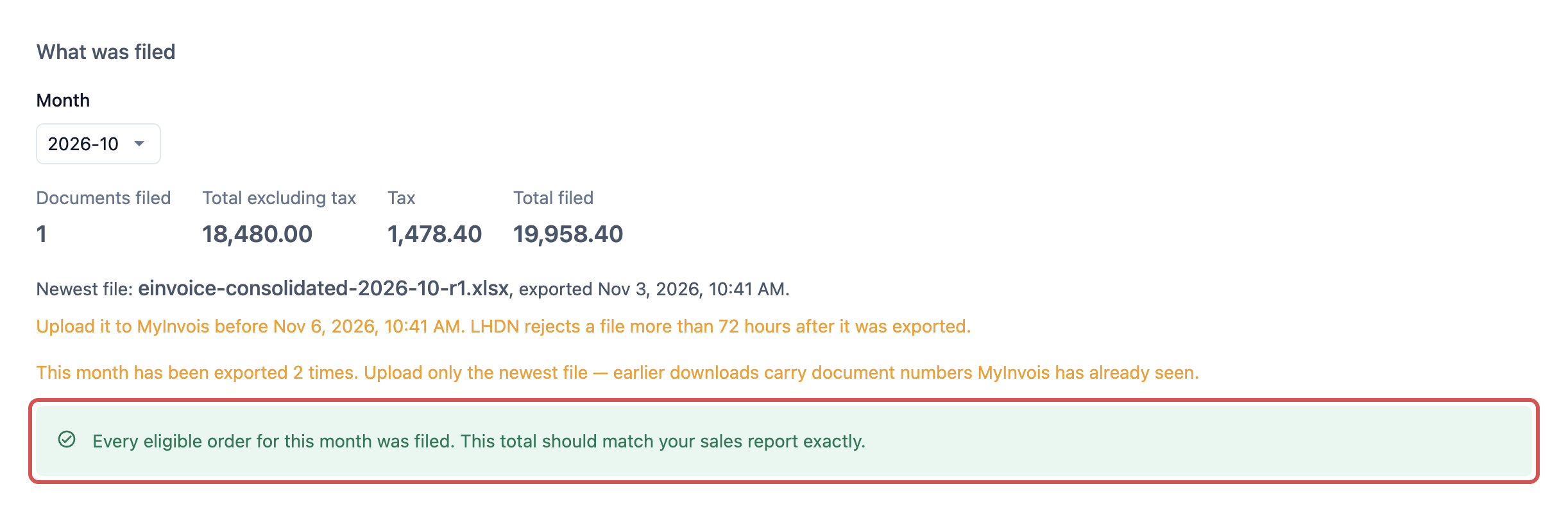
Some orders are left out on purpose, and a grey line under the list counts them. These are sales that need their own e-invoice instead, such as agent sales and very large orders. You don't need to do anything about them here.
Example: PressRight Johor files October
PressRight is a laundry with a branch in Johor Bahru. Siti, the branch owner, files October's sales on 3 November.
- Siti clicks Reports, then E-Invoice.
- She clicks Export MY E-Invoice.
- She picks PressRight Sdn Bhd as the Company and 2026-10 as the Month. She leaves Line grouping on Grouped sequential order numbers and clicks Generate.
- When Export ready shows, she clicks Download. The file is named einvoice-consolidated-2026-10.xlsx.
- She clicks Open MyInvois portal, signs in and submits the file through Batch Upload. It validates.
- Back on the E-Invoice page, What was filed shows Total excluding tax 18,420.00, Tax 1,473.60 and Total filed 19,893.60.
- She sees "1 order needs attention". The reason says no company is set on the order. Her staff keyed it in at a sales channel that was never linked to her company.
- She opens the order, fixes the sales channel with her staff and exports October again. The new file ends in -r1. She uploads only that one.
In ten minutes, Siti's October is filed, and she knows the filed total matches her Sales report.
FAQs
Why don't I see E-Invoice in my Reports menu?
It only appears when your business has a Malaysia market set up. Your staff also need access to the Sales report, because the e-invoice is built from the same sales. If you have both and still don't see it, ask support to check your market's country.
Which sales are included?
The file includes the same sales your Sales report counts for that month, for the sales channels linked to the company you chose. A sales channel is any place you take orders, such as an outlet or your online store. Refunds in the month lower the total. Some orders are left out because they are invoiced separately or are not a sale: agent sales, orders that already have their own e-invoice, orders above RM10,000, voided orders and orders whose price was never confirmed. Test sales channels are left out too.
Why is Total filed lower than my Sales report for the same month?
The difference is the orders that were left out. Check the list of orders that need attention and the grey line about orders left out on purpose. Reading the Sales Report shows where to find the month's sales total to compare.
Can I export a month from last year?
The Month list only goes back 12 months, counting this month. You can't export older months from the E-Invoice page, so file each month on time.
Should I export again after I fix an order?
Yes. A fix only reaches MyInvois in a new export. Each new export gets new document numbers and a file name ending in -r1, -r2 and so on. Upload only the newest one.
What's next
Continue to Sending Daily Sales to Your Mall to send your outlet's daily sales to your shopping mall automatically.