
Before You Start
- You need access to the report you want to export. If a report is missing from your Reports menu, see Giving Your Staff Access to Reports.
- Exports open in Microsoft Excel, Google Sheets or Apple Numbers. Any one of them is fine.
- Know which dates you want. The export starts with the period the report is showing. To change it, see Report Periods and Filters.
What Exporting Means
To export a report is to save its figures as a spreadsheet file on your computer. EasyBiz makes the file for you. The file type is XLSX, the normal Excel format.
You can export the Sales, Payments, Contacts, Credits and Deals reports. Each export arrives as one workbook. A workbook is one Excel file with several tabs, called sheets. The first sheet is always a Summary.
Exporting helps when someone works outside EasyBiz. Your accountant can check your month. Your bank can see your takings. You can keep your own copy for your records.
Without it, you would copy numbers from the screen by hand. That takes time, and one wrong figure goes straight into your accounts.
Export a Report
- In the menu on the left, click Reports.
- Click the report you need, for example Sales.
- Choose the period you want, such as Monthly and the month.
- At the top right, click Export.

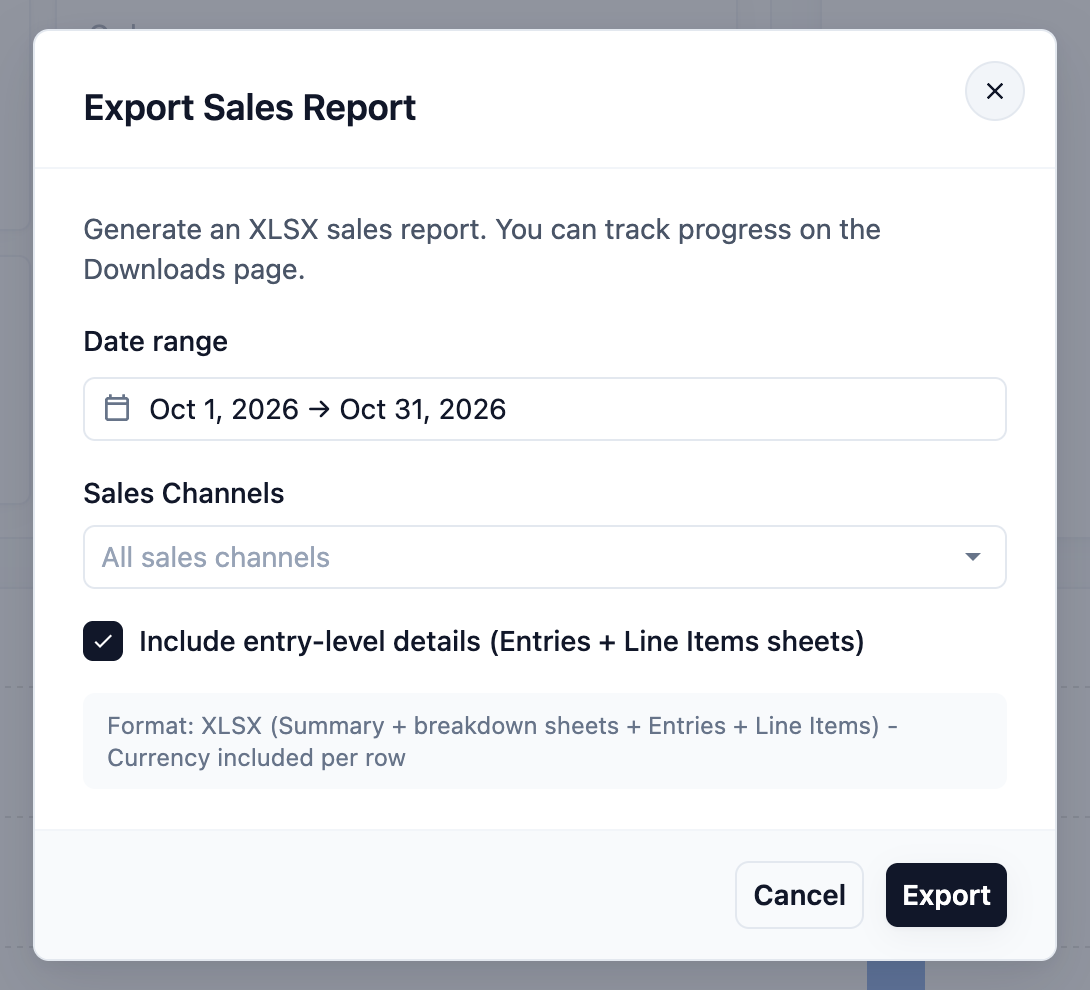
The Export Sales Report window opens. It says Generate an XLSX sales report. You can track progress on the Downloads page.
- Check the Date range. It starts with the period the report was showing. Change it here if you need different dates.
- Under Sales Channels, leave All sales channels, or pick the outlets you want. A sales channel is any place you take orders, such as an outlet, your online store or your mobile app.
- Tick Include entry-level details (Entries + Line Items sheets) if you need every order and every item, not just the totals.
- Read the grey box under the options. It tells you which sheets the file will have.
- Click Export.
The window closes and EasyBiz starts making your file. The Export button now shows Exporting... or a count such as 1200 entries... while it works.
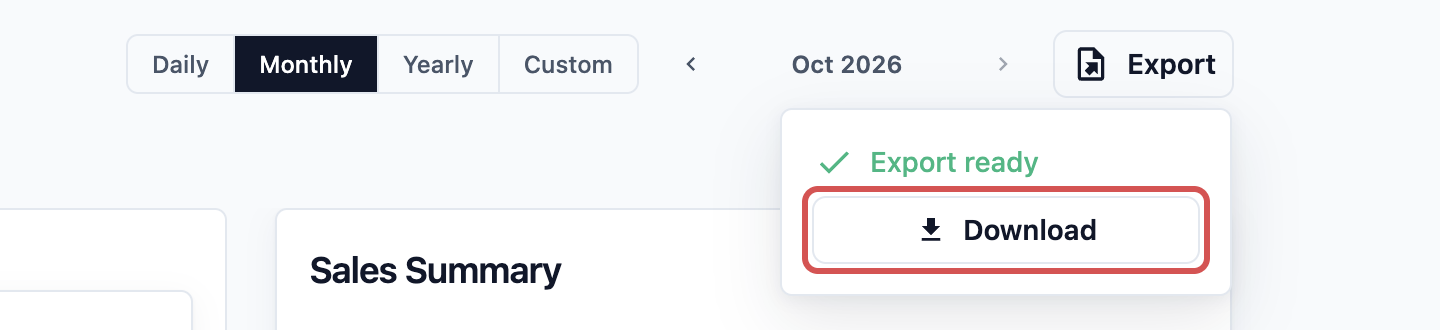
- When the file is ready, a small box opens under the button saying Export ready. Click Download.
The other reports work the same way. Their windows have their own options, such as Services and Include full customer list on the Contacts report. The grey box always shows what you will get.
Where the File Goes in Downloads
You don't have to wait on the report page. Every export you make is also kept on your Downloads page in EasyBiz. You can leave, serve a customer, and collect the file later.
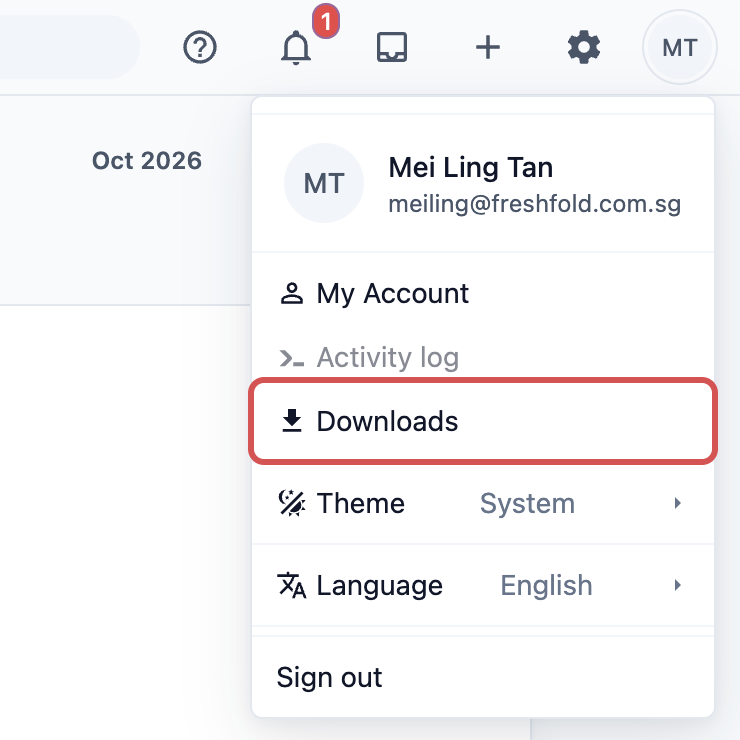
- At the top right, click your profile picture or initials.
- Click Downloads.
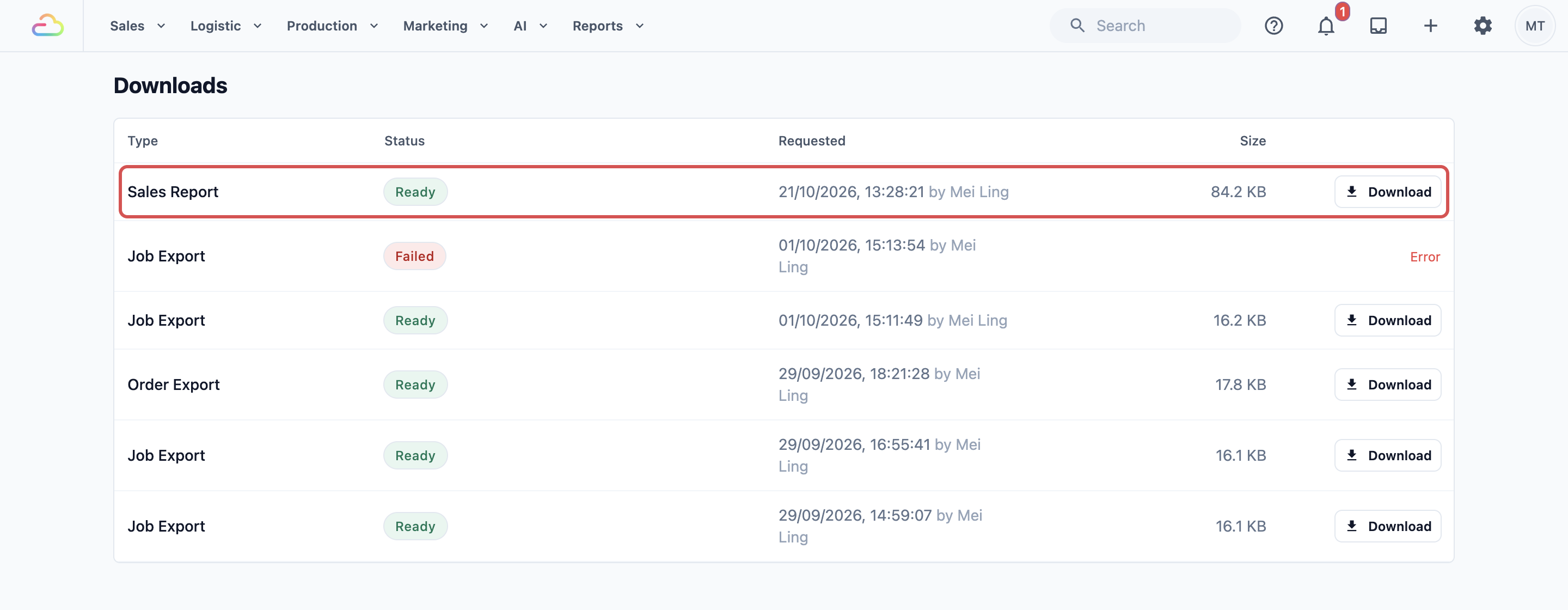
The page lists your exports, newest first. Each row shows:
- Type: which report it is, such as Sales Report or Payment Report.
- Status: Pending while it waits to start, Processing while EasyBiz makes it, Ready when you can download it, or Failed if it couldn't be made.
- Requested: the date and time you asked for it, and who asked.
- Size: how big the file is.
- On a Ready row, click Download.
Your browser saves the file to your computer, usually in its own Downloads folder. That folder is on your computer and is a different place from the Downloads page in EasyBiz.
Open It in Excel
- Open your computer's Downloads folder.
- Double-click the file. Its name starts with the report and the dates, for example sales-Sep-2026-2026-09-30.xlsx.
- Excel opens the workbook on the Summary sheet.
- Click the tabs along the bottom to see the other sheets. On a sales export, Daily Sales shows one row for each day.
If Excel shows a yellow bar saying Protected View, click Enable Editing to sort or add your own notes. No Excel? Upload the file to Google Sheets, or open it in Numbers on a Mac.
Example: FreshFold Sends September to Its Accountant
FreshFold Laundry has two outlets and an online store. Each month, owner Mei Ling sends her accountant the full sales for the month.
- On 1 October, Mei Ling clicks Reports, then Sales.
- She clicks Monthly and moves to September 2026.
- She clicks Export. The Date range already shows 1 to 30 September.
- She leaves All sales channels, so both outlets and the online store are included.
- Her accountant wants every order, so she ticks Include entry-level details (Entries + Line Items sheets).
- She clicks Export, then goes to help a customer at the counter.
- Later, she opens Downloads from her profile menu. The Sales Report row says Ready. She clicks Download.
- She opens the file in Excel, checks the Summary sheet matches the total she saw on screen, and emails the file to her accountant.
The whole task takes about 2 minutes. Nobody types a single number by hand.
FAQs
How long are my files kept?
Your Downloads page shows your 50 most recent exports. When you make more, the oldest ones drop off the list. If you need an old file again, export the same dates again. The figures come from your records, so you get the same report.
Why is my export still processing?
Big exports take longer. A full year, or a month with entry-level details ticked, can take a few minutes. You can close the page while it works. The Downloads page updates by itself, so check back in a few minutes. If it says Failed, point at Error to see why, then export again.
Why can't I export a whole year with every order?
Exports cover up to one year at a time. With entry-level details ticked, the limit is about three months (92 days). The window shows a red message if your dates are too long. Turn the details off, or export one quarter at a time.
Why can't my staff see the file I exported?
Each person's Downloads page only shows the exports they made themselves. This keeps your figures private. To share a file, download it and send it, or let the staff member export it with their own access.
Why doesn't my file match the screen exactly?
The file covers the dates in the Date range and the outlets you picked in the export window, not always what is on screen. If you changed them, the totals change too. For why sales and payment totals differ, see Sales vs Payment Totals.
Can I export orders or contacts without opening a report?
Yes. Lists such as your orders, payments and contacts have their own export button. Those files also arrive on your Downloads page.
What's Next
Now that you can take your figures out of EasyBiz, learn what they mean. Continue to Reading the Sales Report.