
Before You Start
- You need access to the report you want to open. If a report is missing from your Reports menu, see Giving Your Staff Access to Reports.
- This guide uses the Sales report as the example. The other reports use the same controls, with fewer choices.
- A sales channel is any place you take orders, such as an outlet counter, your online store or a connected marketplace like TikTok Shop.
What the Period and Filters Do
Every report answers two questions: when, and where. The period is the "when". It is the stretch of time the report counts, such as one day, one month or one year. The filters are the "where". They narrow the report down to one country, one outlet or one shop address.
Together they help you make everyday decisions. Is your newer outlet growing? Is this Saturday busier than last Saturday? Did your April promotion bring in more money than March?
Without them, you only see one big total for the whole business. A busy outlet can hide a quiet one, and a good month can hide a bad week.
The Four Periods
| Period | What it counts | Good for |
|---|---|---|
| Daily | One day, with that day's orders listed at the bottom | Checking today, or one busy day |
| Monthly | One calendar month. The report opens on this | Your monthly review and comparing months |
| Yearly | One calendar year | Your year-end review and seasonal patterns |
| Custom | Any dates you choose, up to 366 days | Promotions, school holidays and festive seasons |
Not every report offers all four:
- Payments: Daily, Monthly and Yearly.
- Contacts and Credits: Monthly and Yearly.
- Notifications: Monthly only.
- Production and Deals: Daily, Weekly, Monthly and Custom. Weekly runs from Monday to Sunday, and Custom covers up to 90 days.
Choose a Period
- In the left menu, under Reports, click Sales.
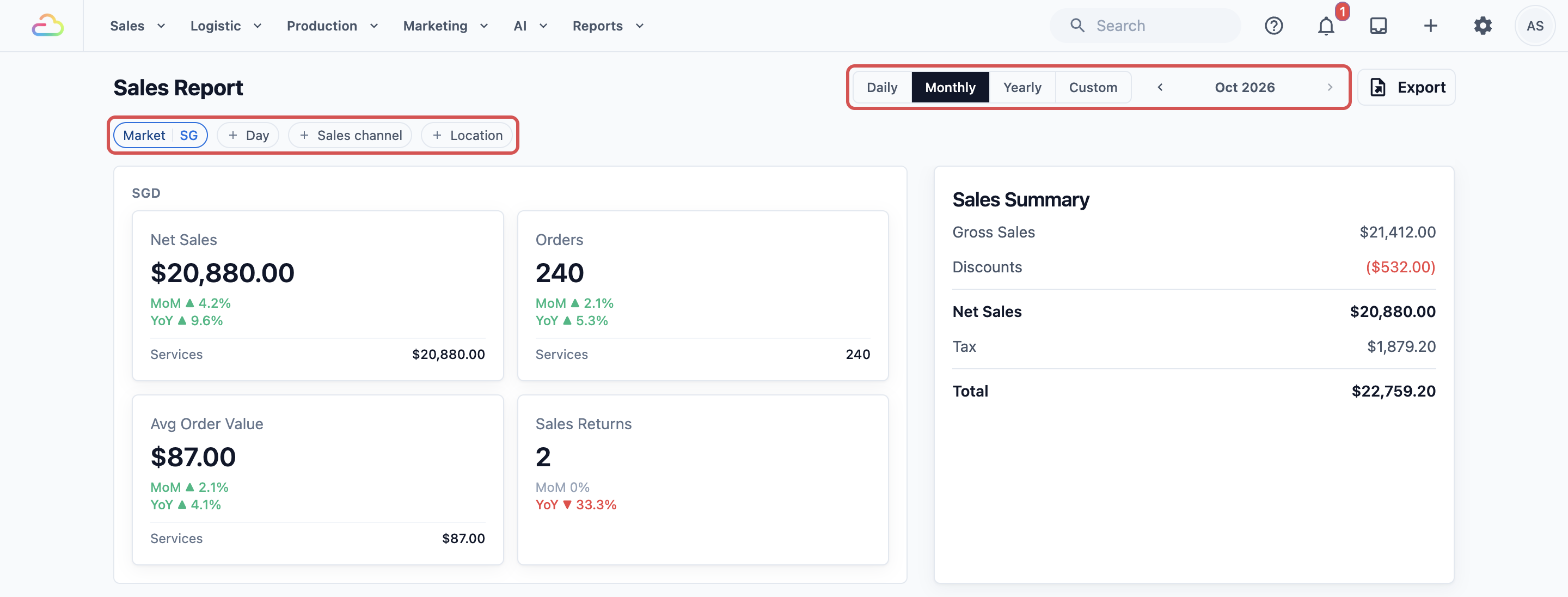
- At the top, click Daily, Monthly, Yearly or Custom.
- Click the left or right arrow next to the date to move back or forward one day, month or year. The right arrow stops at today.
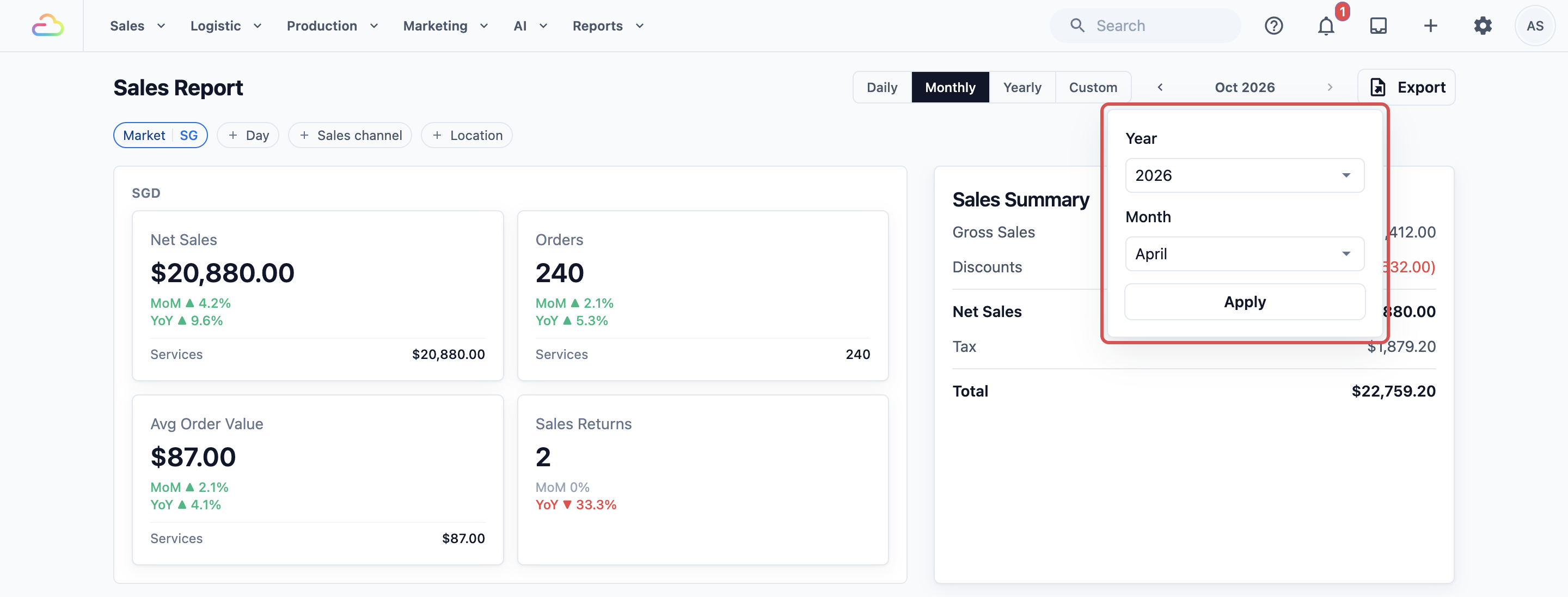
- To jump further back, click the date itself, such as Apr 2026.
- Choose the Year and Month, then click Apply. On Daily, a calendar opens instead, so just click the day you want.
- For Custom, click the date box, then click your first day and your last day.
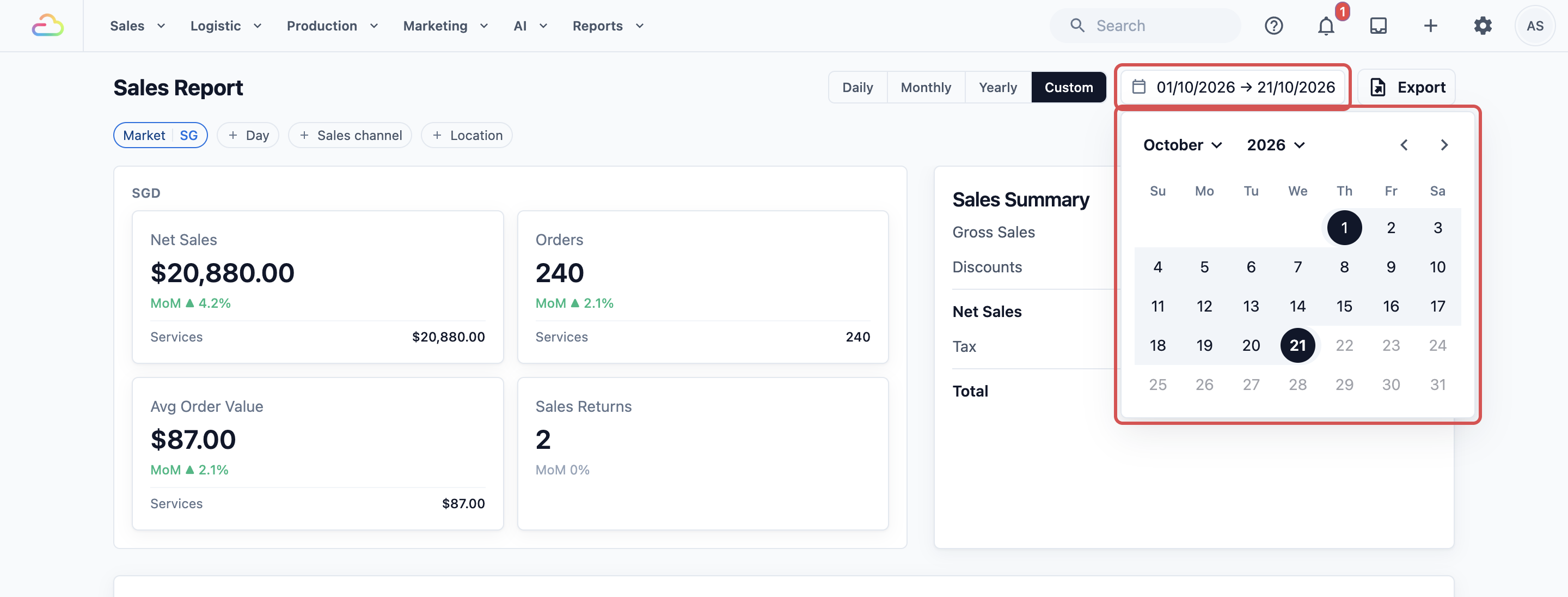
The report updates as soon as you change the period. If your Custom range is longer than 366 days, you see Custom ranges are limited to 366 days. Select a shorter range. Pick a shorter range to continue.
Filter by Sales Channel
The filters sit in a row under the report title. Each one is a small button that opens a list.
- Market: the country the report covers, such as Singapore or Malaysia. Each market has its own currency, so the report always shows one market at a time. If you only trade in one country, it is already chosen for you.
- Day: only on Monthly and Custom. Pick days of the week, such as Saturday and Sunday, to see your weekends only. Leave it on All Days to count every day.
- Sales channel: one place you take orders, such as one outlet counter or your online store.
- Location: one physical shop address. Use it when a shop has more than one sales channel and you want all of them together.
You can use Sales channel or Location, but not both. Choosing one clears the other.
- Click Sales channel.
- Pick the outlet you want from the list.
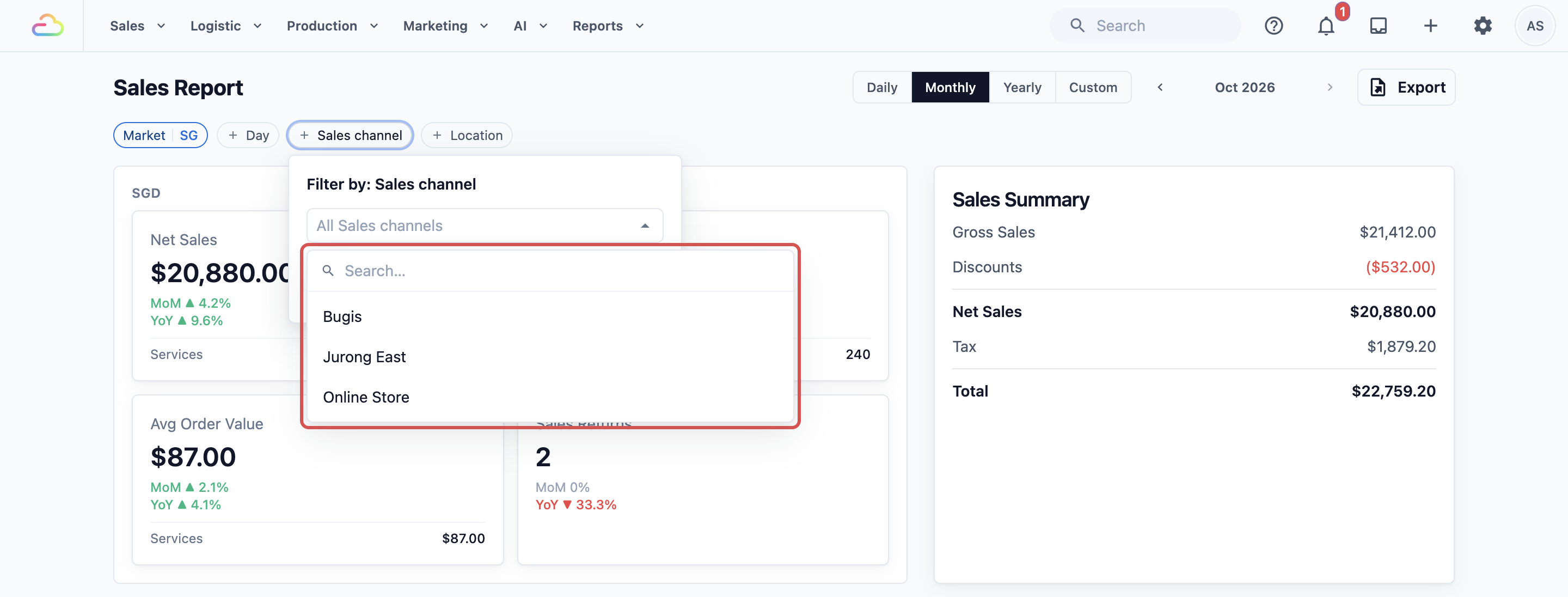
- The whole report now counts that sales channel only, and the filter shows its name.
- To see every sales channel again, clear the filter.
You'll also find the Sales channel filter on the Payments, Contacts and Credits reports. Production and Deals don't have one.
Compare Periods
You don't need to open two reports side by side. The Sales report compares for you. Under each number on the top cards, Net Sales, Orders, Avg Order Value and Sales Returns, a small label shows the change in percent. ▲ means up and ▼ means down.
| Period | Label | Compares with |
|---|---|---|
| Daily | DoD | The day before |
| Daily | WoW | The same weekday last week |
| Monthly | MoM | The month before |
| Monthly | YoY | The same month last year |
| Yearly | YoY | The year before |
| Custom | MoM | The same number of days just before your range |
When you look at the current month, the comparison is fair. On 15 April, MoM compares 1 to 15 April with 1 to 15 March, not with the whole of March. The current year works the same way, month by month.
Your filters apply to the comparison too. Pick one outlet, and the percentages compare that outlet with itself.
Example: BagCare Pro Compares March and April
BagCare Pro repairs handbags at two outlets, Bugis and Jurong East, and also takes orders through its online store. The owner, Mei Ling, ran a leather care promotion at Jurong East in April. She wants to know if it worked.
- She clicks Sales under Reports. The report opens on Monthly.
- She clicks the month name, chooses 2026 and April, and clicks Apply.
- She clicks Sales channel and picks Jurong East.
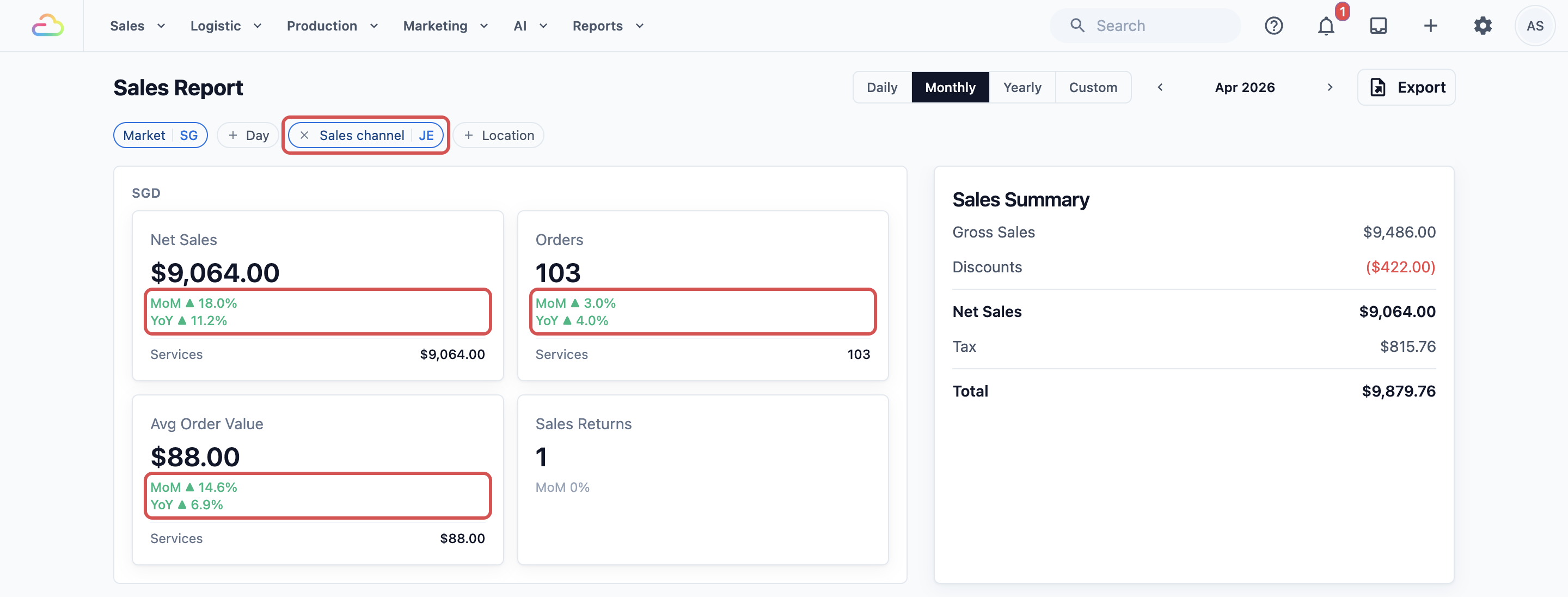
- Net Sales shows MoM ▲ 18.0%. Jurong East made more in April than in March.
- Orders shows only MoM ▲ 3.0%, but Avg Order Value is clearly up. So she didn't get many more customers. Each customer spent more.
- She clicks the left arrow to see March's own figures. The filter stays on Jurong East.
Mei Ling decides to keep the promotion running and to try it at Bugis next month.
FAQs
Why does today look so low?
Today only counts the sales made so far. Its DoD label compares them with the whole of yesterday, so it often shows a drop until you close for the day. New sales usually appear within a minute. Monthly and Yearly don't have this problem, because they compare the same days so far.
Which time zone is used?
Each order is counted on the local date of the shop where it was taken, using your market's time zone. Singapore and Malaysia share the same time, so an order taken at 11.30pm stays on that day. The arrows and the latest date you can pick follow your computer's date, so keep your computer's clock correct.
Why is a sales channel missing from the list?
The list only shows sales channels in the market you have chosen. Switch the Market filter to see the other country's outlets. A connected TikTok Shop appears in the Sales report's list, but not in the other reports.
Can I see all my outlets at once instead of one by one?
Yes. Clear the Sales channel filter and scroll down to Sales by Business. It lists each sales channel with its Net Sales, Orders and Share % for the period you chose.
Why does the Payments report show a different total for the same month?
Sales counts orders, while Payments counts money received, and the two often land on different days. Sales vs Payment Totals explains why.
Why did last month's number change?
A late change, such as a cancelled order, can still update a month you already looked at. Closing a period locks it, so later changes count in the current period instead. See Closing a Sales Period.
What's Next
Continue to Exporting Reports and Downloads to save any report you've filtered as a file you can share or keep.