
Before You Start
- Settings access. Only staff who can manage settings see the sales period controls. If you cannot find them, ask the account owner to check your access in Users & Access.
- A clear idea of what counts as a sale. Closing locks your sales, not the money you collected. See Sales vs Payment Totals.
What Closing a Sales Period Means
A sales period is a stretch of dates, usually one month. When you close it, every sale dated on or before the last closed day is frozen. Nobody can change those sales, so the Sales Report for that month always shows the same total.
An order counts as a sale once it is confirmed and has a price. Draft orders, quotes and orders still waiting for a price are not affected.
Closing is done per company. Here, a company means your registered business, the one that files GST or SST. Closing covers every sales channel of that company. A sales channel is a place where you take orders, such as your shop counter, your online store or your mobile app. If you run more than one company in EasyBiz, each one closes on its own.
Closing helps you decide one thing: when a month is final and safe to hand to your accountant or the tax office.
Open the Sales Period Settings
- Click Settings.
- Click Company.
- Click the company you want to close.
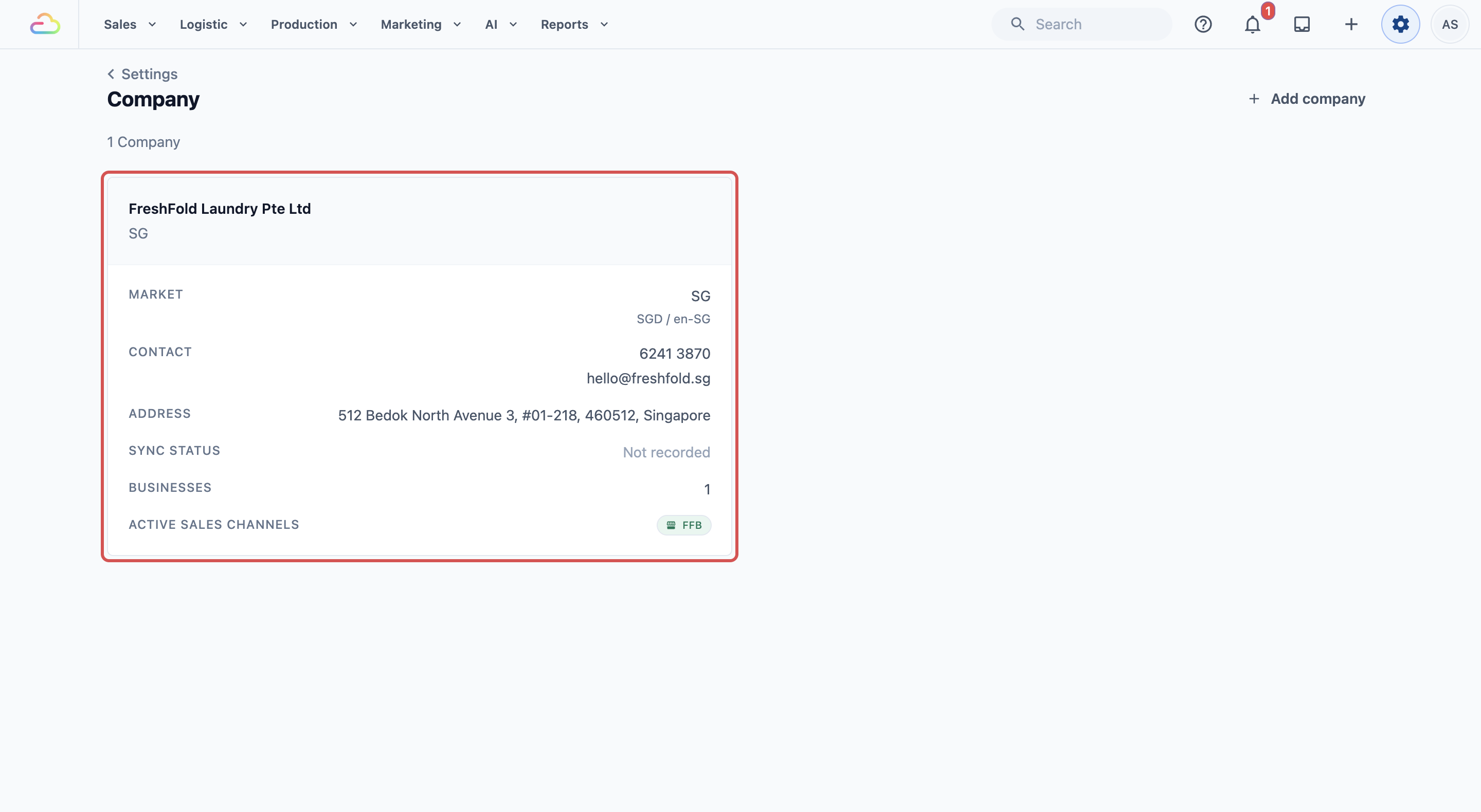
- Scroll down to Sales period management.
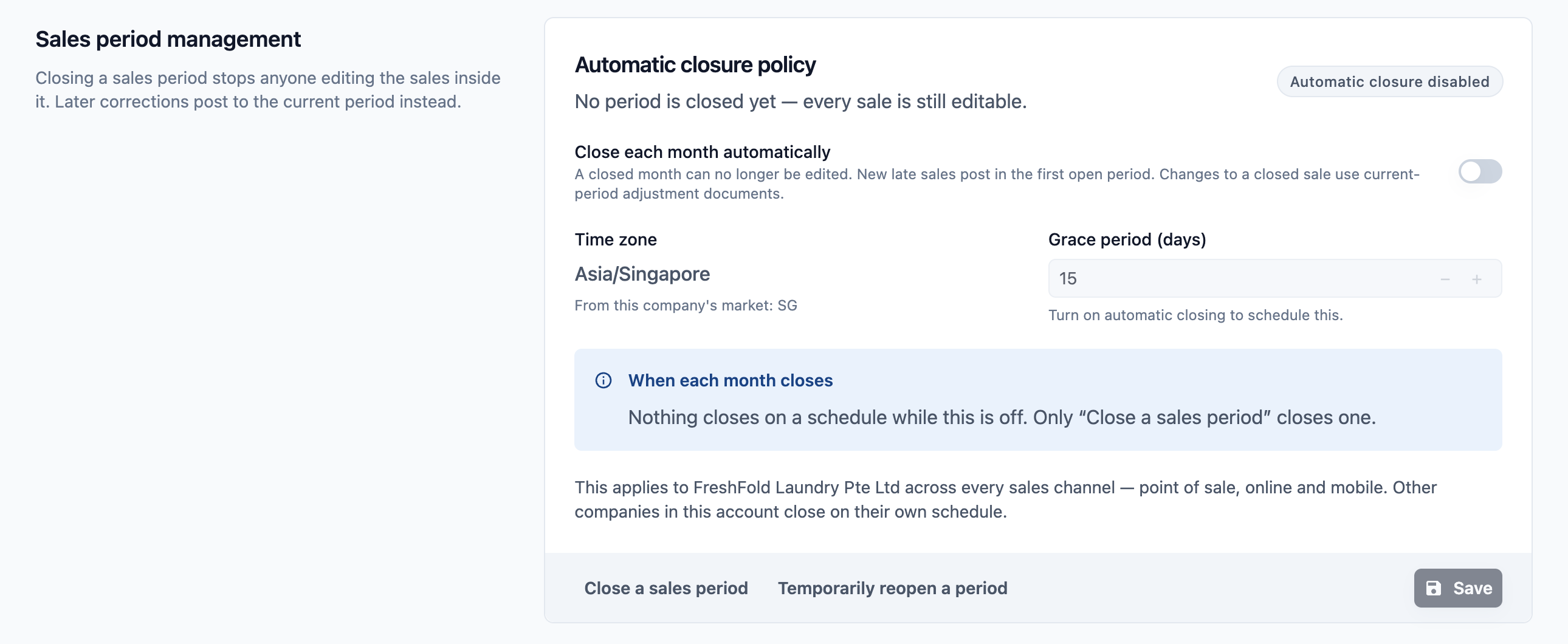
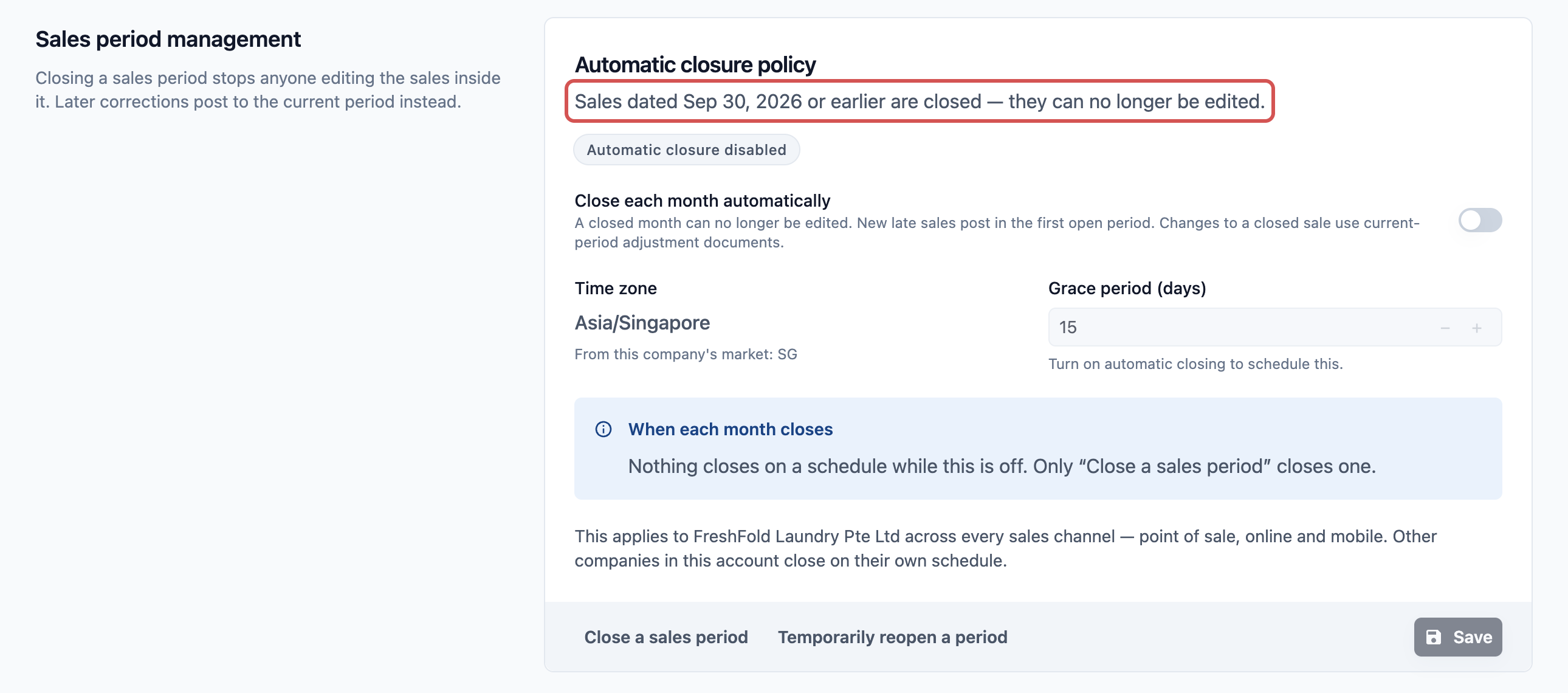
The top line always tells you what is closed. For example: "Sales dated 30 Sep 2026 or earlier are closed." The badge on the right shows whether automatic closing is on.
The Time zone comes from your company's market, which is the country it operates in. EasyBiz uses it to decide when a day ends, so you do not set it here.
How to Close a Period
There are two ways:
- Close a sales period: you close each month yourself, once your accountant has the numbers.
- Close each month automatically: every month locks on the same day, without you having to remember.
You can use both. The later of the two dates is the one that counts.
Close a period yourself
- In Sales period management, click Close a sales period.
- In Last date to close, pick the last day you want to lock, for example 30 Sep 2026. The latest date you can pick is today.
- If you like, type a note in Reason (optional), for example "September accounts sent to accountant".
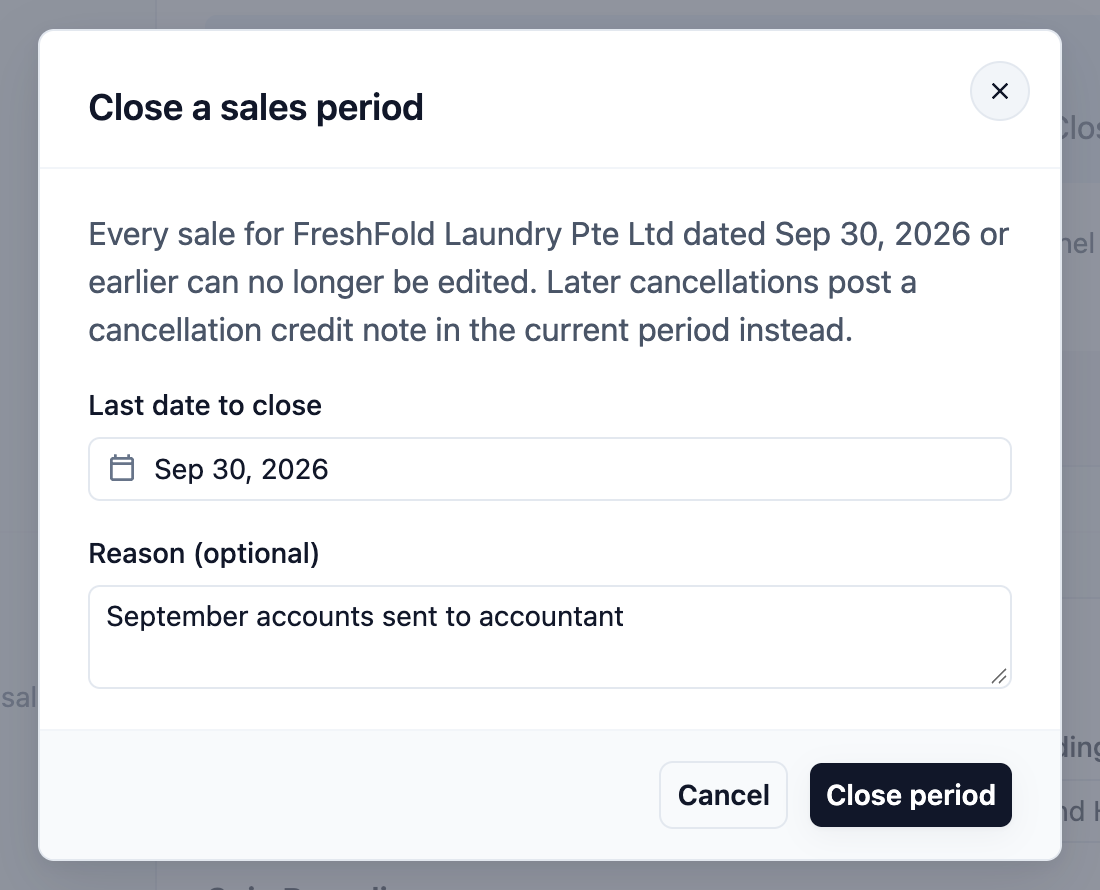
- Click Close period.
The top line now reads "Sales dated 30 Sep 2026 or earlier are closed."
Close each month automatically
- Turn on Close each month automatically.
- In Grace period (days), enter the day of the next month on which the previous month closes. You can enter 1 to 31. For example, 10 means September closes on 10 October. The grace period gives your staff time to finish late entries and returns.
- Read the When each month closes box. It puts your choice into plain words, for example "Each month's sales close on day 10 of the following month, Asia/Singapore time." It also shows which month closes next, and on which date.
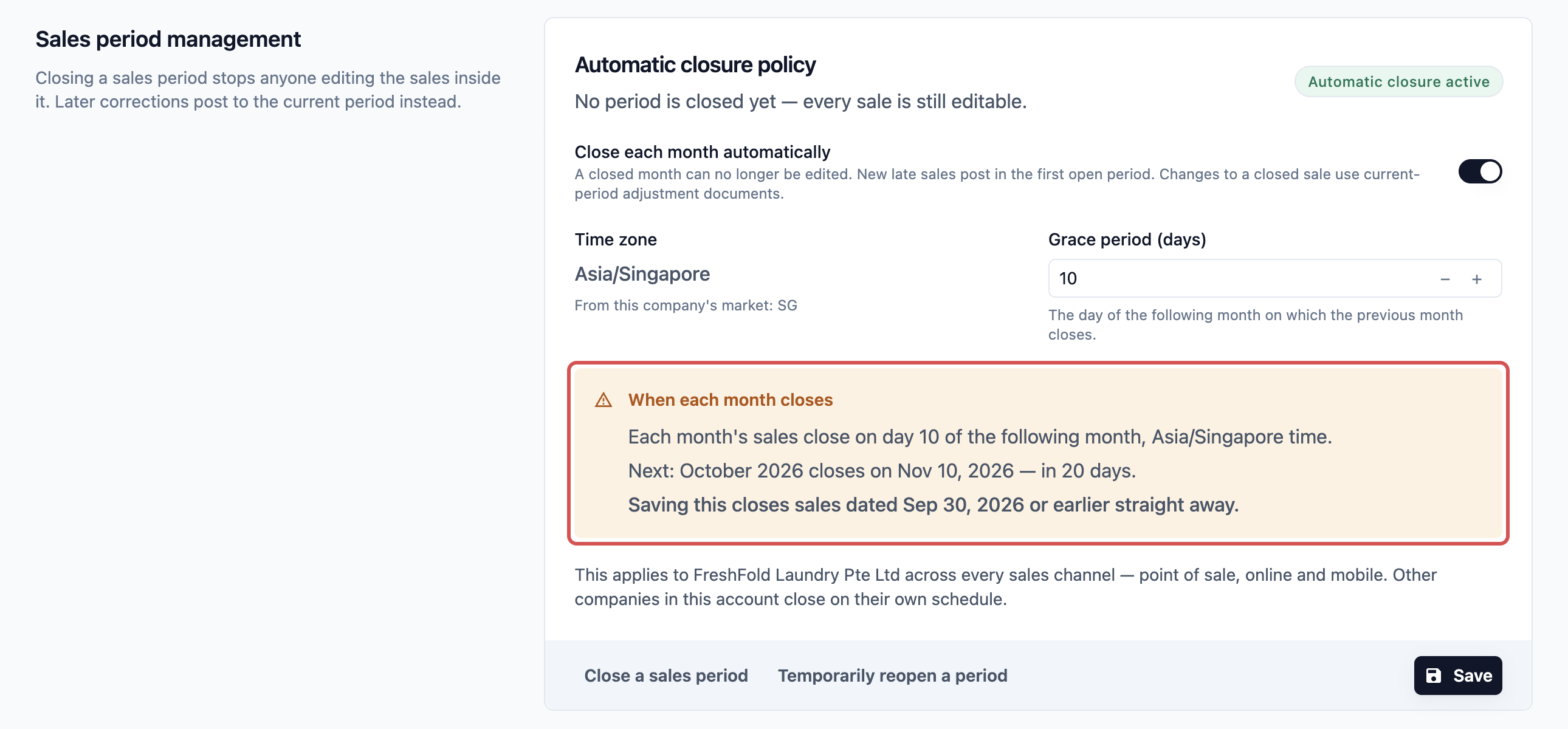
- Click Save.
Check the yellow warning before you save. If today is already past your grace day, saving closes last month straight away.
What Happens to Later Changes
Once a period is closed, any edit that would change the amount of an old sale is stopped: a new quantity, an extra item, a new price or a different discount.
In the Console, the edit window shows This reported sale is closed, the date the sale was recorded and the date any fix will be recorded on. Then it offers one of two ways forward:
- Raise a separate charge: when the amount would go up. Take a new order for the extra amount, for example "Extra stain treatment for order 1234".
- Issue a correction credit note: when the amount would go down. A credit note is a record that takes money off a sale that was already counted. Your staff can issue it right there, dated in the current month. It needs the Issue Sales Returns permission.
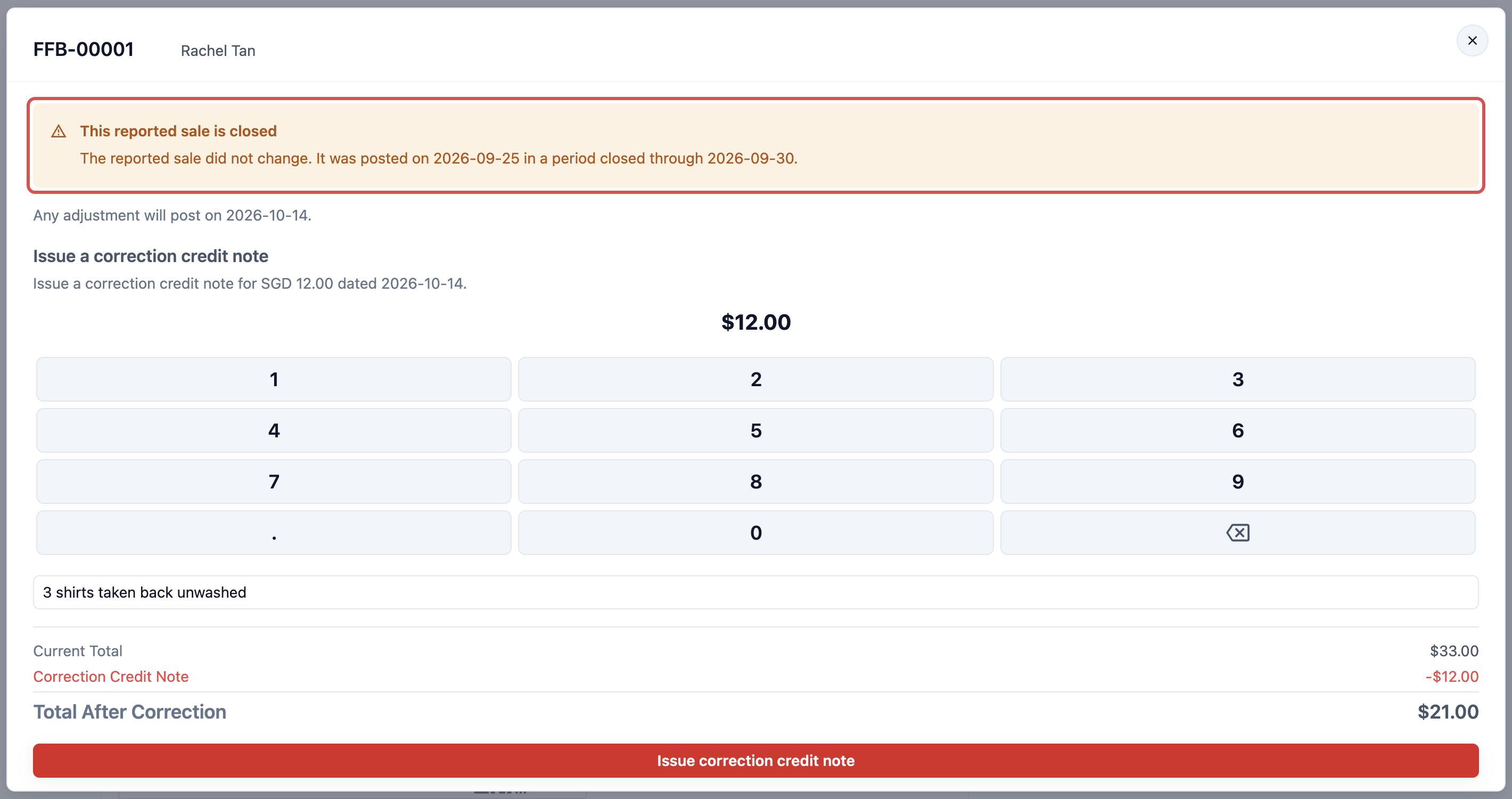
These still work on an order from a closed period:
- Changes that do not touch the amount, such as a note.
- Collecting payment.
- Sales returns. They are counted on the day you submit them.
- Cancelling. It is recorded as a credit note in the current month.
A new sale dated inside a closed period is recorded on the first open day instead.
The Unresolved Entries Notice
Before you close a month, check that all its sales are counted.
- In the top menu, click Reports.
- Click Sales.
- Click Monthly and pick the month you want to close.
- Look at the top for a yellow notice. In Monthly view it reads, for example, "2 days with unresolved entries". In Daily view it reads "2 entries pending market assignment".
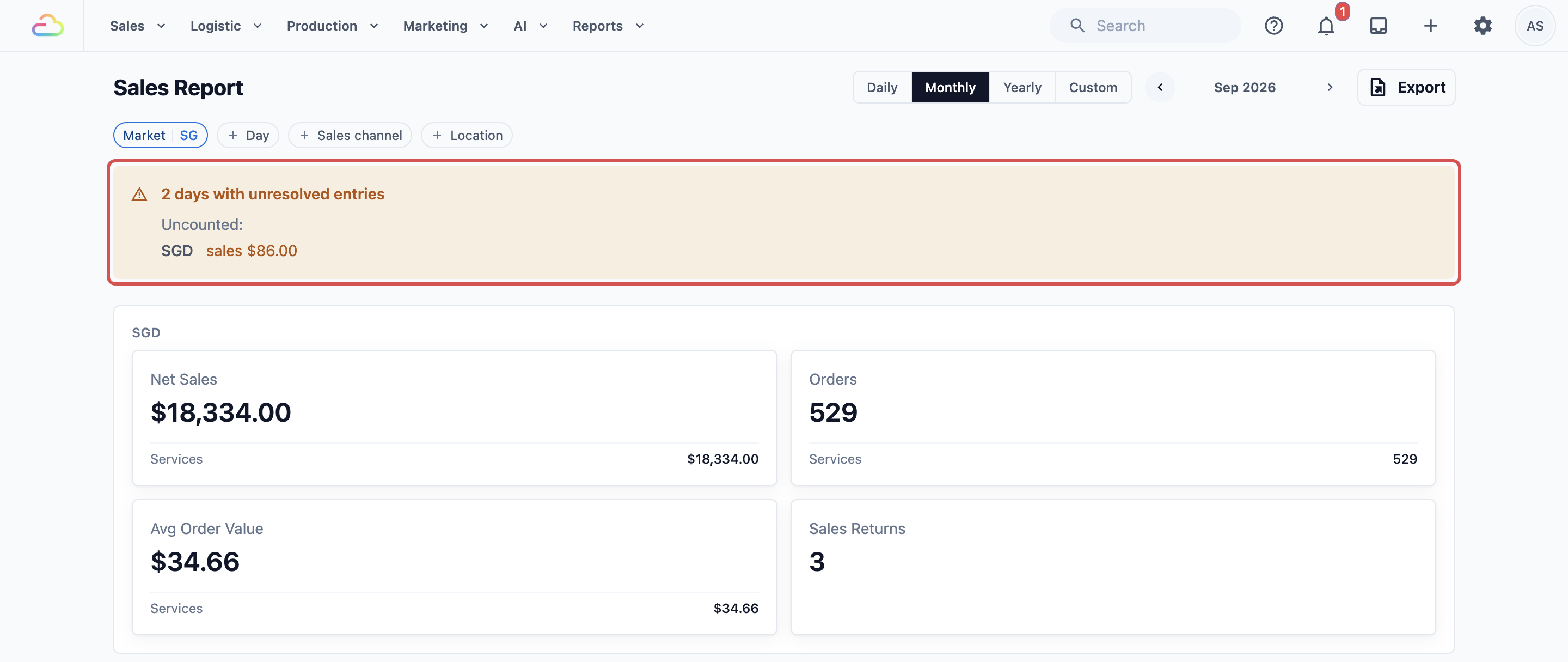
This notice means some sales could not yet be matched to a market, so they are not in the totals yet. The Uncounted line shows how much is missing. Contact support with the month shown before you close it, so the numbers you lock are complete.
Example: FreshFold Closes September
FreshFold Laundry runs two outlets in Singapore. The owner sends September's sales to her accountant on 8 October.
- She opens Reports, then Sales, and picks September in Monthly. There is no yellow notice. Net Sales is S$18,420.
- She opens :gear: Settings, then Company, then FreshFold Laundry Pte Ltd, and scrolls to Sales period management.
- She clicks Close a sales period, picks 30 Sep 2026, types a reason and clicks Close period.
- She sends the S$18,420 figure to her accountant. On 14 October, a staff member tries to take S$12 off a 25 September order. The edit window says This reported sale is closed, so the staff member issues a correction credit note dated 14 October. September still shows S$18,420, matching what the accountant has.
Then she turns on automatic closing with a grace period of 10, so October closes by itself on 10 November.
FAQs
Can I reopen a closed period?
Only for a short time. Click Temporarily reopen a period, choose the date to reopen from and type a reason. The reason is required. The period stays open for 48 hours, then closes again by itself. Only one reopen window can be open at a time in your account.
What if a staff member edits an old order on the POS?
The same lock applies on the POS and the 2.0 apps, not just the Console. The POS shows its own message saying the sale was posted in the closed period, and the staff member cannot change the amount there either.
If I turn off automatic closing, do closed months open again?
Only the months that the schedule closed. Months you closed yourself with Close a sales period stay closed.
Why does an old order show up in this month's Sales Report?
Late sales, cancellations and corrections for a closed month are recorded on the first open day. So a credit note for a September order shows in October. See Reading the Sales Report.
Does closing stop us collecting payments on old orders?
No. Closing only locks sales. Your staff can still collect payment on an order from a closed month, and it counts on the day the money comes in.
Can my staff close or reopen a period?
Only staff with settings access. Staff without it do not see the Sales period management section at all.
What's Next
You have locked your numbers. Next, learn how to use them to see where your shop is heading in Using Analysis to Spot Trends.