
Before You Start
Make sure you have:
- Access to the Deals Report. If Deals is missing from your Reports menu, your account does not have it yet. See Report Access for Staff.
- A basic feel for choosing a period and filters. See Report Periods and Filters.
- Customers messaging your shop on WhatsApp, so the report has deals to count.
What the Deals Report Is
The Deals Report is your enquiry scoreboard. It counts the enquiries that came in during a period, how many turned into orders, how many you lost and how fast your staff replied.
Open the Deals Report
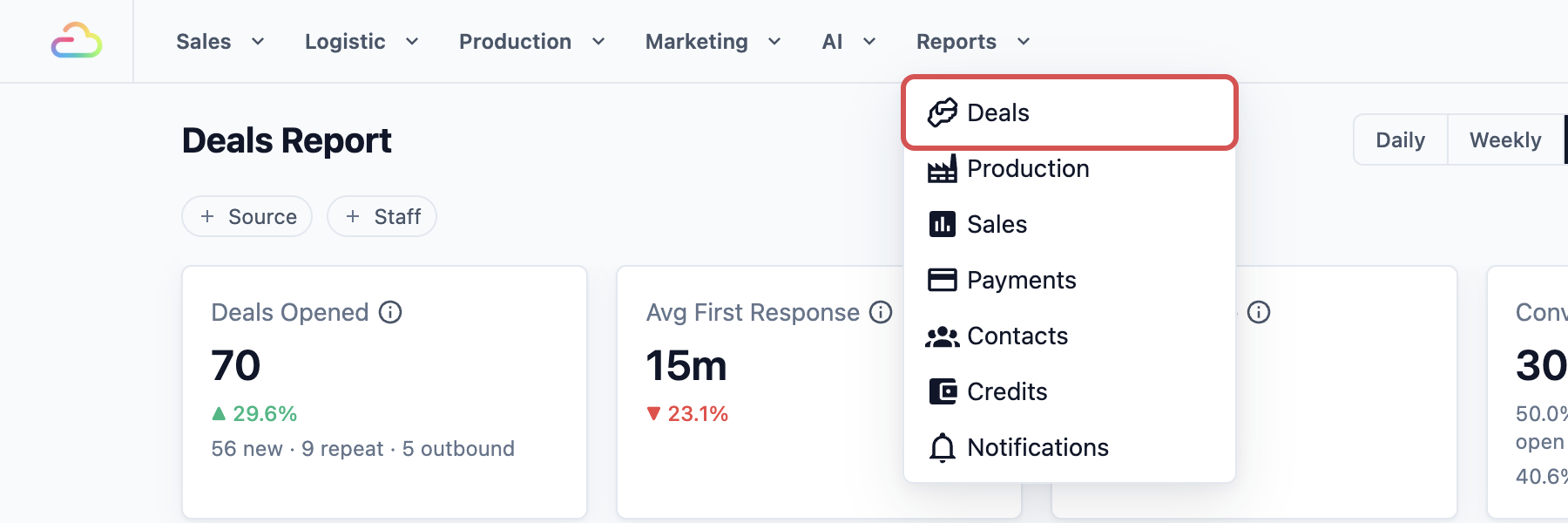
- In the top menu, click Reports .
- Click Deals .
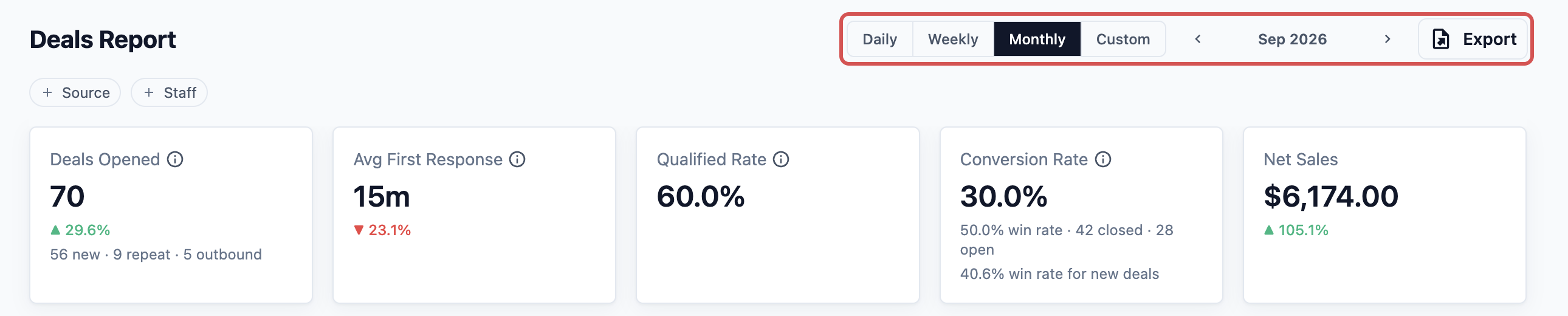
- At the top right, choose how much time to look at: Daily , Weekly , Monthly or Custom . A custom range can cover up to 90 days.
- Next to it, pick the day, week, month or dates you want.
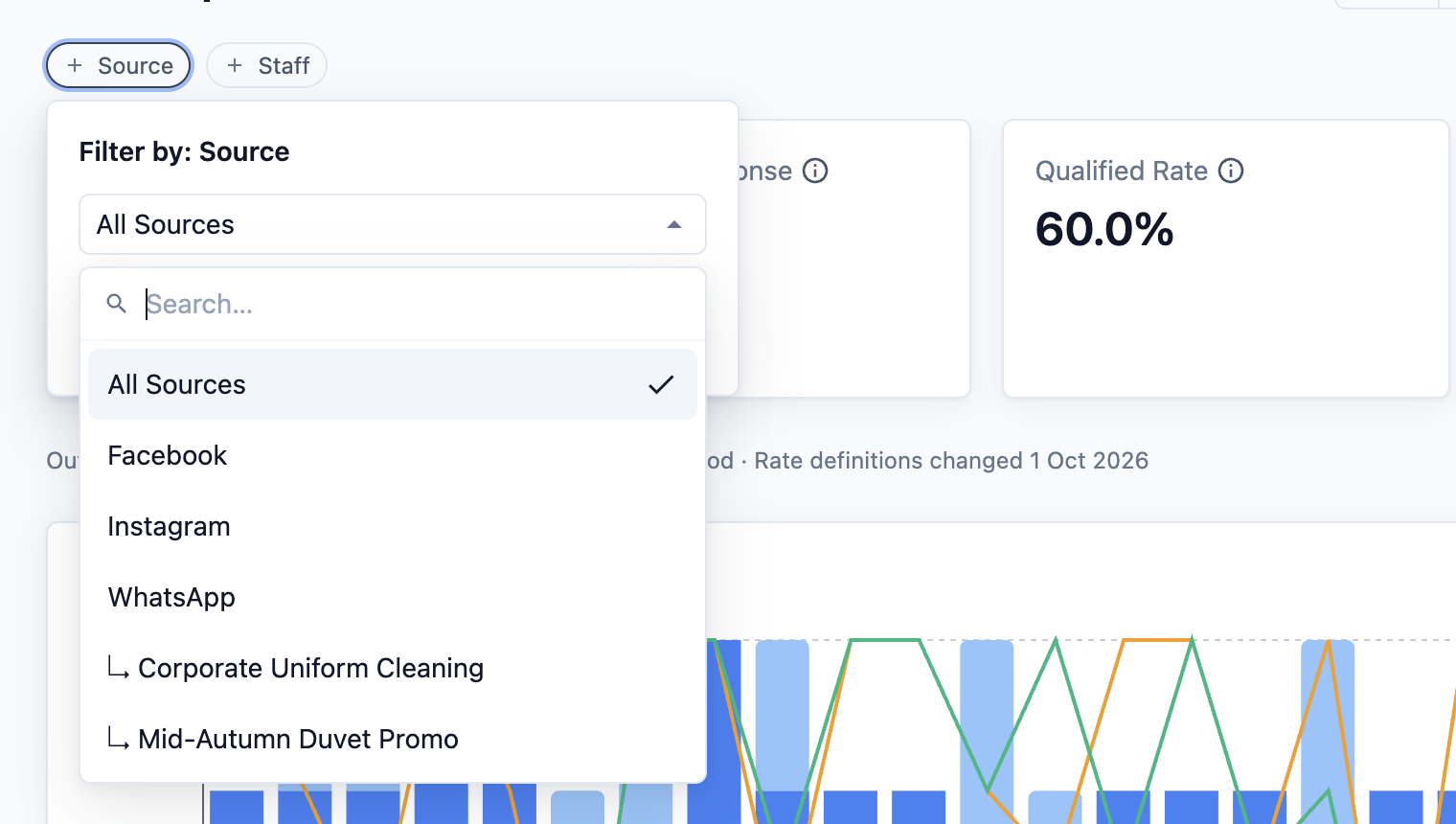
- Below the title, use the filters to narrow the report: - Source: where the enquiry came from, for example WhatsApp, Facebook or a campaign. - Staff: the staff member who owns the deal.
You can use one filter at a time. Picking a staff member clears the source, and picking a source clears the staff member.
Read the Summary Cards
The top of the page has five cards:
- Deals Opened: how many enquiries came in during the period. Underneath, you may see a split such as "28 new · 9 repeat · 3 outbound". New means a first-time customer messaged you. Repeat means they had ordered before. Outbound means your shop sent the first message.
- Avg First Response: how long, on average, a customer waited for the first reply from your staff. Only working hours count, and automatic replies are left out.
- Qualified Rate: the share of deals that got past the first enquiry, for example to a quote.
- Conversion Rate: the share of all deals opened that were won.
- Net Sales: the money from the orders behind your won deals, after discounts.
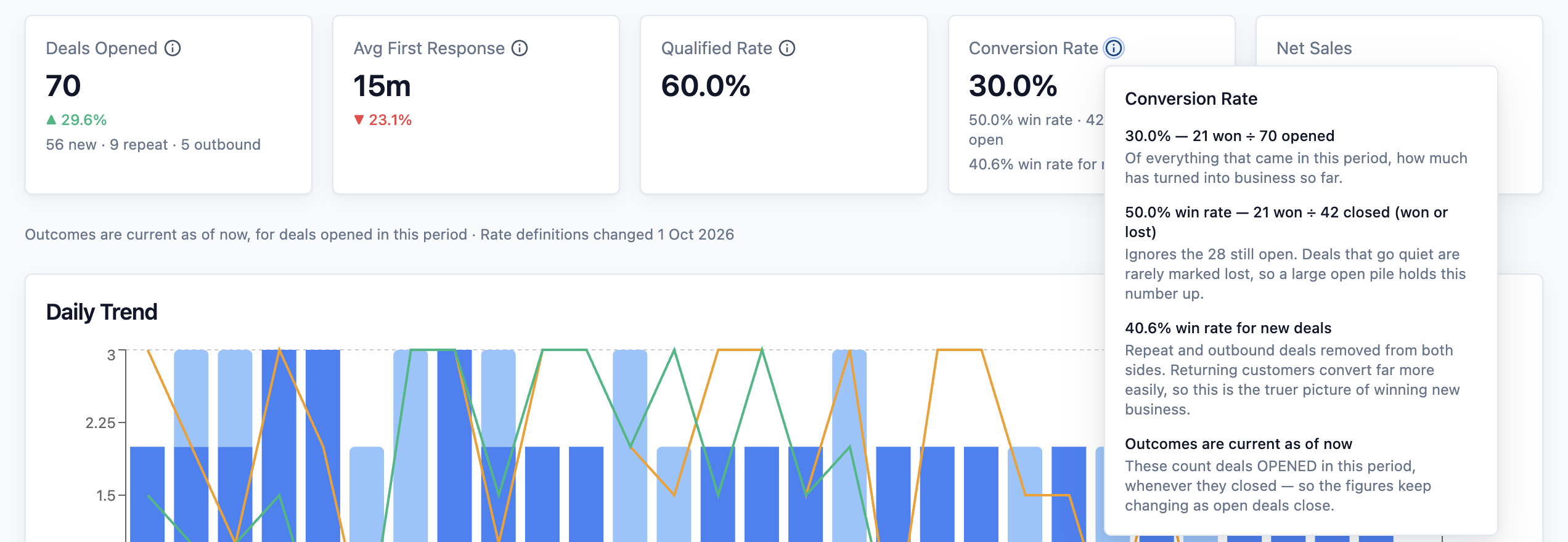
Next to each card title is a small help icon. Click it to see how this period's number was worked out, for example "10 won ÷ 40 opened".
Read Won, Lost and Conversion
A deal is won when it becomes an order, and lost when it ends without one. A deal that is neither is still open.
Under Conversion Rate you see a second line, for example "41.7% win rate · 24 closed · 16 open". Here is how the two rates differ:
- Conversion Rate is won deals out of every deal opened, including the open ones.
- Win rate is won deals out of the deals already decided, won or lost.
Read them together. Enquiries that go quiet are rarely marked as lost, so they stay open and can make the win rate look better than it is. A big open number is a sign that your staff have follow-ups to do.
The report counts deals by the day they were opened. A deal opened in March and won in April counts as a March win.
Read the Daily Trend Chart
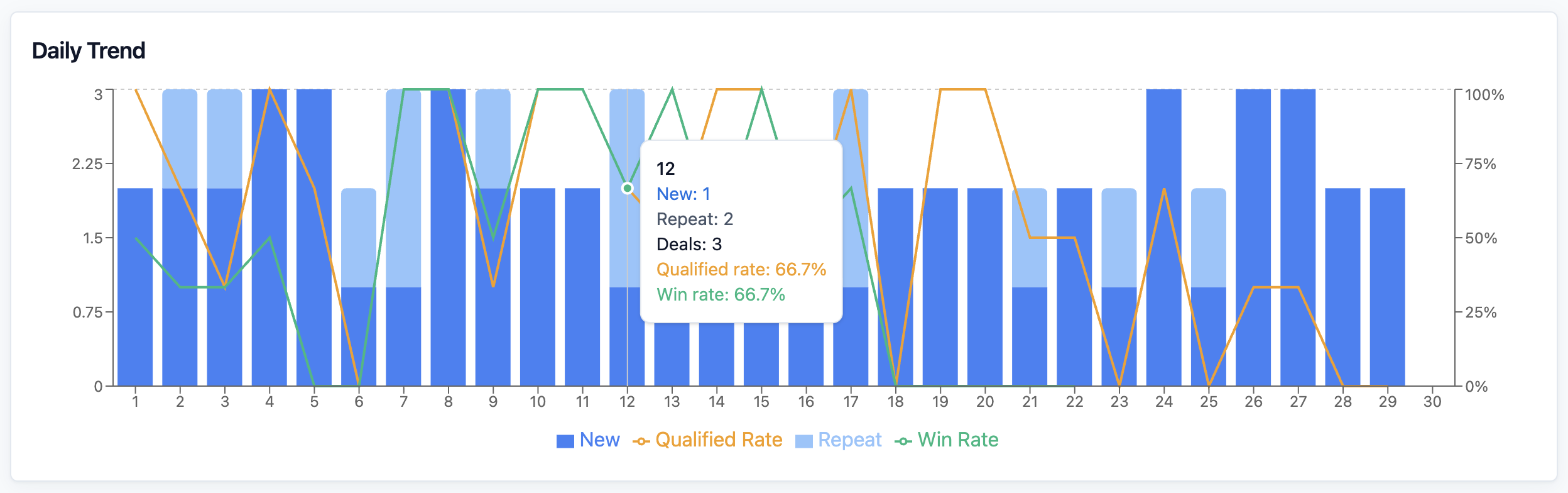
In Weekly, Monthly and Custom view, the chart below the cards is called Daily Trend. Daily view has no chart.
Each bar is one day. The dark part shows new enquiries and the light part shows repeat ones. The orange line is the Qualified Rate and the green line is the Win Rate. Hover over a day to see the exact numbers.
Read the Staff, Source and Campaign Tables
Below the chart are tables that split the same deals in different ways:
- Qualifying Staff: the staff who handle the first reply. It shows each person's Deals, Qualified, Qualified Rate, Won, Conversion Rate and Avg First Response.
- Closing Staff: the staff who handle quotes and close the sale. It shows Won, Lost, Win Rate, Net Sales, Avg Net Sales, Upsell and Upsell %. These deals are counted in the period they closed.
- Source Performance: one row for each source, with Deals, Won, Lost, Qualified Rate, Conversion Rate, Net Sales and Avg Net Sales.
- Campaign Performance: the same figures for each campaign, such as an advert or a WhatsApp broadcast. Click a campaign to filter the whole report to it.
The two staff tables only show when no Source or Staff filter is set. Click a column title to sort by it.

See Deals by Stage
The Deals list at the bottom of the page shows every deal in the period. The number in its title is how many deals are listed.
- Scroll down to the Deals list.
- Above the list, click a stage button to show only those deals: All , Qualifying , Closing , Won or Lost . Only the buttons for stages that have deals appear.
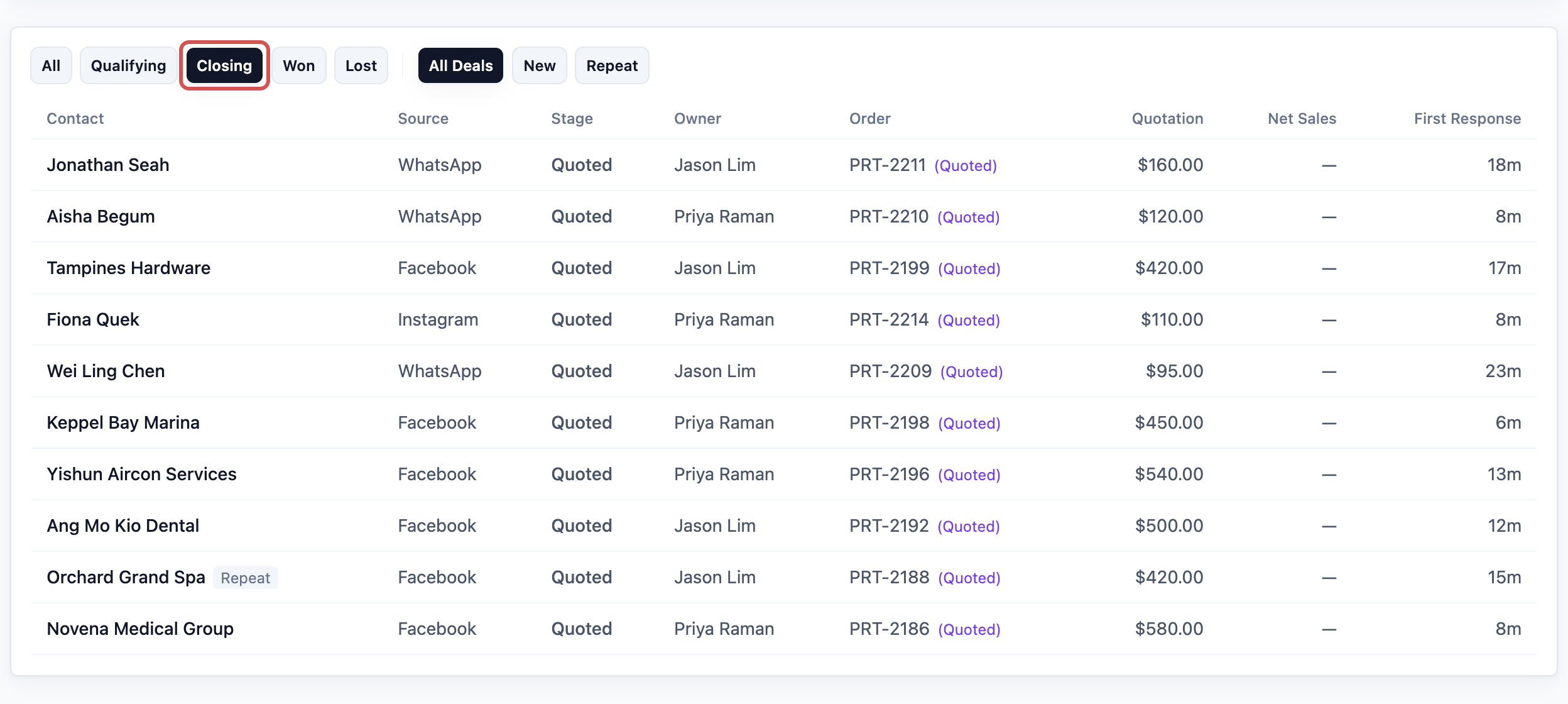
The stage buttons group your stages by what they do. Qualifying stages are first enquiries, such as New Enquiry. Closing stages are the ones where you are trying to win the sale, such as Quoted. The Stage column shows your own stage name for each deal.
- If you see All Deals , New and Repeat , use them to show only first-time or returning customers.
- Click a row to open that customer's chat in your Inbox, so you can follow up straight away.
Each row also shows the Order linked to the deal and its status, the Quotation amount, the Net Sales of the order and how long the First Response took.
Example: PressRight Tracks Corporate Uniform Enquiries
PressRight is a dry cleaner that cleans uniforms for offices and hotels. Last month it ran a Facebook advert for corporate uniform cleaning. The owner wants to know if the advert paid off.
- He opens Reports , then Deals , and clicks Monthly for last month.
- In the Source filter, he picks the uniform campaign.
- Deals Opened shows 40. Conversion Rate shows 25.0%, with "41.7% win rate · 24 closed · 16 open" underneath. Net Sales shows S$4,850.00.
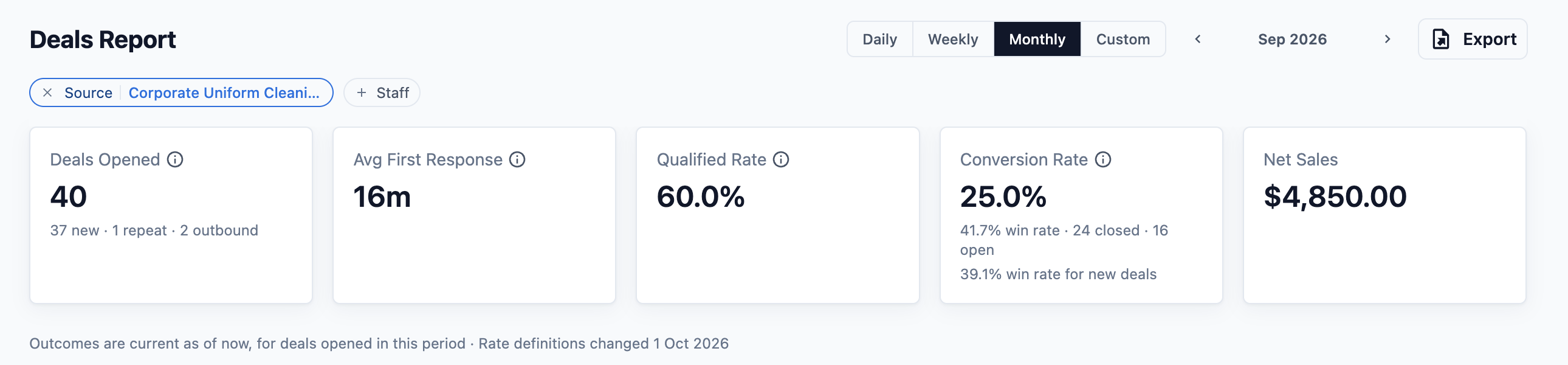
- 10 companies became customers, and 16 enquiries are still open. He scrolls to the Deals list and clicks Closing . Six companies received a quote but never replied.
- He clicks each row to open the chat and asks his staff to send a follow-up that day.
The advert brought S$4,850.00 of orders, and PressRight still has six quoted companies to chase. The owner decides to run the advert again next month.
FAQs
Where do deals come from?
A deal opens automatically when a customer starts a new WhatsApp chat with your shop. The report remembers where they came from, for example a Facebook or Instagram advert, a tracking link or a reply to your WhatsApp broadcast. Chats that come in with no advert or link show as plain WhatsApp.
Does a won deal create an order?
No, it works the other way round. When your staff create an order for that customer's chat, the order is linked to the deal and moves it along, for example to Quoted and then Won. The order's net sales then show as the deal's Net Sales. Marking a deal as won by hand does not create an order.
Why does last month's Conversion Rate keep changing?
The report counts deals by the day they were opened, and shows their result as of today. So when an enquiry from last month turns into an order this week, last month's numbers go up. The note under the cards reminds you of this.
Why doesn't Net Sales here match my Sales Report?
The Deals Report only counts orders that came from a deal, for the deals opened in the period. Walk-in customers and orders not linked to a chat are not included. The Sales Report counts every order. See Reading the Sales Report.
Why do the staff tables disappear?
The Qualifying Staff and Closing Staff tables only show when no Source or Staff filter is set. Clear the filter to see them again.
Can my staff see the Deals Report?
Only if you give them report access. Many owners give it to their sales lead or shop manager only. See Report Access for Staff.
What's Next
You can now see how many enquiries came in, how many you won and which ones still need a follow-up. Next, learn how to see how much work each of your staff finished in Reading the Production Report.