
Before You Start
Make sure you have:
- Access to the Payments Report. If Payments is missing from your Reports menu, your account does not have it yet. See Report Access for Staff.
- A basic feel for choosing a period and filters. See Report Periods and Filters.
- A clear idea of how payments differ from sales. See Sales vs Payment Totals.
What the Payments Report Is
The Payments Report is your shop's money book. It adds up every payment your shop actually received, and every refund you gave back, by day, month or year.
A payment is counted on the day the money came in, not the day the order was taken. So a customer who drops off a bag on Monday and pays on Friday shows up on Friday.
The Payments Report helps you decide things like:
- Whether the cash in your drawer matches what your staff recorded.
- How your customers like to pay, for example cash, PayNow or card.
- Whether refunds are eating into the money you collect.
Without it, you only see one payment at a time. A missing cash payment or a wrong refund can go unnoticed for weeks.
Open the Payments Report
- In the top menu, click Reports .
- Click Payments .
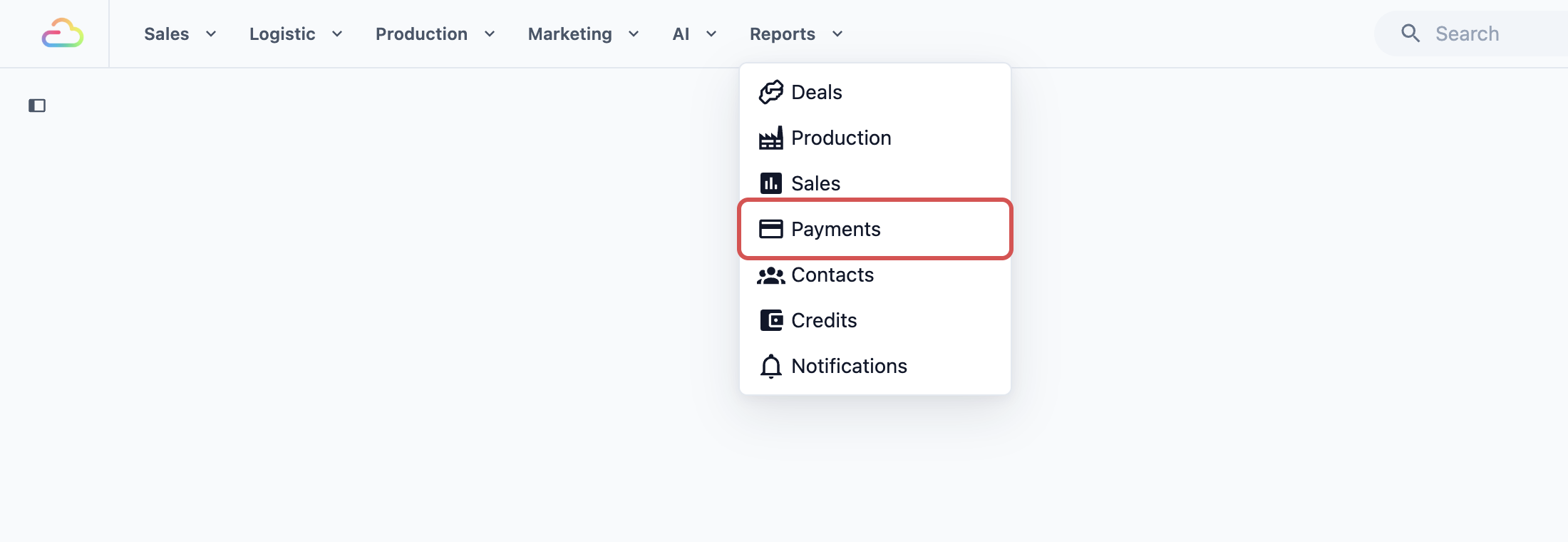
- At the top right, choose how much time to look at: Daily , Monthly or Yearly .
- Next to it, pick the day, month or year you want.
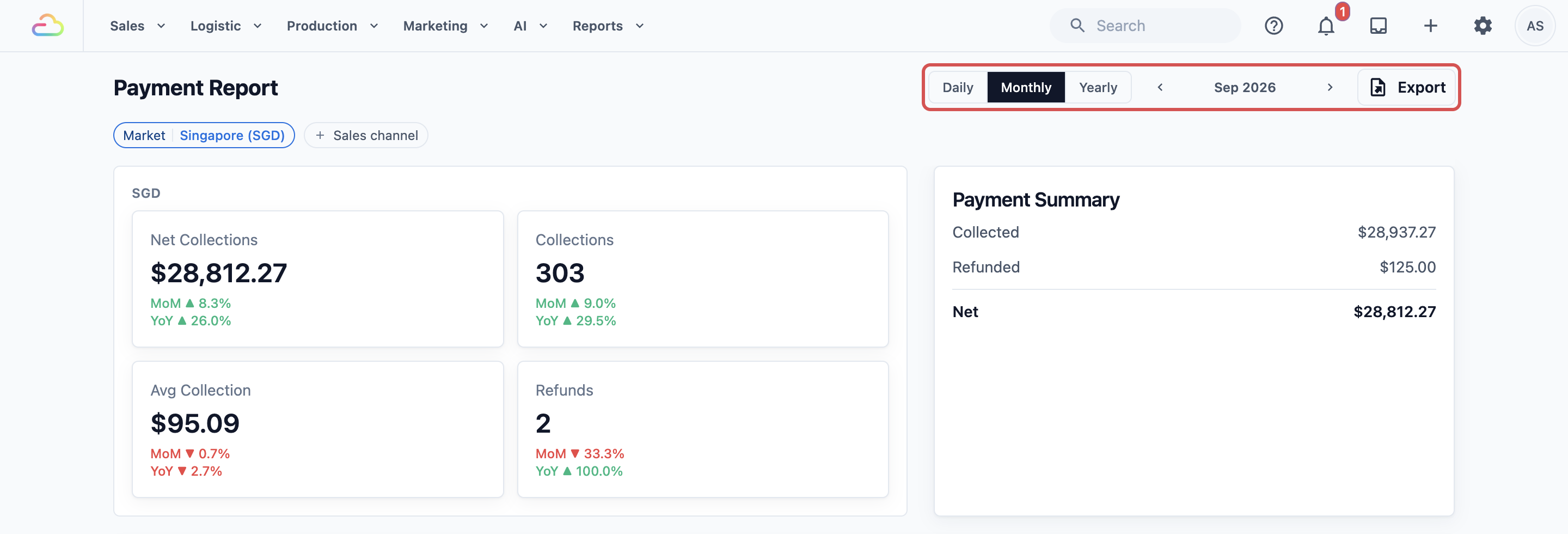
- Below the title, use the filters to narrow the report: - Market: the country you are looking at, for example Singapore or Malaysia. It appears if your shop has markets set up. - Sales channel: one place where you take orders and payments, such as your shop counter, your app or a mall outlet.

If you run shops in more than one country, a short note under the filters reminds you that the figures on screen cover every market, grouped by currency. Exporting, which means downloading the report as an Excel file, covers only the market you picked. See Exporting Reports and Downloads.
Read the Summary Cards
The top of the page has two cards.
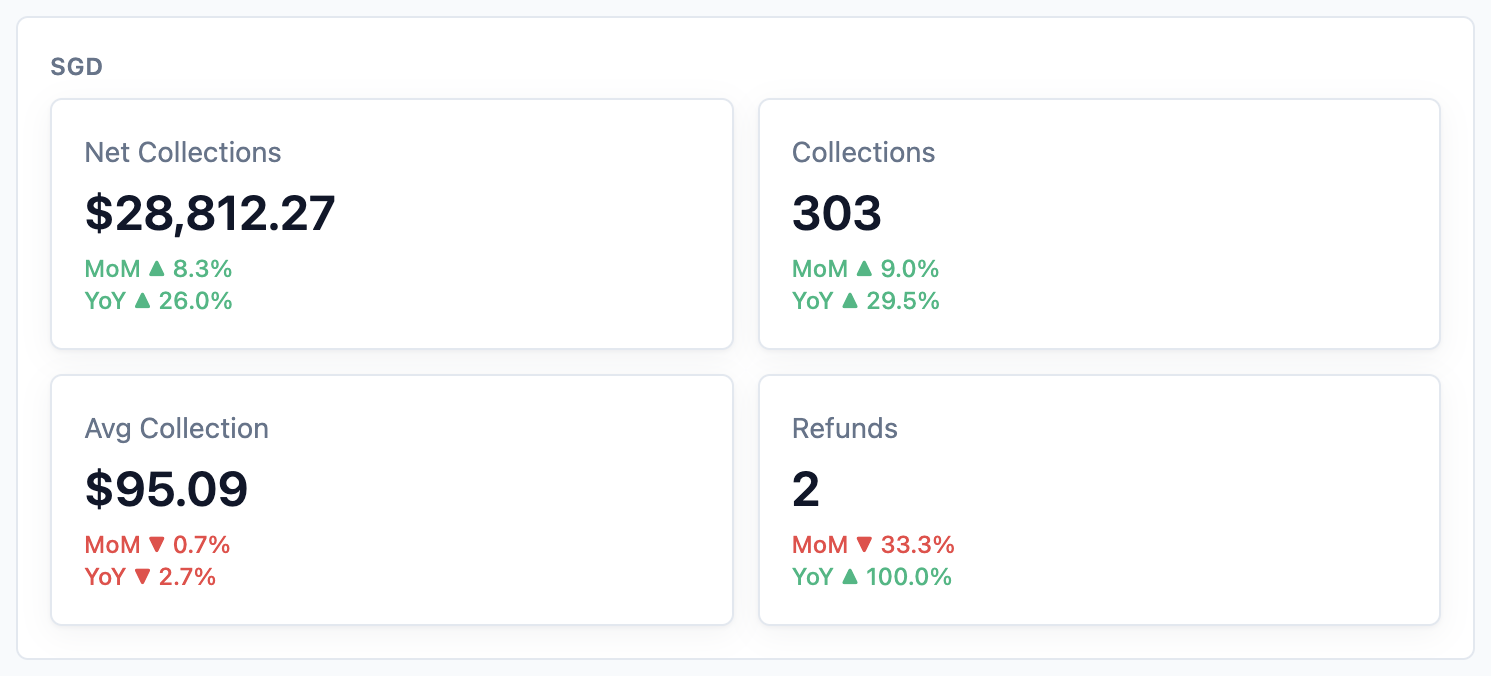
The first card has four boxes:
- Net Collections: the money you received, after refunds.
- Collections: how many payments you received.
- Avg Collection: the average amount of one payment.
- Refunds: how many refunds you gave.
Under each number is a small arrow that compares it with an earlier period:
| Label | Compared with |
|---|---|
| DoD | The day before (Daily view) |
| WoW | The same day last week (Daily view) |
| MoM | The month before (Monthly view) |
| YoY | The same month last year (Monthly view), or the year before (Yearly view) |
When you look at the current month or year, the report compares only the same number of days or months. So on the 10th, you see 1 to 10 this month against 1 to 10 last month.
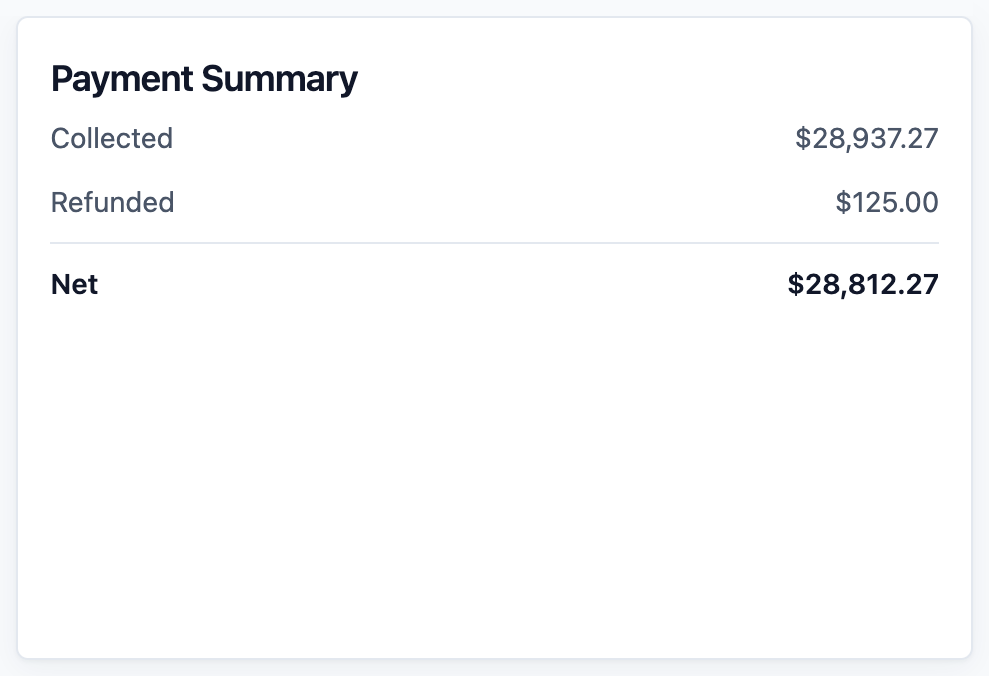
The second card is the Payment Summary. It shows how your money adds up:
- Collected: all the money that came in.
- Refunded: money you gave back to customers.
- Net: Collected minus Refunded.
Read the Trend Chart
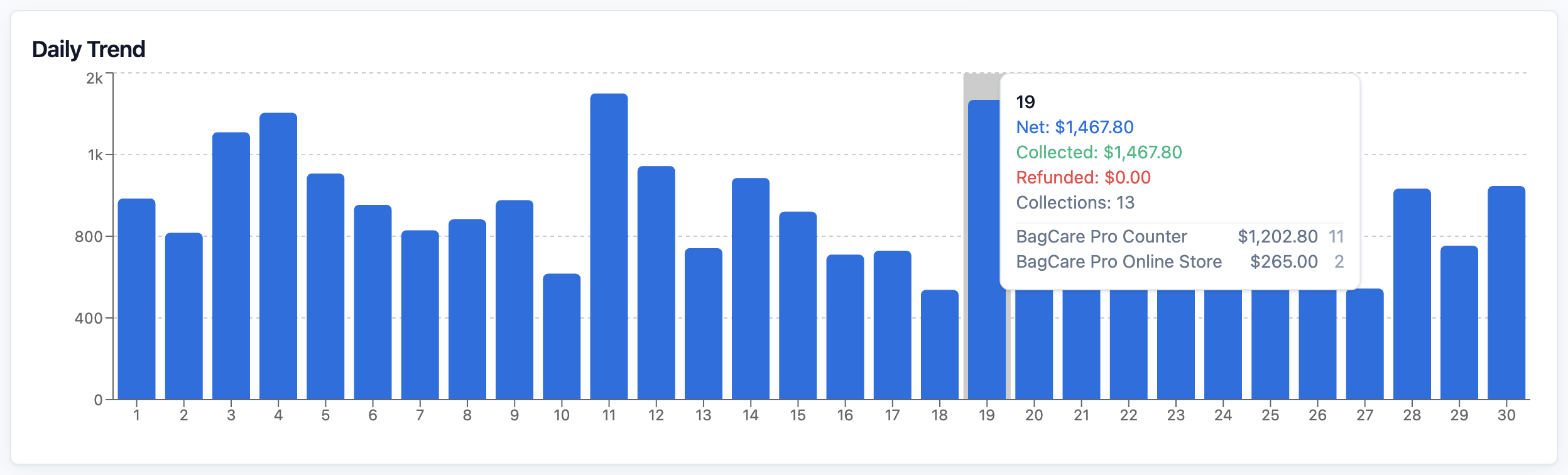
In Monthly view, the chart below the cards is called Daily Trend. Each bar is one day. In Yearly view, it is called Monthly Trend. Each bar is one month. Daily view has no chart.
Taller bars mean more money collected. Hover over a bar to see the exact amount.
Read Totals by Sales Channel
The Payments by Business table shows the money for each sales channel. Its title ends with the currency, for example SGD.
Each row shows Collected, Refunded, Net, Collections (number of payments) and Refunds (number of refunds).

Read Totals by Payment Method
This is the table you will use most. The Payments by Method table shows the money for each way your customers paid, for example Cash, PayNow or Card. The names are the payment methods your shop has set up.
Each row shows Collected, Refunded, Net and Collections. The method with the most money is at the top.
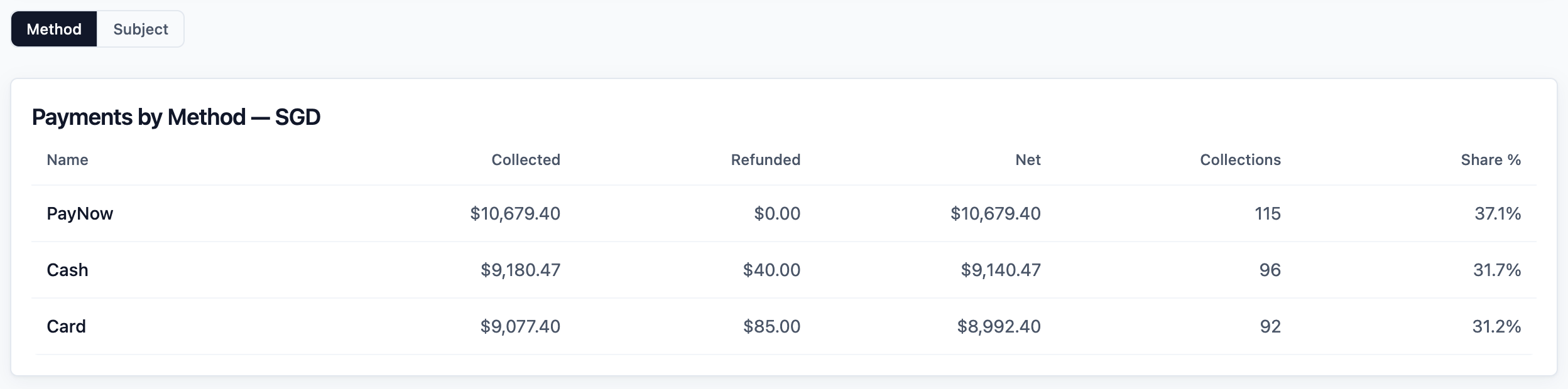
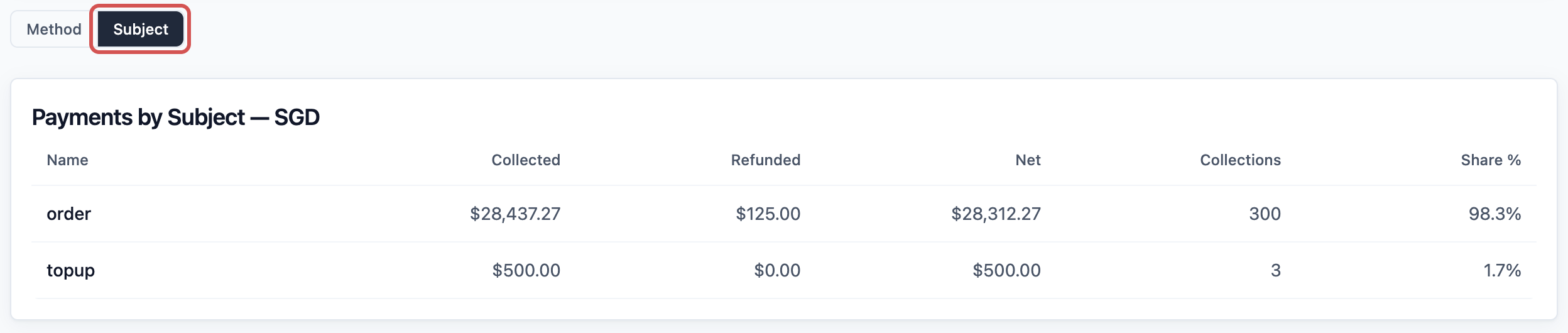
Above the table you may see two buttons, Method and Subject . Click Subject to see the same money split by what the customer paid for:
| Row | What the customer paid for |
|---|---|
| order | An order, for example a bag repair or a laundry job |
| invoice | A monthly bill for a business customer |
| topup | A credit top-up to their account |
| membership | A membership |
Only the rows your shop has money for are shown.
Read the Refunds Table
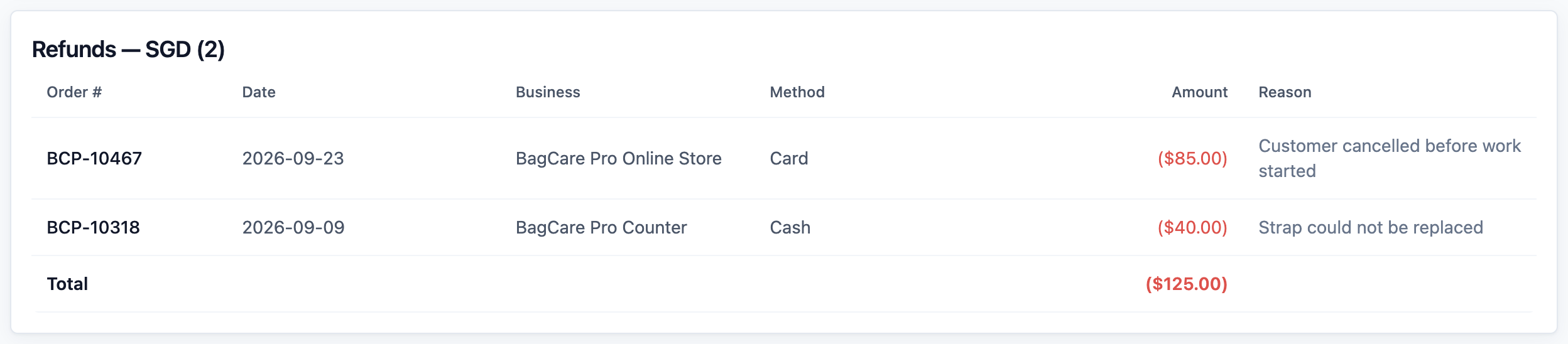
A refund is money you give back to a customer, for example for a bag that could not be repaired. Refunds are listed in their own table called Refunds, with the currency and the number of refunds in its title.
It shows the Order #, the Date of the refund, the Business (sales channel), the Method you refunded with, the Amount and the Reason your staff entered.
A refund is counted on the day it was given, under the method it was paid back with. So a cash refund today lowers today's cash, even if the customer paid last month.
Check the Cash Drawer Against the Report
At the end of the day, you can check that the cash in your drawer matches what your staff recorded.
- Click Daily .
- Pick today's date.
- In the Sales channel filter, pick the counter whose drawer you are checking.
- In Payments by Method, look at the Net amount on the Cash row. This is the cash that should be in the drawer, after cash refunds.
- Count the drawer. Take away the float, the change you started the day with.
- Compare the two numbers.
If they don't match, scroll down to the Payment Entries table. It lists every payment and refund that day, with the Order #, Type, Business, Method and Amount. Look for a cash payment that was recorded as the wrong method, or a payment that was never recorded.
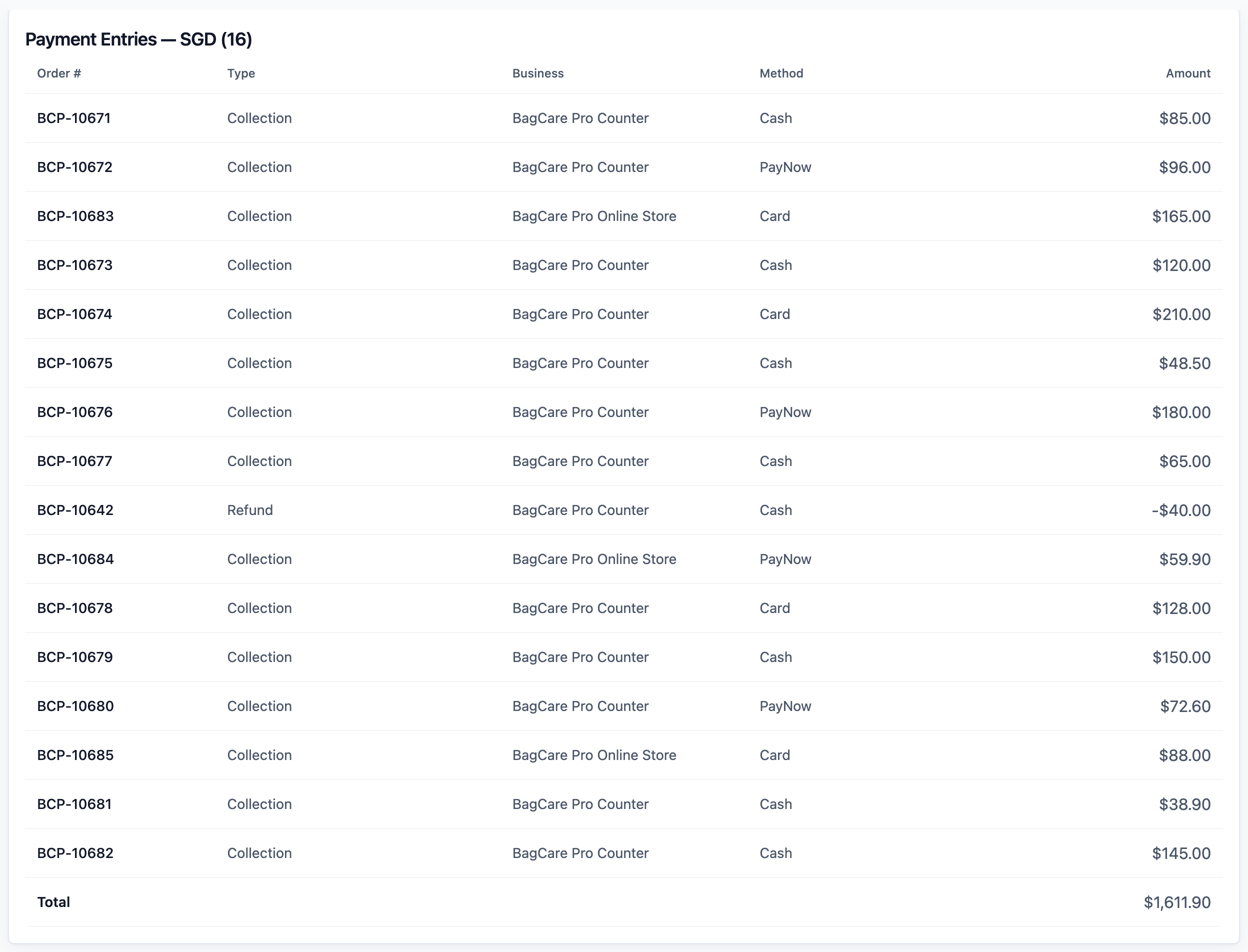
The Type column tells you what each line is:
| Type | What it means |
|---|---|
| Collection | Money received |
| Refund | Money given back |
| Void | A payment that was cancelled |
| Adjustment | A correction to an earlier payment |
Example: BagCare Pro Checks Its Cash Drawer
BagCare Pro repairs bags at one counter and also takes orders online. Every evening, the owner checks the counter drawer before closing.
- She opens Reports , then Payments , and clicks Daily for today.
- In the Sales channel filter, she picks the shop counter.
- In Payments by Method, the Cash row shows S$652.40 Collected, S$40.00 Refunded and S$612.40 Net.
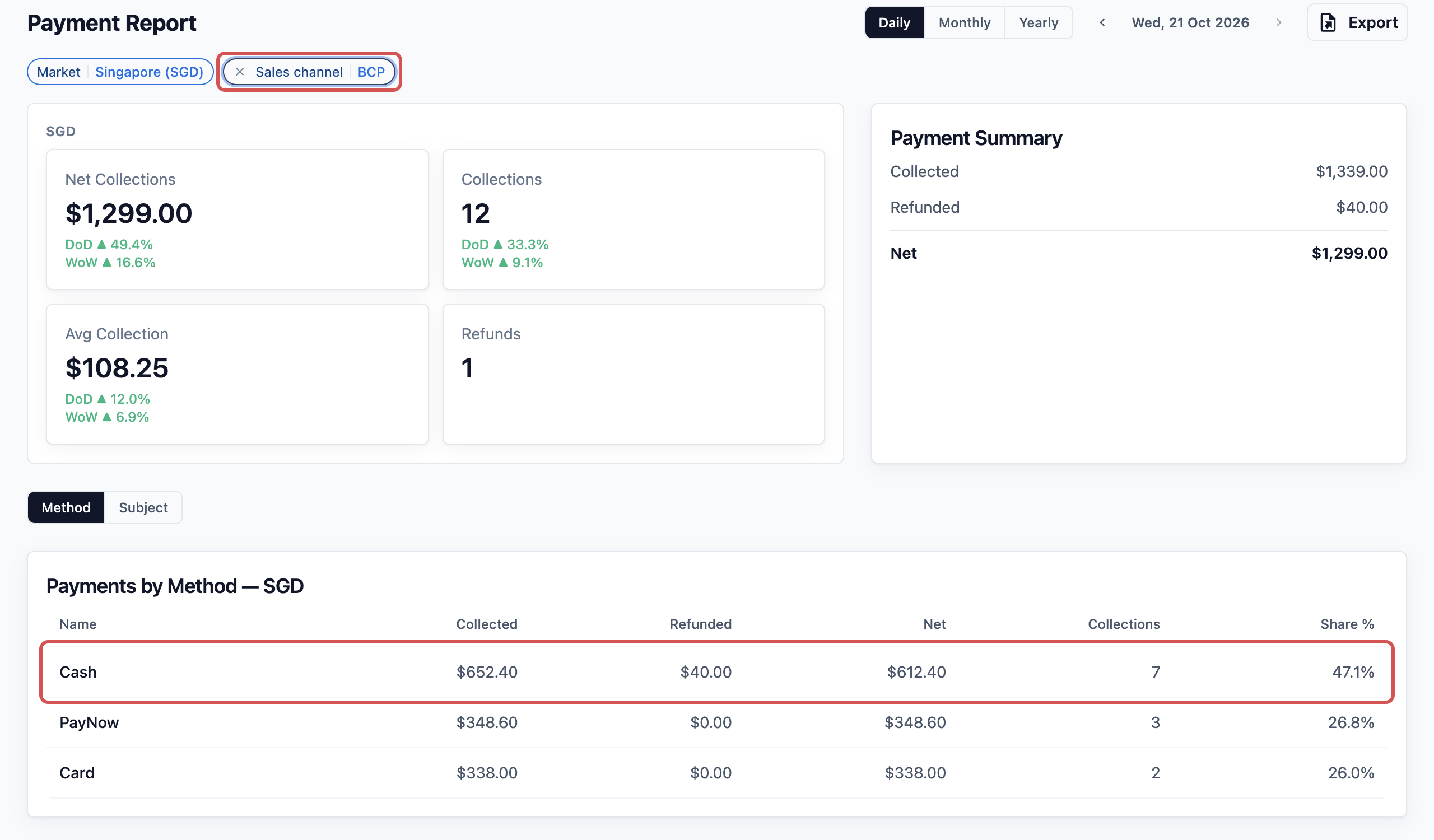
- She counts the drawer: S$812.40. She started the day with a S$200.00 float, so the cash taken today is S$612.40.
- The numbers match. The S$40.00 refund is listed in the Refunds table with the reason "Strap could not be replaced", so she knows where it went.
BagCare Pro now closes the drawer in five minutes, and the owner knows her staff recorded every cash payment correctly.
FAQs
Why is a gateway payment missing?
A gateway payment is one your customer makes online, for example by card or PayNow through your online store. It only counts once the gateway confirms the money arrived. A payment that is still waiting, or that failed, is not in the report. A payment waiting for your staff to check it, for example a PayNow transfer, counts only after they confirm it. It then appears on the day the customer paid, so look at that day.
Do refunds reduce the total?
Yes. Net is Collected minus Refunded. Collected still shows the full amount that came in, so you can see both. A refund counts on the day you gave it, not the day of the original payment. This is why last month's numbers can look different from this month's when a refund crosses the month.
Why don't my payment totals match my Sales Report?
Sales count the work you sold. Payments count the money you received. An unpaid order is a sale but not a payment, and a deposit is a payment before the work is done. See Sales vs Payment Totals.
Why do I see two sets of cards with different currencies?
If your shop takes money in more than one currency, for example SGD and MYR, each currency gets its own cards and tables. The report never adds different currencies together.
Can my staff see the Payments Report?
Only if you give them report access. Many owners give it to their shop manager only. See Report Access for Staff.
What's Next
You can now read your payments by method, check refunds and match your cash drawer. Next, learn how to see which customers still owe you money in Tracking Receivables.