
Before you start
- You need the Sales product turned on for your user. Receivables sits in the Sales menu, next to Orders and Payments.
- A staff member who can only work in some outlets only sees those outlets' unpaid orders. To check who sees what, read Giving Your Staff Access to Reports.
- It helps to read Reading the Payments Report first. The Payments report shows money that came in. Receivables shows money that hasn't come in yet.
What a receivable is
A receivable is money a customer still owes you for work you've already accepted. In a laundry, that's usually a hotel, a gym or a company account that sends items now and pays later. It can also be a walk-in customer who paid a deposit and still owes the rest.
The page helps you decide who to chase today. It shows how much is unpaid, who owes it, and how long each bill has been waiting.
Open the Receivables page
- Click Sales.
- Click Receivables.
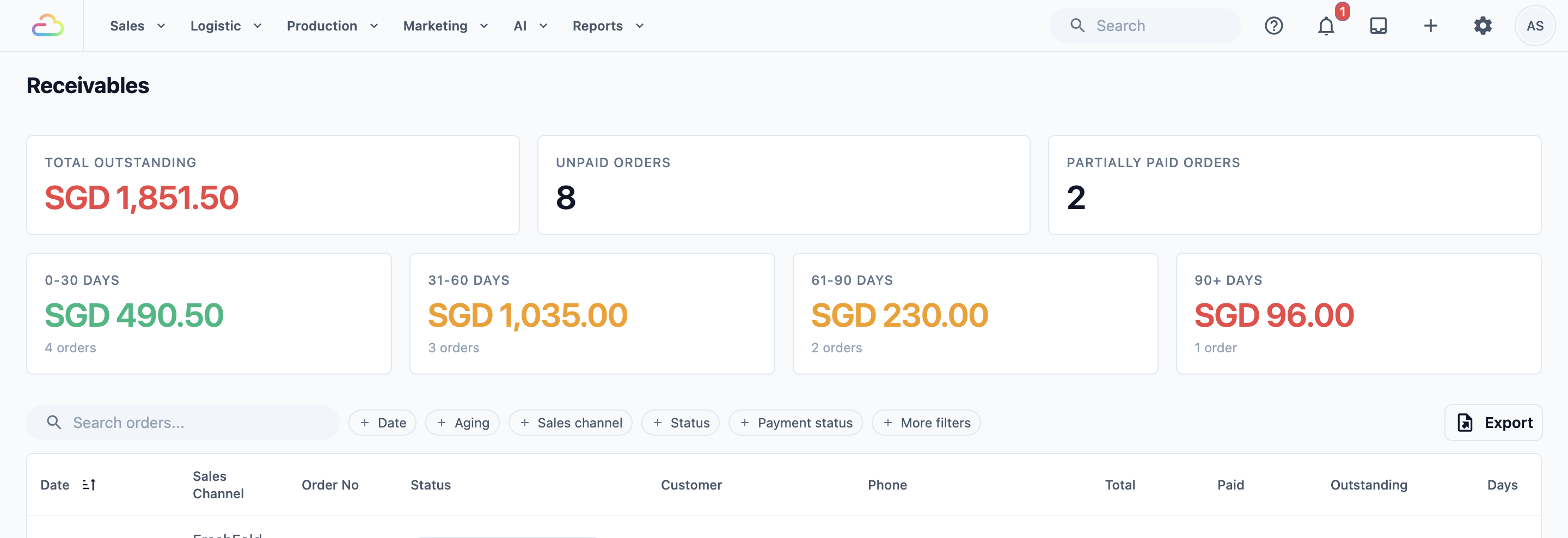
The page opens with two rows of cards above the list.
Read the outstanding and overdue balances
The first row of cards gives you the big picture:
- Total Outstanding: the total amount still owed to you, across all the orders on the page.
- Unpaid Orders: how many orders have no payment at all.
- Partially Paid Orders: how many orders have some payment, but not the full amount.
The second row splits what you're owed by age. Age is counted in days from the day the order was made. This is called aging.
- 0-30 days: recent bills. Most of these will be paid in the normal way.
- 31-60 days and 61-90 days: bills that are getting old. These are worth a reminder.
- 90+ days: bills more than three months old. These need a phone call.
Each card shows the amount owed and how many orders make it up.
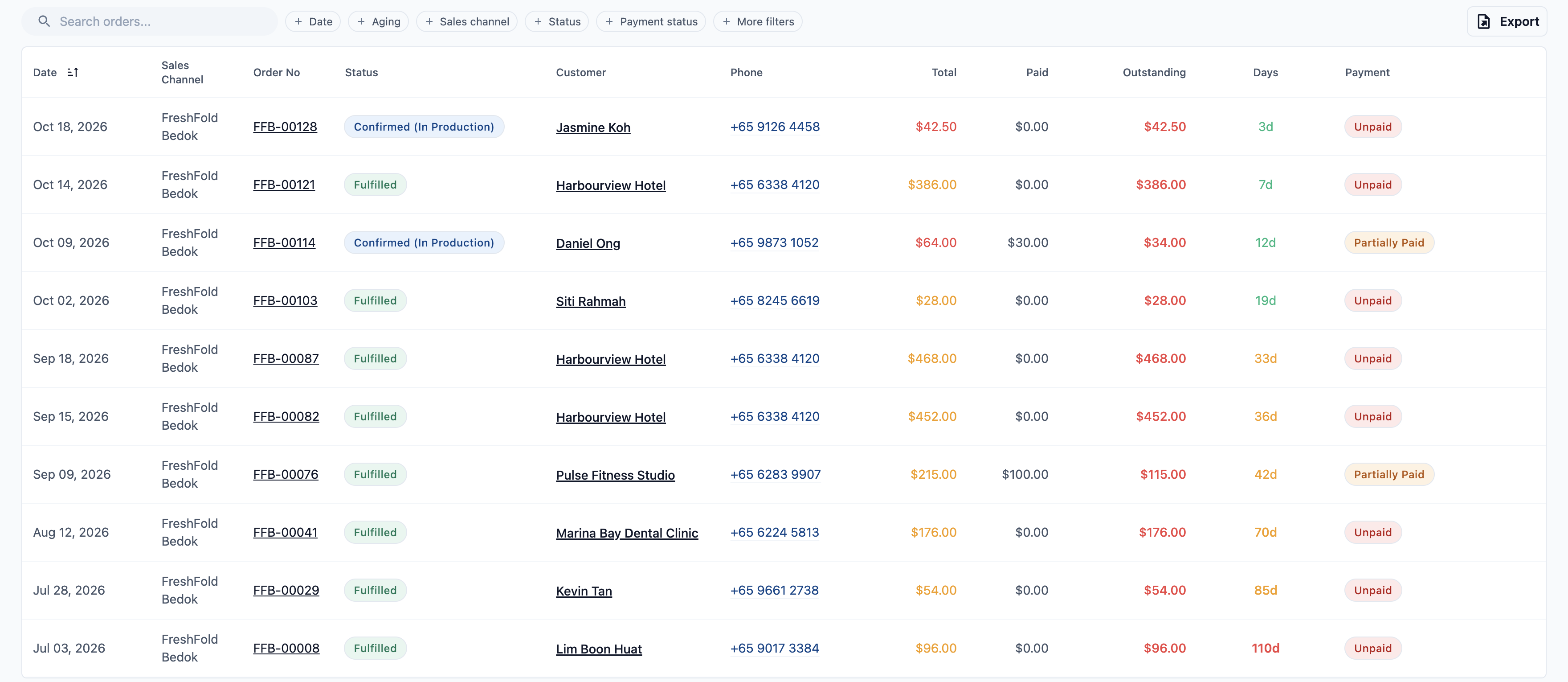
Below the cards is the list itself. Each row is one unpaid order, with these columns:
- Date: the day the order was made.
- Sales Channel: where the order came in, such as your outlet or your online store. A sales channel is any place you take orders.
- Order No, Status, Customer and Phone.
- Total, Paid and Outstanding: what the order costs, what has been paid, and what is still owed.
- Days: how many days since the order was made. It is green while the order is under 30 days old, turns amber from 30 days, and turns red from 90 days.
- Payment: Unpaid or Partially Paid.
Find the bills that need chasing
Use the filter buttons above the list to narrow it down.
- Click Aging and choose 30+ days, 60+ days or 90+ days.
- Click Sales channel to see one outlet's unpaid orders.
- To see one customer's unpaid orders, click More filters, then Customer, and type their name.
- To find one order, type its order number in the Search orders... box.
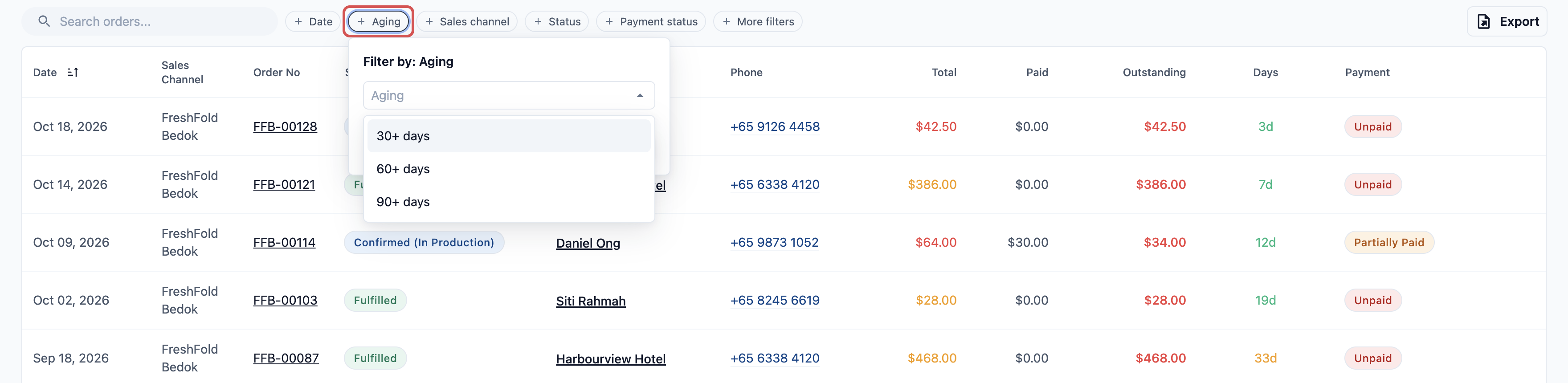
The Total Outstanding, Unpaid Orders and Partially Paid Orders cards change to match your filters. Click Clear filters to see everything again.
To keep a copy of the list, click Export. An export saves the list as a spreadsheet file you can open in Excel or send to your accountant. To learn more, read Exporting Reports and Downloads.
Follow up with a customer
- In the list, click the order number. The order opens.
- Find the Payment section. It shows the Amount Due.
- To remind the customer, click Send Payment Reminder. A message says Payment reminder sent, and the order shows when the reminder went out.
- When the customer pays, click Collect Payment and record the payment.
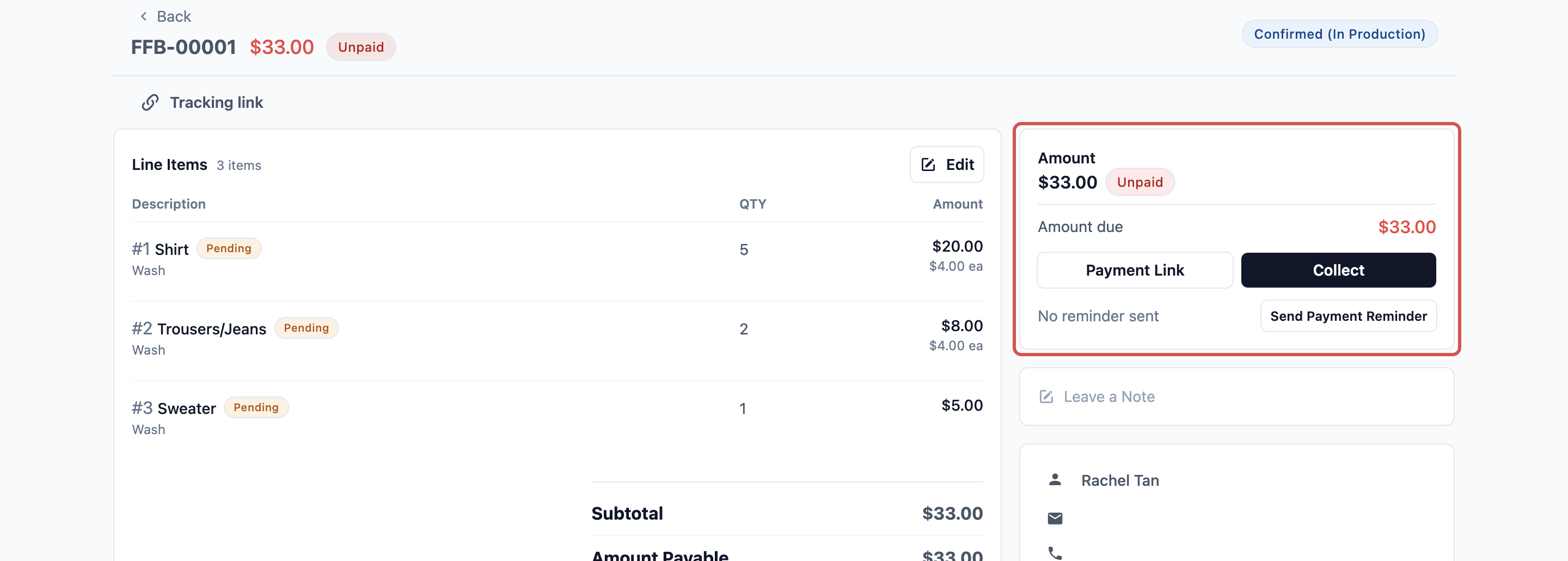
Once an order is fully paid, it leaves the Receivables list by itself.
You only see Send Payment Reminder if your shop has a customer notification set up for the Payment reminder event. You set this up in :gear: Settings, under Customer Notifications. Without it, call or message the customer yourself.
Example: FreshFold chases a hotel client
FreshFold Laundry washes towels and bed sheets for Harbourview Hotel. The hotel pays at the end of each month. On Monday, the owner, Mei Ling, sees $1,840.00 on the 31-60 days card. That's more than she expected.
- Mei Ling clicks Sales, then Receivables.
- She clicks Aging and chooses 30+ days.
- She clicks More filters, then Customer, and types Harbourview Hotel.
- The list shows four orders from early last month. The Days column shows 33 to 38 days, in amber. Total Outstanding shows $1,840.00.
- She clicks the oldest order and clicks Send Payment Reminder.
Two days later, the hotel pays $1,000.00 for its two oldest orders. Mei Ling opens each order and clicks Collect Payment to record what was paid. The oldest order is now fully paid, so it drops off the list. The second was only part paid, so it stays on the list as Partially Paid, with the rest under Outstanding. Mei Ling knows exactly how much to ask for next.
FAQs
Does a part payment clear the order from Receivables?
No. The order stays on the list as Partially Paid until the full amount is paid. The Days count doesn't restart either. It still counts from the day the order was made, so an old bill stays easy to spot.
Are corporate invoices included?
Yes, through their orders. Receivables lists orders, not invoices, so a monthly invoice shows up as the separate orders inside it. When you record a payment on the invoice in Invoicing, EasyBiz pays off the oldest orders first, and those orders leave the list. The Days column counts from each order's date, not the invoice date.
Why don't the aging cards change when I choose a date?
The four aging cards always show everything that's owed, so you never lose sight of old bills. They ignore the Date and Aging filters, but they do follow the Sales channel, Status, Payment status and Customer filters. The three cards at the top follow every filter.
Can staff without Sales figures & reports open Receivables?
Yes. Receivables follows the Sales switch, not Sales figures & reports. Anyone who can take orders can see who owes you. If a staff member can only work in selected sales channels, they only see those outlets' unpaid orders.
Why is a customer's order missing from the list?
Only Confirmed and Fulfilled orders appear. If an order is still a draft or a quote, confirm it first. A cancelled order never appears, even if it was never paid.
Is there a limit to what I can export?
Yes. One export covers up to 92 days and 5,000 orders. For a bigger list, add a Date or Sales channel filter and export it in parts.
What's next
Continue to Reading the Contacts Report to see who your customers are and how many are new.