
Before You Start
Read the customer’s latest reply. Have they agreed to proceed, declined, or asked for more information?
A deal is the record of a sales enquiry. Your sales pipeline groups these deals into stages so your staff know what needs attention.
Before changing a deal’s stage:
- Check that you have the right enquiry.
- Check any linked order. Avoid creating another order for the same work.
- Know which stages your business uses for Won and Lost.
- Check whether your pipeline moves deals automatically as orders progress.
For these settings, see Set up your sales pipeline.
What Won and Lost Mean
Won means the sales enquiry was successful. Lost means the enquiry is no longer proceeding.
You can record either outcome yourself. EasyBiz can also update it automatically when your pipeline’s rules apply.
Each record tells you something different:
- Deal: Did the enquiry lead to a sale?
- Order: What work was booked, and how far has it progressed?
- Payment: Has the customer paid?
- Conversation: Does the chat still need attention?
Record the outcome once the customer’s decision is clear. This keeps your open stages focused on enquiries that still need attention.
Record a Successful Enquiry as Won
Open Deal Pipeline and find the customer’s deal.
Check the enquiry and any linked order. Use the existing order if one has already been created.
If you need to book the work, follow your normal order process. See Handling Online Orders in the Console.
Check the deal’s stage again. Your order rules may have moved it automatically.
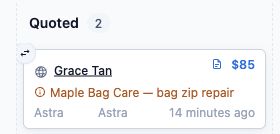
If you need to record the outcome yourself, point to the deal card and open Change deal stage .
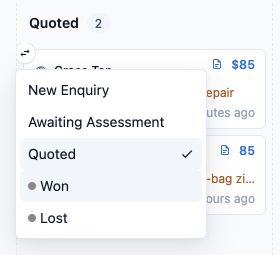
Choose Won , or your business’s equivalent stage.
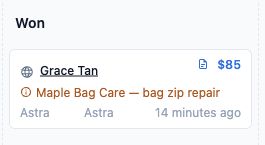
Check that the deal appears in the Won column. Check its linked order, if present.
Check payment separately using Taking Payments on Your Online Store.
What Happens Afterwards?
The deal stays in the Won column as a record of the successful enquiry.
Its conversation does not close immediately because you selected Won. Your staff may still need to arrange the repair, collection or delivery.
The order rules can close the chat later. See “Understand Automatic Outcomes and Closure” below.
Mark an Enquiry as Lost
Use Lost when the customer declines, or when your team’s agreed follow-up period has ended. Waiting for a reply alone does not mean the enquiry is lost.
Open Deal Pipeline and find the correct deal.
Read the latest customer reply and check any linked order. Handle any order cancellation separately.
Point to the deal card and open Change deal stage .
Choose Lost , or your business’s equivalent stage.
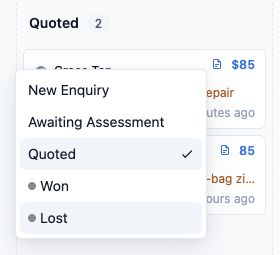
Check that the deal appears in the Lost column.
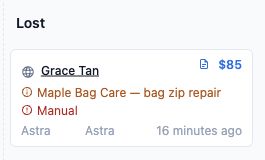
You do not need to select a loss reason. EasyBiz records this manual change with the reason Manual.
What Happens Afterwards?
If this deal is still the enquiry linked to the chat, marking it Lost also:
- Closes the conversation.
- Removes the chat’s active deal link.
- Removes staff assignments from the chat.
A newer enquiry linked to that conversation is not closed by this change.
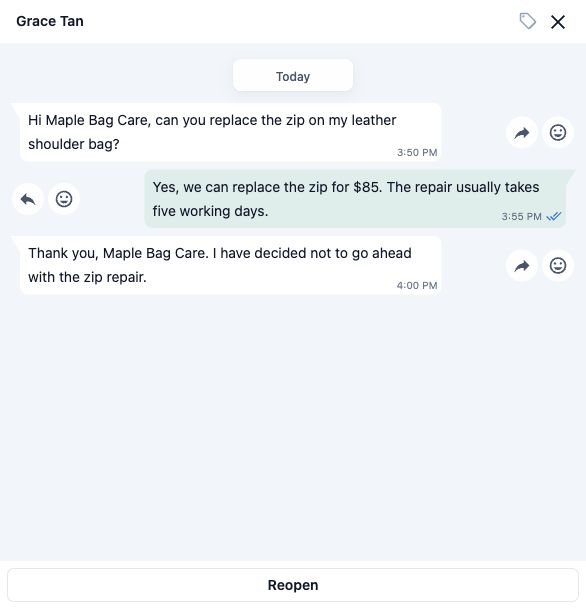
The customer record and messages remain available. Review any scheduled follow-ups before leaving the enquiry.
Understand Automatic Outcomes and Closure
Your pipeline settings control when EasyBiz updates deals and closes conversations.
When a New Order Is Linked
EasyBiz can link a matching deal to a new order.
- Without automatic stage rules, this can move the deal straight to Won.
- With automatic stage rules, the next stage depends on the order event and the deal’s current stage.
Creating an order does not always mean the deal moves to Won immediately.
When a Customer Stops Replying
If automatic loss is enabled, EasyBiz can move an unanswered deal to Lost. It records the reason as Stale.
The waiting period depends on the deal’s stage and the customer’s last recorded reply. Different stages can have different waiting periods.
The conversation also closes if this is still its active enquiry.
When a Linked Order Is Cancelled
Cancelling a linked order can move an open deal to Lost. The recorded reason is Order cancelled.
This rule does not change a deal that is already Won to Lost.
When a Linked Order Is Fulfilled
Once the order is marked fulfilled, meaning completed and handed over, the chat’s closing countdown can begin.
- The default waiting period is three days.
- A different positive number uses that many days.
- Zero closes the conversation immediately.
This applies only while the deal remains the chat’s active enquiry. It does not close a newer enquiry that has replaced it.
For these settings, see Set up your sales pipeline.
Check Follow-Ups and Customer Messages
Selecting Won or Lost does not itself send the customer a standard outcome message. Closing the chat does not send one either.
However, your business may have a sequence, which is a series of automatic follow-up messages. A stage change can start or stop a sequence, depending on its rules.
A sequence may stop when its stopping rules are met or the deal no longer qualifies. Order notifications and marketing campaigns are separate and may still send.
Maple Bag Care: Two Alternative Endings
A customer asks fictional shop Maple Bag Care about repairing a bag. The team explains the repair and waits for a decision.
Ending 1: The Customer Proceeds
The customer accepts the repair proposal.
- Your staff check for an existing order before booking the work.
- They check whether the order rules have moved the deal to Won.
- If a manual update is needed, they open Change deal stage and select Won .
- They check payment, repair progress and remaining sales follow-ups separately.
The deal now records a successful sale. The chat may stay open while your staff arrange the work.
Ending 2: The Customer Declines
The customer decides not to repair the bag.
- Your staff confirm that the reply relates to this enquiry.
- They open Change deal stage and select Lost .
- They check the Lost column and confirm that the chat has closed, if this was its active enquiry.
- They review remaining sales follow-ups.
The enquiry is now recorded as Lost. The customer’s details and messages remain available. Any existing order needs to be handled separately.
Find a Completed Deal
- Open Deal Pipeline and select the same pipeline.
- Look in the Won column for successful enquiries, or the Lost column for enquiries that did not proceed.
- If the deal is missing, check the date, owner and source filters. They may be hiding it.
- Open the linked conversation from the deal, where available.
- If the chat has closed, open Inbox and look among closed conversations.
Closed chats keep their message history, even though they are no longer assigned to staff as active conversations.
Correct an Accidental Outcome
You can change the stage of a completed deal if the wrong outcome was selected.
- Find the deal in its current Won or Lost column.
- Open Change deal stage .
- Choose the correct stage. Use an open stage if the customer is still deciding.
- Check that the deal has moved to the intended stage.
Moving a deal back to an open stage clears its closing date and loss reason.
Check the conversation, linked order and follow-ups separately before continuing with the customer.
FAQs
What happens if a customer returns after a lost deal?
A new message can reopen the conversation. If deal creation is enabled, EasyBiz can create a new deal for the enquiry. Check which deal is currently linked to the conversation before continuing.
Does the previous lost deal stay in the history?
Yes. Creating a new deal does not delete the previous lost deal. It remains available as a record of the earlier enquiry.
Can a previous lost deal automatically become won?
Yes, in some cases. If the order workflow links a qualifying sale with final pricing to an eligible previous lost deal, it can change that deal to Won. A draft order or an order with pricing still to be determined does not qualify. Check the deal linked to the order to confirm its outcome.
What’s Next
You can now follow an enquiry from first contact through your sales pipeline to its final outcome, while keeping the deal, order, payment and conversation distinct.
Return to Get started with deals to revisit the full four-article series.