
Before You Start
You should have:
- An existing deal linked to a customer enquiry.
- A sales pipeline with stages already set up.
- Access to the deals board and the linked conversation.
If you have not started using deals, read Get started with deals. For pipeline setup, see Set up your sales pipeline.
This walkthrough continues Maple Bag Care’s bag zip enquiry. The customer has sent photos, and a staff member needs to assess the repair. Staff names and example stage names below are fictional; use the people and stages available in your business.
1. Find the enquiry
A short review at the start of each working day helps your team spot unanswered enquiries. Reading the latest conversation and notes before replying also helps prevent duplicate follow-ups.
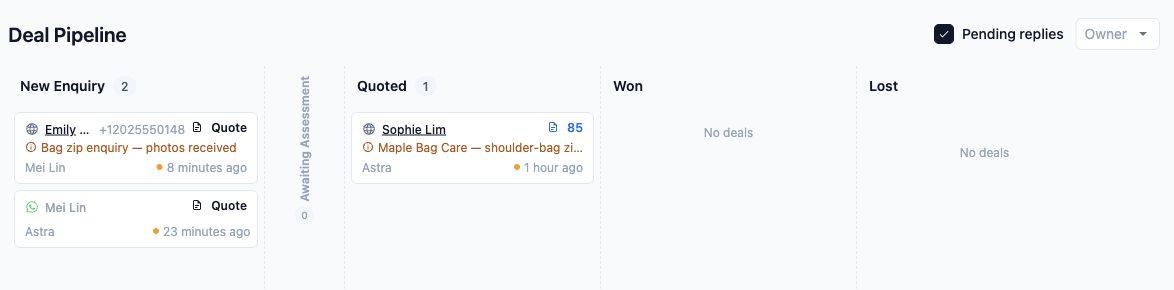
- Open Deals from the main menu. The page heading is Deal Pipeline.
- Tick Pending replies to show enquiries recorded as waiting for your business to reply.
- To narrow the board further, use Owner to select a staff member associated with the deal.
- Find the customer’s card using the name and phone number shown on it.
- If you cannot find the enquiry, clear Owner and untick Pending replies. An enquiry may still be active even when it is waiting for the customer’s reply.
For Maple Bag Care, use Pending replies to find the bag zip enquiry after the customer sends the photos.
2. Check what needs to happen next
Review the card before taking action:
- Stage: The column shows where the enquiry is in your sales process.
- Customer name and phone number: Check that you have the correct enquiry.
- Internal note: Read any update already recorded by a colleague.
- Staff names: The card can show the people assigned to qualifying and closing work. Their responsibilities are explained below.
- Quote amount: For a deal without a linked order, an amount beside the quote control is the recorded quoted amount. It does not mean the customer has paid.
- Order number: If an order is linked, select its number to review the order separately.
What does the time on a card mean?
On the usual board view, the time is measured from the customer’s latest reply. If a stage is configured to show deals by when they entered that stage, the time instead shows how long the deal has been in that stage.
Some stages also separate cards into age groups. These groups use the time since the customer’s latest reply. They are not appointment dates or promised completion times.
Use these indicators to decide which enquiries to review first, then read the conversation for the full picture.
3. Read the conversation and record an update
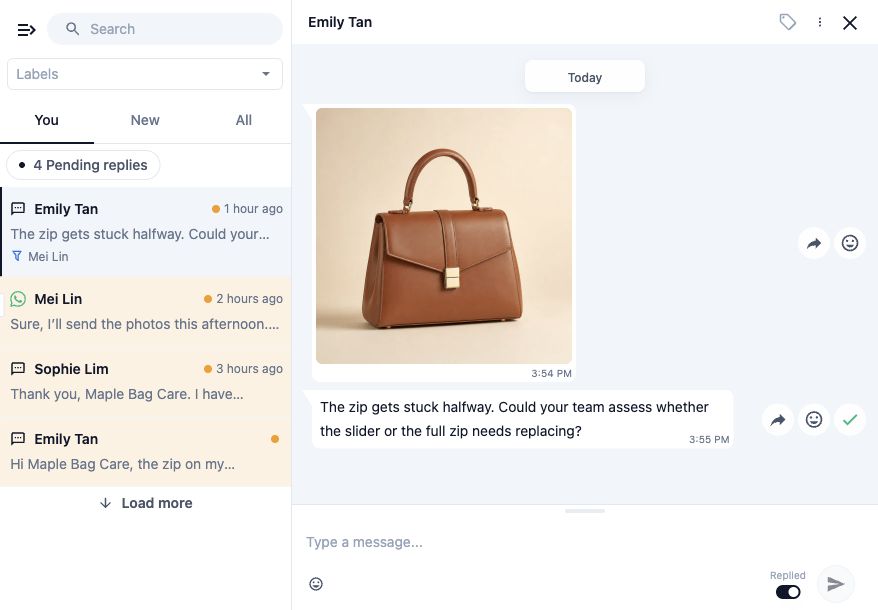
- Select the customer’s name or contact area on the deal card to open its linked conversation.
- Read the latest messages, including your team’s replies.
- Confirm what the customer needs and what is still outstanding.
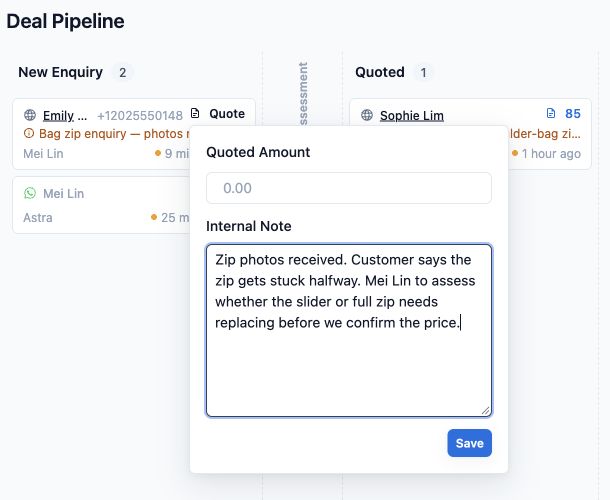
- For this example, return to the card and select Quote, or the existing quote amount, to open the quote and note controls.
- Enter a useful update in Internal Note, then select Save.
For Maple Bag Care, the note could read: Zip photos received. Customer says the zip gets stuck halfway. Mei Lin to assess whether the slider or full zip needs replacing before we confirm the price.
Keep any earlier information that the team still needs when editing the note. Leave Quoted Amount unchanged if you are only recording an update.
4. Assign the right person
Where responsibility controls are available, the linked conversation shows Qualifying Owner and Closing Owner, or the names of the people already assigned.
- Qualifying Owner handles the earlier work of understanding and assessing the enquiry. This assignment also updates the overall deal owner.
- Closing Owner handles the later sales follow-up. Assigning this person does not replace the overall deal owner.
These responsibilities apply to the qualifying and closing parts of the pipeline, rather than creating a separate owner for every individual column.
To assign responsibility:
- Open the linked conversation.
- Select the appropriate owner label or existing staff name.
- Choose the staff member from the available list.
- Check that the selected name appears.
For Maple Bag Care, select Mei Lin as the Qualifying Owner, if she is available in the list and handles repair assessments.
If the list says No owners configured, ask the person managing your pipeline to check the setup. See Set up your sales pipeline.
5. Move the deal to the next open stage
Move a deal when the enquiry has reached the next step in your business’s process.
- Return to the deals board.
- Move your pointer over the card to reveal the Change deal stage control.
- Select the next suitable open stage. You can also drag the card into another stage’s column.
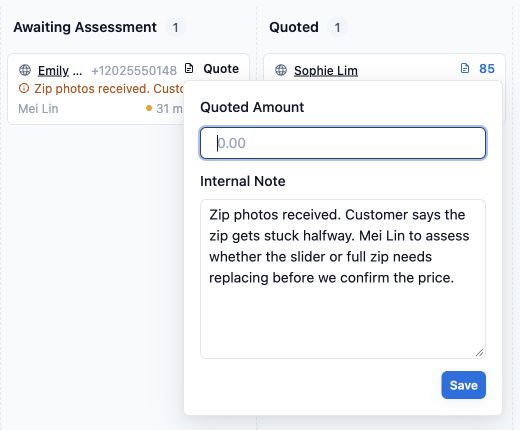
- Check that the card appears in the intended column.
For Maple Bag Care, the photos are ready for assessment. Move the enquiry to the open stage your business uses for this step—for example, Awaiting Assessment, if that stage exists.
Moving a card does not automatically make you responsible for it. Check the owner again, especially when the deal moves from qualifying work to closing work.
Check whether it has already moved
Your pipeline may move a deal automatically after a linked event, such as an order being quoted. If the deal is already in the correct stage, you do not need to move it manually.
What your team and customer see
Colleagues who can access the deal can see its updated stage, note and assigned staff. Their filters may hide the card, so they may need to clear those filters to find it.
The customer does not see your internal board or internal note. Changing a stage or owner does not itself send a chat reply. However, entering a stage can start an automatic follow-up if your business has already configured one.
If the customer needs an update, check the conversation and any existing follow-up arrangements before sending another message.
FAQs
Why does my colleague see different deals?
First, check that you are viewing the same business workspace and using the same Owner and Pending replies filters. The Owner filter can include deals a staff member was previously assigned to, so it is not limited to their current responsibilities.
Does changing responsibility affect conversation access?
It can. Assigning a stage owner adds that person to the linked conversation’s membership. Reassigning the deal does not guarantee that the previous person loses access, so do not use the owner selector as a way to remove someone’s access.
Why did a stage change automatically?
An existing pipeline rule may have responded to a linked event, such as an order being quoted. Check the latest conversation and linked order before changing the stage again.
What’s Next
You can now find enquiries needing attention, keep useful notes and make the next person’s responsibility clear. Continue reviewing active deals until each enquiry reaches an outcome.
When the customer decides whether to proceed, read Close a deal as won or lost.