
Before You Start
Before following this guide, check that:
- You have access to customer conversations and the Deal Pipeline. If you cannot open them, ask the person who manages your EasyBiz account to check your access.
- Your shop’s WhatsApp number is connected to EasyBiz. This guide uses a new WhatsApp enquiry as the example.
- Your sales pipeline stages are set up. These are the steps your team uses to track enquiries. If you have not set them up, see Set up your sales pipeline.
In this guide, you will follow a new WhatsApp enquiry that EasyBiz turns into a deal automatically.
What is a deal?
A deal is a customer enquiry your team needs to follow up until the customer makes a decision, such as whether to go ahead with a bag repair.
A conversation, a deal and an order each serve a different purpose:
- Conversation: Where you exchange messages with the customer.
- Deal: Where your team tracks the enquiry’s progress.
- Order: Where you record the products or services being quoted or purchased.
When does tracking a deal help?
A customer asks Maple Bag Care whether the shop can replace a broken bag zip. Before the customer can decide, staff need to check the bag and provide a price.
This enquiry may take several messages over a few days. If your team relies only on chat history, newer messages can push it out of sight. Another staff member may not realise the customer is still waiting for a reply.
A deal keeps the enquiry visible in your pipeline, the stages your shop uses to track enquiries from first contact to a final decision. Your team can see how far the enquiry has progressed without reading the whole conversation.
Check whether a deal already exists
EasyBiz automatically creates a deal when an incoming WhatsApp message reaches a conversation that has no deal. While that deal is still active, further messages normally remain linked to it.
To check for an existing deal:
- Open the customer’s conversation. When Manage chats by deal stage is enabled, look below the customer’s name for the deal’s stage and details.
- Check the Deal Pipeline. Look for the customer and open their deal to view the linked conversation.
Can I create a deal manually?
The current Console inbox does not have a Create Deal button or a separate deal-creation form. This walkthrough follows the automatic route: a new WhatsApp message arrives in a conversation with no deal, and EasyBiz creates one.
Example: A bag zip enquiry at Maple Bag Care
In this example, Maple Bag Care uses New Enquiry as its starting stage. Your shop may use a different name.
1. Open the customer’s message
Mei Lin contacts Maple Bag Care on WhatsApp about a problem with her handbag.
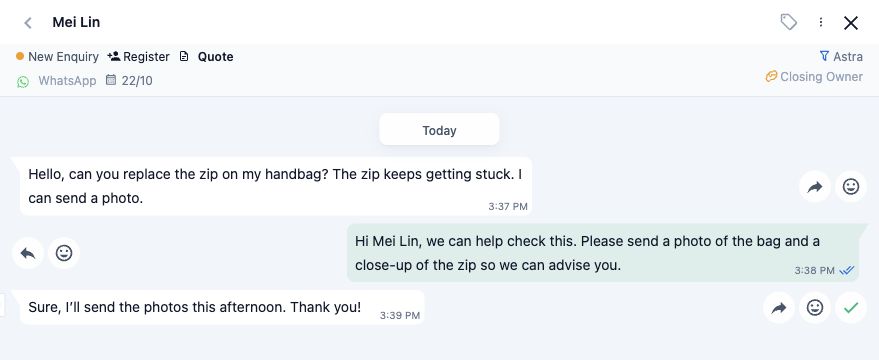
👤 Customer — Mei Lin: Hello, can you replace the zip on my handbag? The zip keeps getting stuck. I can send a photo.
Open her conversation in EasyBiz. Because the conversation has no existing deal, EasyBiz creates one automatically when her message arrives.
Your staff can reply in the same conversation. For example:
🧑🔧Staff — Maple Bag Care: Hi Mei Lin, we can help check this. Please send a photo of the bag and a close-up of the zip so we can advise you.
👤 Customer — Mei Lin: Sure, I’ll send the photos this afternoon. Thank you!
The staff reply above is an example for your team to send. Creating the deal does not send this reply automatically.
2. Check the new deal
Check the deal details in the conversation. In this example, the starting stage is New Enquiry.
EasyBiz uses the contact information available from the conversation. There is no separate creation form to fill in, and you do not need to enter a price or create an order at this point.
Mei Lin’s messages stay in the linked conversation, so your team can refer to her request when she sends the photos.

3. Find it in the pipeline
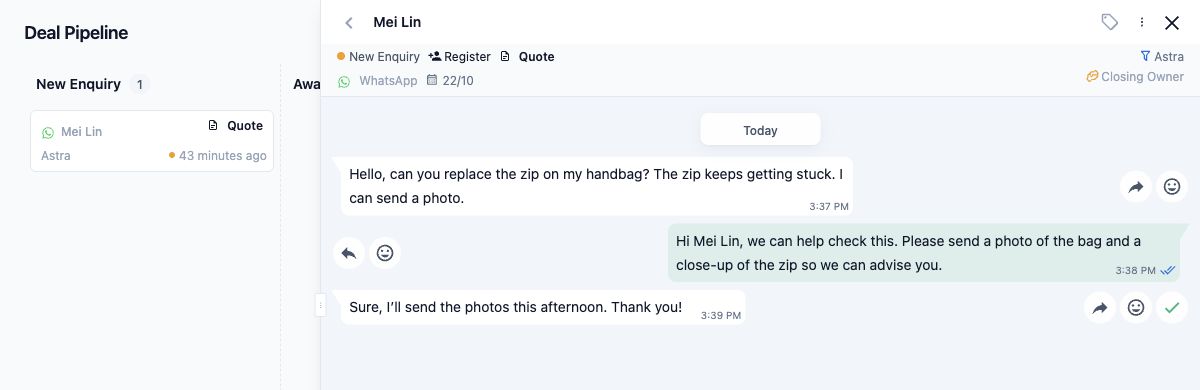
Open the Deal Pipeline and look for Mei Lin under New Enquiry. If you cannot see her deal, check whether any filters are hiding it.
Click her name or contact area on the deal card to open the conversation. Your team can now find the enquiry and read the messages without searching through the chat history.
What happens afterwards?
Staff with the required access can find the deal in EasyBiz and open its conversation. The deal and its internal stage are for your team; the customer continues using the same WhatsApp chat.
Creating the deal does not itself send a customer message. However, if your shop has automatic follow-up messages configured for that stage, those may send messages separately.
You now have a deal to track. For the next steps in everyday follow-up, see Keep track of your deals.
What’s next?
You can now recognise a deal, understand how a new WhatsApp enquiry creates one, and find it again in the pipeline.
Next, read Set up your sales pipeline to arrange the stages for your shop.