
How to Access
From the top navigation bar, click Marketing, then select Campaigns from the dropdown.
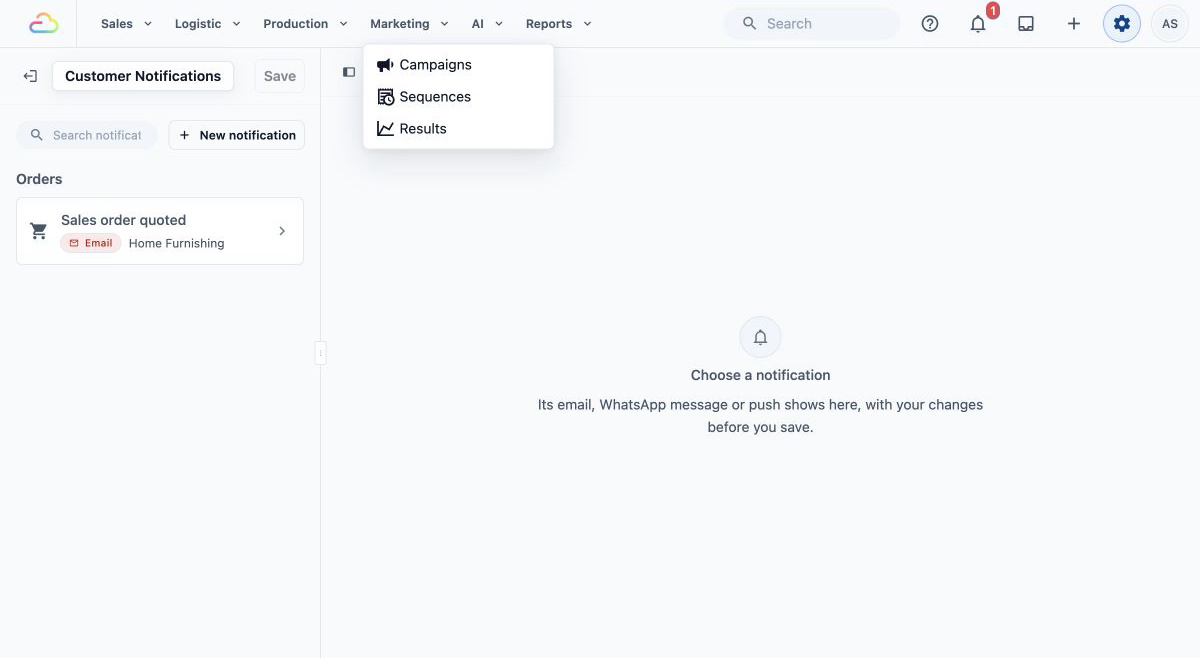
Create a New Broadcast
On the Campaigns page, click + New Campaign in the top right corner.
You'll be taken directly to the Setup page.
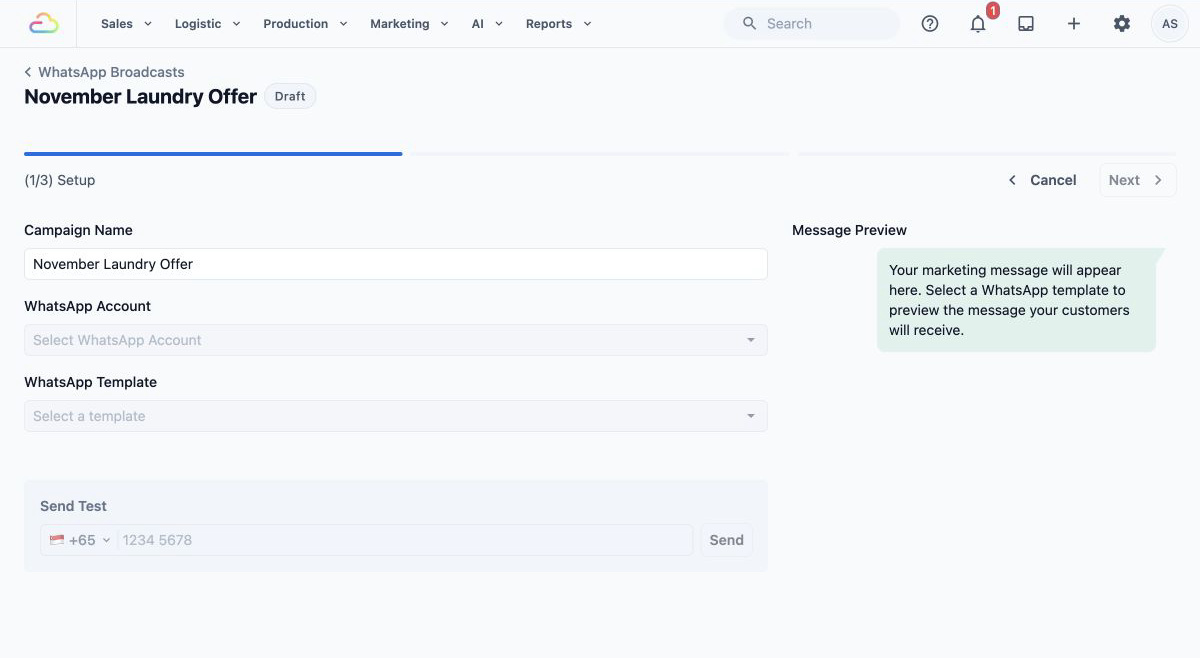
Setup and Template Selection
You will be directed to the Setup page. Here, you need to define the basics of your campaign.
Campaign Details
Campaign Name: Give it a name you'll recognize later (e.g., "March Re-engagement" or "CNY 2026 Promo").
WhatsApp Account: Select the WhatsApp Business account you want to send from. If it has more than one number, select the Phone Number too.
Select Your Template
Choose the approved Marketing template in WhatsApp Template. This is the actual message your customers will receive.
Preview and Test
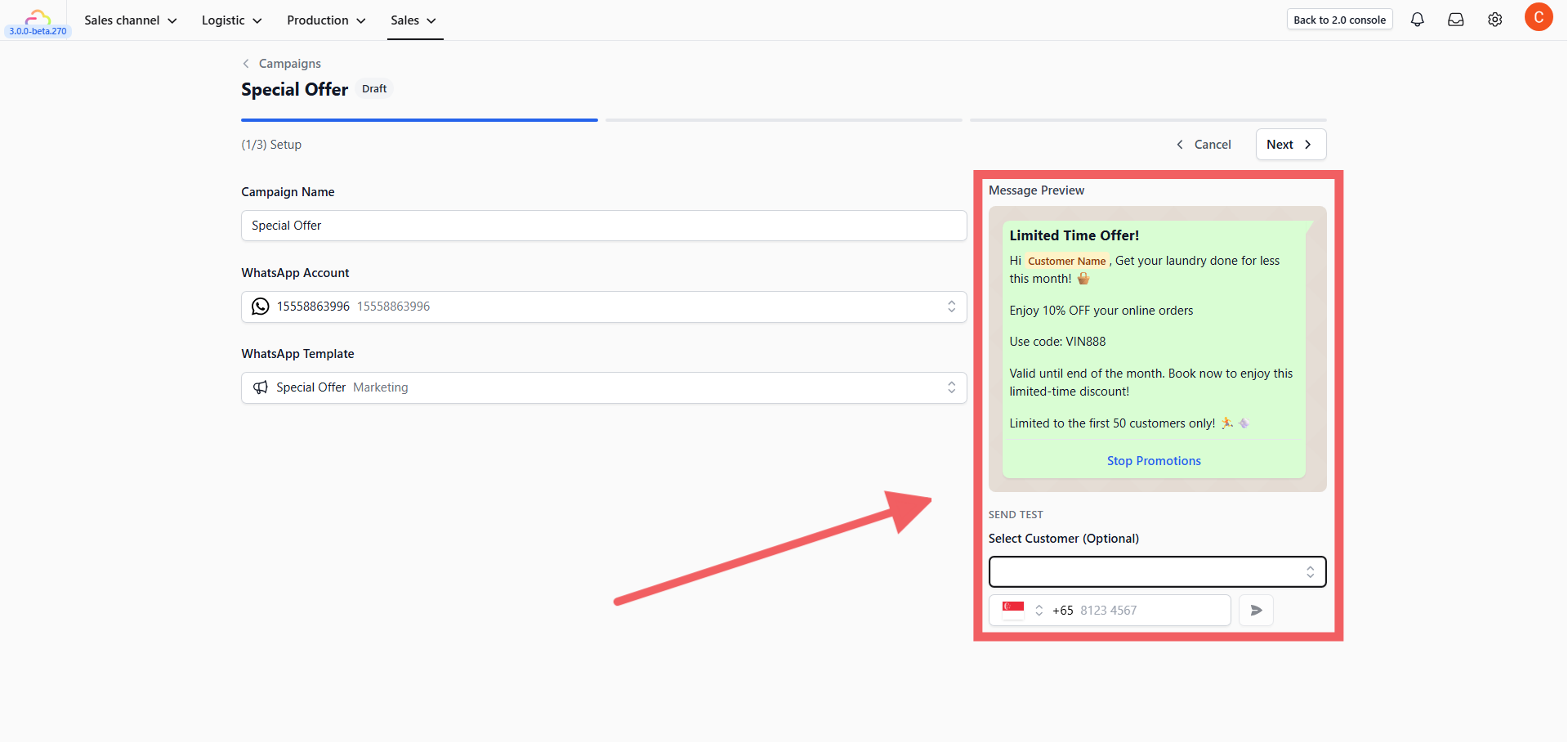
Once you select a template, you'll see a live preview of how it looks on the customer's phone. Before sending it to everyone, you can send a test to your own number, just enter your phone number and click Send.
Select Your Audience
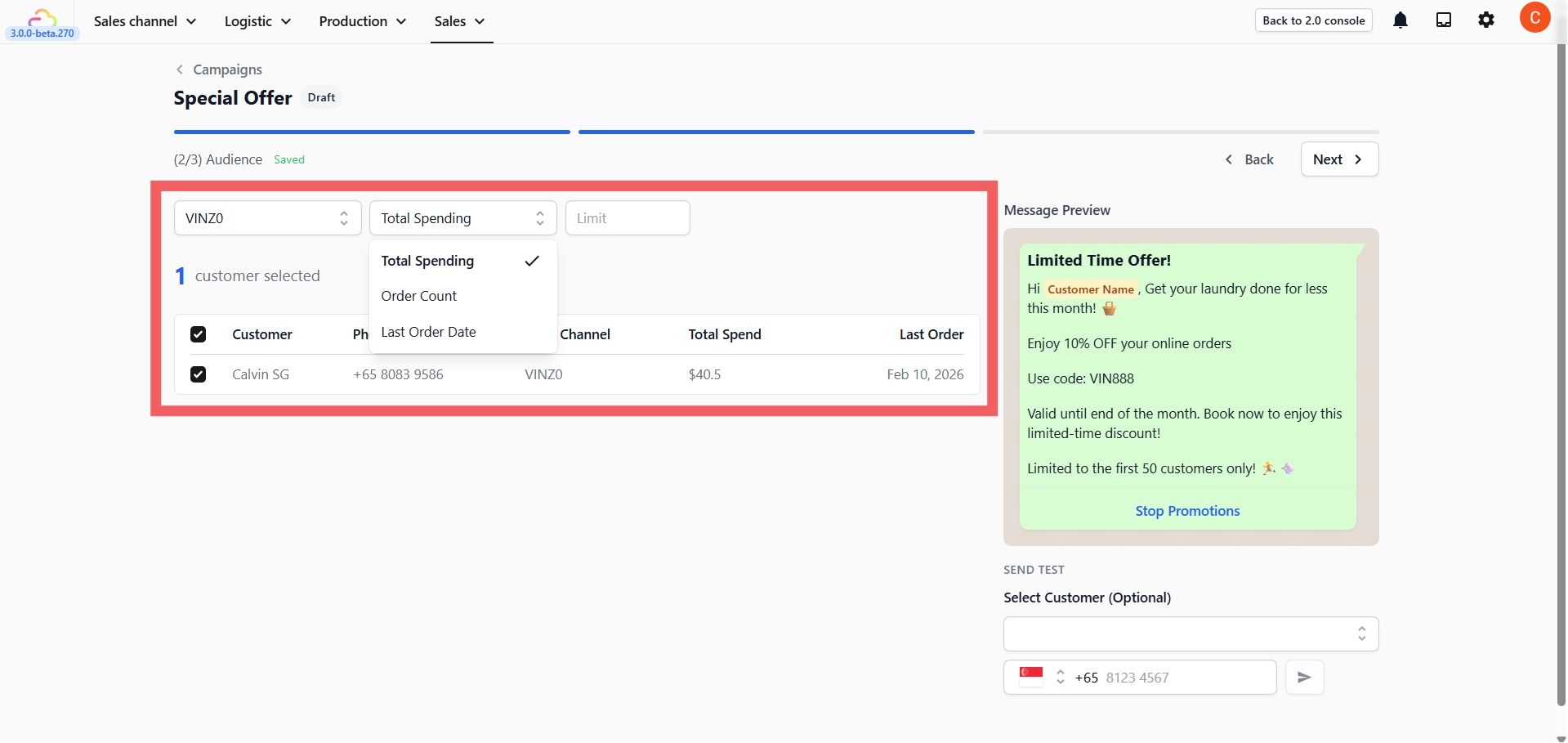
This is where you decide who gets your message. Click Next to enter the Audience stage.
Step 1: Filter by Registration Place
Under Audience Filters, add Registration place from More filters to choose where your customers came from — for example, your Online Store, POS (walk-in customers), or a specific sales channel. This narrows down the list to only customers from that source. Leave it empty to include customers from all channels.
Step 2: Filter by Customer Activity
Use More filters to add customer activity filters:
Last Order Date — Select a date range. The system shows customers whose last order falls within that period. For example, select a range from 3 months ago to find customers who haven't ordered recently and bring them back with a re-engagement promo. Or select this week's dates to target customers who just ordered and upsell them with a follow-up offer.
Total spent — Target customers based on how much they've spent in total. Great for exclusive offers to your highest-value customers.
Total orders — Target customers based on how many orders they've placed. Great for rewarding your most loyal visitors.
Set a Limit
The Audience cap field under Max recipients lets you cap the number of recipients. To select your top 50 highest-spending customers, enter 50 and set Order By to Total Spent. This is useful for running exclusive promotions aimed at your best customers.
Manual Selection
After filtering, the system generates a list. You can manually check or uncheck individual customers if you want to include or exclude specific people.
Review and Launch
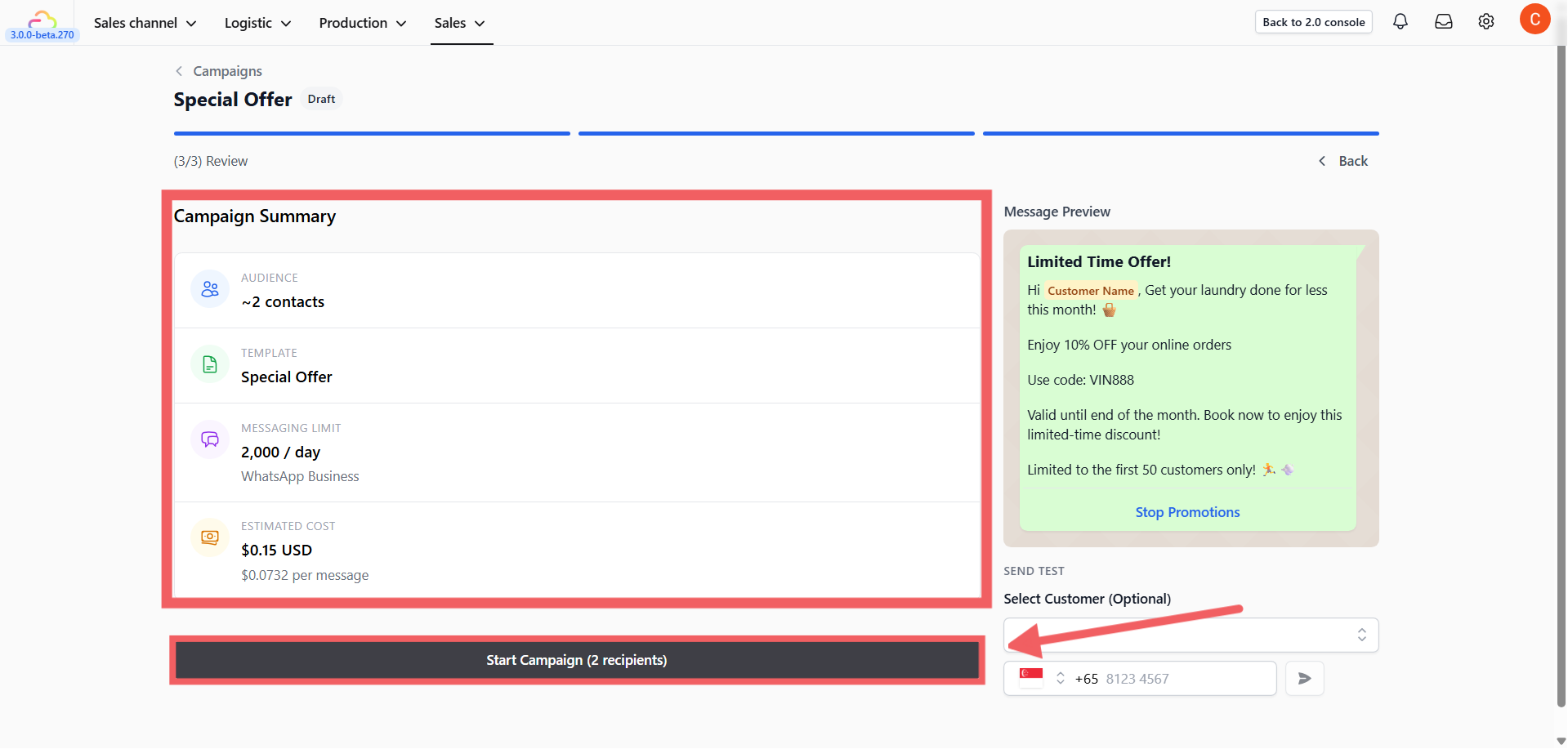
Click Next to proceed to the Summary page. This acts as your final checkpoint. You will see a Campaign Summary box containing:
Audience: Number of recipients.
Template: The message you're sending.
Messaging Limit: Your current daily limit (e.g., 2,000 messages/day).
Estimated Cost: Projected cost based on META's messaging rates.
Start the Campaign
Under Send Time, choose Send Now or Schedule for later. For a scheduled campaign, select Send Date and Send Time. Click Send Campaign Now or Schedule Campaign (the button also shows the recipient count), review the confirmation dialog, and confirm. Sending starts immediately only when you choose Send Now.
Track Performance
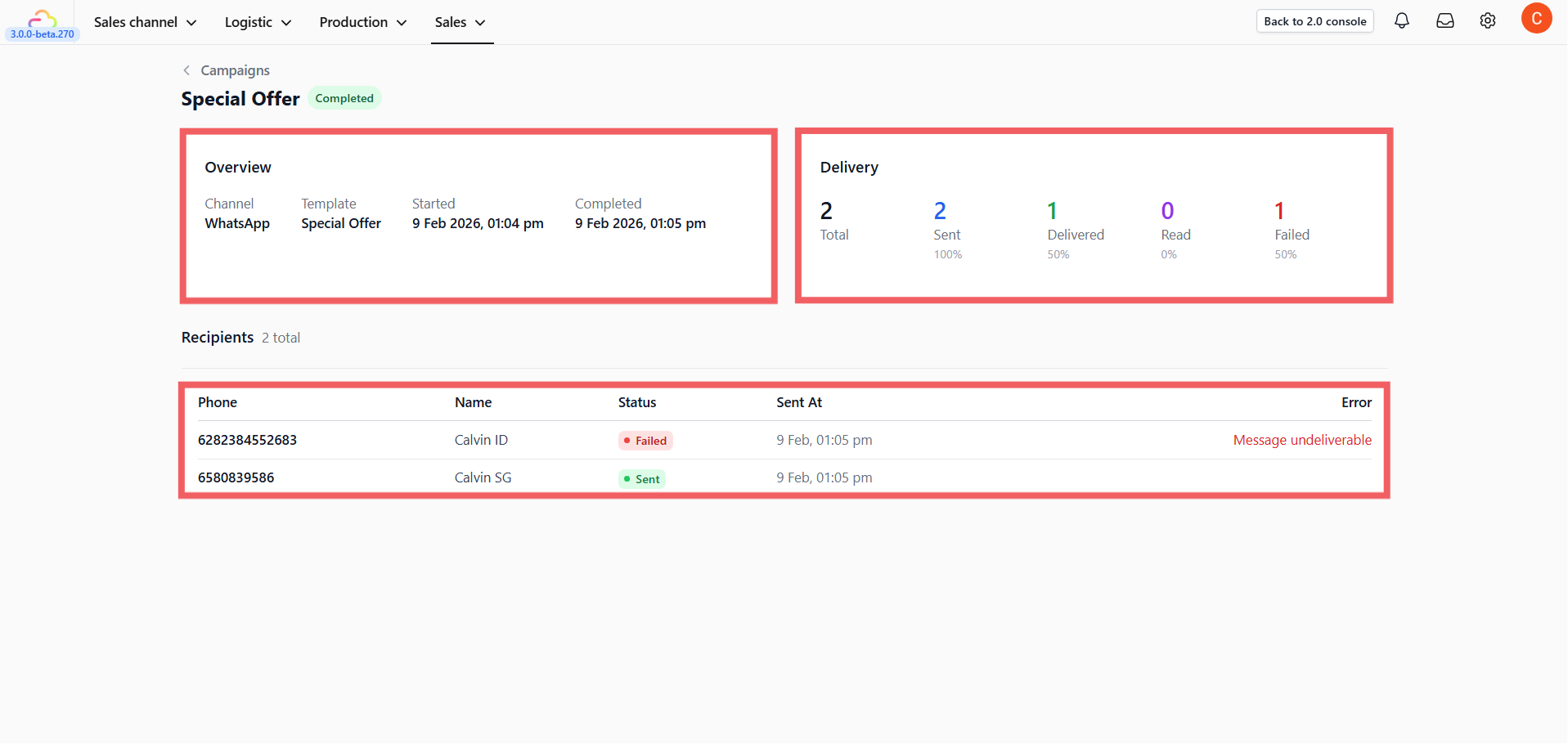
After the campaign starts, you will be taken to the Statistics Dashboard. Here you can monitor the results in real-time:
Sent — Messages pushed from the system.
Delivered — Messages that reached the customer's phone.
Read — Messages the customer actually opened.
Failed — Messages that couldn't be delivered (usually invalid numbers).
Tips and Best Practices
Messaging Limits
WhatsApp limits how many new customers you can message within 24 hours. Your limit depends on your account reputation:
New / unverified accounts: 250 per day
Verified (starting level): 1,000 per day
Higher tiers: 10,000 → 100,000 → Unlimited
You can check your current limit in WhatsApp Manager → Phone Numbers.
When to Send
Weekday mornings (9 AM – 12 PM) — People check their phone during their morning routine.
Weekday evenings (5 PM – 8 PM) — Off work, more likely to read and respond.
Weekend mornings (10 AM – 12 PM) — More free time to browse and act on promotions.
Avoid late nights, early mornings, public holidays, and Monday mornings.
How Often to Send
Don't send more than 1–2 campaigns per week unless you have something genuinely useful to share. Over-messaging is the fastest way to get blocked. You can see the section below on how to include a Stop Promotions button so customers can opt out cleanly.
Managing Customer Opt-Outs (Stop Promotions)
Give your customers the option to stop receiving promotions. This prevents spam complaints and keeps your messaging reputation healthy.
Setting Up the "Stop Promotion" Button
Add this button to your Marketing Template before using it in a campaign:
Go to Settings → WhatsApp Templates.
Find your template in the Marketing section or use Search templates.
Click the template name to open its editor.
In the editor, look at the left panel and find the Buttons section.
Click + Add Button and select Quick Reply as the button type.
Enter the text Stop Promotions in the button text field.
Click Add to add the new button, then Submit above the editing panel and confirm the WhatsApp account in the review dialog.
What the Customer Sees
When a customer taps Stop Promotions, they receive an automatic message confirming they've been unsubscribed. They'll still get order updates and receipts as normal.
The system automatically excludes them from future campaigns.
If they change their mind, they can reply START to re-subscribe.