
Setting Up Interactive Messages
Create engaging interactive messages—such as menus, quick replies, or direct links to Mini Apps—to send to your customers.
1. Create a New Template & Choose Type
- Start by defining the purpose of your message.
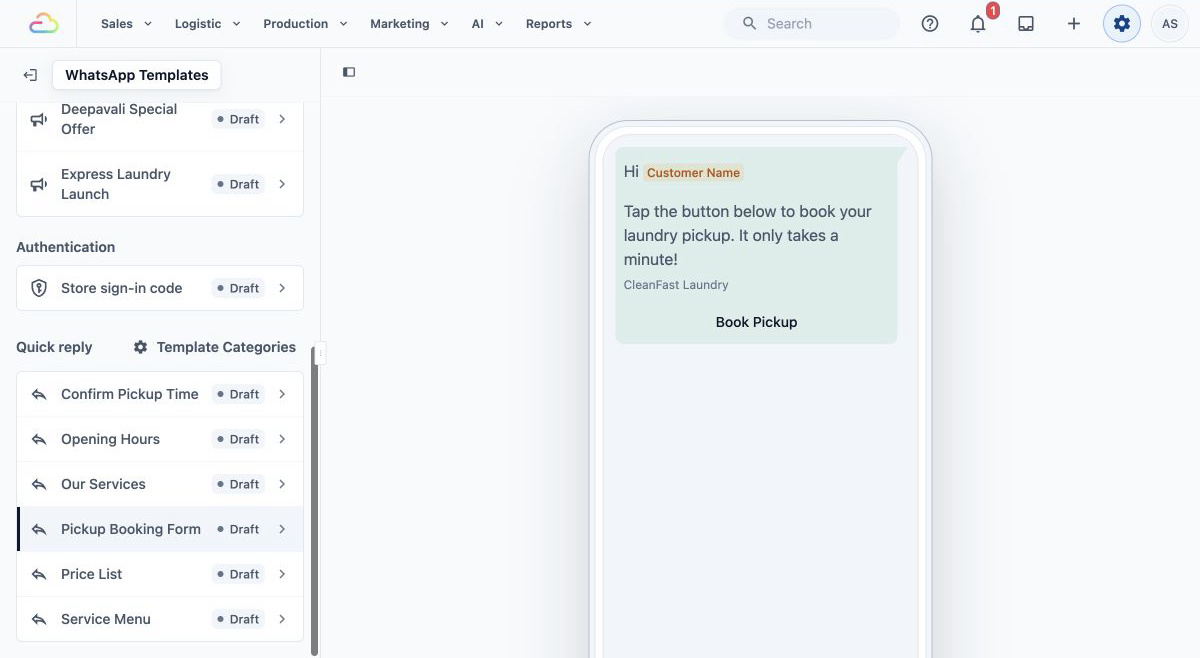
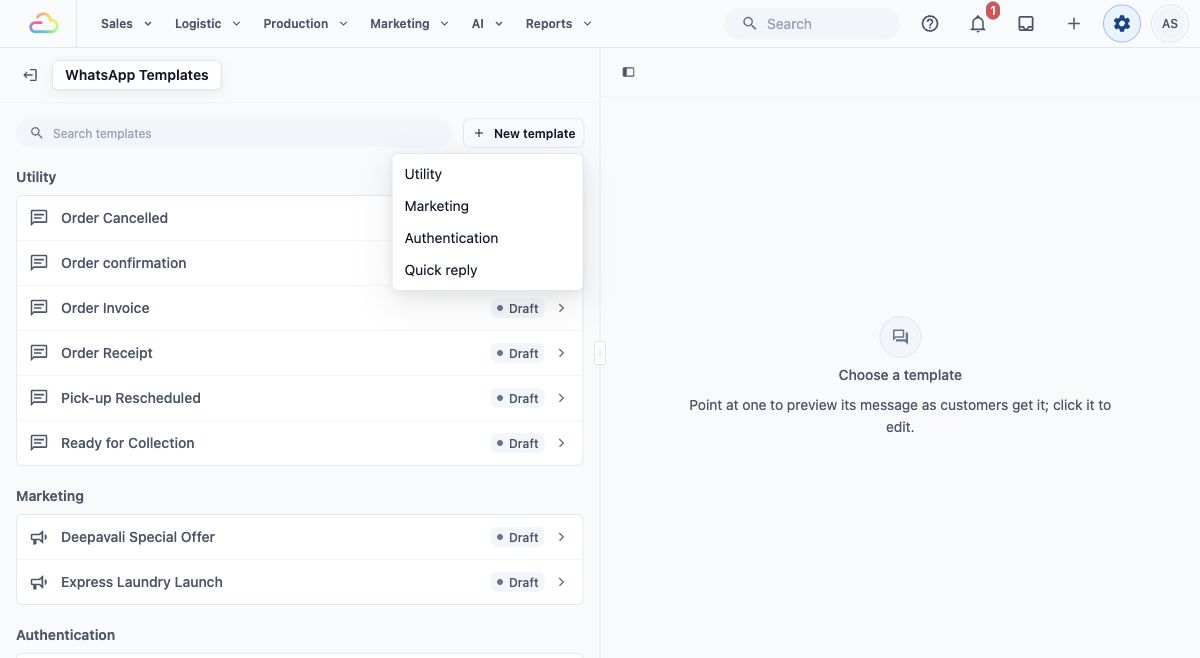
- Open Settings → WhatsApp Templates, click New template, and choose Quick Reply.
In the popup window, enter a Template name for internal reference.
Select the Template content type based on your goal:
URL action: Directs users to an external website.
Mini App action: Launches an interactive WhatsApp Flow.
List action: Presents a menu of up to 10 options for the user to select.
Reply Buttons: Offers up to 3 quick response buttons.
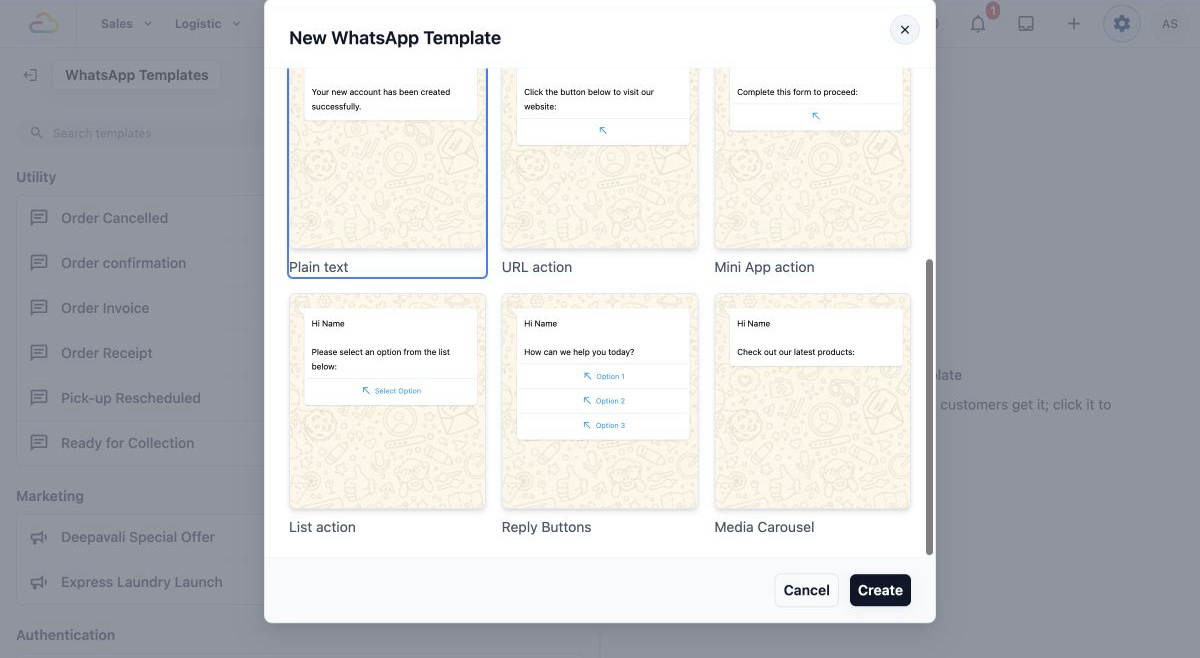
- Click Create.
2. Configure Message Content
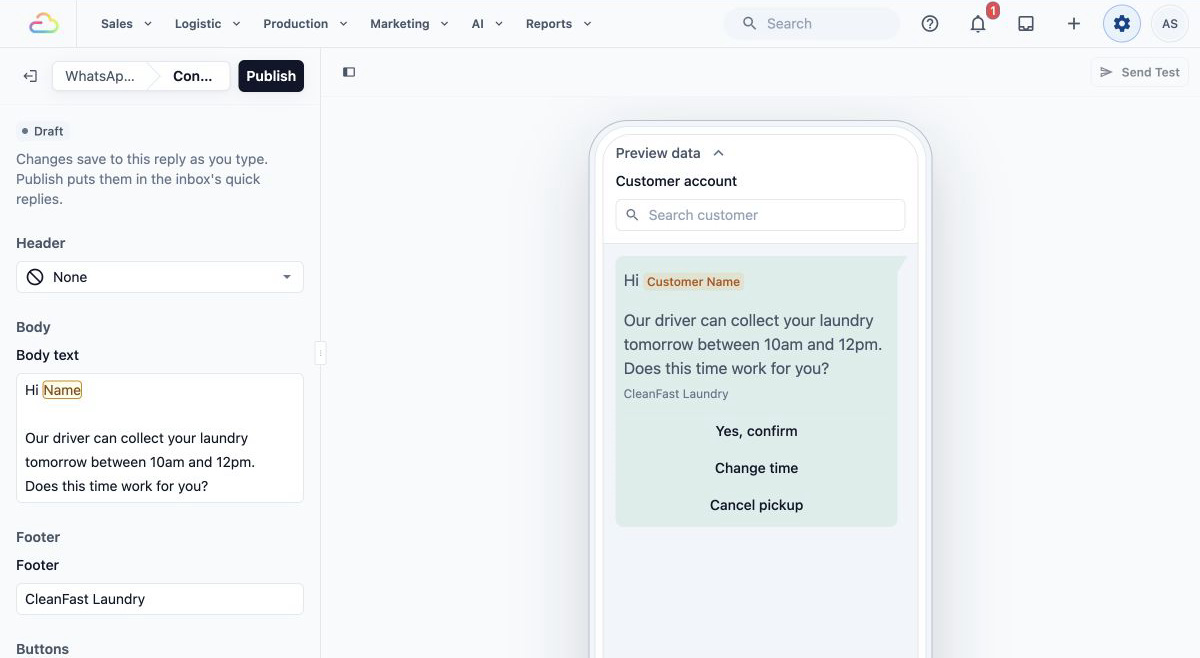
- Find the template in the Quick Reply section or use Search templates.
- Click the template name to open its editor.
3.You will see that the message is fully customizable, including the header, body, footer, and actions.
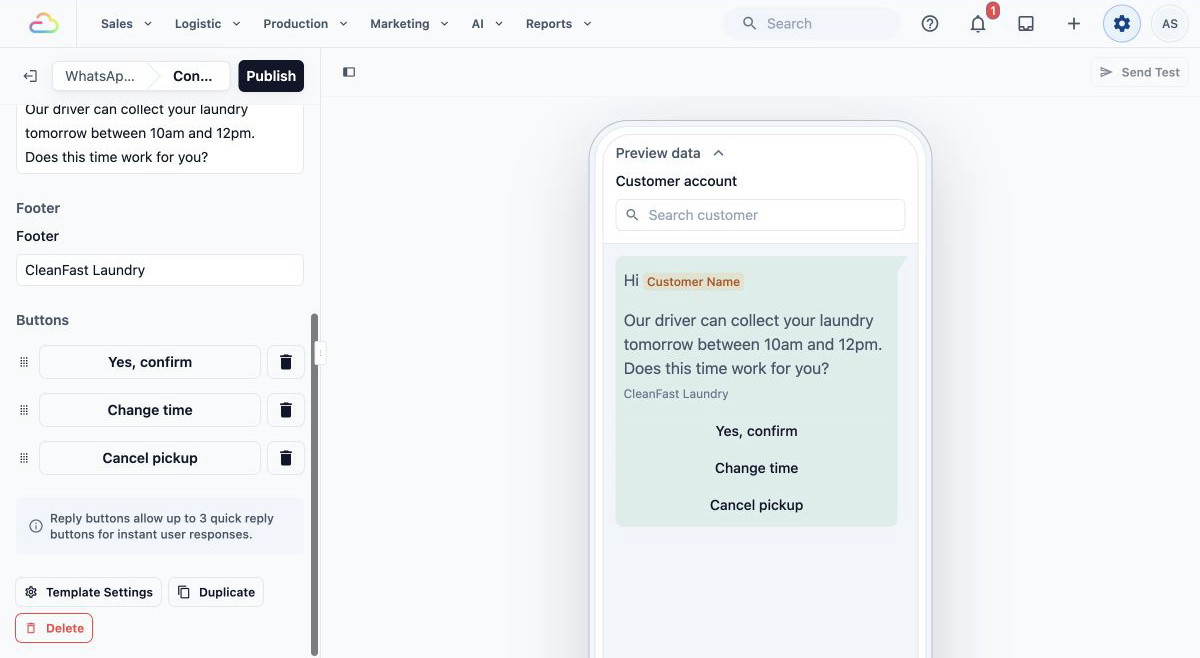
- Changes save as you type. Once you have finished customizing, click Publish above the editing panel and confirm in the Publish Template dialog.
Regardless of the template type chosen, configure the main visual elements using the left sidebar.
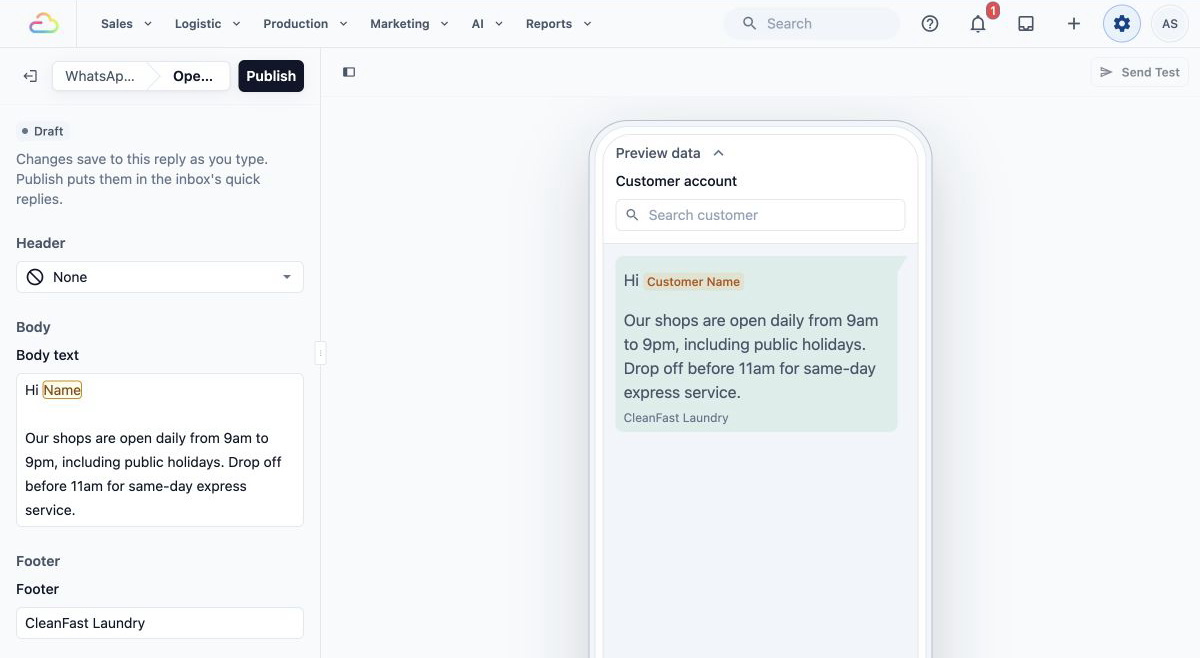
- Header: Choose Text, Image, Video or Document, or keep it as None at the top of your message.
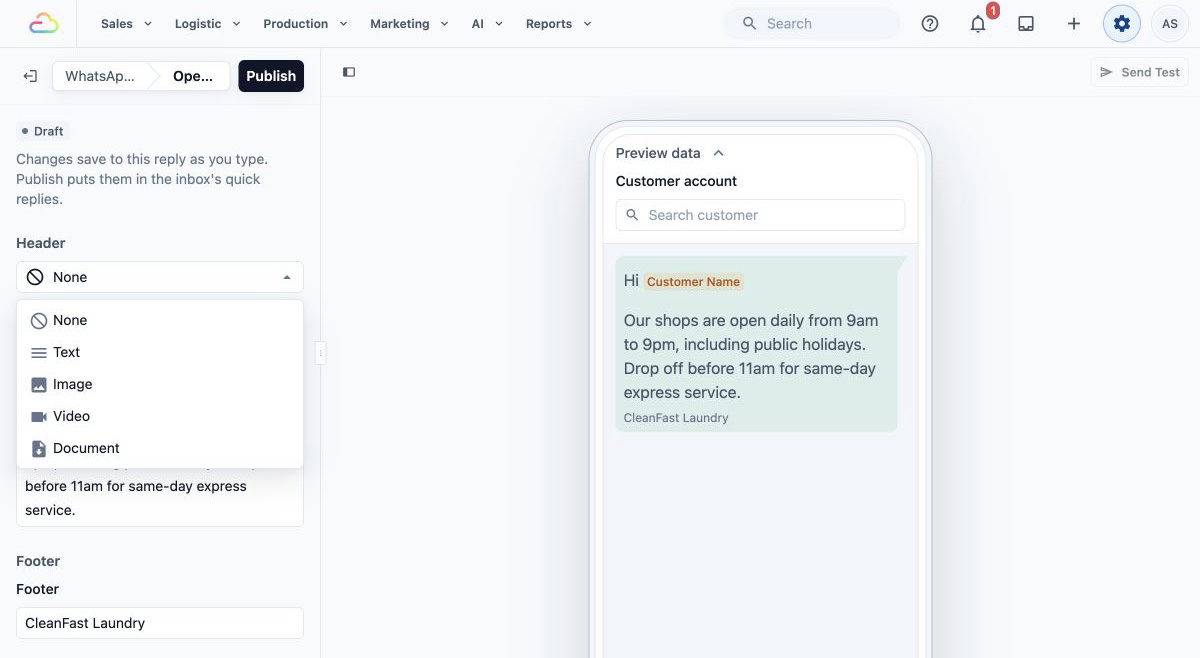
- Body: Type your main message. To make it personal, type @ where a dropdown list will appear to insert dynamic variables like {{Customer Name}} or {{Order Number}}.
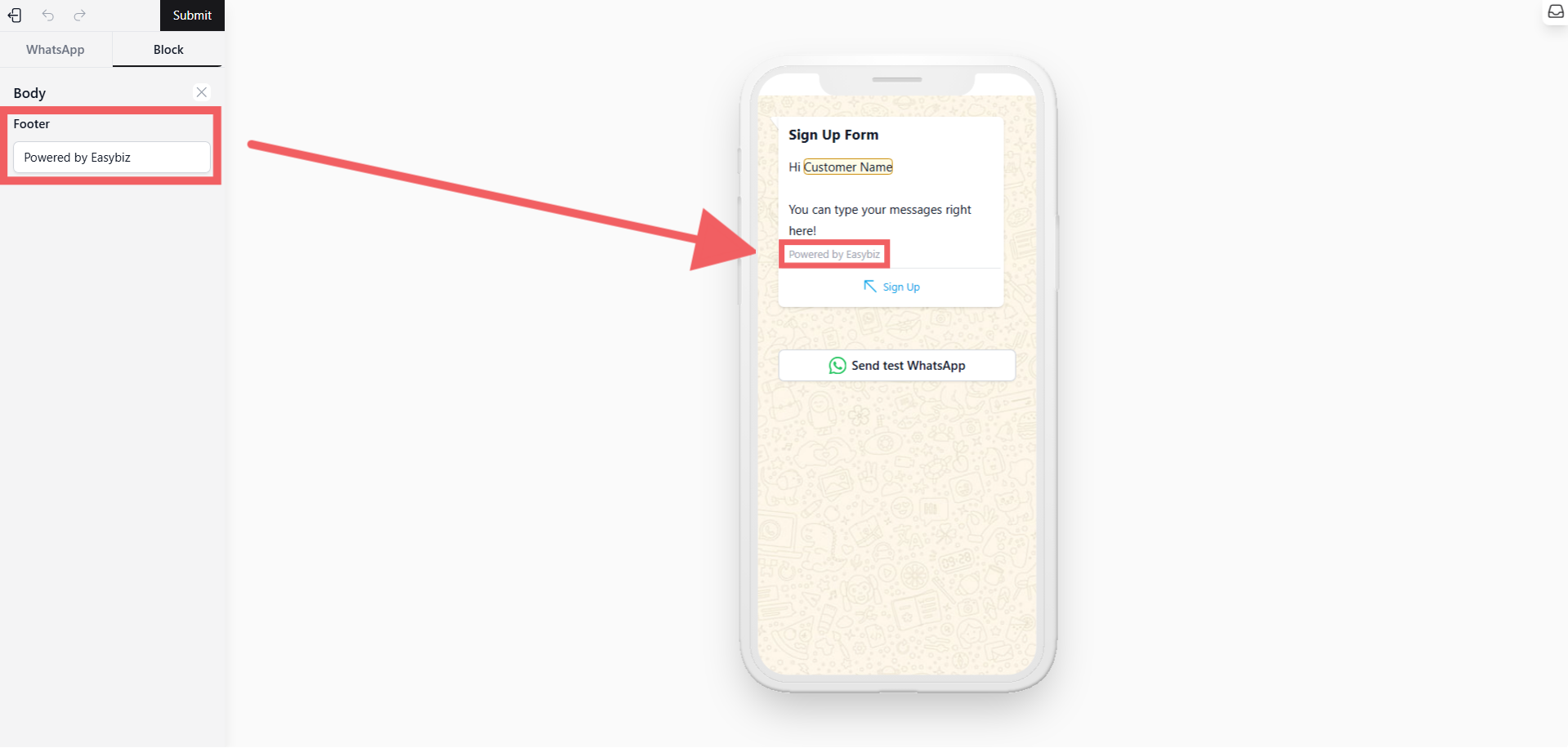
- Footer Add a short, fixed text at the very bottom. This is optional and cannot contain variables.
3. Configure the Action
Scroll to the Buttons section in the editing panel. The settings here depend on the template type you selected in Step 1.
Option A: If using "Mini App action"
Button Text: Enter the label for the button (e.g., "Sign Up Now").
Mini App: Select the specific, published Mini App you want to link to.
Option B: If using "URL action"
Button Text: Enter the label for the button (e.g., "Visit Website").
URL type: Select Static (fixed URL) or Dynamic (URL with variables), and enter the website address.
Option C: If using "Reply Buttons" (Quick Replies)
Click Add button, or click an existing button to edit it.
Select the Button Type (Quick reply), enter the Button text, and click Add. When editing an existing button, click Update.
Repeat up to 3 times.
Option D: If using "List action" (Select options)
Button Text: Enter the text for the main button that opens the menu (e.g., "View Menu").
List options: Click + Add item to define the menu choices.
For each item, enter a Title (required) and a Description (optional), then click Save. You can add up to 10 items.
4. Send Message
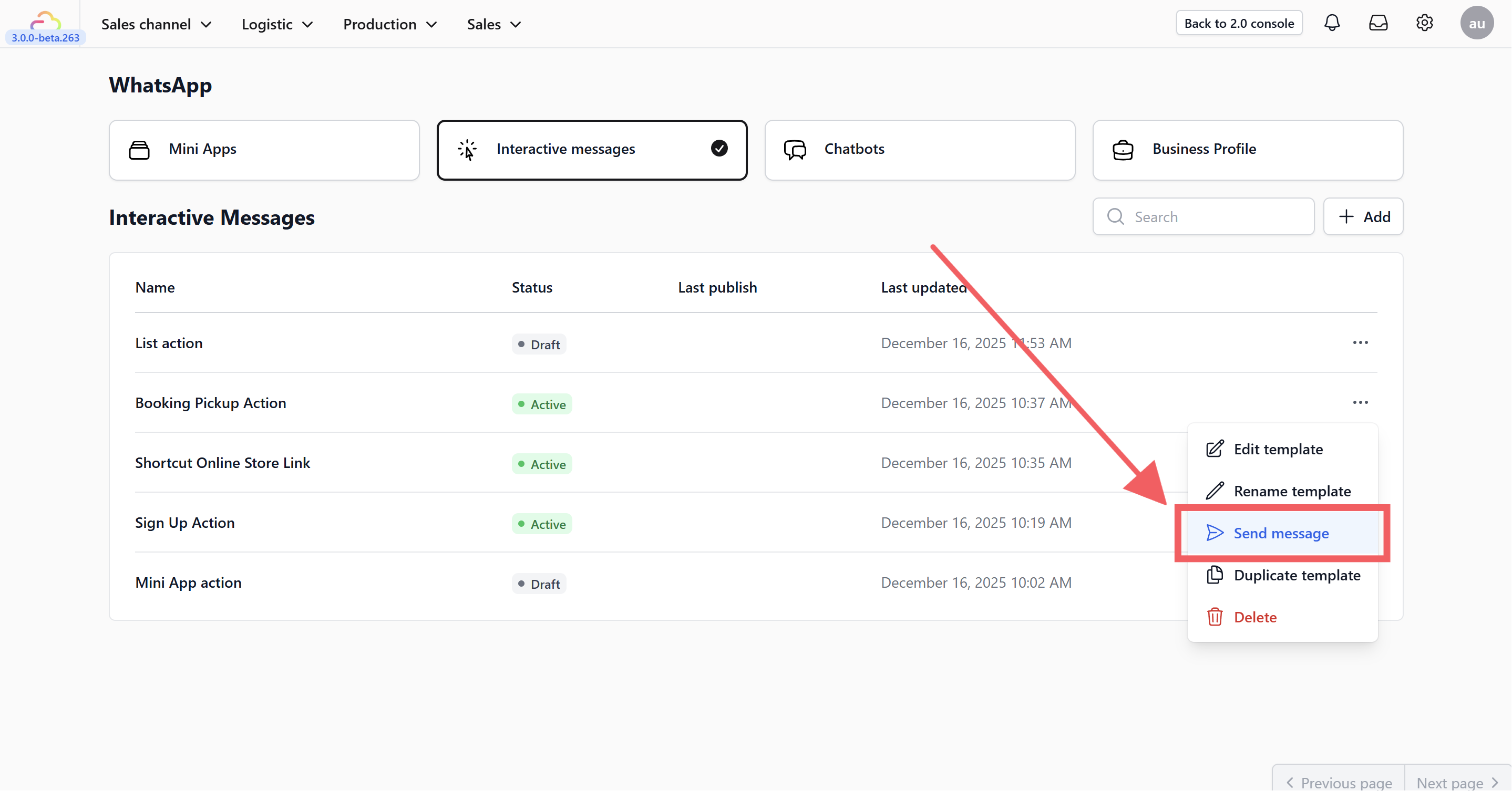
After publishing, click Send Test at the top right of the editor to open the sending dialog. To use the reply in an active WhatsApp conversation, open the Inbox and type / in an empty message box, then select your Quick Reply template.