
What this template does
The order receipt is the slip the POS prints for an order. Staff hand it over when a customer drops off items or pays. It shows your shop details, every item and price, the payments taken and the amount still due. One template is shared by every POS terminal in the same business unit.
It helps you:
- Give every customer the same clear proof of what they handed over and paid.
- Show the order number your staff and customers use to find the order later.
- Print only the details your shop needs, in your own wording.
Can I skip this? Only if your shop never prints receipts. Without one, the POS shows "Receipt not configured" when staff try to print.
Before you start
- Connecting Your Printers to the POS: pair your receipt printer first, so you can print a test.
- Introduction to Business Units: a business unit is one line of your business, such as Laundry or Home Cleaning. Each one chooses its own receipt.
Open the Receipt Templates page
- Click the ⚙️ Settings icon in the top-right corner of the console.
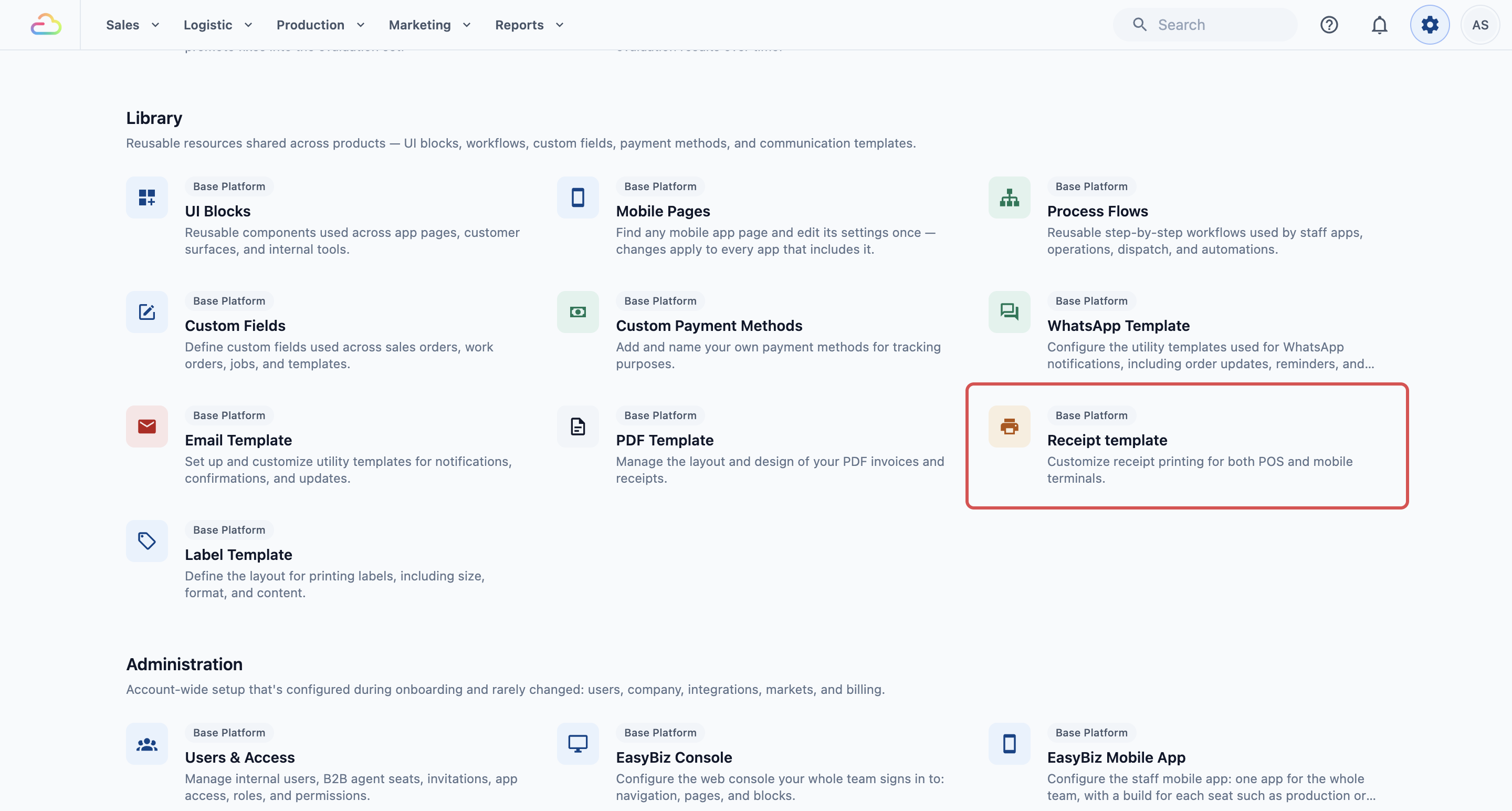
- Under the Library section, click Receipt template.
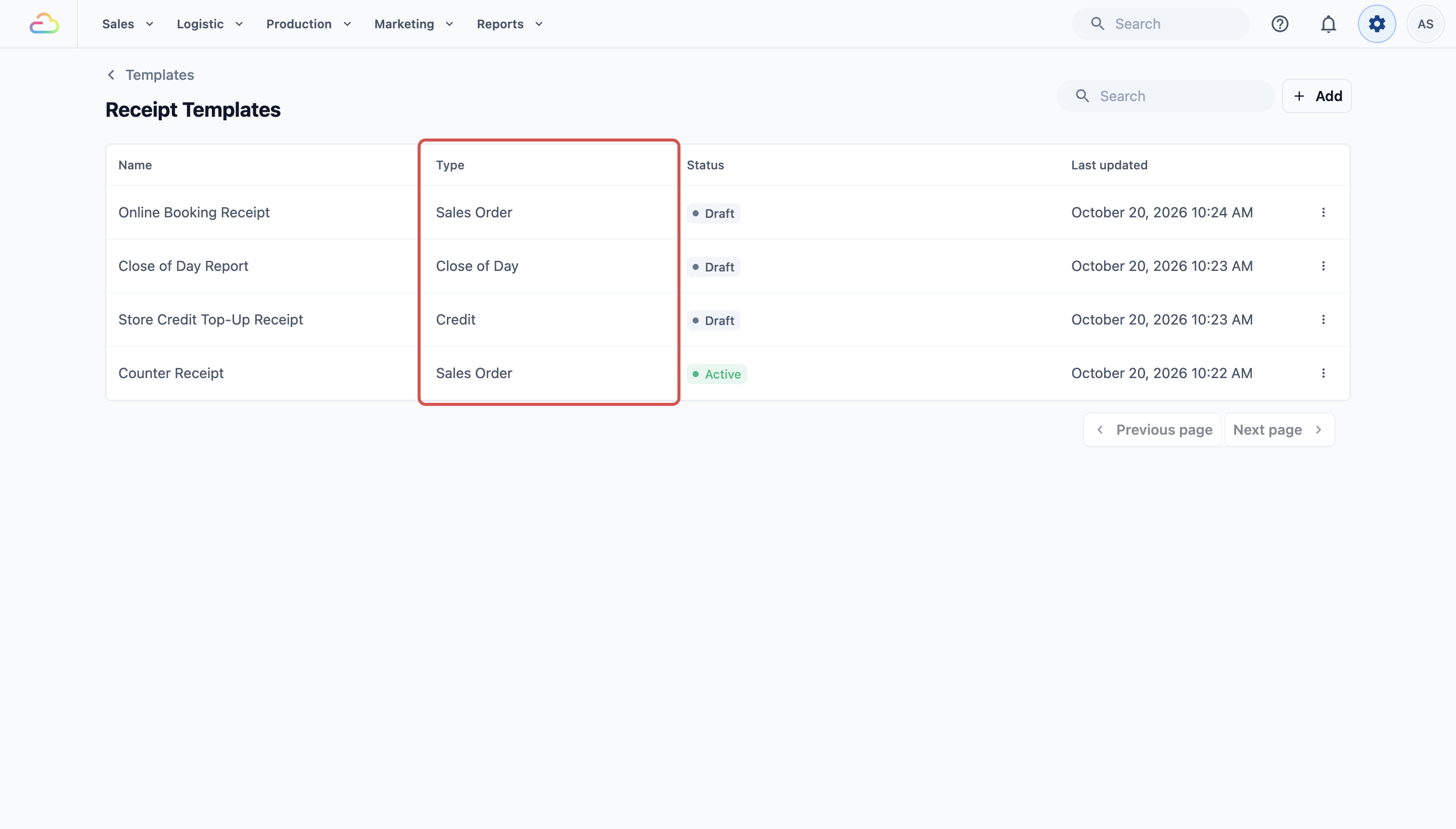
- The Receipt Templates page opens. It lists every printed slip your shop uses. The Type column shows what each one is for.
Create your order receipt
If your list already has a POS order receipt, click its name and skip to the next section.
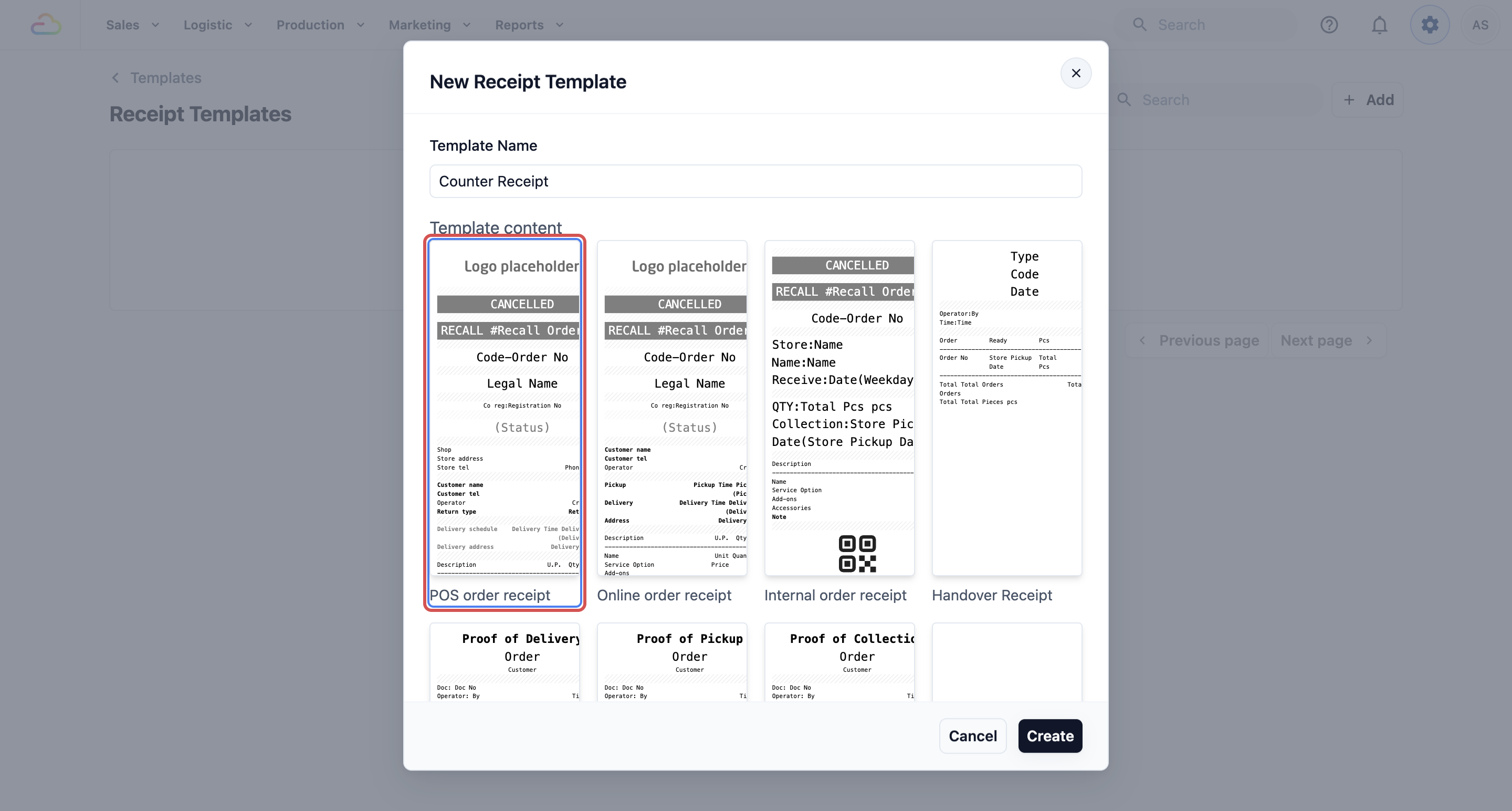
- Click + Add in the top right. The New Receipt Template pop-up opens.
- Type a Template Name, for example "Counter Receipt". Staff will see this name, so keep it plain.
- Under Template content, click the POS order receipt card. This is a ready-made layout you can change later.
- Click Create. The editor opens.
| Card | What it is for |
|---|---|
| POS order receipt | Orders taken at the POS counter (recommended) |
| Online order receipt | Orders taken in the console or on your Online Store |
| Internal order receipt | A copy kept by your staff, not given to customers |
| Blank Sales Order Receipt | An empty layout you build yourself |
What the receipt shows
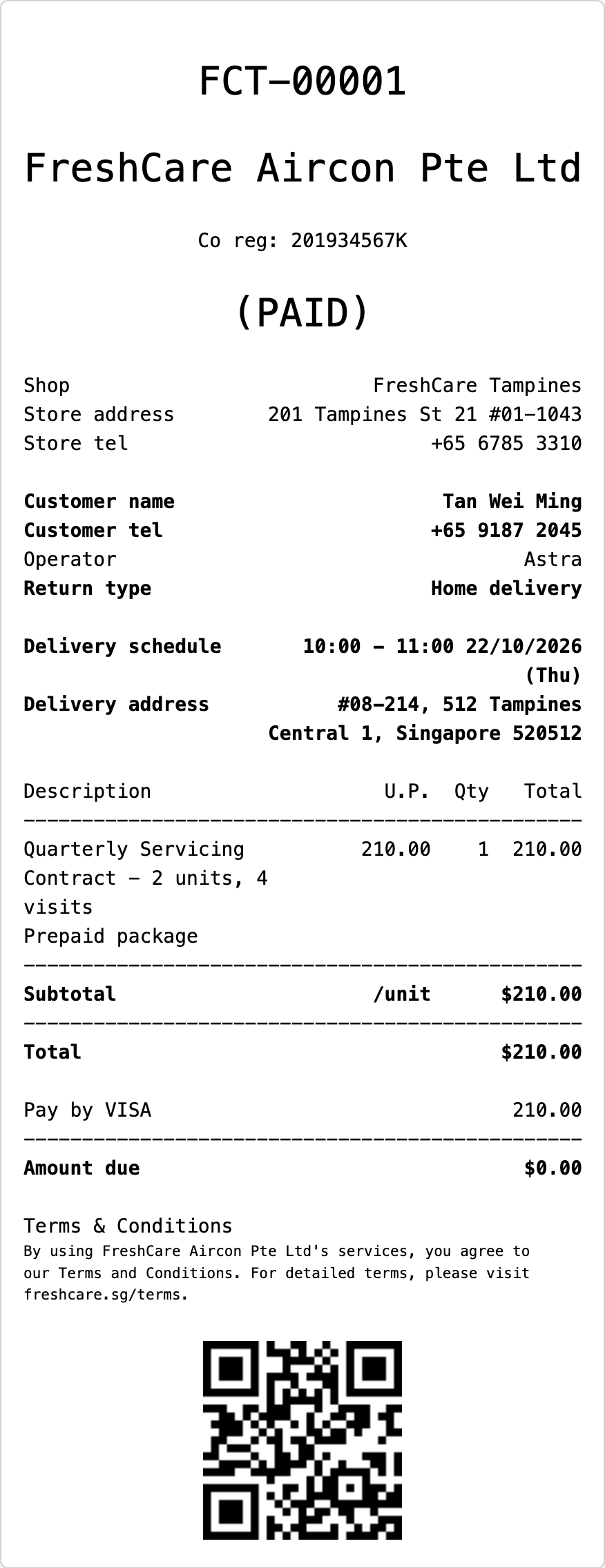
The ready-made POS order receipt already prints:
- Your logo, and a large "CANCELLED" banner if the order is cancelled.
- The sales channel code and order number, such as VINZ1-00113. A sales channel is the shop or counter that took the order.
- Your company registration number, shop name, address and phone number.
- The customer's name and phone number, and the staff member who served them (shown as "Operator").
- Delivery address and schedule, when the order has a delivery.
- Each item, with Description, U.P. (unit price), Qty and Total.
- Subtotal, tax, Total, each payment taken, and the Amount due.
Rows with nothing to show, such as delivery rows on a counter order, are left out of the printout. The delivery rows only print when the order is a home delivery, so a counter order leaves them out.
Edit the layout
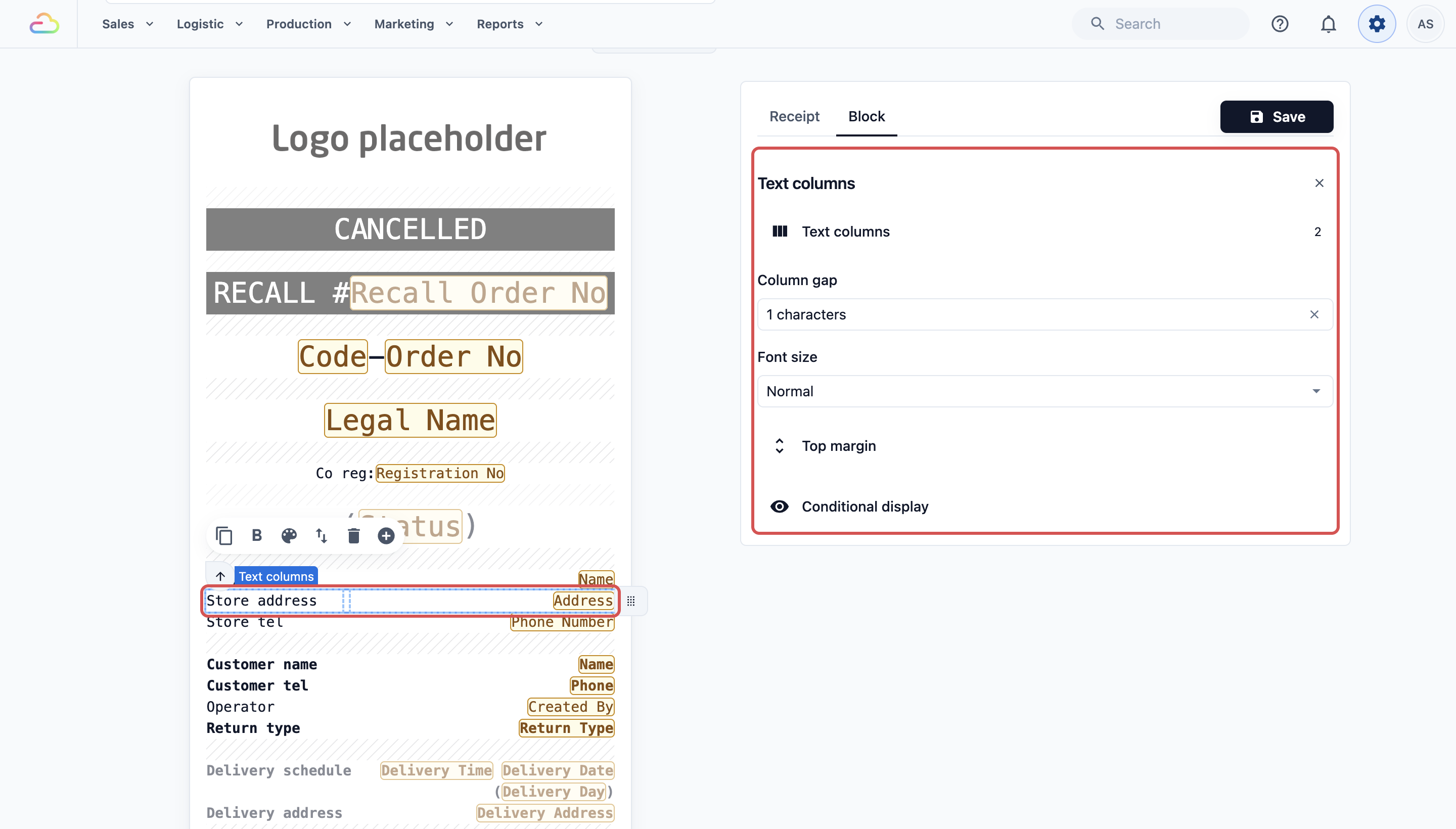
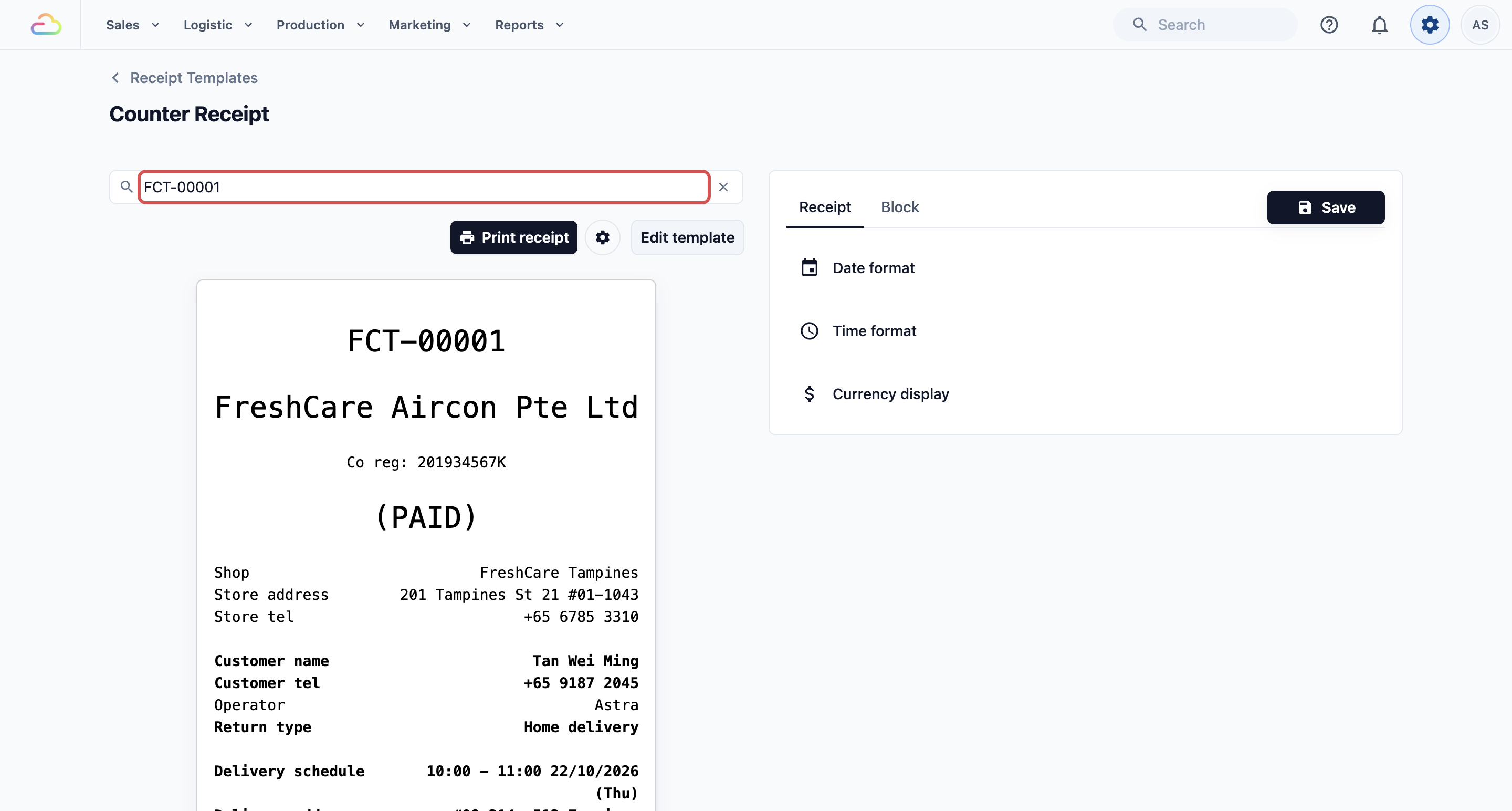
The editor has 2 parts. On the left is the receipt preview. On the right are the settings, with a Receipt tab and a Block tab. A block is one line or section of the receipt, such as the shop address.
- Click a line on the preview to select that block. Its settings open in the Block tab.
- Change the wording, size, alignment or spacing.
- To add something, select the block above where you want it. Click the ⊕ button to insert a block below it.
- To remove a block, select it and click Delete block.
Set the paper width so nothing gets cut off. Click the outer edge of the receipt, then choose Normal character per line.
| Option | What it means |
|---|---|
| 48 Characters (80mm) | A normal counter receipt printer. |
| 32 Characters (58mm) | A small handheld or portable printer |
The Receipt tab also holds Date format, Time format and Currency display. Leave them on the default to follow your console preferences.
Preview and save
You can check the receipt in 2 ways before anyone prints it.
- Click Preview sample to fill the receipt with made-up order details.
- Or click Select order to preview and pick a real recent order. The preview now shows that order exactly as it would print.
- Click Edit template to go back to editing.
- When you are happy, click Save in the top right.
Print a test
You need a receipt printer paired with the computer you are using. The console remembers its own printer, separate from the POS. Staff pair it in the console the first time they print there.
- In the preview, pick a real order with Select order to preview.
- Click Print receipt.
- If nothing prints, click the gear button beside it. Receipt printer settings opens, where you can pair the printer.
The Test print button in the printer settings checks the printer only. It prints a sample slip, not your own template.
Choose the receipt for each business unit
A saved receipt only prints once a business unit uses it.
- Click the ⚙️ Settings icon.
- Under the Administration section, click Business Units.
- Open the business unit, then click the Documents tab.
- Under Terminal receipts, open POS receipt and choose your template. You can choose more than 1.
- Set Online receipt too, if this unit takes orders in the console or on your Online Store.
- Click Save. You will see "Document settings updated".
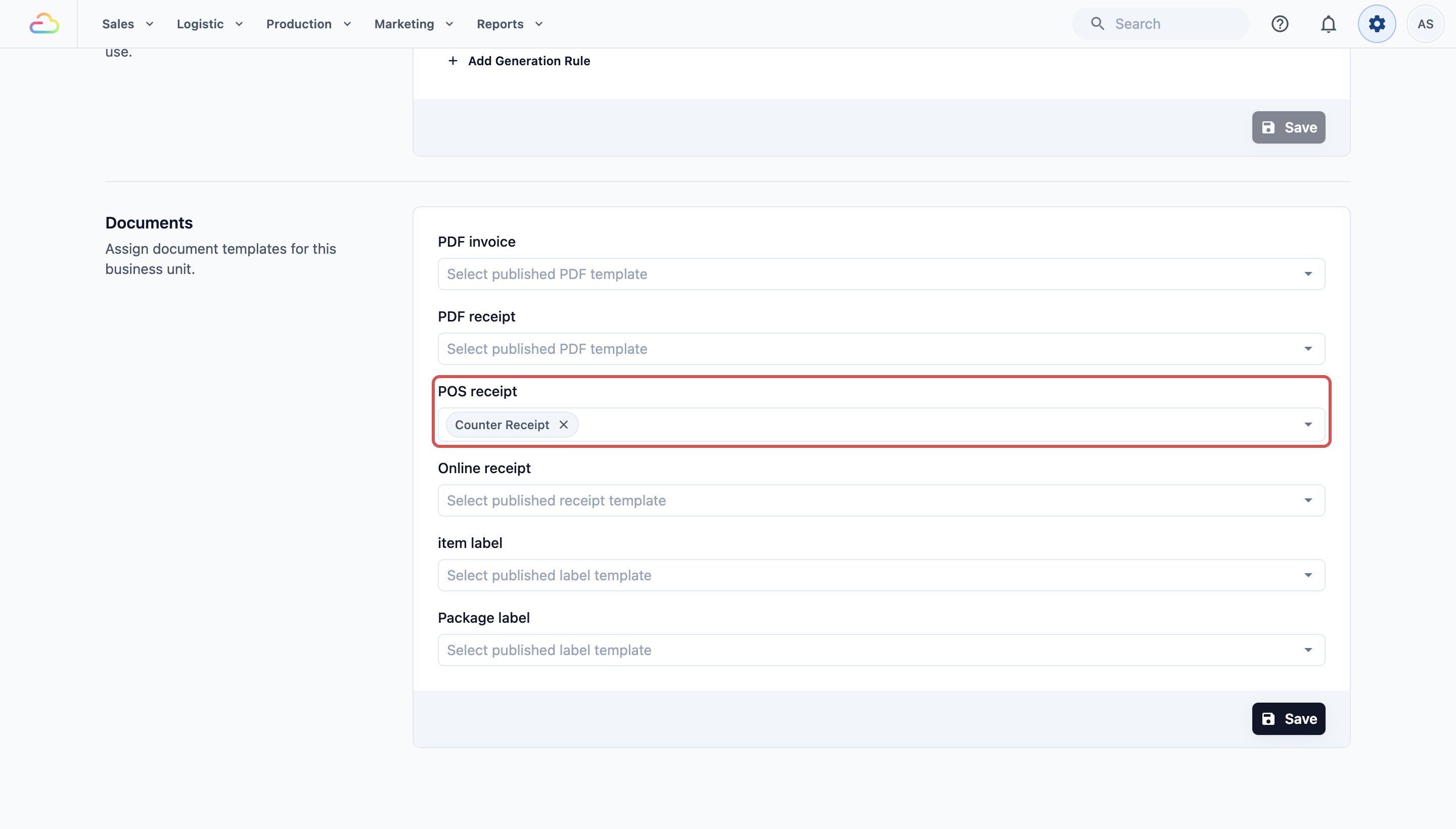
If staff see "No customer receipt is configured for this business unit." on the POS, this step was missed for that unit.
Print automatically (POS only)
By default, staff print the receipt themselves after taking an order. You can make the POS print it as soon as a payment completes.
- Open the POS Advanced settings in the console.
- Turn on Auto-print receipt when payment completes.
- Under Receipt template (optional), choose a template. If you leave it empty, the POS prints the first receipt on its order confirmation screen.
Other receipt types
Your shop may print a few other slips from the same page:
- Handover receipt: proof the customer collected their order.
- Close of Day Report: the end-of-day summary for your counter. See Setting Up the Close of Day Report Template.
- Top up receipt: proof of a Store Credit top-up, covered in the next article.
Example setups
- Sunshine Laundry (1 counter): uses the POS order receipt on an 80mm printer. They removed the delivery rows because they only do counter drop-off.
- Bright Aircon Services: takes most jobs by phone in the console. They set the same template as both the POS receipt and the Online receipt.
- Stitch & Mend Alterations: uses a 58mm handheld printer, so they chose 32 Characters (58mm) and shortened their address line.
What your customers see
Your customers get a printed slip from the receipt printer at the counter. It shows your logo and shop details at the top, then their order number, the items, the total, what they paid and anything still due.
FAQs
Why does the POS say "Receipt not configured"?
The business unit has no POS receipt chosen. Choose one under Business Units, Documents, Terminal receipts.
Can different business units use different receipts?
Yes. Each business unit chooses its own POS receipt and Online receipt.
Why is the right side of my receipt cut off?
The width setting does not match your paper. Choose 32 Characters (58mm) for small rolls and 48 Characters (80mm) for normal rolls.
Do I need a printer to check my layout?
No. Preview sample and Select order to preview show exactly what will print.
Will editing the template change receipts I already gave out?
No. Paper receipts already printed stay as they are. New prints use the saved layout.
What's next
Your order receipt is ready. Next, set up the slip your staff print when a customer tops up Store Credit. See Setting Up Your Top-Up Receipt Template.