
What is a prepaid package?
A prepaid package is a bundle of services your customer pays for first and uses later. When they bring in what the package covers, those items cost them nothing until the package is used up or ends.
Some examples:
- Shirt pack: 20 shirts washed and pressed, used across any number of visits to your shop.
- Wash pack by weight: 30 kg of Wash & Fold, taken off as each load is weighed.
- Bedding plan: 4 bedding washes, one a month.
- Bag care pack: 3 bag cleanings, used any time within a year.
You don't need a special $0 item or a separate price list for package customers. Set up the package once, and EasyBiz takes each covered item off the customer's package by itself.
Packs and contracts
Every package is one of two kinds. You choose the kind with the Visits box:
| Visits | Kind | How it is used | Laundry example |
|---|---|---|---|
| 1 | Pack | One balance used bit by bit, across any number of orders, until it runs out. | 20 Shirts Pack, 30 kg Wash & Fold |
| 2 or more | Contract | A fixed number of visits. Each order uses one visit. | Monthly Bedding Plan (4 visits) |
Most laundry, dry cleaning and bag repair shops sell packs, so set Visits to 1.
Prepaid package or Store Credit?
| Prepaid package | Store Credit | |
|---|---|---|
| What the customer buys | A number of specific items or visits, such as 20 shirts | A money balance, such as $100 |
| What it pays for | Only the items and services the package covers | Anything in your shop |
| Example | Pay $68, get 20 shirts washed | Top up $100, get $110 to spend |
For a money balance, see Setting Up Your Store Credit Program.
Before you start
| What you need | Where to set it up |
|---|---|
| The items and services the package covers, with a price on your price list (for example Shirt with Wash at $4.00) | See Introduction to Product Catalog and Create Price Lists. |
| An Online Store, if customers will buy packages online | See Introduction to Online Store & Mobile App |
| Your Online Store payment methods, such as card or PayNow, if customers will pay online | See Taking Payments on Your Online Store |
There is no extra charge for prepaid packages. They work on the EasyBiz POS (your counter app), the Console (EasyBiz in your computer's web browser), your Online Store and your Mobile App.
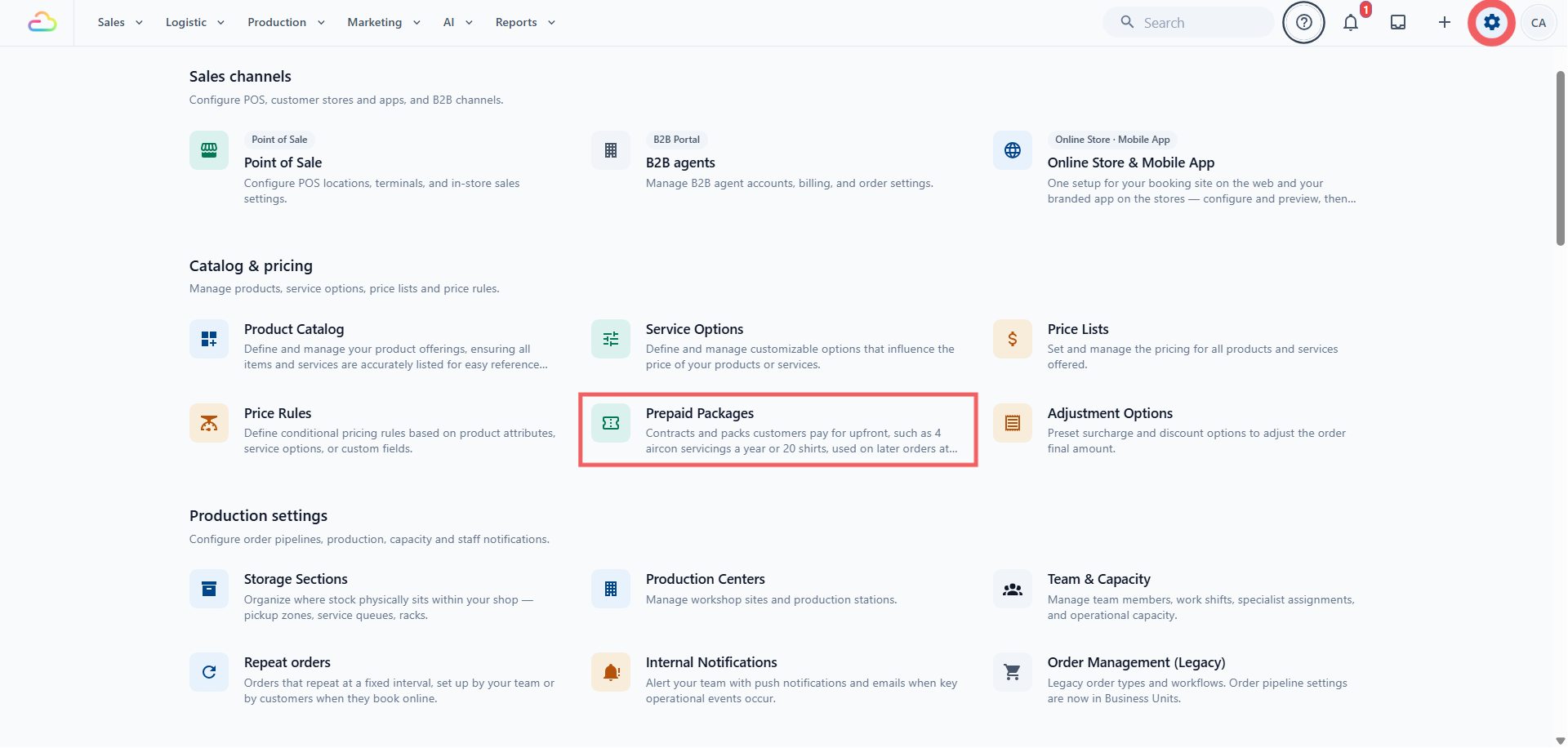
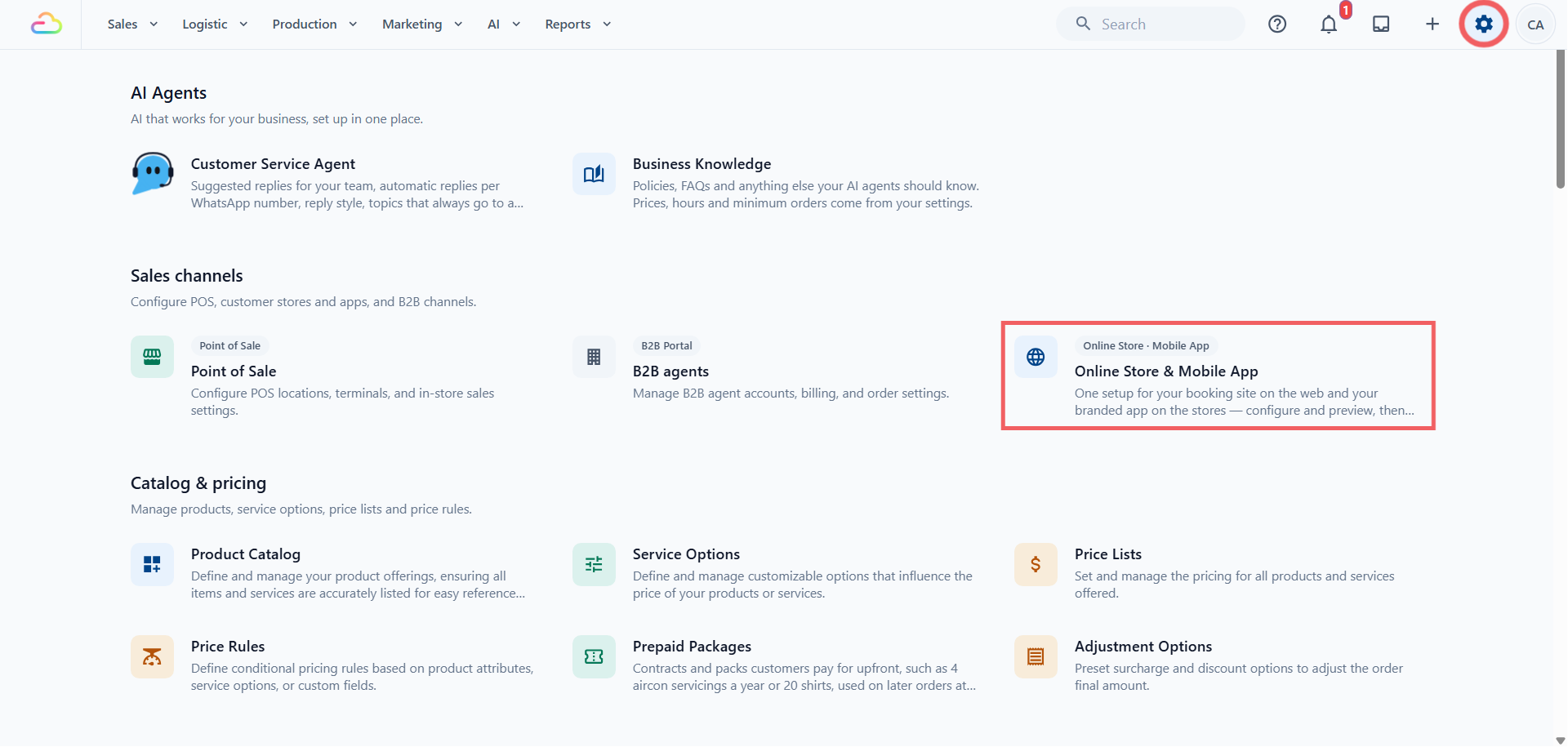
Where to find Prepaid Packages
- Click the ⚙️ Settings icon in the top-right corner.
- Under the Catalog & pricing section, click Prepaid Packages.
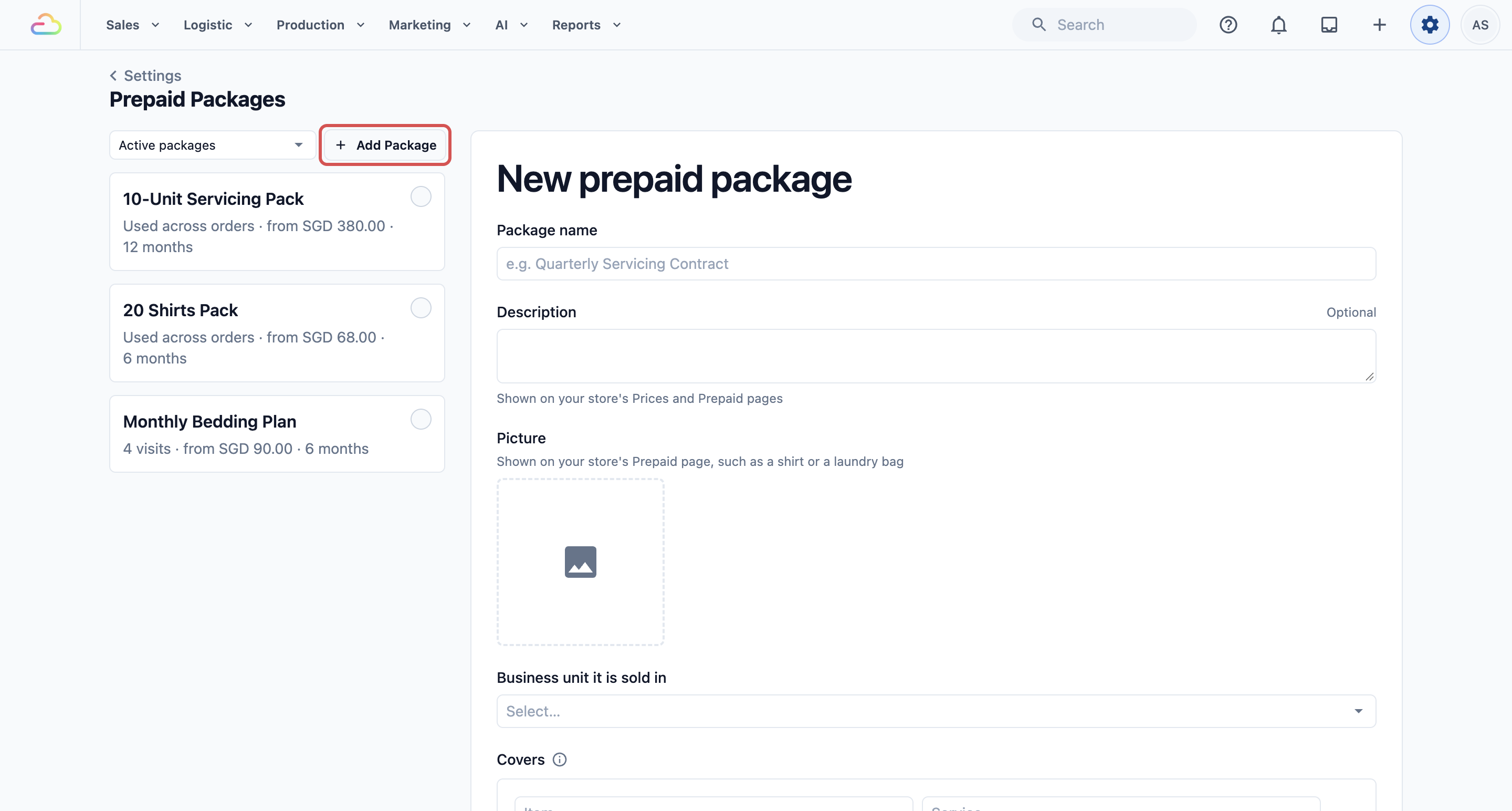
- Click Add Package.
The dropdown above the list switches between Active packages and Archived packages.
Set up a package
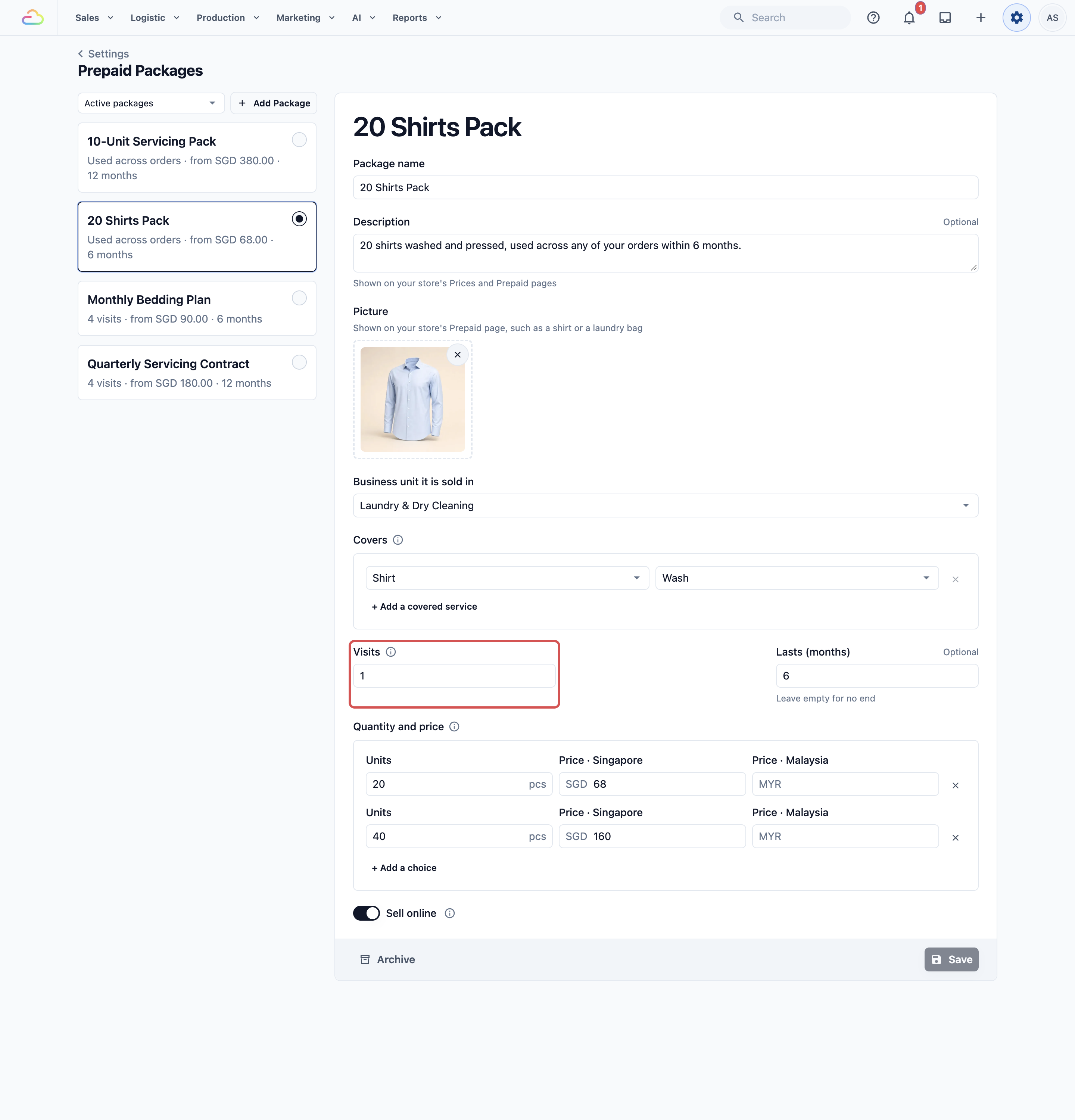
We'll set up a 20 Shirts Pack: 20 shirts washed, used within 6 months, for $68. Fill in the form from top to bottom.
Step 1: Name and describe the package
- In Package name, enter the name your staff and customers will see, for example 20 Shirts Pack.
- In Description (optional), say what the customer gets and for how long, for example 20 shirts washed and pressed, used across any of your orders within 6 months. Customers see it on your Online Store, and staff see it when they sell the package.
- Under Picture (optional), choose a photo from your Media Center (your picture library), such as a shirt. It appears on your store's Prepaid page.
- In Business unit it is sold in, choose the one business unit that sells this package. A business unit is a line of service in your shop, such as Laundry & Dry Cleaning. The package can only be sold and used on orders for that business unit.
Step 2: Choose what the package covers
Each row under Covers is one item and the service done to it.
- Select the Item, for example Shirt.
- Select the Service, for example Wash. Only services that have a price for this item on your price list are listed.
- To cover another item or service, click + Add a covered service.
Every size or type of the item is covered. Selecting Shirt covers both long-sleeve and short-sleeve shirts.
Step 3: Set the visits and how long it lasts
- In Visits, enter 1 for a pack. Enter 2 to 24 only for a contract, such as a monthly bedding plan.
- Months between visits (optional) only appears when Visits is 2 or more. See Contracts: visits and due dates below.
- In Lasts (months) (optional), enter how many months the customer has to use the package, from 1 to 60. Leave it empty if it never expires.
Step 4: Add the sizes and prices
Each row under Quantity and price is one size the customer can choose, such as 20 shirts or 40 shirts.
- In Units, enter how many the customer gets, as a whole number. For a pack, a unit is one piece (one shirt) or, for items sold by weight, one kg. Each row needs a different number.
- In Price, enter what the customer pays for that size.
- To offer another size, click + Add a choice.
If you sell in more than one country, you see one price box for each, such as Price · Singapore (SGD) and Price · Malaysia (MYR). Enter the price in each country's money. Leave a box empty if that size isn't sold there.
Step 5: Choose where it is sold and save
- Leave Sell online on if customers can buy it on your Online Store and Mobile App. Staff can sell it at the POS and in the Console either way.
- Click Add Package. When you edit a saved package later, the button reads Save.
Example setups
Laundry: 20 Shirts Pack
- Covers: Shirt with Wash
- Visits: 1, Lasts (months): 6
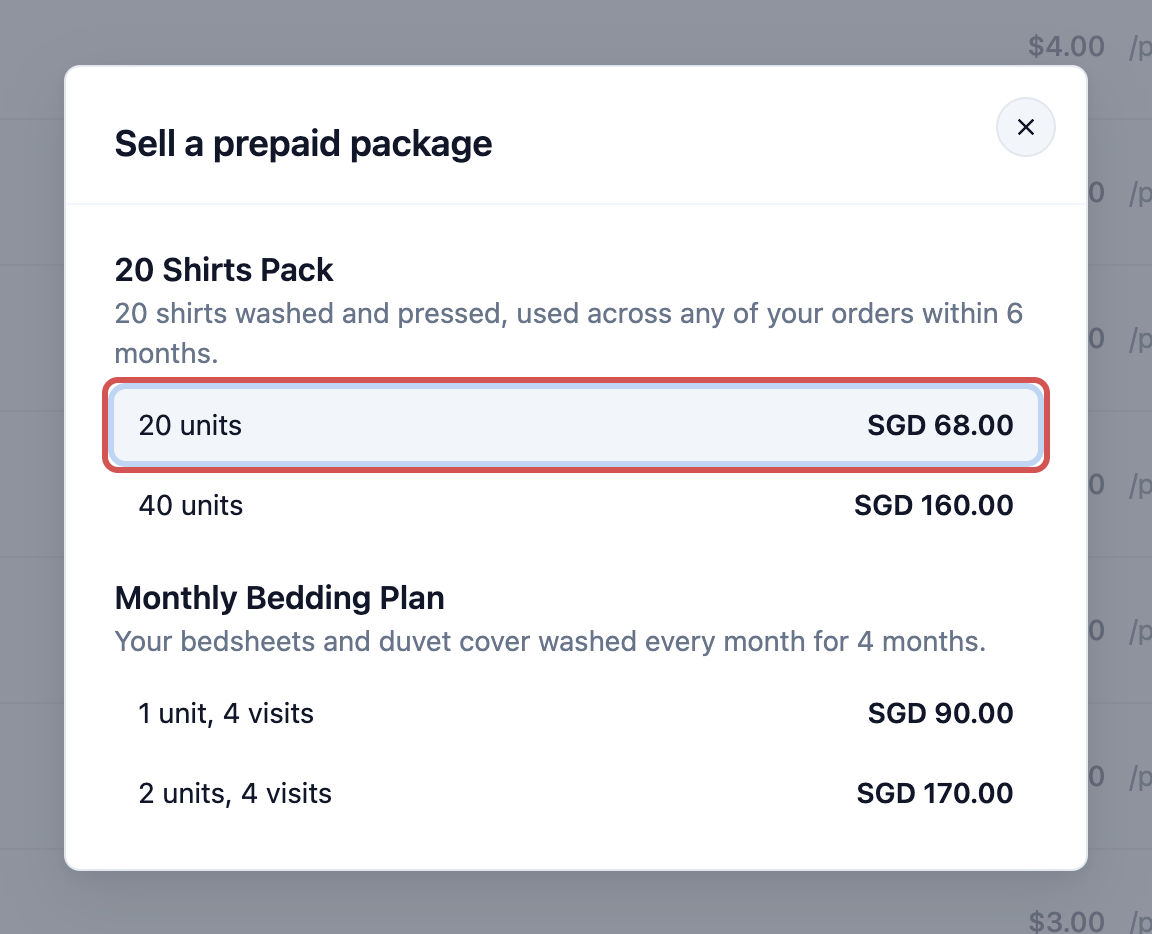
- Quantity and price: 20 units $68, 40 units $160
The customer brings 8 shirts this week and 12 next month. All 20 are covered, and the pack is used up.
Laundry: 30 kg Wash & Fold
- Covers: Wash & Fold (sold by kg)
- Visits: 1, Lasts (months): 3
- Quantity and price: 30 units (kg)
Each load is weighed and taken off the 30 kg. If the last load is 7.4 kg and only 3 kg is left, 3 kg is covered and the other 4.4 kg is charged at your normal price.
Bag repair: 3 Bag Cleanings
- Covers: Handbag with Cleaning
- Visits: 1, Lasts (months): 12
- Quantity and price: 3 units
The customer uses the 3 cleanings any time within a year, one bag or several at a time.
Contracts: visits and due dates
Skip this section if you only sell packs (Visits 1).
Visits
The number of times the customer can use the contract. Each order uses one visit, however many items it has.
- Fewer items than bought: all of them are covered. The unused ones don't carry over to the next visit.
- More items than bought: the number bought is covered. The extra items are charged at your normal price.
Months between visits
How often you expect the customer to come back. EasyBiz uses it to show when the next visit is due.
- The first visit is due on the day the package starts.
- Each later visit is due that many months after the last visit's appointment date.
- A late visit is still covered. The due date is a reminder for you and your customer, not a deadline.
Leave it empty if the customer can come any time.
Lasts (months)
How long the package can be used, counted from the day it starts. Anything left after the last day can't be used. Leave it empty if the package never expires.
Example: a Monthly Bedding Plan
A Monthly Bedding Plan covers one bedsheet set wash a month. A customer buys a plan with Visits 4, Months between visits 1 and Lasts (months) 6. It starts on 1 Nov 2026.
- The plan can be used until 1 May 2027.
- Visit 1 is due on 1 Nov 2026. The customer comes on 3 Nov.
- Visit 2 is due on 3 Dec 2026, 1 month after that visit.
- The customer comes on 20 Dec instead. The visit is still covered, and visit 3 is now due on 20 Jan 2027.
- Any visit not used by 1 May 2027 is lost.
Archive or delete a package
Open a saved package. The buttons are at the bottom left.
- Delete: only if no customer has had it. This can't be undone.
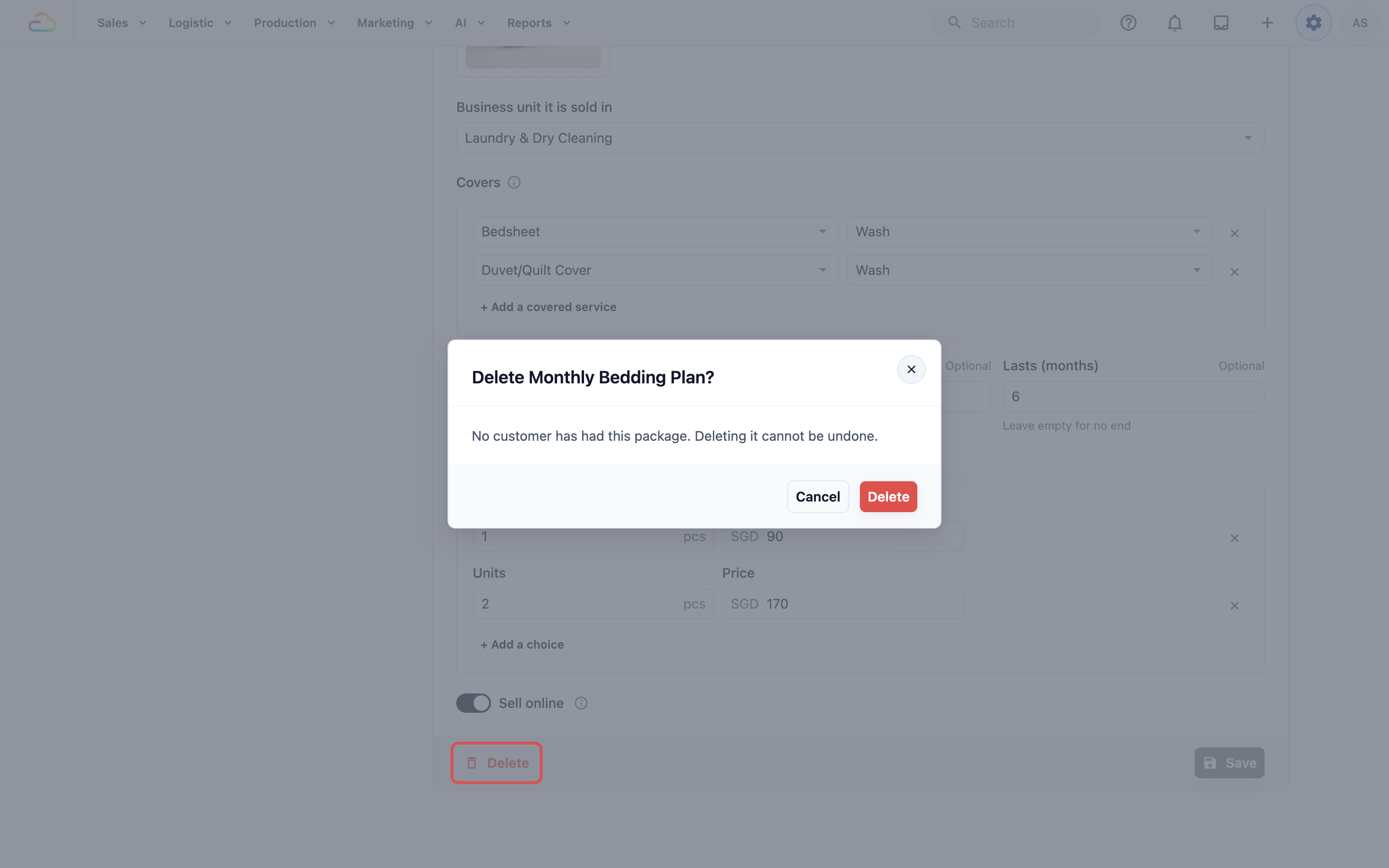
- Archive: once a customer has had it. It can't be sold any more, but customers keep what they have.
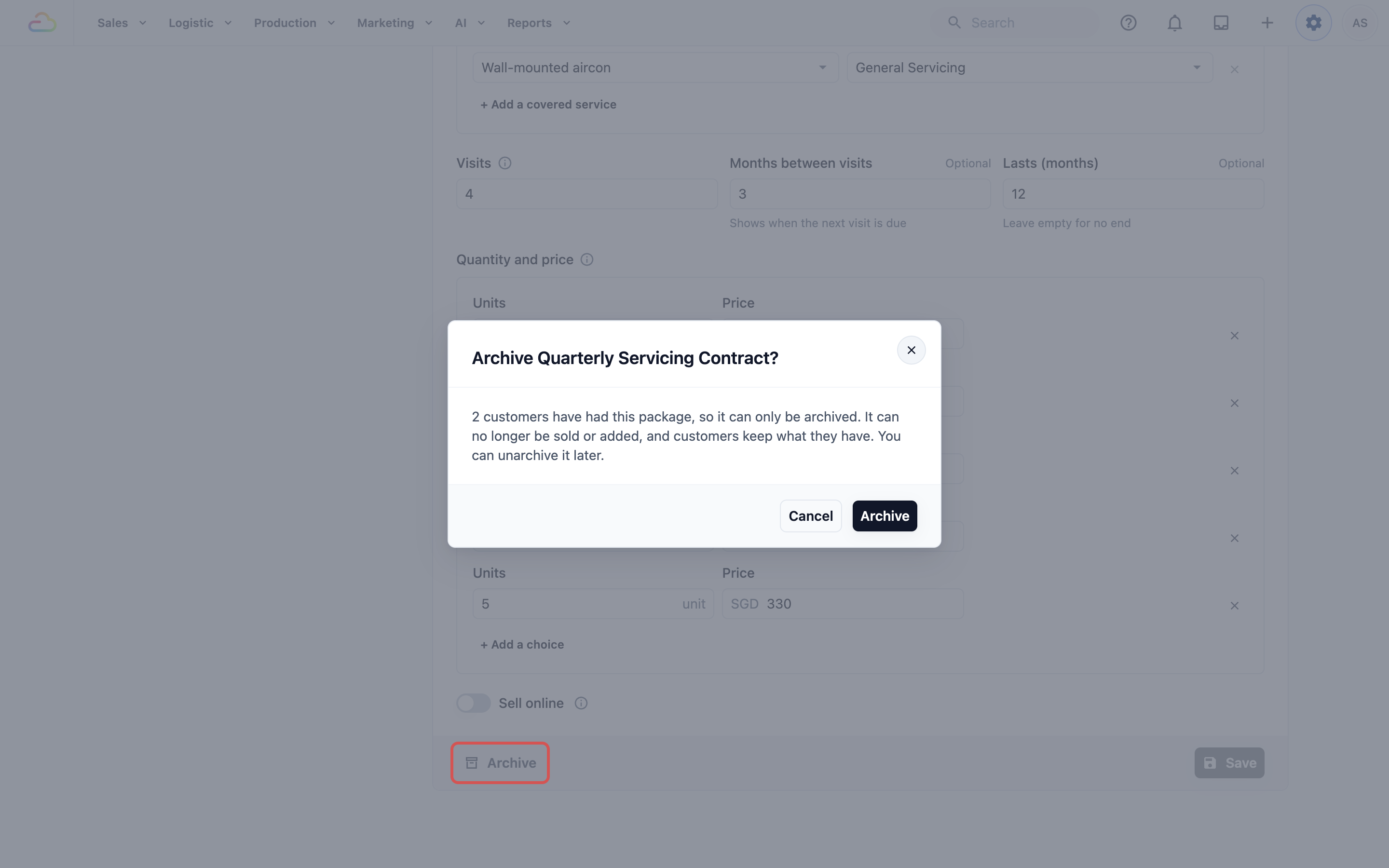
- Unarchive: puts it back on sale.
Changing a package only affects new sales. Customers who already bought it keep the terms they bought.
Sell a package
At the POS or in the Console
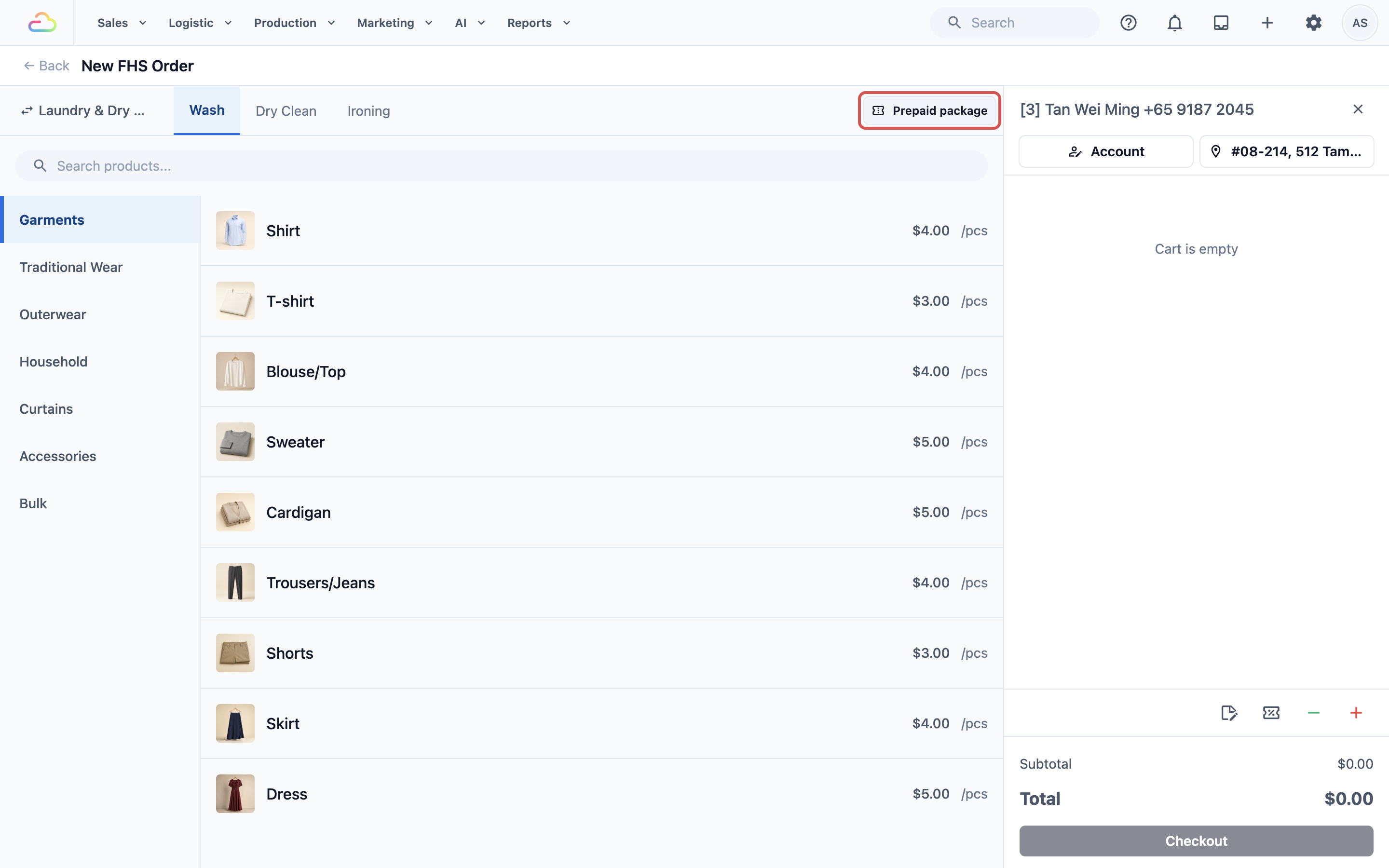
- Start an order and select the customer first. A package belongs to one customer.
- Click Prepaid package at the top right of the item list.
- Select the package and size.
- Optional: add the shirts they brought today to the same order. The new package covers them straight away.
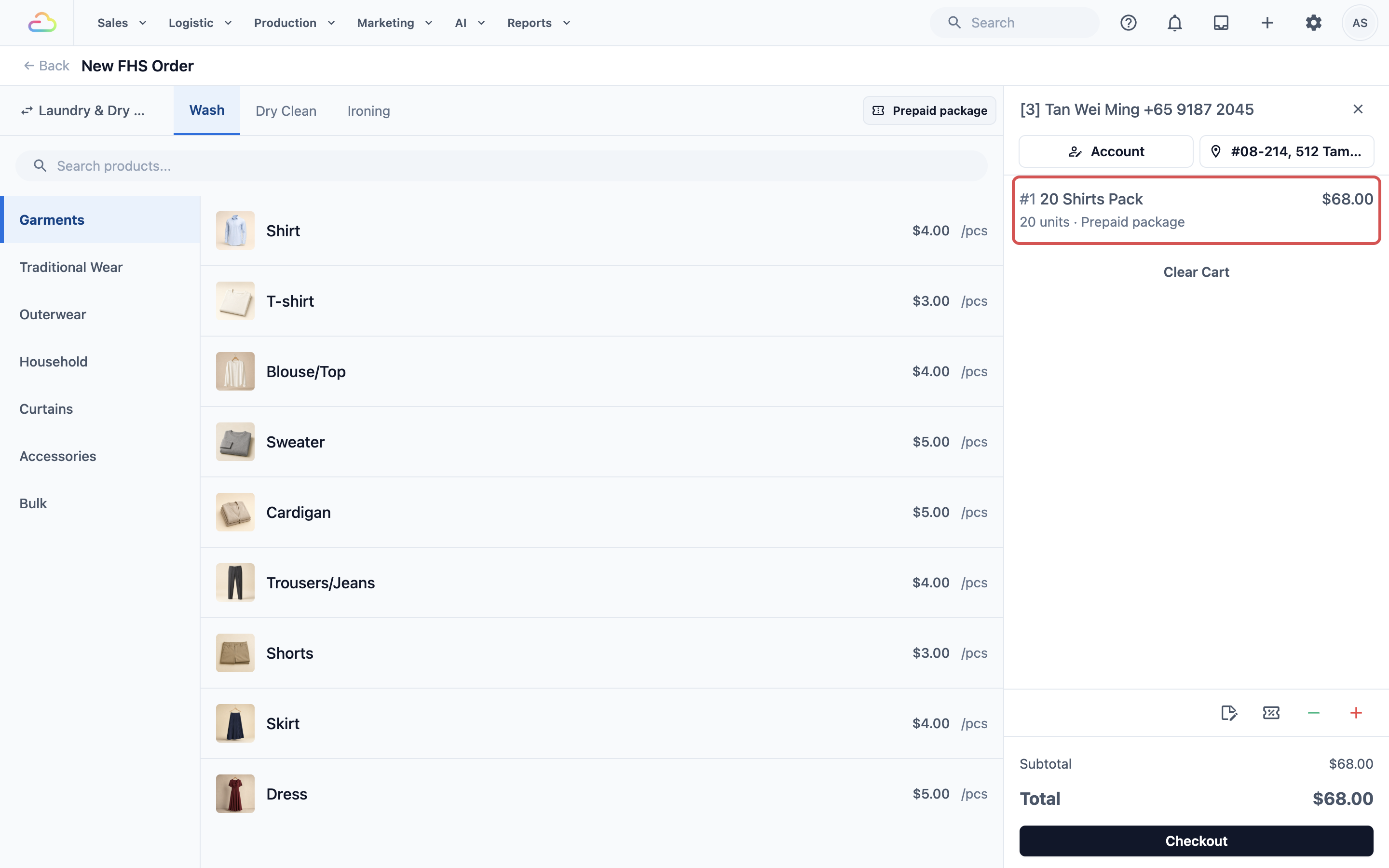
- Take payment as usual.
Add a package a customer already has
Use this for a package the customer bought before you started using EasyBiz, such as a paper shirt card. No order is created and no payment is taken.
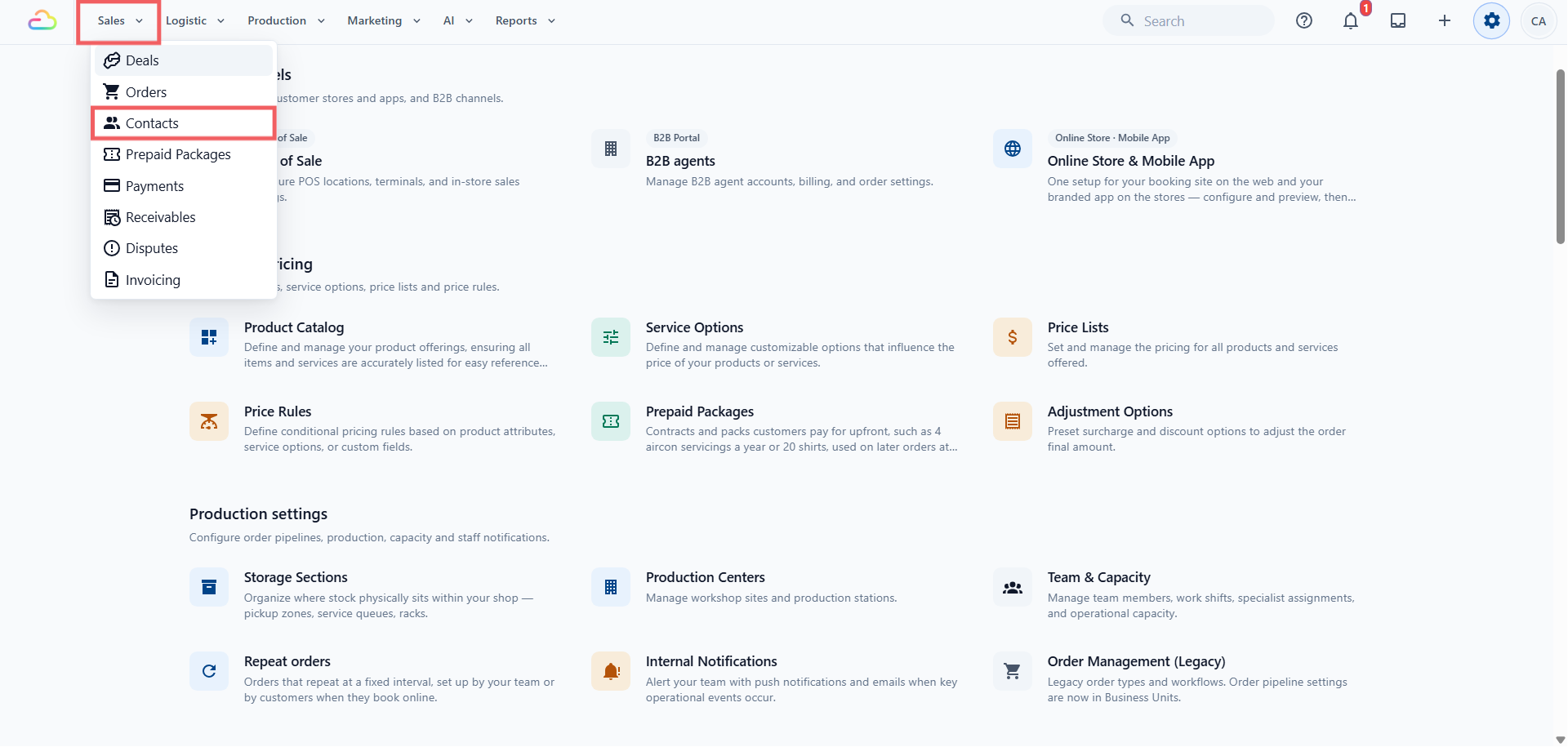
- In the top navigation bar, click Sales, then Contacts.
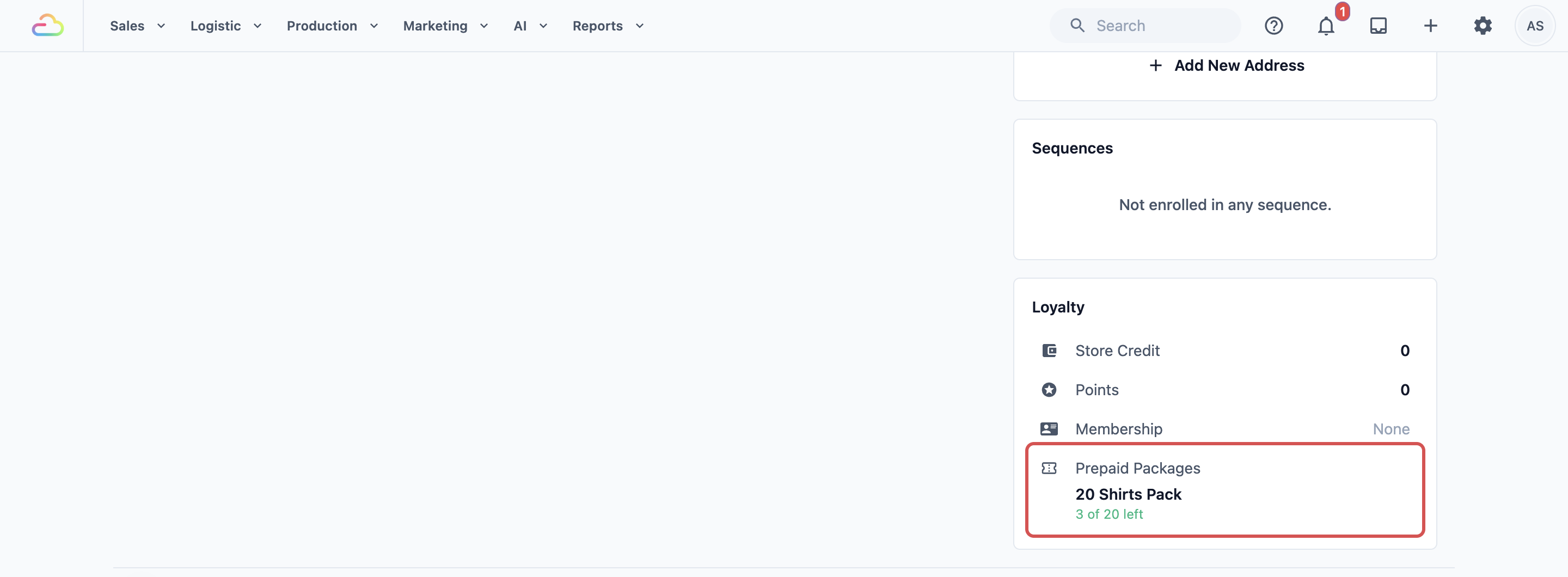
- Open the customer and go to the Loyalty section.
- Click Prepaid Packages, then Add an existing package.
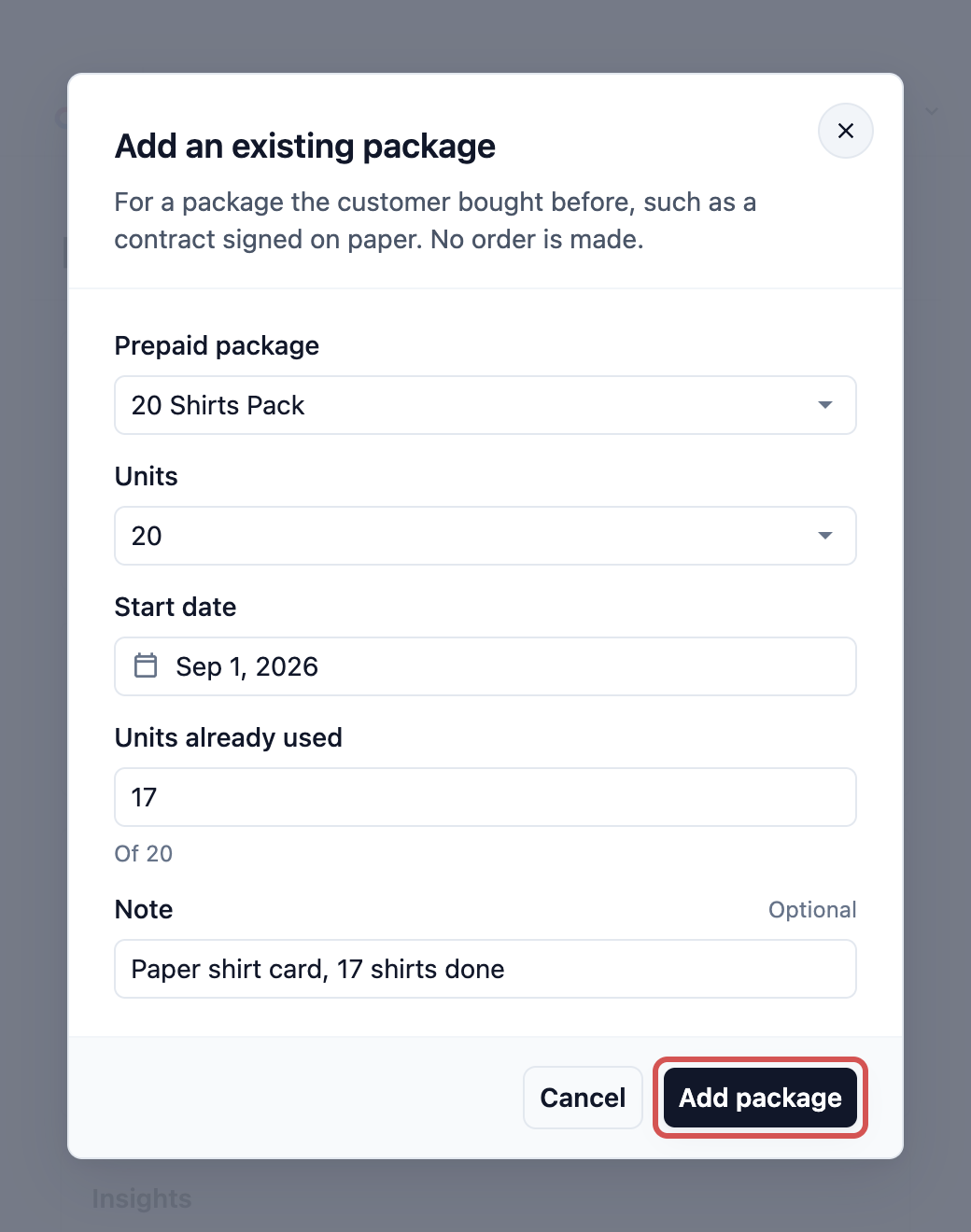
- Select the package and size, then enter the Start date and how much was already used: Units already used for a pack, or Visits already done for a contract.
- Optional: add a Note, such as where the package came from.
- Click Add package.
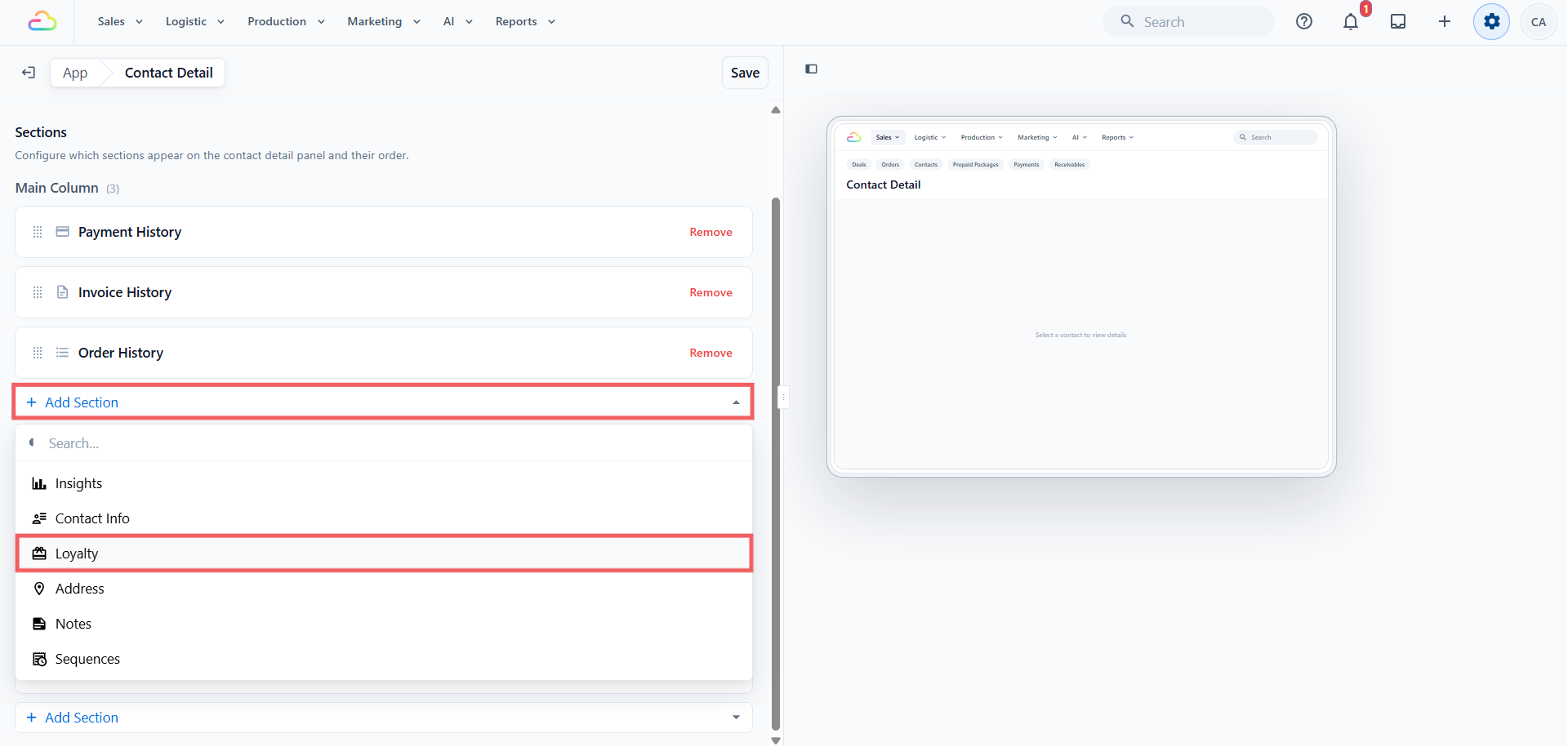
If the contact page has no Loyalty section:
- Click the ⚙️ Settings icon in the top-right corner.
- Under the Staff app configuration section, click EasyBiz Console.
- Click Console Pages and open Contact Detail.
- Click Add Section and add the Loyalty section.
On your Online Store
Packages with Sell online switched on appear on your store's Prices & services page and while customers book. To give them their own page, switch on the Prepaid packages page:
- Click the ⚙️ Settings icon in the top-right corner.
- Under the Sales channels section, click Online Store & Mobile App.
- Click Edit Online Store.
- Under Pages, open Prepaid packages and switch on Sell prepaid packages.
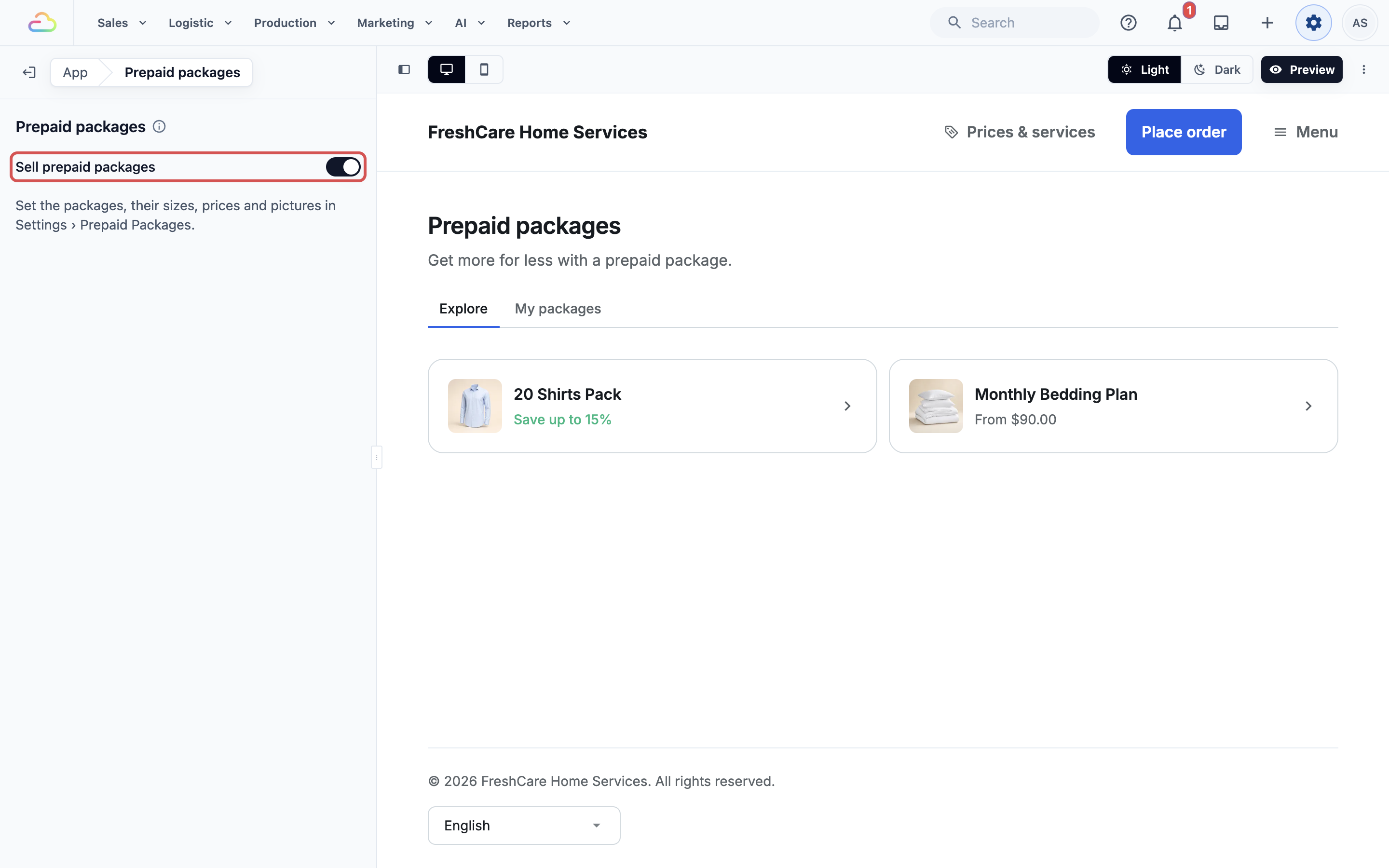
- Click Preview to check the page, then Publish. See Edit, Preview and Publish Your Online Store.
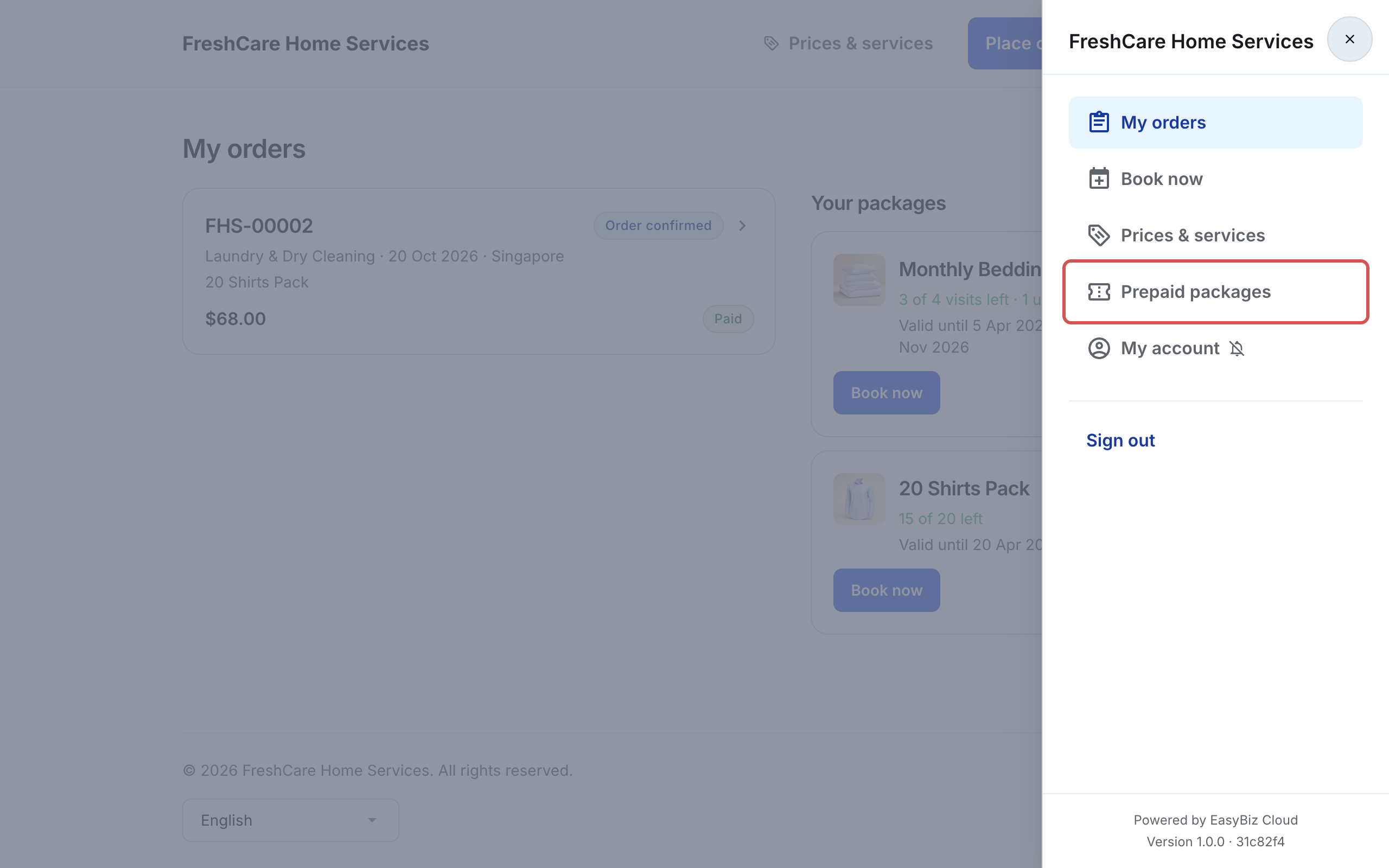
Once you publish, Prepaid packages appears in the ☰ menu on your Online Store, between Prices & services and Wallet.
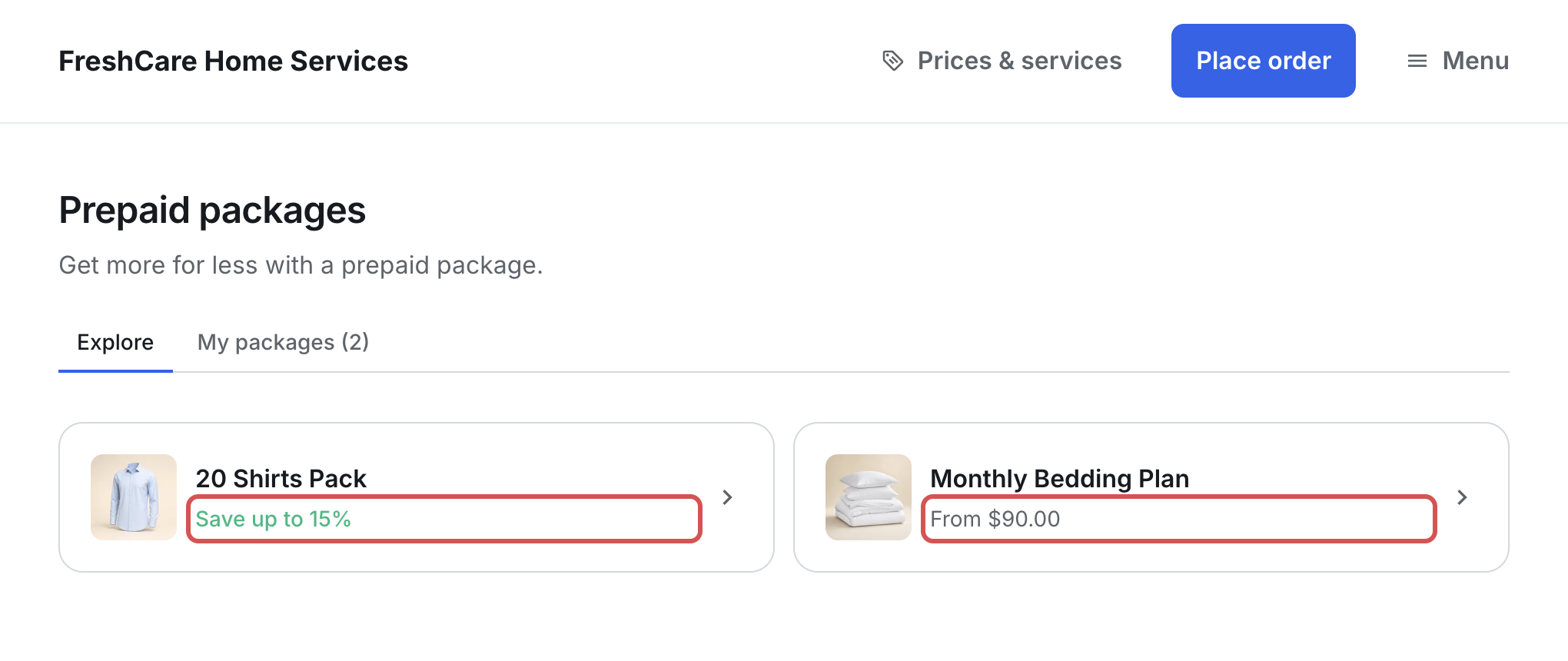
The page has two tabs: Explore and My packages.
Explore lists every package you sell online. Each card shows the package's picture and name, plus one of these:
- Save up to X%: for a pack priced below your normal price. The percentage is the best saving across its sizes.
- From $X: for a contract, or a pack with no saving. This is the price of its smallest size.
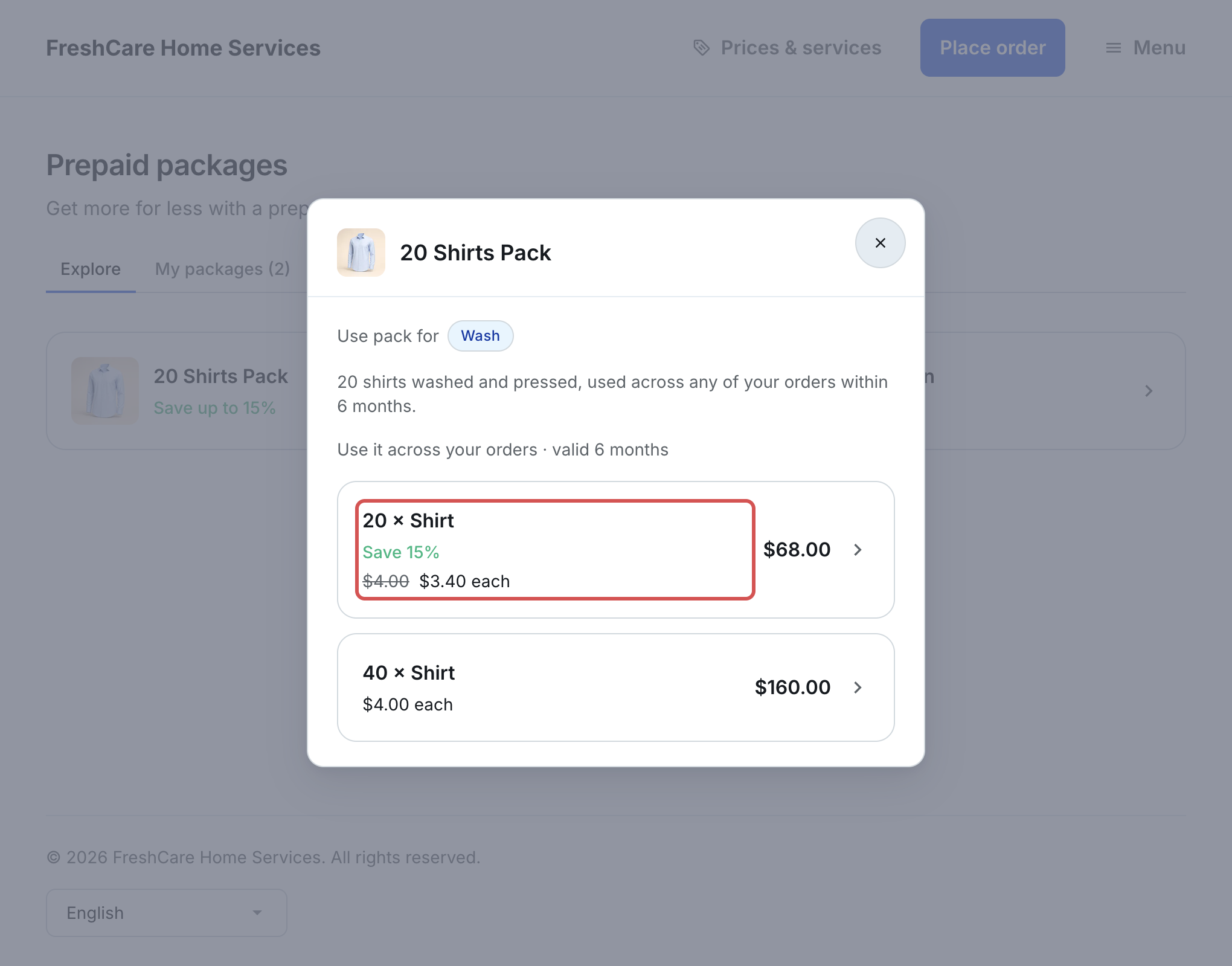
When a customer taps a package, they see what it covers, the description and one row for each size with its price per piece, for example $4.00 $3.40 each. Tapping a size opens your Payment page.
When an online purchase starts
A package bought online only starts once it is fully paid. Its months start counting from that day. Until then, it can't be used.
Card or other online payment
The package starts as soon as the payment goes through. The customer can use it straight away.
PayNow or bank transfer
You need to confirm the money has arrived before the package starts.
- The customer pays and taps to tell you they have paid.
- Check your bank account for the payment.
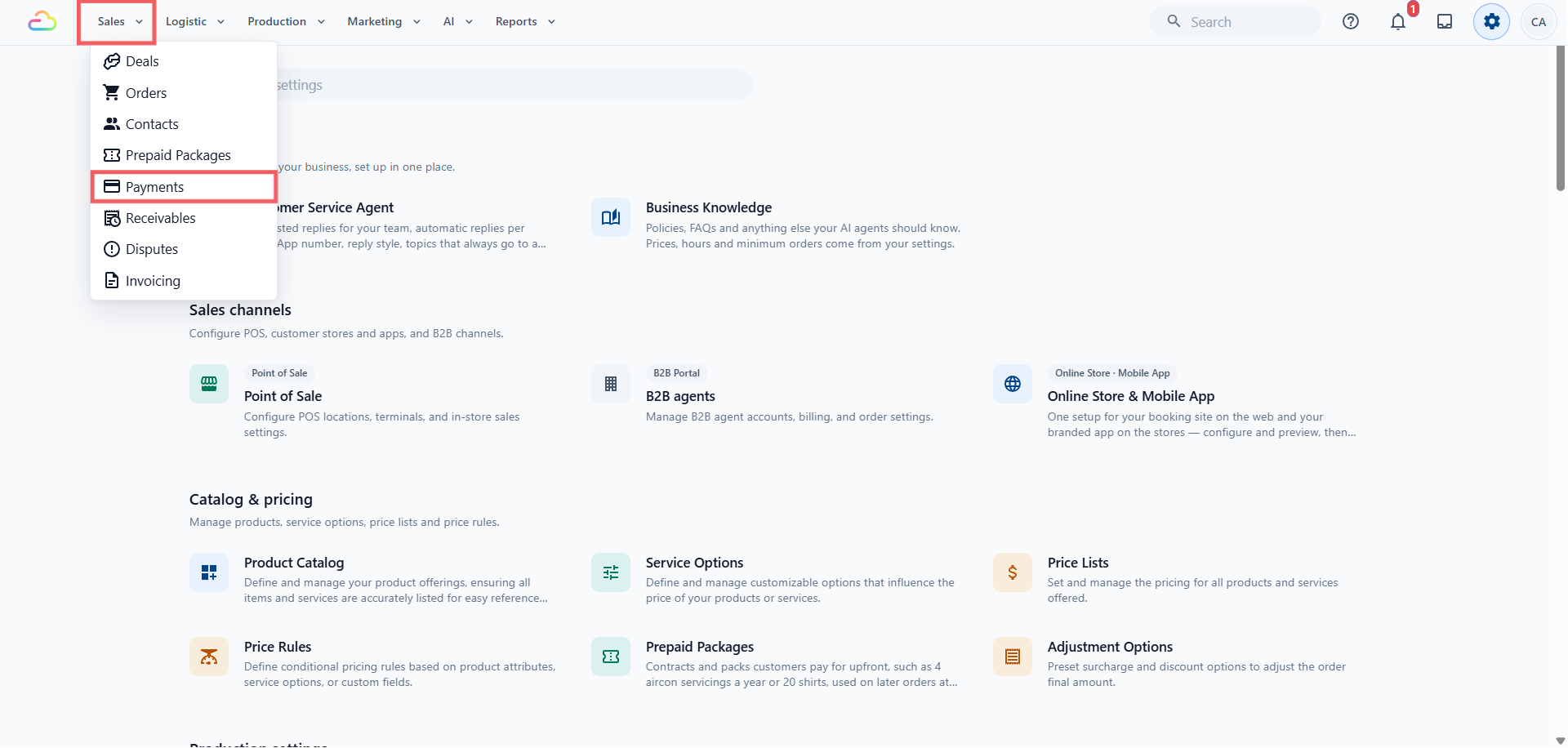
- In the top navigation bar, click Sales, then Payments.
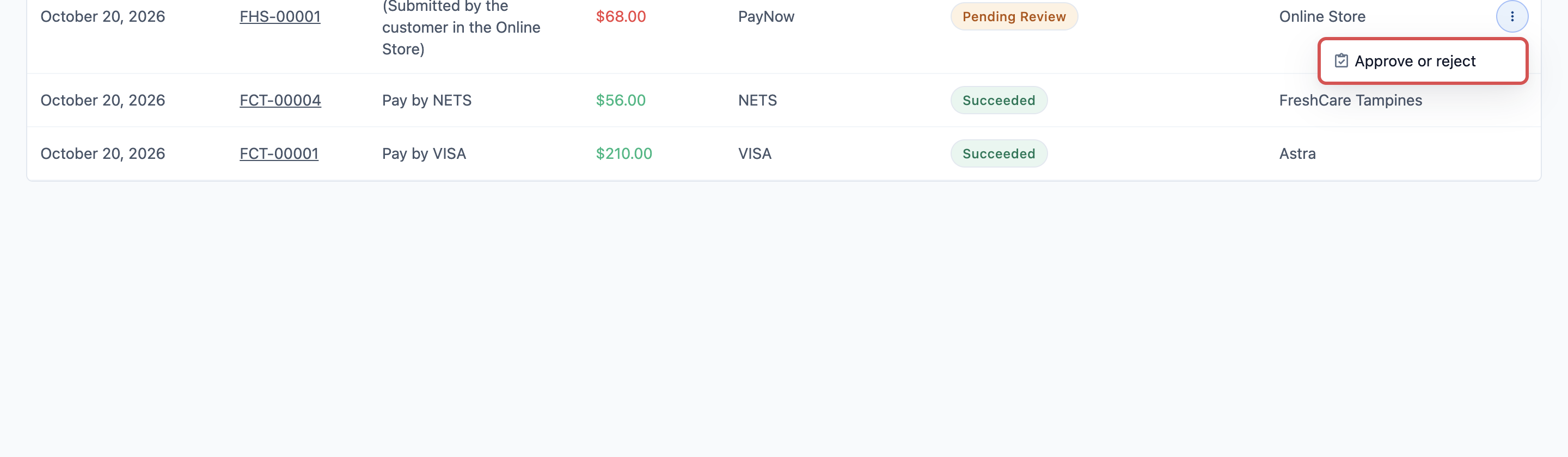
- Find the payment marked Pending Review, open its ⋮ menu and choose Approve or reject.
The package starts as soon as you approve.
What the customer sees while they wait
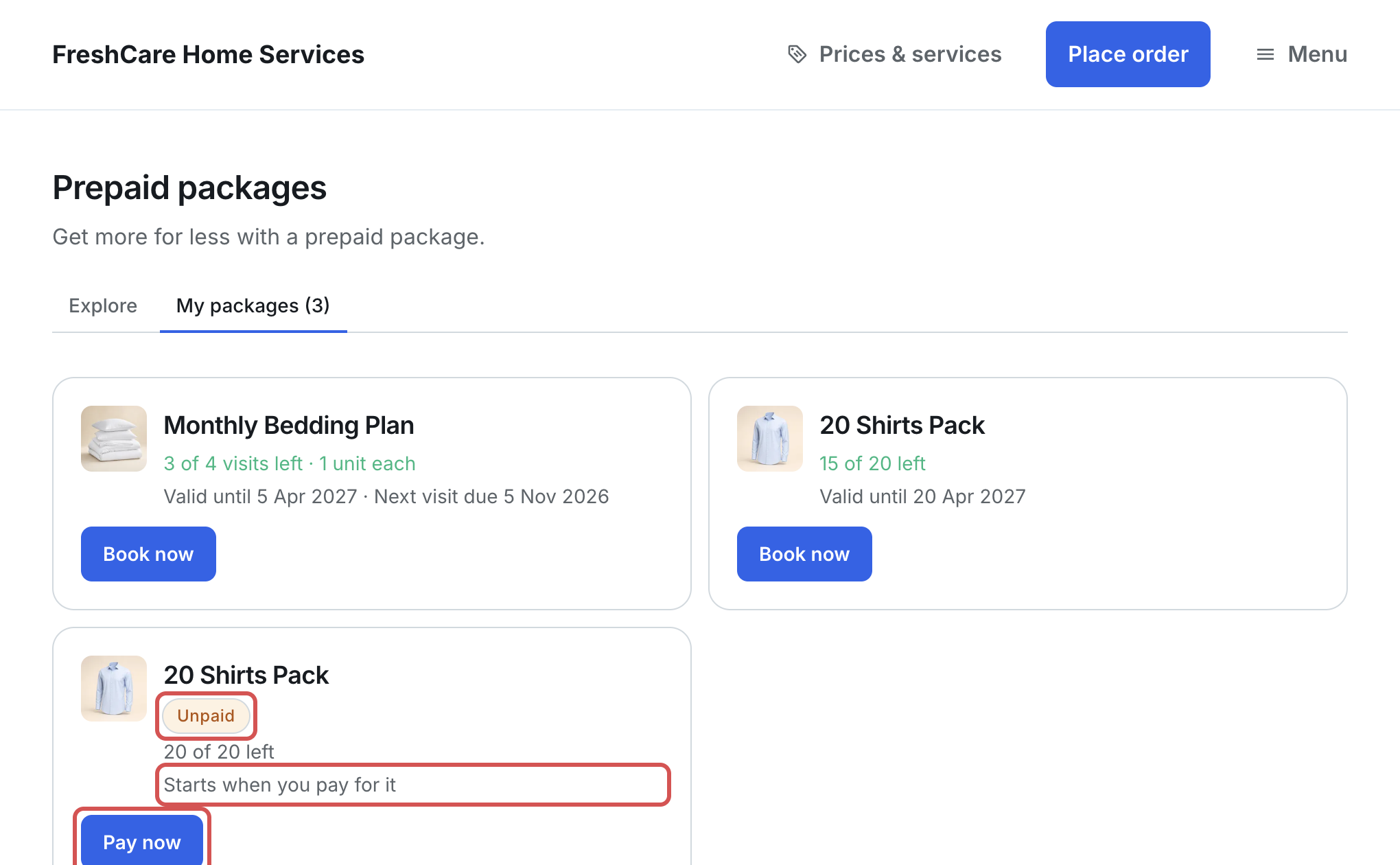
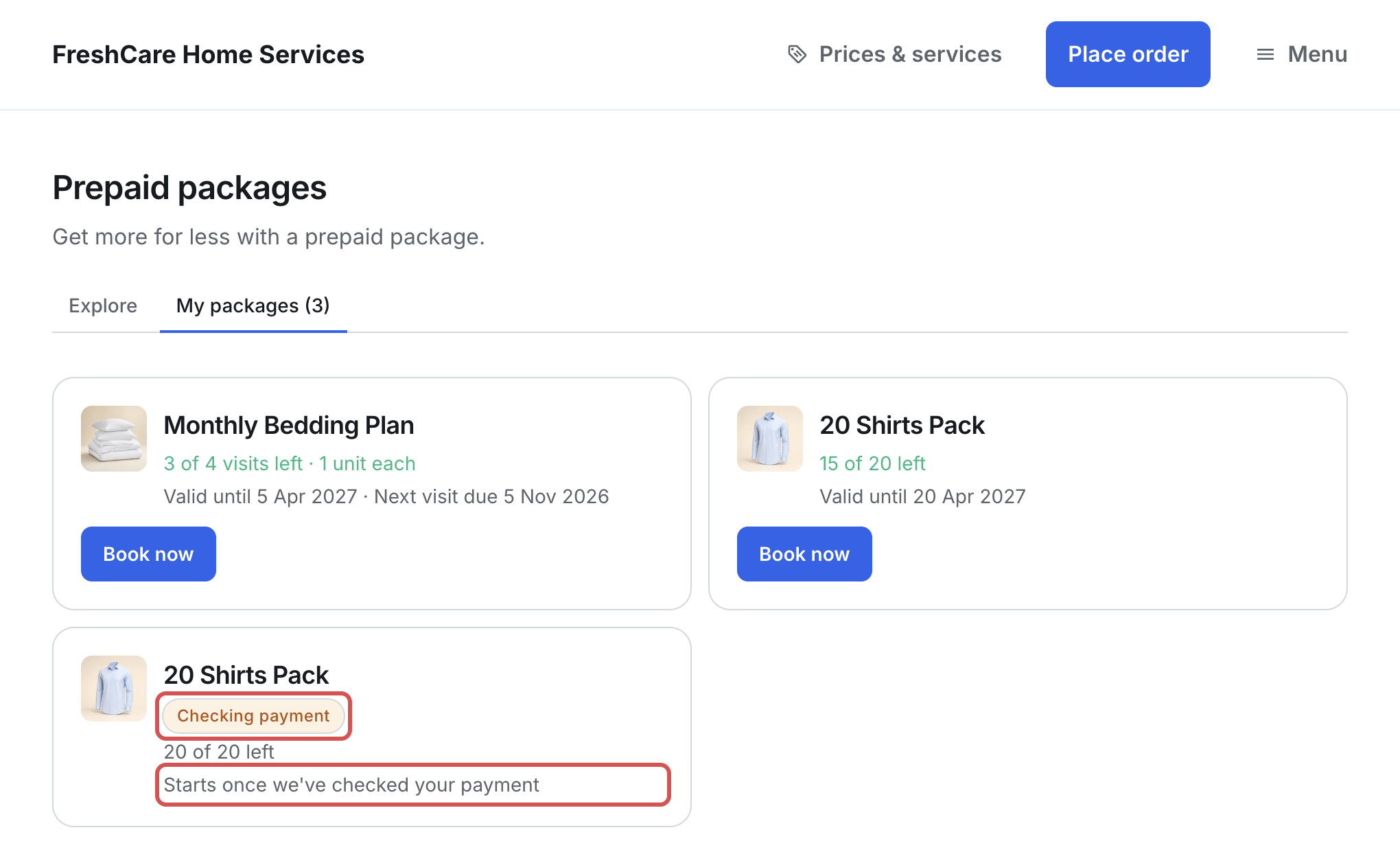
On the My packages tab, the package card shows its status:
- Unpaid: the customer hasn't paid yet. The card reads "Starts when you pay for it" and shows Pay now.
- Checking payment: the customer has told you they paid. The card reads "Starts once we've checked your payment" until you approve it.
How orders use packages
What staff see on the order
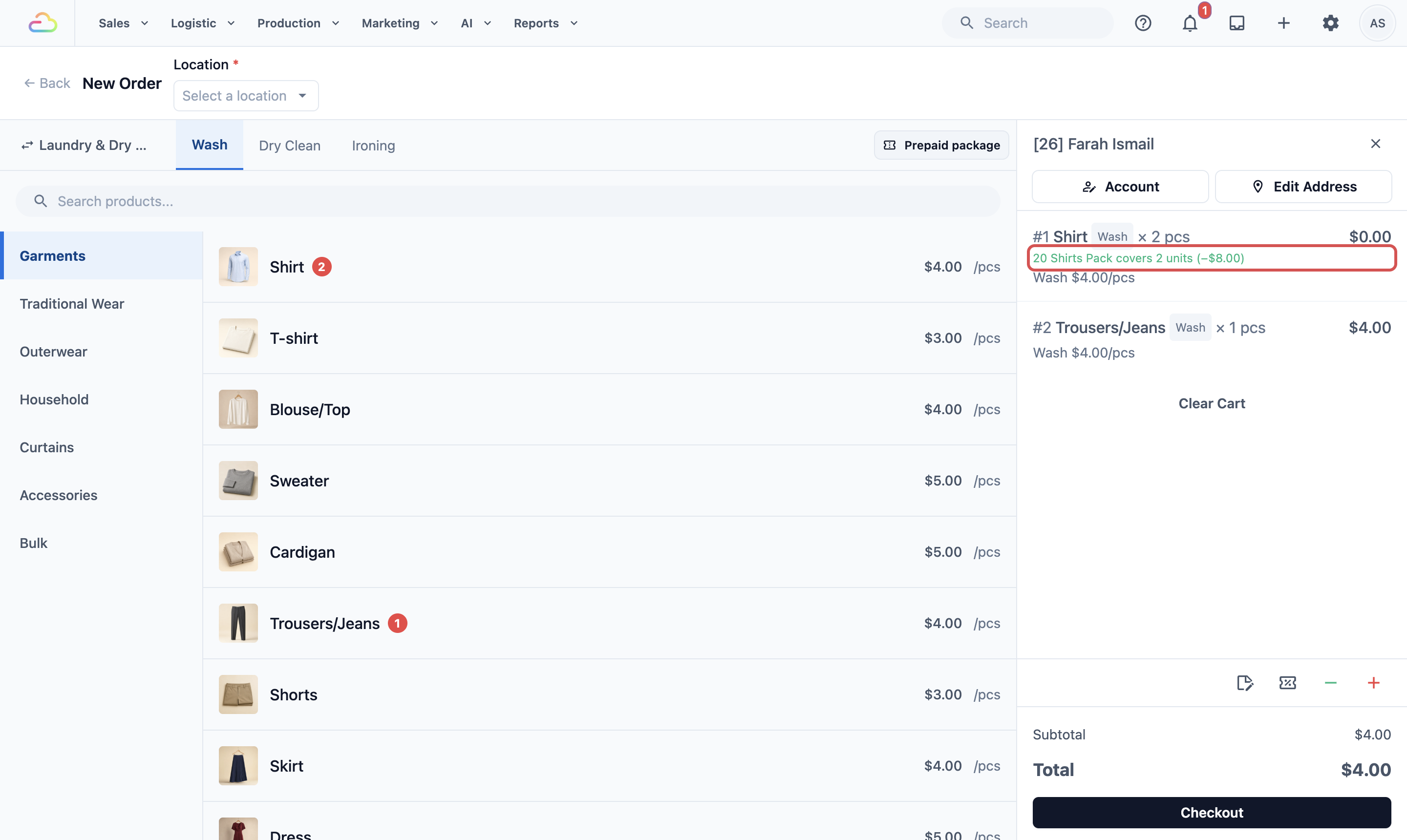
You don't need to do anything. When you add a covered item to an order for that customer, the package is used automatically.
- The line names the package, for example 20 Shirts Pack covers 2 units (−$8.00). Online, the order review shows Covered by.
- Anything beyond what is left on the package is charged at your normal price.
- If the customer has more than one package for the same item, the one ending soonest is used first.
- Cancelling a covered order, removing items from it or returning items puts them back on the package.
- Cancelling the order that sold a package ends that package. Anything already used stays used.
What the customer still pays for
The package only pays for the items it covers. Everything else on the order is charged as usual:
- Items the package doesn't cover, such as trousers on a shirt pack, and anything beyond what is left on the package.
- Add-ons on a covered item, such as starch on a covered shirt.
- Delivery fees, and extra charges for a booking time, such as an evening or weekend pickup.
- Express (faster) service. A fixed express fee is charged as normal. If your express fee is a percentage, such as +50%, it is worked out on the normal price of all the items, covered ones included, because the package pays for the washing, not the faster service.
Minimum order
If your shop has a minimum order amount, covered items count toward it. If their value reaches the minimum, nothing extra is added. If it falls short, the customer pays only the difference.
Discounts, coupons and tax
- Discounts, coupons and membership discounts only apply to the amount the customer still pays.
- Covered items don't count toward a coupon's minimum spend, and they are left out of bundle deals (such as "3 for $10").
- Automatic discounts and coupons can't bring an order below your minimum order amount. Only a discount a staff member adds by hand can.
- GST (Singapore) or SST (Malaysia) is worked out on the final amount charged, after discounts. Covered items aren't taxed again.
- Monthly free credit is used last, against whatever is still left to pay.
See and manage a customer's packages
What your customers see on your Online Store
Signed-in customers can check their packages in two places:
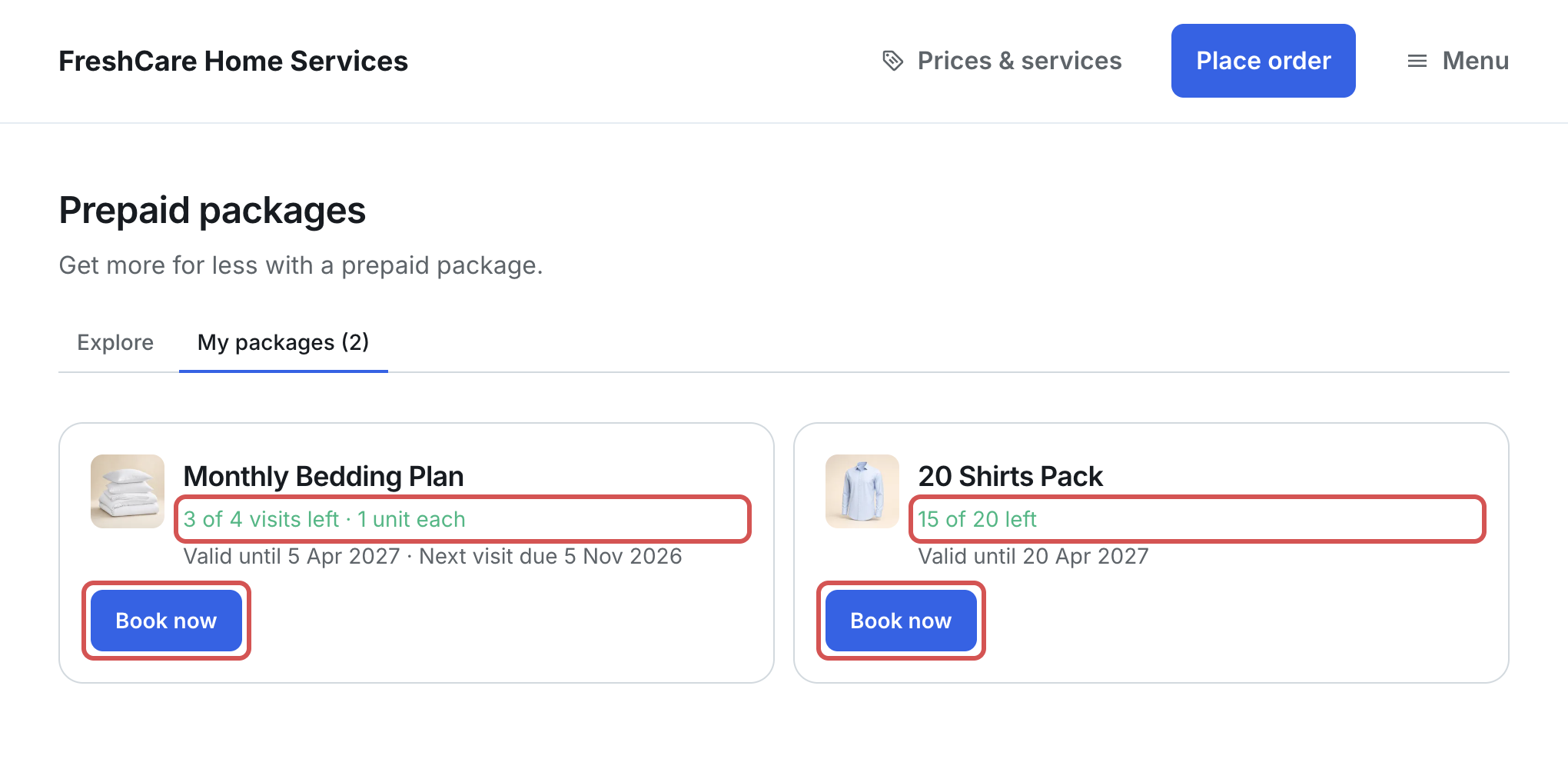
- The My packages tab on the Prepaid packages page (the ☰ menu, then Prepaid packages). The tab shows how many packages they have, for example My packages (2).
- Your packages on the My orders page.
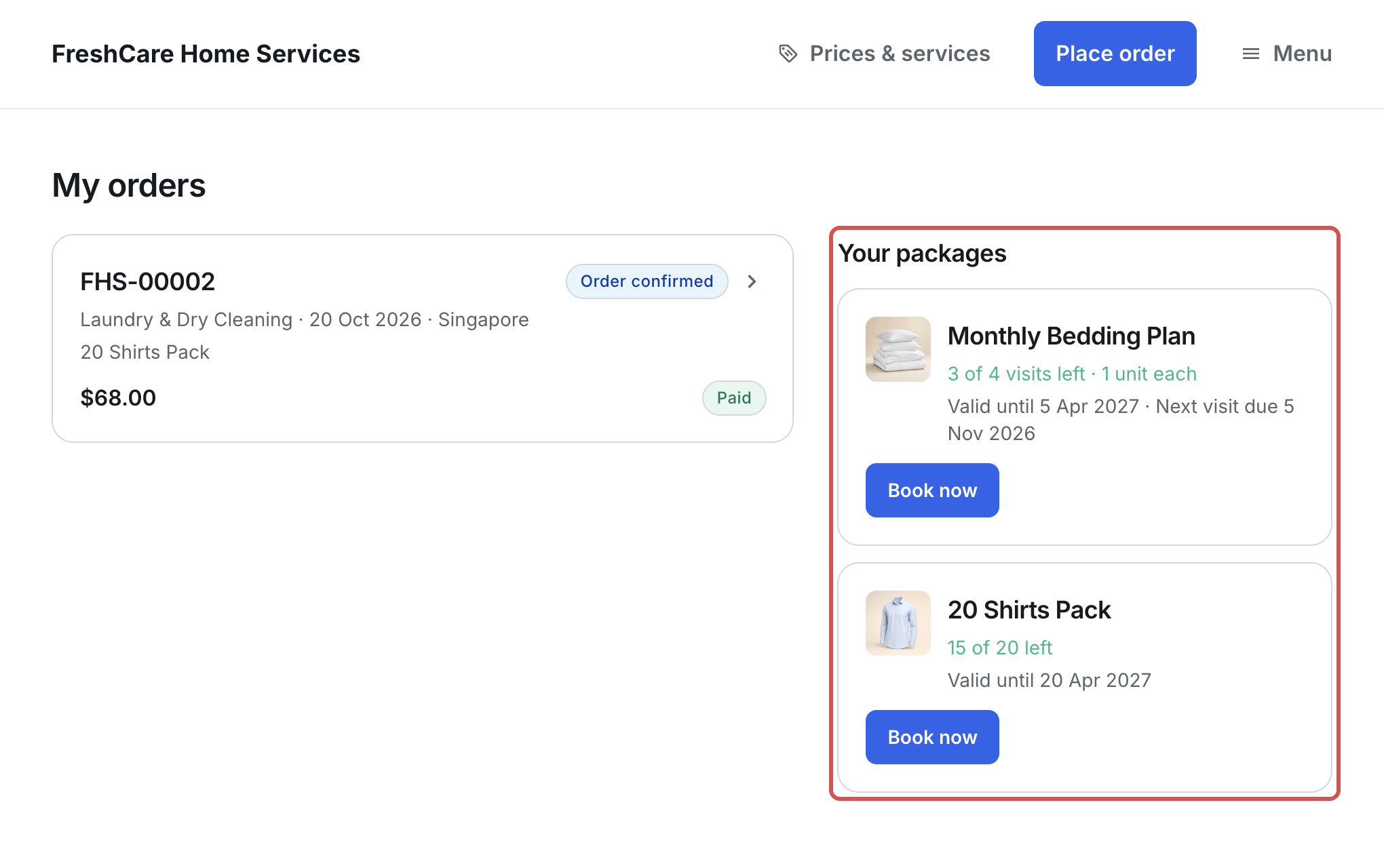
Each package card shows its picture, its name and what is left:
| Package | What the card shows |
|---|---|
| Pack (Visits 1) | 15 of 20 left, then Valid until 19 Apr 2027 |
| Pack sold by kg | 22.6 of 30 kg left, then Valid until 19 Apr 2027 |
| Contract (Visits 2 or more) | 3 of 4 visits left · up to 1 unit each, then Valid until 19 Feb 2027 · Next visit due 19 Nov 2026 |
A package with no end shows No end date, a used-up one shows All used, and one past its last day shows Ended on and the date.
Tapping Book now starts a booking with the covered item already added, so it is taken from the package.
What your staff see
- In the top navigation bar, click Sales, then Contacts.
- Open the customer and go to the Loyalty section.
- Click Prepaid Packages.
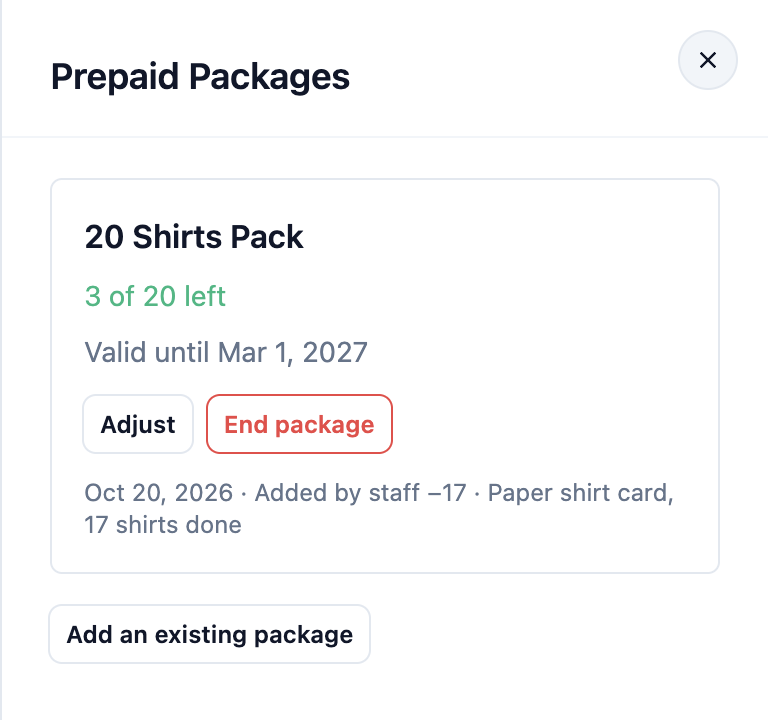
Each package shows what is left, its last day, the next visit due (for a contract) and its history.
- Adjust: change what is left or the last day, with a reason. For example, give back 2 shirts after a mistake.
- End package: stop the package. Whatever is left can no longer be used.
See all packages in one place
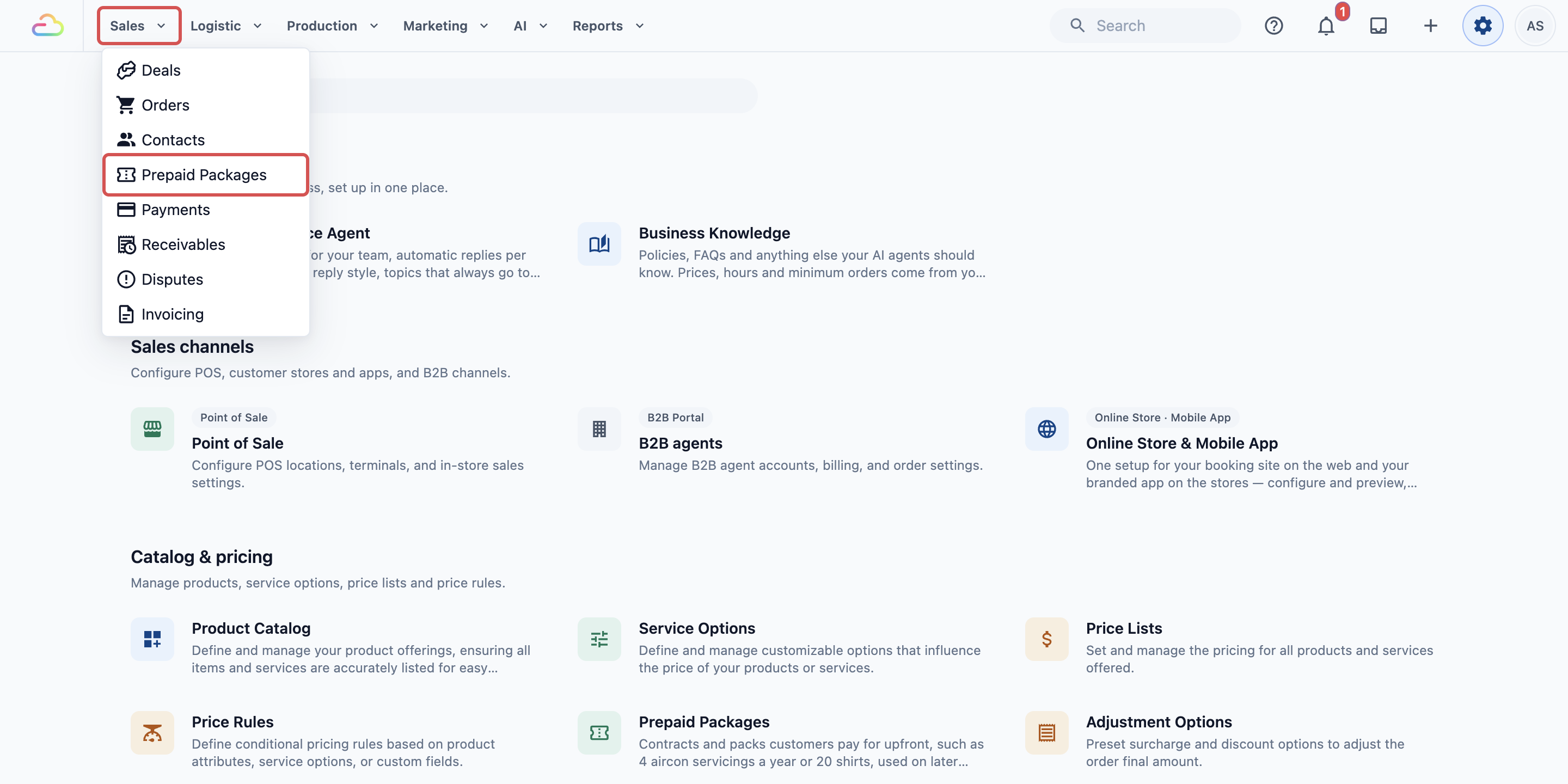
- In the top navigation bar, click Sales.
- Click Prepaid Packages.
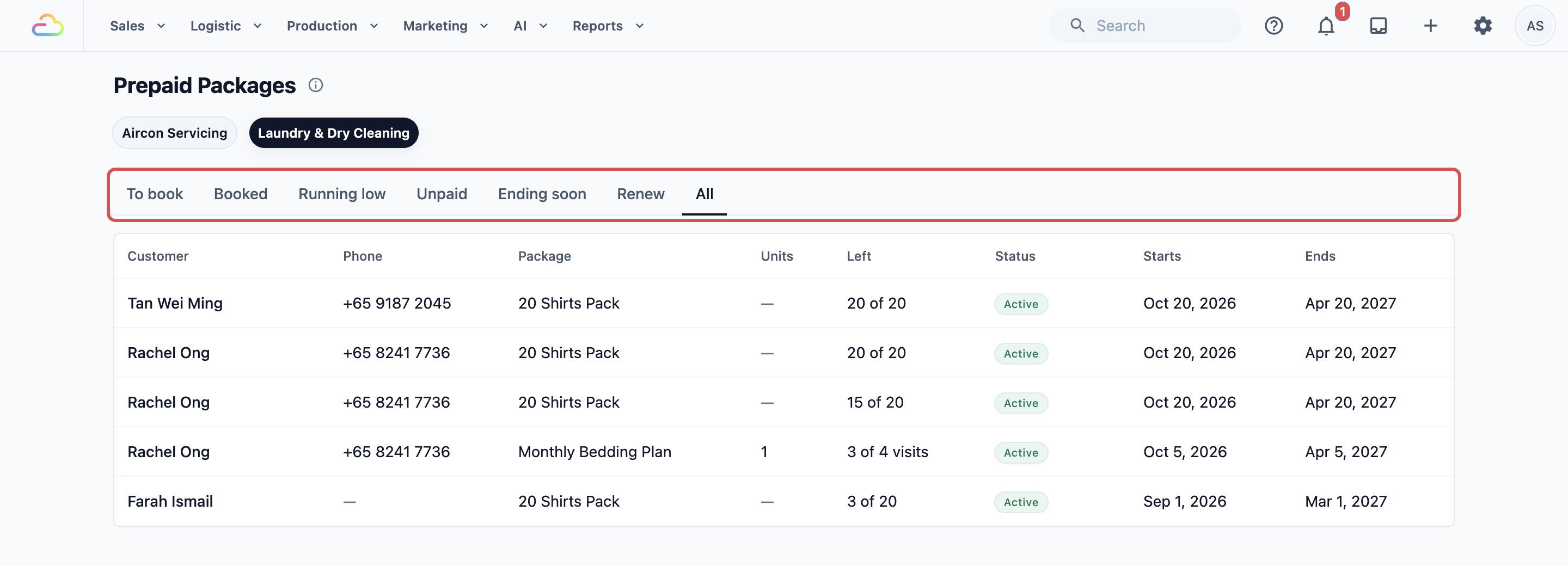
- If you have more than one business unit, click the one you want, such as Laundry & Dry Cleaning.
The tabs show the follow-up work for your packages:
| Tab | What it lists | Shows for |
|---|---|---|
| To book | Contract visits that are overdue or due soon | Contracts |
| Booked | Contract visits already booked in the next 14 days | Contracts |
| Running low | Packs with a fifth or less left, for example 4 or fewer of 20 shirts | Packs |
| Unpaid | Packages bought but not paid yet | All packages |
| Ending soon | Packages that end within 30 days with something still left | All packages |
| Renew | Packages that recently ran out or ended and weren't bought again | All packages |
| All | Every package sold | All packages |
Each row has a WhatsApp button that opens a ready-written reminder to the customer, for example offering a new pack when theirs is running low.
FAQs
Which number do I put in Visits for a shirt pack or a kg pack?
Visits 1 makes a pack that is used bit by bit across many orders. Only use 2 or more for a contract with a fixed number of visits.
Can a customer share their pack with family?
A package belongs to one customer and is only used on that customer's orders. If a family member drops off clothes under the same customer name, the package covers them. It can't be moved to another customer.
A customer wants their money back. What do I do?
Open the customer's Prepaid Packages and click End package. Then refund the order that sold the package. Ending a package never refunds money by itself.
Why was a package customer charged?
Check that the package is still active and has something left, and that the order's item and service are the ones it covers. For an online contract booking, check that the next visit was already due. Add-ons, delivery and express fees are always charged.
A customer bought at the counter but hasn't paid. Can they use it?
Yes. Packages sold at the POS or in the Console start on the order date. Only packages bought online wait for payment.
Can I sell the same pack in Singapore and Malaysia?
Yes. If your business sells in both, the package form has a price box for each country. Enter the SGD and RM prices. Leave a box empty if that size isn't sold there.
Why does my pack show no saving online?
Only packs priced below your normal price per piece show one. Contracts never do.
How does a package appear in my sales?
Once, when it is sold. A fully covered visit counts as $0, because the customer already paid for it with the package.
Does the older POS app (POS 2.0) use packages?
No. Packages work on the current EasyBiz POS, the Console, the Online Store and the Mobile App.