
Before You Start
You need an existing repeat setup. This article continues from your first setup and does not cover creating another one.
Use an owner account or a staff account with access to Production settings in Console, the workspace your staff use to manage the shop. If you cannot open the settings, ask your owner to check your access.
Customers must sign in to their own account to manage repeats through your store's Repeat orders page. That page must be available in your store. It shows their active repeats for that store, not your whole staff list.
Find and Check a Repeat
- Open
Settingsusing the gear icon in Console. - Open
Production settings. - Select
Repeat orders. - Choose
Active,PausedorFailed. - Use
Searchto find the customer's setup.
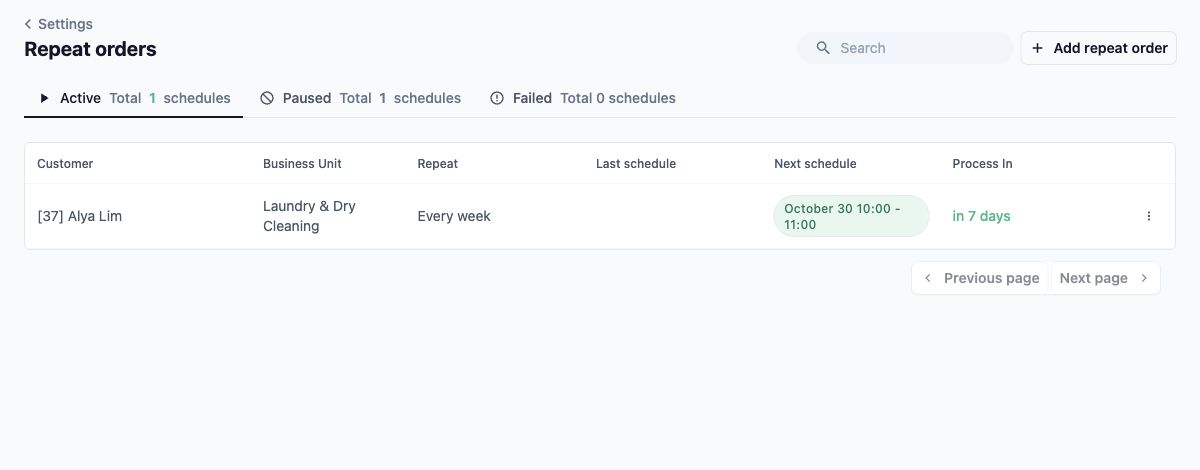
Read the row before opening it:
- Customer identifies who the setup belongs to.
- Business Unit identifies the type of work, such as Laundry & Dry Cleaning.
- Repeat shows how often it runs.
- Last schedule shows the latest repeat that created an order, with its order number. A blank entry means there is no latest generated order recorded here.
- Next schedule shows the next planned pickup or service time for an active setup. Paused and failed setups show their state instead.
- Process In shows when EasyBiz is due to create the next order. This can be earlier than the pickup or service date.
Active means the setup is running. Paused means it is not creating more orders. Failed means processing failed and needs attention. The paused and failed lists show when that happened and a reason when one is available.
This list shows the latest generated order reference, not a full history of every order in the series. The screenshots use Alya Lim as a separate fictional customer; the walkthrough later continues Jamie Tan’s setup from Article 2.
- Select the customer's row to open
Update Schedule.
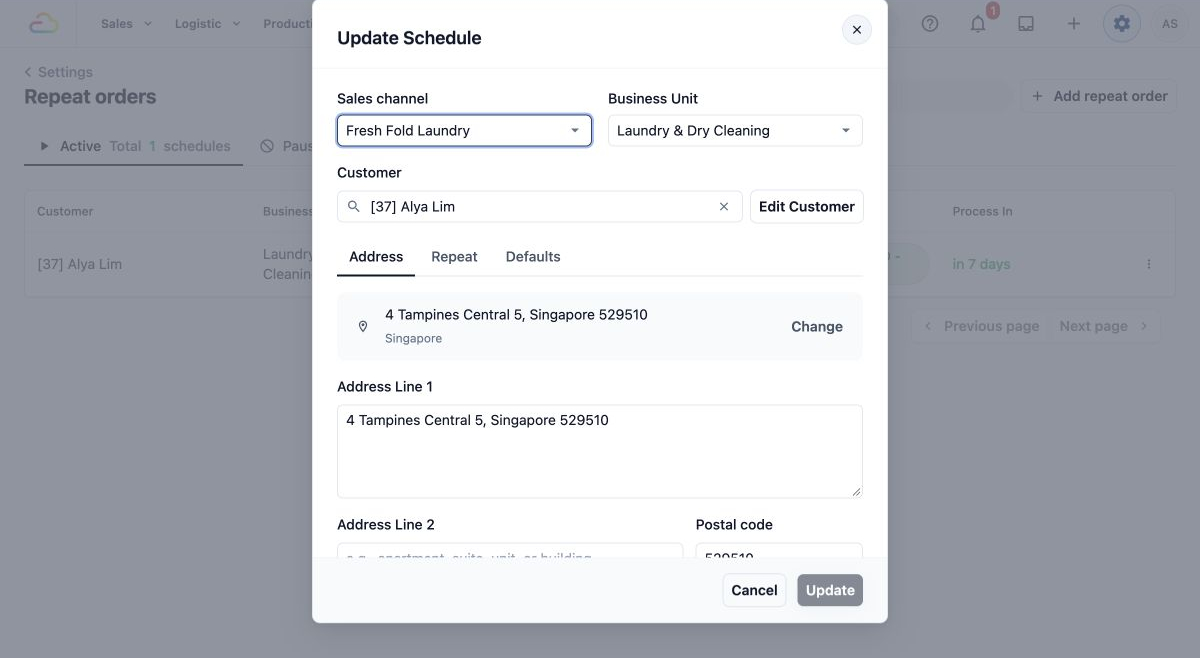
The Sales channel is the store through which the orders are taken. Check it along with the customer and address so you change the correct setup.
Change Future Repeats
Staff: change the frequency or timing
- Open the setup from the repeat list.
- Select
Repeat. - Change Pickup repeat frequency. For a weekly pickup, check Pickup day and Pick up time too.
- Check Delivery day after pickup and Delivery time. These control when the laundry returns to the customer.
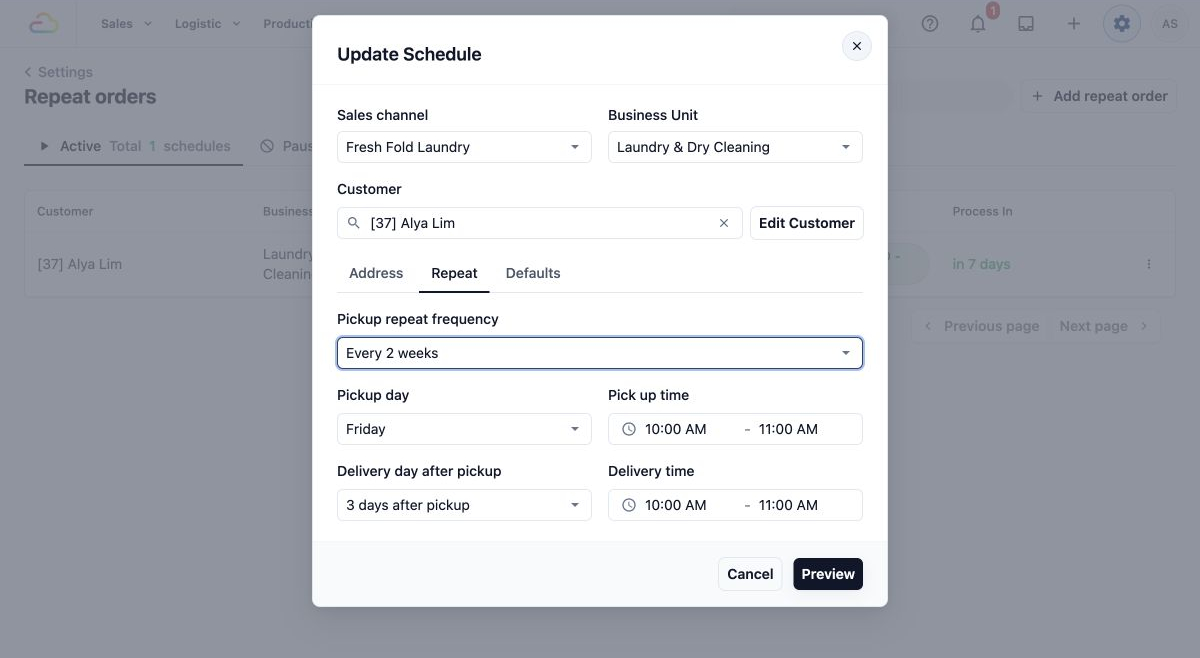
The available fields follow the type of work. A setup for a service visit uses its service schedule instead of pickup and delivery.
- Select
Preview. - Check Next pickup, Next delivery, Repeat frequency and End repeat in
Schedule Preview.
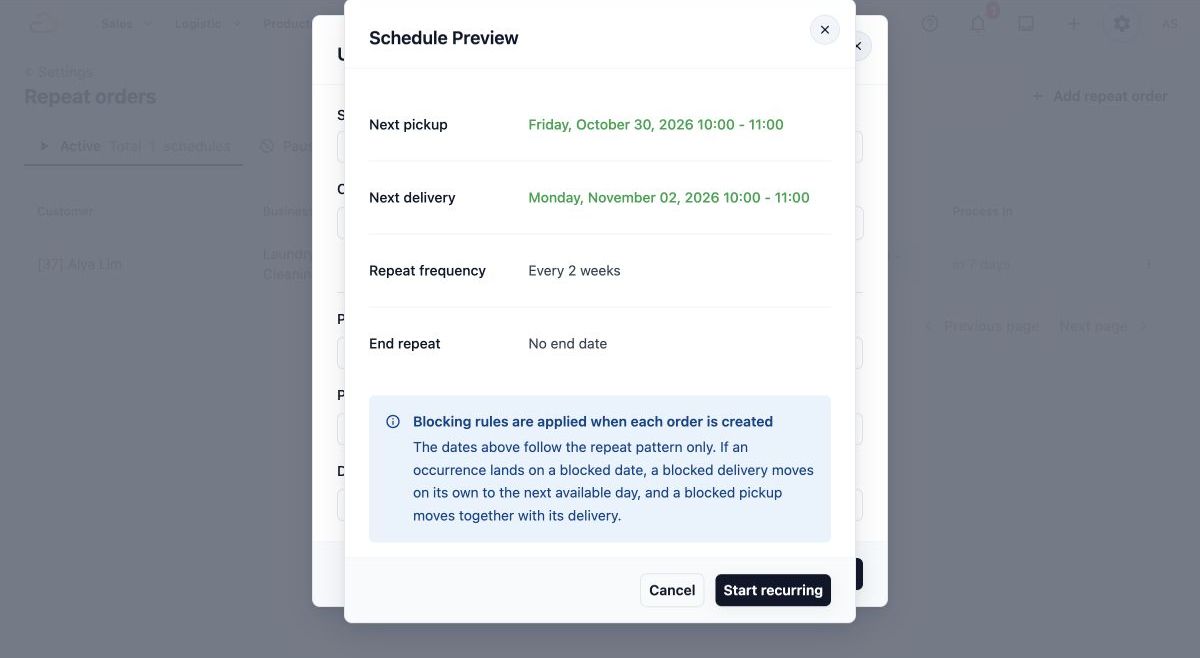
- Scroll down to check Create the recurring order, At and Start from. These set how early the order is created, the creation time and the date from which the pattern is calculated.
- If needed, change End repeat to the offered end rule. The choices are
No end date,End after X occurrencesorEnd by date. An occurrence means one repeat in the pattern.
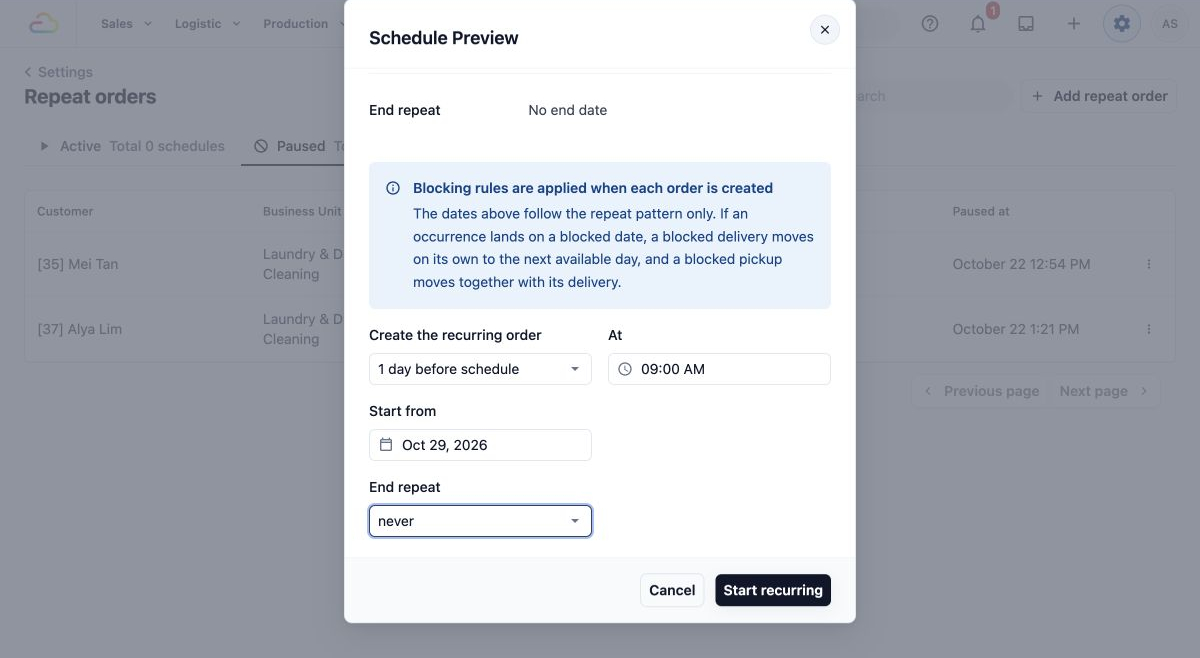
The no-end setting may display as never in the field; its summary reads No end date. The preview follows the repeat pattern. Dates your shop has blocked are checked when each order is created, so the final booking may move. Always check the resulting order when a blocked date is involved.
- Select
Start recurringto save and activate the reviewed setup. - Check the row in
Activeagain.
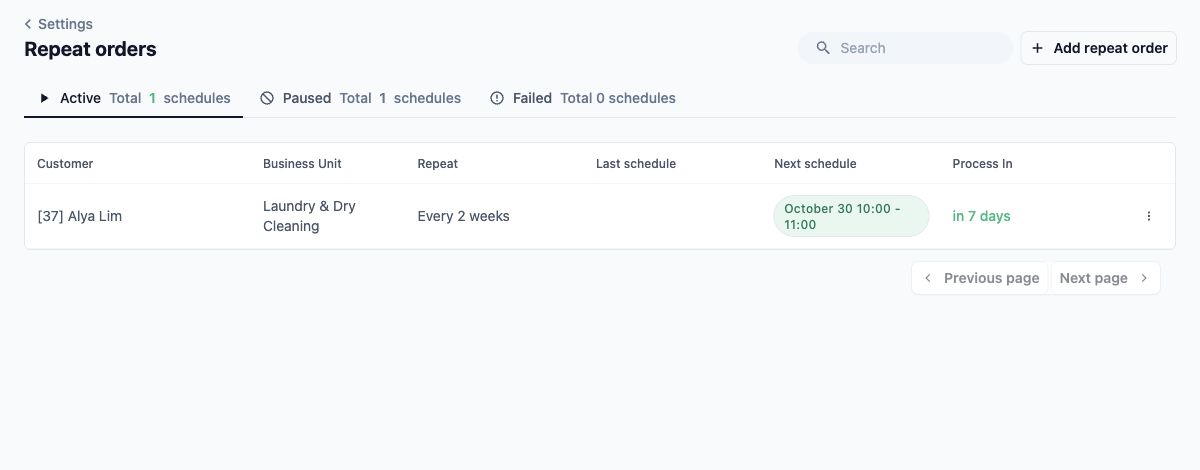
The saved setup controls future order creation. Orders already created keep their existing details. The button says Start recurring even when you are saving a timing change to an existing setup.
Staff: change only the creation timing or end rule
- Find the setup in
Active. - Open its three-dot menu and select
Restart. - In
Schedule Preview, review Create the recurring order, At, Start from and End repeat, as shown above. - Make the required change and check the next dates again.
- Select
Start recurring, then check the saved row inActive.
This uses the same preview and confirmation as a pattern change. Do not use it to try to recover a missing order before checking the orders already created.
Staff: change the address or defaults
Defaults are instructions copied into future orders, such as job notes or a staff assignment. A job is one task within an order, such as pickup or delivery.
- Open the setup from the repeat list.
- If you are correcting the customer, type of work or store, check Customer, Business Unit and Sales channel at the top. Selecting a different customer also changes the address to that customer’s default address.
- Select
Addressto change the saved collection or service address. - Select
Defaultsto change Default payment method, Fixed assignment, Pickup job note, Delivery job note or Order note, as applicable to the setup.
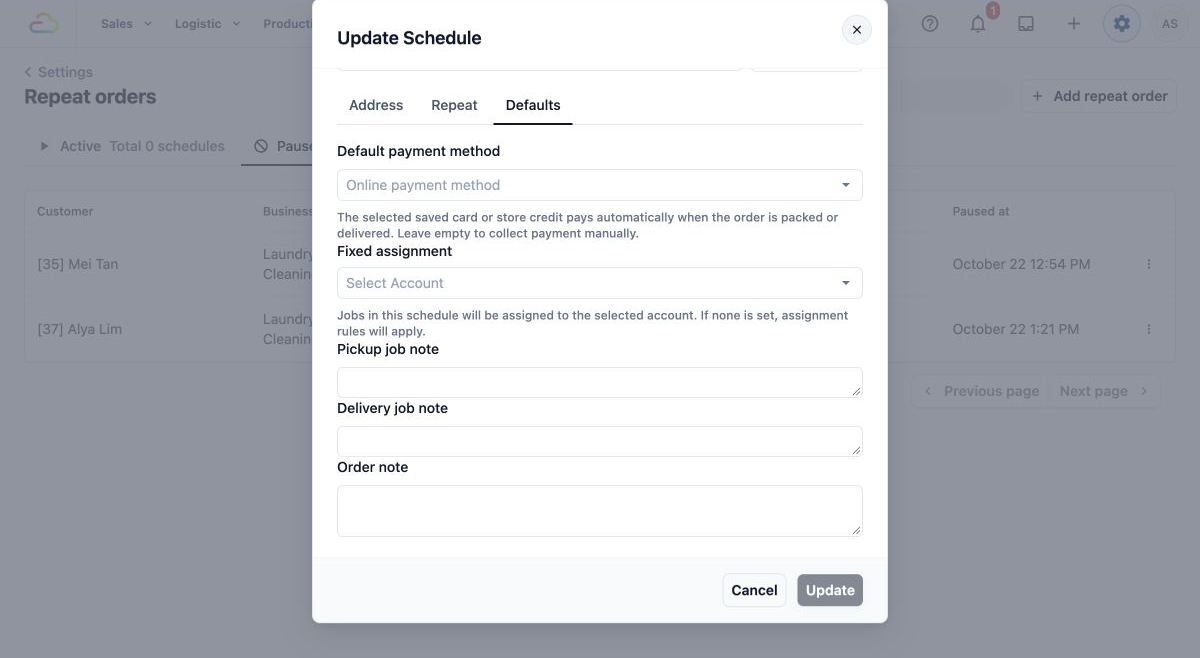
Fixed assignment means assigning the jobs to a particular staff account. Without one, your assignment rules apply. The payment field explains when a selected saved card or store credit is used; leave it empty if you collect payment manually.
- Select
Updatewhen you have changed only these details. - Open the setup again and check the saved values.
If you also changed the repeat timing, the button is Preview. Complete the preview steps above. An address or defaults update alone does not restart a paused setup or rewrite existing orders.
Customers: change their own repeat
- Sign in to the shop's online store.
- Open
Menu. - Select
Repeat orders. - Find the repeat and check its next pickup, delivery or service date.
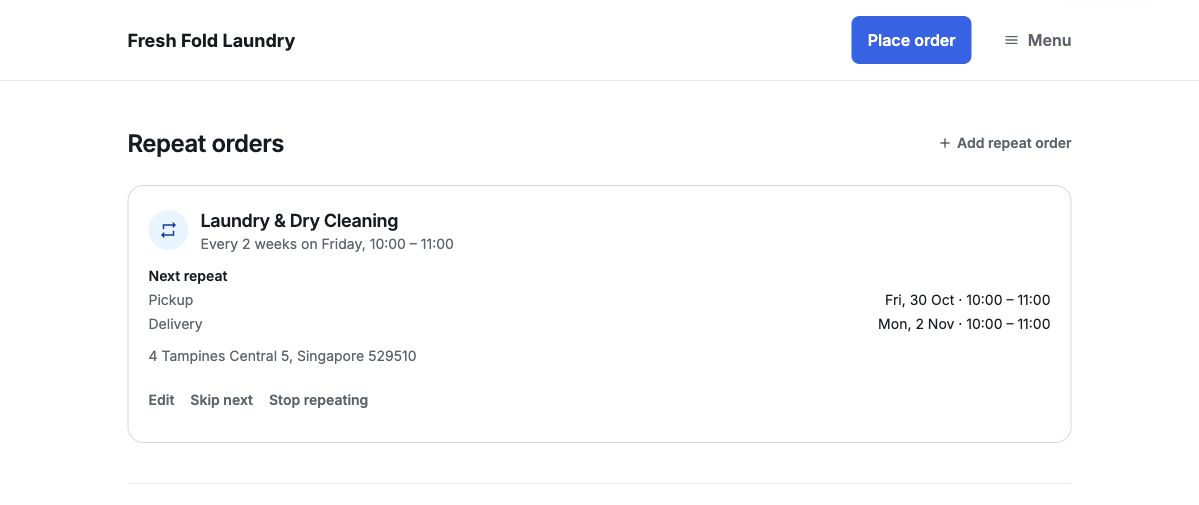
Customers see the upcoming booking details here. They do not see your internal job assignments or the staff list's processing information.
- Select
Edit. - In
Change repeat order, choose an offered How often option. To move the work to another saved address, select it under Address and choose the available dates and times for that address.
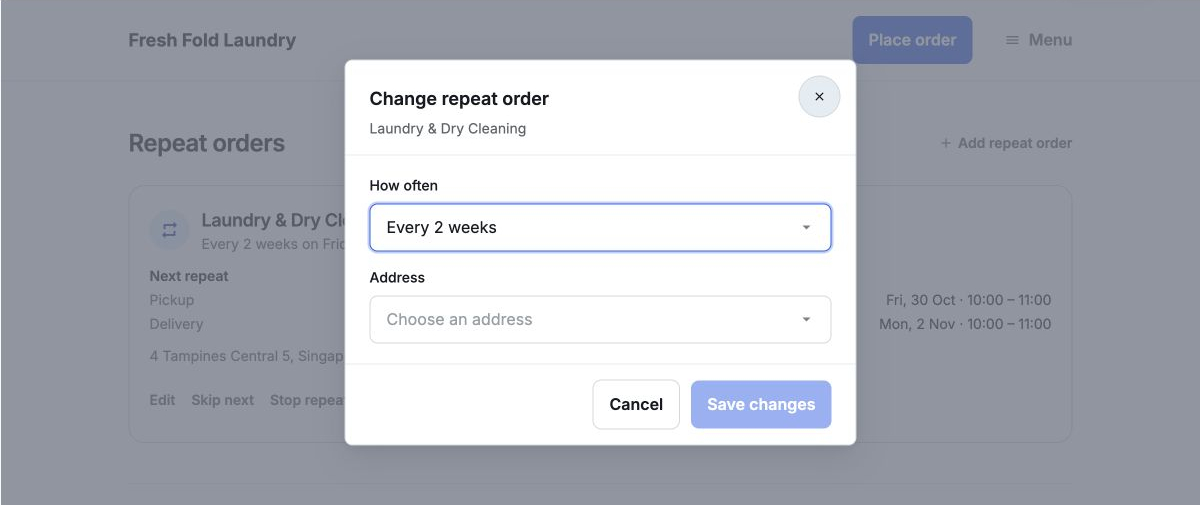
A frequency-only change keeps the next booked dates and times. The following repeats use the new frequency. Changing the next dates or times also changes the pattern used afterwards. A new address needs its own available booking times.
- Select
Save changes. - Check the repeat card again for the updated frequency, address and next dates.
Customers can choose only the frequencies and booking times offered to them. Staff-only details, such as fixed assignments and internal notes, are not available in this customer dialog.
Handle an Interruption
Staff: pause future orders
- Find the setup in
Active. - Open the three-dot menu at the end of its row.
- Select
Pause. - Check the customer and address in
Pause Schedule.
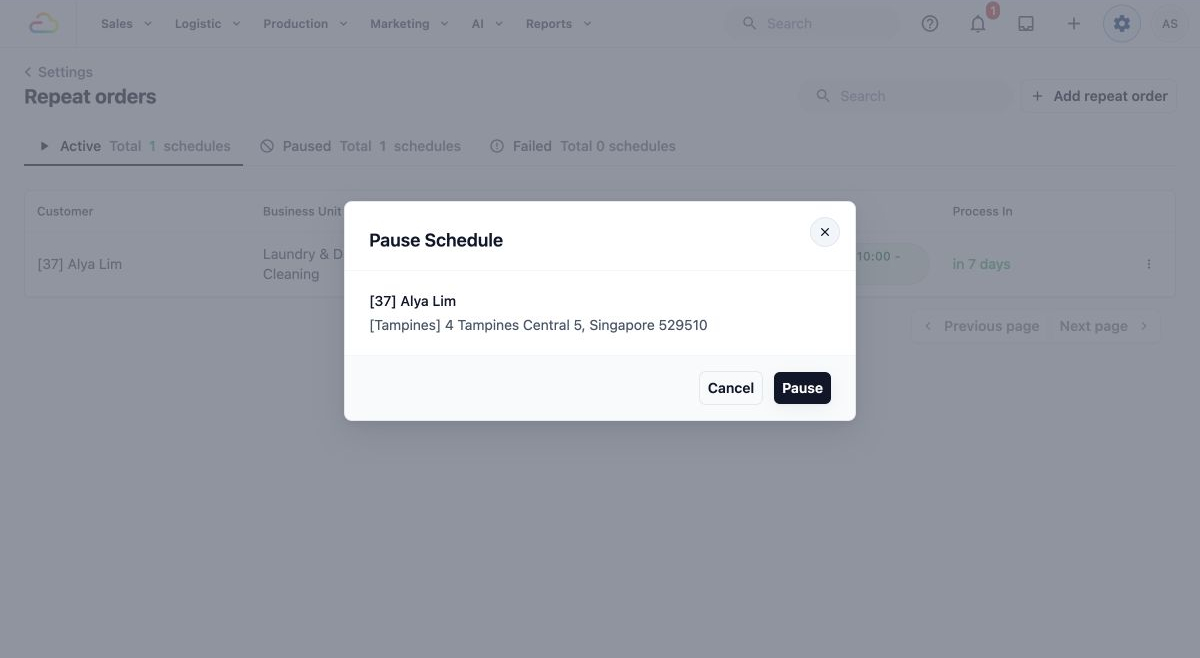
Pausing stops future order creation from this setup. It leaves orders already created for your staff to handle.
- Select
Pauseto confirm. - Open
Pausedand find the setup again.
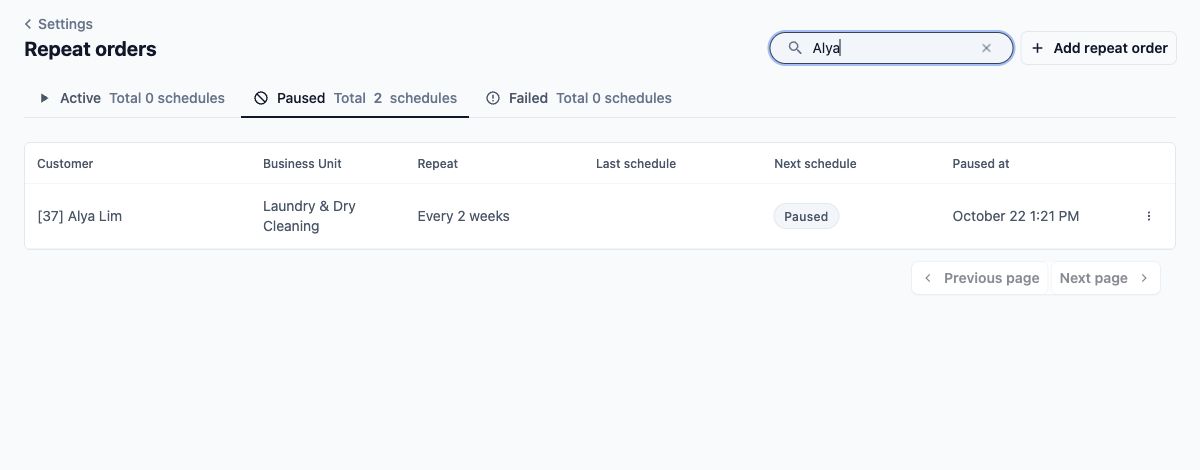
The setup stays in the staff list. It no longer appears in the customer's active repeat list.
Staff: start a paused setup again
- Find the setup in
Paused. - Open its three-dot menu and select
Start. - Review the next dates, creation timing and end rule in
Schedule Preview.
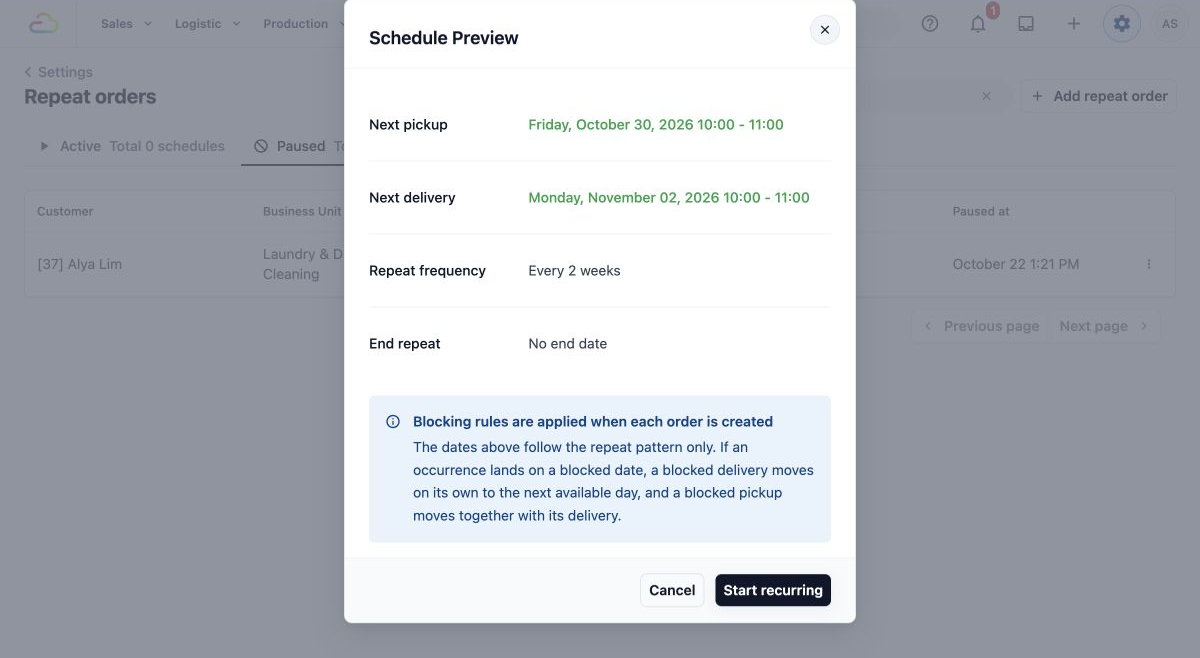
Use the dates shown in the preview to agree the next visit with the customer. Starting the setup is not an instruction to recreate every missed visit.
- Select
Start recurringwhen the preview is correct. - Check that the setup appears in
Activewith the expected next date.
The control for resuming is called Start. Check the new next date rather than assuming it will be the date shown before the pause.
Customers: skip the next occurrence
- Open the customer's
Repeat orderspage using the customer steps above. - Select
Skip nexton the repeat. - Check the date in the confirmation.
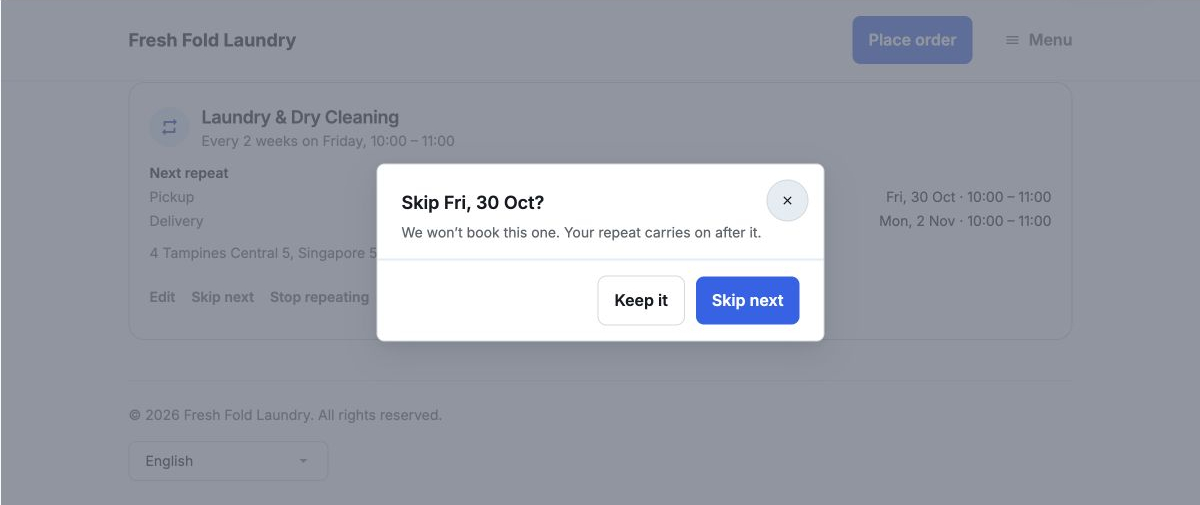
This skips the next occurrence that has not yet created an order. It does not cancel an order already booked. There is no undo-skip button. If skipping reaches the setup's end rule, the repeat ends instead of continuing indefinitely.
- Select
Skip nextto confirm, orKeep itto leave it unchanged. - Check the next date on the repeat card.
The staff repeat list does not have a Skip next action. Do not treat pausing and starting as a one-click skip.
Customers: stop repeating
- Open the customer's
Repeat orderspage. - Select
Stop repeating. - Read the confirmation before continuing.
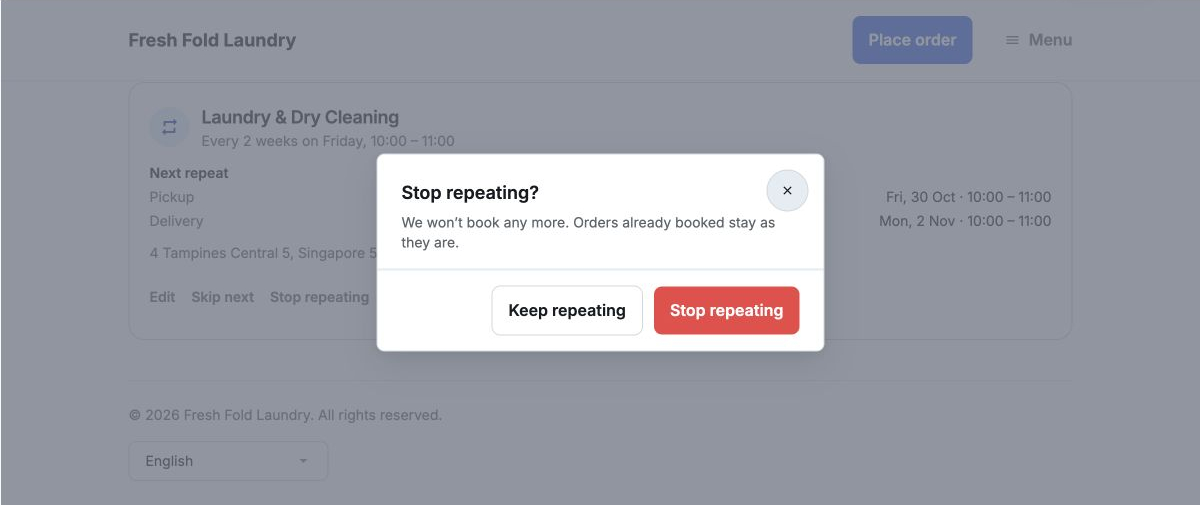
Stopping removes the setup from the customer's active list. Staff can find it in Paused with the reason Stopped by the customer. Customers do not have a resume button; staff can review and start it again when requested.
- Select
Stop repeatingto confirm, orKeep repeatingto leave it running.
Staff: delete an unwanted setup
- Find the setup and open its three-dot menu.
- Select
Delete. - Check the customer and address in
Delete Schedule.
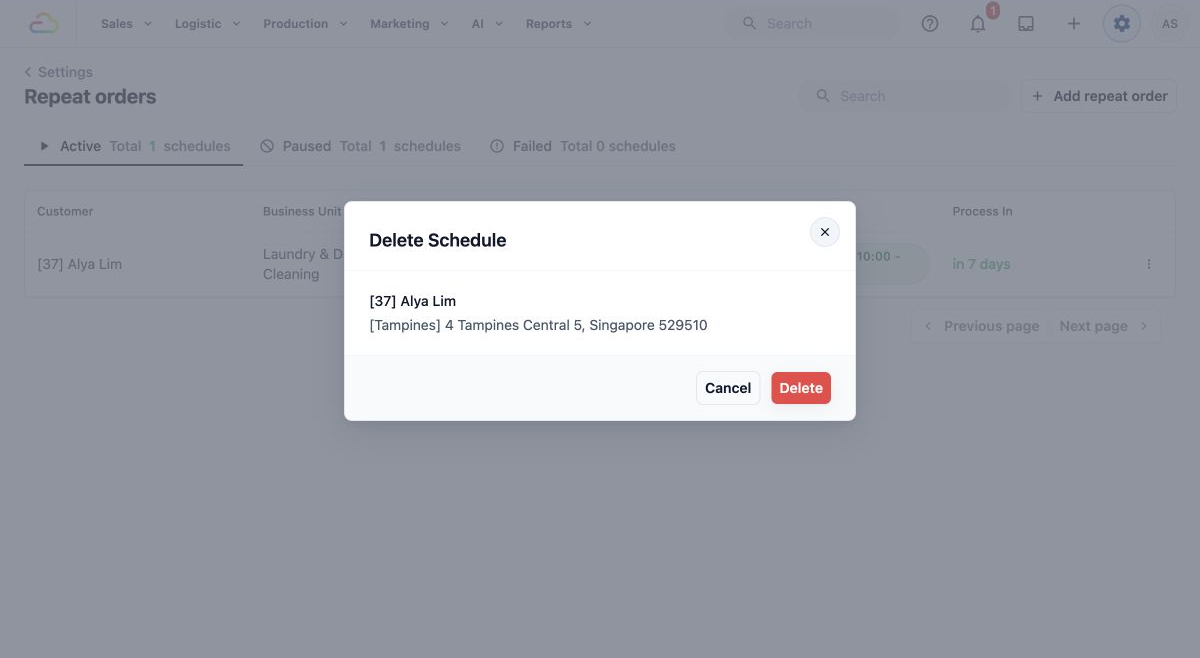
Deleting removes the repeat setup permanently. It does not delete orders already created, and there is no restore control for the setup.
- Select
Deleteonly when you intend to remove the setup. SelectCancelto keep it.
Check the Resulting Orders
- Note the customer and any order number shown under Last schedule in the repeat list.
- Open
Salesin Console. - Select
Orders. - Search for the customer and match the order number and dates.
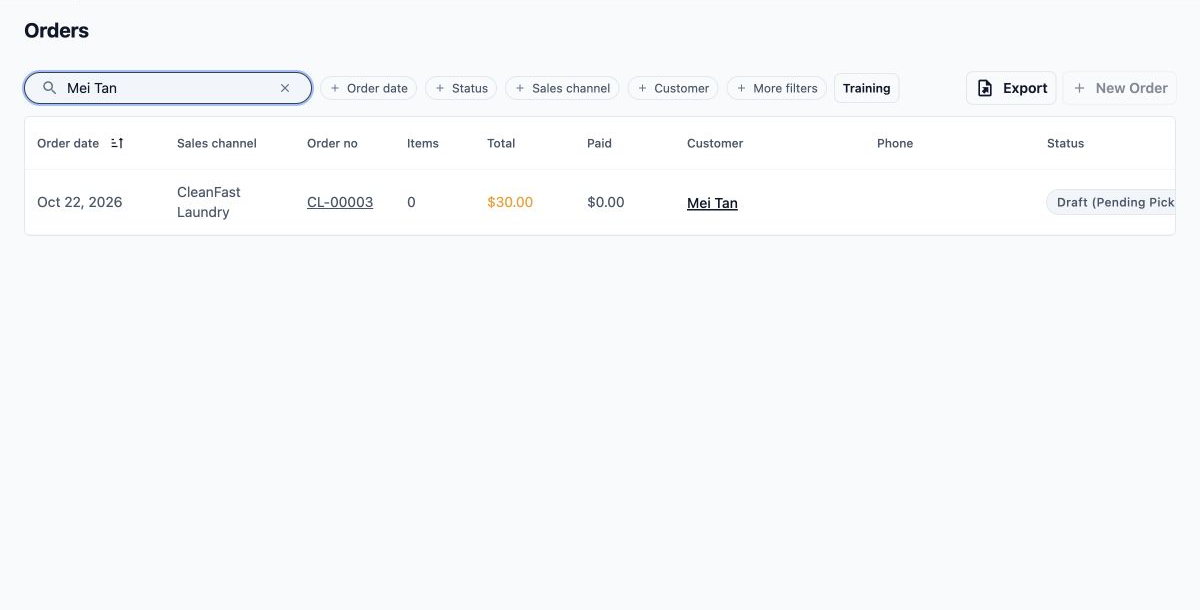
The order date can be earlier than the pickup date because the setup creates orders in advance. In this separate example, the order was created on 22 October for a pickup on 23 October.
- Select the order number.
- Check its customer, pickup or service details, delivery details and current status.
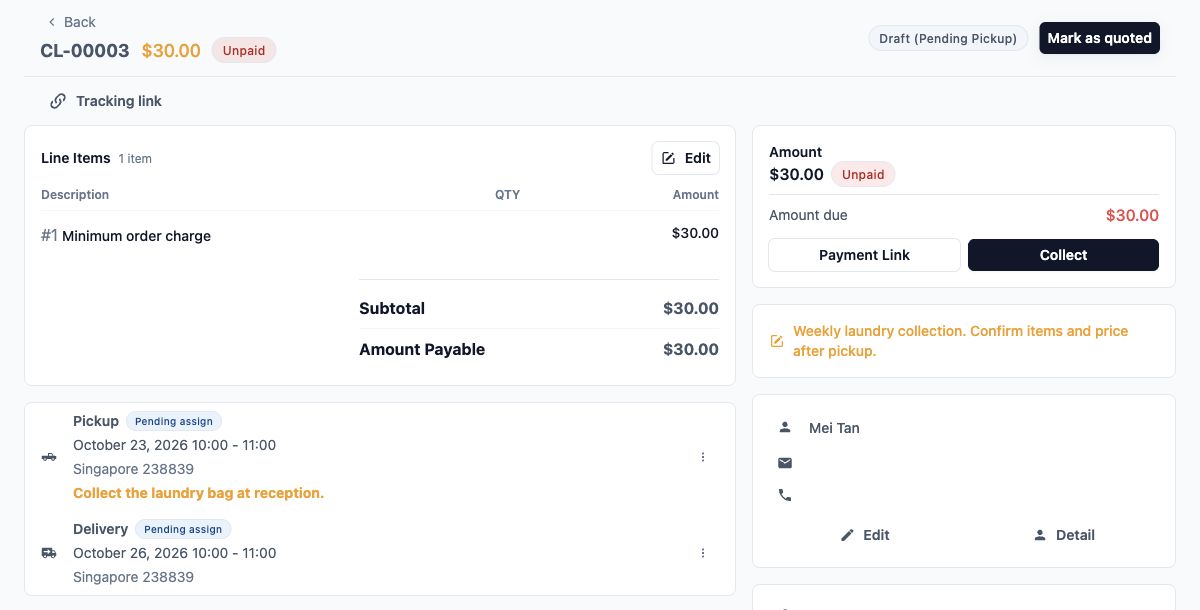
Changing this order changes this piece of work. It does not update the repeat setup. To change later repeats as well, make the corresponding change to the setup using the steps above.
Example: Fresh Fold Laundry Changes a Regular Collection
Jamie Tan is a regular customer at Fresh Fold Laundry. Jamie currently has a weekly collection but asks to change to once every two weeks, keeping the next agreed collection date.
The current arrangement is:
- Pickup: Every Friday, 10:00 AM to 12:00 PM.
- Delivery: The next day, 2:00 PM to 4:00 PM.
- Order creation: Two days before pickup, at 9:00 AM.
Update Jamie’s Repeat Setup
- Find Jamie’s active setup and open Update Schedule.
- Select Repeat. Change Pickup repeat frequency from Every week to Every 2 weeks.
- Keep Friday and the pickup window of 10:00 AM to 12:00 PM. Keep delivery as Next day, from 2:00 PM to 4:00 PM.
- Select Defaults. Change Order note from “Weekly laundry collection” to “Laundry collection every two weeks”. Keep the pickup instruction “Call on arrival”.
- Select Preview. Check that the next pickup and delivery match the dates agreed with Jamie.
- Keep Create the recurring order at 2 days before schedule, At at 09:00 AM, and End repeat at No end date.
- Select Start recurring, then check the saved row.
Check the New Collection Dates
Before the change, staff saw Every week. Afterwards, they see Every 2 weeks.
If Jamie’s next agreed pickup is Friday 30 October 2026, the dates are:
- Next collection: Pickup on Friday 30 October, with delivery on Saturday 31 October.
- Following collection: Pickup on Friday 13 November, with delivery on Saturday 14 November.
This example assumes no blocked dates or end rule affects the pattern. The pickup and delivery time windows stay the same.
What Staff and Jamie See Afterwards
Future orders follow the two-week pattern. Each order is still due to be created two days before pickup at 9:00 AM.
New orders use the note “Laundry collection every two weeks”. The address and “Call on arrival” pickup instruction stay the same.
Jamie’s active repeat card shows the new frequency and the next pickup and delivery. If the first order has not been created yet, Last schedule remains blank until one is created.
When an Expected Order Is Missing
- Find the setup in
Repeat orders. CheckActive,PausedandFailed, and clearSearchif it is hiding the row. - Check Next schedule and Process In. A future pickup does not mean its order should already exist.
- If the setup is paused or failed, read the displayed time and any reason. Do not assume the customer stopped it.
- Check Last schedule for the latest generated order number.
- Follow the
SalesandOrderssteps above. Search for the customer and compare the order number and pickup or service dates. - If the creation time has passed and you still cannot account for the order, contact EasyBiz support. Include the customer reference, repeat status, expected dates, displayed reason and any last order number.
Do not create another order just to fill the gap while the original may already exist. If a customer cannot see their repeat, staff should check the setup's status and sales channel before concluding it has disappeared.
FAQs
Does changing the customer's default address update an existing repeat?
No. The repeat keeps its own saved address. Update the repeat's address separately when the customer wants future collections moved. Changing an address in the customer account alone is not enough.
Why might a repeat's frequency be fixed?
Some orders contain services priced for a particular repeat frequency. That frequency is kept fixed for the setup, so the same frequency change may not be available for every repeat. Do not promise a different frequency just because another customer's setup offers it.
What happens to repeats if the customer deletes their account?
A completed customer-account deletion removes that customer's repeat setups. Account deletion has its own checks for open work and unpaid orders, so it is not a shortcut for cancelling those orders or avoiding payment.
What's Next
You can now find a repeat, check its next date, make supported changes and handle interruptions. You also know to check already-created orders separately before confirming a change with the customer.
Return to How repeat orders work for the overview of how repeat setups create orders.