
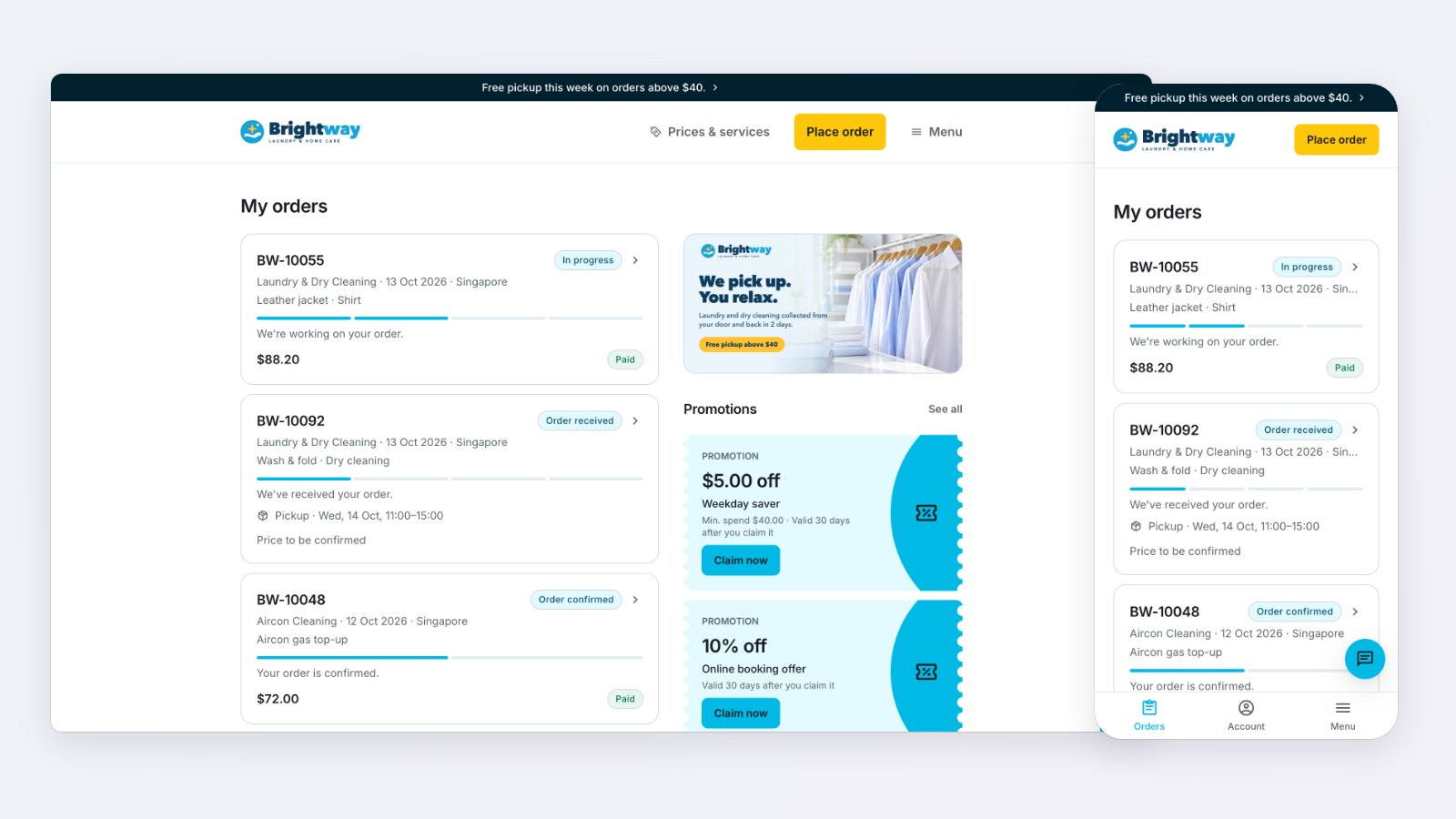
The new Online Store is live in your EasyBiz Console. Customers book a pickup or a service, pay, and follow each order to the end, on your own domain and in your brand. Everything comes from what you already run in EasyBiz: your business units, price list, time slots, coupons, store credit and memberships. A booking arrives in the Console like any other order, ready for your team.
Booking that follows how you work
Each business unit gets its own booking steps, in the order you choose. A laundry customer picks the services they need, and you price the order after pickup. A minimum order shows up front, and the review says nothing is charged until you price it. Customers pick from the pickup and delivery times you can actually serve in their area, add instructions or a note, and can ask for a laundry booking to repeat. Steps their account already answers, like a saved address, are skipped.
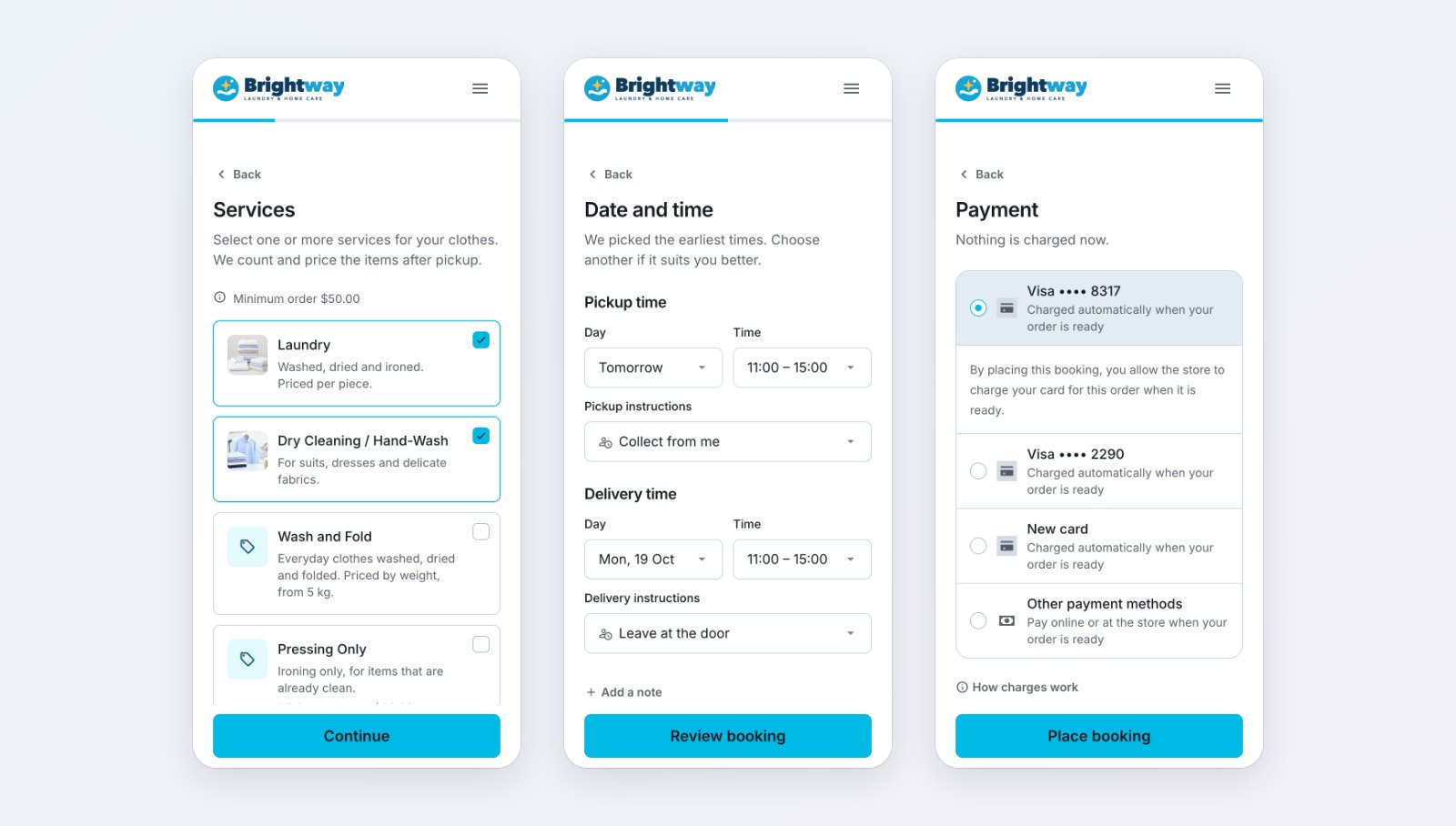
A laundry booking: choose services, pick times, then pay or save a card.
For work with fixed prices, like sofa, mattress or aircon cleaning, customers choose items from your price list, with photos, search and a running total. An item with several options, such as the number of seats or an aircon's size, asks for the option as it's added. Work you quote on site, such as an installation, can go in the same booking as Price on request. A surcharge you set on a booking option, such as for evenings, shows beside the times it applies to.
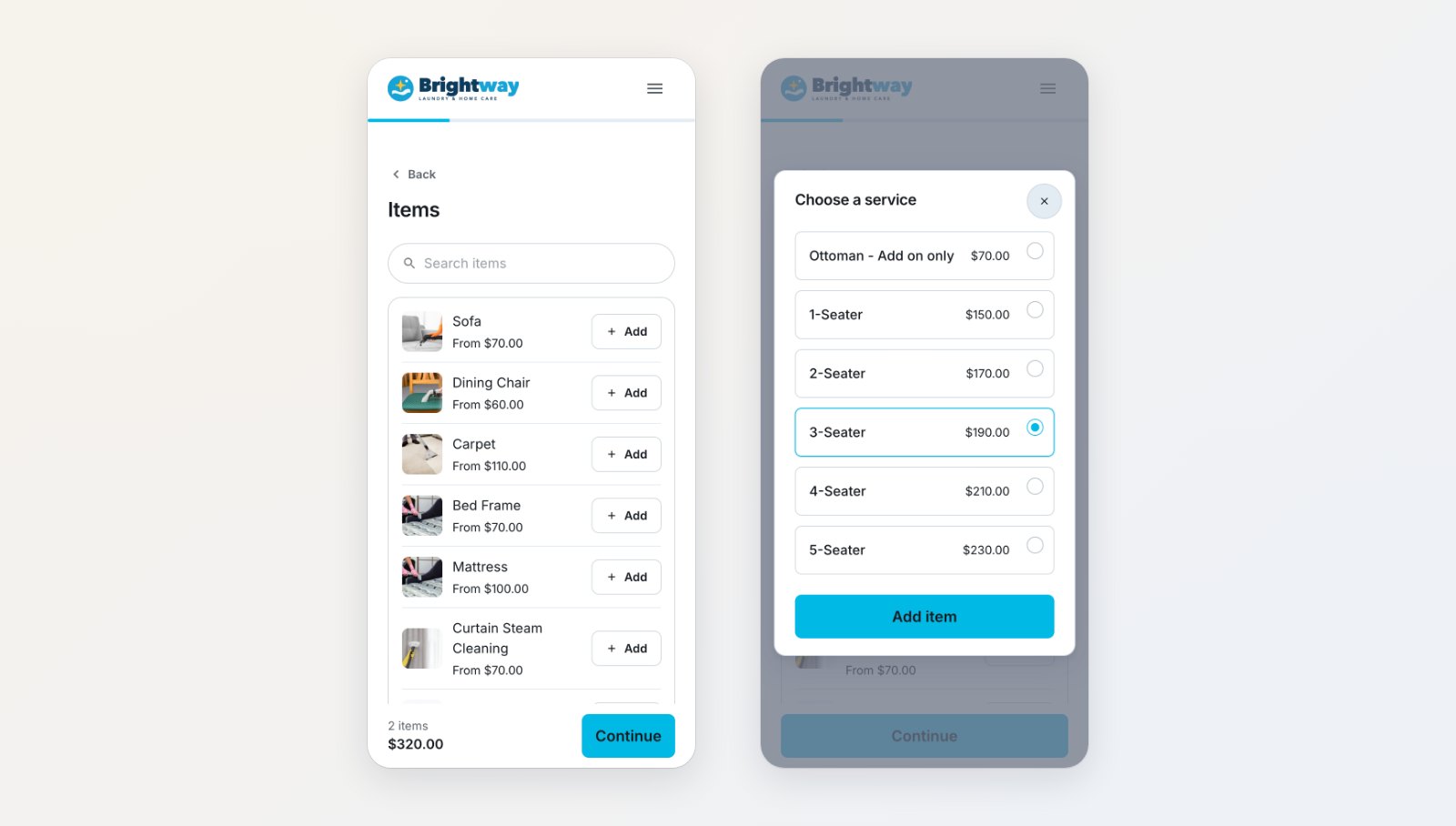
Priced items with photos, and an option picker for each item.
Payment is part of the booking
Customers pay by card, PayNow, GrabPay, ShopeePay, Atome or their store credit, or by a method of your own, such as a bank transfer with your PayNow QR and a payment screenshot. At booking, they can choose a saved card or their store credit to pay automatically once the order is priced and ready, so they don't need to come back to pay. Coupons, member discounts and your automatic discounts appear on the review before they confirm.
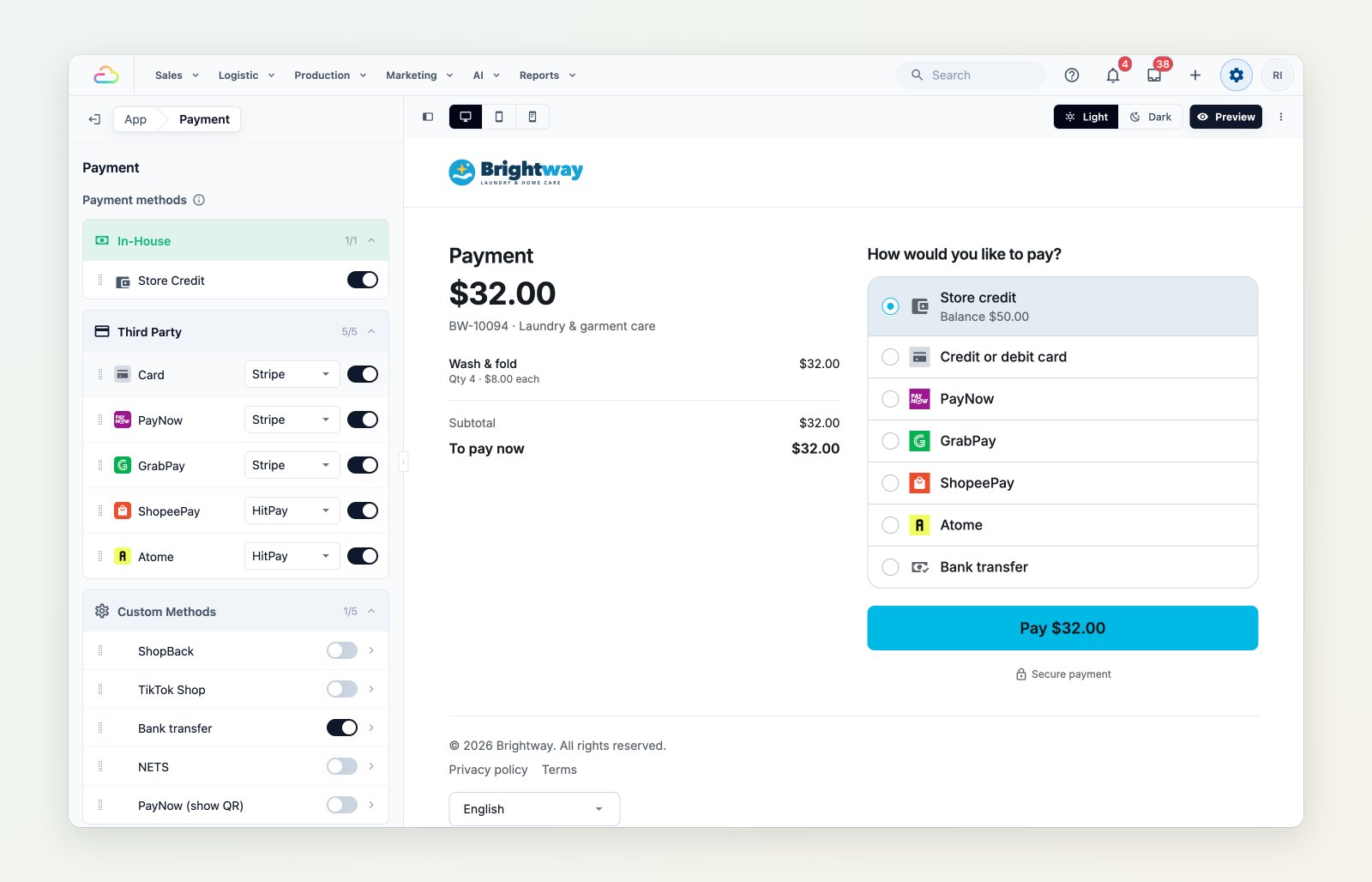
Choose the payment methods your store offers and see the customer's payment page as you set it.
Every order, from booking to delivery
My orders lists each order with its status and progress, the next pickup, visit or delivery, and the amount due with a Pay now button. The order page shows the schedule, items, discounts, every payment, any returns and refund due, and the answers given at booking. If you allow it, customers can cancel an unpaid order or move a pickup, delivery or visit, and they can book again in one tap. From the Console, staff can send an order's tracking link or a payment link in a message.
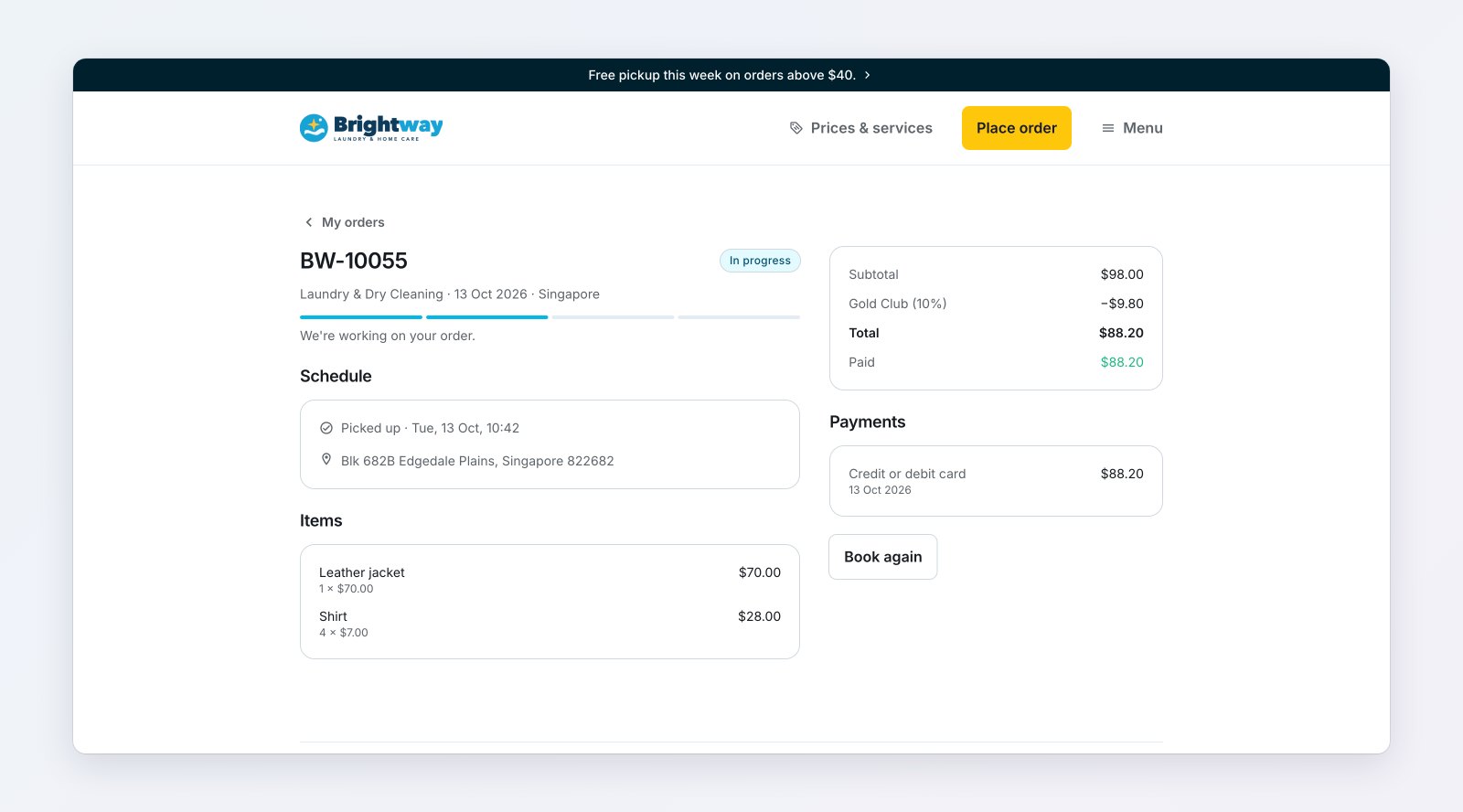
Each order's progress, schedule, items and payments in one place.
Order updates arrive as push notifications, in your app and in the browser. Add a push title and text to a message in Settings › Customer Notifications. Push is free, and by default WhatsApp goes only to customers a push can't reach. Customers choose what they receive under My account › Notifications. On an iPhone, browser notifications work once the customer adds your store to their Home Screen.
Prices and services, always current
The Prices page shows your price list by category, each item with its price for every service, and a search. Group services into tabs if you prefer, and keep staff-only categories off the page with Hidden categories. It reads the same price list as your counter, so customers see the prices your team charges.
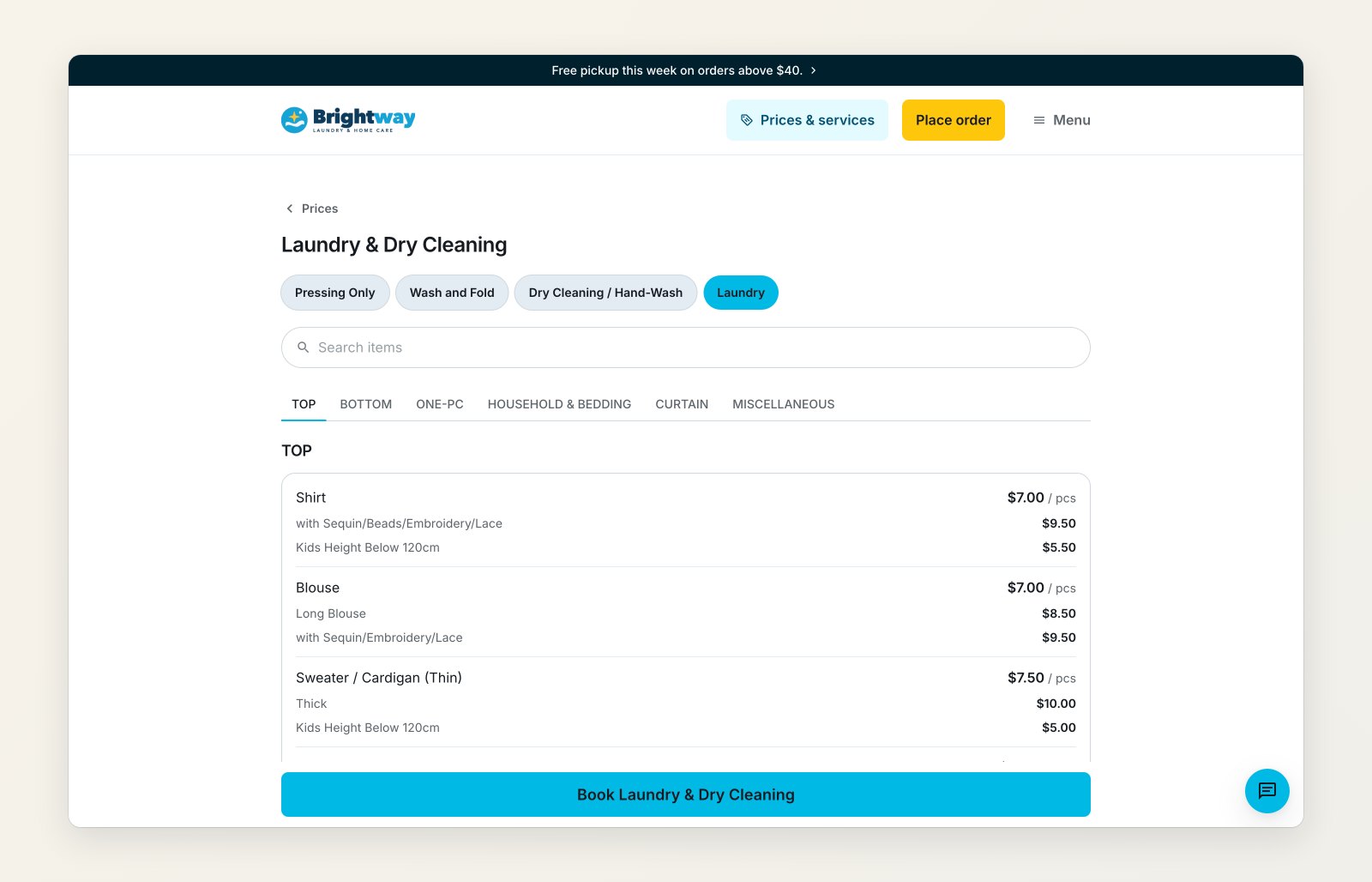
Customers see the same prices your counter uses.
Reasons to come back
Turn on the pages you need: Promotions to claim offers and redeem codes, a Wallet to top up store credit with bonus credit, Membership plans customers can join online, Refer a friend with a code and invite link, and Repeat orders for regular pickups. Then promote them with cards on My orders, alongside your own photo or video promotions and a card inviting customers to get your app.
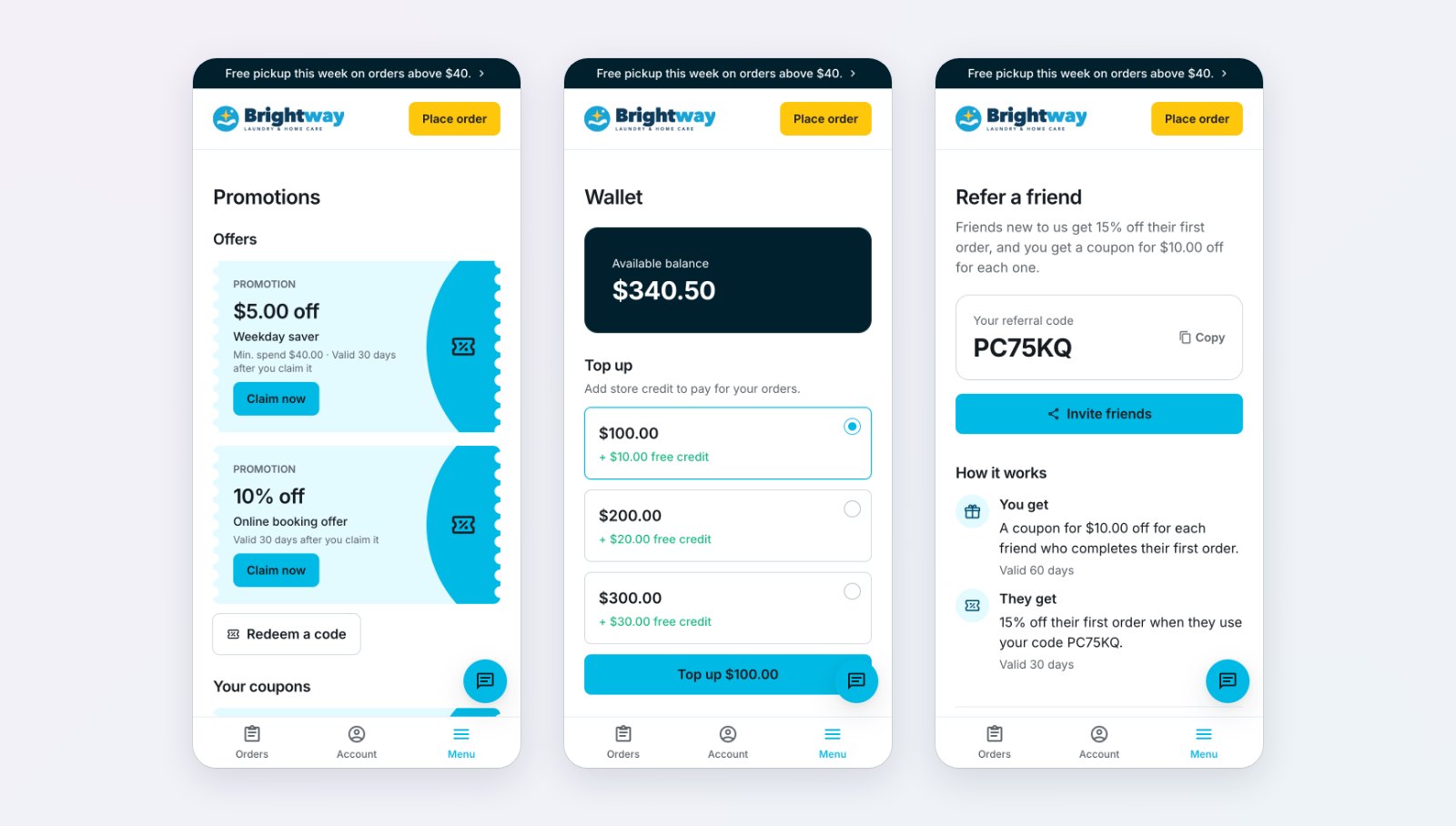
Promotions, wallet top-ups and referrals, each switched on from its own page.
Talk to customers where they book
A chat button on your store's pages opens WhatsApp, or live chat for signed-in customers. Live chat messages arrive in your Console Inbox, your replies appear in the customer's chat, and the Inbox shows when each reply is delivered and read. On the website, the header button can say Book a pickup or Get a quote, or open WhatsApp. An announcement bar at the top of the store shares news, such as a holiday closure or this week's offer, all the time or only between dates you set.
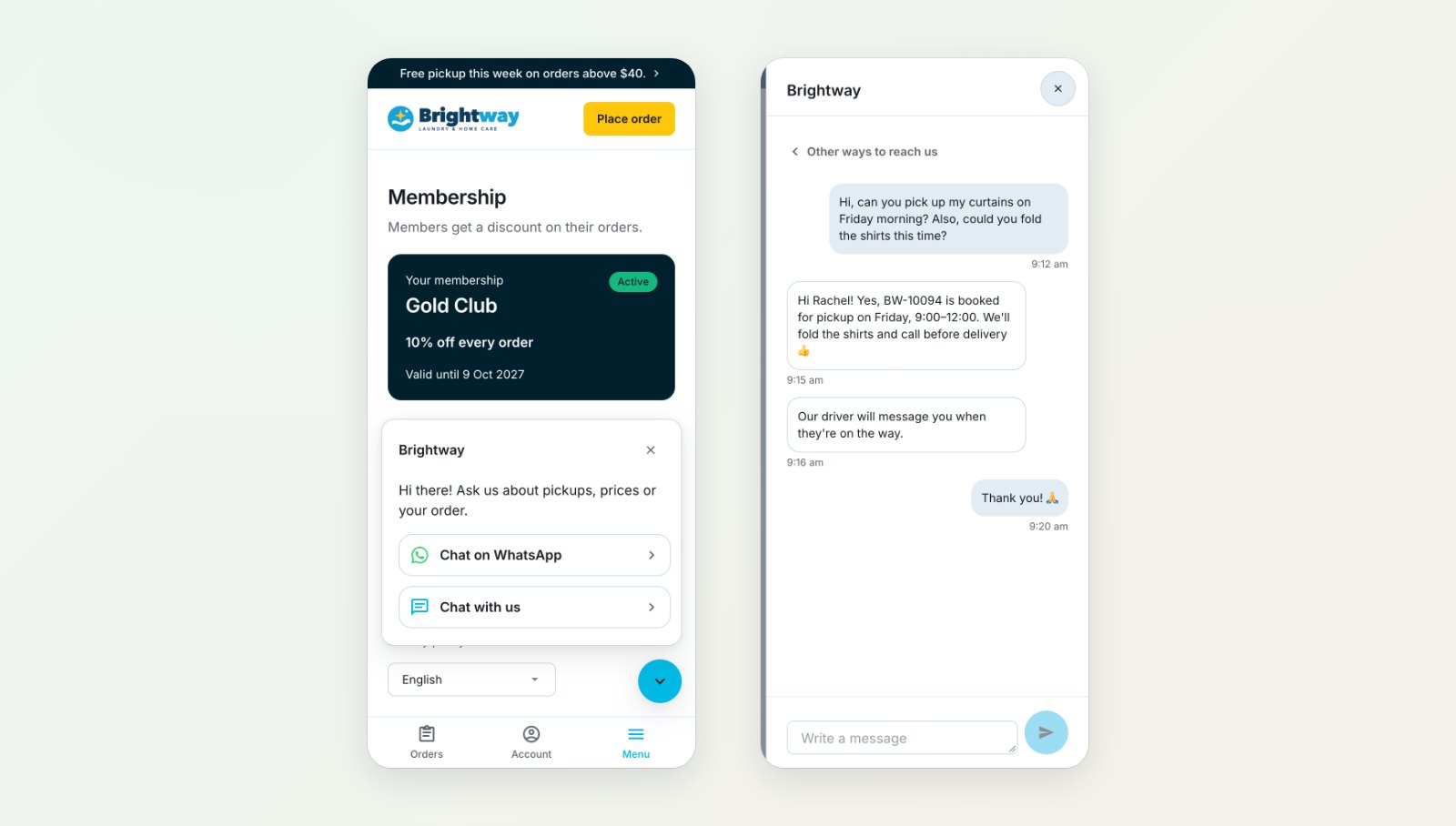
WhatsApp or live chat, answered from your Console Inbox.
English and 简体中文
The store opens in each customer's phone or browser language. They can switch at the foot of any page on the website, or under Account in the app. EasyBiz text is translated; the text you write appears exactly as you wrote it.
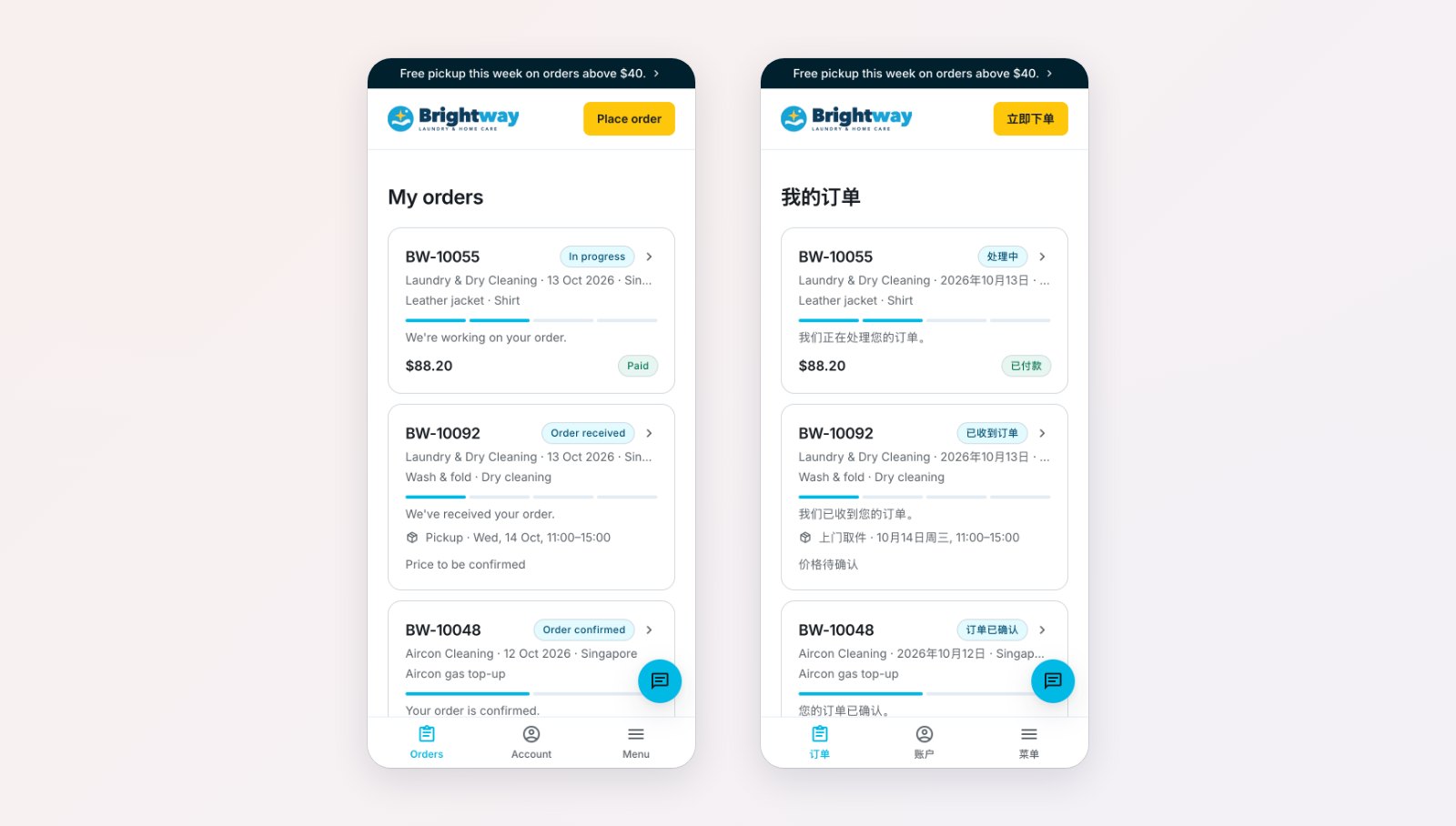
The same store in English and 简体中文.
Your domain, your sign-in, your analytics
Once your store is live, Link domain puts it on your own domain, such as www.yourbusiness.com, at no extra cost. If you change it later, the old domain keeps forwarding customers to the new one. Each store chooses how customers sign in: a code by email, SMS or WhatsApp, and Continue with Google on the website. Your store icon shows in the browser tab and on the phone's home screen, and Chrome offers to install the store like an app. Add your GA4 measurement ID to see visits and every booking in your own Google Analytics.
Set it up in the Console, see every change
Open Edit Online Store & Mobile App to set up each page, the booking steps of every business unit, payment methods, navigation and the chat button. The preview beside the settings updates as you go, on desktop, phone or the mobile app, in light or dark mode. Changes save as you make them, but customers don't see them until you publish.
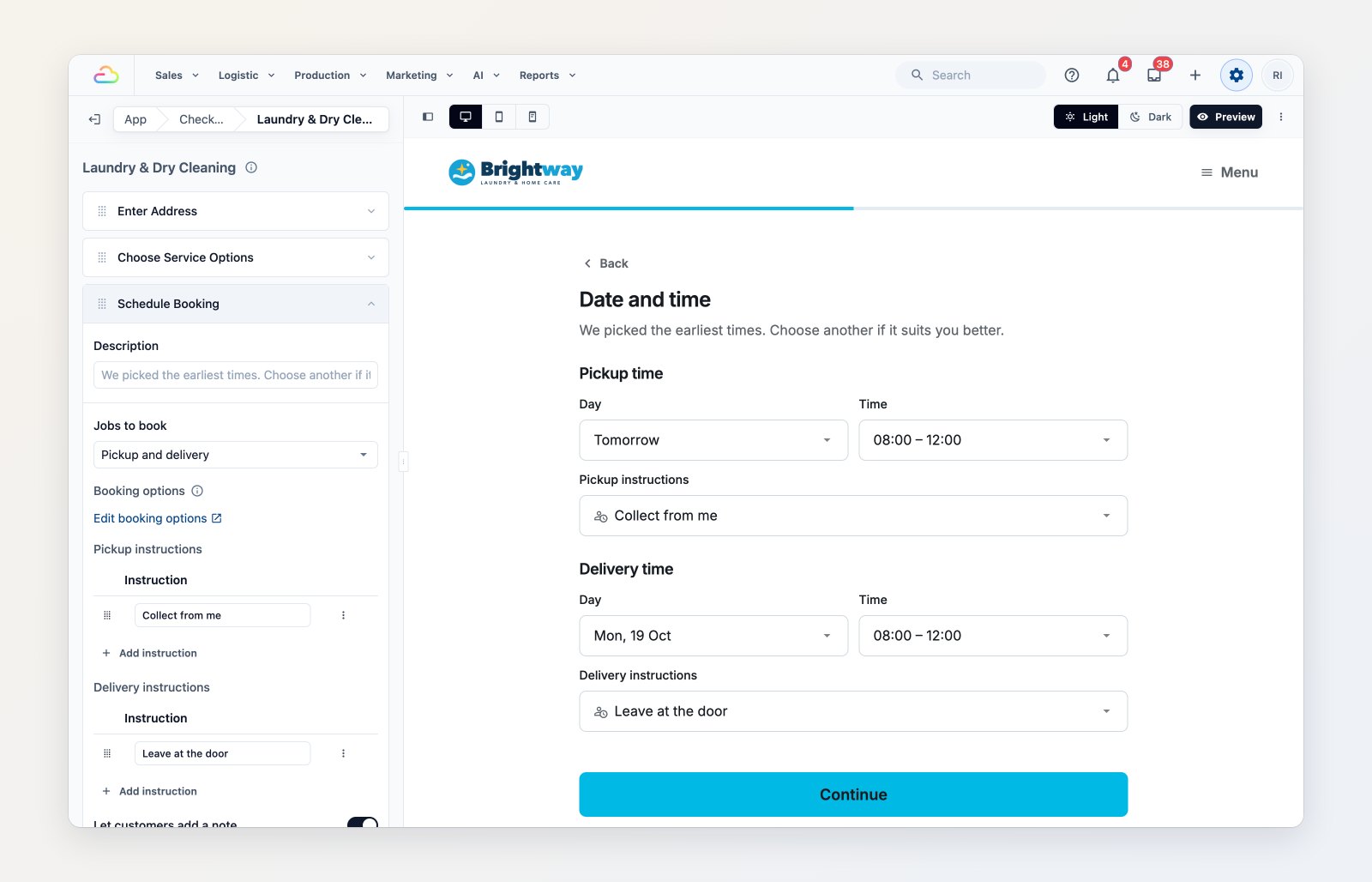
Booking steps and settings, with the page your customers will see beside them.
Before you publish, press Preview: check your changes, then try the next release end to end. Orders placed in Preview are test orders, so nothing is charged. Publish releases exactly what you previewed, and Version history keeps your last 20 releases, so you can restore an earlier one.
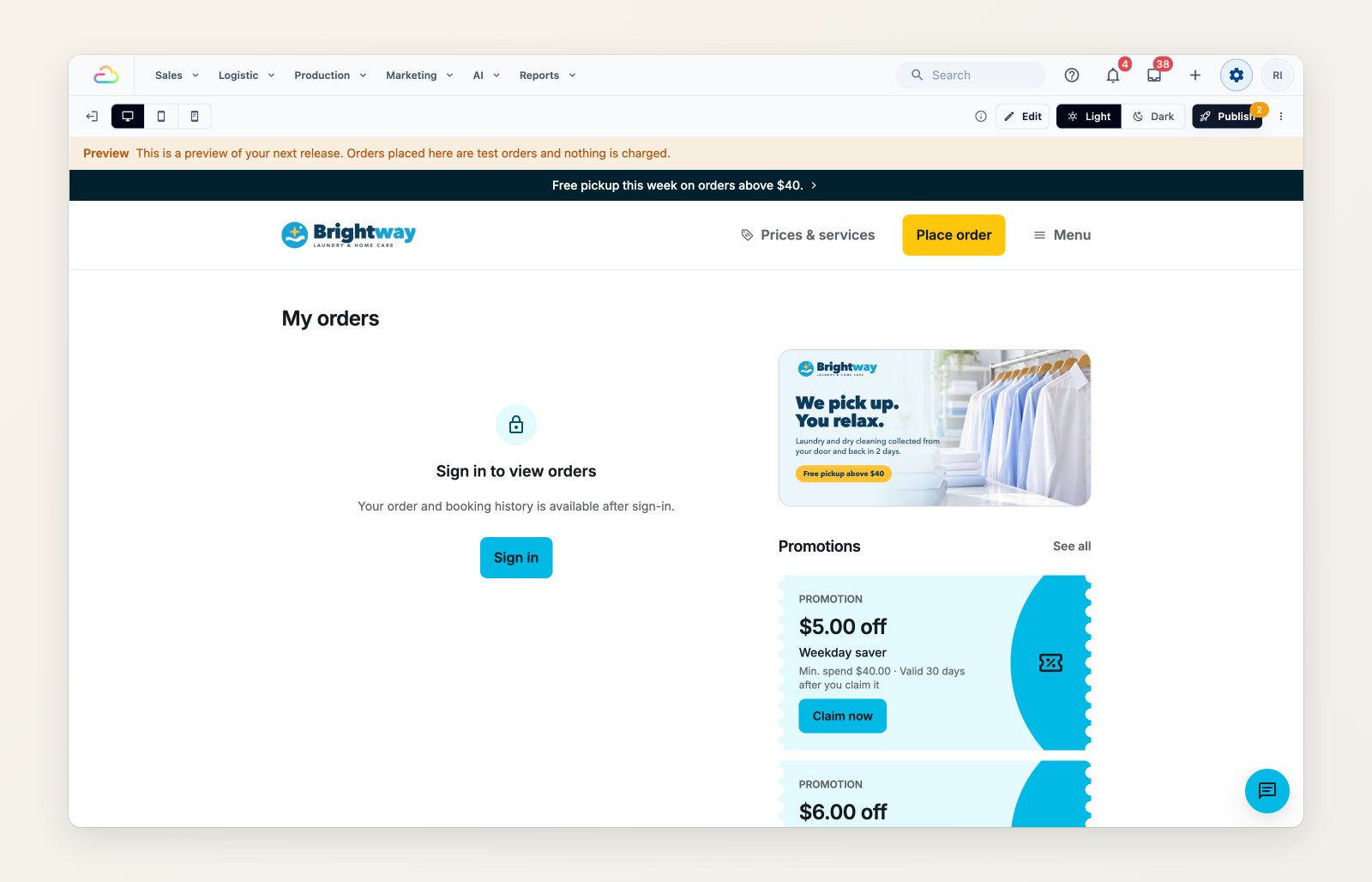
Preview the next release with test orders before customers see it.
Your own app on the App Store and Google Play
The same store can become your own app, with your app name and an icon you upload, generate with AI or create from your brand logo; the splash screen is made from it. It has the same pages and booking, with tabs along the bottom. Before launch, anyone on your team can try it in the EasyBiz Workflow app under Menu › Preview Customer App.
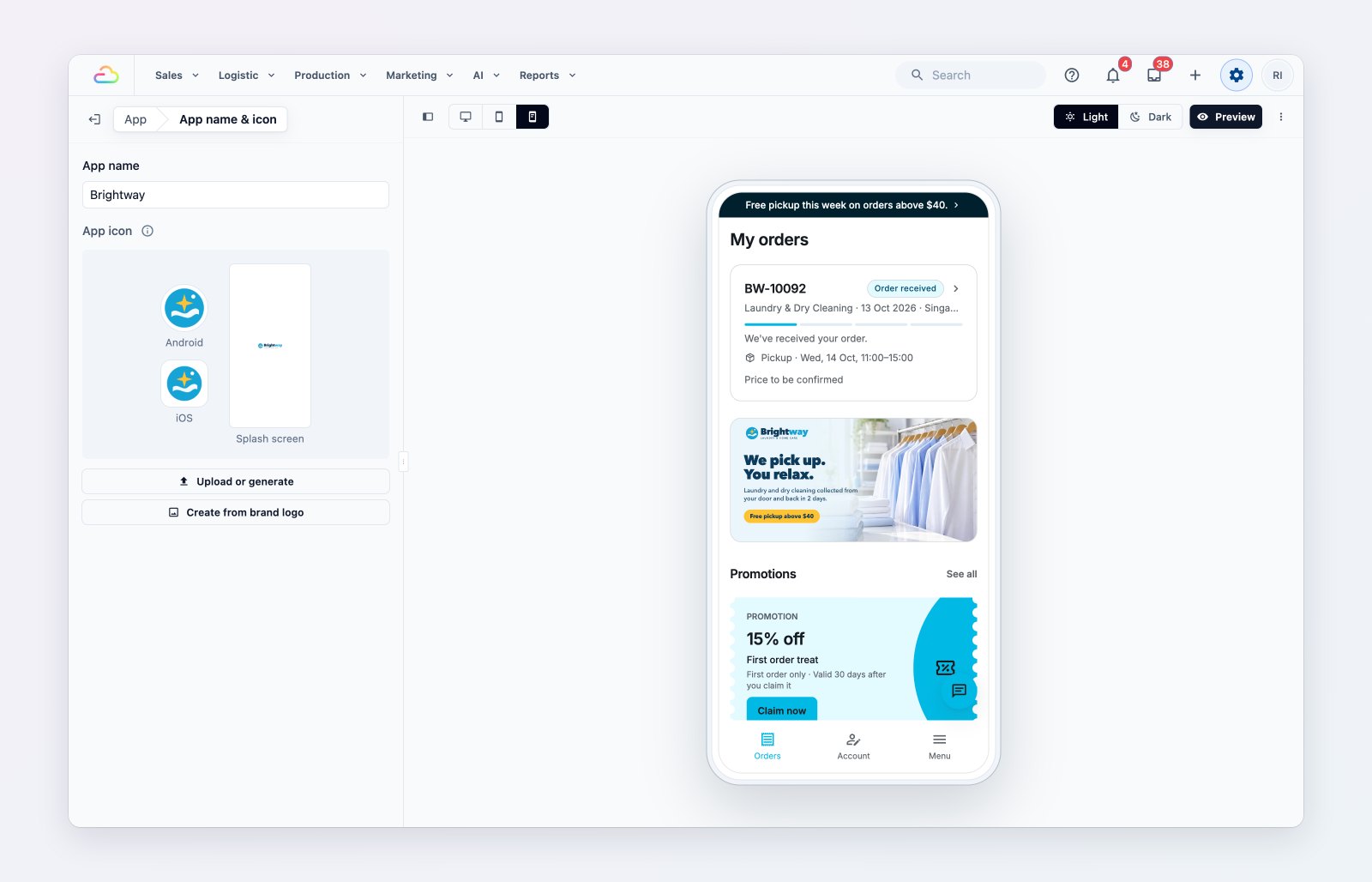
Your app's name, icon and splash screen, with a live preview.
Launch your app takes you through the first release step by step: your company's free D-U-N-S number, your Apple and Google developer accounts, giving EasyBiz access, and the store listing. After that, EasyBiz publishes every update for you, and App Store and Google Play badges appear in your store's footer.
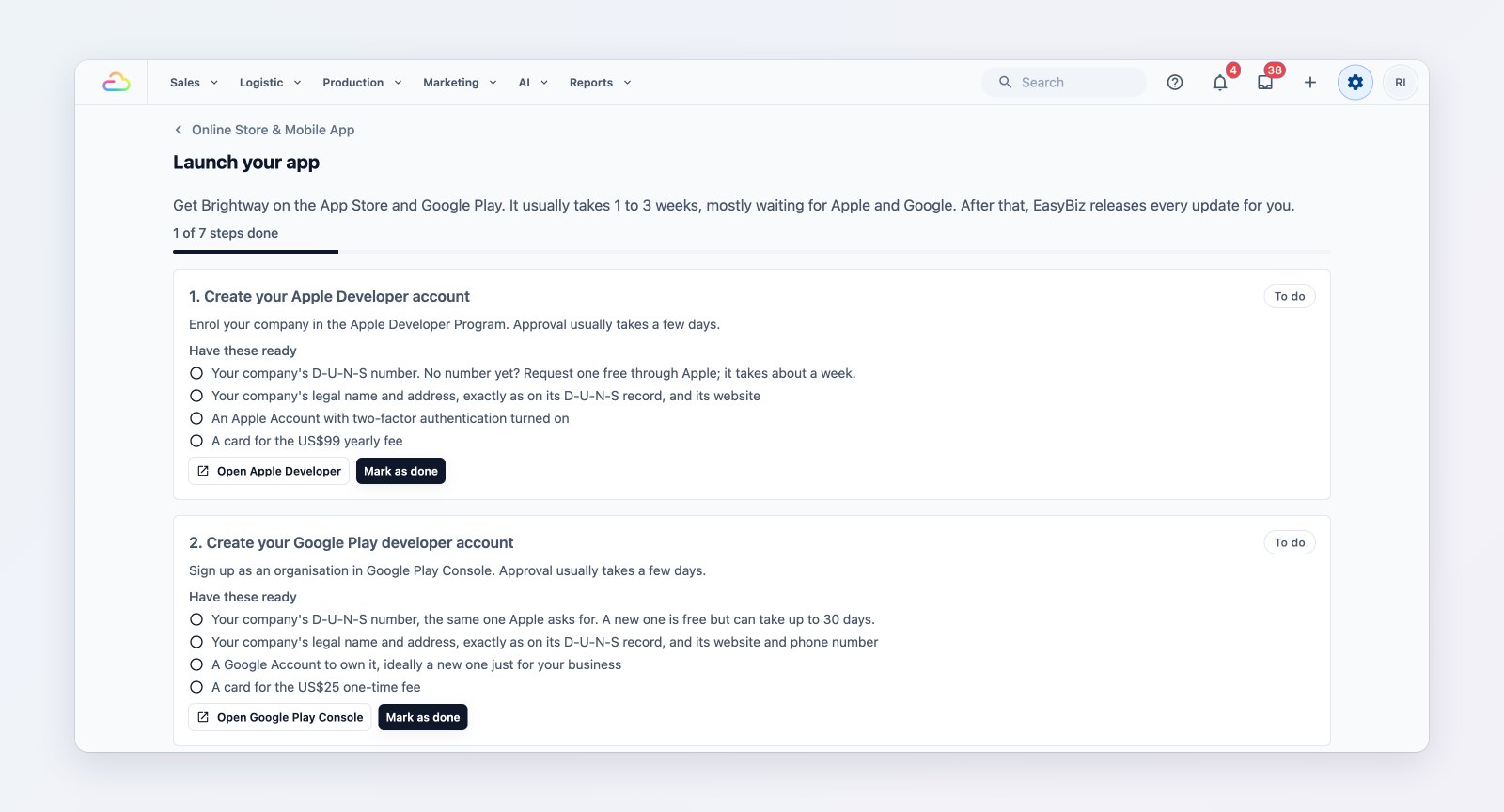
Each launch step says what to prepare and where to click.
Already selling online with EasyBiz?
If customers book on our earlier online store, it keeps working until you move them. Add an Online Store for the same brand and market, set it up and publish it. A Migrate legacy online store banner then appears on the store in Settings › Online Store & Mobile App: press Move customers here. Customers who open your old address come to the new store, still signed in, with their orders, repeat orders and saved cards, and payment links open the new store too. Orders your staff, WhatsApp and your old apps take are not affected, and you can move customers back.
Get started
Go to Settings › Online Store & Mobile App and choose Add Online Store. Pick the brand and market, then Enable Online Store to choose its web address and billing company. Set it up and preview it for free; your store goes live when you first publish it. Not sure where to start? Ask the Assistant on your Console home page, and it takes you through each step.
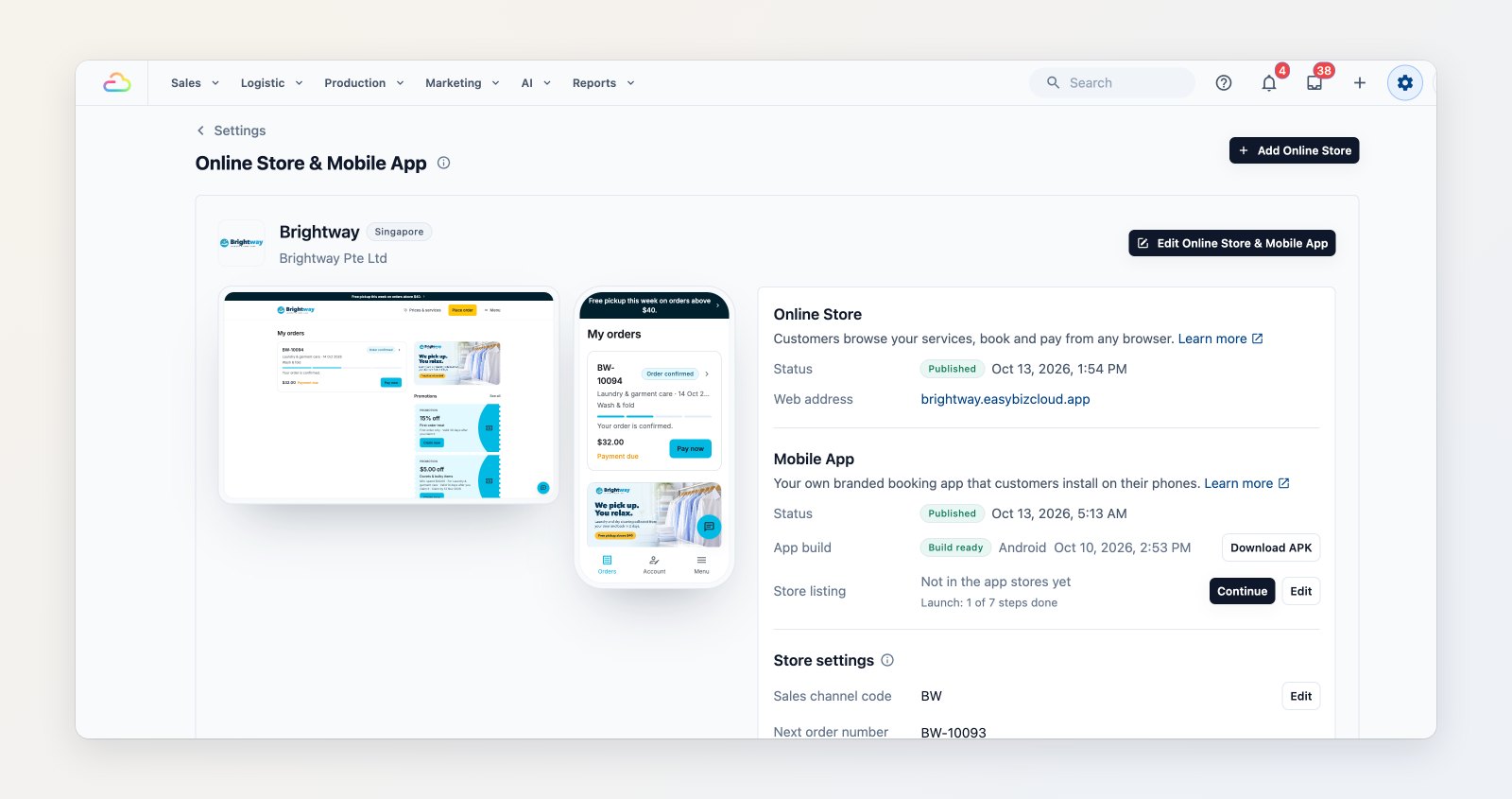
Your store, app and launch progress on one page.
Brightway is a sample business. The screenshots come from a test account.