
What this template does
An item label is the small tag your staff stick or pin on each garment or item when an order comes in. It carries the order number, which piece it is, and the pickup date. Your staff use it to match every piece back to the right order in the workroom.
It helps you:
- Stop items from being mixed up between customers.
- Show at a glance how many pieces belong to one order, such as 2/5.
- Scan a piece to find its order, when your label has a QR code.
Can I skip this? Yes, if your shop does not tag items, for example home cleaning or aircon servicing. Shops that take in garments or bags should set it up.
Before you start
- Connecting Your Printers to the POS: pair your label printer first.
- Loading Labels and Carbon Ribbon: load the right label roll before you test.
- Introduction to Business Units: each business unit chooses its own item label.
Open the Label Templates page
- Click the ⚙️ Settings icon in the top-right corner of the console.
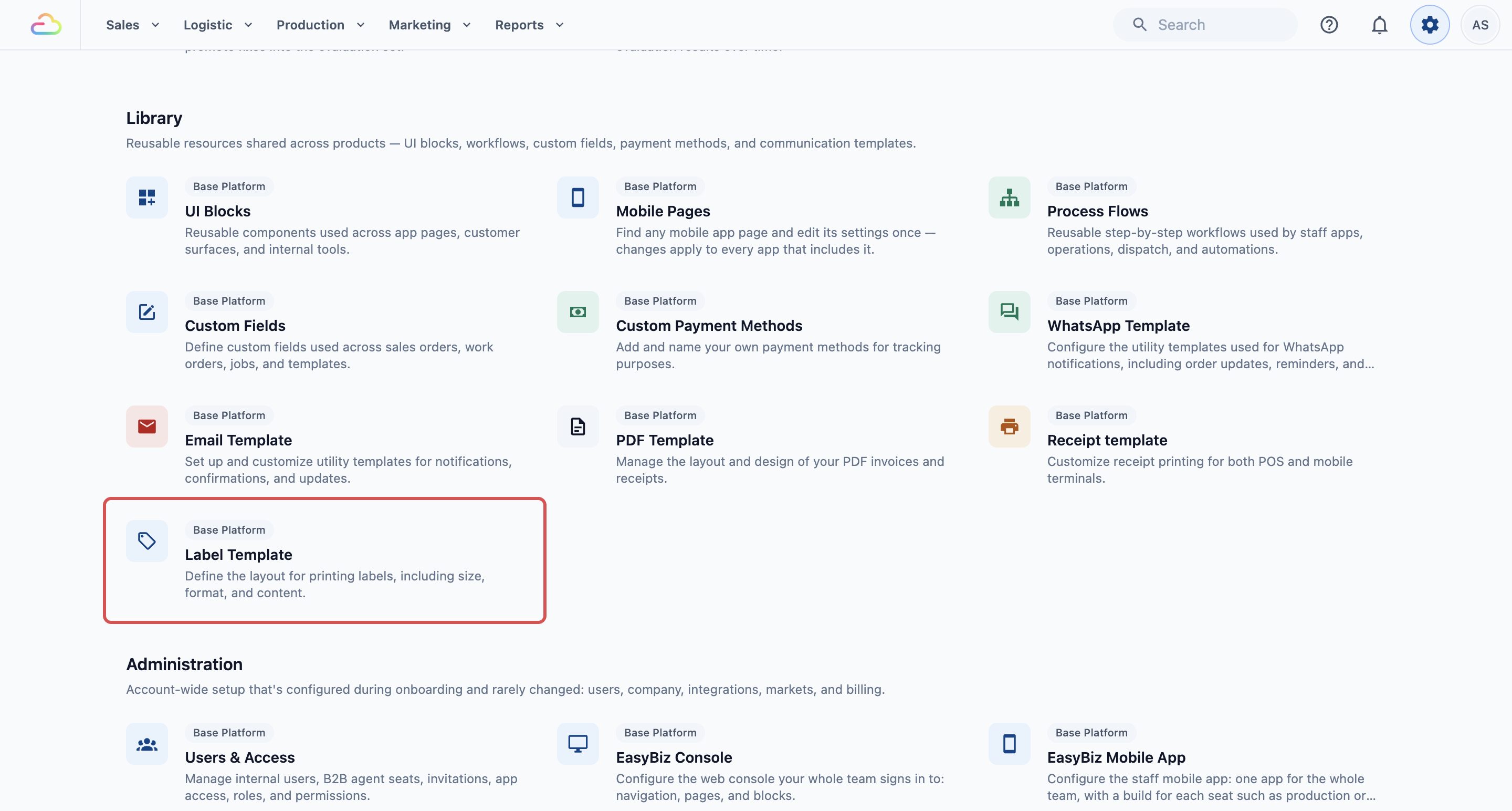
- Under the Library section, click Label Template.
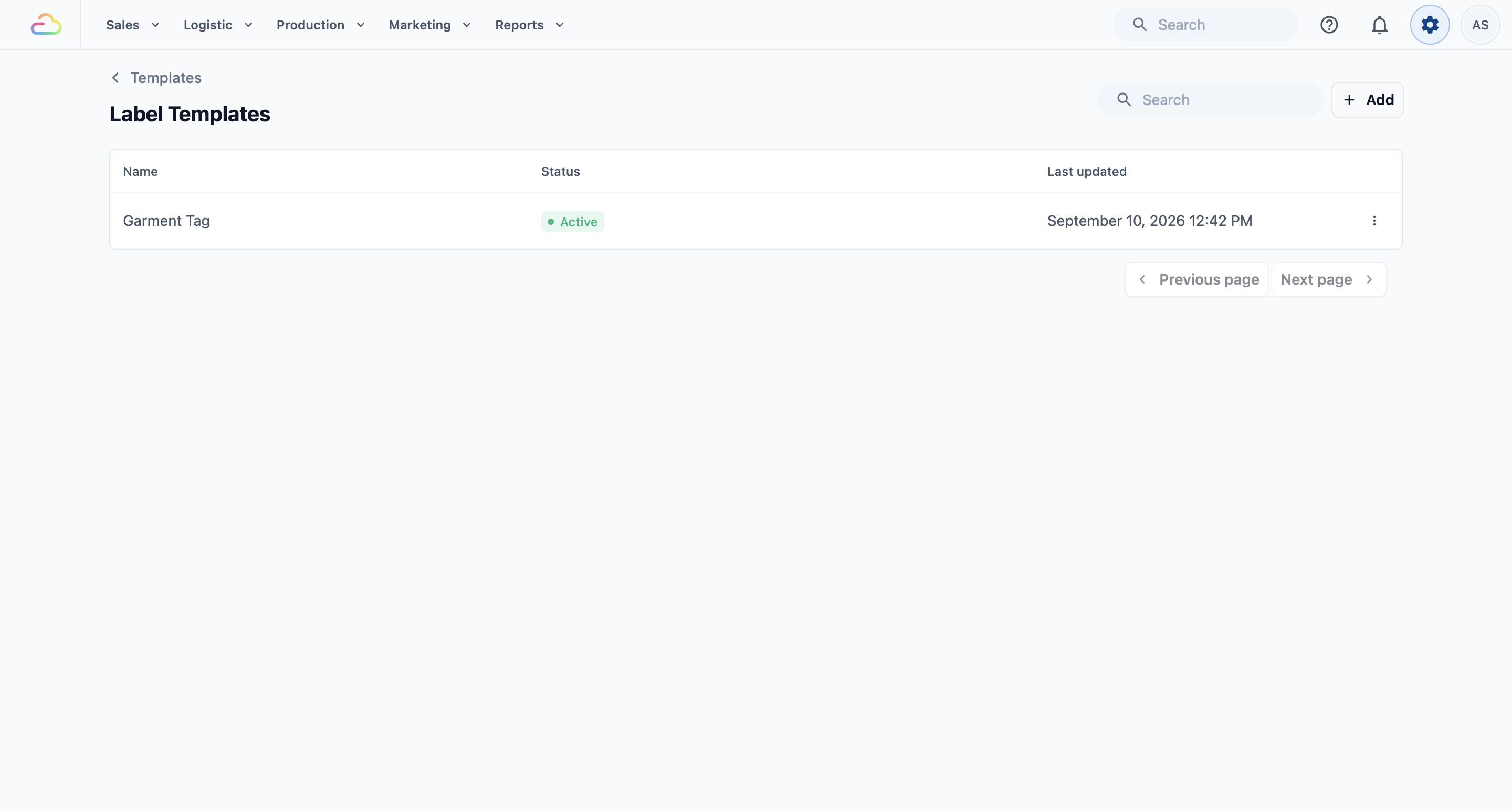
- The Label Templates page opens. It lists your item and package labels.
Create your item label
If your list already has an item label, click its name and skip to the next section.
- Click + Add in the top right.
- Type a Template Name, for example "Garment Tag".
- Under Template content, click the card that fits your label roll. All 4 item cards are 110mm wide.
- Click Create. The editor opens.
| Card | What it prints |
|---|---|
| Single line item label | 1 line, 8mm tall: sales channel code, order number, piece number and pickup date |
| Multi-line item label tight | 11mm tall: adds the item name, service code, item note and a QR code |
| Multi-line item label normal | 15mm tall: as tight, plus the customer's name |
| Multi-line item label large | 20mm tall: as normal, with a larger QR code |
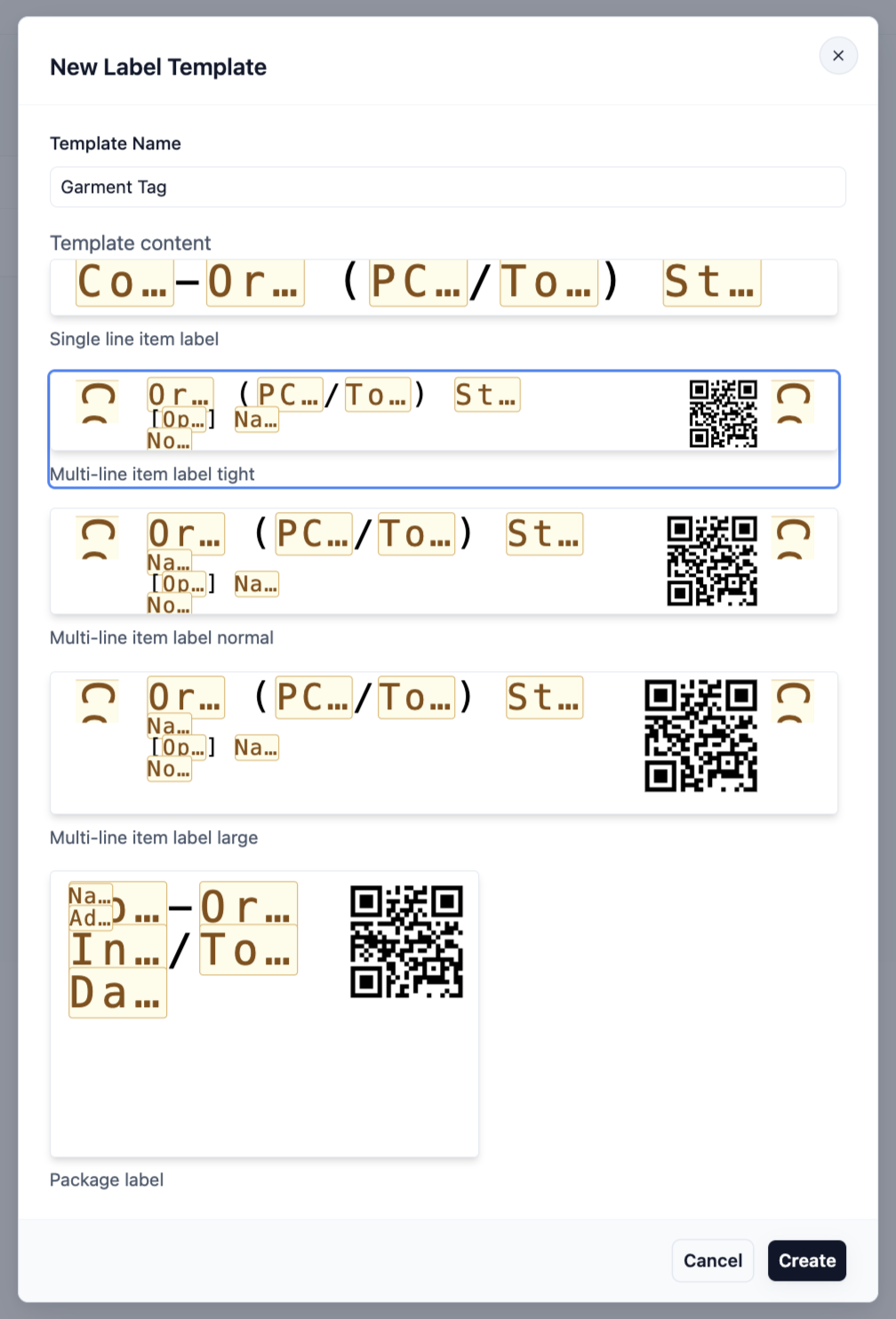
A sales channel is the shop or counter that took the order, such as VINZ1. The piece number shows which piece this is out of the total, such as (2/5).
Set the label size and printer settings
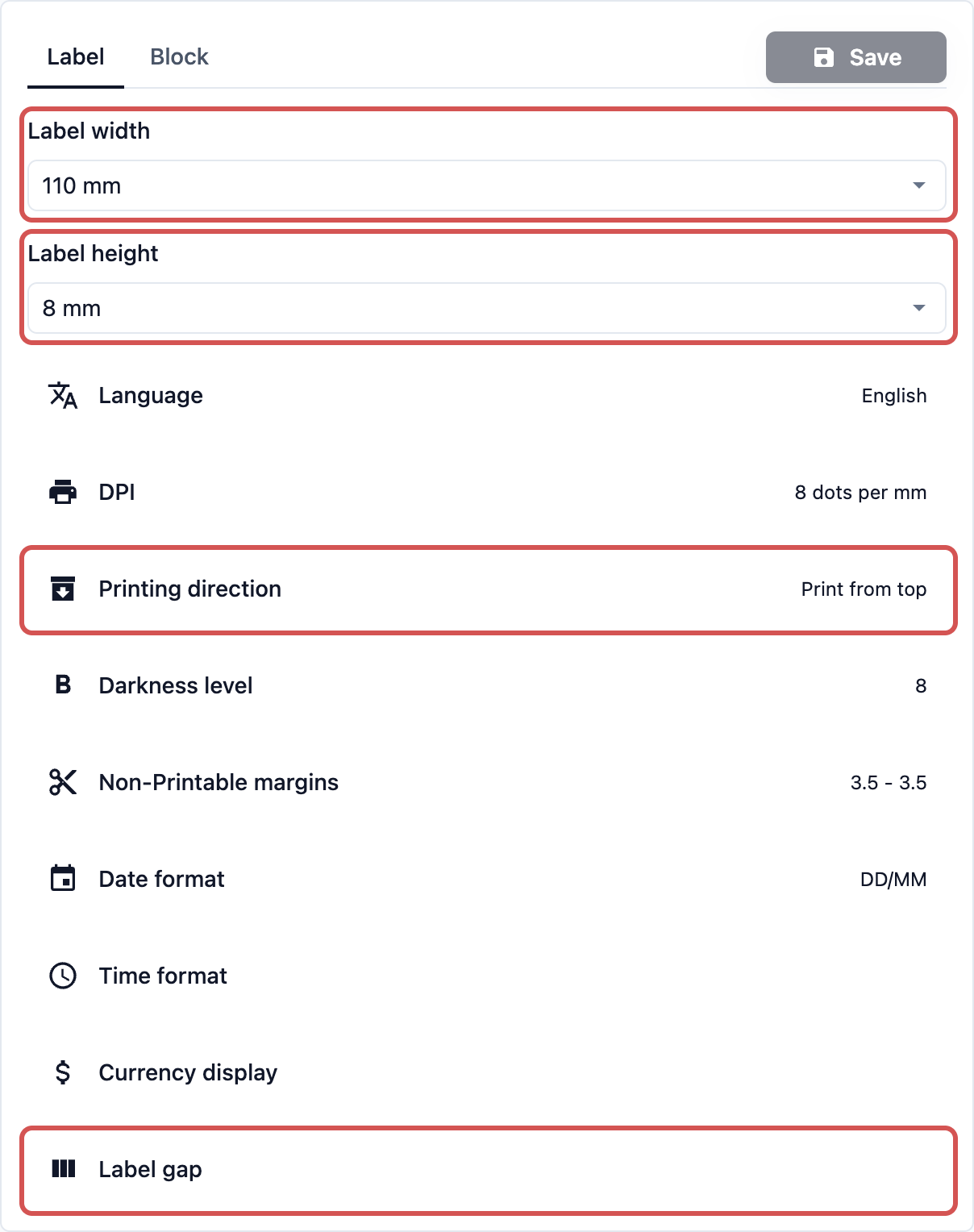
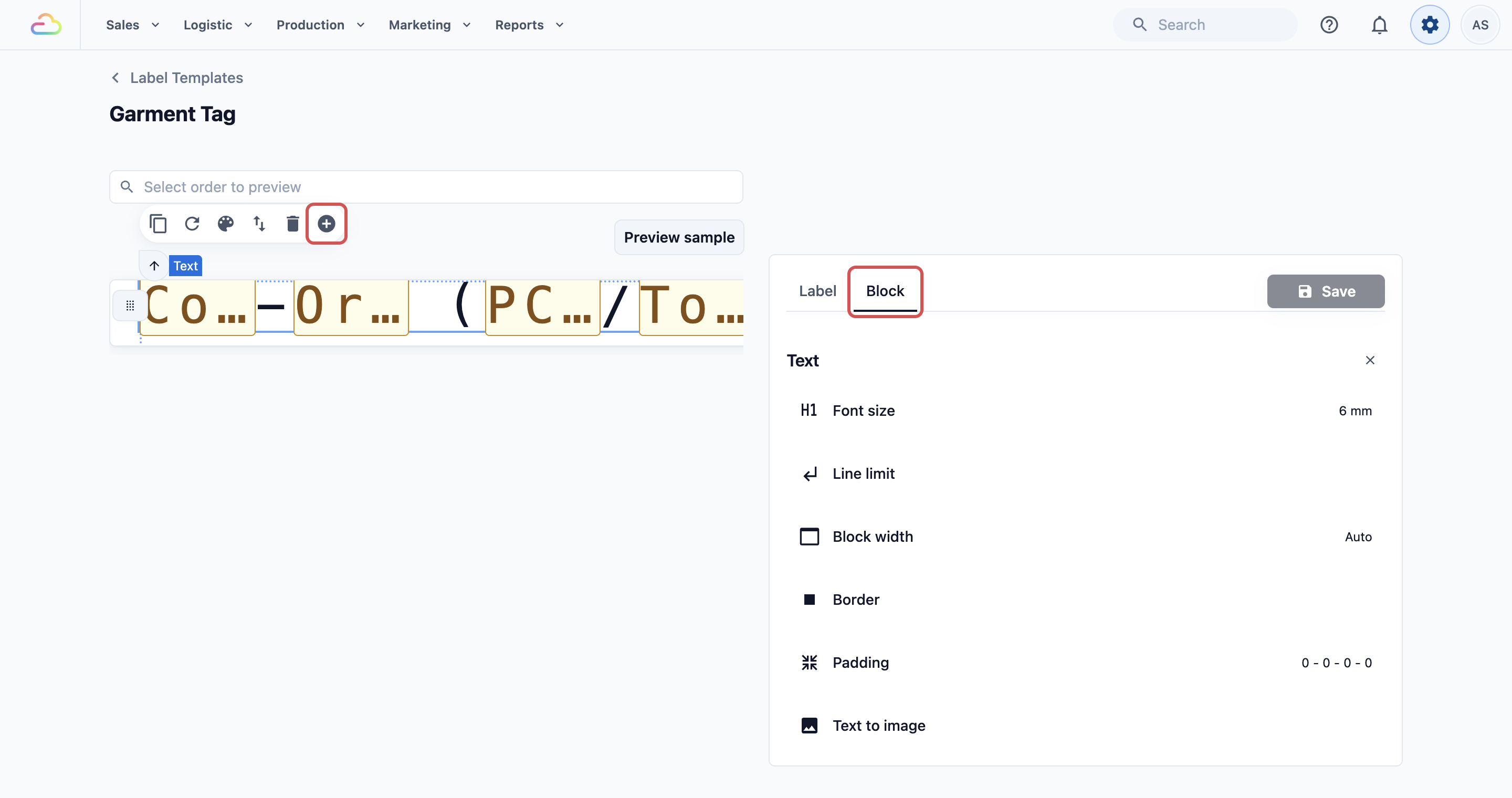
The right side of the editor has a Label tab and a Block tab. The Label tab holds the settings for the whole label.
- Set Label width and Label height to match your roll, in mm.
- Set Label gap to the space between labels on your roll. Choose "Continues paper, no gap" for a continuous roll.
- Leave DPI on Auto unless your printer needs a fixed value.
- Choose a Printing direction.
- Adjust Darkness level if the print is too faint or too dark.
- Use Non-Printable margins if the edges of your label get cut off.
| Printing direction | What it means |
|---|---|
| Print from top | Printing starts from the top of your layout. Text comes out upside down compared with the paper feed. |
| Print from bottom | Printing starts from the bottom. Text comes out the same way round as the paper feed. |
Language sets the printer's text language. If your printer cannot print Chinese, keep English and turn on Print text as image in the text block.
Change what goes on the label
- Click a part of the label preview to select that block.
- Its settings open in the Block tab. Change the wording, size or position.
- To add a block, select one and click the ⊕ button.
Keep the order number and piece number on every item label. They are what your staff match on.
Preview and print a test
- Click Preview sample to fill the label with made-up order details.
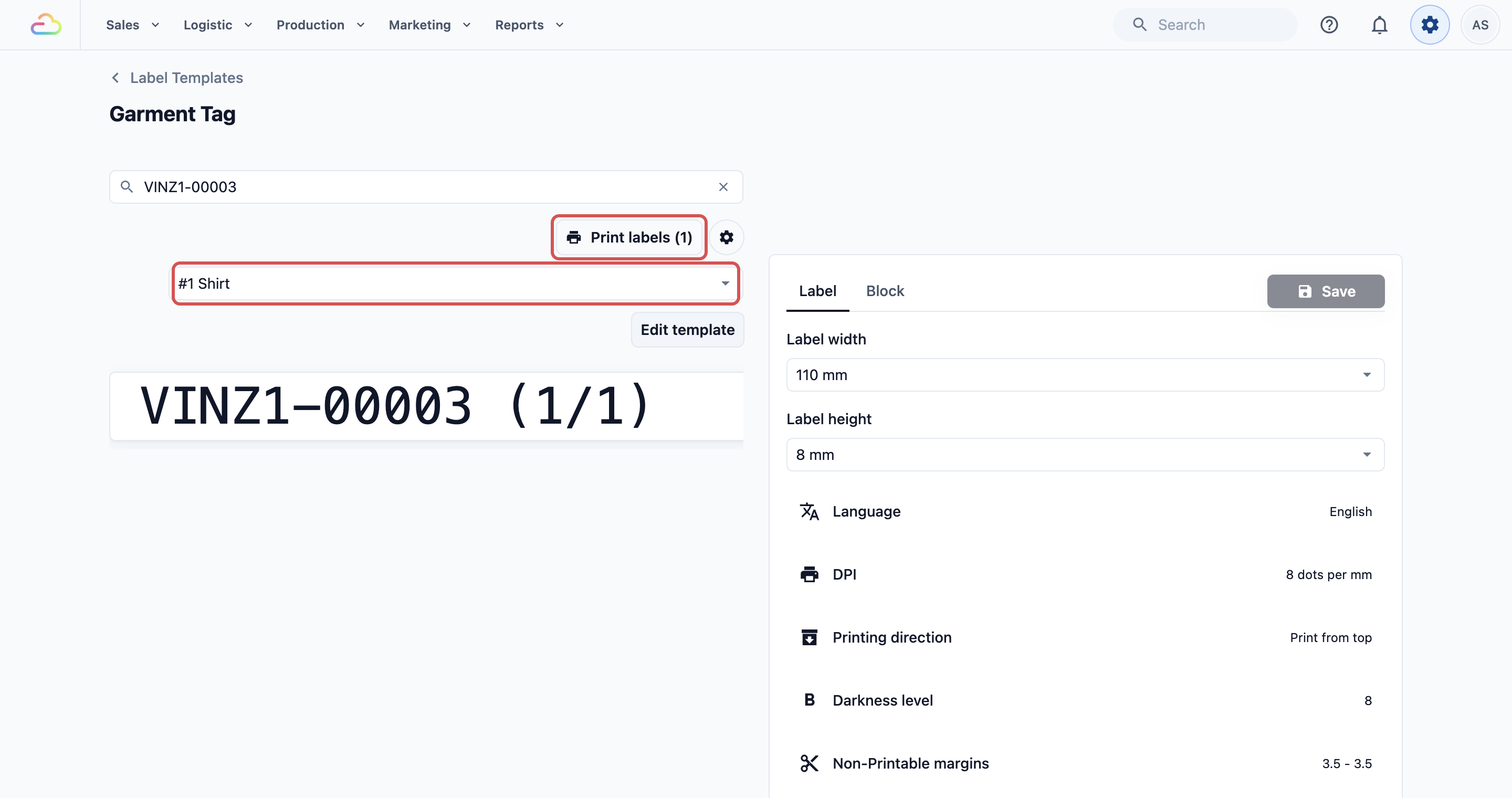
- Or click Select order to preview and pick a real order. A list appears with each piece, such as "#1 Shirt".
- Pick a piece to see its label.
- Click Print labels (1) to print that piece's label.
- If nothing prints, click the gear button beside it to open the label printer settings. The console remembers its label printer in this browser only. Connecting a printer here doesn't change the POS, so connect it on each device you print from.
- When the label looks right, click Save. You will see "Label template updated".
The Test print in the printer settings prints a fixed 110mm x 10mm sample. It checks the printer, not your template.
Choose the label for each business unit
- Click the ⚙️ Settings icon.
- Under the Administration section, click Business Units.
- Open the business unit, then click the Documents tab.
- Under Labels, open Item label and choose your template.
- Click Save. You will see "Document settings updated".
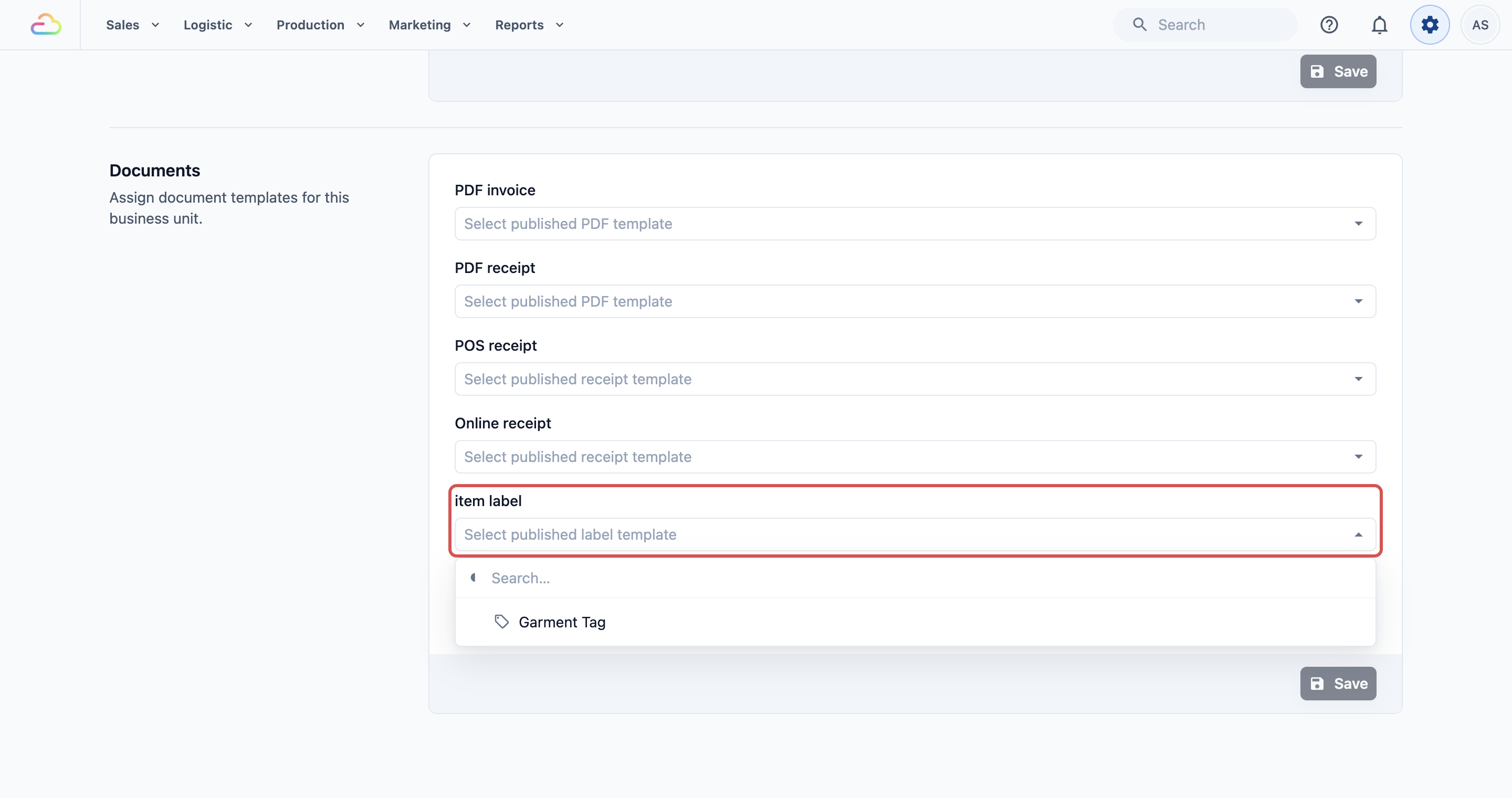
If staff see "No item label is configured for this business unit." on the POS, this step was missed.
Printing labels at the counter (POS only)
Staff print item labels from the order on the POS.
- On an order, staff tap Print Labels. The Order Labels window opens with a label for each piece.
- After checkout, staff can tap Print all to print every piece at once.
Item labels print on the printer connected as the label printer. To set it up, open Settings on the POS, go to Printer › Label Printer and tap Connect. If a printer is already connected, the button says Settings.
Example setups
- Sunshine Laundry: uses Multi-line item label tight on an 11mm roll. The QR code lets staff scan a shirt to open its order.
- Prestige Dry Cleaners: uses Multi-line item label normal, so the customer's name is on every tag.
- Stitch & Mend Alterations: only takes a few pieces per order, so a Single line item label is enough. It starts at 110mm × 8mm, so if your roll is narrower, change Label width and check the preview to make sure the text isn't cut off.
What your customers see
Your customers see the tag on their returned items. It shows your sales channel code, their order number, the piece number and the pickup date. Larger labels also show the item name and their name.

FAQs
Why does my label print across 2 labels?
The label height or gap does not match your roll. Measure the roll and set Label height and Label gap again.
Why are Chinese characters printing as boxes?
Your printer does not support Chinese. Keep Language on English and turn on Print text as image in the text block.
Can each business unit have a different item label?
Yes. Each business unit chooses its own item label under Documents, Labels.
Do I need a label printer to design the label?
No. Preview sample and Select order to preview show the label on screen.
Why does the preview say "This order has no item labels to preview."?
The order you picked has no items to tag. Pick another order with items.
What's next
Your item label is ready. Next, set up the label that goes on each bag or package when an order is packed. See Setting Up Your Package Labels.