
What this template does
Customer emails are the messages EasyBiz sends to your customers about their orders. You write each email once in Settings. Then you choose when it goes out, either automatically after an event or by hand from an order. An event is something that happens to an order, such as a payment coming in.
It helps you:
- Send receipts and invoices without typing them each time
- Keep your customers updated on pick-ups, deliveries and service visits
- Use your own words, your logo and your policies in every email
Can I skip this? Yes. A new business already sends 2 emails: the Invoice and the Receipt. Set up more only if you want them.
Before you start
- Creating and Configuring a Company: emails use the brand name, logo and colour from your Brand Profile. If you haven't set one up, they use your company's. Your phone number, email and address always come from your company details.
- Write your policies: terms and conditions are written once in ⚙️ Settings › Policies, then added to emails.
- Setting Up Your Invoice and Order PDFs: the Invoice, Payment reminder and Receipt emails can attach a PDF.
Open the Emails page
This part is done in the console (the EasyBiz website your office uses).
- Click the ⚙️ Settings icon in the top-right corner.
- Scroll to the Library section.
- Click Emails.
The page lists your emails in groups. Point at an email to see a preview on the right. Click it to edit.
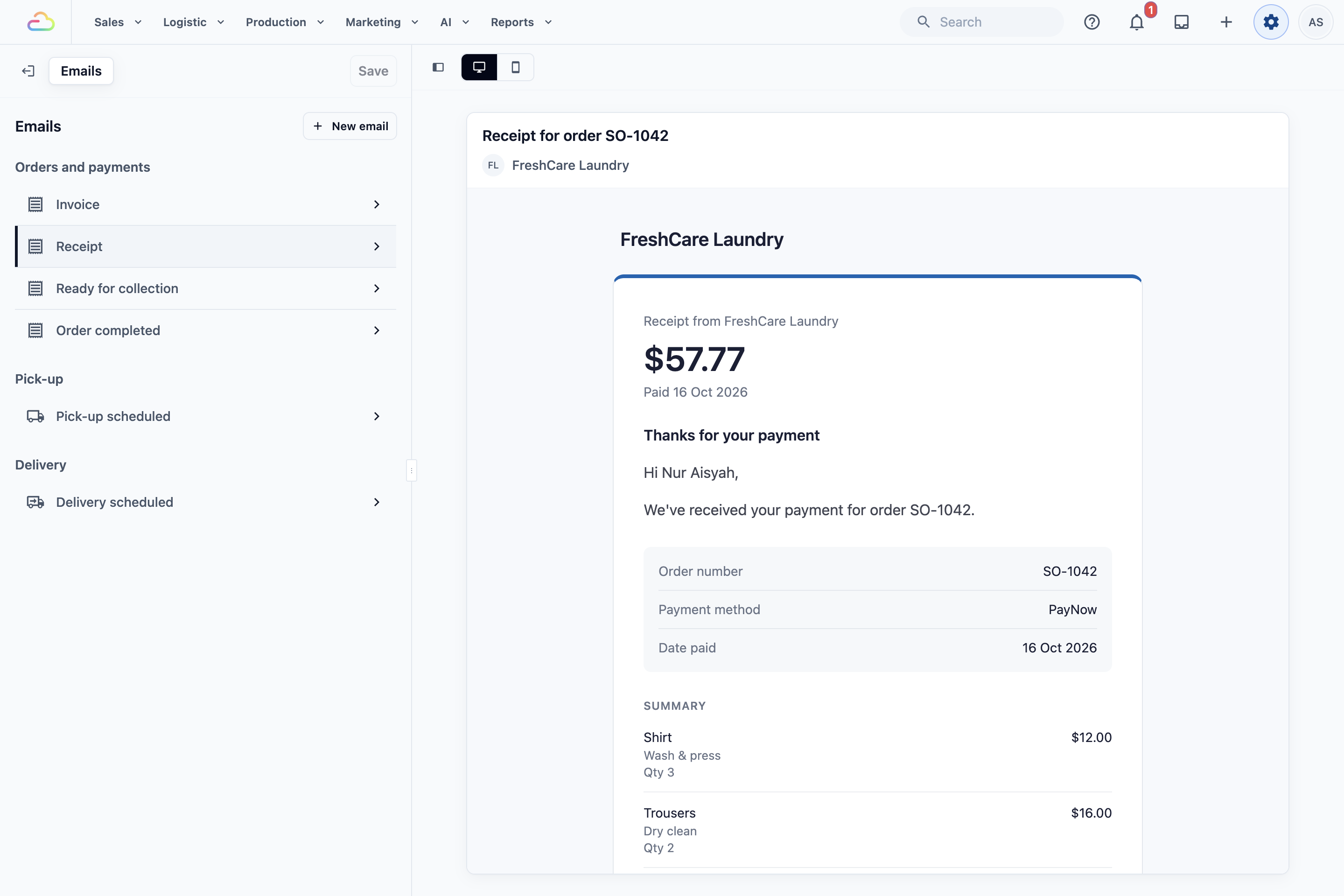
The emails you can send
Click New email to add one. The emails come in 4 groups.
| Group | Emails | When it goes out |
|---|---|---|
| Orders and payments | Order confirmation, Invoice (on by default), Payment reminder, Receipt (on by default), Payment failed, Ready for collection, Order completed, Order cancelled | When an order is placed, quoted, paid, completed or cancelled |
| Pick-up | Pick-up scheduled, rescheduled, completed and missed | When a pick-up is booked, moved, done or missed |
| Delivery | Delivery scheduled, rescheduled, completed and missed | The same, for deliveries |
| Service visits | Service visit scheduled, rescheduled, completed and missed | The same, for home cleaning or aircon visits |
Ready for collection is never sent automatically. Your staff send it from the order when it is ready.
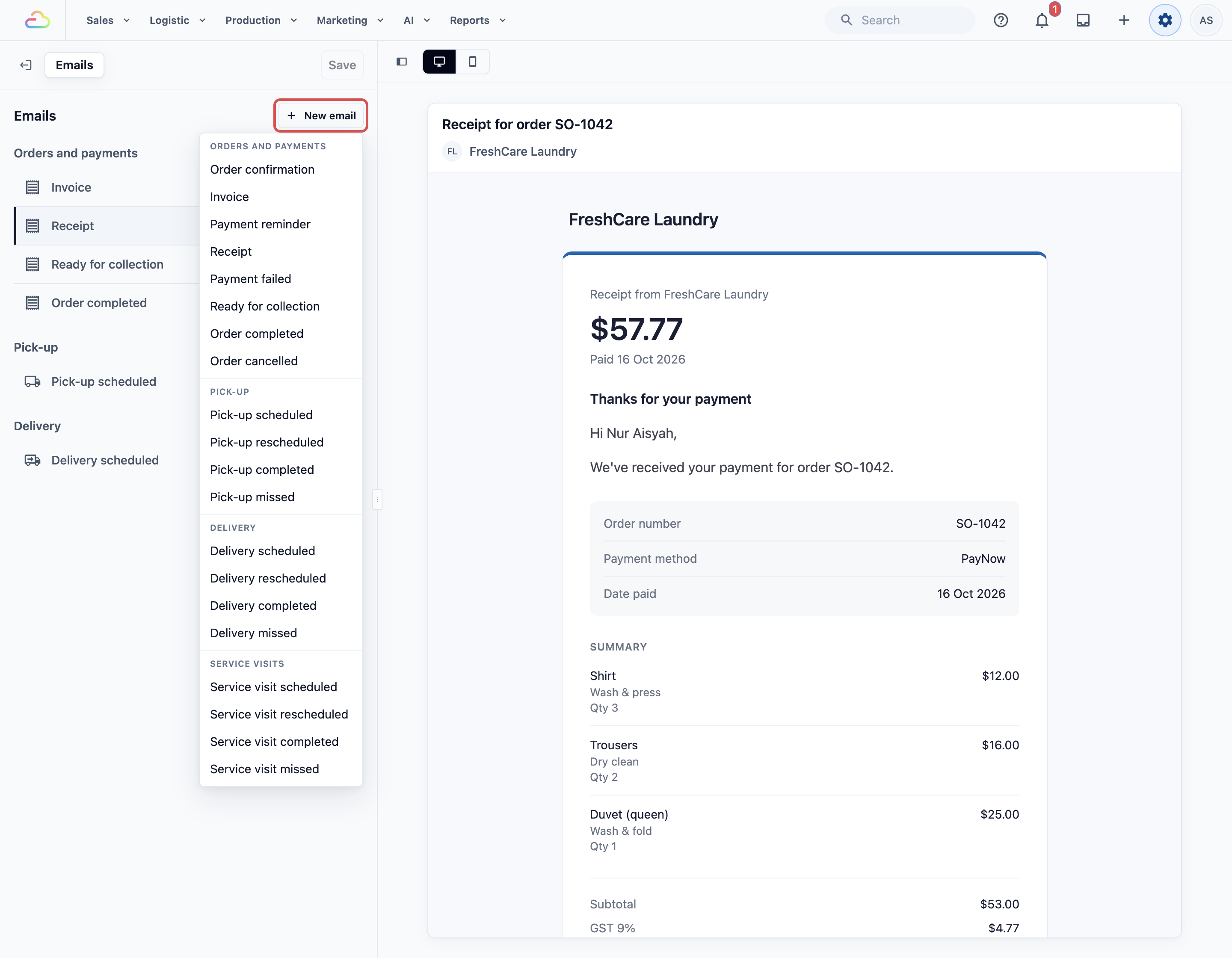
Edit the subject, heading and message
- Click the email you want to change.
- In Name, type a name your staff will recognise. Your customers don't see it.
- In Subject, type the line your customers see in their inbox.
- In Heading, type the big title at the top of the email.
- In Message, write the main text.
- In Closing note, add a thank-you or your opening hours.
- Click Save. You'll see "Emails saved".
Each field starts with ready-made text, such as "Thanks for your payment". Words like {customer_name} or {order_no_full} are placeholders. They fill in with each order's real details. To add one, type @ in any field and pick it from the list.
The preview updates as you type. Switch between Desktop and Mobile to see both.
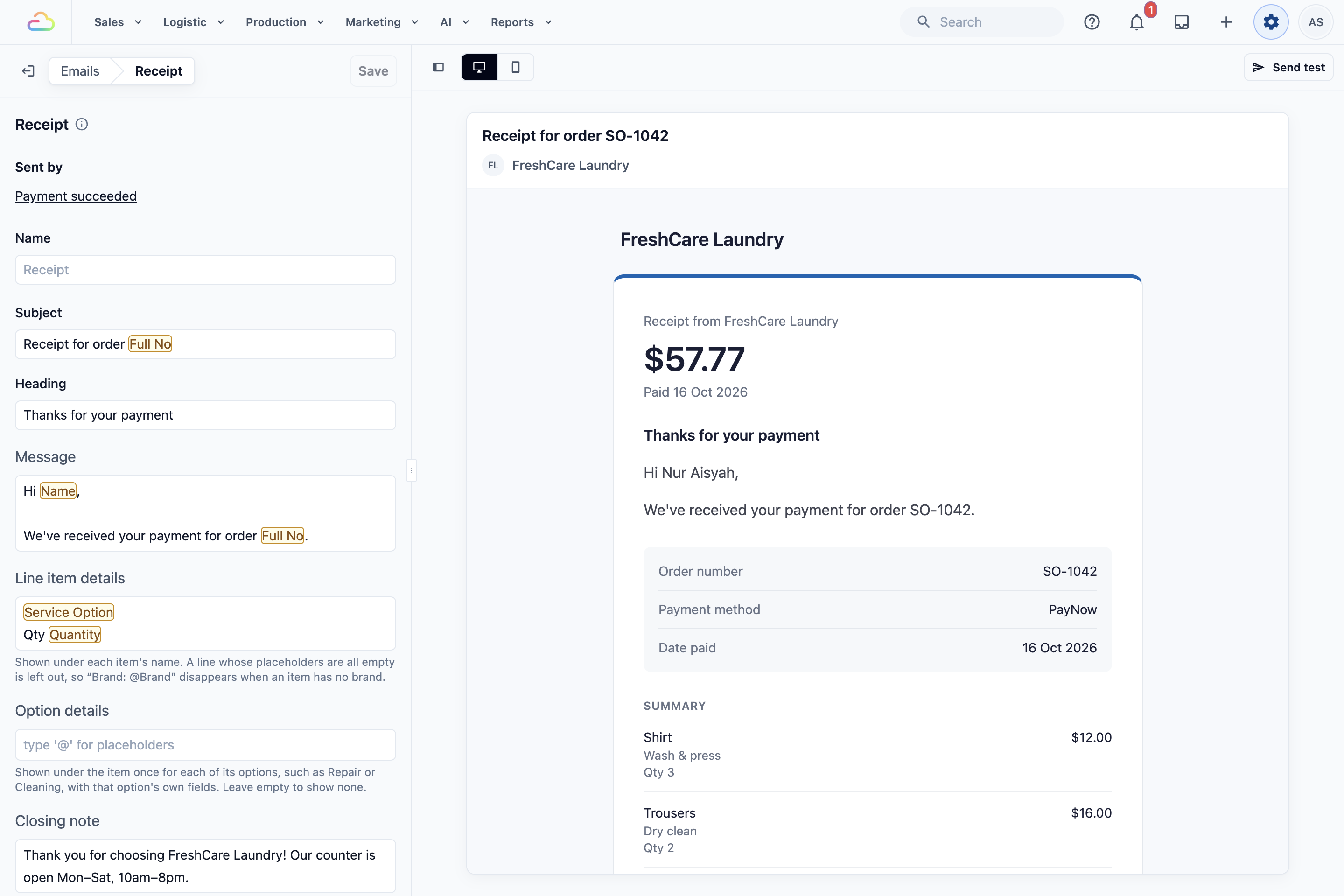
Show item details and policies
Order emails list the items in the order.
- Line item details shows under each item's name, such as "Brand: @Brand". A line is left out when it has nothing to show.
- Option details shows under the item once for each option, such as Repair or Cleaning. Leave it empty to show none.
- Policies adds your terms and conditions in full at the end of the email. If you see "No policies yet", write them in ⚙️ Settings › Policies first.
- Banner image (optional) adds a picture at the top. Use a PNG or JPEG file.
Pick-up, delivery and service visit emails don't list items.
Choose when each email goes out
Writing an email does not send it. You choose when it goes out in 2 places.
Automatically, in Customer Notifications:
- Click the ⚙️ Settings icon.
- In the CRM section, click Customer Notifications.
- Click New notification, or click an existing one.
- Choose the event, such as a payment received.
- Under Email, pick the email to send. Pick None to stop sending an email for this event.
- Save the notification.
By hand, from an order: a new business has an Email button at the top of each order, set up to send the Receipt. Staff click it, pick an email and click Send. To change which emails it offers, open the Order Detail page in your Console app's page settings and edit the Email button under Quick Actions.
On the Emails page, Sent by shows which notifications send each email. "Not sent by any notification yet" means nothing sends it automatically.
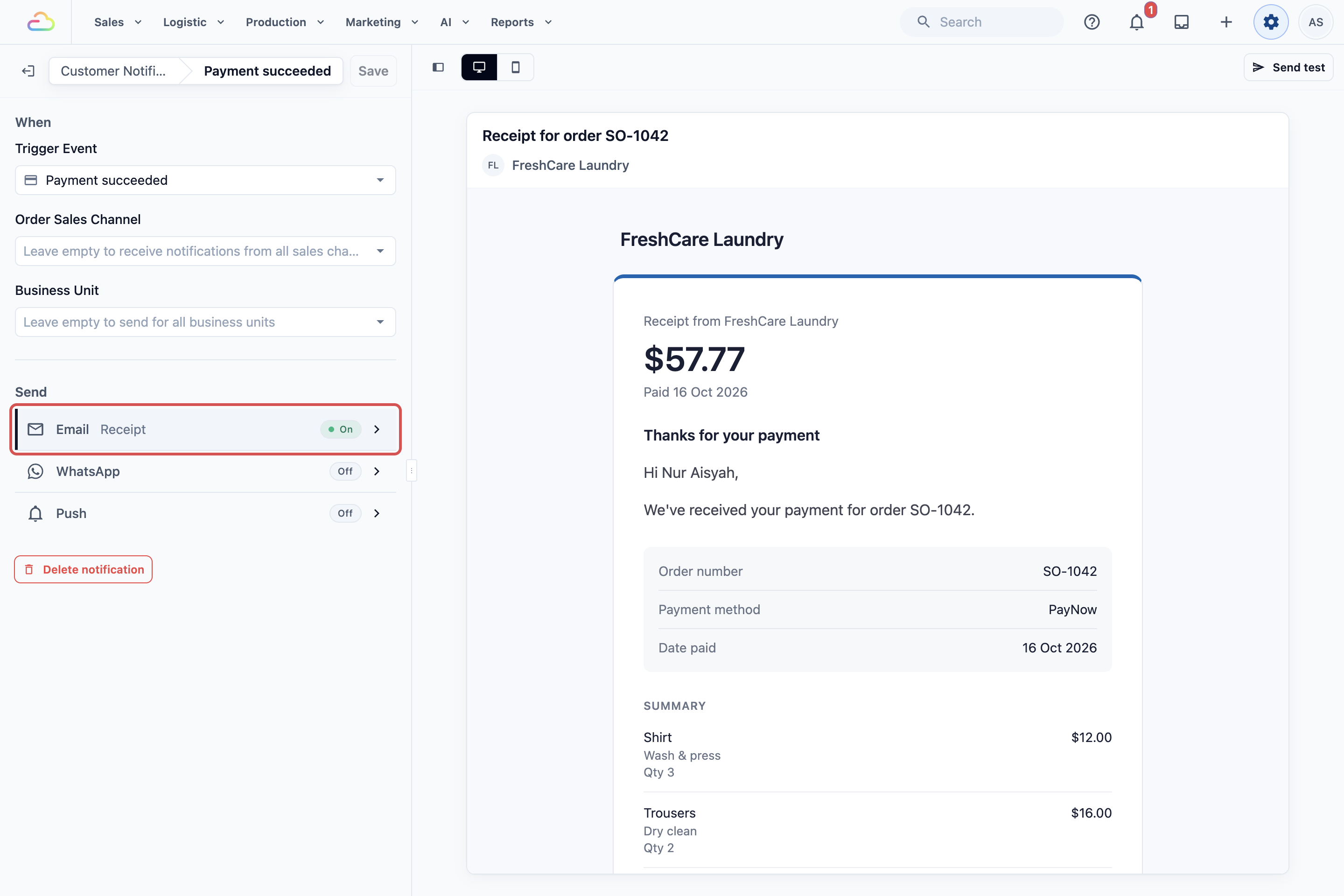
Example setups
- Sunshine Laundry kept the Invoice and Receipt emails and added Ready for collection. Counter staff send it when the bag is packed.
- Sparkle Home Cleaning turned on Service visit scheduled and Service visit completed, with a closing note asking for a Google review.
- Ah Hock Aircon Services added their 90-day warranty as a policy, so it shows at the end of every Receipt email.
What your customers see
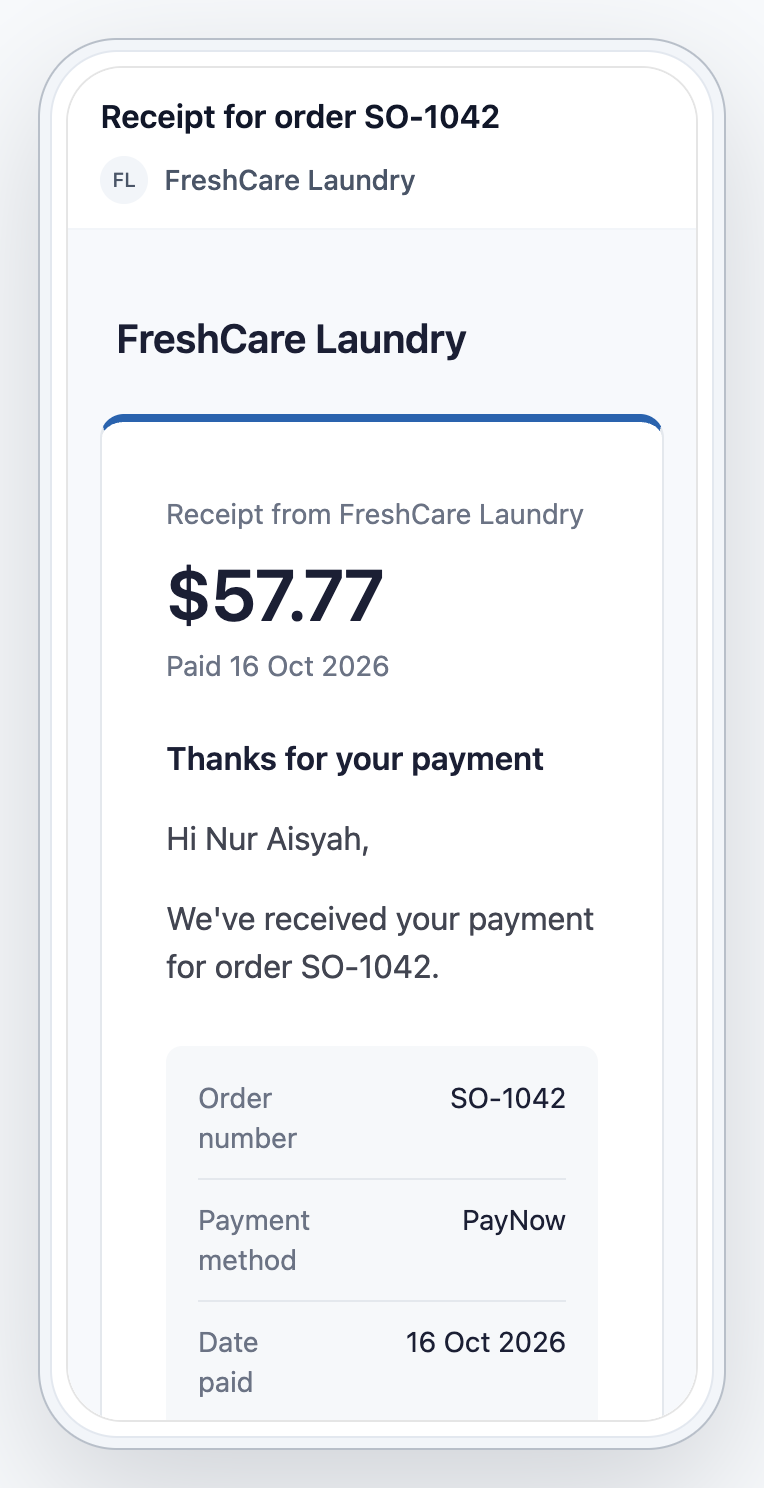
Your customers get an email from your brand name. It has your logo, the heading, your message, the order items and totals, and your closing note. Invoice and Receipt emails can carry the PDF as an attachment.
FAQs
Which emails are on when I start?
The Invoice (when an order is quoted) and the Receipt (when a payment is received).
Can I have 2 versions of the same email?
Yes. Click New email and pick the same type again. Give each a clear Name.
Can I delete an email?
Yes. Click Delete email, confirm, then click Save. If a notification sends it, you'll see "A notification sends this email. Choose another email for it before deleting this one."
Will customers without an email address get anything?
No. Emails only go to customers who have an email address on their profile.
Can customers stop these emails?
Only the update emails, such as order, pick-up, delivery and service visit updates. These have an unsubscribe link at the bottom. Invoice, Payment reminder and Receipt emails have no unsubscribe link, so customers always get them.
What's next
Your emails are written. Next, attach your invoice or receipt PDF and send yourself a test. See Attaching PDFs and Sending a Test Email.