
Before you start
Use one WhatsApp Business account. Every number you add goes into the WhatsApp Business account that is already connected to EasyBiz. You can't connect a second WhatsApp Business account: logging in with a different one replaces the account you have.
Have the phone ready. Meta sends a verification code to the new number by text message or voice call.
Choose the display name customers should see. Customers see it in WhatsApp, and your team sees it in the Inbox, for example Brightway Home Cleaning.
Step 1 — Add the number
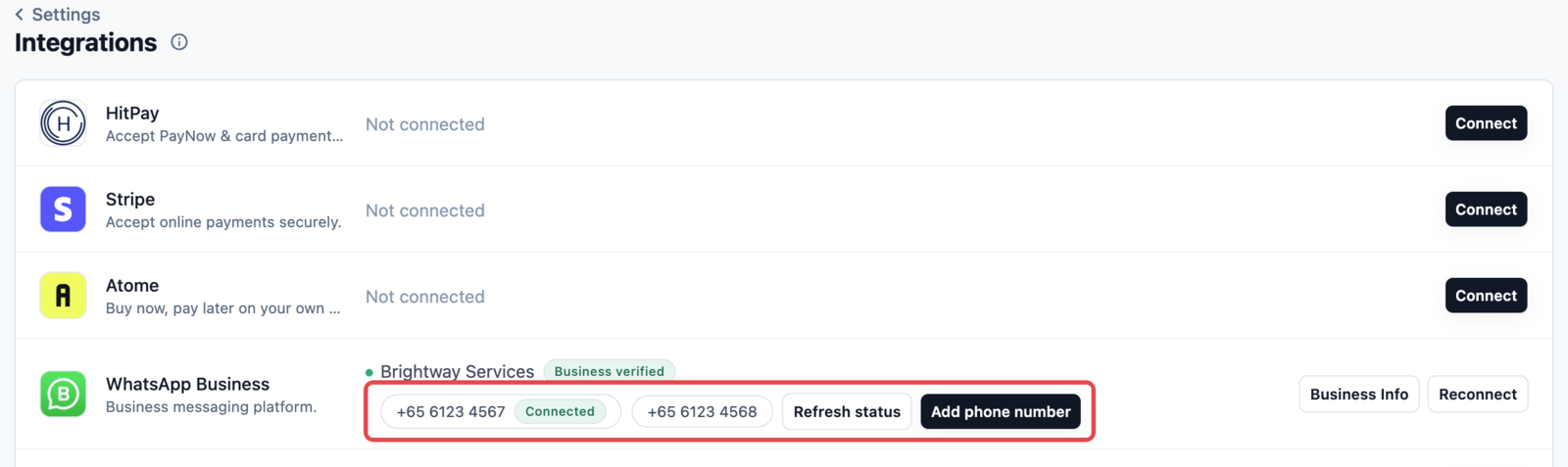
Go to Settings → Administration → Integrations.
On the WhatsApp Business row, click Add phone number.
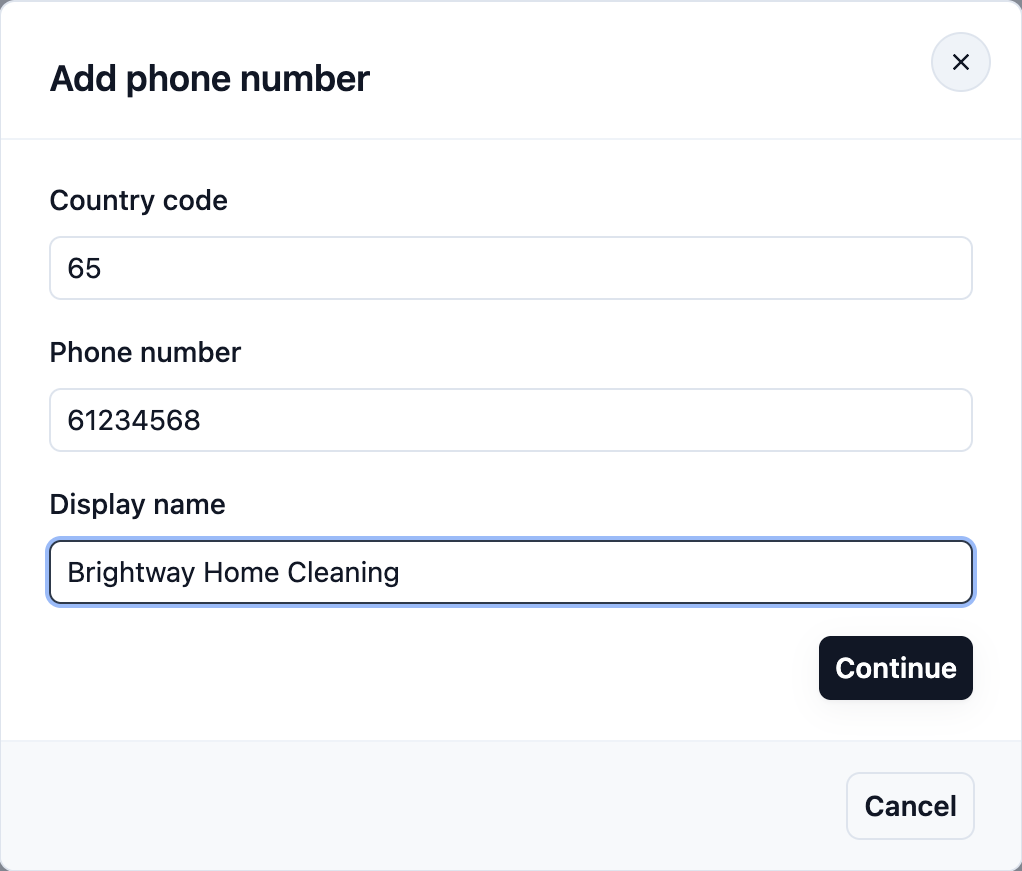
Enter the Country code (for example 65), the Phone number and the Display name, then click Continue.
Choose how to get the code, Text message (SMS) or Voice call, and click Send code.
Enter the Verification code and click Verify.
When you see Number added and registered, click Close.
The new number now shows on the WhatsApp Business row, and messages sent to it arrive in your Inbox.
How the Inbox shows each number
Once two or more numbers are connected, every chat shows which number the customer messaged.
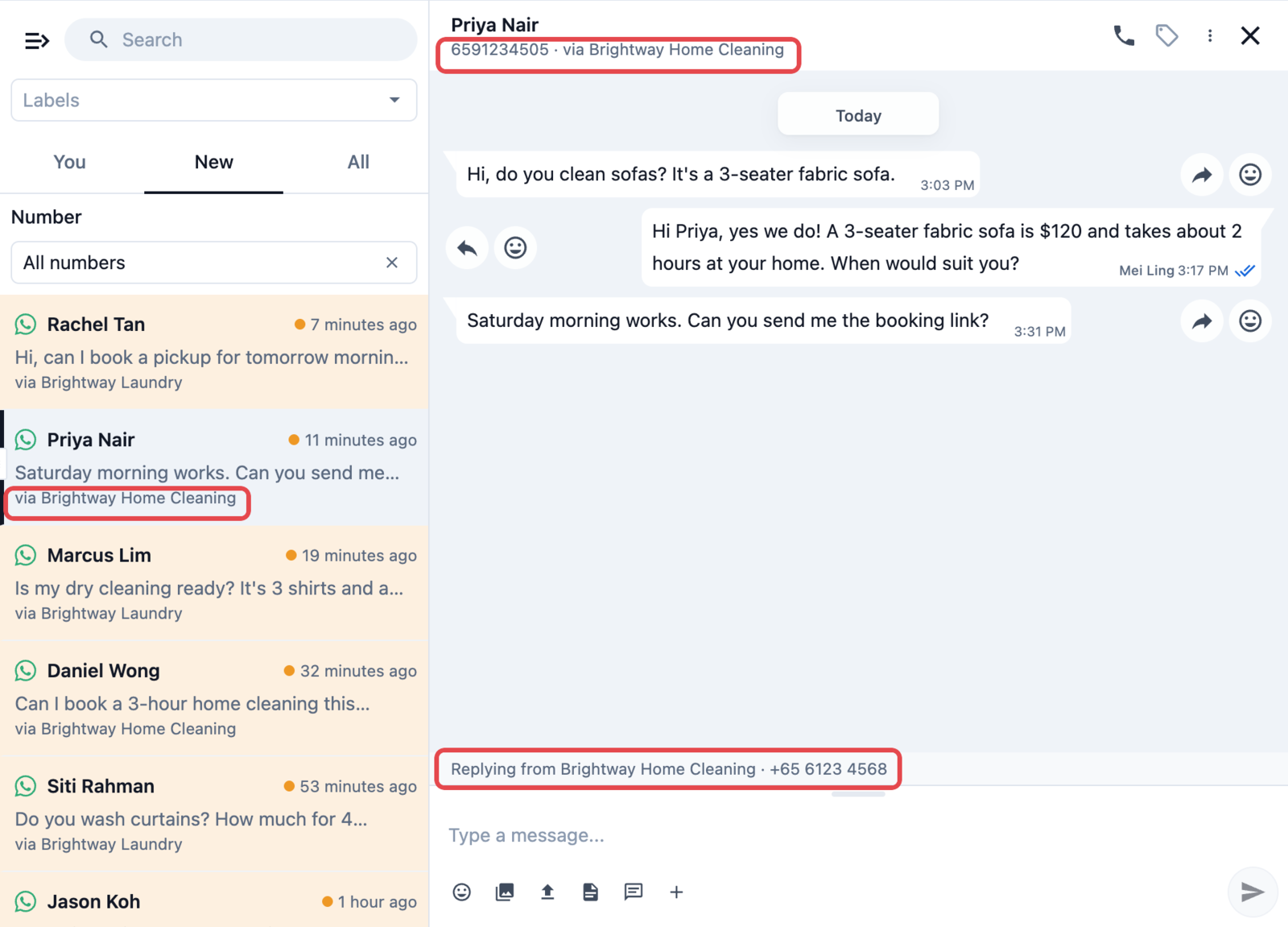
Chat list: each chat has a line under the last message, such as via Brightway Home Cleaning.
Chat header: the brand follows the customer's phone number.
Reply box: Replying from Brightway Home Cleaning · +65 6123 4568 shows the number your reply goes out from.
Replies always go out from the number the customer messaged, whether your team, an auto-reply rule or an AI agent sends them. A customer of one brand never gets a reply from the other.
The name shown is the number's WhatsApp display name. If two numbers have the same display name, the Inbox shows the phone number instead.
See one number's chats
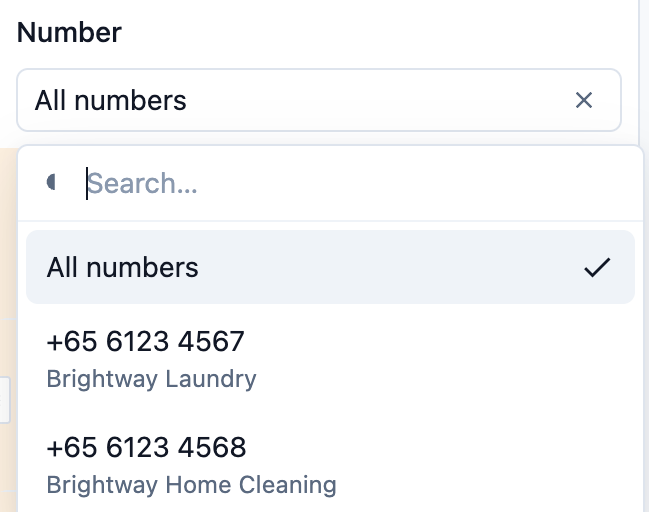
Use the Number filter above the chat list. Choose a number to see only its chats, or All numbers to see every chat again.
The filter is hidden while you search or filter by label. Clear the search or the label to use it.
Start a new chat from a chosen number
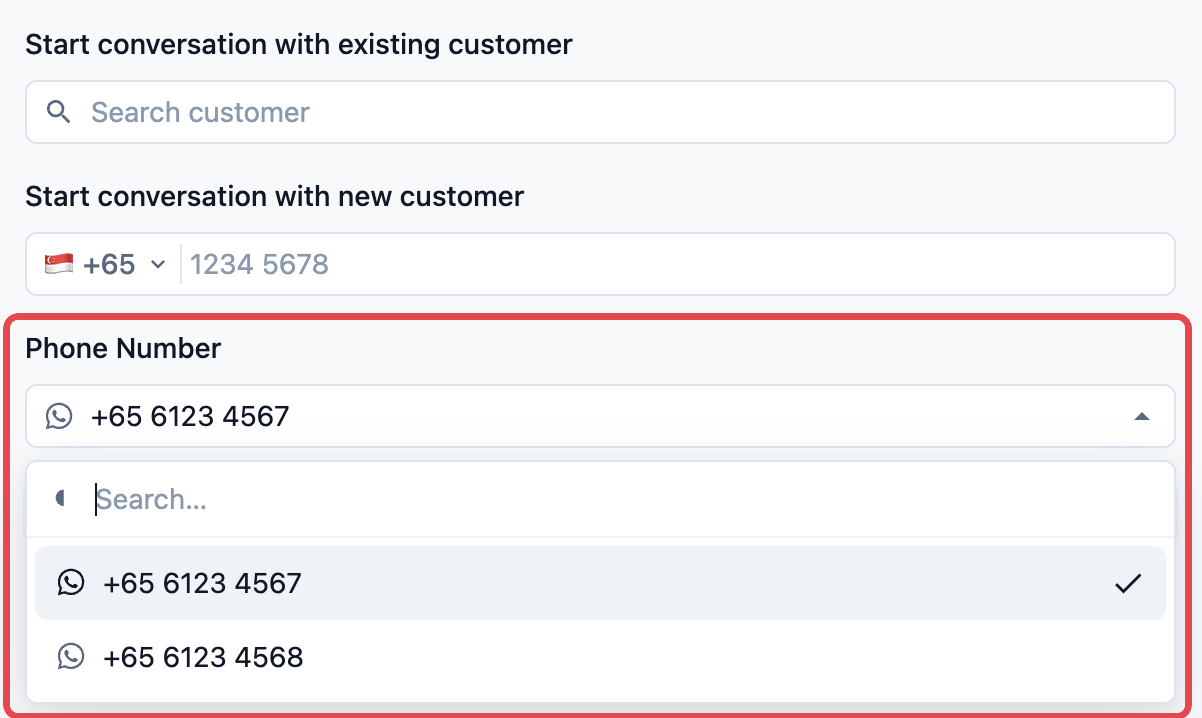
Open the Inbox without selecting a chat.
Under Start conversation with new customer, enter the customer's phone number.
Under Phone Number, choose which of your numbers the chat comes from.
Click Start WhatsApp.
A new conversation starts with an approved message template. See Managing Conversations Inbox for how to send one.
Good to know
Automatic messages go out from your default number, the one you connected first. This covers order notifications, payment reminders and Online Store sign-in codes. If you sell in more than one market, for example Singapore and Malaysia, choose which number each market sends from in Settings → WhatsApp → General Settings → Number per market.
Campaigns let you choose. When you set up a campaign, pick the number it sends from under Phone Number.
Business Info is for your default number. The profile picture, address and other details you set in Business Info apply to your default number.
Message templates are shared. Templates belong to your WhatsApp Business account, so every number can use them.
To rename or remove a number, change it in Meta's WhatsApp Manager, then click Refresh status on the WhatsApp Business row to update EasyBiz.
What's Next?
Managing Conversations Inbox: assign chats, send templates and close conversations.
Connect & Configure WhatsApp: connect your first number and set up your business profile.