## Before You Start
- Your staff member already has a login and a **Full seat** (the paid user licence that lets someone use the Console). If they do not, set them up first with [Inviting Your Team and Managing Access](/docs/inviting-your-team-and-managing-access).
- You need to be the account owner, or have the **Users & permissions** area in your own Administration settings. You can only give areas that you have yourself, and nobody can change their own access.
- Ask your staff member two things: the name of the page they cannot open, and exactly what they see (a message, no menu item, or a blank page).
- If you are setting up a new role from scratch, use the ready-made recipes in [Granting the Right Access: Common Scenarios](/docs/granting-the-right-access-common-scenarios) instead.
---
## What Your Staff Member Sees
A page your staff member cannot open shows up in one of three ways. Each one points to a different fix.
- **A "no permission" message.** The page shows "You don't have permission to access this page" and "Please contact your administrator to request access." This happens when they open the page from a saved bookmark, an old shortcut or a link someone sent them, but their access does not cover it.
- **A missing menu item.** EasyBiz hides every menu item and Settings entry a person cannot open. So if their access does not cover a page, it is not in their menu at all, and to them it looks like the page was removed.
- **A blank page or a page that keeps loading.** Their sign-in is still using the access they had before your last change. Ask them to refresh the page. If that does not help, ask them to sign out and sign back in.
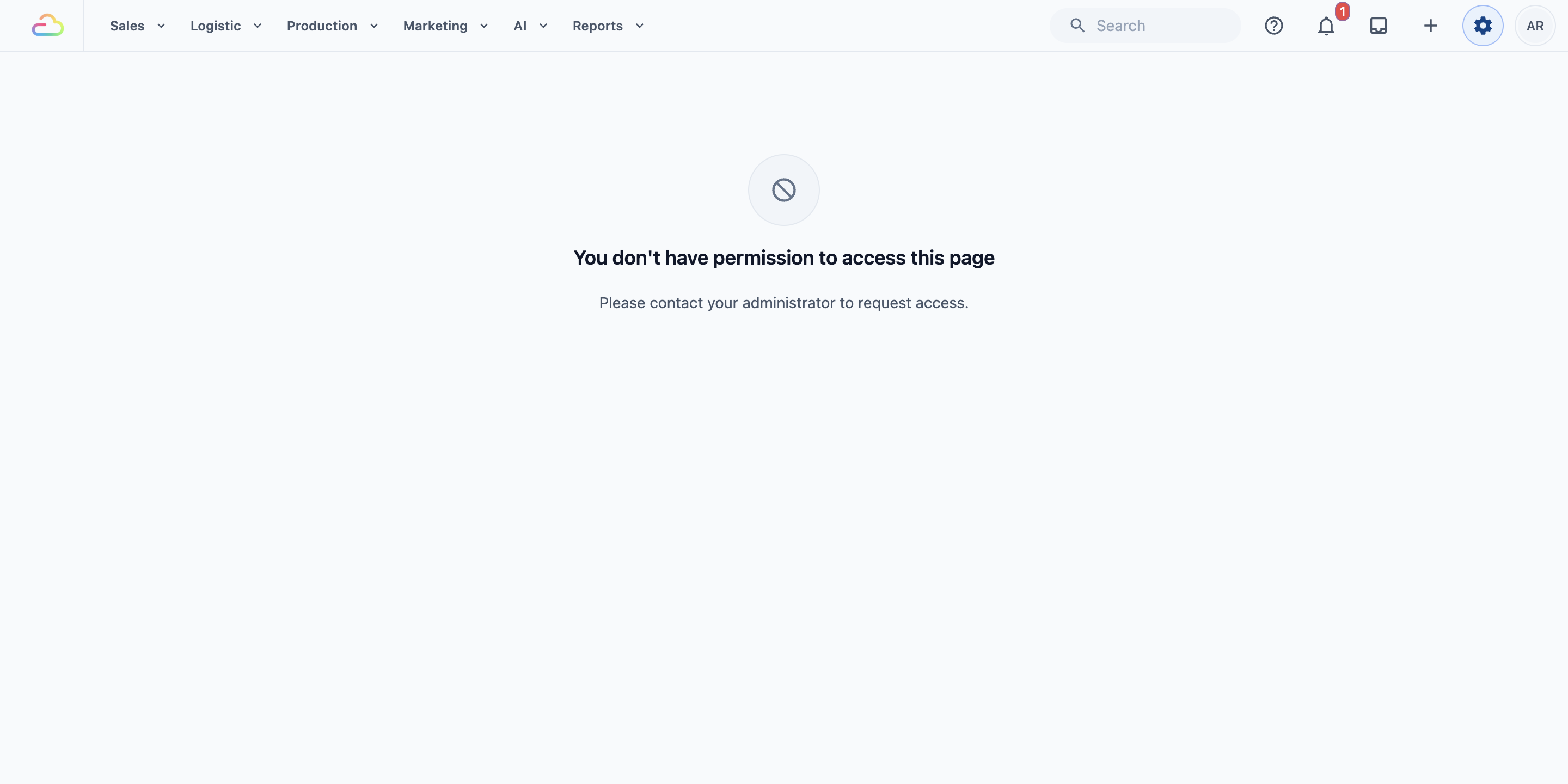
Moving from the older Console? In September 2026 settings access was regrouped into 12 Administration areas, replacing the old Advanced settings switches. Staff who could open all your settings before may now need the specific area for each page.
---
## Where Access Is Decided
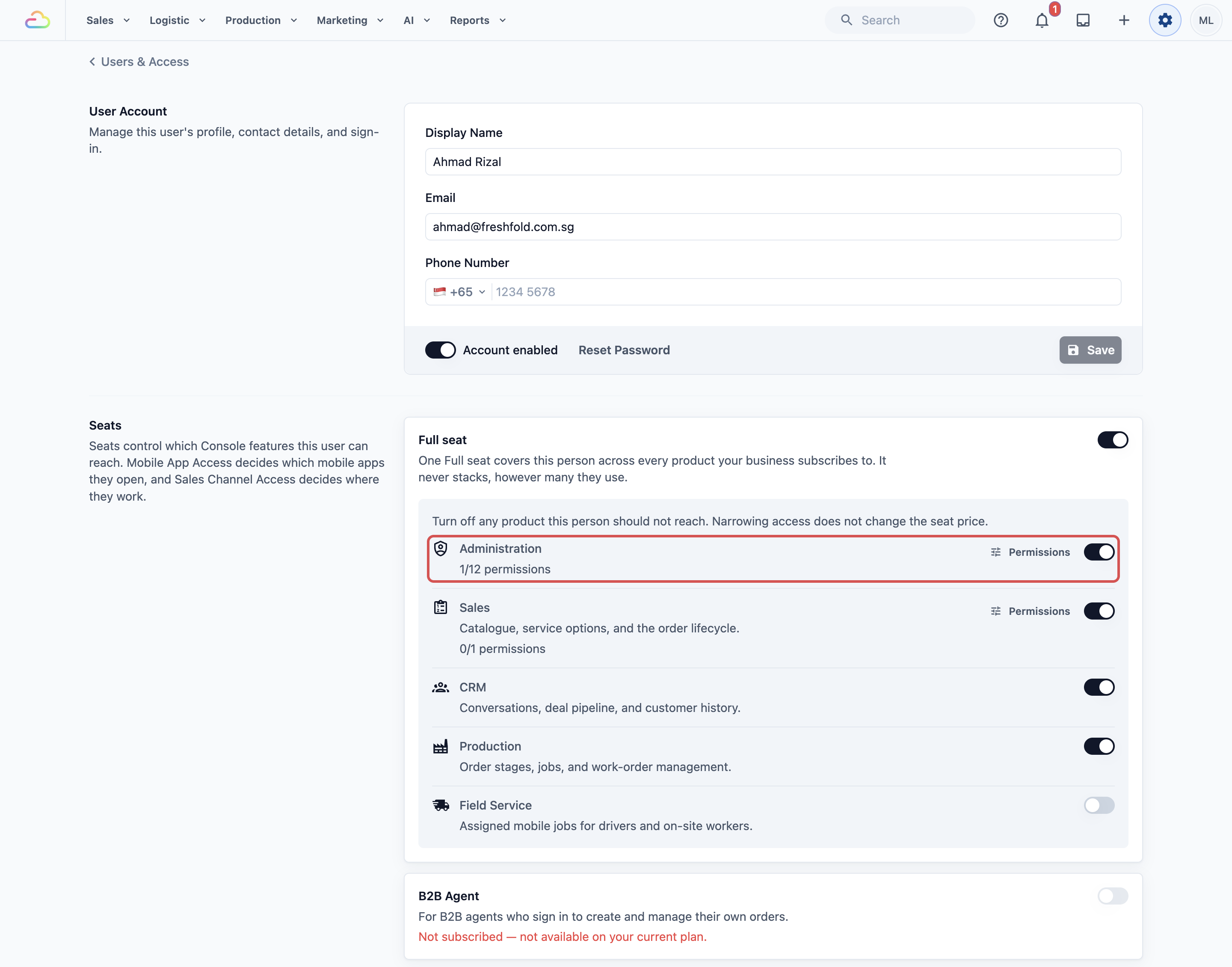
Everything that decides what a person can open sits on their own page in **Users & Access**. There are three places to check.
- **Products inside the Full seat.** These switches open the pages your staff use every day. **Sales** opens orders, payments and the Scheduler. **CRM** opens conversations and the deal pipeline. **Production** opens work orders and the production pipeline. **Field Service** opens assigned jobs for drivers and on-site staff.
- **Permissions next to a product.** Two products have an extra switch. Next to **Sales**, **Sales figures & reports** opens the sales, payment and credit reports. Next to **Field Service**, **All jobs** lets the person see jobs assigned to other people, not only their own.
- **Administration.** This decides which Settings pages the person can open and change. It is split into 12 areas, so you can give someone pricing without giving them billing.
**Sales Channel Access** on the same page decides which of your shops a person works in. It does not hide pages, so it is rarely the reason a page is missing.
### Which permission opens which page
Here are the pages staff most often report as missing after an update, and the permission each one needs.
- **Bookings** (Settings › Scheduling & Dispatch › Bookings), where you set booking times, closed dates and blocking rules: the **Scheduling & dispatch settings** area under Administration.
- **The Scheduler**, the booking calendar under the **Logistic** dropdown in the top navigation bar: the **Sales** product.
- **Price Lists** (Settings › Catalog & Pricing › Price Lists): the **Catalog & pricing** area under Administration.
- **Repeat orders** (Settings › Operations › Repeat orders), including its **Active**, **Paused** and **Failed** tabs: the **Production settings** area under Administration.
- **Sales, payment and credit reports**: the **Sales figures & reports** permission next to **Sales**.
---
## Open the Staff Member's Access Page
1. Click the ⚙️ Settings icon in the top-right corner.
2. Under the **Administration** section, click **Users & Access**.
3. Click the name of the staff member who cannot open the page.
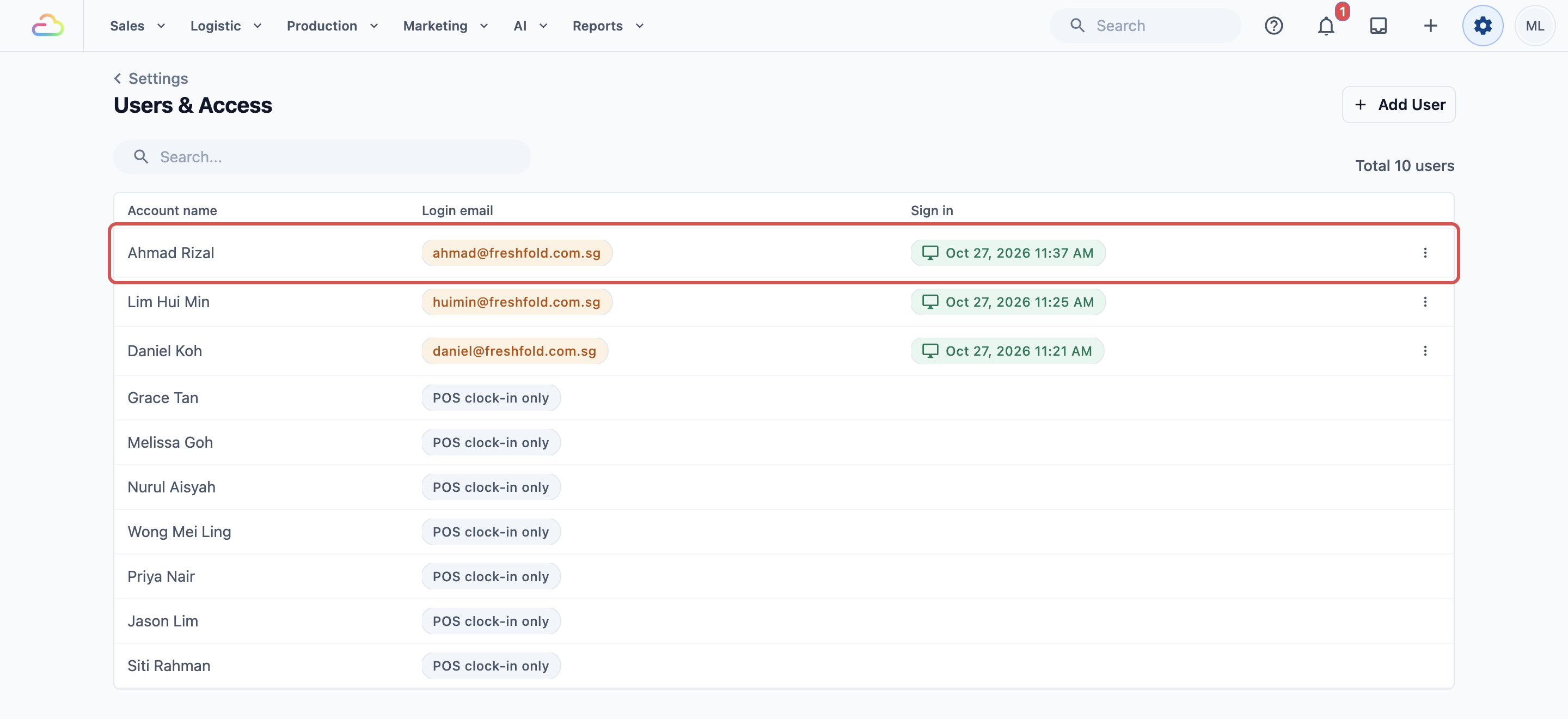
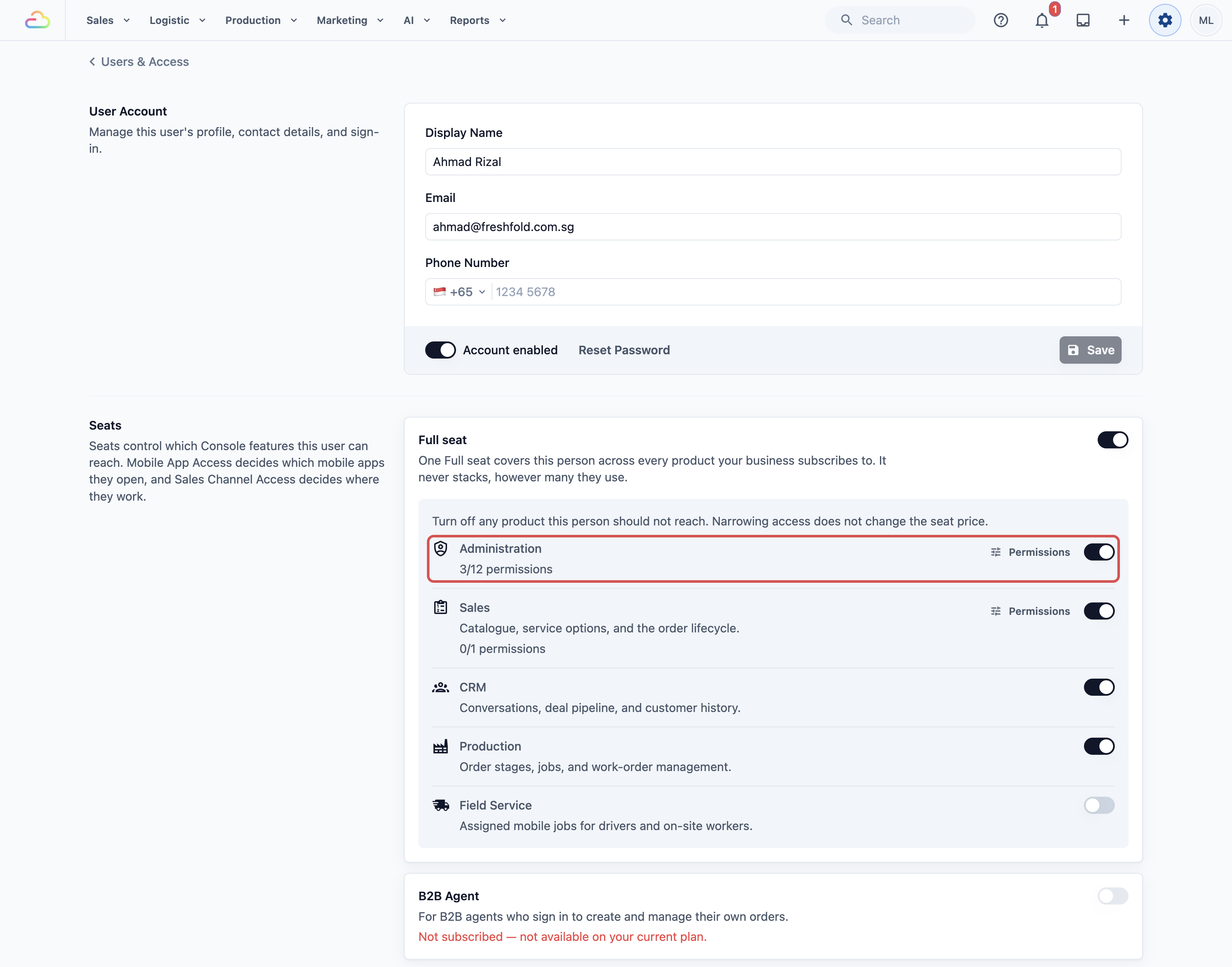
The staff member's page opens. You will see their **Full seat** with the product switches, the **Administration** row and **Sales Channel Access**. When Administration is on, the row shows how many areas they have, for example "1/12 permissions".
---
## Turn On the Right Permission
Follow the steps that match the page your staff member cannot open.
### For a Settings page (Bookings, Price Lists, Repeat orders)
1. Find the **Administration** row on the staff member's page.
2. If Administration is off, turn on its switch. If it is already on, click Permissions next to it.
3. The **Administration** window opens with the 12 areas. Tick the area the page belongs to, for example **Scheduling & dispatch settings** for Bookings.
4. Click Save .
5. Ask your staff member to refresh their Console.
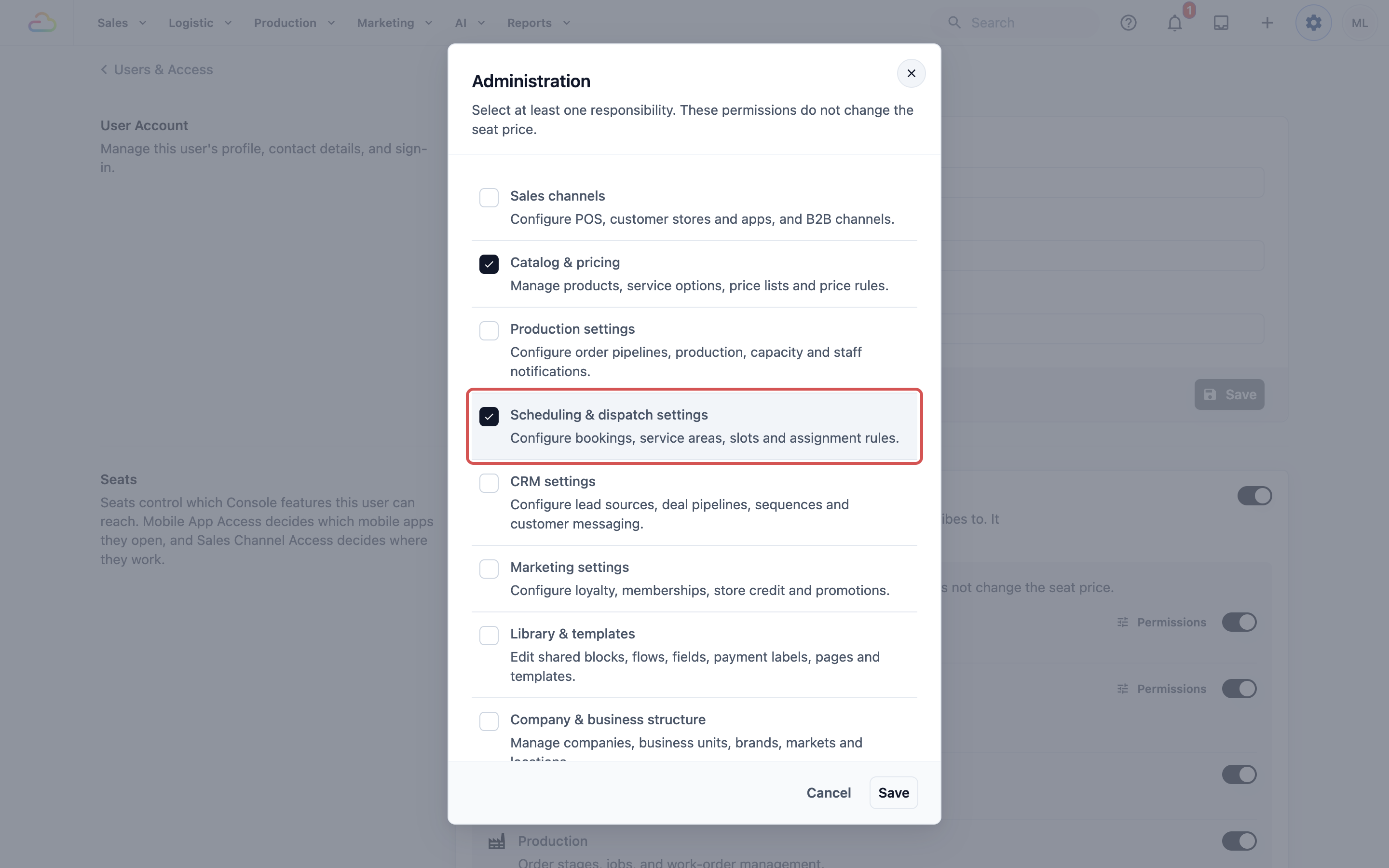
Use the table below to choose the area. Ticking an area lets the person open and change every Settings page in it.
**Administration**
| Area | What your staff member can open and change |
|---|---|
| Sales channels | Your POS shops, online store, customer app and B2B channels |
| Catalog & pricing | Products, service options, Price Lists, price rules and prepaid packages |
| Production settings | Order pipelines, production centres, team capacity, staff notifications and Repeat orders |
| Scheduling & dispatch settings | Bookings, service areas, time slots, blocking rules and assignment rules |
| CRM settings | Lead sources, deal pipelines, sequences and customer messages |
| Marketing settings | Loyalty points, memberships, store credit and coupons |
| Library & templates | Shared blocks, flows, custom fields, payment methods, pages and templates |
| Company & business structure | Your company details, business units, brands, markets and locations |
| Staff app configuration | Your staff apps, their navigation and page layout |
| Integrations | Payment, accounting and messaging connections |
| Billing & plan | Your EasyBiz subscription, billing details and payment methods |
| Users & permissions | Staff sign-in, seats and permissions. Changes that add a paid seat also need Billing & plan |
| Mix and match | Tick only the areas this person looks after, for example Catalog & pricing and Scheduling & dispatch settings for a shop manager |
Keep Users & permissions and Billing & plan for yourself or one trusted manager. A person with Users & permissions can change other staff members' access.
### For a working page (orders, Scheduler, conversations, work orders, jobs)
1. On the staff member's page, find the product the page belongs to inside the **Full seat**.
2. Turn on that product's switch, for example **Sales** for the Scheduler.
3. Ask your staff member to refresh their Console.
Turning a product on or off inside the Full seat does not change the seat price.
### For reports
1. Next to **Sales**, click Permissions .
2. Turn on **Sales figures & reports**.
3. Click Save .
---
## Check What Your Staff Member Sees
After you change someone's access, you can check it yourself in your own browser, without their password.
1. Open the staff member's page in **Users & Access**.
2. Click Supervisor sign-in , next to **Sign in with a code**.

3. Your Console opens as that staff member, with only their menu and pages. A red bar at the top shows whose login you are using and when it ends.
4. Open the page they could not open, and check that it opens now.
5. Click Exit in the red bar. You are back in your own account, on their page in Users & Access.
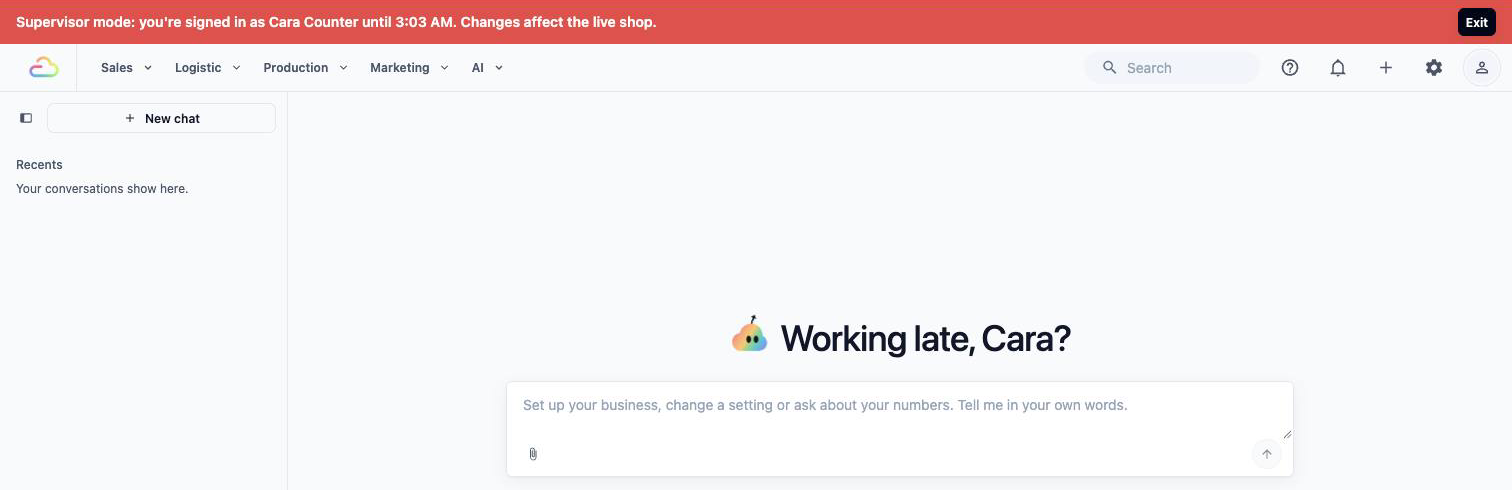
While the red bar shows, you are working in your live shop. Anything you change, such as an order or a price, really changes. Use it to look, and make changes from your own account.
- Supervisor mode ends by itself after 2 hours. Then sign in again with your own account.
- Your staff member stays signed in on their own phone and computer.
- The button is not on your own page or on the owner's page. If the staff member has access you don't have, EasyBiz asks you to let the owner check their login instead.
- You need the **Users & permissions** area, the same as for changing their access.
---
## Example: Fresh Fold Laundry
Mei owns Fresh Fold Laundry. Her shop manager, Ahmad, looks after pickup bookings and the weekly repeat orders from regular customers. After an update, Ahmad says the Bookings page and the paused repeat orders have disappeared. When he opens his old bookmark, he sees "You don't have permission to access this page".
Mei opens Ahmad's page in **Users & Access**. His Administration row shows "1/12 permissions", which is **Catalog & pricing** only. She clicks Permissions , ticks **Scheduling & dispatch settings** and **Production settings**, and clicks Save . The row now shows "3/12 permissions".
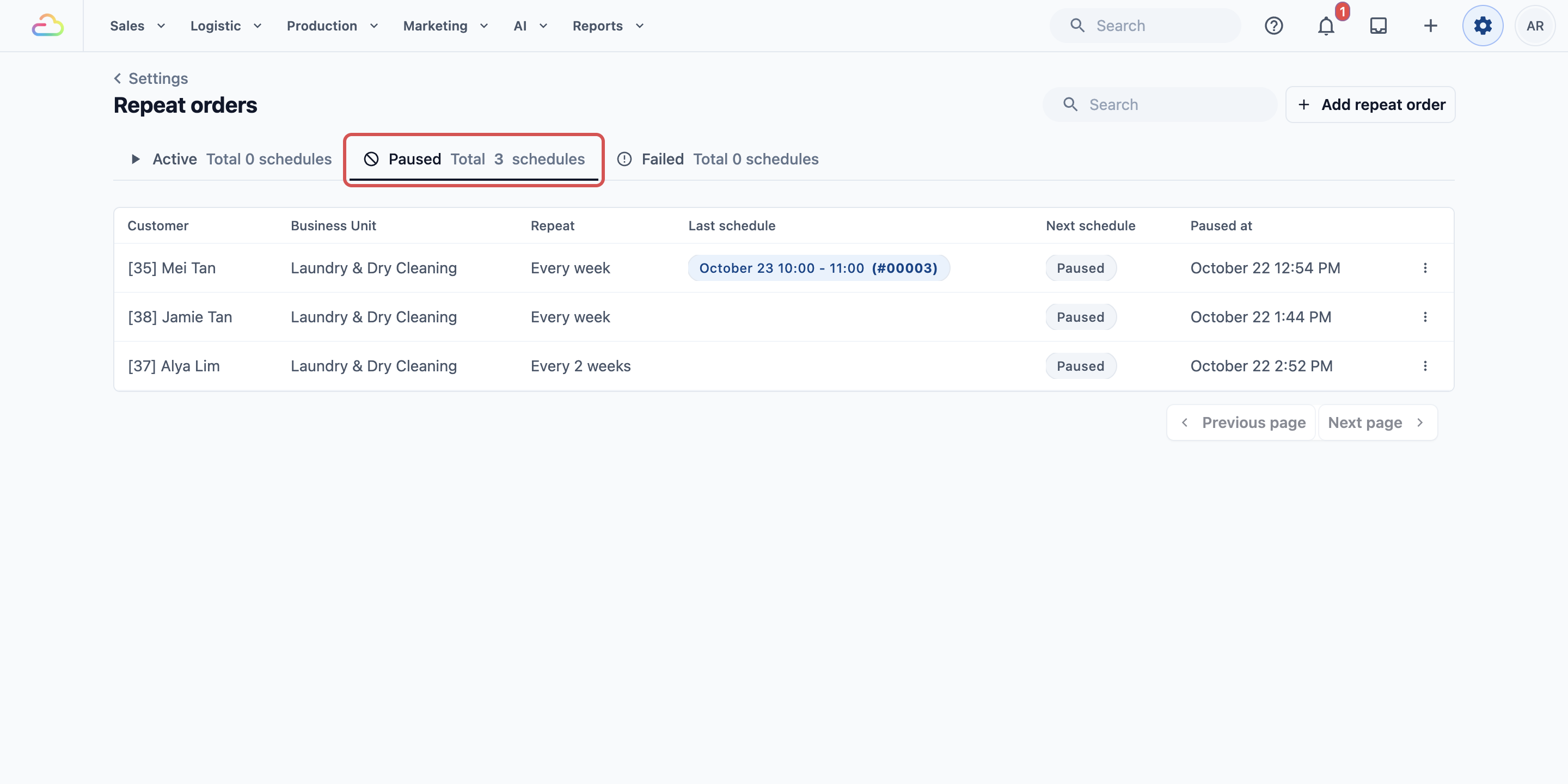
Ahmad refreshes his Console. **Scheduling & Dispatch** and **Operations** now appear in his Settings. He opens Repeat orders, clicks the Paused tab and sees the paused schedules again.
---
## FAQs
**Does turning on an Administration area or a product switch cost more?**
> No. These permissions do not change the seat price. Only giving someone a new Full seat changes your bill.
**Why is a box in the Administration window greyed out?**
> You can only give areas that you have yourself. Ask the account owner to tick it, or to give you that area first. The account owner always has every area.
**My own page is missing a permission. Can I turn it on?**
> No. Nobody can change their own access, and the owner's access cannot be changed here. Ask the account owner, or another person with Users & permissions, to do it for you.
**A page is missing for everyone, including me as the owner. Why?**
> Some pages come with a product your business subscribes to. For example, Repeat orders come with Production. If your business does not have that product, the switch on a staff member's page shows "Not included in your subscription." and nobody sees the page until you add it.
**If I give someone Production settings, can they also open Work Orders?**
> No. Administration areas only open Settings pages. Working pages like Work Orders follow the product switches, so this person also needs Production turned on in their Full seat.
**Did my data disappear when the page went missing?**
> No. Only the person's access changed. Your bookings, prices and repeat orders stay exactly as they were, and they appear again as soon as the right permission is on.