## Where to Find General Settings
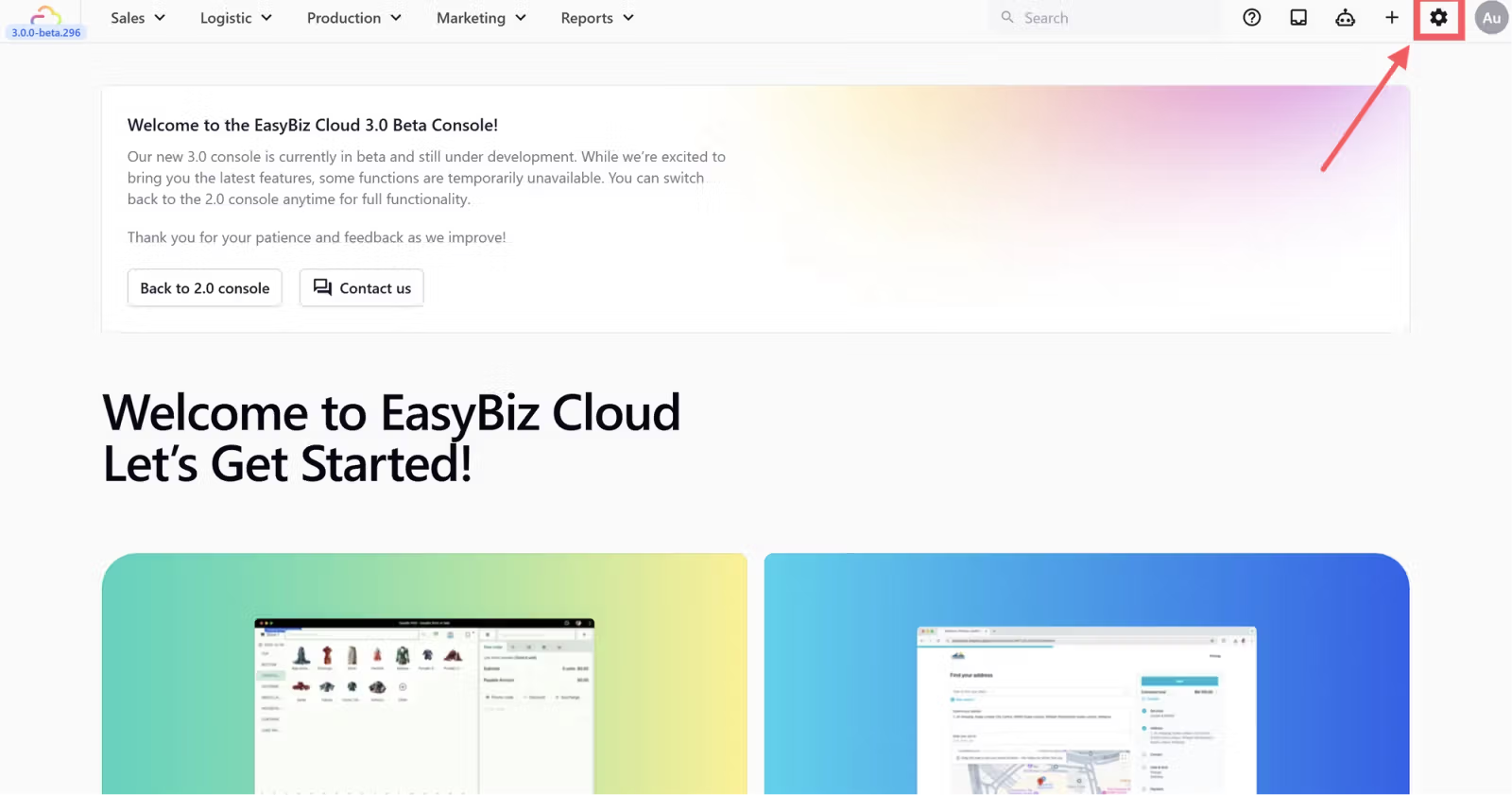
1. Click the Settings icon at the top right of your EasyBiz Console
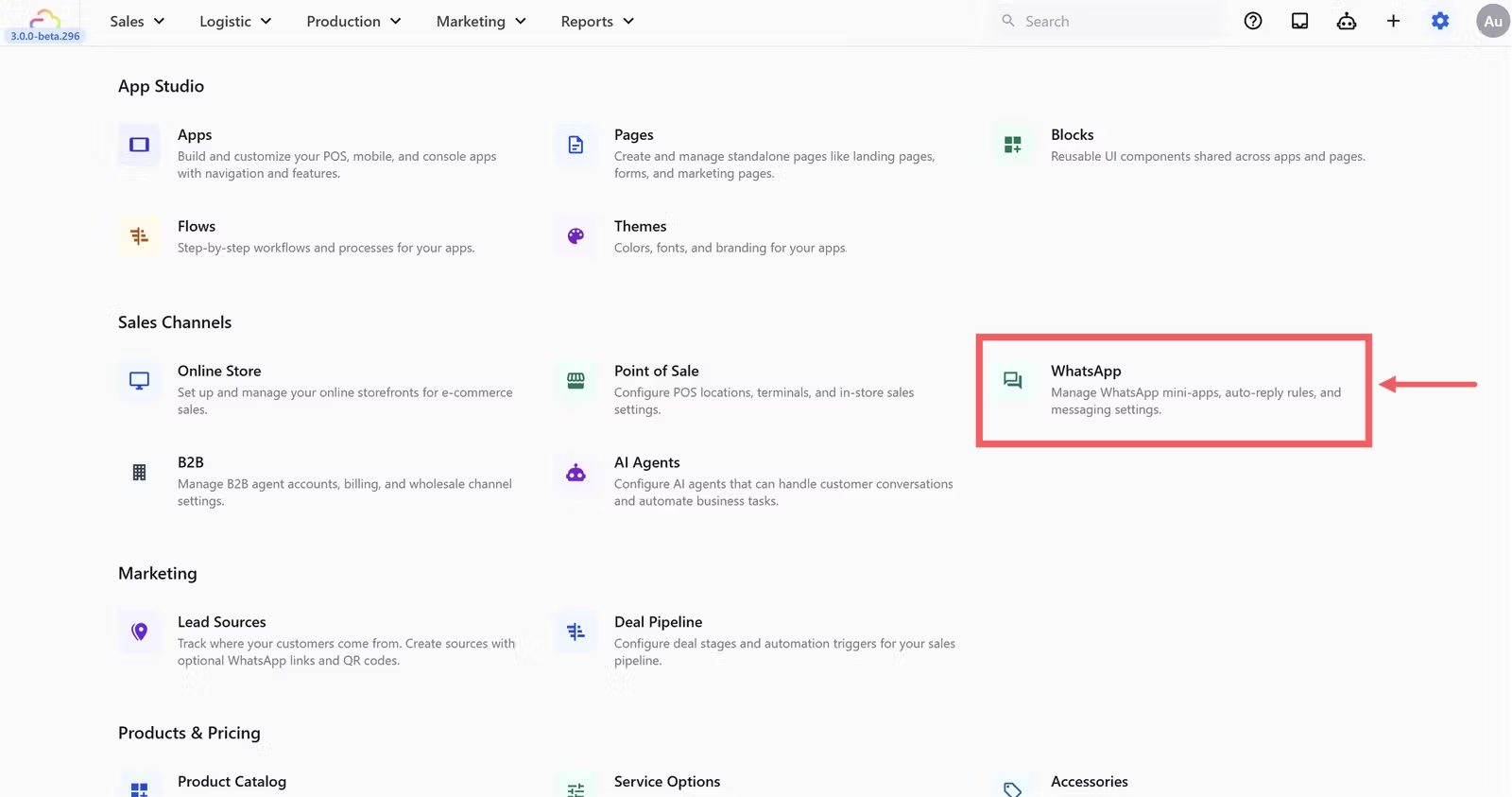
2. Scroll down to the **Sales Channels** section and click **WhatsApp**
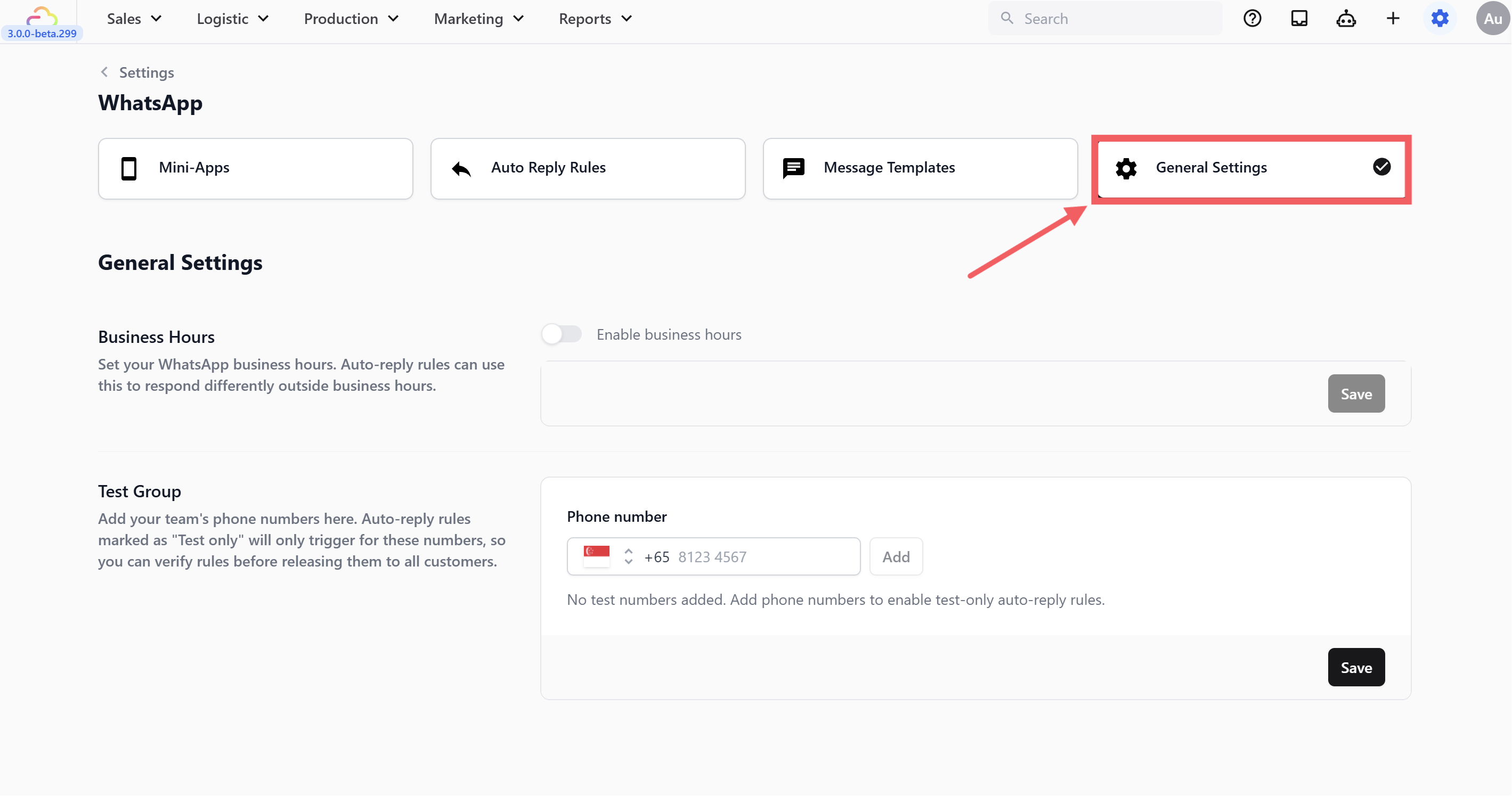
3. Click the General Settings tab
---
## Setting Up Business Hours
The **Within business hours** and **After business hours** conditions in your auto reply rules rely entirely on what you set here. Without this configured, those conditions will not work correctly.
This is the only thing these hours do. They are a WhatsApp setting, separate from a POS shop's opening hours, and they do not open or close the POS counter or change the times a customer can pick when booking.
---
## Enabling Business Hours
1. Toggle **Enable business hours** on.
2. Select your **timezone** from the dropdown.
Asia/Singapore, Asia/Kuala Lumpur, Asia/Jakarta, Asia/Bangkok, Asia/Hong Kong, Asia/Tokyo, Asia/Shanghai, Australia/Sydney, Europe/London, and America/New York.
Make sure this matches your physical shop location. If your shop is in Singapore, select **Asia/Singapore**.
---
## Configuring Your Weekly Schedule
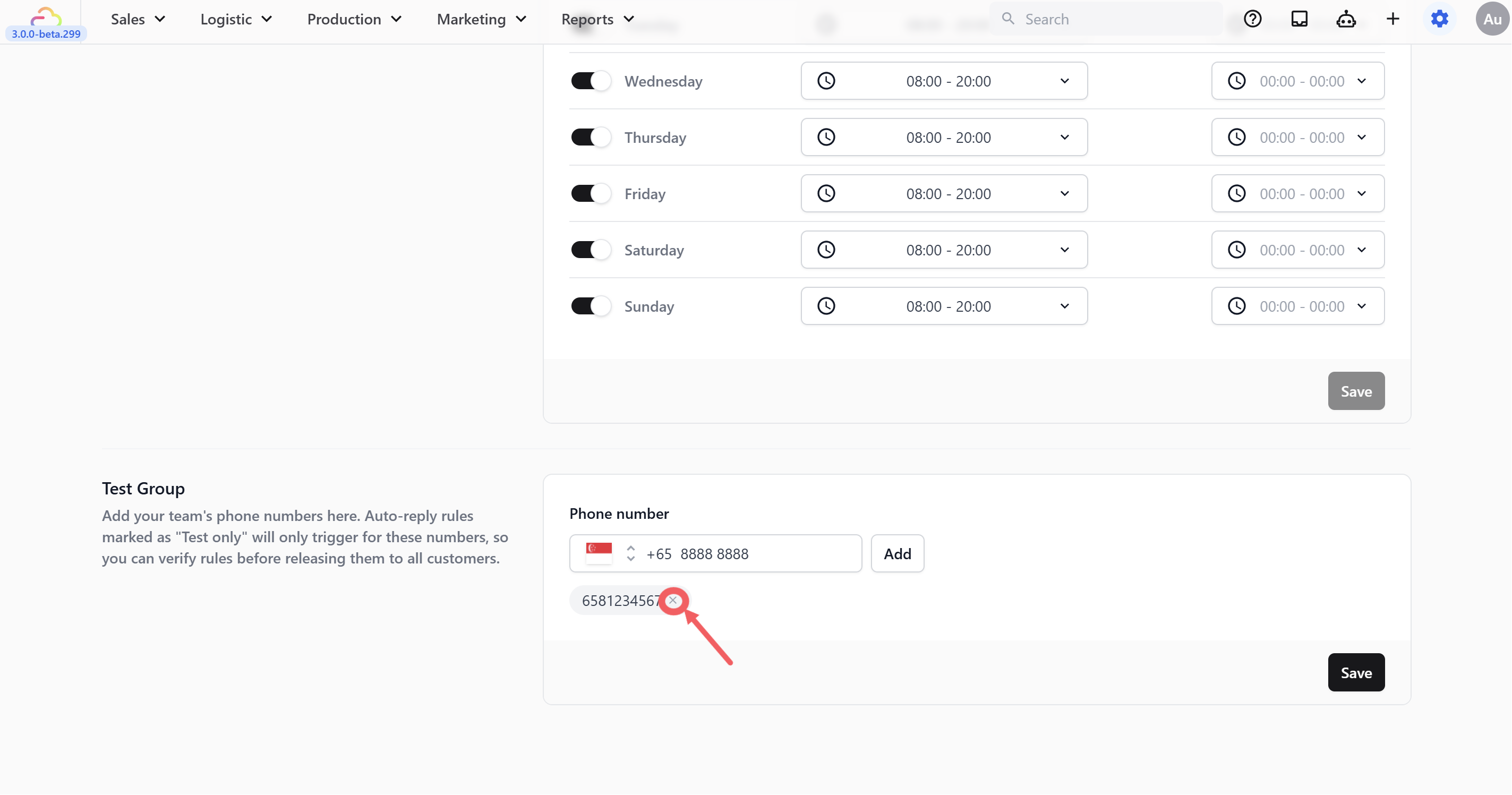
For each day, toggle it on if you are open. Set your opening and closing times using the time dropdowns. If your team takes a lunch break, add a **Break** time as well.
Toggle a day completely off if your shop is closed that day — it will be treated as fully "after hours" for the entire day.
For example, a typical service business might set:
| Day | Hours | Break |
| --- | --- | --- |
| Monday – Friday | 08:00 – 20:00 | - |
| Saturday | 08:00 – 17:00 | - |
| Sunday | 08:00 – 17:00 | - |
Break hours are optional. If you do not take a break, leave the break fields empty or at 00:00–00:00. During break hours, the system treats your business as "closed" — so after-hours rules will fire if a customer messages during your break. Keep breaks realistic (e.g. 13:00–14:00) — a 4-hour break would trigger after-hours replies for a large chunk of the day.
Click Save at the bottom of the Business Hours section.
If Business Hours are disabled, your "Within business hours" and "After business hours" rule conditions will not work correctly. The \{Next Available Time\} placeholder in your messages will also have no value to display. Always enable this before going live with any hours-based rules.
---
## Setting Up Your Test Group
The Test Group is a list of your own team's phone numbers. When you set a rule to **Testing** mode, it only fires for these numbers — not for real customers. This lets you safely test a rule on yourself before releasing it.
### Adding a Test Number
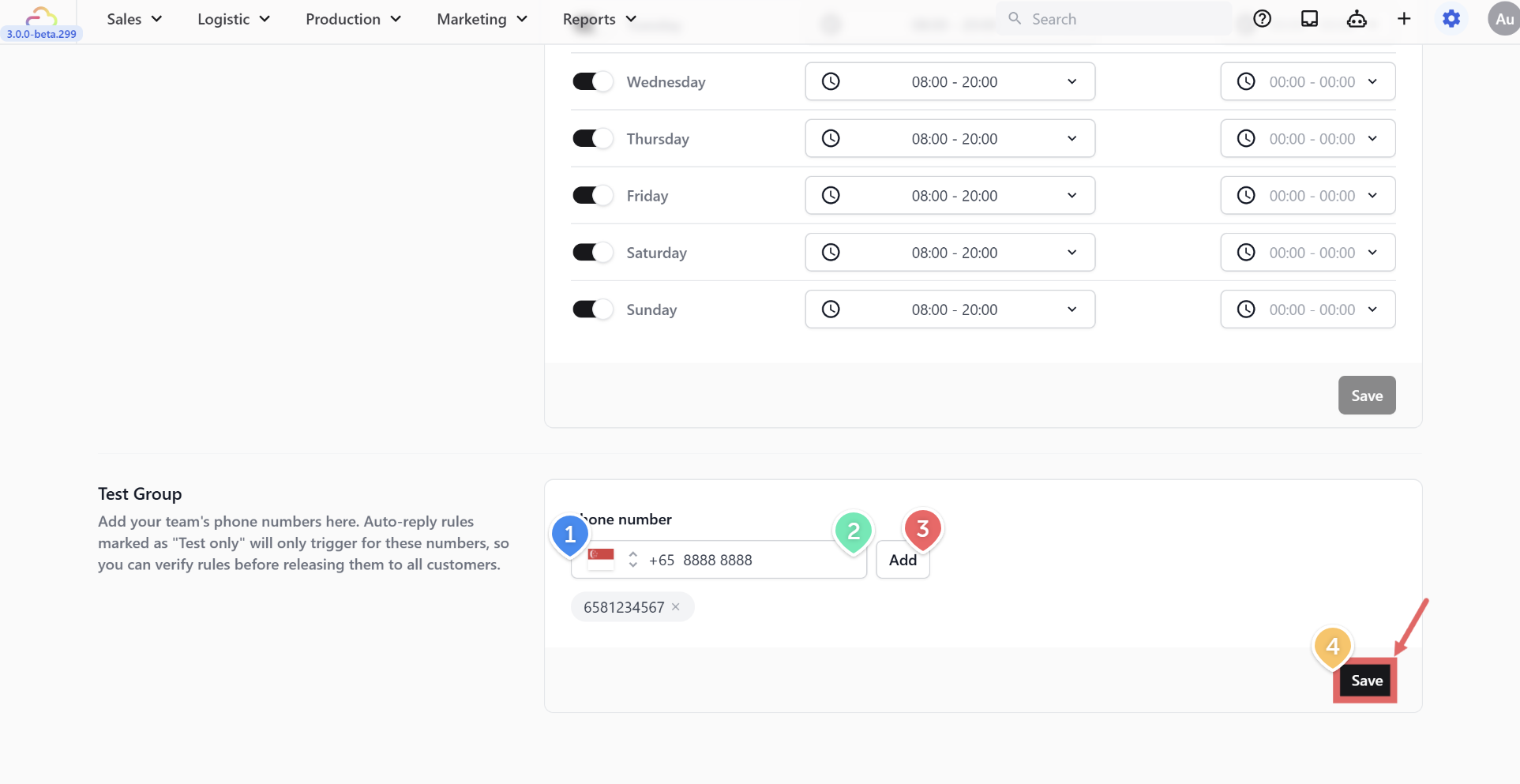
1. Still in General Settings, scroll down to the **Test Group** section.
2. Select your **country code** from the dropdown (e.g. +65 for Singapore, +60 for Malaysia, +62 for Indonesia).
3. Type in a phone number and click `Add`.
4. Click Save.
Singapore (+65), Malaysia (+60), Indonesia (+62), Philippines (+63), Vietnam (+84), Thailand (+66), Myanmar (+95), and Cambodia (+855).
### Removing a Test Number
Click the **×** button next to any phone number chip to remove it from the test group.
## How Testing Works
When a rule's status is set to **Testing** (yellow dot):
- Messages from numbers **in** the Test Group → auto reply **fires**
- Messages from numbers **not** in the Test Group → auto reply **does not fire**
This means you can test your entire auto reply setup without any real customers seeing the messages.
Add at least 2–3 phone numbers — your own number and one or two team members. This way multiple people can verify the rules independently, and you can test scenarios like "new customer" by using a number that hasn't messaged your business before.
---
## Checklist Before Going Live
Before switching any auto reply rule from "Testing" to "Live," run through this checklist:
| Checklist | What to Verify |
| --- | --- |
| ✅ Business Hours enabled | The toggle is ON |
| ✅ Hours are correct | Your daily schedule matches your real opening hours |
| ✅ Timezone is correct | Matches your shop's physical location |
| ✅ Closed days are toggled off | Any day you're closed has its toggle switched off |
| ✅ Test Group has numbers | At least one team phone number is added |
| ✅ Rules tested | You've sent test messages and verified the right replies come through at the right times |
---
## What's Next
Now that your general WhatsApp settings are in place, continue to [New Customer Welcome](/docs/new-customer-welcome) to set the first auto-reply that greets unknown numbers messaging your business.