## What is a Mini App?
A Mini App is a booking form that opens directly inside WhatsApp. When a customer messages you asking about a service, you send them a button instead of asking for their name, address and preferred time one question at a time. They tap the button, fill in a short step by step form, and the booking lands in your EasyBiz system automatically. There is nothing for your customer to download or install. If they have WhatsApp, they can use it.
There's nothing extra for your customer to download or install. If they have WhatsApp, they can use it.
---
## Who Is This For
Any service business that takes bookings, including laundry, dry cleaning, bag repair, shoe repair and clothing alteration. If your team collects booking details through WhatsApp messages or phone calls today, a Mini App replaces that back and forth.
---
## How It Helps Your Business
- **Stop chasing information.** One form collects the name, address, time slot and service type in a single go.
- **Capture bookings faster.** The moment a customer shows interest, you send the form. The faster they can confirm, the less likely they are to change their mind.
- **No manual typing.** Every completed booking creates a new order in EasyBiz straight away.
- **Returning customers do not repeat themselves.** EasyBiz recognises an existing customer and fills in their saved details.
A customer messages CleanFast Laundry asking to book a pickup for tomorrow. Instead of asking three questions, the staff taps the Mini App button and sends the form. The customer fills it in under a minute and the order appears in the console.
---
## Before You Start
Your WhatsApp Business account must be connected to EasyBiz. This is what lets a Mini App appear as a tappable button inside your customers' chats.
[Set up WhatsApp Integration](/docs/connect-and-configure-whatsapp)
---
## Where to Find Mini Apps
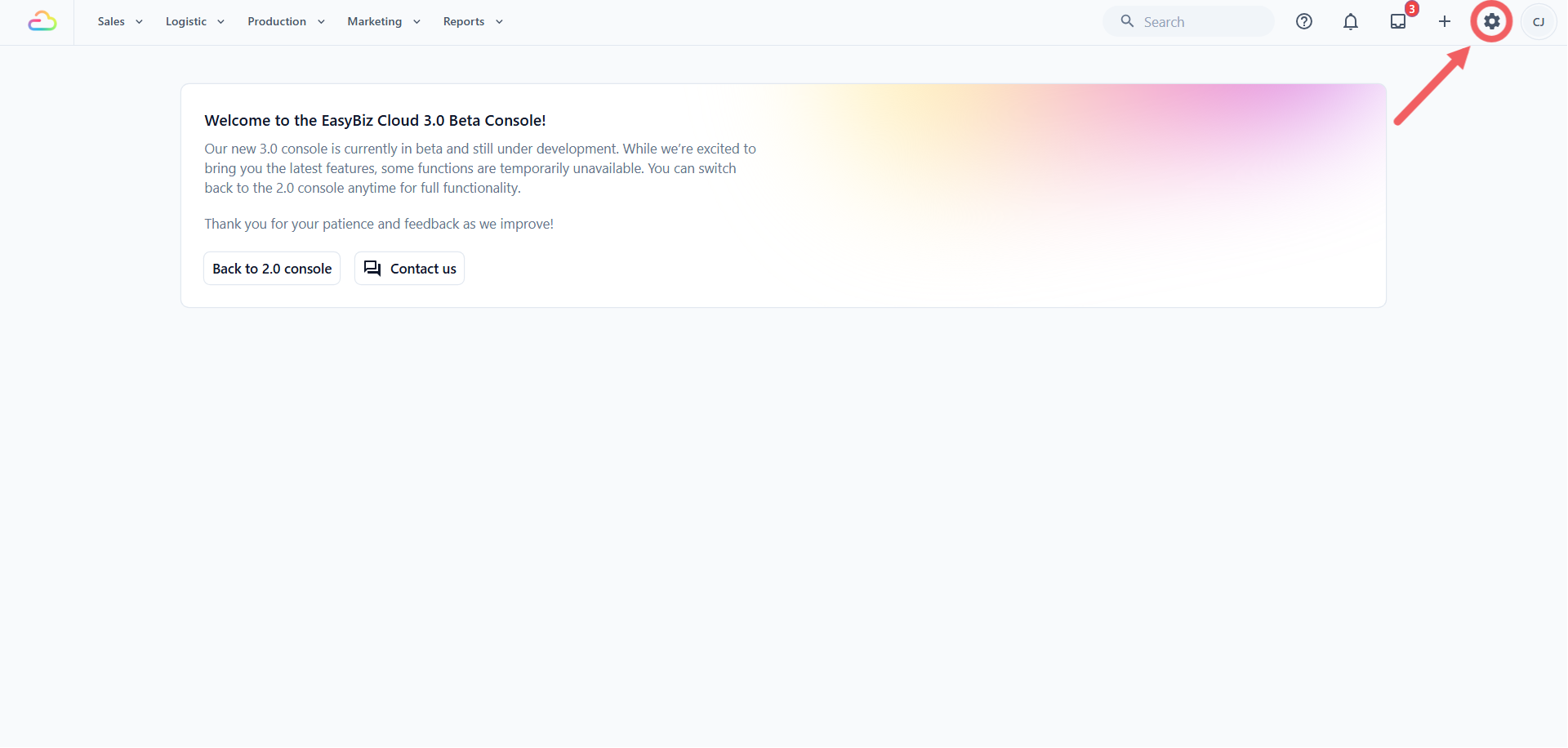
1. Click Settings in the top navigation bar.
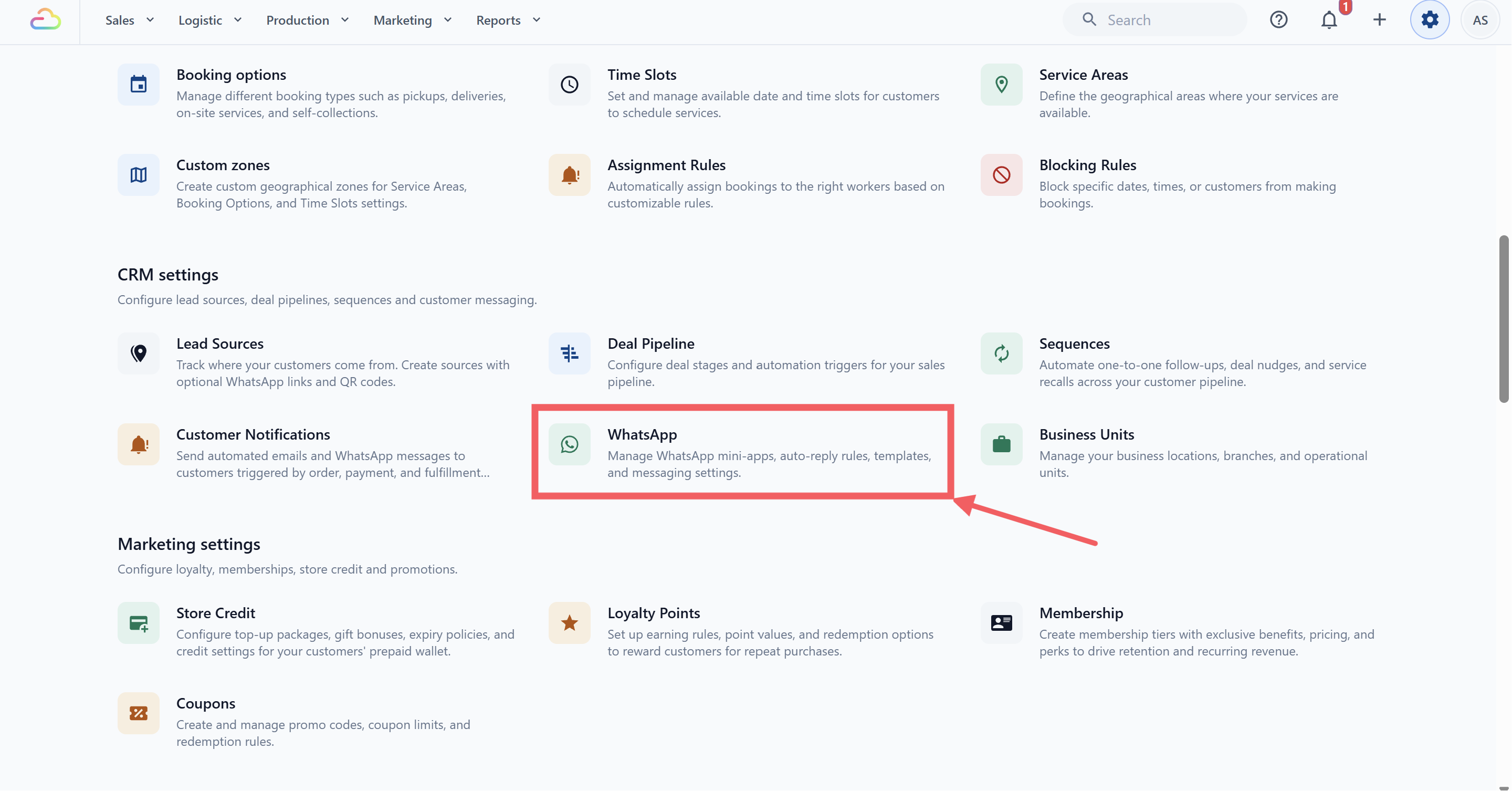
2. Under the **CRM settings** section, click WhatsApp.
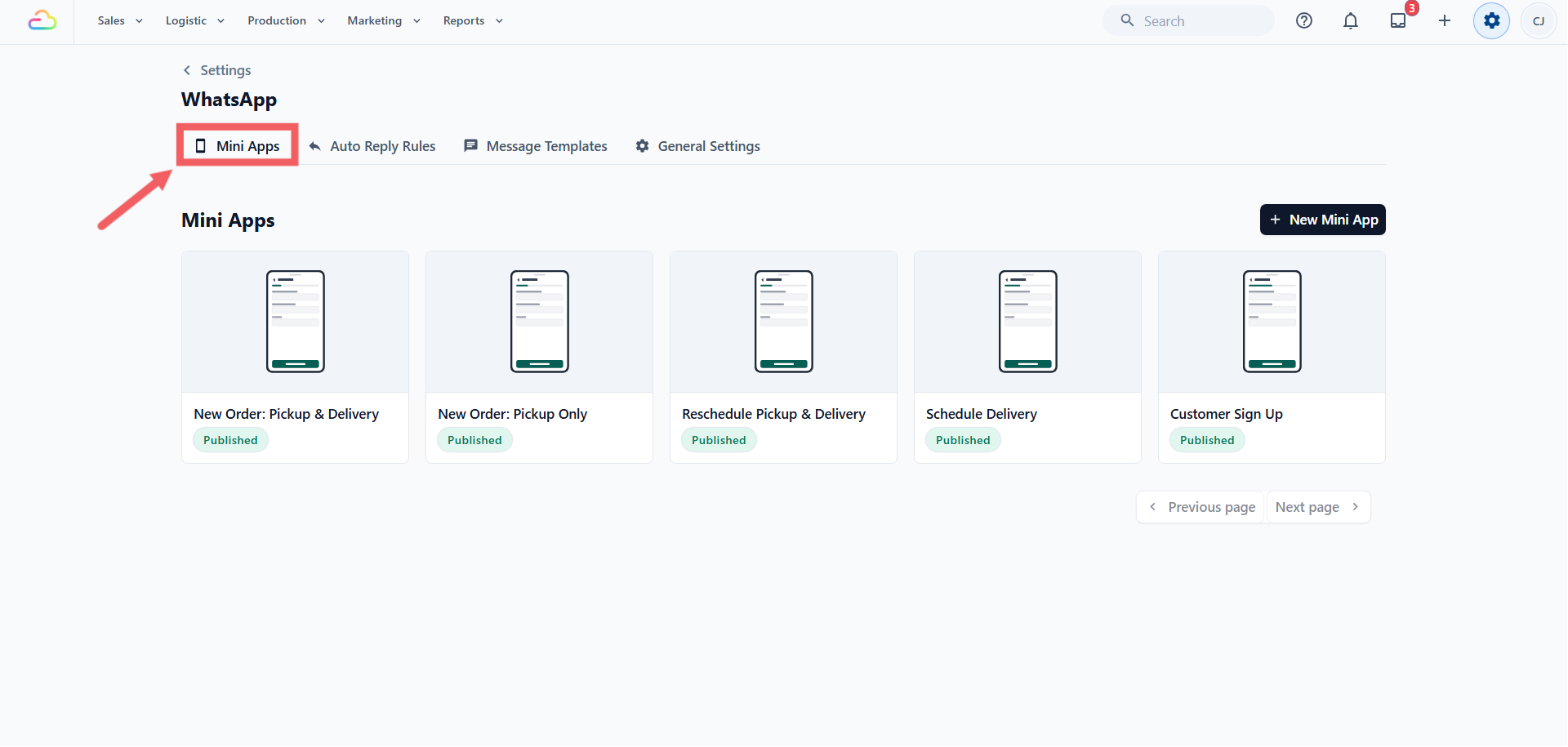
3. Click the Mini Apps tab.
---
## Which Mini App Should You Use
When you click + New Mini App, the templates are grouped under four headings. Pick the one that matches what you are trying to do.
| Group | Template | Use it when |
| --- | --- | --- |
| New Order | New Order: Pickup & Delivery | You can confirm the pickup date and the delivery date at the same time. Best for laundry and dry cleaning. |
| New Order | New Order: Pickup Only | You do not know the finish date yet. Best for bag repair, shoe repair and alterations. |
| Schedule | Schedule Delivery | The job is done and you want the customer to pick a delivery date. |
| Schedule | Reschedule Pickup & Delivery | An existing booking needs to move to a new date and time. |
| Customer | Customer Sign Up | You only want the customer's contact details and address, with no booking. |
| Other | Blank Mini App | None of the above fits and you want to build the form yourself. |
---
## How a Mini App Works
Step 1. You send the form. While chatting with a customer in your WhatsApp Inbox, you tap the Mini App button and send the form with one click.
Step 2. The customer fills it in. They tap the button in WhatsApp and see a simple step by step form. They enter their address, pick a time slot and confirm, all without leaving WhatsApp.
Step 3. The booking is created. The order appears in your EasyBiz console automatically.
---
## FAQs
**Do my customers need to install anything?**
> No. The form opens inside WhatsApp. If they can use WhatsApp, they can use a Mini App.
**Can I put a Mini App link on my website or print it as a QR code?**
> No. A Mini App only opens from inside a WhatsApp conversation, so there is no web link and no QR code for it. If you want a printed QR code that starts a WhatsApp chat with your shop, use Lead Sources instead.
**How many Mini Apps can I create?**
> There is no fixed limit. Most shops run two or three, for example one for new bookings and one for rescheduling.
**Can one Mini App handle both my laundry and my bag repair work?**
> It is cleaner to create one Mini App per business unit. A business unit is a line of service in your shop, for example Laundry & Dry Cleaning or Bag Repair. Each Mini App is linked to one business unit so the order is created against the right service.
**What is a sales channel and why does the Mini App ask for one?**
> A sales channel is the place an order comes from, for example a POS counter or your online store. Linking the Mini App to a sales channel tells EasyBiz where these WhatsApp bookings should be counted in your reports.
**Do I have to use a template, or can I build my own form?**
> You can start from Blank Mini App and build every screen yourself. Most shops find one of the five ready templates faster.
**What happens if a customer starts the form and does not finish it?**
> No order is created. Nothing is saved until they tap the final button on the last screen.
**Does a Mini App booking respect my time slots and non working days?**
> Yes. The date and time screens read the same booking options, lead times and blocking rules you already configured, so customers cannot pick a slot you are closed for.
---
## What's Next
Now that you know which template fits your shop, read [How the Mini App Builder Works](/docs/how-the-mini-app-builder-works) so the setup guides make sense before you start building.