Your POS keeps itself up to date, and your staff can reach the EasyBiz team from the counter without leaving the sale.
If you landed here from search: this is the everyday guide to keeping a POS counter updated and getting help. If your counter isn't signed in yet, start with [Signing In, Switching and Signing Out a POS Device](/docs/sign-in-to-your-pos).
## Before You Start
- Your POS is signed in at the counter. See [Signing In, Switching and Signing Out a POS Device](/docs/sign-in-to-your-pos).
- No special access is needed. Any staff member at the counter can update, reload or message the EasyBiz team.
---
## Overview
The POS updates itself in the background, so your staff never have to install anything by hand. When an update needs the screen to reload, the POS shows a clear sign at the bottom of the screen, and staff choose when to tap it. Until they do, the counter keeps working on the version it already has. Your settings page also shows which POS app and version this counter runs, and has a button to reload the screen when something looks stuck. The same page has a Support chat, so staff can ask the EasyBiz team for help and read the replies right at the counter.
---
## Where it works
- **POS in a browser** (Chrome or Edge on a computer or tablet): staff see the update sign in the bottom bar and reload with one tap.
- **The EasyBiz POS app** (iPad, Android tablet): staff see the same sign, and the app downloads the update before asking to reload. Bigger changes to the app itself come from the App Store or Google Play.
- **Paired displays and phones** (a customer-facing display or a staff phone paired to the counter): an update button appears in the top bar of the device.
- **Support** works on every POS counter, in the browser and in the app.
---
## Why keep your POS up to date
Updates bring fixes and new features to your counter. Most of them arrive while staff work, with no action needed. A few need the screen to reload before the counter can use them.
If staff skip the sign, nothing breaks. The counter keeps working on the old version until someone reloads it. This is why two counters in the same shop can show different versions for a while.
---
## Signs of an update
Each device shows its own sign when an update is waiting.
| **Where** | **What staff see** | **What happens when they tap it** |
| --- | --- | --- |
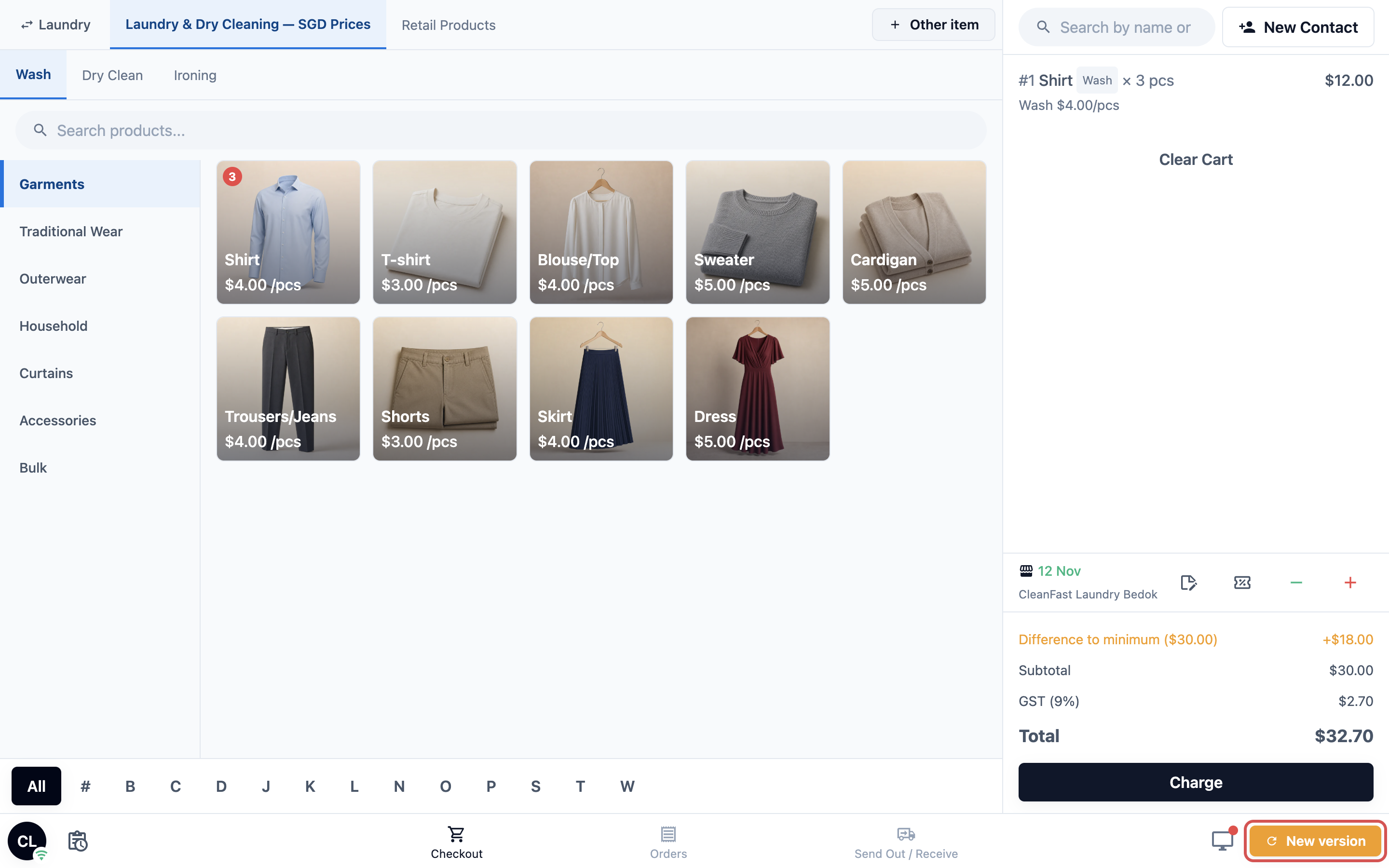
| POS in a browser | The ⚙️ Settings icon in the bottom bar turns into a yellow New version button | The screen reloads. The cart is kept, and the Settings icon comes back after the reload |
| EasyBiz POS app | The same yellow New version button in the bottom bar | The app downloads the update, then shows **Update Ready** with the new version number |
| Paired display or phone | A red button in the top bar, showing the new version number | The device downloads the update, then shows **Update Ready** |
A paired display left on all day still gets its update. The device checks for new versions regularly, not only when it is opened.
---
## Updating the POS
### On a POS in a browser
1. Finish serving the customer at the counter.
2. In the bottom bar, tap New version.
3. Wait a few seconds while the screen reloads.
The POS opens again on the new version, with your cart still there.
### On the EasyBiz POS app or a paired device
1. Finish serving the customer at the counter.
2. Tap New version in the bottom bar (on a paired display or phone, tap the red version button in the top bar).
3. Wait while the app downloads the update. A message titled **Update Ready** shows the new **Version** and, sometimes, a short note on what changed.
4. Tap Reload now to update straight away, or Later to keep working and update when the counter is quiet.
The **Update Ready** message appears on top of the checkout screen. It shows **Version** followed by the new version number, then a short note on what changed when there is one. Below it are two buttons, Later and Reload now.
If you tap Later, the New version button stays in the bottom bar until someone updates.
An urgent update shows **Critical Update Required** instead, with only an Update Now button. Finish the current sale, then tap it: the app can't be used on the old version.
If staff tap the button and the app finds nothing new to install, it shows **Your app is up to date**. Nothing is waiting, and staff can carry on.
---
## App store updates
Most updates arrive through the New version button. Bigger changes to the EasyBiz POS app itself need a new version from the App Store or Google Play. The app tells your staff when that happens.
- **Update available**: a message says the new version is on the App Store or Google Play. Tap Update to go to the store, or Later to carry on. The message comes back at most once a day.
- **Update required**: when the version on the tablet is no longer supported, the whole screen shows **Update required** with an Update button. The counter can't be used until the app is updated in the store.
Browser counters never need a store update. They get everything through the New version button.
---
## Checking your version
Check the version when you contact support, or when one counter behaves differently from another.
1. In the bottom bar, tap the ⚙️ Settings icon.
2. Scroll to the **App** section.
3. Read **POS App** (the name of the POS app this counter runs) and **Version**.
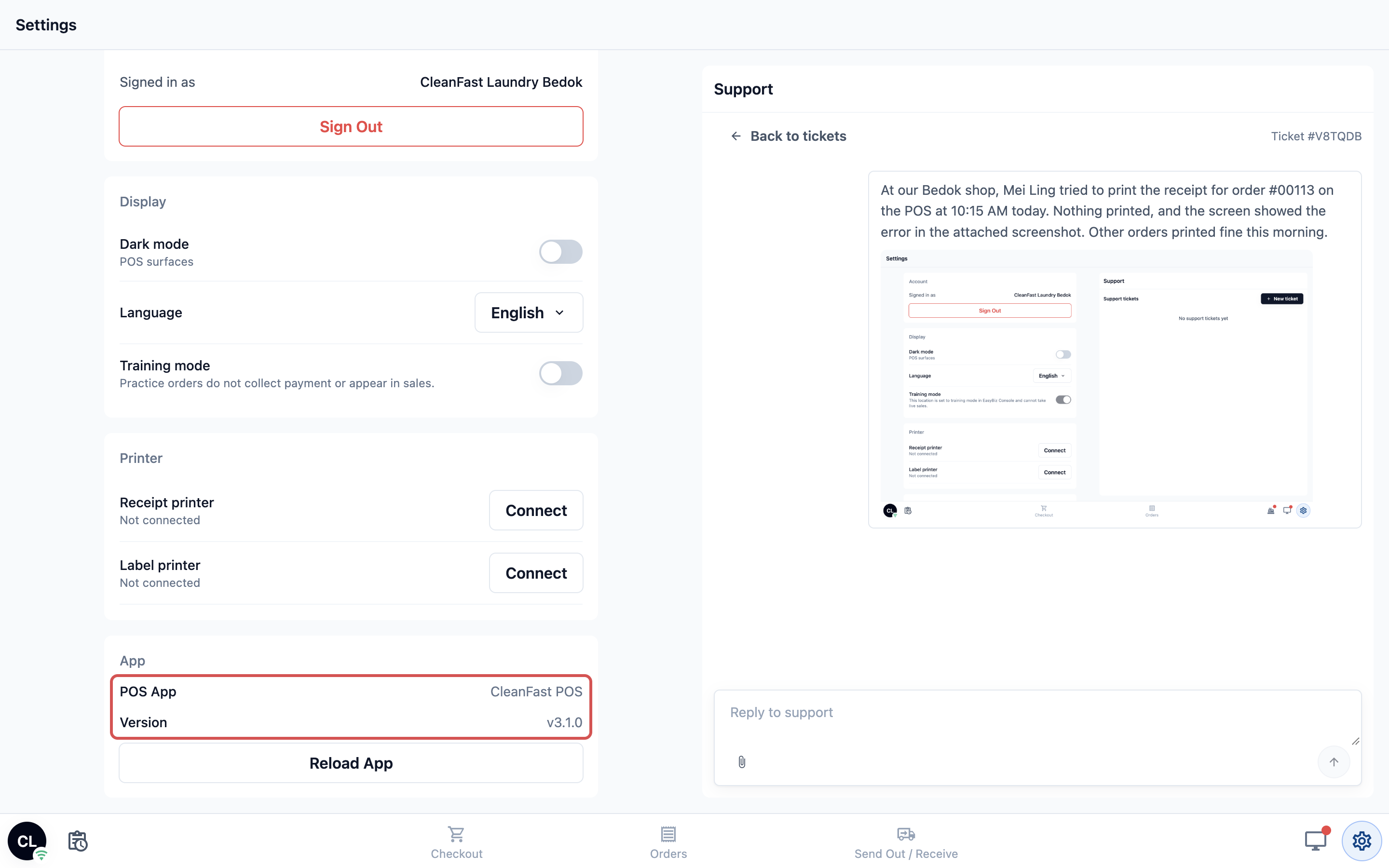
Below them, Reload App reloads the screen. Use it when something looks stuck, for example a page that stops responding or a change from the Console that hasn't appeared yet.
Reload App is always safe: the counter stays signed in. Sign Out in the Account section signs the device out, and a Console admin then has to sign it in again.
---
## Getting help from EasyBiz
Staff can message the EasyBiz team from the counter and read the replies there.
1. In the bottom bar, tap the ⚙️ Settings icon.
2. Under the **Help** section, find **Support** ("Ask the EasyBiz team for help. Their replies show here.").
3. Tap Open.
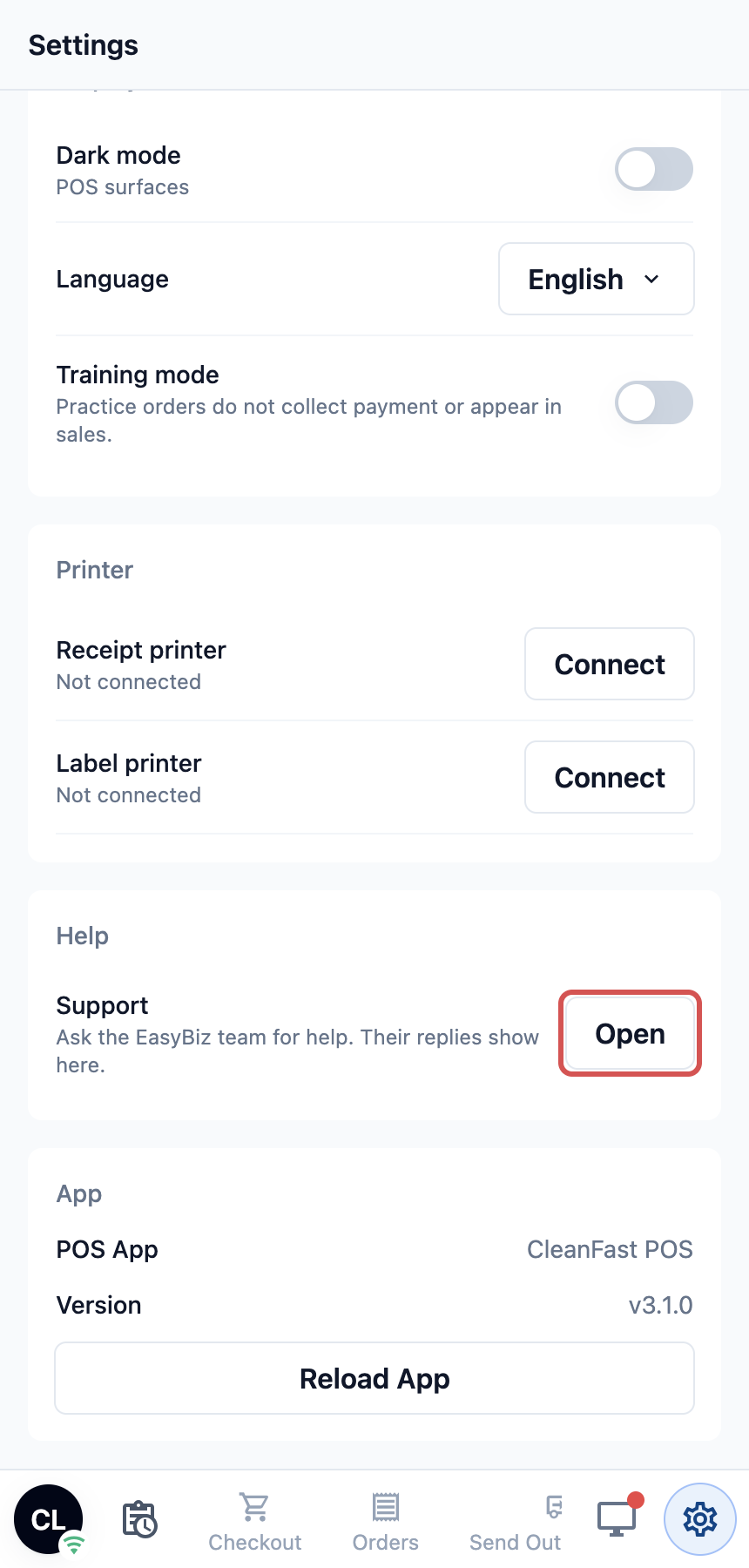
4. Write your message. You can attach photos, videos or documents, such as a picture of an error on the screen.
On a wide screen, such as a tablet in landscape or a computer, Support opens beside your settings instead, so staff see both at once. Staff can switch to Checkout or Orders and serve customers while they wait. The chat stays where they left it.
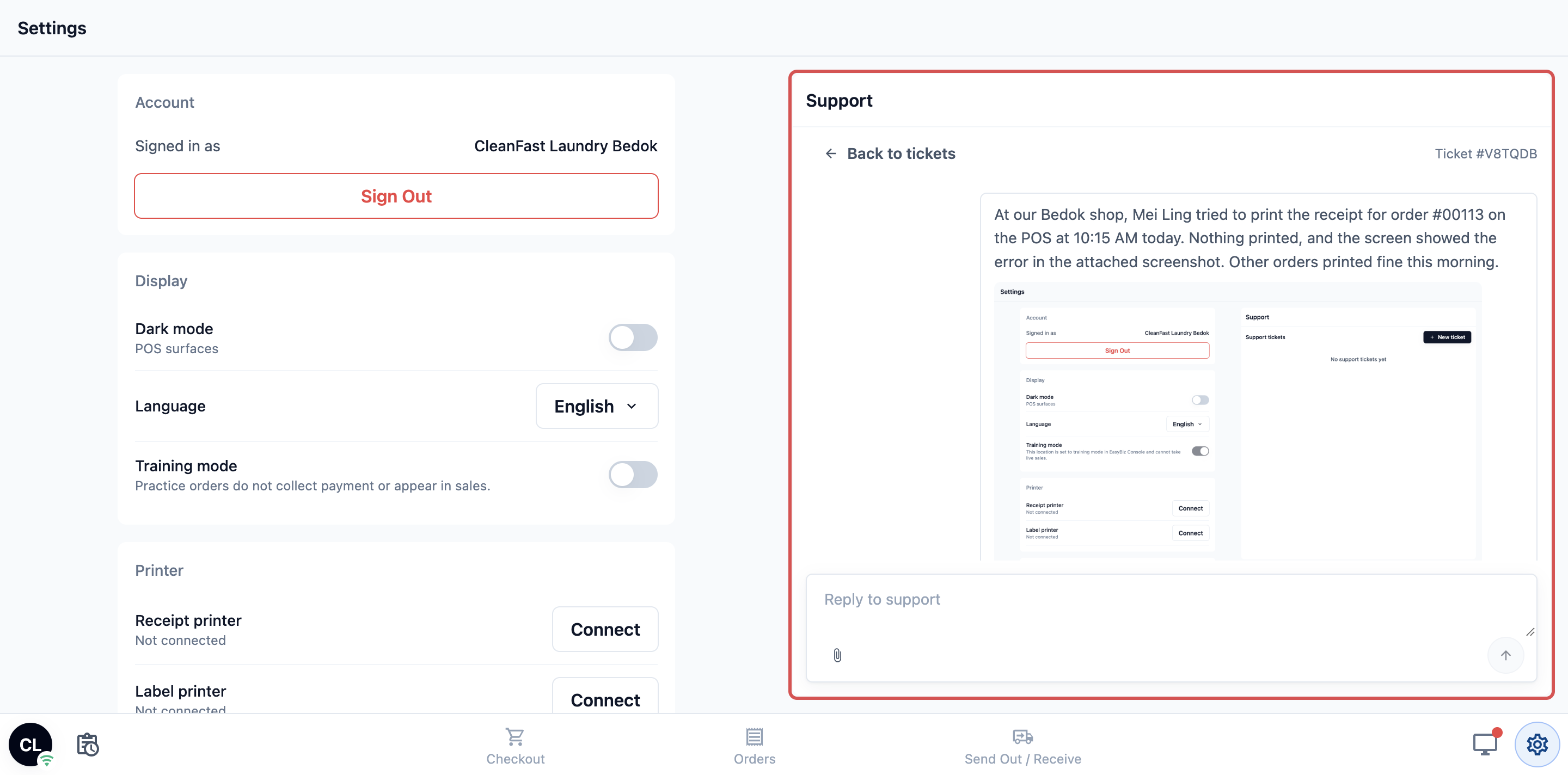
The Support chat shows when the team is available: 9 AM to 6 PM Singapore time. Outages are handled outside office hours too, including weekends.
### When EasyBiz replies
When a reply comes in, the ⚙️ Settings icon in the bottom bar shows a red dot. Open Settings and the **Support** row says **1 new reply**. Tap Open to go straight to it.
The red dot sits on the ⚙️ Settings icon in the bottom bar, so staff can see it from any page.
Every counter signed in to the same shop shares one Support chat. A question asked at one Tampines counter can be followed up from another Tampines counter.
---
## Before contacting support
A few checks often solve the problem, and the rest help the team answer faster.
- Tap Reload App first, or New version if it is showing.
- Check the counter's internet connection.
- Note the **Version** from Settings.
- Note the order number and the time the problem happened.
- For a payment you're unsure about, follow the steps in [Internet drops during payment](/docs/collecting-payment-at-checkout) and never charge the customer a second time.
---
## Example
At 3 PM, the CleanFast Laundry Tampines counter shows a yellow New version button where the Settings icon usually is. A customer is paying for 3 shirts, so staff finish that sale first. They then tap New version. The screen reloads in a few seconds, the next customer's cart is still there, and the Settings icon is back. In Settings, the **Version** now matches the Jurong counter.
---
## FAQs
**Do I lose the cart when I reload?**
> No. The cart is kept and is there after the reload. To be safe, finish the sale you are taking before you update.
**Do I have to update right away?**
> No. The counter keeps working on its current version until someone taps New version or Reload App. The only exceptions are **Critical Update Required** and **Update required**, which must be done before the counter can be used.
**Why does one counter show a different Version from another?**
> That counter hasn't reloaded since the update. Tap New version or Reload App on it and both counters will match.
**Who sees my support messages?**
> The EasyBiz support team, and staff on every counter signed in to the same shop. Counters in another shop, for example Jurong, have their own Support chat.
**Does updating sign out the POS?**
> No. The counter stays signed in to the same shop. Only Sign Out signs it out.
**The red dot is gone but I haven't read the reply. Where is it?**
> When an update is waiting, the yellow New version button takes the Settings icon's place, so the red dot can't show. Tap New version, then open Settings: the Support row still shows the new reply.
**Do I need to update the paired display separately?**
> Yes. A paired display or phone shows its own update button in its top bar. Updating the counter doesn't update the devices paired to it.
---
## What's Next
You have finished the EasyBiz POS series. Your shop is set up, your POS app is built, your features are on, and your staff can serve customers, take payment, keep the counter updated and get help when they need it. To see how every part fits together, or to find an article again, go back to the series map in [Introduction to EasyBiz POS](/docs/what-is-easybiz-pos).