Most missing or wrong suggested replies come from one of four places: the **Suggest replies** switch, missing or outdated shop information, the **Reply style** settings, or a handover rule. Check them on **AI › Customer Service Agent**, fix the information where it lives, then ask the same question again in the Test chat.
## Before You Start
- Read [Manage Knowledge Learned from Conversations](/docs/manage-knowledge-learned-from-conversations), especially if the problem started after the agent learned an answer from your staff.
- Use an owner account or an account with permission to manage the Customer Service Agent.
- Make sure you can open the affected inbox conversation. Editing business knowledge or other settings may require additional permissions.
- Have the customer's question, the suggested reply and the correct answer ready.
- For an order-specific problem, check that the conversation concerns the correct customer and order. The agent can answer general questions without identifying the customer, but may lack the details needed to answer about their orders.
---
## Find the Agent Checks
1. In the top navigation bar, click the AI dropdown.

2. Click Customer Service Agent .

3. On the Overview tab, check the Suggest replies switch.

4. For knowledge, writing style or handover checks, click Settings .

The settings page contains the Knowledge, Reply style and Handover to your team sections, with Test chat beside them on a wide screen. Use the section below that matches your problem.
---
## No Suggestion Appears
Work through these checks in order.
1. Check whether Suggest replies is switched on. If it is off, follow [Get Started with Customer Service Agent](/docs/get-started-with-customer-service-agent) to enable suggestions for your business.
2. Check where the staff member is answering. In the Console inbox, suggested replies need a CRM seat. At the counter, they appear on the POS **WhatsApp Chat** page, which comes with Point of Sale Professional.
3. Check whether the page shows a notice asking you to connect a WhatsApp number. If it does, complete the messaging connection covered in [Get Started with Customer Service Agent](/docs/get-started-with-customer-service-agent).
4. Check whether the latest message still needs a reply from your team. A conversation your staff have already answered does not get another suggestion, and neither does a customer who only tapped a button such as YES to carry on. Follow [Use Suggested Replies in Your Inbox](/docs/use-suggested-replies-in-your-inbox) for the normal reply flow.
5. Look for a short notice ending in “Needs a person:” and a topic. It means the message matched one of your own handover topics, so no draft was written. Review the topic using [Choose When Staff Should Handle a Conversation](/docs/choose-when-staff-should-handle-a-conversation).
6. If the business setup is incomplete, check the required setup in [Get Started with Customer Service Agent](/docs/get-started-with-customer-service-agent). Suggestions need a sales channel and a business unit, such as your laundry or bag-care operation.
7. Check whether the staff member paused suggestions for themselves. The message box then shows “AI suggestions are paused for you” with a Resume button.
A missing suggestion does not always mean the agent is switched off. Suggestions only work for WhatsApp conversations, and not after the WhatsApp 24-hour reply window has closed.
If you see an access error or suggestions are missing across otherwise valid conversations, contact support using the section below.
---
## The Answer Is Inaccurate
1. Check the original business setting for the incorrect fact. Prices, services, minimum orders and opening hours are read from your settings, so correct them at their source as explained in [Prepare Your Business Knowledge](/docs/prepare-your-business-knowledge).
2. Check whether the relevant policy or answer is missing, incorrect or limited to a different business unit. Correct the entry using [Prepare Your Business Knowledge](/docs/prepare-your-business-knowledge).
3. If the answer came from a conversation your staff handled, check whether the learned entry is approved. Review it using [Manage Knowledge Learned from Conversations](/docs/manage-knowledge-learned-from-conversations).
4. For an order-specific answer, check that staff are looking at the correct customer and order. Follow [Use Suggested Replies in Your Inbox](/docs/use-suggested-replies-in-your-inbox) to review the conversation before sending a reply.
The agent can also use published Quick Replies, which are saved messages your team reuses. Include those in your information review if an old phrase or policy keeps returning.
If a draft shows "Check prices and dates before sending: they are not in your business records.", the price, date or day in it was not found in your settings, Business Knowledge, Quick Replies or the conversation. Add the missing fact where it belongs, so later drafts can use it.
If CleanFast Laundry's old knowledge entry says curtain cleaning takes three days but the current policy is five working days, correct the entry rather than adding a conflicting instruction to the reply style. Staff should check that a newly generated suggestion uses the correct policy before sending it.
---
## The Answer Is Out of Date
1. Check whether the new information was saved in its original setting or knowledge entry. Update the source using [Prepare Your Business Knowledge](/docs/prepare-your-business-knowledge).
2. Check whether a learned correction is still waiting as a draft. Review it using [Manage Knowledge Learned from Conversations](/docs/manage-knowledge-learned-from-conversations), because a waiting draft is not yet usable knowledge.
3. Check whether you are reading a suggestion generated before the correction. Follow [Test Your Agent Before Using It](/docs/test-your-agent-before-using-it) to ask the question again in a fresh test conversation.
An existing inbox suggestion may be reused for a while. Changing knowledge does not guarantee that reopening the same conversation will immediately produce a new suggestion, so staff should correct any stale wording before sending it.
---
## The Language Is Wrong
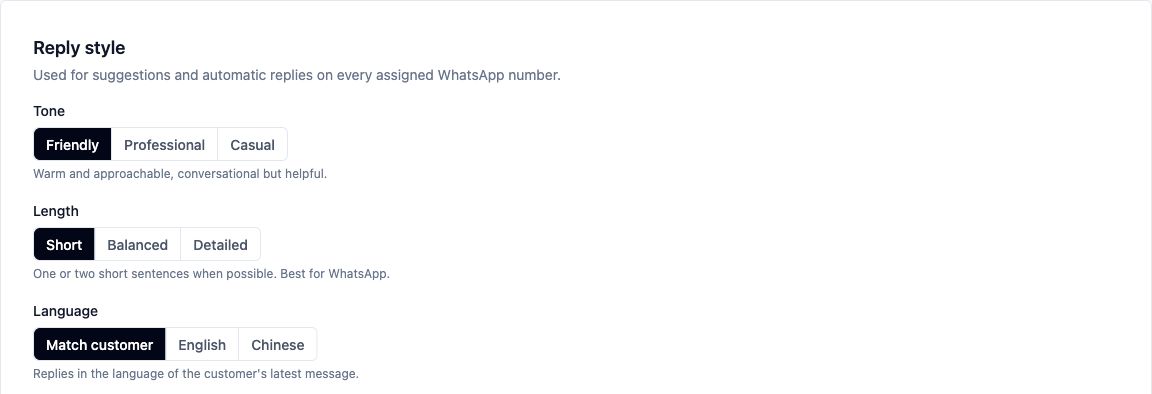
Check Language in the Reply style section.
**Language**
| Option | What it does |
| --- | --- |
| Match customer | Uses the language of the customer's latest message. |
| English | Directs the agent to reply in English. |
| Chinese | Directs the agent to reply in Simplified Chinese. |
1. Check whether a fixed language was selected when you expected the agent to follow the customer. Change it using [Customise Your Agent’s Replies](/docs/customise-your-agents-replies).
2. If Match customer is selected, check the customer's latest message rather than an earlier message in the conversation. Use [Customise Your Agent’s Replies](/docs/customise-your-agents-replies) to choose a fixed language if that better suits your shop.
3. Check whether Guidance contains a conflicting language instruction. Remove the conflict using [Customise Your Agent’s Replies](/docs/customise-your-agents-replies).
---
## The Tone or Length Is Wrong
1. Check Tone and Length in Reply style. Choose the intended options using [Customise Your Agent’s Replies](/docs/customise-your-agents-replies).
2. Check Guidance for instructions that conflict with those choices, such as requesting a long explanation while selecting a short reply. Keep the instructions consistent using [Customise Your Agent’s Replies](/docs/customise-your-agents-replies).
3. Check whether you tested changes but left them unsaved. Save the intended style using [Customise Your Agent’s Replies](/docs/customise-your-agents-replies) so future live replies can use it.
Tone offers Friendly , Professional and Casual . Length offers Short , Balanced and Detailed .
Guidance is optional. Leaving it empty means there are no extra writing instructions from you; the selected tone, length and language still apply. A short reply aims for one or two short sentences where possible, rather than a fixed word count.

---
## The Conversation Says “Needs a Person” Unexpectedly
Handover means the conversation needs attention from your staff.
1. Read the reason beside “Needs a person” and compare it with what the customer asked. Review the intended boundaries in [Choose When Staff Should Handle a Conversation](/docs/choose-when-staff-should-handle-a-conversation).
2. Check Also hand over in the Handover to your team section. These extra topics match keywords, so narrow an overly broad topic using [Choose When Staff Should Handle a Conversation](/docs/choose-when-staff-should-handle-a-conversation).
3. Check whether the message is a complaint, refund or compensation request, request for a person, or price negotiation. Follow [Choose When Staff Should Handle a Conversation](/docs/choose-when-staff-should-handle-a-conversation) to understand how these situations are handled.
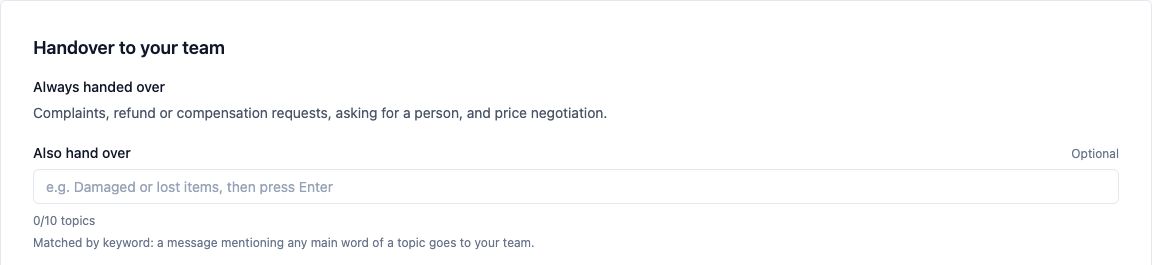
In suggested-reply mode, a built-in handover warning can appear alongside a draft because your staff are already reviewing it. A matching extra handover topic can leave the reply to your team without a draft. Do not remove a necessary rule only to make a suggestion appear.
---
## Confirm Your Fix
Use [Test Your Agent Before Using It](/docs/test-your-agent-before-using-it) to ask the original question again and compare the answer with your corrected information.
For CleanFast Laundry's curtain example, ask “How long does curtain cleaning take?” and check whether the reply reflects the corrected five-working-day policy. Check the facts first, then the language, tone and length.
Test chat can use changes you have not saved. Live replies use saved settings, and the test chat does not send messages to customers.
Test chat is not linked to a real customer's identity. A successful general test does not confirm that the agent has the correct customer or order information in an inbox conversation.
Over the following week, watch the **Performance** card on the agent's Overview tab. If your fix worked, more drafts are **Sent as it was** and fewer are **Edited** or **Not used**. The card is updated every two hours.
---
## What Changes After a Fix
- Saved reply-style and handover changes apply to newly generated replies.
- Approved knowledge becomes available for relevant future answers. An existing suggestion may still show the old information for a while.
- Messages already sent stay unchanged. If a customer received incorrect information, your staff need to send a correction.
- Knowledge changes do not update orders, payments or booking settings. Correct those separately through their usual screens.
---
## When to Contact Support
Contact support if suggestions remain missing after the checks, a saved change repeatedly fails to affect new answers, or you see an error that prevents you from continuing.
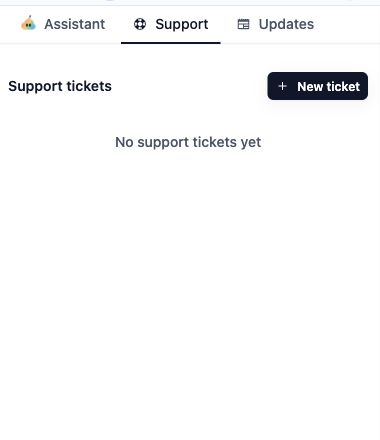
1. Click the Help icon in the top navigation bar.

2. Click the Support tab, where available.

3. Click New ticket .
Include your shop name, the affected conversation, when the problem happened, the customer's question, what the agent suggested and what the correct answer should have been. State whether the problem happened in Test chat or in the inbox, and whether it affects one conversation or several.
If your account does not show the Support tab, use your existing EasyBiz support conversation.
---
## FAQs
**Why does one customer receive a suggestion while another does not?**
>Suggestions depend on the conversation as well as your business settings. One conversation may already have a staff reply, match an extra handover topic or be outside the WhatsApp 24-hour reply window. Missing customer identification alone does not block general suggestions.
**Why can the same question receive different wording?**
>The agent considers the surrounding conversation and your reply settings, so wording can vary even when the facts are the same. Check whether the meaning and information are correct rather than expecting an identical sentence each time.
**Do I need to enable learning from conversations to get suggestions?**
>No. Learning is an optional way to build knowledge from staff replies. Suggestions can use your existing business settings and eligible business knowledge without it.
**Can an old Quick Reply affect the agent's answer?**
>Yes. The Customer Service Agent can use published Quick Replies as well as business knowledge. Review both when outdated wording keeps appearing.
**Can I pause suggestions while my team corrects the information?**
>Yes. Switching off Suggest replies stops suggestions in every inbox of your business. Each staff member can also use Pause suggestions for me to stop only their own.
**Why does Test chat look correct while the inbox reply is still wrong?**
> Test chat can preview unsaved settings and does not use a real customer's identity. The inbox uses saved settings and the actual conversation, and it may still show a suggestion generated earlier.
---
## What's Next
You have finished the full Customer Service Agent series. You can now set up, test, use and maintain your agent day to day, with your staff reviewing suggestions and keeping business information current.